1
Using the Network board Connected to a Network
Deleting image files from the network board
Notice
• When “Invalid” is set at “Delete User Image Data” in “Security Setting”, files cannot be deleted. This can be changed to
“Valid” with the administrator’s authority. (See page E-16.)
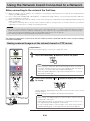
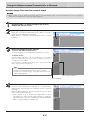
Perform steps 1, 2 and 3 on page E-25, E-26 to
display the file list screen.
Select [Delete].
[Download/Delete] selection button
When “▾” on the [Download/Delete] selection button is clicked, a
pull-down list is displayed. Click [Delete].
When [Delete] is selected, the radio buttons switch to checkboxes •.
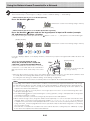
Select the image file to be deleted.
To select and delete individual files:
Click the checkbox for the image file to be deleted to check it.
To delete all files:
Click the [Select All] button. All the checkboxes are checked. If
there are several files you do not want to delete, uncheck the
checkboxes for those files.
To uncheck the checkboxes for all the files, click [Cancel Select
All] to uncheck all the checkboxes.
Note
• Images are previewed when their file name is clicked.
• Check the scanned images using their preview images
before deleting them.
[Cancel Select All] button
[Select All] button
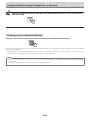
Delete the file(s).
Be sure to transfer important image files to a computer before
deleting them (data backup). Once deleted, the files cannot be
retrieved.
When the [Delete] button is clicked, the image files whose checkboxes are checked are deleted.
• When “Invalid” is set at “Delete User Image Data” in “Security Setting”, the message “No delete authority” is displayed,
indicating that the files cannot be deleted. (See “Administrator
Menu — Security Setting” on page E-16.)
E-27