1
Setting before using a network
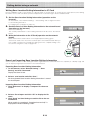
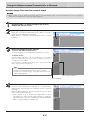
If the network board’s top screen does not open
• Have you made a mistake inputting the IP address that was set?
• Is the network board’s LAN terminal properly connected to a LAN port on the network?
• When using a proxy server, add the network board’s IP address to the “Exceptions” in the proxy’s settings to set so
that the proxy is not used.
If DHCP is set to [Off] (default setting upon purchase), the problem may be caused by the following:
• Is the IP address that was set being used by another device?
• If multiple units of this network board are connected, are they connected to the network with the same IP address?
• Is the IP address that was set within the automatic acquisition range of the DHCP of the router, etc.?
Making Detailed Settings (via LAN)
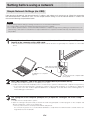
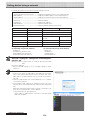
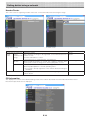
Use this procedure to make the network board device settings (“CB Setup”), network settings, etc., with the network board connected to a local area network (hereafter referred to as “LAN” or “the network”) using a computer’s web browser.
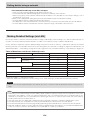
Access authority is required to make the detailed settings. There are two levels of authority – “administrator authority” and “file list
browsing authority”. The selectable menu items (some setting items) are restricted accordingly. To register the administrator, see
“Administrator Menu — User Setting” on page E-15 and to register the user, see “Network Setting — Save Setting” on page E-13.
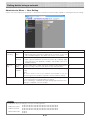
Table of Menu Items and Access Authority Levels
Menu Item
Some Setting Items
Administrator Authority
File List Browsing Authority
•
—
Board/Printer Setting
•
—
Save Setting
•
—
Preview and Download
•
•
Delete
•
—*
User Setting
•
—
Security Setting
•
—
Disk management Setting
•
—
Header/Footer
•
—
CB Information
•
—
CB Setup
Network Setting
Board File List
Administrator Menu
• mark: Accessible : — mark: Not accessible
* When the “Delete User Image Data” security setting is set to “Valid”, deleting is possible with file list browsing authority.
Notice
• When connecting the network board to the network, be sure to consult the network administrator before making the settings.
Note
• Depending on the network being used, the display speed and button response may be slow and operations may not be
performed. If this happens, consult your network administrator. Also, the network board may not respond if buttons are
operated successively. In this case, wait awhile then operate again. If there is no response after a while, turn off the network
board’s power, then turn the power back on.
• If the top screen does not display with a web browser, press the [Ctrl] + [F5] keys to refresh the web browser’s screen.
• The network board uses JavaScript and cookies. Set the web browser so that these functions will operate.
• The network board performs automatic page reading (redirecting). Set the web browser so that this function will operate.
• With SSL enabled on HTTP, a security certificate warning is displayed when this website is accessed by the Web browser.
In this case, select “Continue to this website (not recommended)” to continue your operation.
E-6