1
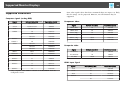
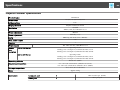
List of Functions
86
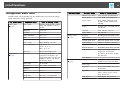
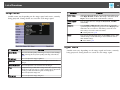
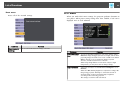
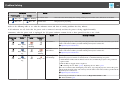
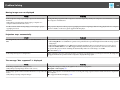
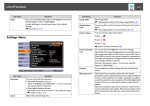
You cannot make settings on the Signal menu when the source is USB
Display, USB, or LAN.
Submenu
Submenu
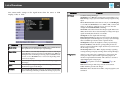
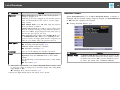
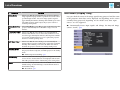
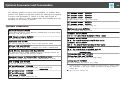
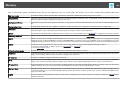
3D Setup
Set when viewing 3D images.
3D Display: Set to On when viewing 3D content. If this is set to
Off, 2D images are projected even when a 3D input signal is being
input.
2D-to-3D Conversion: (This item can only be set if 3D Display
is set to On, and 3D Format is set to Auto or 2D.) Converts 2D
images to 3D images, and then projects. You can select the
strength from Weak, Medium, or Strong.
3D Format: Select the format for the 3D input signal. When set to
Auto, the format is chosen automatically according to the input
signal. Normally this should be set to Auto.
3D Depth: Sets the depth of the 3D image.
Diagonal Screen Size: Sets the projection size for the 3D image.
By matching the actual 3D image size, you can project a 3D image
that is a faithful reproduction of the original contents.
3D Brightness: Adjust the brightness of the projected image.
Inverse 3D Glasses: The shutter opening timing for the 3D
Glasses is inverted from left to right. Use this if you cannot view
the 3D image correctly.
3D Viewing Notice: Set to On to display warnings regarding
viewing 3D images. Displays warnings when viewing 3D images.
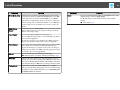
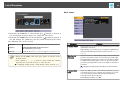
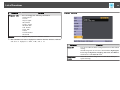
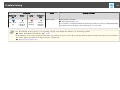
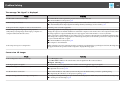
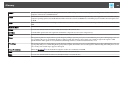
Progressive
(When a component video or RGB video is being input, this
setting can only be adjusted if the signal being input is an
interlaced signal (480i/576i/1080i). This cannot be set when a
digital RGB signal is being input.)
Interlaceg (i) signal is converted to Progressiveg (p). (IP
conversion)
Off: Ideal for images with a large amount of movement.
Video: Ideal for general video images.
Film/Auto: This is ideal for movie films, computer graphics, and
animation.
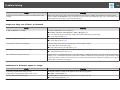
Function
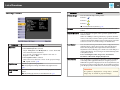
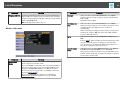
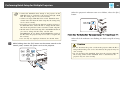
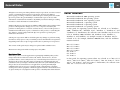
Auto Setup
Set to On to automatically adjust Tracking, Sync., and Position to
the optimum state when the input signal changes.
Resolution
Set to Auto to automatically identify the resolution of the input
signal. If images are not projected correctly when set to Auto, for
example if some of the image is missing, adjust to Wide for wide
screens, or set to Normal for 4:3 or 5:4 screens depending on the
connected computer.
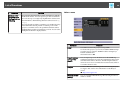
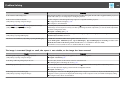
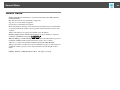
Tracking
You can adjust computer images when vertical stripes appear in
the images.
Sync.
You can adjust computer images when flickering, fuzziness, or
interference appear in the images.
Position
You can adjust the display position up, down, left, and right when
a part of the image is missing so that the whole image is projected.
Function