1
Projection Functions
62
b
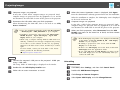
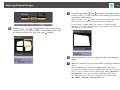
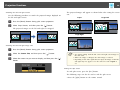
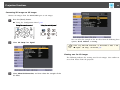
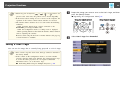
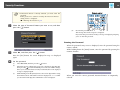
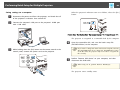
Press the [
], [
], [ ], or [ ] buttons to position the cursor
over the folder for the Slideshow that you want to run, and then
press the [ ] button.
c
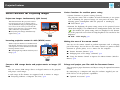
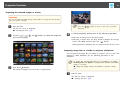
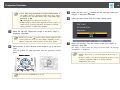
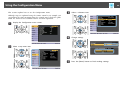
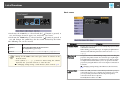
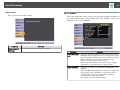
Select Slideshow at the bottom right of the file list screen, and
then press the [ ] button.
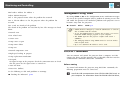
Slideshow starts, and the image files in the folder are automatically
projected in sequence, one at a time.
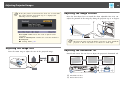
When the last file is projected, the file list is displayed again
automatically. If you set Continuous Play to On in the Option
window, projection starts again from the beginning when it reaches
the end.
s "Image file display settings and Slideshow operation settings"
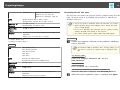
• Pointer
s "Pointer Function (Pointer)" p.66
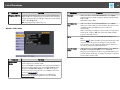
Image file display settings and Slideshow operation settings
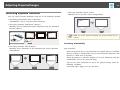
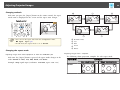
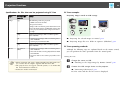
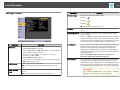
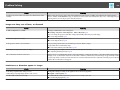
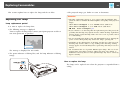
You can set the file display order and Slideshow operations on the Option
screen.
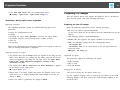
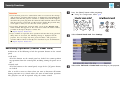
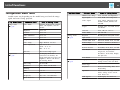
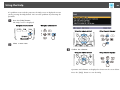
a
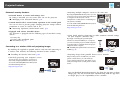
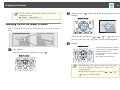
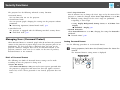
Select Option at the bottom of the file list screen, and then press
the [ ] button.
b
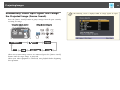
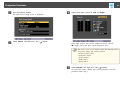
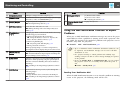
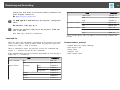
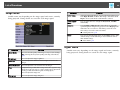
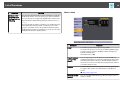
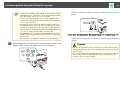
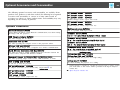
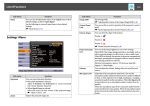
When the following Option screen is displayed, set each of the
items.
p.62
Select any of the options as necessary and press the [
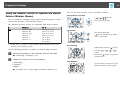
You can proceed to the next screen, return to the previous screen, or
stop playback while projecting a Slideshow.
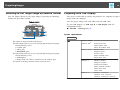
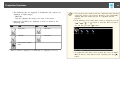
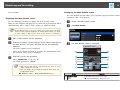
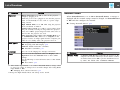
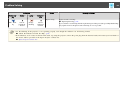
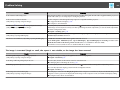
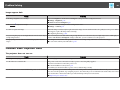
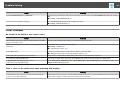
The following table shows the details for each item.
a
] button.
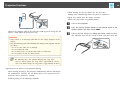
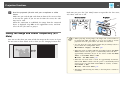
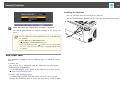
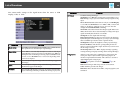
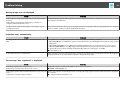
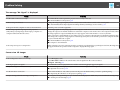
If Screen Switching Time on the Option screen is set to No, files do
not change automatically when you select Play Slideshow. Press the
[ ] button, the [
] button, or the []] button to continue to the
next file.
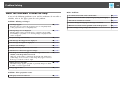
You can use the following functions when projecting a file with PC
Free.
• Freeze
s "Freezing the Image (Freeze)" p.66
• A/V Mute
s "Hiding the Image and Sound Temporarily (A/V Mute)" p.65
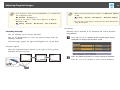
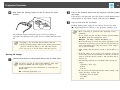
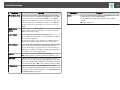
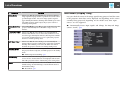
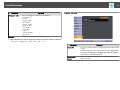
Display Order
You can select to display the files in Name Order or Date
Order.
• E-Zoom
s "Enlarging Part of the Image (E-Zoom)" p.67
Sort Order
You can select to sort the files In Ascending or In
Descending order.