1
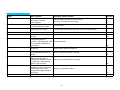
Change Pitch Control Range
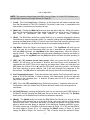
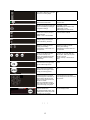
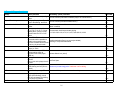
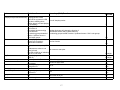
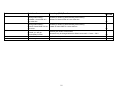
(Wait List + Match) - Holding down the Wait List button and pressing the Match button will
change the “range” at which the pitch will change in the playing song when the Pitch Control
Slide is moved.
For instance, every time the Match button is pressed while holding down the Wait List button,
the range numbers in the Pitch Control Slide change (4, 8, 16, 32, and 54). The higher the
number, the greater the change in pitch will be in the playing song as the Pitch Control Slide is
moved. In other words, at the lowest range (4), moving the Pitch Control Slide approximately 1”
(for example), would change the pitch (or speed) of the song playing in the Player much less
than if it were set at the highest number (54).
Pitch Bend
Though you may have the BPMs of two songs that are in the Dual Players, you may
occasionally need to temporarily speed up or slow down one of the songs in order to move their
beats in sync. (There are a number of reasons why this might occur, but none of them are
caused by The PCDJ Software.) This is where the Pitch Bend feature comes into play:.
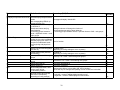
Using the Jog Wheel – You can temporarily bend the pitch of a song by turning the Jog Wheel
clockwise (pitch up) or counter-clockwise (pitch down) when a song is playing in the Player. The
faster you spin the Wheel, the greater the degree of bend that will occur.
Using the Pitch Bend buttons – You can also bend the pitch by holding down the Pitch Bend
buttons. To bend the pitch to a greater degree, use the control combination: (Shift + Pitch
Bend) hold down the Shift button and depress one of the Pitch Bend buttons (minus, to
temporarily slow down the song and plus, to temporarily speed it up). The pitch will bend for as
long as you hold down either of the Pitch Bend buttons.
Pitch Step
Sometimes it is necessary to be able to move the Pitch Control Slide minutely in order to better
match-up a song with another, after having manually positioned the Pitch Control Slide to match
the pitch (or speed) of one song with another.
An example would be: You’ve matched the pitch of one song in one Player with the pitch of
another song in the other Player. But the song that you changed the pitch of begins to drift off
the beat of the other song. This is because the pitch was not precisely matched.
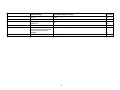
This is where the Pitch Step control becomes very useful. By holding down the Load button,
while the Player is playing, and tapping the (–) or (+) Pitch Bend buttons, you can move the
Pitch Control Slide in very small increments – (0.01%). This way, you will be able to perfectly
match-up the two songs together.
Choosing a Position on the Cue Point Indicator
When the Player is in the Sampler mode – Simply press the direct access button where you
want the Cue Point to be stored.
7