1
Representing Data
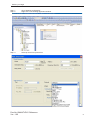
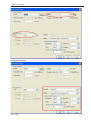
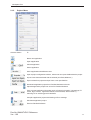
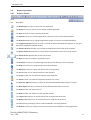
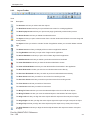
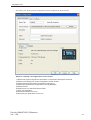
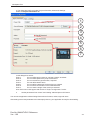
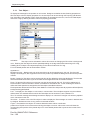
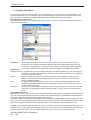
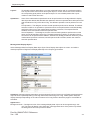
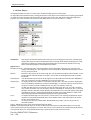
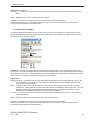
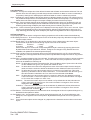
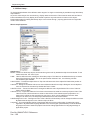
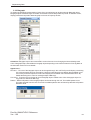
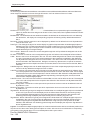
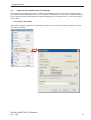
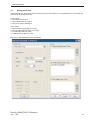
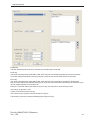
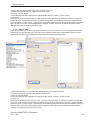
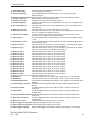
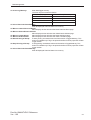
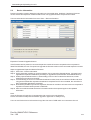
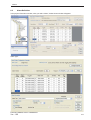
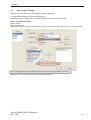
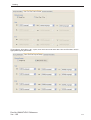
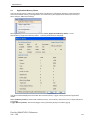
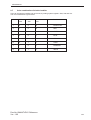
Bar Attributes:To set the tag to differnet bar with different colors,differnet name,different labels,different Minimum-Maximum
value ranges for each bar can be set through this section. User can select maximum of 4 bars.
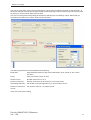
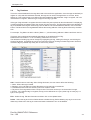
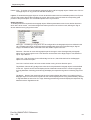
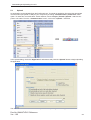
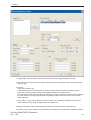
Number of Bars:- Designer can select the number of desired bars to be compared through one multibargraph
object. By default the name assigned to all bars is Bar1, Bar2, Bar3, Bar4. Bydefault selected number
of bars are 4.
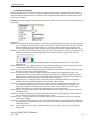
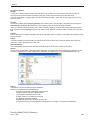
BarSelected:- The desired bar whose attributes needed to be defined can be selected from this cell. Selecting
the desired bar , will display the corresponding properties in following cell.By default selected bar is
‘Bar1’.
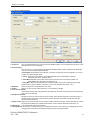
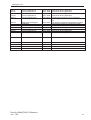
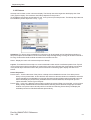
Bar Value:- The bar position at which it is to be displayed by default is to be defined in this cell. By default the
value in this cell is ‘100’.
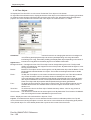
Data Type:- The data type of tags to be used to display its graphical representation in Multibargraph object is
defined in this cell. This data type selected for one bar is setted common for all other defined bars from
one multibargraph object.The flyout to this cell will list out the data type supported by the object. By
default the data type is unsigned integer.
Fill Line Color:- Border line of each bar can be changed through this cell. By default the assigned color in this
cell is ‘Black’.
Fill Color:- Fill color for each bar can be assigned through this cell. Default colors assigned for Bars is Black.
Label:- Name to the bar can be assigned in this cell. This is the label assigned to bar names to be displayed
in X axis. The assigned color in this cell will represent to the respective bar defined in ‘Bar Selected’
cell. By default the assigned color in this cell is ‘Black’. The name in this cell will represent to the bar
which isselected in ‘Bar Selected’Cell. Designer can enter any alphanumeric or special characters.
By default name to the multiple bars is Bar1 for first bar, Bar2 for second bar, Bar3 to third bar, Bar4 to
fourth bar.
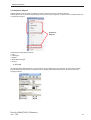
Label Background:- Background color for label displayed on X axis of the multiple bargraph object can be set
from this cell. By default the background color is ‘White’.
Label Text:- Designer can rename the name of the bars from the default ones assigned through software. User
can use any alphanumeric characters and special character to rename the name of bar. Text changed
to rename the bar in this cell will represent to the bar selected in ‘Bar Selected’ cell.By default this cell
has folowing text as Bar1, Bar2, Bar3 and Bar4 representing corresponding first, second, third and
fouth bar from multiple bargraph object.
Label Text Color:- Text color for the text used for individual Bar in X Axis can be define in this cell. The assigned
color in this cell will represent to the respective bar defined in ‘Bar Selected’ cell. By default the label
text color is ‘Black’
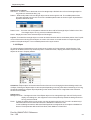
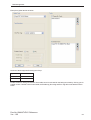
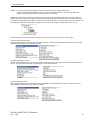
Maximum Tag Value:- The maximum value upto which repective bar is to be moved can be defined in this cell.
By default it is 100.
Maximum Tag Value:- The minimum value upto which repective bar is to be moved can be defined in this cell.
By default it is 0.
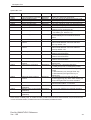
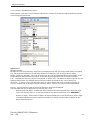
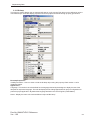
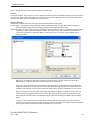
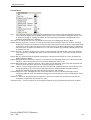
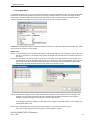
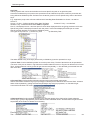
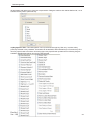
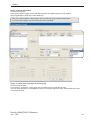
Tag Address:- Numerical Type tag to be assigned to individual bar from multiple bargraph object is to be defined
in this cell. Flyout from this cell will display the list of defined internal and PLC numerical type tags
from tag data base.Selected tag from flyout will represent to the Bar defined in “Bar Selected” Cell.
Selecting particular tag will display the respective tag name in following Tag name cell.
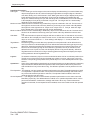
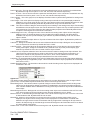
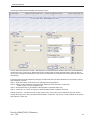
Tag Address:- Name of Numerical Type tag to be assigned to individual bar from multiple bargraph object is to
be defined in this cell. Flyout from this cell will display the list of names of defined internal and PLC
numerical type tags from tag data base.Selected name of tag from flyout will represent to the Bar
defined in “Bar Selected” Cell. Selecting particular tag name will display the respective Tag address in
above Tag Address cell.
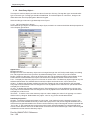
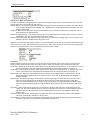
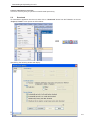
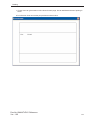
Layout:- To embed the multiple bargraph object on screen at desired location with its coordinates position from
Top left corner of the screen. Moving the text object on screen with mouse cursor will show the corrsponding
pixel position of the placed object. For more details please refer Layout scetion.
Doc No: UMAN/TriPLC-Reference
Ver.: 1.00
69