1
1 Overview
The configuring data is then saved only once per group in the user data area of one user. All other group members
can access this data.
The processing always occurs in the temporary data areas of the individual group members.
Please take note that it is not possible for two users to simultaneously process the same master program or
function packet, since the modified data is saved into the configuring data area when they are finished.
Therefore modifications from the first version to be saved, of the simultaneously processed data, is lost.
1.3.5
Starting the Configuring Session
The user must identify himself to the system, at the start of the configuring session, with his user ID
(i.e. ‘
Smith.Gr1‘
) and his password.
The valid user ID and the password are assigned by the system administrator.
At all STRUC---PC or STRUC---Notebooks, preinstalled by SNI, the user ID and the password is ”gast”.
SCO
OPEN SYSTEMS SOFTWARE
sco... login
Password
Login
Restart
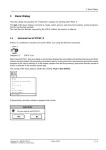
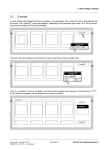
Diagram 1/4:
Help
Starting the Configuring Session: ‘
‘
login”under SCO Unix
1.4 Quick Menu
Power up both PC and monitor and wait till the prompt:
Boot
:
appears on the screen. Acknowledge with
¿
(Return).
Wait for the PC prompt to continue the start-up with CNTRL d:
Enter CNTRL d (without ¿ ).
Next break-point is the prompt to enter a new time for the computer:
Enter ¿ .
The start-up is completed with the prompt for the login/password entry. It is essential to switch the STRUC--PC
to console 2 before making these entries. This is implemented by simultaneously pressing the three keys
CNTRL, ALT and F2. If the screen does not change, then the PC has already automatically switched to this
console.
Now make the login / password entries:
login:
password:
guest
guest
¿
¿
A screen is displayed with two lines (‘‘Continue my last Session”[Default] and ‘‘Start a New Session’’); position
mouse to ‘‘OK’’and click left-hand mouse key
.
1---8
Edition 02.96
Siemens AG 465 981.7101.23
SIMADYN D STRUC G User manual