1
MathType User Manual
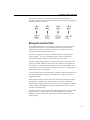
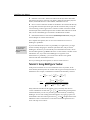
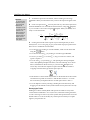
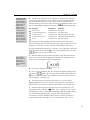
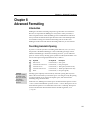
must hold down the CONTROL key. Tab characters inserted in this way divide the items in a line into several groups, called tab groups. Each group is bordered by a tab character at each end, except the last group in the line, which has a tab to its left and extends to the end of the line. The formatting of each of these tab groups is controlled by the corresponding tab stop: the first tab stop controls the first group, the second tab stop controls the second group, and so on. Specifically, MathType moves the entire tab group horizontally until some reference position within it is aligned directly below the corresponding tab stop. The reference position that’s used is determined by the type of tab stop. For example, if the tab stop is a left tab, then the left end of the tab group is used as the reference position, and is therefore aligned with the tab stop. For other types of tab stops, reference positions are determined as follows: Type of Tab Stop
Reference Position in Tab Group
Left Right Center Decimal Relational Left end of group Right end of group Center of group First decimal point in group (or left end) First relational operator in group (or left end) The decimal point character will be either a period or a comma, depending on your settings in the International System Preference panel (Regional Control Panel in OS 9). Relational operators include equals signs, inequality signs like <, >, ≤, ≥, ≺, , and other similar symbols, such as ≡, ≈, ≠. Alignment Symbols
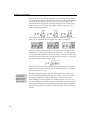
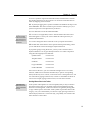
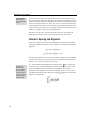
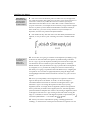
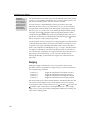
The symbol on the palette is an alignment symbol. If you place an alignment symbol within a tab group, then it is automatically used as the reference position for that group, regardless of what type of tab stop you used. In other words, alignment symbols override all other reference positions. Note that this symbol only appears in the equation in the MathType window. It will not appear when printed or in other applications. Tabs and Alignment
See the Tutorial
Tutorial 12 in Chapter 4
illustrates the use of
tabs.
112
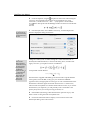
In MathType’s Format menu, you will see five alignment commands that closely parallel the five tab stop types described above. In some cases, you may be able to use these commands to obtain the formatting you want instead of using tabs. For example, if you simply want to align two equations at their equal signs, you should use the “Align at =” command, rather than a relational tab stop. You should not try to use a combination of tab stops and alignment commands to format the same line. As in a word processor, the two formatting mechanisms interact with each other in rather unpredictable ways, and you are not likely to get the results you want. Tabs of any of the five types will only work predictably in lines that are left‐aligned.