1
Pololu USB AVR Programmer User's Guide
© 2001–2010 Pololu Corporation
7. Troubleshooting
This section helps solve problems you might have using the Pololu USB AVR programmer.
If the computer fails to connect to the programmer:
• Make sure your programmer is connected to your computer via a USB A to mini-B cable. If the programmer was
previously working and has since stopped, try closing all programs using the programmer (the configuration utility,
the SLO-scope client, and the AVR Studio ISP dialog), and cycle the power by unplugging it from your computer and
then reconnecting it.
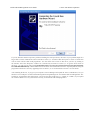
• If you are in Windows, make sure you have installed the drivers the programmer needs to operate. Section 3.a
describes how to install the drivers in Windows.
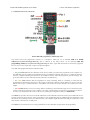
• Is the programmer’s green USB status LED on? This is the LED next to the USB mini-B connector. If this LED is
blinking, then your drivers are not properly installed.
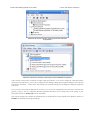
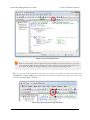
• If you are in Windows, can you see your programmer listed in the Device Manager? The Device Manager should
show three devices: under “Pololu USB Devices” should be “Pololu USB AVR Programmer”, and under “Ports
(COM & LPT)” should be “Pololu USB AVR Programmer Programming Port” and “Pololu USB AVR Programmer
TTL Serial Port” and there should be no error symbols on the icons representing these devices.
• If you are in Linux, check that /dev/ttyACM0 and /dev/ttyACM1 exist. If they do not, see the section below.
• Your computer will only let one program at a time have a given COM port open. If you are connected to your
programmer’s programming port using another program, such as a terminal or a second instance of AVR Studio,
you will not be able to connect to that same COM port with your programming software. Please make sure you do
not have any terminal programs connected to your programmer’s programming port. If you have multiple versions
of AVR Studio running, make sure that you have closed the ISP programming dialogs in all of them. When the ISP
dialog is open, that instance of AVR Studio has an open connection to your programmer’s programming port.
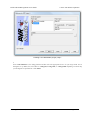
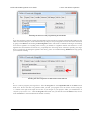
• If you are using AVR Studio, try connecting to your programmer’s specific COM port instead of selecting the
“Auto” option, which attempts to locate the port automatically. Some versions of AVR Studio fail to automatically
programmers on virtual COMs port that are too high (e.g. above COM9). If your programming COM port is too high
to select from the connection dialog box and AVR Studio does not automatically detect the programmer, you will
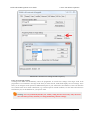
need to reassign the programming port to a lower virtual COM port. You can do this by opening the properties dialog
of the “Pololu USB AVR Programming Port” (found in the “Ports (COM & LPT)” section of the Device Manager)
and clicking the “Advanced…” button under the “Port Settings” tab.
If the programmer has problems connecting to the target AVR:
• The most common cause for this problem is an incorrect connection between your programmer and your target
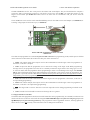
device. If the ISP pins are misaligned between the programmer and the target AVR, the two will not be able to
communicate. Please make sure that the ISP pins as numbered in Section 1.a are correctly connected between your
AVR and your programmer (i.e. 1 goes to 1, 2 goes to 2, etc.).
• The target AVR must be powered for programming to work. Please make sure that your target device has power
and is turned on.
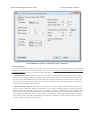
• If the target AVR is running at a voltage lower than 5 V, you may need to decrease the minimum allowed target
VDD setting using the configuration utility (Section 3.d). The default minimum allowed target VDD setting is too
high to allow the programmer to program at low voltages. Please note that you might need to take additional special
steps to safely program an AVR that is running off of a voltage below VUSB-0.5 V.
• Your programmer’s ISP frequency must be less than a quarter of your target AVR’s clock frequency. If you are
having trouble communicating with your target AVR, try lowering the ISP frequency using configuration utility
(Section 3.d) or the Main tab of AVR Studio’s ISP dialog (Section 3.b.1).
• If the red error LED is on, then run the configuration utility (Section 3.d) to determine the cause of the error.
7. Troubleshooting
Page 37 of 40