1
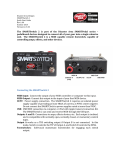
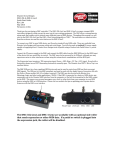
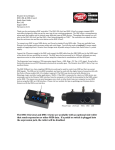
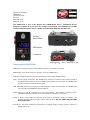
Using the SMARTClock The SMARTClock operates in two modes: Tap Tempo and Preset. Tap Tempo Mode In Tap Tempo Mode, the encoder knob flashes blue while the clock is running. FOOTSWITCH: Tap the footswitch to set the clock rate. While tapping, the display shows TAP. Two seconds after the last tap, the display reverts to show the tempo in Beats Per Minute (BPM.) Hold the footswitch to save the current tempo to the last loaded preset. ENCODER: Turn the encoder to manually set the clock rate. Tap the encoder to select the subdivisions menu for Tempo Outputs A and B. Hold the encoder to enter Preset mode. Preset Mode In Preset Mode, the encoder knob flashes green while the clock is running. FOOTSWITCH: Tap the footswitch to select the next preset. If the clock is currently stopped, tapping the footswitch will restart the clock at the last tempo. Hold the footswitch to stop the clock. ENCODER: Turn the encoder to select a preset. If PROG is set to ON, selecting a preset either by foot or with the encoder will send the corresponding MIDI program change on the SMARTClock’s MIDI channel. Hold the encoder to enter Tap Tempo mode. If PROG is set to ON in the Setup Menu, the SMARTClock will send a MIDI program change message on its MIDI Channel each time a preset is selected. The program change is one lower than the indicated preset: P 01 sends Program Change 00; P04 sends Program Change 03, etc.