1
ConCERTO CardMaker Administrator’s Manual
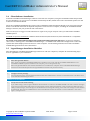
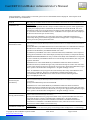
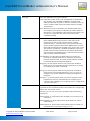
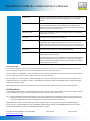
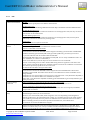
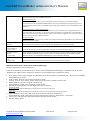
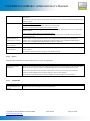
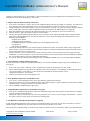
Group *
they will be selectable here. If you did not define any other user group card settings, the
standard ConCERTO LOGON default will be used.
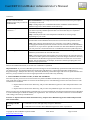
Personal information
fields…
(Optional entry.)
Additional information about the cardholder can be specified as desired.
Note also that if cardholders are required to enter a Last Name and First Name during
self enrollment (specified under Configuration > Program Settings > Server), that entry
will populate this field.
If you intend to email PIN/PUK letters to cardholders, you should be sure to enter enduser email addresses.
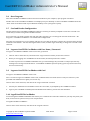
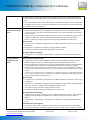
Remote Access Enabled
This field will only be accessible if the capability has been activated for the installation
under Configuration > Program Settings > Server > "Allow for Individual Cardholders".
When this checkbox is checked, cardholder will be allowed to access ConCERTO LOGON
server without card or card reader.
This option should typically be disabled. When Remote Access is required - for example,
if user forgot to load ConCERTO LOGON data to laptop before leaving office Administrator can enable this capability.
Remote Access Allowed
From:
Earliest date remote access incident will be allowed for this cardholder.
Remote Access Allowed
Until:
Latest date remote access incident will be allowed for this cardholder.
RF Card ID
Displays RF card ID of card.
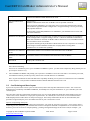
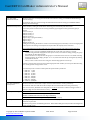
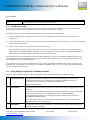
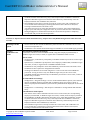
Note also the following:
If there is no available key set in your ConCERTO CardMaker system: you will need to import key file(s) before you can
proceed (see section 4.1.1).
3.
The ConCERTO CardMaker will prompt you to present a ConCERTO card to the card reader. Card will be processed,
and window will alert you when you may remove the card and deliver it to cardholder.
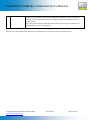
Note: If your installation has the Print PIN Letter capability enabled, you can print out a PIN letter for the cardholder
under "Reports". This provides cardholder with the default PIN information for his card.
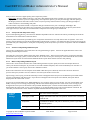
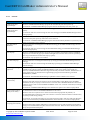
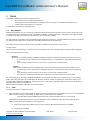
3.2 Card Printing and Data Layout
If you want to print on the card as a part of card issuance, follow the steps described in this section. You can use the
default layout provided by ConCERTO CardMaker, and modify it to suit your installation. Or, you can define your own
custom layout.
Note also that, using the card printing and data layout, you can custom define the fields that will be displayed in your
"Issue Card" screen - whether or not you plan to print cards. As a default, the "Issue Card" screen contains all of the
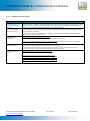
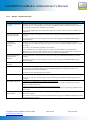
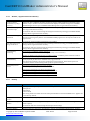
fields displayed in the table shown on the previous pages. Since many installations do not use all of the fields, this
provides an opportunity for you to streamline the look of your card issuance screen.
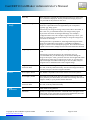
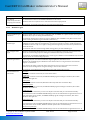
Tips for card printing and layout:
From our experience, we have seen that with card printers, you really do "get what you pay for". If you want to print a
simple logo, name, and photo, you should be able to find a card printer that will accomplish this at a reasonable cost. If
however, you want to do more complex printing - printing a background image on the entire card, for example -, you
Copyright © 2011 SCM Microsystems GmbH
www.scm-concerto.com
2011-08-22
Page 19 of 98