1
CALIBRATING THE EXCEED AUSTRALIA SCALE – FOR ADVANCED USERS ONLY
In case the scale loses its accuracy, then remote calibration of the scale may be needed. The load cell of this precision scale
is normally protected against overloaded weight applied slowly, but overload caused by dropping the scale or dropping
something heavy on the scale may require re-calibration.
Remote Calibration of Scale
To run remote calibration on your scale, you need the following:
Remote Calibration Program – this is the application program that will help you perform remote calibration of your scale.
You can download it from www.elane.net.
Remote Calibration Code – this is the code that is given after your payment for remote calibration service. This is important
to continue with the remote calibration process.
Weight (if doing remote calibration using weights) – this will be used as a standard measure of weight during remote
calibration. You may use one of the following:
1.
2.
3.
A STANDARD WEIGHT between 1,250-5,000 grams that is available on the market. This option requires you
to enter the exact weight.
ANY WEIGHT between 1,250-5,000 grams. This option requires you to enter the exact weight.
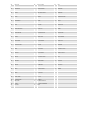
A WEIGHT using one of the PREDEFINED objects. Select an object from our list that you will be using for
remote calibration. This option does not require you to enter the exact weight of the object.
Gravity Factor (if doing remote calibration by gravity factor adjustment) – we have listed major countries and locations for
you to choose from. For best results, you can consult your local metrological station for your local gravity factor.
Exceed
Scale
–
check
that
your
scale
is
capable
of
remote
calibration.
http://www.elane.net/exceedpc/remotescales.htm to view the list of scales that are capable of remote calibration.
Visit
These are the steps for remote calibration of your scale. It is important that you follow each instruction carefully to guarantee
better and more precise calibration results.
1.
After
Pay for the remote calibration service. Visit http://www.elane.net/exceedpc/ordercalibration.htm.
successful payment, copy the calibration code that is given. This code is also sent in the email you provided during
payment and is valid for 48 hours after its first use.
2.
Download and install Remote Calibration Program.
3.
Run Remote Calibration Program and select your scale model. Connect the scale to any available serial port in your
computer using the RS-232 cable. Turn on the scale and remove any object on it.
4.
Enter your calibration code.
5.
Select calibration method. You can choose remote calibration using weights or remote calibration by adjusting
gravity factor. If using weights, make sure that you have the necessary weights, then proceed to step 6. If using
gravity factor adjustment, proceed to step 7.
6.
Give details about the object or weight that you will be using. You may enter the exact weight (in grams) of the
object or choose from the list a predefined set of objects that you will be using as a standard weight. Proceed to step
8.
7.
Give details of your current geographical location by selecting your country and city or location from the list. If your
location is not on the list, select the country and location that is closest to yours. This process lets your scale
“identify” the gravity factor associated with your present location. If you know this value, you may also choose to
provide it in the program. You may contact your metrological station and ask for your local gravity factor. WARNING:
Do not provide a value that you are not sure of as this may cause weight reading errors of your Exceed Scale.
8.
Scale will be calibrated according to the value(s) that you provided. If you are using weights for remote calibration,
wait for the step-by-step instruction on when to place weight on the scale. Check also the calibration status that is
being displayed.
9.
Wait for a confirmation of a successful remote calibration of your scale. After this, your scale will restart
automatically and it is now calibrated according to the method that you chose.
For more information about remote calibration, please visit http://www.elane.net/exceedpc/remotecalibration.htm.