1
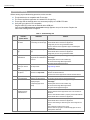
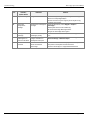
Troubleshooting Therm-App Operation Manual Troubleshooting Before starting any troubleshooting procedure, make sure that: The Android device is compatible with Therm-App. The Therm-App Basic application is installed from Google Play. Therm-App and the Android device are connected properly via a USB-OTG cable. Verify that your cable is OTG compatible: Plug the USB OTG cable into the Android device USB port. Verify that the USB connector connected message appears on top of the screen. Replace the cable if this message does not appear. Table -1: Troubleshooting List No. Problem\ System Failure Indication Solution Ensure that USB OTG cable is properly connected between the Android device and Therm-App device. Verify that you are using a USB-OTG cable. Ensure that the Therm-App Basic app is installed from Google Play. Ensure that USB OTG cable is properly connected between the Android device and Therm-App device. Verify that you are using a USB-OTG cable. From the Apps menu, select My files > all files > Thermapp. Delete folder with a serial number tag. Re-install Therm-App Basic application. Plug the Therm-App device again. Select the Disable screen timeout check-box on the ThermApp Settings screen. 1 Application does not start. App is not initiated after connecting to Therm-App. 2 Application shuts off. Application shuts itself off. 3 Repeated initialization Each startup Therm-App performs the initialization process. 4 Battery saver interrupts ThermApp. Therm-App App is not found. Android device switches to sleep mode. Application screen is not displayed No active view A messages screen appears on App startup Camera view is not displayed after completing app initial setup 8 Video not displayed on the Android device. Blank screen 9 Noisy image 5 6 7 The Android device switches to Safe mode. Unplug the USB-OTG cable. Restart the Android device. Connect the Therm-App device with the Android device. Press the Android Home button to exit the App and reconnect Therm-App and the Android device. From the Apps menu, select My files > All files > Thermapp. Delete folder with a serial number tag. Re-install Therm-App Basic application. Plug the Therm-App device again. Ensure that the Android device is turned on. Ensure that the Therm-App device lens is not covered or blocked. Ensure that USB OTG cable is properly connected between the Android device and Therm-App device. Ensure that USB OTG cable is properly connected between the Android device and Therm-App device. Ensure that nothing is obstructing the Therm-App device view. Check that the camera lens is clean. Ensure that line of sight is not blocked by glass or other transparent materials. Page 16 of 17