1
ETC Setup Guide
Universal Fader Wing Setup Guide
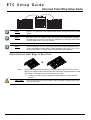
Note:
Since v1.7.0, Eos and Ion can support multiple banks of wings connected via USB
cables.
Note:
Eos, Eos Ti, Gio, Ion, Cobalt, Congo, and Congo Jr will automatically configure
the fader wings from left to right. Manual configuration of the wings can be done
from the Setup menu of Eos, Gio, and Ion.
Note:
Only one wing (2 x 10 or 2 x 20) may be used with a personal computer that is
running Nomad/Eos Family Client or Offline software in Eos, Eos Ti, Gio, or Ion
mode, Congo Offline, or Congo Client. The Mac OS is not supported.
A t t a c h U n i v e r s a l F a d e r Wi n g s To E a c h O t h e r
OR
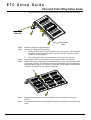
Step 1:
Using a #1 Phillips head screwdriver, remove the two screws (ETC Part number HW117) securing the bumpers that will be removed from the appropriate side or sides
of the wings. The bumpers will be removed in a later step.
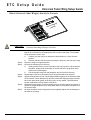
a:
Carefully turn the wing over and place it faders-down on a clear, flat work
surface.
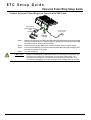
CAUTION:
U ni ver sa l F ad er Win g S et u p G ui de
Do not set the console on the connector side (rear panel). Instead, place it face
down on the faders.
Page 3 of 6
El ect r on ic T he at r e C on tr o ls , I nc.