1
Quick Operation Guide of Network Video Recorder
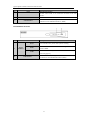
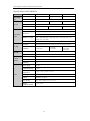
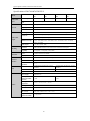
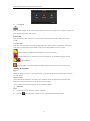
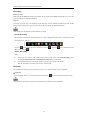
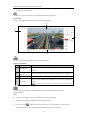
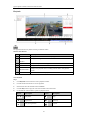
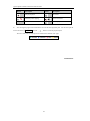
Icon
Description
Icon
Select the window-division mode
/
Start/Stop all live view
/
Description
/
Capture pictures in the live view
Start/Stop all recording
/
Previous/Next page
/
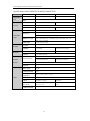
Start/Stop two-way Audio
Adjust volume
mode
/
Open/Close audio
Enable/Disable digital zoom
Full screen
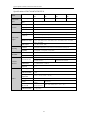
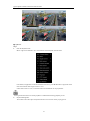
Select different stream type for
live view by clicking the icon
: live view in main stream;
: live view in sub stream;
Recording
Before you start
Make sure the device is connected with HDD or network disk, and the HDD or network disk has been
initialized for the first time to use.
Two recording types can be configured: Manual and Scheduled. The following section introduces the
configuration of scheduled recording.
Steps:
1.
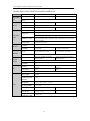
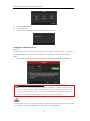
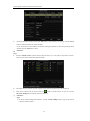
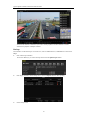
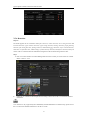
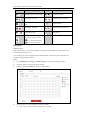
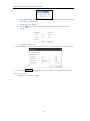
Click Configuration > Storage > Schedule Settings to enter Schedule Settings interface.
2.
Select the camera to configure the record schedule.
3.
Check the checkbox of Enable to enable recording schedule.
4.
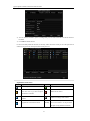
Choose the day in a week configure the recording schedule.
1)
Click a day to set the start time and end time for recording.
41