1
Quick Operation Guide of Network Video Recorder
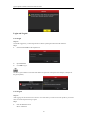
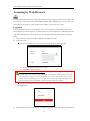
prompts to install the plug-in.
You may have to close the web browser to finish the installation of the plug-in.
Live View
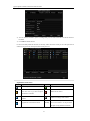
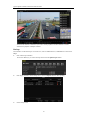
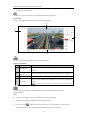
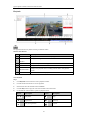
The live view interface appears by default when you log in the device.
2
1
4
3
The live view interface may differ according to different models.
Interface Introduction
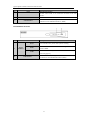
No.
Name
1
Channel List
2
3
Live View
Window
Play Control Bar
Description
Displays the list of channels and the playing and recording status of each
channel.
Displays the image of channel, and multi-window division is supported.
Play control operations are supported.
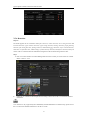
Pan, tilt, zoom operations are supported, as well as preset editing and
4
PTZ Control
calling.
PTZ function can only be realized if the connected camera supports PTZ control.
The PTZ control is supported by the DS-8600NI-E8 and DS-7700NI-E4(P) series NVR only.
Start Live View
Steps:
1.
In the live view window, select a playing window by clicking the mouse.
2.
Double click a camera from the device list to start the live view.
3.
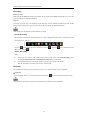
You can click the
button on the toolbar to start the live view of all cameras on the device list.
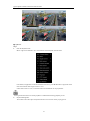
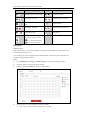
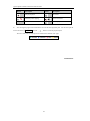
Refer to the following table for the description of buttons on the live view window:
40