1
Phone Calls
Adding a Call Log Number as a
Contact
Phone Calls
screen, and tap
the number.
> Delete to delete the call log of
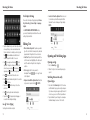
1. Open the Call Log.
2.Tap a number to view more call information.
3.Tap
.
4.To add the number to an existing contact, tap
Add to existing. To add a new contact, tap New
contact.
Taking Other Actions on a
Call Log Entry
1.Open the Call Log.
2.Tap a number to view more call information. While
viewing the call details, you can:
•Tap
to call a number.
Calling Your Contacts
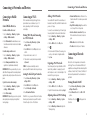
Calling a Contact
1.Press the Home Key >
Contacts tab .
and then tap the
2.Flick the screen up or down to view all your contacts
with phone numbers.
TIP: You can search for a contact by tapping
on the screen.
3.Tap
next to a contact name to call that contact.
Calling a Favorite Contact
•Tap
> Edit number before call to edit the
number in the dialer before calling it.
1. Press the Home Key >
Favorites tab .
•Tap
2.Your favorite contacts and frequently called contacts
or numbers are listed at the top of the screen. Tap a
contact or number to call it.
to send a message.
•If the number belongs to a contact you already
have, tap
> Add to existing.
Deleting the Call Log
1.Open the Call Log.
and then tap the
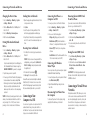
Checking Voicemail
3.Tap the call log items you want to delete and then
tap
> Delete to delete the call logs.
If you have set the phone to divert certain calls to
voicemail, callers can leave voicemail messages when
they cannot reach you. Here’s how to check the
messages they left.
NOTE: You can also tap a number in the call log
1.Press the Home Key >
2.Press the Menu Key > Multi-Select.
.
2.Tap and hold the 1 Key in the dialer. If prompted,
26
enter your voicemail password.
3.Follow the voice prompts to listen to and manage
your voicemail messages.
NOTE: To set your voicemail service, press the Menu
NOTE: The call waiting and three-way call features
need network support and may result in additional
charges. Please contact your service provider for
more information.
Key > Settings > Voicemail in the dialer and tap
the voicemail settings you want to change. For detailed
information, please contact your service provider.
Switching Between Current Calls
Using Options During a Call
To respond to an incoming call while you’re on
a call:
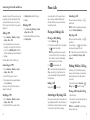
During a call, you will see a number of on-screen
options. Tap an option to select it.
•Tap
to switch to the keypad when you need to
enter a code (for example, the PIN for your voicemail
or bank account) during the call.
•Tap
•Tap
to turn the speaker on or off.
to mute or unmute the microphone.
•Tap
to make another call separately from the first
call, which is put on hold.
•Tap
to end the current call.
When you’re on a call, your phone screen informs you
that another call is coming in and displays the caller ID.
Drag
over
to answer the call. This puts the first
caller on hold and answers the second call.
To switch between two calls:
Tap
.
Setting Up a Conference Call
With this feature, you can talk to two people at the
same time.
1.On the dialer screen, enter a number and tap
.
•Press the Menu Key for more call options. You can
record phone conversations, or view the contact list.
2.Once you have established the connection, tap
and dial the second number. This puts the first caller
on hold and dials the second number.
WARNING! Because of higher volume levels, do not
3.When you’re connected to the second party, tap
place the phone near your ear during speakerphone use.
Managing Multi-party Calls
When the call waiting and three-way call features are
available, you can switch between two calls or set up a
conference call.
.
If one of the people you called hangs up during your
call, you and the remaining caller stay connected. If you
initiated the call and are the first to hang up, all callers
are disconnected.
To end the conference call, tap
.
27