1
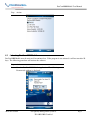
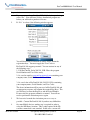
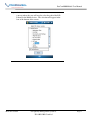
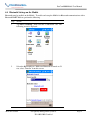
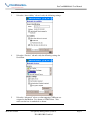
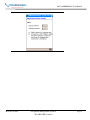
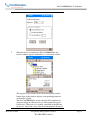
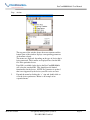
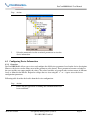
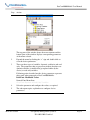
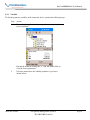
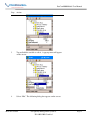
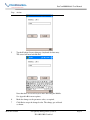
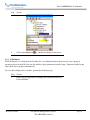
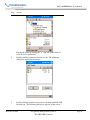
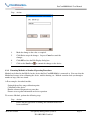
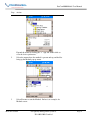
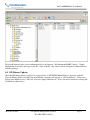
DevCom2000 Mobile User Manual Step 4: Activate DevCom2000 Mobile Launch DevCom2000 Mobile by selecting the DevCom2000 Mobile icon from the Start menu. You will now be asked to Activate DevCom2000 Mobile. You can use it for 10 days before you need to Activate it. Select “No” to continue in Demo mode. Activation only needs to occur once. See Section 4.3 for details. On some Mobile devices another step is required in order to select the DD library location. This is only required if the SD card has a name that is not standard. In this case a screen will come up where the user will need to select the path of the DD Library in the Mobile device. The selection will appear in the box at the bottom of the screen. Step 5: Browse the Device Operating DevCom2000 Mobile is similar to working with Windows Explorer. DevCom2000 Mobile communicates to the field device, establishes a connection and learns its identity. Once DevCom2000 Mobile knows its identity, DevCom2000 Mobile locates the device's DD and loads it. From this point forward operation of DevCom2000 Mobile is determined by the DD provided by the product's manufacturer. If a DD for the device is not present, a generic DD will be used. By default, DevCom2000 Mobile will open the Browser window. The organization of the data in this explorerstyle window is dictated by the device DD. The top tree-pane of this window shows the logical groups of field device data. These are called "Menus". The bottom data-pane shows the data, any sub-groups and any standard operating procedures found on a given menu. You can browse through the field device data by expanding (click "+" symbol) or collapsing (click the "-" symbol) the menus in the tree-pane. You can also double-click the folder symbol when seen on the data-pane. Step 6: Modify the Device's Configuration The Browser allows access to all of the data exactly as described by the product's manufacturer’s DD. When you find elements of the field device's configuration you want to change, simply double-click and edit the data. Once to commit the data and transfer it to you have changed the configuration to suit your needs, press the Send icon the field device. Step 7: Performing Maintenance and Testing the Field Device Many devices perform Methods or Standard Operating Procedures (SOPs) that may need to be performed to ensure the device is in peak condition. These Methods may include calibrating the loop current, trimming the transducer values or performing some diagnostic test on the field device. Methods appear in the data-pane just like data does. Double-click on the Method and it will start running in a separate window. The Method will guide you through the process ensuring the procedure is completely and consistently performed. When the Method is complete the window will disappear. Step 8: Exit When you are through working on the field device simply exit DevCom2000 Mobile. Once the program exits, you can then disconnect the HART interface hardware. MAN-1017 8/9/2011 Our Quality Management System is ISO 9001:2008 Certified Page 2