1
40
DOMINION KSX USER MANUAL
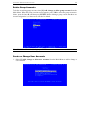
Viewing Serial Console History
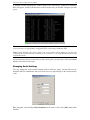
The History feature allows you to view the recent history of your console sessions by displaying
the console messages to and from the target device. This function displays up to 999 lines of
recent console message history. This information can be useful during debugging,
troubleshooting, or administering a target device.
Note: History data is displayed only to the user who requested the history.
To View Session History:
1. In the top menu bar of Raritan Remote Console, click on Serial.
2. Select History from the drop-down menu.
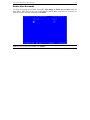
Serial Console Logging
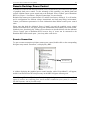
Raw console data from the target device can be logged to a file in your computer.
Start Logging
1. In the top menu bar of Raritan Remote Console, click on Serial.
2. Select Start Logging from the drop-down menu.
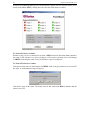
3. Choose an existing file or provide a new file name in the File Dialog box. When an existing
file is selected for logging, data gets appended to the contents. Providing a new file name
creates a brand new file. Click OK after you have selected or created a file.
Stop Logging
1. In the top menu bar of Raritan Remote Console, click on Serial.
2. Select Stop Logging from the drop-down menu.
Cutting and Pasting Serial Data
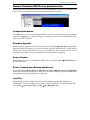
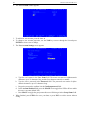
Use the Copy, Paste, and Select All Text commands to relocate and / or re-use important text.
To Copy and Paste All Text:
1. In the top menu bar of Raritan Remote Console, click on Serial.
2. Choose Select All Text from the drop-down menu.
3. In the top menu bar of Raritan Remote Console, click on Serial.
4. Choose Copy from the drop-down menu.
5. Position the cursor at the location you wish to paste the text and click once to make that
location active.
6. In the top menu bar of Raritan Remote Console, click on Serial.
7. Select Paste from the drop-down menu.