1
Data Handling
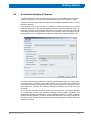
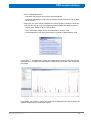
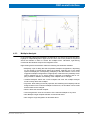
– Remove Selected Groups: remove selected group(s) from the list
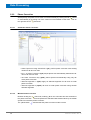
Right-clicking on a dataset within the group provides some additional features:
– Display: display dataset in current data window
– Display In New Window: display dataset in new data window
– Update Window Bounds & Display Limits: update window bounds and display limits
– Remove Selected Datasets From Group: remove selected dataset(s) from group
– Process Selected Datasets: enter the serial command (see Chapter 5.4)
– File Properties: show dataset properties
– Files: list files in selected entry (expno or procno)
– Copy: copy dataset to clipboard
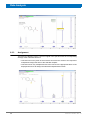
3.1.4
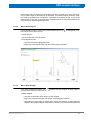
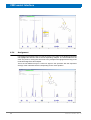
Put Focus in the Browser
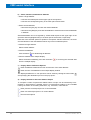
Hit the F2 key or click inside the browser.
3.1.5
Expand/Collapse a Folder in the Browser
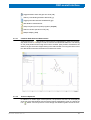
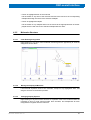
• Expanding a collapsed folder:
– Left-click the + button to the left of the folder
– Double-click the folder
– Hit the right-arrow key while the folder is highlighted
• Fully expanding a collapsed folder:
Right-click the folder and choose Fully Expand Selection
• Collapsing an expanded folder:
– Left-click the - button to the left of the folder
– Double-click the folder
– Hit the left-arrow key while the folder is highlighted
3.1.6
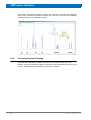
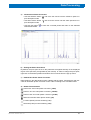
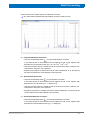
Open Data From the Browser
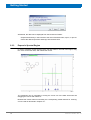
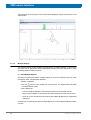
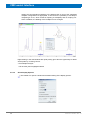
• Left-click-hold a dataset and drag it into the data area (the new dataset will replace the
currently displayed dataset)
• Right-click on a dataset and choose Display from the pop-up menu (the new dataset
will replace the currently displayed dataset)
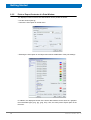
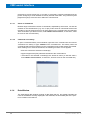
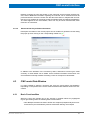
• Right-click on a dataset and select Display in New Window from the appearing dialog
(the dataset will be opened in a new data window)
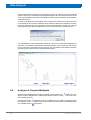
In order to load multiple spectra, hold the [Ctrl] key and left-click on the desired datasets
to select them or hold the [Shift] key and left-click two datasets to select these two and
Z4D11813 / Z33040 / Rev.: 01
21