1
NextOffice USB Edition
Installation of NextOffice USB Edition
Follow the following steps to install NextOffice USB Edition into your USB flash drive.
Connecting Your USB Flash Drive to PC/Notebook
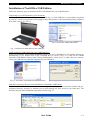
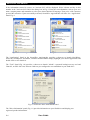
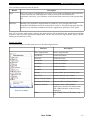
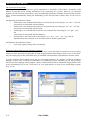
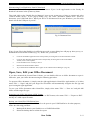
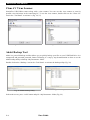
Attach your USB flash drive to a USB port of your PC (Fig. 1). If the USB drive is successfully recognized
by your PC, it will be recognized as a hot-plugged "Mass Storage Drive" and automatically being assigned a
drive letter, such as “E” (Fig. 2).
Fig. 2 NextOffice USB Edition Drive
Fig. 1 Connect your Flash Drive to the USB port
Install NextOffice USB Edition into your USB Flash Drive
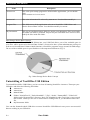
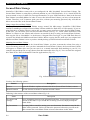
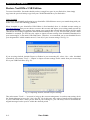
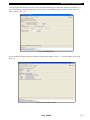
Insert your NextOffice USB Edition Installation CD into your PC's CD-ROM drive, the installer will pop-up
automatically. If not, double click on the CD-ROM drive to open it (Fig. 3-1). Click on the "Install
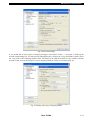
NextOfifce USB Edition" button, in the "Winzip Self-Extractor" screen (Fig. 3-2), click <Browse> button to
select your USB drive to install the programs into your USB drive. .
Fig. 3-1 NextOffice USB Edition Installation Menu
Fig 3-2. NextOffice Installation
Flash Drive Directory Structure after Installation of NextOffice USB Edition
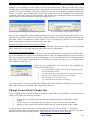
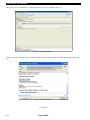
The NextOffice USB Edition installation includes application programs, Secured Data Volume and preconfigured directory structure to facilitate you to easily manage the files stored in your flash drive. The
directory structure after installation is depicted as follow (Fig. 4) :
Fig. 4 USB Flash Drive Directory Structure
User Guide
P.3