1
Type UCG/UDG
English
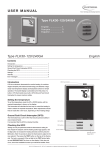
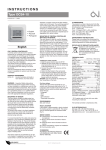
Checking the GFCI
Testing can only be performed while the thermostat is calling for
heat.
Adjust the setpoint until the heating symbol (
) appears. Use the
Up button to increase the heating demand and then press the OK
button Wait 10 seconds to allow the thermostat to adjust to the
new setpoint.
Then press the TEST button on the top of the thermostat.
The test is successful if the red light in the TEST button lights up
and GROUND FAULT is shown on the display. If this does not occur, check the installation/contact your electrical installer.
Press the Standby/Reset button to reset the GFCI.
The red light should go out and the display returns to normal appearance.
Press the Down button to return to the original temperature setting.
If the test fails, check the heating cable and thermostat.
6:1 will give you 6 days (Monday to Saturday) with the same
four events (Morning, Out, Home, Night) and 1 day (Sunday)
with the same two events (Day and Night).
7:0 will give you individual settings for each day from Monday
to Sunday.
1 Press the OK button to activate the menu.
2 Press the Up or Down buttons until the Schedule option flashes.
3 Press the OK button.
4 Press the Up or Down buttons until the required program (5:2,
6:1 or 7:0) flashes in the lower part of the display.
5 Press the OK button.
SCHEDULE
If during normal operation the GFCI trips without the TEST button
being pressed, there could be a ground fault! To check whether it
is a ground fault or nuisance tripping, press Standby/Reset.
If this causes the red light to go off and stay off, it was nuisance
tripping and the system is operating correctly. If this does not occur, there is a ground fault! Contact your electrical installer.
4-Event Program
I want the temperature to be controlled automatically in accordance with a program of individual
temperature settings for four separate events during
a day:
• when I wake up in the morning,
• when I am away at work,
MON TUE
WED THU
FRI
Step 3: Select the time and temperature settings for
each event in the program of days selected in the
previous step.
• when I come home,
SET TEMP
• and at night.
PROGRAM
To do so, you must perform the following 3 steps:
Step 1: Select automatic temperature control.
1 Press the OK button to activate the menu.
2 Press the Up or Down buttons until the Mode option flashes.
3 Press the OK button.
4 Press the Up or Down buttons until the Auto options flashes in
the upper part of the display.
5 Press the OK button.
At work
At home
EXIT
Morning
MON TUE
WED THU
Night
FRI
Factory setting: Auto mode
AUTO
OVERRIDE
MAN. MODE
Hour
Minutes
5-day period
Please note: The following description illustrates an example in
which settings are made for the daily events in a 5:2 program.
1 Press the Up or Down buttons until the Program option flashes.
2 Press the OK button.
3 Press the Up or Down buttons until the day(s) that you wish
MODE
SCHEDULE
PROGRAM
SETTINGS
EXIT
Step 2: Choosing the weekly schedule for your
program.
You have the following options:
5:2 will give you 5 days (Monday to Friday) with the same four
events (Morning, Out, Home, Night) and 2 days (Saturday and
Sunday) with the same two events (Morning and Night).
2
to program flash in the lower part of the display, e.g. Mon Tue
Wed Thu Fri.
4 Press the OK button. The symbol for the first event (e.g. morning) will now flash.
5 Press the OK button. The hour will flash, allowing you to set
the hour at which you want the morning period to begin.
6 Press the Up or Down buttons until the required hour is displayed.
7 Press the OK button. The minutes will flash.
8 Press the Up or Down buttons until the required minutes are
displayed.
9 Press the OK button. The temperature setting will now flash in
the upper part of the display.
© 2011 OJ Electronics A/S