1
Chapter 3 - Designing Columns
3. Use the Define menu > Confinement and Cover command to
access the Confinement and Cover form. Use the form to specify
transverse lateral reinforcement as well as the clear cover for the
longitudinal rebar.
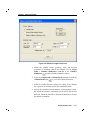
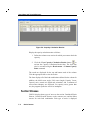
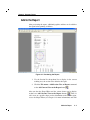
4. Click the File menu > New Rectangular Column command to
access the Rectangular Column form. Click the Materials button
near the bottom of the form to access the Column Material
Parameters form and define the column name, concrete properties,
and rebar properties. See Define the Base Material for the Section
later in this chapter for more information. The rebar properties
defined are assigned to all rebar added to a particular shape. The
units shown are the working units specified using the Option
menu > General Options command.
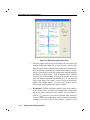
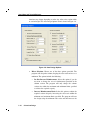
5. Cross-Section Size. Accept the defaults or enter new values in the
width and height edit boxes to define the size of the section.
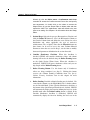
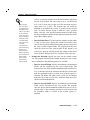
6. Rebar Layout. Specify the arrangement, number and diameter of
the main reinforcing bars. Click on the arrangement that best suits
your requirements and type the number and diameter of bars in the
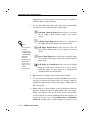
Total edit box (e.g., 8#10), or click the
button to access the
Adding Rebar by List form to specify additional rebar to be
distributed in accordance with the selected rebar layout. The
Adding Rebar by List form is further described in the Rebar
Calculator section in Chapter 4.
7. Use this as Pattern for Auto Design. When this checkbox is
checked, CSICOL will consider the placement pattern of the
reinforcing bars during the Column Auto Design process. The auto
design process is described in the Column Auto Design section
later in this chapter.
8. Lateral. Note that the transverse lateral reinforcement was set in
Step 3. As appropriate, use this option to change the reinforcement
for the rebar.
9. OK button. Click the OK button to close the Rectangular Column
form.
File Menu > New Rectangular Column
3-7