1
McDSP MC2000
• Once the plug-in is personalized, click the ‘Next’ button to continue.
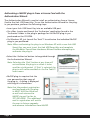
• Check the ‘Use License Card’ box and
press the ‘Next’ button (figure 2.3).
Note: Although the Authorization
Wizard may appear to allow
authorization by challenge/
response, that method is
currently NOT SUPPORTED
McDSP plug-ins.
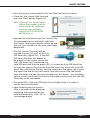
• Separate the small punch-out iLok License Chip
(the removable metal and plastic tab) from
the License Card by pushing the cutout up and
out with your thumb. Do not force your finger
downward.
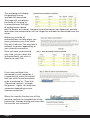
• The iLok License Chip may now be
inserted into the ‘key slot’ of the iLok
USB Smart Key (figure 2.6). If the iLok
USB Smart Key does not appear to
be present on the system, ensure the
iLok USB Smart Key is connected to a
valid USB port and that the green LED is lit inside the iLok USB Smart Key.
To insert the License Chip into the iLok USB Smart Key, orient the iLok USB
Smart Key’s USB end to the left, and the loop end to the upper right. Insert
the metal chip end of the iLok License Chip (the License Chip tab should
have the metal chip side facing up towards you, not down). You should be
able to visually verify that the License Chip makes contact with the iLok USB
Smart Key metal card reader.
• The green LED in the iLok USB Smart Key will light when it is ready to
receive and transmit data.
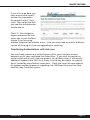
• Upon inserting the iLok License
Chip, a message will be displayed
indicating the authorization was
installed successfully. Click ‘Ok’ in
the message dialog.
mcdsp.com
Page 19