1
Quick start
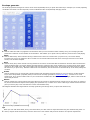
The installer will copy the FabFilter One plug-in into the common VST, VST 3, AU (OS X only)
and Pro Tools plug-in folders on your
computer. On Mac OS X, the global plug-in folders in
/Library/Audio/Plug-Ins are used.
In most cases, your host will then recognize the plugin automatically. However, if the
instructions below do not work, see Manual
installation instead.
Cubase
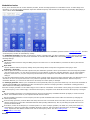
Choose an empty insert slot, for example in the Mixer, and select FabFilter One from the menu
that appears. To use the MIDI
features in One, create a new MIDI track and set its output to
the One instance you have just created. (The VST 3 version of One
can be found in the
Instruments section.)
Logic Pro
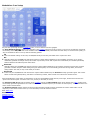
Choose an empty insert slot on one of your audio tracks, instrument tracks or buses and select
FabFilter One from the pop-up
menu. You will find FabFilter One in the Audio Units ->
FabFilter section (named FF One).
Ableton Live
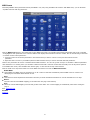
In Session view, select the track you would like to place FabFilter One on, for example by
clicking the track name. At the left top of
Ableton Live's interface, click on the Plug-in
Device Browser icon (third icon from the top). From the plug-ins list, double-click
FabFilter/FabFilter One, or drag it onto the track.
Pro Tools
Choose an empty insert slot on one of your audio tracks, instrument tracks or buses and select
FabFilter One from the pop-up menu
in the Instruments section.
Use the Presets button at the top of the plug-in interface to try different settings from the
many factory presets that are bundled with
FabFilter One. Have fun!
Next: FabFilter One overview
See Also
Overview
Loading presets
5