1
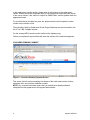
NOTE: You may again be prompted to change your password after a certain time frame.
You will also have the option to change it from the main menu.
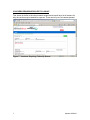
MAIN MENU SCREEN
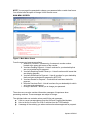
Figure 3 - Main Menu Screen
From the menu you have seven options:
1. Search for Vouchers – Allows entry of customer’s voucher number
located at the upper right corner of the voucher.
2. Vouchers Pending Payment – Lists all vouchers for your dealership that
are not yet authorized for payment.
3. Vouchers Requiring Dealer Follow-up – Lists all vouchers with issues that
are delaying payment.
4. Vouchers Authorized for Payment – Lists all vouchers for your dealership
that have been authorized for payment by NCTCOG.
5. Vouchers Denied for Payment – Vouchers that have been denied for
payment.
6. Historical Vouchers Paid – Lists all vouchers for your dealership for which
you have received payment.
7. Change Password – Allows you to change your password.
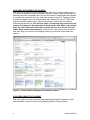
The main menu now also contains information messages of importance when
processing vouchers. These messages are subject to change.
The right-hand side now contains various useful links and messages:
A link to current correspondence from the AirCheck Program Administrator
Links to the list of current Tier 2 Bin 5 vehicles from the TCEQ website
A message in blue alerting you when vouchers have been approved for payment.
3
Updated 2/5/2010