1
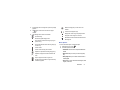
• Add shortcut: allows you to add a shortcut to your Home
screen.
• Print: allows you to print the screen or web page on a
Samsung printer using Wi-Fi.
• Save page: allows you to save the page image to the Saved
pages folder.
• Settings: allows you to modify your web settings. For more
information, refer to “Browser Settings” on page 151.
• Share via: allows you to share the page using Bluetooth,
ChatON, Dropbox, Email, Flipboard, Gmail, Google,
Google+, Messaging, S Memo, or Wi-Fi Direct.
• Help: allows you view additional information concerning the
Internet application.
• Find on page: allows you to search in the current page.
• Incognito mode: pages viewed in incognito mode won’t
appear within your browser history or search history, and no
traces (such as cookies) are left on your device. For more
information, refer to “Going Incognito” on page 149.
• Saved pages: shows web pages you have saved using the
Save page option.
• History: displays your browsing history. You can tap on a
listing to open the page.
• Desktop view: allows you to assign the browser to display the
current page in the desktop view (to closely mimic the display
as it would appear on a desktop computer).
• Brightness: allows you to set the screen brightness.
148
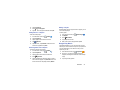
Enter a URL
You can access a website quickly by entering the URL.
Websites are optimized for viewing on your phone.
To enter a URL and go to a particular website, follow these
steps:
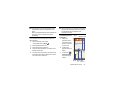
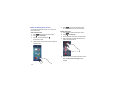
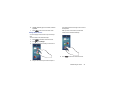
1. Tap the URL field at the top of your screen.
2. Enter the URL using the on-screen keypad.
The website displays.
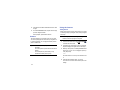
Search the Internet
To perform an internet search using keywords, follow these
steps:
1. From any webpage, tap the URL field at the top of the
screen.
2. Enter the keyword(s) to search using the on-screen
keypad and tap Go.