1
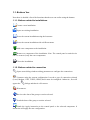
Contact sensor, detects doors or windows opening.
Gas sensor, detects gas escapes.
The steps needed to add a new output or relay are very similar to the steps needed to add
a sensor. Follow the steps below:
1. Click the icon in the toolbar of the sensor you want to add.
2. It will appear a window asking for the zone of the central panel assigned to the
sensor. Select one and press Ok.
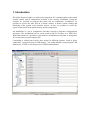
3. Click in the map in the exact position where you want to put the icon of the
sensor.
4. If you want to change the position of a sensor, drag it to another place. To drag
is keep pressed the left button of the mouse while you move it across the map.
The are three types of outputs in the graphic state:
Horn. Output connected to a horn.
Output. An output connected to anything different of a horn.
Relay.
To delete a component press the icon
want to delete in the map.
and the select the sensor, output or relay you
When all the changes are made the user can exit of the edit mode pressing the button
“Exit of edit mode”. Refresh the state using
.
4.5.2. Visualization state
Outside the edition mode it’s possible to obtain information about the sensors, outputs
and relays pressing the left button of the mouse over the component. Keeping press the
button it will appear a box with information about the component and its state.