1
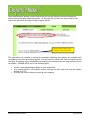
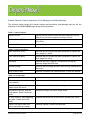
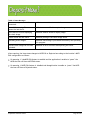
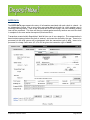
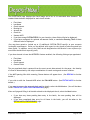
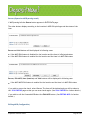
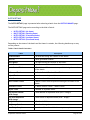
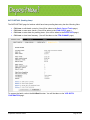
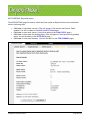
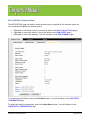
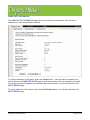
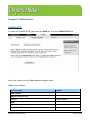
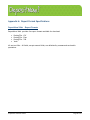
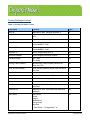
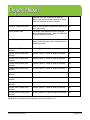
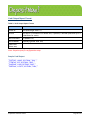
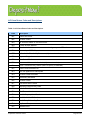
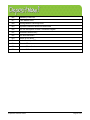
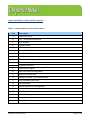
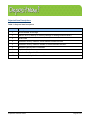
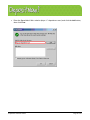
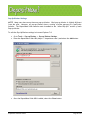
The ENTER DATA page displays the check image and a list of its associated data elements. The
standard data elements displayed for each check include:
•
•
•
•
•
•
•
•
•
First Name
Last Name
Check Amount
Routing No.
Account No.
Check No.
Scanner MICR
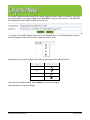
If you have setup CUSTOM FIELDS for your Location, those fields will also be displayed.
If you have configured for optional sub-amount fields, a cumulative Running Total of those
fields will also be displayed.
(You may have opted to include up to 12 additional CUSTOM FIELDS specific to your accounts
receivable requirements. Rules can be defined with regard to the format of data accepted into
those fields. In addition, one of the fields can de designated as the Receiver cross-reference for
use within the NetCheck reporting tool.)
If you have elected to have the AUTO-FILL feature enabled, the following fields get pre-populated:
•
•
•
•
First Name
Last Name
Check Amount
Custom Fields
The pre-populated data is captured from the most recent data entered for the payer, the identity
of whom is determined by the unique combination of transit routing and account numbers.
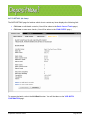
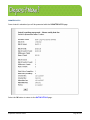
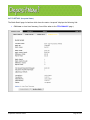
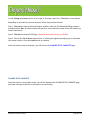
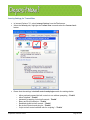
If the MICR parsing fails while scanning, Rescan button will appear here. (See RESCAN for further
details.)
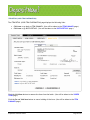
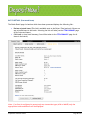
If you wish to edit the Scanned MICR select the Edit MICR button. (See EDITING MICR for further
details.)
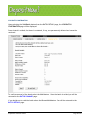
If you want to remove the scanned check and its details, select the Void button. (You will be taken
to the ITEM DETAIL (VOID ITEM CONFIRMATION) page.)
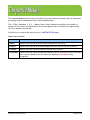
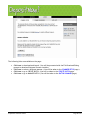
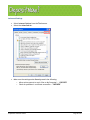
After verifying and filling in all details related to the displayed check, select the Next button.
•
•
If you have any items pending data entry in the batch, the next pending item will be
displayed.
If you have completed data entry for all items in the batch, you will be taken to the
EDITING MICR (CONFIGURABLE) page.
DepositNow! Web User Guide
Page 21 of 76