1
PASSWORD
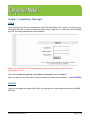
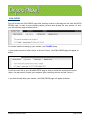
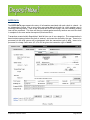
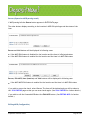
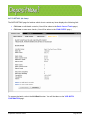
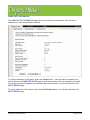
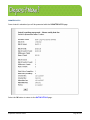
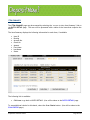
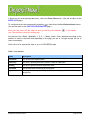
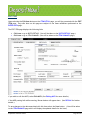
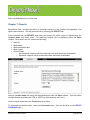
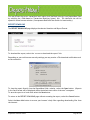
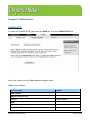
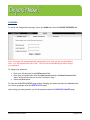
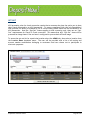
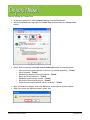
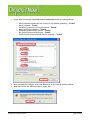
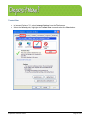
To access the Change Password page, select the ADMIN tab, then the CHANGE PASSWORD tab.
Note: This page will be automatically displayed the first time you log into DepositNow!
Web , or if the password has been reset. You will also be periodically forced to change
your password.
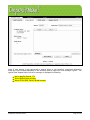
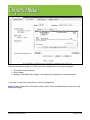
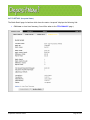
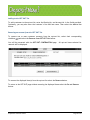
To change your password:
•
•
•
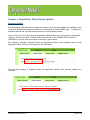
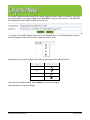
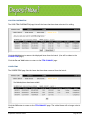
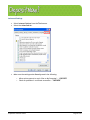
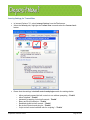
Enter your old password in the Old Password field.
Enter your new password in both the New Password and the Confirm Password fields.
(Note: All passwords must be at least 8 characters long.)
Select the Save button.
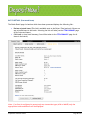
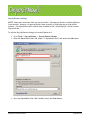
To leave the CHANGE PASSWORD page without changing your password select the Cancel button.
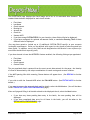
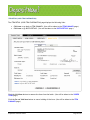
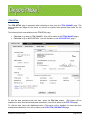
You will be presented with the CREATE BATCH page.
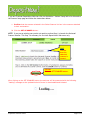
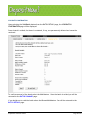
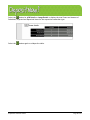
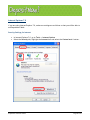
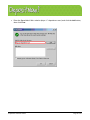
Upon saving your new password you will be presented with the PASSWORD CHANGED page.
DepositNow! Web User Guide
Page 51 of 76