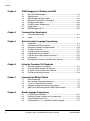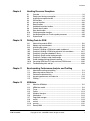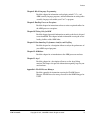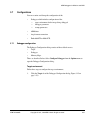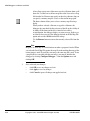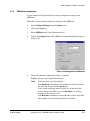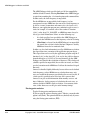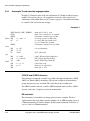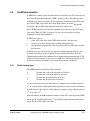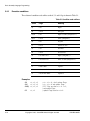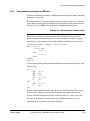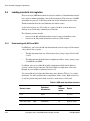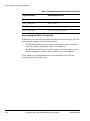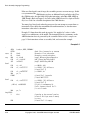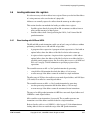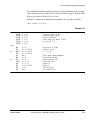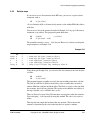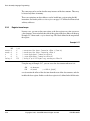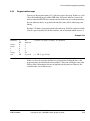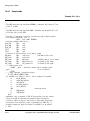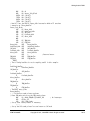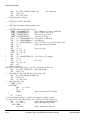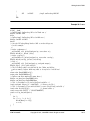
1
ARM Software Development Toolkit Version 2.50 User Guide Copyright © 1997, 1998 ARM Limited. All rights reserved. ARM DUI 0040D ARM Software Development Toolkit User Guide Copyright © 1997, 1998 ARM Limited. All rights reserved. Release Information The following changes have been made to this book. Change History Date Issue Change Dec 1996 A Internal release Jan 1997 B First release for SDT 2.10 June 1997 C Updated for SDT 2.11 Nov 1998 D Updated for SDT 2.50 Proprietary Notice ARM, Thumb, StrongARM, and the ARM Powered logo are registered trademarks of ARM Limited. Angel, ARMulator, EmbeddedICE, Multi-ICE, ARM7TDMI, ARM9TDMI, and TDMI are trademarks of ARM Limited. All other products or services mentioned herein may be trademarks of their respective owners. Neither the whole nor any part of the information contained in, or the product described in, this document may be adapted or reproduced in any material form except with the prior written permission of the copyright holder. The product described in this document is subject to continuous developments and improvements. All particulars of the product and its use contained in this document are given by ARM in good faith. However, all warranties implied or expressed, including but not limited to implied warranties of merchantability, or fitness for purpose, are excluded. This document is intended only to assist the reader in the use of the product. ARM Limited shall not be liable for any loss or damage arising from the use of any information in this document, or any error or omission in such information, or any incorrect use of the product. ii Copyright © 1997, 1998 ARM Limited. All rights reserved. ARM DUI 0040D Contents ARM Software Development Toolkit User Guide Preface About this book ............................................................................................ viii Further reading .............................................................................................. x Typographical conventions ........................................................................... xii Feedback ..................................................................................................... xiii Chapter 1 Introduction 1.1 1.2 1.3 Chapter 2 ARM Project Manager 2.1 2.2 2.3 2.4 2.5 2.6 2.7 2.8 2.9 2.10 ARM DUI 0040D About the ARM Software Development Toolkit ........................................... 1-2 Supported platforms .................................................................................... 1-5 What is new? .............................................................................................. 1-6 About the ARM Project Manager ................................................................ 2-2 Getting started ............................................................................................ 2-4 The APM desktop ..................................................................................... 2-15 Additional APM functions .......................................................................... 2-20 Setting preferences ................................................................................... 2-31 Working with source files .......................................................................... 2-34 Viewing object and executable files .......................................................... 2-37 Working with project templates ................................................................. 2-39 Build step patterns .................................................................................... 2-47 Using APM with C++ ................................................................................. 2-52 Copyright © 1997, 1998 ARM Limited. All rights reserved. iii Contents Chapter 3 ARM Debuggers for Windows and UNIX 3.1 3.2 3.3 3.4 3.5 3.6 3.7 3.8 Chapter 4 Command-Line Development 4.1 4.2 Chapter 5 About interworking ...................................................................................... 7-2 Basic assembly language interworking ...................................................... 7-4 C and C++ interworking and veneers ....................................................... 7-12 Assembly language interworking using veneers ...................................... 7-19 ARM-Thumb interworking with the ARM Project Manager ....................... 7-23 Mixed Language Programming 8.1 8.2 8.3 8.4 iv About the procedure call standards ............................................................ 6-2 Using the ARM Procedure Call Standard ................................................... 6-3 Using the Thumb Procedure Call Standard .............................................. 6-11 Passing and returning structures .............................................................. 6-13 Interworking ARM and Thumb 7.1 7.2 7.3 7.4 7.5 Chapter 8 Introduction ................................................................................................. 5-2 Overview of the ARM architecture .............................................................. 5-3 Structure of assembly language modules ................................................ 5-10 Conditional execution ............................................................................... 5-17 Loading constants into registers ............................................................... 5-22 Loading addresses into registers .............................................................. 5-27 Load and store multiple register instructions ............................................ 5-34 Using macros ............................................................................................ 5-43 Describing data structures with MAP and # directives ............................. 5-46 Using the Procedure Call Standards 6.1 6.2 6.3 6.4 Chapter 7 The hello world example ............................................................................. 4-2 armsd .......................................................................................................... 4-6 Basic Assembly Language Programming 5.1 5.2 5.3 5.4 5.5 5.6 5.7 5.8 5.9 Chapter 6 About the ARM Debuggers ......................................................................... 3-2 Getting started ............................................................................................ 3-7 ARM Debugger desktop windows ............................................................ 3-14 Breakpoints, watchpoints, and stepping ................................................... 3-26 Debugger further details ........................................................................... 3-36 Channel viewers (Windows only) ............................................................. 3-49 Configurations .......................................................................................... 3-51 ARM Debugger with C++ .......................................................................... 3-62 Using the inline assemblers ........................................................................ 8-2 Accessing C global variables from assembly code .................................. 8-14 Using C header files from C++ ................................................................. 8-15 Calling between C, C++, and ARM assembly language ........................... 8-17 Copyright © 1997, 1998 ARM Limited. All rights reserved. ARM DUI 0040D Contents Chapter 9 Handling Processor Exceptions 9.1 9.2 9.3 9.4 9.5 9.6 9.7 9.8 9.9 9.10 9.11 9.12 Chapter 10 Overview ..................................................................................................... 9-2 Entering and leaving an exception .............................................................. 9-5 Installing an exception handler ................................................................... 9-9 SWI handlers ............................................................................................ 9-14 Interrupt handlers ...................................................................................... 9-22 Reset handlers .......................................................................................... 9-32 Undefined instruction handlers ................................................................. 9-33 Prefetch abort handler .............................................................................. 9-34 Data abort handler .................................................................................... 9-35 Chaining exception handlers ..................................................................... 9-37 Handling exceptions on Thumb-capable processors ................................ 9-39 System mode ............................................................................................ 9-44 Writing Code for ROM 10.1 10.2 10.3 10.4 10.5 10.6 10.7 10.8 10.9 10.10 10.11 Chapter 11 Benchmarking, Performance Analysis, and Profiling 11.1 11.2 11.3 11.4 11.5 Chapter 12 About benchmarking and profiling ............................................................ 11-2 Measuring code and data size .................................................................. 11-3 Performance benchmarking ...................................................................... 11-6 Improving performance and code size .................................................... 11-16 Profiling ................................................................................................... 11-19 ARMulator 12.1 12.2 12.3 12.4 12.5 12.6 12.7 12.8 12.9 12.10 12.11 ARM DUI 0040D About writing code for ROM ...................................................................... 10-2 Memory map considerations ..................................................................... 10-3 Initializing the system ................................................................................ 10-5 Example 1: Building a ROM to be loaded at address 0 ............................ 10-9 Example 2: Building a ROM to be entered at its base address ............... 10-17 Example 3: Using the embedded C library .............................................. 10-19 Example 4: Simple scatter loading example ........................................... 10-22 Example 5: Complex scatter load example ............................................. 10-26 Scatter loading and long-distance branching .......................................... 10-30 Converting ARM linker ELF output to binary ROM formats .................... 10-32 Troubleshooting hints and tips ................................................................ 10-34 About the ARMulator ................................................................................. 12-2 ARMulator models .................................................................................... 12-3 Tracer ........................................................................................................ 12-6 Profiler ..................................................................................................... 12-12 Windows Hourglass ................................................................................ 12-13 Watchpoints ............................................................................................ 12-14 Page table manager ................................................................................ 12-15 armflat ..................................................................................................... 12-19 armfast .................................................................................................... 12-20 armmap ................................................................................................... 12-21 Dummy MMU .......................................................................................... 12-24 Copyright © 1997, 1998 ARM Limited. All rights reserved. v Contents 12.12 12.13 12.14 12.15 12.16 Chapter 13 About Angel .............................................................................................. 13-2 Developing applications with Angel ........................................................ 13-11 Angel in operation ................................................................................... 13-29 Porting Angel to new hardware .............................................................. 13-43 Configuring Angel ................................................................................... 13-69 Angel communications architecture ........................................................ 13-73 Angel C library support SWIs ................................................................. 13-79 Angel debug agent interaction SWIs ...................................................... 13-95 The Fusion IP stack for Angel ................................................................ 13-99 FlexLM License Manager A.1 A.2 A.3 A.4 A.5 A.6 A.7 A.8 A.9 A.10 vi 12-25 12-27 12-29 12-32 12-34 Angel 13.1 13.2 13.3 13.4 13.5 13.6 13.7 13.8 13.9 Appendix A Angel ...................................................................................................... Controlling the ARMulator using the debugger ....................................... A sample memory model ........................................................................ Rebuilding the ARMulator ....................................................................... Configuring ARMulator to use the example ............................................ About license management ........................................................................ A-2 Obtaining your license file .......................................................................... A-4 What to do with your license file ................................................................. A-5 Starting the server software ........................................................................ A-6 Running your licensed software ................................................................. A-7 Customizing your license file ...................................................................... A-9 Finding a license ....................................................................................... A-11 Using FlexLM with more than one product ............................................... A-12 FlexLM license management utilities ........................................................ A-14 Frequently asked questions about licensing ............................................. A-18 Copyright © 1997, 1998 ARM Limited. All rights reserved. ARM DUI 0040D Preface This preface introduces the ARM Software Development Toolkit and its user documentation. It contains the following sections: • About this book on page viii • Further reading on page x • Typographical conventions on page xii • Feedback on page xiii. ARM DUI 0040D Copyright © 1997, 1998 ARM Limited. All rights reserved. vii Preface About this book This book provides user information for the ARM Software Development Toolkit. It describes the major graphical user interface components of the toolkit, and provides tutorial information on important aspects of developing applications for ARM processors. Organization This book is organized into the following chapters: Chapter 1 Introduction Read this chapter for an introduction to the ARM Software Development Toolkit version 2.5, and details of the changes that have been made since version 2.11a. Chapter 2 ARM Project Manager Read this chapter for information on the graphical user interface to the ARM tools. APM runs under Windows 95 and NT, and provides a graphical user interface to configure the ARM development tools and manage your software development projects. Chapter 3 ARM Debuggers for Windows and UNIX Read this chapter for a description of the ARM graphical user interface debuggers for Windows and UNIX. Chapter 4 Command-Line Development Read this chapter for a brief overview of developing programs in a command-line environment. Chapter 5 Basic Assembly Language Programming Read this chapter for tutorial information on writing ARM assembly language, including information about effectively using the directives and pseudo-instructions provided by the assembler. Chapter 6 Using the Procedure Call Standards Read this chapter for a description of how to use the ARM and Thumb procedure call standards when writing mixed assembly language and C or C++. Chapter 7 Interworking ARM and Thumb Read this chapter for information on how to interwork code developed to run in Thumb state and code developed to run in ARM state. viii Copyright © 1997, 1998 ARM Limited. All rights reserved. ARM DUI 0040D Preface Chapter 8 Mixed Language Programming Read this chapter for information on developing mixed C, C++, and ARM assembly language programs, and for information on writing inline assembly language code within your C or C++ program. Chapter 9 Handling Processor Exceptions Read this chapter for instructions on how to write exception handlers for the ARM processor exceptions. Chapter 10 Writing Code for ROM Read this chapter for tutorial information on writing code that is designed to run from ROM. This chapter includes information on using the scatter loading facilities of the ARM linker. Chapter 11 Benchmarking, Performance Analysis, and Profiling Read this chapter for a description of how to analyze the performance of your ARM targeted programs. Chapter 12 ARMulator Read this chapter for an introduction to the ARM processor emulator. Chapter 13 Angel Read this chapter for a description of how to use the Angel debug monitor. This chapter also provides information on porting Angel to your own hardware. Appendix A FlexLM License Manager Read this appendix for instructions on using the FlexLM License Manager. FlexLM is used to manage licenses for the ARM Debugger for UNIX. ARM DUI 0040D Copyright © 1997, 1998 ARM Limited. All rights reserved. ix Preface Further reading This section lists publications from both ARM Limited and third parties that provide additional information on developing for the ARM processor, and general information on related topics such as C and C++ development. ARM publications This book contains reference information that is specific to the ARM Software Development Toolkit. For additional information, refer to the following ARM publications: • ARM Software Development Toolkit Reference Guide (ARM DUI 0041) • ARM Architectural Reference Manual (ARM DUI 0100) • ARM Reference Peripheral Specification (ARM DDI 0062) • ARM Target Development System User Guide (ARM DUI 0061) • the ARM datasheet for your hardware device. Other publications This book is not intended to be an introduction to the C or C++ programming languages, It does not try to teach programming in C or C++, and it is not a reference manual for the C or C++ standards. The following texts provide general information: ARM architecture • Furber, S., ARM System Architecture (1996). Addison Wesley Longman, Harlow, England. ISBN 0-201-40352-8. ISO/IEC C++ reference • ISO/IEC JTC1/SC22 Final CD (FCD) Ballot for CD 14882: Information Technology - Programming languages, their environments and system software interfaces - Programming Language C++. This is the December 1996 version of the draft ISO/IEC standard for C++. It is referred to hereafter as the Draft Standard. C++ programming guides The following books provide general C++ programming information: • x Ellis, M.A. and Stroustrup, B., The Annotated C++ Reference Manual (1990). Addison-Wesley Publishing Company, Reading, Massachusetts. ISBN 0-201-51459-1. Copyright © 1997, 1998 ARM Limited. All rights reserved. ARM DUI 0040D Preface This is a reference guide to C++. • Stroustrup, B., The Design and Evolution of C++ (1994). Addison-Wesley Publishing Company, Reading, Massachusetts. ISBN 0-201-54330-3. This book explains how C++ evolved from its first design to the language in use today. • Meyers, S., Effective C++ (1992). Addison-Wesley Publishing Company, Reading, Massachusetts. ISBN 0-201-56364-9. This provides short, specific, guidelines for effective C++ development. • Meyers, S., More Effective C++ (1996). Addison-Wesley Publishing Company, Reading, Massachusetts. ISBN 0-201-63371-X. The sequel to Effective C++. C programming guides The following books provide general C programming information: • Kernighan, B.W. and Ritchie, D.M., The C Programming Language (2nd edition, 1988). Prentice-Hall, Englewood Cliffs, NJ, USA. ISBN 0-13-110362-8. This is the original C bible, updated to cover the essentials of ANSI C. • Harbison, S.P. and Steele, G.L., A C Reference Manual (second edition, 1987). Prentice-Hall, Englewood Cliffs, NJ, USA. ISBN 0-13-109802-0. This is a very thorough reference guide to C, including useful information on ANSI C. • Koenig, A, C Traps and Pitfalls, Addison-Wesley (1989), Reading, Mass. ISBN 0-201-17928-8. This explains how to avoid the most common traps and pitfalls in C programming. It provides informative reading at all levels of competence in C. ANSI C reference • ISO/IEC 9899:1990, C Standard This is available from ANSI as X3J11/90-013. The standard is available from the national standards body (for example, AFNOR in France, ANSI in the USA). ARM DUI 0040D Copyright © 1997, 1998 ARM Limited. All rights reserved. xi Preface Typographical conventions The following typographical conventions are used in this book: typewriter Denotes text that may be entered at the keyboard, such as commands, file and program names, and source code. typewriter Denotes a permitted abbreviation for a command or option. The underlined text may be entered instead of the full command or option name. typewriter italic Denotes arguments to commands and functions where the argument is to be replaced by a specific value. italic Highlights important notes, introduces special terminology, denotes internal cross-references, and citations. bold Highlights interface elements, such as menu names. Also used for emphasis in descriptive lists, where appropriate, and for ARM processor signal names. typewriter bold Denotes language keywords when used outside example code. xii Copyright © 1997, 1998 ARM Limited. All rights reserved. ARM DUI 0040D Preface Feedback ARM Limited welcomes feedback on both the Software Development Toolkit, and the documentation. Feedback on this book If you have any comments on this book, please send email to [email protected] giving: • the document title • the document number • the page number(s) to which you comments apply • a concise explanation of your comments. General suggestions for additions and improvements are also welcome. Feedback on the ARM Software Development Toolkit If you have any problems with the ARM Software Development Kit, please contact your supplier. To help us provide a rapid and useful response, please give: • details of the release you are using • details of the platform you are running on, such as the hardware platform, operating system type and version • a small stand-alone sample of code that reproduces the problem • a clear explanation of what you expected to happen, and what actually happened • the commands you used, including any command-line options • sample output illustrating the problem • the version string of the tool, including the version number and date. ARM DUI 0040D Copyright © 1997, 1998 ARM Limited. All rights reserved. xiii Preface xiv Copyright © 1997, 1998 ARM Limited. All rights reserved. ARM DUI 0040D Chapter 1 Introduction This chapter introduces the ARM Software Development Toolkit version 2.50 and describes the changes that have been made since SDT version 2.11a. It contains the following sections: • About the ARM Software Development Toolkit on page 1-2 • Supported platforms on page 1-5 • What is new? on page 1-6. ARM DUI 0040D Copyright © 1997, 1998 ARM Limited. All rights reserved. 1-1 Introduction 1.1 About the ARM Software Development Toolkit The ARM Software Development Toolkit (SDT) consists of a suite of applications, together with supporting documentation and examples, that enable you to write and debug applications for the ARM family of RISC processors. You can use the SDT to develop, build, and debug C, C++, or ARM assembly language programs. 1.1.1 Components of the SDT The ARM Software Development Toolkit consists of the following major components: • command-line development tools • Windows development tools • utilities • supporting software. These are described in more detail below. Command-line development tools The following command-line development tools are provided: 1-2 armcc The ARM C compiler. The compiler is tested against the Plum Hall C Validation Suite for ANSI conformance. It compiles ANSI or PCC source into 32-bit ARM code. tcc The Thumb C compiler. The compiler is tested against the Plum Hall C Validation Suite for ANSI conformance. It compiles ANSI or PCC source into 16-bit Thumb code. armasm The ARM and Thumb assembler. This assembles both ARM assembly language and Thumb assembly language source. armlink The ARM linker. This combines the contents of one or more object files with selected parts of one or more object libraries to produce an executable program. The ARM linker creates ELF executable images. armsd The ARM and Thumb symbolic debugger. This enables source level debugging of programs. You can single step through C or assembly language source, set breakpoints and watchpoints, and examine program variables or memory. Copyright © 1997, 1998 ARM Limited. All rights reserved. ARM DUI 0040D Introduction Windows development tools The following windows development tools are provided: ADW The ARM Debugger for Windows. This provides a full Windows environment for debugging your C, C++, and assembly language source. APM The ARM Project Manager. This is a graphical user interface tool that automates the routine operations of managing source files and building your software development projects. APM helps you to construct the environment, and specify the procedures needed to build your software. Utilities The following utility tools are provided to support the main development tools: fromELF The ARM image conversion utility. This accepts ELF format input files and converts them to a variety of output formats, including AIF, plain binary, Extended Intellec Hex (IHF) format, Motorola 32-bit S record format, and Intel Hex 32 format. armprof The ARM profiler displays an execution profile of a program from a profile data file generated by an ARM debugger. armlib The ARM librarian enables sets of AOF files to be collected together and maintained in libraries. You can pass such a library to the linker in place of several AOF files. decaof The ARM Object Format decoder decodes AOF files such as those produced by armasm and armcc. decaxf The ARM Executable Format decoder decodes executable files such as those produced by armlink. topcc The ANSI to PCC C Translator helps to translate C programs and headers from ANSI C into PCC C, primarily by rewriting top-level function prototypes. topcc is available for UNIX platforms only, not for Windows. ARM DUI 0040D Copyright © 1997, 1998 ARM Limited. All rights reserved. 1-3 Introduction Supporting software The following support software is provided to enable you to debug your programs, either under emulation, or on ARM-based hardware. ARMulator The ARM core emulator. This provides instruction accurate emulation of ARM processors, and enables ARM and Thumb executable programs to be run on non-native hardware. The ARMulator is integrated with the ARM debuggers. Angel 1.1.2 The ARM debug monitor. Angel runs on target development hardware and enables you to develop and debug applications running on ARM-based hardware. Angel can debug applications running in either ARM state or Thumb state. Components of C++ version 1.10 ARM C++ is not part of the base Software Development Toolkit. It is available separately. Contact your distributor or ARM Limited if you want to purchase ARM C++. ARM C++ version 1.10 consists of the following major components: armcpp This is the ARM C++ compiler. It compiles draft-conforming C++ source into 32-bit ARM code. tcpp This is the Thumb C++ compiler. It compiles draft-conforming C++ source into 16-bit Thumb code. support software The ARM C++ release provides a number of additional components to enable support for C++ in the ARM Debuggers, and the ARM Project Manager. Note The ARM C++ compilers, libraries, and enhancements to the ARM Project Manager and ARM Debuggers are described in the appropriate sections of the ARM Software Development Toolkit User Guide and Reference Guide. 1-4 Copyright © 1997, 1998 ARM Limited. All rights reserved. ARM DUI 0040D Introduction 1.2 Supported platforms This release of the ARM Software Development Toolkit supports the following platforms: • Sun workstations running Solaris 2.5 or 2.6 • Hewlett Packard workstations running HP-UX 10 • IBM compatible PCs running Windows 95, Windows 98, or Windows NT 4. The Windows development tools (ADW and APM) are supported on IBM compatible PCs running Windows 95, Windows 98, and Windows NT 4. The SDT is no longer supported on the following platforms: ARM DUI 0040D • Windows NT 3.51 • SunOS 4.1.3 • HP-UX 9 • DEC Alpha NT. Copyright © 1997, 1998 ARM Limited. All rights reserved. 1-5 Introduction 1.3 What is new? This section describes the major changes that have been made to the Software Development Toolkit since version 2.11a. The most important new features are: • Improved support for debug of optimized code. • Instruction scheduling compilers. • Reduced debug data size. • New supported processors. ARMulator now supports the latest ARM processors. • ADW enhancements. SDT 2.50 provides a new ADW capable of remote debugging with Multi-ICE, and able to accept DWARF 1 and DWARF 2 debug images. The preferred and default debug table format for the SDT is now DWARF 2. The ASD debug table format is supported for this release, but its use is deprecated and support for it will be withdrawn in future ARM software development tools. The preferred and default executable image format is now ELF. Refer to the ELF description in c:ARM250\PDF\specs for details of the ARM implementation of standard ELF format. Demon-based C libraries are no longer included in the toolkit release, and RDP is no longer supported as a remote debug protocol. The following sections describe the changes in more detail: • Functionality enhancements and new functionality on page 1-7 • Changes in default behavior on page 1-12 • Obsolete and deprecated features on page 1-15. 1-6 Copyright © 1997, 1998 ARM Limited. All rights reserved. ARM DUI 0040D Introduction 1.3.1 Functionality enhancements and new functionality This release of the ARM Software Development Toolkit introduces numerous enhancements and new features. The major changes are described in: • Improved support for debug of optimized code • Instruction scheduling compilers on page 1-8 • Reduced debug data size on page 1-8 • New supported processors on page 1-9 • ADW enhancements on page 1-9 • Interleaved source and assembly language output on page 1-10 • New assembler directives and behavior on page 1-10 • Long long operations now compile inline on page 1-10 • Angel enhancements on page 1-11 • ARMulator enhancements on page 1-11 • New fromELF tool on page 1-11 • New APM configuration dialogs on page 1-12. Improved support for debug of optimized code Compiling for debug (-g), and the optimization level (-O), have been made orthogonal in the compilers.There are 3 levels of optimization: -O0 Turns off all optimization, except some simple source transformations. -O1 Turns off structure splitting, range splitting, cross-jumping, and conditional execution optimizations. Also, no debug data for inline functions is generated. -O2 Full optimization. The -O0 option gives the best debug view, but with the least optimized code. The -O1 option gives a satisfactory debug view, with good code density. By default no debug data is emitted for inline functions, so they cannot be debugged. With DWARF1 debug tables (-dwarf1 command-line option), variables local to a function are not visible, and it is not possible to get a stack backtrace. The -O2 option emits fully optimized code that is still acceptable to the debugger. However, the correct values of variables are not always displayed, and the mapping of object code to source code is not always clear, because of code re-ordering. ARM DUI 0040D Copyright © 1997, 1998 ARM Limited. All rights reserved. 1-7 Introduction A new pragma has been introduced to specify that debug data is to be emitted for inline functions. The pragma is #pragma [no]debug_inlines. You can use this pragma to bracket any number of inline functions. It can be used regardless of the level of optimization chosen. Impact Any existing makefiles or APM projects that use –g+ –gxo will now get the behavior defined by –g+ -O1. The SDT 2.11a option -g+ -gxr is still supported by SDT 2.50, and has the same functionality as in SDT 2.11a, but will not be supported by future releases. Instruction scheduling compilers The compilers have been enhanced to perform instruction scheduling. Instruction scheduling involves the re-ordering of machine instruction to suit the particular processor for which the code is intended. Instruction scheduling in this version of the C and C++ compilers is performed after the register allocation and code generation phases of the compiler. Instruction scheduling is of benefit to code for the StrongARM1 and ARM9 processor families: • if the -processor option specifies any processor other than the StrongARM1, instruction scheduling suitable for the ARM 9 is performed • if -processor StrongARM1 is specified, instruction scheduling for the StrongARM1 is performed. By default, instruction scheduling is turned on. It can be turned off with the -zpno_optimize_scheduling command-line option. Reduced debug data size In SDT 2.50 and C++ 1.10, the compilers generate one set of debug areas for each input file, including header files. The linker is able to detect multiple copies of the set of debug areas corresponding to an input file that is included more than once, and emits only one such set of debug areas in the final image. This can result in a considerable reduction in image size. This improvement is not available when ASD debug data is generated. In SDT 2.11a and C++ 1.01 images compiled and linked for debug could be considerably larger than expected, because debug data was generated separately for each compilation unit. The linker emitted all the debug areas, because it was unable to identify multiple copies of debug data belonging to header files that were included more than once. 1-8 Copyright © 1997, 1998 ARM Limited. All rights reserved. ARM DUI 0040D Introduction Impact Existing makefiles and APM projects generate smaller debug images, and therefore the images load more quickly into the debugger. This feature cannot be disabled. New supported processors ARMulator models for the ARM9TDMI, ARM940T, ARM920T, ARM710T, ARM740T, ARM7TDMI-S, ARM7TDI-S, and ARM7T-S processors have been added to SDT 2.50. These are compatible with the memory model interfaces from the SDT 2.11a ARMulator. These processor names (and those of all other released ARM processors) are now permitted as arguments to the –processor command-line option of the compilers and assembler. ADW enhancements ADW has been enhanced to provide the following additional features: ARM DUI 0040D • Support for remote debug using Multi-ICE. • Support for reading DWARF 2 debug tables. • The command-line options supported by armsd that are suitable for a GUI debugger are now understood on the ADW command line. This enables you, for example, always to start ADW in remote debug mode. The available command-line options are: — -symbols — -li, -bi — -armul — -adp –linespeed baudrate -port [s=serial_port[,p=parallel_port]] | [e=ethernet_address] • A delete all breakpoints facility. • Save and restore all window formats. Windows retain the format they were given. • Breakpoints can be set as 16-bit or 32-bit. The dialog box for setting a breakpoint has been modified to enable breakpoints to be set either as ARM or Thumb breakpoints, or for the choice to be left to the debugger. • The display of low-level symbols can be sorted either alphabetically or by address order (sorting was by address order only in SDT 2.11a). You can choose the order that is used. Copyright © 1997, 1998 ARM Limited. All rights reserved. 1-9 Introduction • Locals, Globals, and Debugger Internals windows format is now controlled by $int_format, $uint_format, $float_format, $sbyte_format, $ubyte_format, $string_format, $complex_format. These formats are available by selecting Change Default Display Formats from the Options menu. • The Memory window now has halfword and byte added to its display formats. • Value fields in editable windows (for example, Variable windows and Memory windows) are now edit in place, rather than using a separate dialog box for entering new values. A copy of ADW is also supplied in a file named MDW.exe to maintain backwards compatibility with the Multi-ICE release. Interleaved source and assembly language output The compilers in SDT 2.50 and C++ 1.10 have been enhanced to provide an assembly language listing, annotated with the original C or C++ source that produced the assembly language. Use the command-line options -S –fs to get interleaved source and assembly language. This facility is not available if ASD debug tables are requested (-g+ -asd).This facility is only easily accessible from the command line, and is not integrated with APM. New assembler directives and behavior The SDT 2.11a assemblers (armasm and tasm) have been merged into a single assembler, called armasm, that supports both ARM code and Thumb code. In addition, it provides functionality previously supported only by tasm, such as the CODE16 and CODE32 directives, and the -16 and -32 command-line options. The assembler starts in ARM state by default. A tasm binary is shipped with SDT 2.50 for compatibility reasons, however this binary only invokes armasm –16. The assembler now supports the following FPA pseudo-instructions: • LDFS fp-register, =fp-constant • LDFD fp-register, =fp-constant • LDFE fp-register, =fp-constant and the new directives DCWU and DCDU. Long long operations now compile inline In the C and C++ compilers, the implementation of the long long data type has been optimized to inline most operators. This results in smaller and faster code. In particular: 1-10 Copyright © 1997, 1998 ARM Limited. All rights reserved. ARM DUI 0040D Introduction long long res = (long long) x * (long long) y; translates to a single SMULL instruction, instead of a call to a long long multiply function, if x and y are of type int. Angel enhancements Angel has been enhanced to enable full debug of interrupt-driven applications. ARMulator enhancements The following enhancements have been made to the ARMulator: • Total cycle counts are always displayed. • Wait states and true idle cycles are counted separately if a map file is used. • F bus cycle counts are displayed if appropriate. • Verbose statistics are enabled by the line Counters=True in the armul.cnf file. For cached cores, this adds counters for TLB misses, write buffer stalls, and cache misses. • The instruction tracer now supports both Thumb and ARM instructions. • A new fast memory model is supplied, that enables fast emulation without cycle counting. This is enabled using Default=Fast in the armul.cnf file. • Trace output can be sent to a file or appended to the RDI log window. New fromELF tool The fromELF translation utility is a new tool in SDT 2.50. It can translate an ELF executable file into the following formats: • AIF family • Plain binary • Extended Intellec Hex (IHF) format • Motorola 32 bit S record format • Intel Hex 32 format • Textual Information. This tool does not have a GUI integrated with APM. It can be called directly from the command line, or by editing your APM project to call fromELF after it calls the linker. ARM DUI 0040D Copyright © 1997, 1998 ARM Limited. All rights reserved. 1-11 Introduction New APM configuration dialogs The Tool Configurer dialog boxes have been modified to reflect: • the new features available in the compilers, assembler, and the linker • the new default behavior of these tools. Each selectable option on the dialog boxes now has a tool tip that displays the command-line equivalent for the option. 1.3.2 Changes in default behavior The changes that have been made to the default behavior of the SDT are described in: • Stack disciplines • Default Procedure Call Standard (APCS and TPCS) • Default debug table format on page 1-13 • Default image file format on page 1-13 • Default processor in the compilers and assembler on page 1-14 • RDI 1.0 and RDI 1.5 support on page 1-14 • Register names permitted by the assembler on page 1-14. Stack disciplines The ARM and Thumb compilers now adjust the stack pointer only on function entry and exit. In previous toolkits they adjusted the stack pointer on block entry and exit. The new scheme gives improved code size. Default Procedure Call Standard (APCS and TPCS) The default Procedure Call Standard (PCS) for the ARM and Thumb compilers, and the assembler in SDT 2.50 and C++ 1.10 is now: -apcs 3/32/nofp/noswst/narrow/softfp Note The new default PCS will not perform software stack checking and does not use a frame pointer register. This generates more efficient and smaller code for use in embedded systems. The default procedure call standard for the ARM (not Thumb) compiler in SDT 2.11a was -apcs 3/32/fp/swst/wide/softfp. The default procedure call standard for the ARM (not Thumb) assembler in SDT 2.11a was -apcs 3/32/fp/swst. 1-12 Copyright © 1997, 1998 ARM Limited. All rights reserved. ARM DUI 0040D Introduction Impact Existing makefiles and APM project files where the PCS was not specified will generate code that does not perform software stack checking and does not use a frame pointer register. This will result in smaller and faster code, because the default for previous compilers was to emit function entry code that checked for stack overflow and set up a frame pointer register. Default debug table format In SDT 2.50 and C++ 1.10 the default debug table format is DWARF 2. DWARF 2 is required to support debugging C++, and to support the improvements in debugging optimized code. The default debug table format emitted by the SDT 2.11a compilers and assemblers was ASD.If DWARF debug table format was chosen, the SDT 2.11a compilers and assemblers emitted DWARF 1.0.3. Impact Existing makefiles and APM project files where debugging information was requested will now result in DWARF 2 debug data being included in the executable image file. Previous behavior can be obtained from the command line by specifying -g+ -asd or -g+ -dwarf1, or by choosing these from the appropriate Tool Configuration dialog boxes in APM. Default image file format The default image file format emitted by the linker has changed from AIF to ELF. Impact Existing makefiles in which no linker output format was chosen, and existing APM project files in which the Absolute AIF format was chosen, will now generate an ELF image. If you require an AIF format image, use -aif on your armlink command line, or choose Absolute AIF on the Output tab of the APM Linker options dialog box. This will then generate a warning from the linker. AIF images can also be created using the new fromELF tool. Note When the ARM debuggers load an executable AIF image they switch the processor mode to User32. For ELF, and any format other than executable AIF, the debuggers switch the processor mode to SVC32. This means that, by default, images now start running in SVC32 mode rather than User32 mode. This better reflects how the ARM core behaves at reset. ARM DUI 0040D Copyright © 1997, 1998 ARM Limited. All rights reserved. 1-13 Introduction C code that performs inline SWIs must be compiled with the -fz option to ensure that the SVC mode link register is preserved when the SWI is handled. Default processor in the compilers and assembler The default processor for the SDT 2.11a ARM (not Thumb) compilers was ARM6. In SDT 2.50 and C++ 1.10 this has been changed to ARM7TDMI. The default processor for the assembler has changed from -cpu generic –arch 3 to -cpu ARM7TDMI. Impact Existing makefiles and APM project files where the processor was not specified (with the -processor option) will generate code that uses halfword loads and stores (LDRH/STRH) where appropriate, whereas such instructions would not previously have been generated. Specifying -arch 3 on the command line prevents the compilers from generating halfword loads and stores. RDI 1.0 and RDI 1.5 support A new variant of the Remote Debug Interface (RDI 1.5) is introduced in SDT 2.50. The version used in SDT 2.11a was 1.0. The debugger has been modified so that it will function with either RDI 1.0 or RDI 1.5 client DLLs. Impact Third party DLLs written using RDI 1.0 will continue to work with the versions of ADW and armsd shipped with SDT 2.50. Register names permitted by the assembler In SDT 2.50, the assembler pre-declares all PCS register names, but also allows them to be declared explicitly through an RN directive. In SDT 2.11a the procedure call standard (PCS) register names that the assembler would pre-declare were restricted by the variant of the PCS chosen by the -apcs option. For example, -apcs /noswst would disallow use of sl as a register name. Impact Any source files that declared PCS register names explicitly will continue to assemble without fault, despite the change to the default PCS. 1-14 Copyright © 1997, 1998 ARM Limited. All rights reserved. ARM DUI 0040D Introduction 1.3.3 Obsolete and deprecated features The features listed below are either obsolete or deprecated. Obsolete features are identified explicitly. Their use is faulted in SDT 2.50. Deprecated features will be made obsolete in future ARM toolkit releases. Their use is warned about in SDT 2.50. These features are described in: • AIF, Binary AIF, IHF and Plain Binary Image formats • Shared library support on page 1-16 • Overlay support on page 1-16 • Frame pointer calling standard on page 1-16 • Reentrant code on page 1-17 • ARM Symbolic Debug Table format (ASD) on page 1-17 • Demon debug monitor and libraries on page 1-17 • Angel as a linkable library, and ADP over JTAG on page 1-17 • ROOT, ROOT-DATA and OVERLAY keywords in scatter load description on page 1-18 • Automatically inserted ARM/Thumb interworking veneers on page 1-18 • Deprecated PSR field specifications on page 1-18 • ORG no longer supported in the assembler on page 1-18. AIF, Binary AIF, IHF and Plain Binary Image formats Because the preferred (and default) image format for the SDT is now ELF, the linker emits a warning when instructed to generate an AIF image, a binary AIF image, an IHF image or a plain binary image. Impact Any makefiles with a link step of -aif, -aif -bin, -ihf, or -bin now produce a warning from the linker. For existing APM projects where an Absolute AIF image has been requested on the Linker configuration Output tab, there will be no warning. However, an ELF image is created instead, because this is the new default for the linker. The preferred way to generate an image in an deprecated format is to create an ELF format image from the linker, and then to use the new fromELF tool to translate the ELF image into the desired format. Future release In a future release of the linker, these formats will be obsolete, and their use will be faulted. ARM DUI 0040D Copyright © 1997, 1998 ARM Limited. All rights reserved. 1-15 Introduction Shared library support This feature is obsolete. The Shared Library support provided by previous versions of the SDT has been removed for SDT 2.50. The linker faults the use of the -shl command-line option. Impact Any makefile or APM project file that uses the Shared Library mechanism will now generate an error from the linker. The SDT 2.11a linker can be used if this facility is required. Future release A new Shared Library mechanism will be introduced in a future release of the linker. Overlay support Use of the -overlay option to the linker and use of the OVERLAY keyword in a scatter load description file are now warned against by the linker. Impact Any makefile, APM project file, or scatter load description file that uses the overlay mechanism will now generate a warning from the linker. Future release A future release of the linker will subsume the overlay functionality into the scatter loading mechanism. Frame pointer calling standard Use of a frame pointer call standard when compiling C or C++ code is warned against in the SDT 2.50 and ARM C++ 1.10 versions of the compilers. Impact Any makefile or APM project file that uses a frame pointer call standard ( -apcs /fp) will now generate a warning from the compilers. Future release A new procedure call standard will be introduced with a future release of the compilers. 1-16 Copyright © 1997, 1998 ARM Limited. All rights reserved. ARM DUI 0040D Introduction Reentrant code Use of the reentrant procedure call standard when compiling C or C++ code is warned against in the SDT 2.50 and ARM C++ 1.10 versions of the compilers. Impact Any makefile or APM project file that uses the reentrant procedure call standard (-apcs /reent) will now generate a warning from the compilers. Future release A new procedure call standard will be introduced with a future release of the compilers. ARM Symbolic Debug Table format (ASD) Because the preferred (and default) debug table format is now DWARF 2, the compilers and assembler will warn when asked to generate ASD debug tables. Impact Any makefiles with a compiler or assembler command-line option of -g+ –asd will now produce a warning. For existing APM projects in which debugging information has been requested, there will be no warning and DWARF 2 debug tables will be emitted instead, because this is the new default for the compilers and assembler. Future release In a future release of the compilers and assembler, ASD will be made obsolete, and its use will be faulted. Demon debug monitor and libraries This feature is obsolete. The Demon Debug monitor is now obsolete and support for it has been removed from the SDT. There is no longer a remote_d.dll selectable as a remote debug connection in ADW, and Demon C libraries are not supplied with SDT 2.50. Angel as a linkable library, and ADP over JTAG This feature is obsolete. Full Angel is no longer available as a library to be linked with a client application. The version of Angel that runs on an EmbeddedICE and acts as an ADP debug monitor (adpjtag.rom) is also no longer available. ARM DUI 0040D Copyright © 1997, 1998 ARM Limited. All rights reserved. 1-17 Introduction ROOT, ROOT-DATA and OVERLAY keywords in scatter load description In the SDT 2.11 manuals, use of the ROOT, ROOT-DATA and OVERLAY keywords in a scatter load description file was documented, and a later Application Note warned against its use. The linker now warns against use of these keywords. Impact Any existing scatter load descriptions that use ROOT, ROOT-DATA or OVERLAY keywords will now generate a warning, but the behavior will be as expected. Future release In a future release of the linker, use of ROOT, ROOT-DATA and OVERLAY will be faulted. Automatically inserted ARM/Thumb interworking veneers In SDT 2.11a, the linker warned of calls made from ARM code to Thumb code or from Thumb code to ARM code (interworking calls) when the destination of the call was not compiled for interworking with the -apcs /interwork option. In spite of the warning, an interworking return veneer was inserted.In SDT 2.50, the linker faults inter-working calls to code that cannot return directly to the instruction set state of the caller, and creates no executable image. Impact Existing code that caused the interworking warning in SDT 2.11a is now faulted because the return veneers inserted by the SDT 2.11a linker can cause incorrect program behavior in obscure circumstances. Deprecated PSR field specifications The assembler now warns about the use of the deprecated field specifiers CPSR, CPSR_flg, CPSR_ctl, CPSR_all, SPSR, SPSR_flg, SPSR_ctl, and SPSR_all. ORG no longer supported in the assembler The ORG directive is no longer supported in the assembler. Its use conflicts with the scatter loading mechanism supported by the linker. Impact Existing assembly language sources that use the ORG directive will no longer assemble. The effect of the ORG directive can be obtained by using the scatter loading facility of the linker. 1-18 Copyright © 1997, 1998 ARM Limited. All rights reserved. ARM DUI 0040D Chapter 2 ARM Project Manager This chapter describes the ARM Project Manager, and contains the following sections: • About the ARM Project Manager on page 2-2 • Getting started on page 2-4 • The APM desktop on page 2-15 • Additional APM functions on page 2-20 • Setting preferences on page 2-31 • Working with source files on page 2-34 • Viewing object and executable files on page 2-37 • Working with project templates on page 2-39 • Build step patterns on page 2-47 • Using APM with C++ on page 2-52. ARM DUI 0040D Copyright © 1997, 1998 ARM Limited. All rights reserved. 2-1 ARM Project Manager 2.1 About the ARM Project Manager The ARM Project Manager (APM) is a graphical user interface tool that automates the routine operations of managing source files and building your software development projects. APM helps you to construct the environment and specify the procedures necessary to build your software. APM builds derived files as directed by your choice of project template but you have full control over the options passed to the build tools. APM schedules the calling of development tools such as compilers, linkers, and your own custom tools. This is particularly helpful when you need to perform a sequence of operations frequently and consistently. APM uses the concept of a project to maintain information about the system you are building. You specify what to build and how to build it. When you have described your system as a project, you can build all of it or just part of it. If the project output is an image, you can execute it or debug it by calling the ARM Debugger for Windows (ADW), or a third party debugger such as XRAY, directly from APM. When you create a project with APM, all the tools you need for your work are accessible through the APM graphical interface (the APM desktop). 2.1.1 Online help When you have started APM, you can display online help giving details relevant to your current situation, or navigate your way to any other page of APM online help. F1 key Press the F1 key on your keyboard to display help, if available, on the currently active window. Help button Many APM windows contain a Help button. Click this button to display help on the currently active window. Help menu Select Contents from the Help menu to display a Help Topics screen with Contents, Index, and Find tabs. The tab you used last is selected. Click either of the other tabs to select it instead. Select Search from the Help menu to display the Help Topics screen with the Index tab selected. Under Contents, click on a closed book to open it and see a list of the topics it contains. Click on an open book to close it. Select a topic and click the Display button to display online help. 2-2 Copyright © 1997, 1998 ARM Limited. All rights reserved. ARM DUI 0040D ARM Project Manager Under Index, either scroll through the list of entries or start typing an entry to bring into view the index entry you want. Select an index entry and click the Display button to display online help. Under Find, follow the instructions to search all the available online help text for any keywords you specify. The first time you undertake a Find operation a suitable database file is constructed, and is then available for any later Find operations. Select Using Help from the Help menu to display a guide to the use of on-screen help. Hypertext links Most pages of online help include highlighted text that you can click on to display other relevant online help. Clicking on highlighted text underscored with a broken line displays a popup box. Clicking on highlighted text underscored with a solid line jumps to another page of help. Browse buttons Most pages of online help include a pair of browse buttons that enable you to step through a sequence of related help pages. ARM DUI 0040D Copyright © 1997, 1998 ARM Limited. All rights reserved. 2-3 ARM Project Manager 2.2 Getting started This section explains various APM concepts and offers you some hands-on experience creating a simple project. In doing so you make use of some APM features that are described more fully in later sections of this chapter. This section covers: • starting and stopping APM • projects and sub-projects • building a project • correcting problems • project output. 2.2.1 Starting and stopping APM Start APM in any of the following ways: • if you are running Windows 95 or Windows 98, click on the ARM Project Manager icon in the ARM SDT v2.50 Program folder or select ARM Program Manager from the program menu • if you are running Windows NT4, double click on the ARM Project Manager icon in the ARM SDT V2.50 Program group or select Start → Programs → ARM SDT v2.50 → ARM Project Manager. When APM starts, the last file or project you accessed is loaded. Select Exit from the File menu to stop APM. The source files and projects you currently have open will be re-opened the next time you start APM. 2.2.2 Projects and sub-projects An APM project is a description of how you build something, such as an image or object library, and a list of the files you need, such as source files, include files, and any sub-projects. APM describes what you are building and how you build it by means of a project template. A template consists of a series of build step patterns that define the build steps used to construct the output of your project. A sub-project is simply an APM project that has been added to another project. For example if you have a project that builds a library, it could become a sub-project of another project that makes an image using routines from that library. Project files A project manages source files, and derived files created from source files by the build tools. 2-4 Copyright © 1997, 1998 ARM Limited. All rights reserved. ARM DUI 0040D ARM Project Manager Source files form the basis of a project. Symbols in the Project window indicate various types of source file, as shown in the following list. The source file types recognized by the standard templates are: C or C++ source file ARM assembly language file include file sub-project (this is also a type of source file, contributing its own project output to the current project) file of a type unknown to APM. When you add a source file to a project, it is not copied or moved from its original location in the file system. Its location is referenced from the project file. Whenever possible APM refers to files relative to the project directory structure rather than absolutely. You can set the variable $$DepthOfDotAPJBelowProjectRoot to increase the scope of the directories that are considered a part of the project. Refer to Variables on page 2-26 for more information. Note If you move a project, you must keep the directory structure containing its files the same. If you change the directory structure, the files required to build the project will not be found. Derived files are created as the result of a build step, such as a compile or a link. An object file A library An ARM executable image. Creating a new project Follow these steps to create a new project: 1. ARM DUI 0040D Select New from the File menu or click the New button. The New dialog is displayed (Figure 2-1 on page 2-6). Copyright © 1997, 1998 ARM Limited. All rights reserved. 2-5 ARM Project Manager Figure 2-1 New dialog 2. Select Project from the scroll box. 3. Click OK. The New Project dialog is displayed (Figure 2-2). Figure 2-2 New Project dialog 2-6 4. Select the template Type that you want to use for the project. The template description is displayed. For this example select ARM Executable Image. 5. Enter a Project name, such as hello. This is used for the project file and the project output. 6. Modify the Project Directory to c:ARM250\Examples\hello. When you build the project, the directories containing derived files (variant directories) are created within this directory. 7. Click OK. Copyright © 1997, 1998 ARM Limited. All rights reserved. ARM DUI 0040D ARM Project Manager If you have specified a directory that does not currently exist, you are prompted to confirm that you want a new project directory created. The new project file is created in the project directory and the Project window is displayed. Creating a new source file For the hello project you created in the previous section, follow these steps to create a new source file from within APM: 1. Click the New button or select New from the File menu. The New dialog appears. 2. Select C/C++ source from the scroll box. 3. Click OK. An Edit window is displayed. 4. Enter the following code, deliberately omitting the semicolon at the end of the printf() function call: #include <stdio.h> int main(void) { printf("Hello World\n") return 0; } 5. Save the code in a source file by selecting Save or Save As... from the File menu or by clicking the Save button. Enter hello.c when you are prompted for a filename. 6. Close the Edit window by selecting Close from the File menu. You are now returned to the Project window with the hello project loaded. The source files and files inferred by the build steps are organized in a project using partitions (as described under Partitions on page 2-24). APM uses variants to create different versions of your project output. By default the following variants are defined: ARM DUI 0040D DebugRel This variant is designed for projects where you intend to release the same code that you are debugging. It provides an adequate debug view, together with good optimization. This variant sets the debug and optimization command-line options to -g+ -O1. Debug This variant is designed for projects where you intend to have separate debug and release builds of your code. It contains the debug version of your project and provides maximum debug information at the expense of optimization. This variant sets the debug and optimization command-line options to -g+ -O0. Copyright © 1997, 1998 ARM Limited. All rights reserved. 2-7 ARM Project Manager Release This variant is designed for projects where you intend to have separate debug and release builds of your code. It contains the release version of your project. It provides maximum optimization at the expense of debug information. This variant turns off debug table generation and sets the optimization command-line option to -O2. Adding files to a project Follow these steps to add the newly created file to your project: 1. Select the hello project as the current project. 2. Select Add Files to Project from the Project menu. The Open File dialog box is displayed. 3. Move to the correct directory, if necessary, and select hello.c. 4. Click Open. The file is added to the project. Note If the project directory is still your current directory, that is where the source file is stored by default. You can, however, store source files in any accessible directory, and add source files from any directory to a project. Viewing the project When you have added files to your project, you may want to view the project in more detail. To expand a level of the project hierarchy, click on the plus (+) symbol next to that level. Figure 2-3 on page 2-9 shows how the Project View looks if you expand the first three levels of hello.apj. 2-8 Copyright © 1997, 1998 ARM Limited. All rights reserved. ARM DUI 0040D ARM Project Manager Figure 2-3 Expanded view You can see that hello.c, the file you added to the project, is now in the Sources partition. The files hello.o and hello.axf have been added to the Objects and Image partitions. These are the derived files that are the anticipated output of the project build steps. The work in progress symbol indicates that they have not yet been built. Other options for viewing a project are discussed in Changing the way a project is displayed on page 2-17. Note APM displays nested source dependencies only if the compiler and assembler are invoked with the -MD- command-line option. This option instructs the assembler and compiler to output source dependencies to the Project Manager. The project templates shipped with APM specify this option in the build step pattern. 2.2.3 Build Either a build or a force build processes the source files of a selected variant through the defined build steps to create the project output. A build executes a build step only if some input to it is newer than its outputs. A force build executes all build steps. The actions performed in the various build steps and the type of project output are determined by the project template. The project template also partially determines the build order to ensure, for example, that compilation takes place before linking. ARM DUI 0040D Copyright © 1997, 1998 ARM Limited. All rights reserved. 2-9 ARM Project Manager When you have added the necessary files to a project, you can build that project. As your project is being built, the progress indicator at the bottom of the project window is updated and any diagnostic information generated is displayed in the build log. The simplest way to turn source files into project output is to build the entire project. You can also process a single source file, force build an entire project, or select multiple variants to be built. Building a project After you have added the example source files to your project you can build it. Click the Build button or select Build project-name from the Project menu. When you start the build, the button in the status area changes to Stop Build, and a build status indicator appears next to the button. Messages from the build tools are displayed in the build log. The build log is opened by APM if it is not already open. Figure 2-4 shows the APM desktop when the build is complete. Figure 2-4 Built project with error in source You can see from the messages in the build log that the build was not successful. The red X next to hello.c in the Project view indicates that there is an error in the hello.c source file. The section headed Correcting problems on page 2-12 explains how APM can help you to resolve problems in building your project. 2-10 Copyright © 1997, 1998 ARM Limited. All rights reserved. ARM DUI 0040D ARM Project Manager Building from a single source file You can perform a build step from a single source file if the file is associated with a project and has been opened as a part of a project. If the file can be processed (compiled or assembled, for example), the appropriate menu item in the Project menu is enabled and labeled with the name of the build step pattern that is used to perform the build step. If the project template does not define a build step for the selected file type, the Build menu item and the Build button are disabled. APM performs the actions associated with the build step and displays the results in the build log pane. Force building a project Select Force Build to build all of the output files in your project for the selected variant, regardless of whether they have been changed since the last build. If you first select APM... from the Tools menu and check-mark the Build also builds sub-projects option, Force Build also builds any associated sub-projects (see APM preferences on page 2-31). Force build a project in either of the following ways: • select Force Build projectname.apj variant from the Project menu • click the Force Build button. Note If you move your project to a new location, you must rebuild it using Force Build. Building variants When you build a project only the selected variant is built. To build all variants of your project, select Build Variants from the Project menu. Build steps A build step is a step in the build process that contributes to the project output. Usually, a build step generates one file or a group of related files. The actions performed in a build step are defined by a build step pattern within the project template. The build step pattern also defines what type of source file each build step acts upon. Typical build steps include: • compiling or assembling source files • linking object files and libraries • building sub-projects. ARM DUI 0040D Copyright © 1997, 1998 ARM Limited. All rights reserved. 2-11 ARM Project Manager Build step patterns A build step pattern: • associates a tool or tools, such as armcc or armlink, with a build step within a project template • defines the inputs and outputs associated with a build step • associates the file types conventionally used and generated by a tool with the partitions used to organize the project • defines the command-line options to be used by the tools when the build step is executed during the building of the project. Stopping a build You can stop a build at the end of its current step by clicking the Stop build toolbar button or by clicking the Stop Build variant button in the status area at the bottom of the Project Window. 2.2.4 Correcting problems When you build your project, you may find errors and problems. As the build progresses, messages are written to the build log (see Project window on page 2-15) that appears in the lower pane of the Project window. These may be informational messages or diagnostic messages from the tools that are invoked by the project template. When the build is complete, you can double click on any error message that relates to an editable source file (such as a compile error with a file line tag) and APM takes you to the location where the error was detected. In the case of a compile error, this is the line of code listed in the log. If a line relates to a sub-project, the project is loaded into the Project Window. You can also locate errors by selecting Next Error and Previous Error from the View menu. To find and correct the problem in the hello.c source file in your sample project, and rebuild the project: 1. Double click on the serious error line, indicated by a solid red exclamation mark, in the build log. The Edit window displays the appropriate source file, with the line that was being processed when the error was detected highlighted. 2. In this case, the error is due to the missing semicolon at the end of the previous line: printf("Hello World\n") should read printf("Hello World\n"); 2-12 Copyright © 1997, 1998 ARM Limited. All rights reserved. ARM DUI 0040D ARM Project Manager Note Often an error in a line is detected only when the next line is being processed. 3. Correct the error and click the Build button. When you rebuild the project: • APM prompts you to save the file if you have not already done so • the Project window becomes the current window • the build takes place and messages are written to the build log. Figure 2-5 shows the APM Desktop when the build is complete. Blue checkmarks appear by all three files and an informational message in the build log shows that the project is up to date. This means that the project was built successfully and that the output of every project build step involved was created after the most recent change to any of its inputs. You can now execute or debug your project. Figure 2-5 Successful project build 2.2.5 Project output The output of a project is typically a single file or a closely related group of files, such as a program image or an object library. ARM DUI 0040D Copyright © 1997, 1998 ARM Limited. All rights reserved. 2-13 ARM Project Manager The output is determined by one or more of the build step patterns in the project template. A different version of the project output is created for each variant built. For example, output can be built for a debug-and-release version, a debug version, and a release version. Using the project output When your project has been successfully built, you can either execute or debug it to see how it works. Use the ARM Debugger for Windows (see ARM Debuggers for Windows and UNIX on page 3-1 for more information). Executing an image Click the Execute button or select Execute project.apj from the Project menu, to load the image in to the ARM Debugger for Windows and commence execution. If you execute the hello.apj project, ‘Hello World’ appears in the Console Window. Select Exit from the File menu when you have finished executing the image. Debugging an image When you click the Debug button or select Debug project.apj from the Project menu, again the image is loaded into the ARM Debugger for Windows, but the debugger is halted at the start of the program. You can then debug the image as necessary, using the features of the Debugger. Note Whether you Execute or Debug your image, if the project output is older than its source, it is rebuilt before it is sent to the Debugger. 2-14 Copyright © 1997, 1998 ARM Limited. All rights reserved. ARM DUI 0040D ARM Project Manager 2.3 The APM desktop If you have followed the steps to build the example hello world project in Getting started on page 2-4 you have already used some features of the APM desktop. This section gives further details of APM, and includes descriptions of: • the Project window • how to change the way a project is displayed • the Edit window • the View window. 2.3.1 Project window The Project window contains a pane showing the project view, a pane showing the build log, and a status area. Figure 2-6 shows an example of the project window. The following sections describe the parts of the project window. Figure 2-6 Project window ARM DUI 0040D Copyright © 1997, 1998 ARM Limited. All rights reserved. 2-15 ARM Project Manager Project view The project view occupies the upper pane and displays the project hierarchy. The following symbols are used to denote variants and partitions. File symbols are defined in Project files on page 2-4: variant partition. You can use the project view to examine various aspects of your project and select elements for action. For example, you can select a partition in which you want to add a file, or select a source file for a build. Build log The build log occupies the lower pane and is displayed each time you perform a build. The build log contains messages from the tools used to build your project. You can double click on many of these messages to display the line where an error was detected. The following symbols in the build log indicate the type of diagnostic message: Error (red) Informational (blue) Warning (blue) Error (red) Serious Fatal Error (black) Status area The status area at the bottom of the Project window displays: • a button for starting or stopping a build • a progress display • a status bar that displays the current status information, or describes the currently selected user interface component, such as a menu option. 2-16 Copyright © 1997, 1998 ARM Limited. All rights reserved. ARM DUI 0040D ARM Project Manager 2.3.2 Changing the way a project is displayed You can change the level of detail displayed in the Project Window in several ways: • Click the View Dependencies button to show or hide the lower level dependency files. These are indicated by a plus sign (+) next to the source filename. • Click the View Build Log button to toggle the display of the build log in the lower pane of the Project window. The build log is always displayed by APM when you build from a single source or build an entire project. • Hold the Tab key and click the mouse on a point in the project view where you want to set a tab to control the spacing of the project hierarchy. All levels of the hierarchy are spaced evenly based on the position you have selected. • Select Variants from the View menu to toggle the display of the project variants. When you do so, partitions and their files are still displayed. • Select Toolbar or Status Bar from the View menu to toggle the display of the toolbar and status bar. When you display the contents and structure of a project, various arrow keys and numeric keypad keys act as shortcut keys. Shortcut keys enable you to expand or collapse your view of the levels of the project. See Table 2-1 for a list of shortcut keys. Table 2-1 Shortcut keys Action required Move up the tree Move down the tree Expand the current level by one level Expand fully the current and all lower levels Collapse the current level Collapse the current and all lower levels ARM DUI 0040D Copyright © 1997, 1998 ARM Limited. All rights reserved. Shortcut key Up arrow Down arrow Numeric keypad + or Right arrow Numeric keypad * Left arrow Numeric keypad - 2-17 ARM Project Manager 2.3.3 Edit window Use the Edit window to create or modify a source file, such as a code file or an include file. This window is opened when you: • double click on a code or include file in the Project View • open an existing code or include file • select New from the File menu and create a source or include file. Figure 2-7 shows an example of the Edit window. The Edit window provides a fully functional editor in which you can copy, paste, search, and replace using the appropriate toolbar buttons or the menu selections in the Edit menu. Figure 2-7 Edit window If you are editing a source file as a component of a project, you can perform a build using that source file from the Edit window by clicking the Perform Build Step button. You are prompted to save the file if you have not already done so. The Project window is displayed and the results of the build appear in the build log. 2-18 Copyright © 1997, 1998 ARM Limited. All rights reserved. ARM DUI 0040D ARM Project Manager Note To build from a single source file, you must access the file as part of a project because APM uses the project template to determine how to process the file. 2.3.4 View window The View window is used to display the contents of a binary file, such as an object, library or image file, using a utility such as decaof, decaxf, or armlib. Figure 2-8 shows an example of the View window. Figure 2-8 View window ARM DUI 0040D Copyright © 1997, 1998 ARM Limited. All rights reserved. 2-19 ARM Project Manager 2.4 Additional APM functions This section describes: • configuring tools • force building a project • adding a new variant to a project • building selected variants • changing the name of a project • converting old projects • stopping a build. 2.4.1 Configuring tools You can change how a tool, such as a compiler or assembler, is executed by changing its configuration within the Project Manager. You can change either the system-wide configuration (see Making system-wide configuration changes on page 2-22), or project-specific configuration (see Making project-specific configuration changes on page 2-22). Tool configuration can be associated with: • the whole project • a project variant (a particular version of the project • a partition (all files of the same kind) • an individual file. When a tool configuration is associated with a file, it is associated with that file as an input to a build step, not with that file as an output from a build step. For example, if you select an image you can change the debugger configuration but not the linker configuration. Linker configuration is associated with object files. The Tool Configuration dialog The appearance of the Tool Configuration dialog varies with the tool you are configuring. Tools that are APM compliant, such as armcc, tcc, armcpp, tcpp, armasm, and armlink, respond by displaying their configuration interface. For most ARM tools this consists of sets of property sheets. Figure 2-9 on page 2-21 shows the configuration dialog for the ARM C compiler. 2-20 Copyright © 1997, 1998 ARM Limited. All rights reserved. ARM DUI 0040D ARM Project Manager Figure 2-9 Compiler Configuration dialog When you change the settings, the modifications are reflected in the Equivalent Command Line box near the bottom of the dialog. Note If a tool DLL is not in the directories searched by Windows, or if a found tool is not a DLL with APM compliant entry points, an error will be reported because the tool cannot be configured graphically. You can take any of the following actions: ARM DUI 0040D • install the product containing the missing APM compliant tool DLL (for example C++ projects will need armcpp.dll which is part of C++ 1.10 for SDT 2.50) • specify command-line options in the command-line box in the Failed to Locate the Tool dialog • select Edit Project Template… Project menu and enter the command-line options in the Command Lines field of the appropriate Build step pattern (see Working with project templates on page 2-39) • use the Edit Paths dialog to specify the correct location of the tool DLL (see Editing a path on page 2-43). Copyright © 1997, 1998 ARM Limited. All rights reserved. 2-21 ARM Project Manager Making system-wide configuration changes System-wide configuration changes to a tool affect all projects that invoke the tool. Follow these steps to make system-wide configuration changes: 1. Select Configure from the Tools menu, and select the tool to configure. You are given a warning message about the effects of such a configuration change. 2. Confirm that you want to proceed. The appropriate Tool Configuration dialog is displayed, showing current settings. 3. Make any required changes. 4. Select one of the following: • click OK to save the changes and close the dialog • click Apply to save the changes and keep the dialog open • click Cancel to ignore all changes not applied and close the dialog. Making project-specific configuration changes Project-specific configuration can affect an entire project, or specific entities or scope within a project. For example, you can change how a particular source file is compiled, or you can change how all the source for a specific partition is compiled. The Project menu item Tool Configuration for reflects the scope that is affected by the change. 2-22 1. Click on one or more entities, such as the Debug variant in the Project window, to specify the scope of a configuration change. Hold down the Shift or Ctrl keys while clicking to select several entities or a range of entities. 2. Select Tool Configuration for from the Project menu to display a submenu of the tools used. 3. Select the tool you want to configure. The Tool Configuration submenu is displayed. 4. Click Set. The appropriate Tool Configuration dialog is displayed, showing current settings and allowing you to make changes. 5. Make any required changes. 6. Select one of the following: • click OK to save the changes and close the dialog • click Apply to save the changes and keep the dialog open • click Cancel to ignore all changes not applied and close the dialog. Copyright © 1997, 1998 ARM Limited. All rights reserved. ARM DUI 0040D ARM Project Manager Resetting tool configuration You can return the configuration of a tool to the settings of its parent (see Project hierarchy on page 2-25) as follows: 1. Click on one or more entities, for example the Debug variant, in the Project window to select the scope for the configuration change. 2. Select Tool Configuration for from the Project menu, then select the tool to be configured. The Tool Configuration submenu is displayed. If there is a configuration setting for the selected scope, the Unset menu item is enabled. 3. Select Unset to reset the configuration to the settings of that tool at the next higher level of hierarchy. Reading compiler options from a file There are two options that allow you to read additional command-line options from a file. These options must be specified on the Extra command line arguments text box of the Configuration Dialog: -via filename Opens a file and reads additional command-line options from it. For example: armcpp -via input.txt options source.c The options specified in filename are read at the same time as any other command-line options are parsed. If -via is specified in the Extra command line arguments text box of the APM Compiler Configuration dialog, the command-line options are immediately read into the tool configuration settings. You can nest -via calls within -via files. -latevia filename This option is similar to -via. In the case of -latevia the file is read immediately before compilation begins, not when other command-line options are parsed. If -latevia is specified, the command-line options are not read in until the compiler is executed. This means that files specified with the -latevia option stay in the text box, and can be changed more easily than files specified with the -via option. Calls to -latevia files cannot be nested. If -latevia is specified within a -latevia file, it is ignored. However, you can nest -via options within -latevia files. ARM DUI 0040D Copyright © 1997, 1998 ARM Limited. All rights reserved. 2-23 ARM Project Manager 2.4.2 Partitions Partitions enable you to organize the various files that make up your project in a similar way to placing them in a directory structure. Partitions exist only within APM, as an organizational convenience. Your files are not copied or moved when you add them to a partition. They remain where you normally keep them. Partitions help to control the effect of adding a file to a project. The partitions created for a project are determined by the project template. The partitions used by standard APM templates include: Sources Contains source files used to build the project output. Other source partitions may be added depending on the template, such as Thumb-C, ARM-C, ASM-Sources. IncludedFiles Contains any files included by the sources used by the project. Objects Contains the object files built from the sources. SubProjects Contains other projects that are to be used in the construction of the project output. If the project output from a sub-project is a library, the library file is built in the Libraries partition. Libraries Contains any libraries that are to be used by the project. Image Contains the project output of your build as specified in the project template. Miscellanea Anything else you want to add to a project. Note You can use other names for partitions, this list is only an example. 2.4.3 Project templates A project template defines how to build a particular type of project output. In a project template, build step patterns describe the necessary processes, their input files, and their output files. Project templates give you great flexibility when you build your project output. You can select a template from those supplied with APM or you can construct your own. You can modify a project template by adding tools and changing the way they are executed while building the project. You can modify variables at any level in the project hierarchy to change the way specific files are handled. You can also create additional variants. 2-24 Copyright © 1997, 1998 ARM Limited. All rights reserved. ARM DUI 0040D ARM Project Manager APM includes standard templates that you can copy and modify to suit your own needs. If you have installed the ARM C++ Compiler you will have some additional templates that you can use (see Using APM with C++ on page 2-52). A template can exist in two distinct forms: • A blank template, as described in Blank templates supplied with APM on page 2-41. The standard templates supplied with APM are blank templates. Each one contains the necessary project configuration information needed to create a particular type of project, such as a Thumb executable image, but has no source or output filenames assigned. • A project template. A blank template becomes a project template when you create a new project based on the template, and add files to it. Normally you have one blank template for each type of project that you might want to create, and you accumulate an increasing number of project templates. Each project template is based on one of the blank templates, but now uniquely defines the build steps for one particular project. In most of this chapter, editing a template or any of its elements (details, variables, paths, build steps) implies editing a project template, not editing one of the blank templates. Creating a new template on page 2-45 describes how to create and edit new blank templates. 2.4.4 Project hierarchy A typical project hierarchy defines the structure of a project as follows: System Project my_proj Variant For example, DebugRel, Debug, or Release. Partition For example, Target, Dependencies, or Source Source For example, sub-proj.apj, my_file.c, my_file.o, sub-proj.o When you build a project using different tool configurations or variable values, project settings take precedence over system-wide settings, variant settings take precedence over project settings, partition settings take precedence over variant settings, and file settings take precedence over partition settings. ARM DUI 0040D Copyright © 1997, 1998 ARM Limited. All rights reserved. 2-25 ARM Project Manager 2.4.5 Variables A variable holds a value used either by APM or by a build step pattern to specify a changeable aspect of your project, such as a filename or directory path. A variable prefixed with $ is read-only, a variable prefixed with $$ can affect the actions of APM. A variable containing a $, such as path$Debug, has a standard purpose defined by APM. You can set variables for any level of the project hierarchy. The standard variables are: $$DepthOfDotAPJBelowProjectRoot Affects how the location of a file is resolved in the directory structure of the project. $$ProjectName When you create a project, this variable is set to "" and the name of the project is contained in $projectname. When you change the value of this variable, $projectname is set to the new value. $projectname You cannot change the value of this variable directly. It contains the name of the project as assigned when you created the project or whenever it is saved. This value is also changed if the variable $$ProjectName is set to a non-empty value. path$variant The path specifying the directory of a variant, created as a sub-directory below the directory that holds the project file. You can change the value of this variable if necessary. config$tool This variable stores an encoding of the configuration of a tool, or the command-line arguments for a tool that is not configurable. Note User-defined variables cannot begin with $ 2-26 Copyright © 1997, 1998 ARM Limited. All rights reserved. ARM DUI 0040D ARM Project Manager 2.4.6 Variants You can use variants to create different versions of your project output from the same source files. Typically you use variants to create a debug-release version, or separate debug and release versions of your project output. You can change variant level variables to control how the project output for the variant is built. The derived files for each variant, such as object files and project output, are created in a subdirectory of the project directory. You specify the project directory when you create the project. Note You cannot add a source file to only one variant of your project. Adding a new variant to a project Follow these steps to add a new variant to your project template: 1. Select Add Variant from the Project menu. The Add Variant dialog is displayed (Figure 2-10). Figure 2-10 Add Variant dialog ARM DUI 0040D 2. Select a variant from the Add Variant Like list. The files and variable values from the original are assigned to the new template. 3. Enter a new variant name. The variant name cannot contain spaces. 4. Click OK. Copyright © 1997, 1998 ARM Limited. All rights reserved. 2-27 ARM Project Manager Building selected variants Follow these steps to build a variant or variants: 1. Select Build Variants from the Project menu. The Build Variants dialog is displayed (Figure 2-11). Figure 2-11 Build Variants dialog 2.4.7 2. Select one or more variants from the Select Variants to build box. 3. If you want to force build the selected variants, check Force build regardless of timestamps. 4. Click OK to initiate the build. Changing a project name There are two options for changing the name of a project: • changing the name of the project output only • changing the names of both the project file and the project output. In both cases the original files remain. Changing the name of the project output only Follow these steps to change the name of the project output only: 1. 2-28 Select Edit Variables for projectname.apj from the Project menu. The Edit Variables dialog is displayed (Figure 2-12 on page 2-29). Copyright © 1997, 1998 ARM Limited. All rights reserved. ARM DUI 0040D ARM Project Manager Figure 2-12 Edit Variables dialog 2. Select the variable $$ProjectName. 3. Enter the new name in the Value text box. 4. Click the OK button. Changing the names of both the project file and the project output Follow these steps to change the name of both the project file and the project output: 1. Select Save As from the File menu. The Save As dialog is displayed. 2. Save the file with the new name. 3. Rebuild the project. Note The value of $$ProjectName must be "" otherwise the project output retains the name stored in that variable. The value of $projectname is updated by APM. See Variables on page 2-26 for more information on variables. ARM DUI 0040D Copyright © 1997, 1998 ARM Limited. All rights reserved. 2-29 ARM Project Manager 2.4.8 Converting old projects If you open a project that was created with an earlier version of the ARM Project Manager, you are asked to confirm that you want to convert the project to the current format. After you convert a project file to a later format, you can no longer read it with the earlier version of APM. Follow these steps to convert an old project to the current format: 1. Open the project. The Project Conversion Wizard starts (Figure 2-13). 2. Confirm that the conversion should proceed, and that the old file can be overwritten. 3. Click the Next button to proceed. Figure 2-13 Project Conversion wizard 2-30 4. Examine, and change if necessary, the project name and directory, then click the Next button. 5. Verify the source files that are to be added to the project, and click the Next button. By default all files belonging to the original project are carried over to the new project file. 6. Confirm that you want to proceed with the conversion by clicking the Finish button. If you elected to overwrite the existing file, the conversion cannot be reversed. Copyright © 1997, 1998 ARM Limited. All rights reserved. ARM DUI 0040D ARM Project Manager 2.5 Setting preferences This section describes and explains how to set: • APM preferences • Editor preferences. 2.5.1 APM preferences Follow these steps to set APM preferences: 1. Select APM... from the Tools menu. The APM Preferences dialog is displayed (Figure 2-14). Figure 2-14 APM Preferences dialog 2. Select the preferences you require. An item is check-marked when selected. The options are: Force overwriting of existing project files If you create a new project with an existing filename, the original project file is overwritten without a request for confirmation. Save changed files quietly Save changed files without prompting when the project is closed. Continue building even if errors are found If an error is detected do not stop, but continue building and ignore any files that depend on erroneous components. ARM DUI 0040D Copyright © 1997, 1998 ARM Limited. All rights reserved. 2-31 ARM Project Manager Retain partition selection after adding files After adding a file to a partition, retain the focus for the next file addition. This is useful when a file type can be stored in more than one partition. Build also builds sub-projects Check all files in all sub-projects and perform all the builds necessary to bring the project up to date. This setting is useful when the interfaces of library files are unstable and the build time of a main project will be impacted by changes to the implementation of the libraries built by sub-projects. (Changes to shared interfaces force rebuilding anyway.) A sub-project can be built separately before building the main project if required. Force Build also force builds sub-projects Force Build builds files in all sub-projects. Echo command lines verbosely Command lines that invoke tools are echoed in full in the build log. This is useful for understanding or auditing project build behavior. Echoing command lines verbosely shows the result of merging tool configurations at the tool, project, variant, partition, and file level. Create New Projects from Templates found in: Specifies the location of the project template definitions. The default is the Template subdirectory below the main ARM installation directory. 2-32 Copyright © 1997, 1998 ARM Limited. All rights reserved. ARM DUI 0040D ARM Project Manager 2.5.2 Editor preferences The Editor Preferences dialog allows you to choose which editor to use when you edit source and include files, and to modify the behavior of that editor. Follow these steps to select a source editor: 1. Select Editor... from the Tools menu to display the Editor Preferences dialog (Figure 2-15). Figure 2-15 Editor Preferences dialog 2. Select the options you require: Internal Editor - Tab Stops Changes the tab stops used in the Edit Window. Font Displays a standard font dialog. Use Premia CodeWright 4/CodeWright 5 Use Premia CodeWright 4/5, if it is available on your machine, instead of the APM built-in editor. Location The location of CodeWright, if different from the standard installation. ARM DUI 0040D Copyright © 1997, 1998 ARM Limited. All rights reserved. 2-33 ARM Project Manager 2.6 Working with source files You can use APM to edit your C and assembly language source files, and C header files. You can use Premia Codewright version 4 or version 5, or the APM built-in editor. You select your editor using the Editor Preferences dialog (see Editor preferences on page 2-33). If you have selected the file from the Project View, you can build the output from your source file from within the editor. Any messages from the build tool are written to the build log. You can edit files that are not associated with a project, but until they are added to a project, APM has no information on how the file should be processed. 2.6.1 Creating a new source file with APM Follow these steps to create a new source file: 1. Select New from the File menu or click the New button. The New dialog is displayed (Figure 2-16). Figure 2-16 New dialog 2. Select the New file type, for example C/C++ source or C/C++ include file, from the scroll box. 3. Click OK. Note If you create a new source file and at the same time you have an open project, the source file is not automatically added to the open project. 2-34 Copyright © 1997, 1998 ARM Limited. All rights reserved. ARM DUI 0040D ARM Project Manager 2.6.2 When a file type is associated with multiple partitions If the file type is associated with tools in multiple partitions, the Files Matched Multiple Partitions dialog is displayed (Figure 2-17). Figure 2-17 Files Matched Multiple Partitions dialog Follow these steps to add the file to the correct partition: 1. Select the correct partition in the Project window. 2. Select the file or files to add to the selected partition from the Files Matched Multiple Partitions dialog. 3. Click Add. 4. Repeat for each file that is displayed in the dialog. Note You can use the Retain partition selection settings on the APM Preferences dialog to keep the default partition set to the one last used. Project templates supplied with APM have a Miscellanea partition, where files of types not associated with other partitions are placed. If the Miscellanea partition does not exist when you add a file not associated with a partition, the Unable to Add Files message box appears. To add the file to the project, you must associate the file type with a partition. If you have a file type that is associated with more that one partition, you can select the partition to receive the file before you add the file to the project. Follow these steps to select the partition: 1. ARM DUI 0040D Select the partition from the project view. Copyright © 1997, 1998 ARM Limited. All rights reserved. 2-35 ARM Project Manager 2.6.3 2. Select Add Files to partition from the Project menu. 3. Select the files to be added to the project using the Add Files to partition dialog. 4. Click OK. Performing a single build step You can process and generate output from a single file if it is associated with a project and if the file has been opened as a part of that project. If a build step can be performed on the file (if it can be compiled or assembled, for example) the appropriate menu item in the Project menu is enabled and labeled with the name of the build step pattern for the build step. If the project template does not define a build step for the selected file type, the menu item and the button are disabled. For example, if you have several source files in your hello project, and select hello.c from the Release variant, the item on the Project menu would read: Compile hello.c "Release" Note Compile is a term specified withinthetemplate. Any build type tool can be used to build an output file from a source file. See Adding a build step pattern on page 2-51 for more information on assigning tools to a template. Follow these steps to perform a build step on a single source file: 2-36 1. Select hello.c from the Project Window. 2. Click the Perform Build Step button (the tool tip reflects which build step is executed) or select Compile hello.c "Release" from the Project menu. 3. The actions associated with the Compile build step are executed and the results are displayed in the build log pane. Copyright © 1997, 1998 ARM Limited. All rights reserved. ARM DUI 0040D ARM Project Manager 2.7 Viewing object and executable files You can view the contents of a binary file (object, library, or image) using one of the ARM decoders, decaof, decaxf, or armlib. For example, to display the contents of hello.o: 1. Select hello.o from the Project View. 2. Select Contents hello.o from the View menu. The appropriate Viewing dialog for the translator is displayed (Figure 2-18). Figure 2-18 Viewing dialog 3. Use the default command-line option, -c to display disassembled code areas (other options are listed in the online help). 4. Click OK. The information is displayed in the specified format in a View window (Figure 2-19). Figure 2-19 View window ARM DUI 0040D Copyright © 1997, 1998 ARM Limited. All rights reserved. 2-37 ARM Project Manager 2.7.1 decaof The ARM Object Format (AOF) file decoder, decaof, decodes AOF files such as those produced by armasm and armcc. For a full specification of AOF and a full description of decaof, refer to the ARM Software Development Toolkit Reference Guide. 2.7.2 decaxf The ARM Executable Format (AXF) file decoder, decaxf, decodes executable files such as those produced by armlink. For a full description of decaxf, refer to the ARM Software Development Toolkit Reference Guide. 2-38 Copyright © 1997, 1998 ARM Limited. All rights reserved. ARM DUI 0040D ARM Project Manager 2.8 Working with project templates This section gives further details of project templates and how they are used within APM. It also discusses how you can modify various components of a template. 2.8.1 General information This section explains: • what a project template is • how to use a template to create a project • how to modify a project template. What is a project template? The following elements make up a project template: • build step patterns • tools • partitions • variants • variables. Build step patterns A build step pattern controls how a specific tool works within the project environment and it specifies how a particular file type is handled within that environment. It controls how a tool transforms its input into output as an intermediate step in building the output of your project. A build step pattern has a global effect within a project. However, you can use variables to change the effect at the source, partition, or variant level of the project hierarchy. Build step patterns are discussed in Build step patterns on page 2-12. ARM DUI 0040D Tools Tools are the programs used by a build step pattern to transform a source file into a derived file. Tool configuration is discussed in Configuring tools on page 2-20. Partitions Partitions are a construct of APM used to organize the source and derived files in your project, in the same way that you might use a directory structure. The partitions used by your project are determined by the build step patterns. Variants Variants define different versions of the project output created from the same set of source files. Variants are discussed in Adding a new variant to a project on page 2-27. Copyright © 1997, 1998 ARM Limited. All rights reserved. 2-39 ARM Project Manager Variables Variables are used within the definition of build steps to change how a tool is used in the various levels of a project hierarchy. For example, you could use a variable to change the configuration settings for armcc, so that a single source, or a particular set of sources in a separate partition, is compiled in one way and the rest of the source is compiled in another. See Editing a variable on page 2-42. Using a template to create a project To create a new project, select an existing blank template that defines the tools to be used, the organization of project files into partitions, and the variants that can be built. Add your source files to the blank template and save it as the new project template. A project template helps you to build your project output repeatedly and consistently. See Creating a new project on page 2-5 for more information. Modifying a project template You can modify a project template after the project has been created or you can create your own blank templates. After creating a project you can add new tools, remove unused tools, and edit the build step patterns to suit your needs. These changes have a global effect across your project, but do not affect the blank template you used when you created your project. If you need finer control, for example to compile a subset of your sources in a particular way, you can use tool configuration settings and/or variables to change the handling of a single source or a group of sources. For example, you could create an additional source partition. You could then configure the tool used on source files differently, depending on the partition used. You could even use a different compiler. Finally, to create a number of projects that require a framework that is not supported by the supplied blank templates, you can create your own blanks. To create a blank template, take an existing blank template, save it to a new file in the Templates directory, then make the required changes. The new template appears in the list presented when you create a new project. Note You are advised to create new templates based on the current APM templates, rather than modifying the blank templates supplied with APM. 2-40 Copyright © 1997, 1998 ARM Limited. All rights reserved. ARM DUI 0040D ARM Project Manager 2.8.2 Blank templates supplied with APM You can use the following APM templates to create both executable images and ARM libraries: ARM Executable Image Build and debug an ARM executable image made from C and ARM assembly language source files and ARM object libraries. You can build your object libraries using sub-projects. Thumb Executable Image Build and debug a Thumb executable image made from C and Thumb/ARM assembly language source files and Thumb object libraries. You can build your object libraries using sub-projects. You can compile some C sources for ARM state by setting the cc Project variable to armcc for just those source files (see Editing a variable on page 2-42). ARM Object Library Build a library of ARM object files from C and ARM assembly language source files. You can use the library as a component in Projects to build ARM executable images. Thumb Object Library Build a library of Thumb object files from C and Thumb/ARM assembly language source files. You can use the library as a component in Projects to build Thumb executable images. You can compile some C sources for ARM state by setting the cc Project variable to armcc for just those source files. Thumb-ARM Interworking Image Build and debug a Thumb-ARM interworking image made from: • Thumb C source files • ARM C source files • Thumb/ARM assembly language source files • Thumb object libraries • ARM object libraries. You can build your object libraries using sub-projects. ARM DUI 0040D Copyright © 1997, 1998 ARM Limited. All rights reserved. 2-41 ARM Project Manager Blank template A blank template from which to make your own templates. Change the description using the Details dialog (Editing project template details on page 2-46). This template defines DebugRel, Debug, and Release variants and the Miscellanea partition. 2.8.3 Editing a variable A variable holds a value used by either APM or by a build step pattern to specify a changeable aspect of your project, such as a filename or directory path. You can set variables for any level of the project hierarchy. For example, you could set the variable specifying the C compiler (cc) to be one tool for the entire project (cc=armcc) and create a special configuration for a particular source file (cc=tcc). Follow these steps to edit the variables for a particular level of the project hierarchy: 1. Select an element from the Project view (for example the Debug variant). 2. Select Edit Variable from the Project menu. The Edit Variables dialog is displayed (Figure 2-20). The title of the dialog box reflects the scope of the changes that are being made. Figure 2-20 Edit Variables dialog 2-42 3. Select a variable from the scroll box or type the variable name. 4. Type the new Value. 5. If you have additional variables to modify, click Apply to save the change and modify another variable. 6. When you have completed your changes, exit the dialog: • click OK to save the changes and exit the dialog Copyright © 1997, 1998 ARM Limited. All rights reserved. ARM DUI 0040D ARM Project Manager • click Cancel to abandon any changes not yet applied and exit the dialog. The following restrictions apply: • Variables prefixed by $ are read-only and cannot be modified or deleted. • Variables prefixed by $$ are reserved for use by APM, but can be modified. • Variables containing a $ (for example, path$Debug) have a standard purpose defined by APM. • Use caution when editing config$xxx variables, especially if these contain | symbols. These are the internal representation of tool configurations created by the tools. 2.8.4 Editing a path Follow these steps to use a tool in your project that is not on the Windows search path: 1. Select Edit Paths from the Project menu. The Edit Paths dialog is displayed (Figure 2-21). Figure 2-21 Edit Paths dialog ARM DUI 0040D 2. Select a tool from the scroll box. 3. Change the path as required in the Edit Path field. 4. If you have additional tool paths to modify, click Apply to save the change and go on to modify another path. 5. When you have completed your changes, exit the dialog: • click OK to save the changes and exit • click Cancel to abandon any changes not yet applied and exit. Copyright © 1997, 1998 ARM Limited. All rights reserved. 2-43 ARM Project Manager Note Do not edit paths if your tools are on your Windows search path. Editing paths can make your project difficult to use on another machine or with other versions of the software. The Windows search path is the preferred method for locating tool DLLs. The primary reason to edit a path is to experiment with a different version of a tool DLL. 2.8.5 Editing a project template When you edit a project template, you change the options used by APM when it builds the project. Follow these steps to edit a project template: 1. Select Edit Project Template from the Project menu. The Project Template Editor dialog is displayed (Figure 2-22). Figure 2-22 Project Template Editor dialog 2-44 2. You can now do one or more of the following: • select a build step pattern and click Edit to modify it (see Editing a build step pattern on page 2-49) or Delete to remove it • click New to add a new build step pattern (see Adding a build step pattern on page 2-51) • click Edit Details to change the title and/or description of the template (see Editing project template details on page 2-46). 3. Click Close to close the dialog. Copyright © 1997, 1998 ARM Limited. All rights reserved. ARM DUI 0040D ARM Project Manager 2.8.6 Creating a new template If you have a number of similar project outputs to produce that do not fit the templates provided with the ARM Project Manager, you can create your own blank template to use as a basis for new project templates. You can use an existing blank template or project template as a basis for your new blank template. Follow these steps to create a new blank template: 1. Select a suitable model in one of the following ways: • create a new project (see Creating a new project on page 2-5), selecting a suitable blank template • open a suitable existing project. 2. Select Edit Project Template from the Project menu. 3. Click the Edit Details button and modify the Title and the Description of the template (see Editing project template details on page 2-46). 4. Select Save as Template from the File menu. The Save As... dialog is displayed. 5. Locate the file in the directory specified in the APM Preferences dialog (Setting preferences on page 2-31) and give it a unique name. 6. Click Save. The new project has now been created and is the currently active project. 7. Modify the build step patterns listed for the template, adding or deleting build step patterns as necessary (see Editing a build step pattern on page 2-49). 8. Edit any variables as necessary (see Editing a variable on page 2-42). 9. Edit any tool paths as necessary (see Editing a path on page 2-43). 10. Save the project. The new template is displayed (sorted by filename) in the Type list of the New Project dialog the next time you create a new project. ARM DUI 0040D Copyright © 1997, 1998 ARM Limited. All rights reserved. 2-45 ARM Project Manager 2.8.7 Editing project template details Project template details consist of a short project name (for example, ARM Executable Image) and a description providing more details of the project. Follow these steps to edit the details of a template: 1. Select Edit Project Template from the Project menu. The Project Template Editor is displayed. 2. Click Edit Details. The Edit Template Details dialog is displayed (Figure 2-23). Figure 2-23 Edit Template Details dialog 2-46 3. Change the Title and/or Description as needed. 4. Click OK. 5. Click Close to close the Project Template Editor dialog. Copyright © 1997, 1998 ARM Limited. All rights reserved. ARM DUI 0040D ARM Project Manager 2.9 Build step patterns This section explains how to: • specify input and output patterns in a build step • edit a build step pattern • add a new build step pattern. 2.9.1 Specifying input and output patterns in a build step pattern A build step pattern uses simple pattern expressions to describe: • the inputs to which it can be applied • the outputs it generates • the command-line options that are used to generate those outputs. When you add a file to a project, APM searches for an input pattern expression to match the filename. If a match is found, the pattern variables used in the input pattern become defined and are used to generate output filenames. When the project is built, the same pattern variables are used to generate command-lines for the tools invoked by the build step pattern. Input pattern expressions An input pattern can contain three kinds of pattern element: Variable written as <name>, that matches any sequence of characters not containing the next literal. Literal written as is, that matches only itself. Conditional literal written as <name|literal> that either: • matches and <name> takes on the value of the literal • fails to match and <name> takes on the value "" (null). Patterns match from right to left, and / in a pattern matches / or \ in the filename. For example, the input pattern element: <path><slash|/><file>.c supplied with the string myfile.c sets the variables to the following values: ARM DUI 0040D Copyright © 1997, 1998 ARM Limited. All rights reserved. 2-47 ARM Project Manager path = "" slash = "" file = "myfile" and the same input pattern element supplied with the string: c:\projdir\myproj\myfile.c sets the variables to the following values: path = "c:\projdir\myproj" slash = "\" file = "myfile" Note An input pattern element <path>\<file>.c does not recognize the string myfile.c because the string does not contain the specified literal \. Output and command-line pattern expressions An output or command-line pattern can use a mixture of pattern variables, conditional literals and literals. The variables are those matched in the input pattern expressions or defined within the project. For example, the output pattern element <path|-I><path> consists of the pattern variable and conditional literal -I (defined only if the pattern variable <path> is non-empty) followed by the pattern variable <path> value. When given with the filename myfile.c this expression resolves to "" (a null string). When given with the fully qualified filename -I c:\projdir\myproj\myfile.c the expression resolves to -Ic:\projdir\myproj because in the first case the input pattern variable <path> is set to "", so the output pattern element <path|-I><path> becomes: <""|-I>"" which produces: """" resulting in a final value of: "". In the case of the fully qualified filename, the input pattern variable <path> is set to "c:\projdir\myproj", so the output pattern element <path|-I><path> becomes: <"c:\projdir\myproj"|-I>"c:\projdir\myproj" 2-48 Copyright © 1997, 1998 ARM Limited. All rights reserved. ARM DUI 0040D ARM Project Manager resulting in a final value of: "-Ic:\projdir\myproj". Outputs and command-lines can refer to variables not used in an input pattern. A typical example is: <tool> -o <file>.o ... <TOOLFLAGS> ... If the variable <TOOLFLAGS> is defined within the project, its value is used, otherwise it is ignored. A more typical output expression is: <file>.o A command-line expression might be {path|<path|-I><path>} denoting the set of values accumulated from the expression discussed above. Note The first variable on a command-line is treated differently. Its default value is its name. APM insists that the name of a tool must be a variable. So, if you want to call armcc, you must enter <armcc>. 2.9.2 Editing a build step pattern Note A build step pattern can use one or more tools, process one or more input files, and can produce one or more outputs. Follow these steps to edit a build step pattern: ARM DUI 0040D 1. Select the Build Step Pattern from the Project Template Editor dialog. 2. Click Edit. The Build Step Pattern dialog is displayed (Figure 2-24 on page 2-50). Copyright © 1997, 1998 ARM Limited. All rights reserved. 2-49 ARM Project Manager Figure 2-24 Edit Build Step Pattern dialog 3. Edit the build step pattern as required, possibly deleting, editing, or adding input/output patterns, as follows: Deleting an input/output pattern a. Select the pattern line from the list in the Input or Output Partition box. The selected pattern is loaded on the edit line. b. Click Delete to remove the pattern. Editing an input/output pattern a. Select the pattern line from the list in the Input or Output Partition box. The selected pattern is loaded on the edit line. b. Edit the pattern as required (see Specifying input and output patterns in a build step pattern on page 2-47). c. Click Replace to change the pattern. Adding a new input/output pattern a. Enter an Input or Output Partition. b. Enter the pattern for the partition. c. Click Add. 4. 2-50 Change the Command Line as required. Copyright © 1997, 1998 ARM Limited. All rights reserved. ARM DUI 0040D ARM Project Manager 5. Click OK to save the changes and exit the dialog. 6. Click Close to close the Project Template Editor dialog. Note If you do not click Add, Replace or Delete in step 3, you are prompted to save or cancel your changes before exiting this dialog. You can have more than one Edit Build Step Pattern dialog open at one time, so that you can copy from one build step pattern to another easily using Ctrl+Insert (to copy text) and Shift+Insert (to paste text). 2.9.3 Adding a build step pattern Follow these steps to add a new build step pattern: 1. Select Edit Project Template from the Project menu. 2. Click New. 3. Enter the name of the new build step pattern. 4. Click OK. The Edit Build Step Pattern dialog is displayed (see Edit Build Step Pattern dialog on page 2-50). 5. Specify Input and Output Partition information. 6. Enter a Partition name. If the partition does not exist, it is created. 7. Enter the Pattern. 8. Click Add. 9. Enter a command-line in the Command Lines edit box. 10. Click OK. 11. Click Close to close the Project Template Editor dialog. If you are debugging with ADW or ADU, you can use the -args option in a command-line to introduce any arguments you may want to supply to the program you are about to debug. For example:launch <adw> -exec <any>.asf -args ex0.eqn See Chapter 10 Writing Code for ROM for an example showing how to add a FromELF build step pattern. ARM DUI 0040D Copyright © 1997, 1998 ARM Limited. All rights reserved. 2-51 ARM Project Manager 2.10 Using APM with C++ This section describes how to use APM with ARM C++. It also describes the APM templates distributed with ARM C++. 2.10.1 APM templates for C++ ARM C++ provides additional project templates to enable you to build C++ projects in APM. The C++ project templates are based on the corresponding C project templates for the Software Development Toolkit. The templates provide options for producing C++ executable images and object libraries from within APM. By default, the templates are installed in the \template directory of your SDT installation directory. If you installed SDT in the default location, this will be c:ARM250\template. The C++ APM templates are: ARM C++ Executable Image This template builds an ARM C++ executable image from C, C++, and ARM assembly language source files, and ARM object libraries. Thumb C++ Executable Image This template builds a Thumb C++ executable image from C, C++, and Thumb/ARM assembly language source files, and Thumb object libraries. ARM C++ Object Library This template builds an ARM object library file from C, C++, and ARM assembly language source files. You can use the library as a component in other projects to build ARM executable images. Thumb C++ Object Library This template builds a Thumb object library file from C, C++, and Thumb/ARM assembly language source files. You can use the library as a component in other projects to build Thumb executable images. Thumb/ARM C++ Interworking Image This template builds an ARM/Thumb C++ interworking image from: • Thumb C and C++ source files • ARM C and C++ source files • Thumb/ARM assembly language source files • Thumb object libraries 2-52 Copyright © 1997, 1998 ARM Limited. All rights reserved. ARM DUI 0040D ARM Project Manager • 2.10.2 ARM object libraries. Using the ARM Project Manager C++ Templates The APM C++ templates provide a number of options for creating C++ source files, header files, and projects. This section describes how to create new projects based on the C++ project templates. The following general points apply to the templates: • All templates that produce ARM executable images or ARM object libraries are configured to use armcpp to compile C++ source files. • All templates that produce Thumb executable images or Thumb object libraries are configured to use tcpp to compile C++ source files. • All templates that produce executable images use the ARM Debugger for Windows (ADW) as their debugger. • You can convert a non-interworking project to an interworking project by following the instructions in ARM-Thumb interworking with the ARM Project Manager on page 7-23. Substitute armcpp for armcc, and tcpp for tcc. • Libraries must contain either ARM code only, or Thumb code only. Creating new projects Follow these steps to create a new C++ project: 1. Select New... from the File menu. The New dialog is displayed (Figure 2-25). Figure 2-25 The APM New dialog 2. ARM DUI 0040D Select Project from the list of options and click OK. The New Project dialog is displayed (Figure 2-26 on page 2-54). Copyright © 1997, 1998 ARM Limited. All rights reserved. 2-53 ARM Project Manager Figure 2-26 The APM New Project dialog 2-54 3. Select the type of project you want to create. In addition to the standard options available in SDT 2.50, you can create a project based on the new C++ templates. These are: • ARM C++ Executable Image • Thumb C++ Executable Image • ARM C++ Object Library • Thumb C++ Object Library • Thumb/ARM C++ Interworking Image. 4. Enter a project name and project directory for the new project. 5. Click OK. A new project is created for the type of image or library you have chosen. Copyright © 1997, 1998 ARM Limited. All rights reserved. ARM DUI 0040D Chapter 3 ARM Debuggers for Windows and UNIX This chapter describes the ARM Debugger for Windows (ADW) and ARM Debugger for UNIX (ADU). These are two versions of the same debugger, adapted to run under Windows and UNIX respectively. ADW is part of the ARM Software Development Toolkit. ADU is an extra-cost addition that requires SDT 2.11a or greater. ADW and ADU screens differ slightly in appearance. Your screens might look different from the figures in this chapter. If you have purchased the ARM C++ compiler, the C++ installation process adds extra features to the ARM Debuggers to support debugging C++. Refer to ARM Debugger with C++ on page 3-62 for details. This chapter contains the following sections: • About the ARM Debuggers on page 3-2 • Getting started on page 3-7 • ARM Debugger desktop windows on page 3-14 • Breakpoints, watchpoints, and stepping on page 3-26 • Debugger further details on page 3-36 • Channel viewers (Windows only) on page 3-49 • Configurations on page 3-51 • ARM Debugger with C++ on page 3-62. ARM DUI 0040D Copyright © 1997, 1998 ARM Limited. All rights reserved. 3-1 ARM Debuggers for Windows and UNIX 3.1 About the ARM Debuggers The ARM Debuggers enable you to debug your ARM-targeted image using any of the debugging systems described in Debugging systems on page 3-5. You can also use the ARM Debugger to benchmark your application. Refer to the documentation supplied with your target board for specific information on setting up your system to work with the ARM Software Development Toolkit, and the EmbeddedICE interface, Angel, and so on. Most of this chapter applies to both the Windows and the UNIX version of the ARM Debugger. The term ARM Debugger refers to whichever version you are using, depending on your operating system. If a section applies to one version only, that is indicated in the text or in the section heading. 3.1.1 Online help When you have started ADW or ADU, you can display online help giving details relevant to your current situation, or navigate your way to any other page of ADW/ADU online help. F1 key Press the F1 key on your keyboard to display help, if available, on the currently active window. Help button Many APM windows contain a Help button. Click this button to display help on the currently active window. Help menu Select Contents from the Help menu to display a Help Topics screen with Contents, Index, and Find tabs. The tab you used last is selected. Click either of the other tabs to select it instead. Select Search from the Help menu to display the Help Topics screen with the Index tab selected. Under Contents, click on a closed book to open it and see a list of the topics it contains. Click on an open book to close it. Select a topic and click the Display button to display online help. Under Index, either scroll through the list of entries or start typing an entry to bring into view the index entry you want. Select an index entry and click the Display button to display online help. Under Find, follow the instructions to search all the available online help text for any keywords you specify. The first time you undertake a Find operation a database file is constructed, and is then available for any later Find operations. 3-2 Copyright © 1997, 1998 ARM Limited. All rights reserved. ARM DUI 0040D ARM Debuggers for Windows and UNIX Select Using Help from the Help menu to display a guide to the use of on-screen help. Hypertext links Most pages of online help include highlighted text that you can click on to display other relevant online help. Clicking on highlighted text underscored with a broken line displays a popup box. Clicking on highlighted text underscored with a solid line jumps to another page of help. Browse buttons Most pages of online help include a pair of browse buttons that enable you to step through a sequence of related help pages. ARM DUI 0040D Copyright © 1997, 1998 ARM Limited. All rights reserved. 3-3 ARM Debuggers for Windows and UNIX 3.1.2 Debugging an ARM application The ARM Debuggers work in conjunction with either a hardware or a software target system. An ARM Development Board, communicating through an EmbeddedICE interface, Multi-ICE, or Angel, is an example of a hardware target system. The ARMulator is an example of a software target system. You debug your application using a number of windows that give you various views on the application you are debugging. To debug your application you must choose: • a debugging system, which can be: — hardware-based on an ARM core — software that emulates an ARM core. • a debugger, such as ADW, ADU, and armsd. Figure 3-1 shows a typical debugging arrangement of hardware and software: Figure 3-1 A typical debugging set-up 3-4 Copyright © 1997, 1998 ARM Limited. All rights reserved. ARM DUI 0040D ARM Debuggers for Windows and UNIX 3.1.3 Debugging systems The following debugging systems are available for applications developed to run on an ARM core: • the ARMulator • the EmbeddedICE interface or Multi-ICE • the Angel Debug Monitor. These systems are described in the following sections. The ARMulator The ARMulator is a collection of programs that emulate the instruction sets and architecture of various ARM processors. The ARMulator: • provides an environment for the development of ARM-targeted software on the supported host systems • enables benchmarking of ARM-targeted software. The ARMulator is instruction-accurate, meaning that it models the instruction set without regard to the precise timing characteristics of the processor. It can report the number of cycles the hardware would have taken. As a result, the ARMulator is well suited to software development and benchmarking. EmbeddedICE and Multi-ICE EmbeddedICE and Multi-ICE are JTAG-based debugging systems for ARM processors. EmbeddedICE and Multi-ICE provide the interface between a debugger and an ARM core embedded within an ASIC. These systems provide: • real-time address and data-dependent breakpoints • single stepping • full access to, and control of the ARM core • full access to the ASIC system • full memory access (read and write) • full I/O system access (read and write). EmbeddedICE and Multi-ICE also enable the embedded microprocessor to access host system peripherals, such as screen display, keyboard input, and disk drive storage. See EmbeddedICE configuration on page 3-60 for information on configuration options. Refer to the Multi-ICE documentation for detailed information on Multi-ICE. ARM DUI 0040D Copyright © 1997, 1998 ARM Limited. All rights reserved. 3-5 ARM Debuggers for Windows and UNIX Angel Angel is a debug monitor that allows rapid development and debugging of applications running on ARM-based hardware. Angel can debug applications running in either ARM state or Thumb state on target hardware. Angel runs alongside the application being debugged on the target platform. You can use Angel to debug an application on an ARM Development Board or on your own custom hardware. See Chapter 13 Angel for more information. 3.1.4 Debugger concepts This section introduces some of the concepts of that you need to be aware when debugging program images. Debug agent A debug agent is the entity that performs the actions requested by the debugger, such as setting breakpoints, reading from memory, or writing to memory. It is not the program being debugged, or the ARM Debugger itself. Examples of debug agents include the EmbeddedICE interface, Multi-ICE, the ARMulator, and the Angel Debug Monitor. Remote debug interface The Remote Debug Interface (RDI) is a procedural interface between a debugger and the image being debugged, through a debug monitor or controlling debug agent. RDI gives the debugger core a uniform way to communicate with: • a controlling debug agent or debug monitor linked with the debugger • a debug agent executing in a separate operating system process • a debug monitor running on ARM-based hardware accessed through a communication link • a debug agent controlling an ARM processor through hardware debug support. 3-6 Copyright © 1997, 1998 ARM Limited. All rights reserved. ARM DUI 0040D ARM Debuggers for Windows and UNIX 3.2 Getting started This section explains the main features of the debugger desktop and gives you enough information to start working with the debugger. Additional features are described in Debugger further details on page 3-36. This section describes: • The ARM Debugger desktop • Starting and closing the debugger on page 3-9 • Loading, reloading, and executing a program image on page 3-10 • Examining and setting variables, registers, and memory on page 3-12. 3.2.1 The ARM Debugger desktop The main features of the ARM Debugger desktop are: • A menu bar, toolbar, mini toolbar, and status bar. For details see Menu bar, toolbar, mini toolbar and status bar on page 3-8. • A number of windows that display a variety of information as you work through the process of debugging your executable image. For details see ARM Debugger desktop windows on page 3-14. • A window-specific menu that is available for each window, as described in Window-specific menus on page 3-25. Figure 3-2 on page 3-8 shows the ARM Debugger with the Execution, Console, Globals and Locals windows, in the process of debugging the sample image DHRY. ARM DUI 0040D Copyright © 1997, 1998 ARM Limited. All rights reserved. 3-7 ARM Debuggers for Windows and UNIX Figure 3-2 A typical ARM Debugger desktop display Menu bar, toolbar, mini toolbar and status bar The menu bar is at the top of the ARM Debugger desktop. Click on a menu name to display the pull down menu. If you have installed the ARM C++ compiler, a C++ menu appears between the View and Execute menus that provides options relevant only to C++ program debugging . C++ also adds its own mini toolbar. See ARM Debugger with C++ on page 3-62 for more information. Underneath the menu bar is the toolbar. Position the cursor over an icon and a brief description is displayed. A processor-specific mini toolbar is also displayed. The menus, the toolbar, and the mini toolbar are described in greater detail in the online help. At the bottom of the desktop is the status bar. This provides current status information or describes the currently selected user interface component. 3-8 Copyright © 1997, 1998 ARM Limited. All rights reserved. ARM DUI 0040D ARM Debuggers for Windows and UNIX 3.2.2 Starting and closing the debugger Start and close the ADW or ADU as follows. Starting the ARM Debugger Start the ARM Debugger for Windows (ADW) in any of the following ways: • if you are running Windows 95 or Windows 98, click on the ARM Debugger for Windows icon in the ARM SDT v2.50 Program folder • if you are running Windows NT4, double click on the ARM Debugger for Windows icon in the ARM SDT v2.50 Program group or select Start → Programs → ARM SDT v2.50 → ARM Debugger for Windows • if you are working in the ARM Program Manager, click the ARM Debugger button or select Debug project from the Project menu • launch ADW from the DOS command-line, optionally with arguments. Start the ARM Debugger for UNIX (ADU) in either of the following ways: • from any directory type the full path and name of the debugger, for example, /opt/arm/adu • change to the directory containing the debugger and type its name, for example, ./adu The possible arguments (which must be in lower case) for both ADW and ADU are: -debug ImageName Load ImageName for debugging. -exec ImageName Load and run ImageName. -reset Reset the registry settings to defaults. -nologo Do not display the splash screen on startup. -nowarn Do not display the warning when starting remote debugging. -nomainbreak Do not set a breakpoint on main() on loading image. -script ScriptName Obey the ScriptName on startup. This is the equivalent of typing obey ScriptName as soon as the debugger starts up. -symbols ARM DUI 0040D Load only the symbols of the specified image. This is equivalent to selecting Load Symbols only… from the File menu. Copyright © 1997, 1998 ARM Limited. All rights reserved. 3-9 ARM Debuggers for Windows and UNIX -li, -bi Start the debugger in LIttle-endian or BIg-endian mode. -armul Start the debugger using the ARMulator. -adp -linespeed baudrate [-port [s=serial port[,p=parallel port]] |[e=ethernet address]] Start the debugger using Remote_A, if available in the current RDI connection list. You can use -linespeed baudrate only in conjunction with -adp, to specify the baud rate of the connection. You can use -port only in conjunction with -adp, to specify the connection to the device. For example, to launch ADW from the command-line and load sorts.axf for debugging, but without setting a breakpoint on main(), type: adw -debug sorts.axf -nomainbreak To launch ADW (with arguments) from APM, select Project → Edit Variables → adw and enter the arguments after adw in the Value box. Refer to Specifying command-line arguments for your program on page 3-46 for more information on specifying command-line options. When you start the ARM Debugger, the windows you were using last time are again displayed. These usually include the Console, Command, and Execution windows, and you can load your executable image. Closing the ARM Debugger Select Exit from the File menu to close down the ARM Debugger. 3.2.3 Loading, reloading, and executing a program image You must load a program image before you can execute it or step through it. Loading an image Follow these steps to load a program image: 3-10 1. Select Load Image from the File menu or click the Open File button. The Open File dialog is displayed. 2. Select the filename of the executable image you want to debug. 3. Enter any command-line arguments expected by your image. Copyright © 1997, 1998 ARM Limited. All rights reserved. ARM DUI 0040D ARM Debuggers for Windows and UNIX 4. Click OK. The program is displayed in the Execution window as disassembled code. A breakpoint is automatically set at the entry point of the image, usually the first line of source after the main() function. The current execution marker, a green bar indicating the current line, is located at the entry point of the program. If you have recently loaded your required image, your file appears as a recently used file on the File menu. If you load your image from the recently used file list, the ARM Debugger loads the image using the command-line arguments you specified in the previous run. Reloading an image After you have executed an image you must reload it before you can execute it again. To reload an executable image, select Reload Current image from the File menu or click the Reload button on the toolbar. Executing an image To run your program in the ARM Debugger, select Go from the Execute menu or click the Go button to execute the entire program. Execution continues until: • a breakpoint halts the program at a specified point • a watchpoint halts the program when a specified variable or register changes • you stop the program by clicking the Stop button. Alternatively, select Step from the Execute menu or click the Step button to step through the code a line at a time. Refer to Stepping through an image on page 3-34 for more information on stepping through code. While the program executes: • the Console window is active, provided semihosting is in operation • the program code is displayed in the Execution window. To continue execution from the point where the program stopped use Go or Step. Note If you want to execute your program again, you must reload it first. ARM DUI 0040D Copyright © 1997, 1998 ARM Limited. All rights reserved. 3-11 ARM Debuggers for Windows and UNIX 3.2.4 Examining and setting variables, registers, and memory You can use the ARM Debugger to display and modify the contents of the variables and registers used by your executable image. You can also examine the contents of memory. Variables You can display and modify both local and global variables. Follow these steps to display and modify a variable: 1. Display either the Locals or Globals window: a. Select View → Variables → Local or click the Locals button on the toolbar to display a list of local variables. b. Select View → Variables → Global to display a list of global variables. 2. Double click on the value you want to change in the right pane of the window. The Memory window is displayed, showing the area around your selected location. 3. Double click on the value to change it. 4. Press Return when you have set the variable to the required value. Registers To display a list of registers for the current processor mode, click the Current Registers button on the toolbar. Follow these steps to display and modify registers for a selected processor mode: 1. Select the Registers submenu from the View menu. 2. Select the required processor mode from the Registers submenu. The registers are displayed in the appropriate Registers window. 3. Double click on the register you want to modify. The Memory window is displayed, showing the area around your selected location. 4. Double click on the value to change it. 5. Press Return when you have set the variable to the required value. Memory Follow these steps to display the contents of a particular area of memory: 1. 3-12 Select Memory from the View menu or click on the Memory button. The Memory Address dialog is displayed. Copyright © 1997, 1998 ARM Limited. All rights reserved. ARM DUI 0040D ARM Debuggers for Windows and UNIX 2. Enter the address as a hexadecimal value (prefixed by 0x) or as a decimal value. 3. Click OK. The Memory window opens and displays the contents of memory around the address you specified. When you have opened the Memory window you can: • display other parts of the current 4KB area of memory by using the scrollbar • display more remote areas of memory by entering another address • right click anywhere in the window to display the Memory window menu, allowing you to display the contents as words, half words, or bytes with ASCII characters. Follow these steps to enter another address: 1. Select Goto from the Search menu or select Goto Address from the Memory Window menu. The Goto Address dialog is displayed. 2. Enter an address as a hexadecimal value (prefixed by 0x) or as a decimal value. 3. Click OK. See Saving or changing an area of memory on page 3-44 for more information on working with areas of memory. ARM DUI 0040D Copyright © 1997, 1998 ARM Limited. All rights reserved. 3-13 ARM Debuggers for Windows and UNIX 3.3 ARM Debugger desktop windows The first time you run ADW or ADU, you see the: • Execution window • Console window • Command window. The following additional windows are available from the View menu: • Backtrace window • Breakpoints window • Debugger Internals window • Disassembly window • Expression window • Function Names window • Locals/Globals window • Low Level Symbols window • Memory window • Registers window • RDI Log window • Search Paths window • Source Files List window • Source File window • Watchpoints window. Some windows become available only after you have loaded an image. You may change the format of displayed windows, and the format of each window is automatically saved for future use. Whatever arrangement of windows you have when you quit the Debugger is displayed again the next time you start the Debugger. The following sections describe the purpose of each window. 3-14 Copyright © 1997, 1998 ARM Limited. All rights reserved. ARM DUI 0040D ARM Debuggers for Windows and UNIX 3.3.1 Main windows This section describes the Execution, Console, and Command windows. Execution window The Execution window (Figure 3-3) displays the source code of the program that is currently executing. Figure 3-3 Execution window Use the Execution window to: • execute the entire program or step through the program line by line • change the display mode to show disassembled machine code interleaved with high level C or C++ source code • display another area of the code by address • set, edit, or remove breakpoints. Console window The Console window (Figure 3-4 on page 3-16) allows you to interact with the executing program. Anything printed by the program, for example a prompt for user input, is displayed in this window and any input required by the program must be entered here. ARM DUI 0040D Copyright © 1997, 1998 ARM Limited. All rights reserved. 3-15 ARM Debuggers for Windows and UNIX Information remains in the window until you select Clear from the Console window menu. You can also save the contents of the Console window to disk, by selecting Save from the Console window menu. Figure 3-4 Console window Initially the Console window displays the startup messages of your target processor, for example the ARMulator or ARM Development board. Note When input is required from the debugger keyboard by your executable image, most ARM Debugger functions are disabled until the required information has been entered. Command window Use the Command window (Figure 3-5 on page 3-17) to enter armsd instructions when you are debugging an image. 3-16 Copyright © 1997, 1998 ARM Limited. All rights reserved. ARM DUI 0040D ARM Debuggers for Windows and UNIX Figure 3-5 Command window See Using command-line debugger instructions on page 3-46 for further details about the use of the Command window. Type help at the Debug prompt for information on the available commands or refer to Chapter 7 ARM Symbolic Debugger in the ARM Software Development Toolkit Reference Guide. ARM DUI 0040D Copyright © 1997, 1998 ARM Limited. All rights reserved. 3-17 ARM Debuggers for Windows and UNIX 3.3.2 Optional windows The windows described in this section are all available by selecting appropriate options in the View menu. Backtrace window The Backtrace window displays current backtrace information about your program. Use the Backtrace window to: • show disassembled code for the current procedure • show a list of local variables for the current procedure • set or remove breakpoints. Breakpoints window The Breakpoints window displays a list of all breakpoints set in your image. The actual breakpoint is displayed in the right-hand pane. If the breakpoint is on a line of code, the relevant source file is shown in the left-hand pane. Use the Breakpoints window to: • show source/disassembled code • set, edit, or remove breakpoints. Debugger Internals window The Debugger Internals window displays some of the internal variables used by the ARM Debugger. You can use this window to examine the values of the following variables, and to change the values of those not marked read-only: $clock Contains the number of microseconds elapsed since the application program began execution. This value is based on the ARMulator clock speed setting, and is unavailable if that speed is set to 0.00 (see also ARMulator configuration on page 3-57). This variable is read-only. $cmdline Contains the argument string for the image being debugged. $echo Non-zero if commands from obeyed files should be echoed (initially set to 0). Obeyed files are text files that contain lists of armsd commands. Refer to the description of the obey command in Chapter 7 ARM Symbolic Debugger in the ARM Software Development Toolkit Reference Guide for more information. 3-18 Copyright © 1997, 1998 ARM Limited. All rights reserved. ARM DUI 0040D ARM Debuggers for Windows and UNIX $examine_lines Contains the default number of lines for the examine command (initially set to 8). $int_format Contains the default format for displaying integer values. $uint_format Contains the default format for displaying unsigned integer values. $float_format Contains the default format for displaying floating-point values. $sbyte_format Contains the default format for displaying signed byte values. $ubyte_format Contains the default format for displaying unsigned byte values. $string_format Contains the default format for displaying string values. $complex_format Contains the default format for displaying complex values. $fpresult Contains the floating-point value returned by last called function (junk if none, or if a floating-point value was not returned). $fpresult returns a result only if the image has been build for hardware floating-point. If the image is built for software floating-point, it returns zero. This variable is read-only. $inputbase Contains the base for input of integer constants (initially set to 10). $list_lines Contains the default number of lines for the list command (initially set to 16). $pr_linelength Contains the default number of characters displayed on a single line (initially set to 72). ARM DUI 0040D Copyright © 1997, 1998 ARM Limited. All rights reserved. 3-19 ARM Debuggers for Windows and UNIX $rdi_log Sets RDI logging (see Table 3-1). Table 3-1 RDI logging Bit 1 Bit 0 Meaning 0 0 Off 0 1 RDI on 1 0 Device Driver Logging on 1 1 RDI and Device Logging on You can set these bits of the $rdi_log internal variable from the Debugger Internals window. For more information see RDI Log window on page 3-24 and Remote debug information on page 3-41. $result Contains the integer result returned by last called function (junk if none, or if an integer result was not returned). This variable is read-only. $sourcedir Contains the directory name of the directory containing source code for the program being debugged. $statistics Contains any statistics that the ARMulator has been keeping. You can examine the contents of this variable by clicking on statistics in the Debugger Internals window. This variable is read-only. $statistics_inc Not available in the debugger internals window. This variable can be used in the command window. $statistics_inc_w Similar to $statistics, but outputs the difference between the current statistics and the point at which you asked for the $statistics_inc_w window. To create a $statistics_inc_w window, select this item, right click to display the pop-up menu, and select Indirect through item. This variable is read-only and is not available in the command window. $top_of_memory If you are using an EmbeddedICE interface, set this variable to the total amount of memory normally on your development board. If you add more memory to the board, change this variable to reflect the new amount of memory. 3-20 Copyright © 1997, 1998 ARM Limited. All rights reserved. ARM DUI 0040D ARM Debuggers for Windows and UNIX $type_lines Contains the default number of lines for the type command (initially set to 10). $vector_catch Applies to ARMulator and EmbeddedICE only. It sets the exceptions that result in control passing back to the debugger. The default value is %RUsPDAifE. An uppercase letter indicates an exception is intercepted: R reset U undefined instruction S SWI P prefetch abort D data abort A address I normal interrupt request (IRQ) F fast interrupt request (FIQ) E unused Disassembly window The Disassembly window displays disassembled code interpreted from a specified area of memory. Memory addresses are listed in the left-hand pane and disassembled code is displayed in the right-hand pane. You can view ARM code, Thumb code, or both. Use the Disassembly window to: • go to another area of memory • change the disassembly mode to ARM, Thumb, or Mixed • set, edit, or remove breakpoints. Note More than one Disassembly window can be active at a time. For details of displaying disassembled code, see Displaying disassembled and interleaved code on page 3-40. Expression window The Expression window displays the values of selected variables and/or registers. Use the Expression window to: • change the format of selected items, or all items ARM DUI 0040D Copyright © 1997, 1998 ARM Limited. All rights reserved. 3-21 ARM Debuggers for Windows and UNIX • • edit or delete expressions display the section of memory pointed to by the contents of a variable. For more information on displaying variable information, see Working with variables on page 3-37. Function Names window The Function Names window lists the functions that are part of your program. Use the Function Names window to: • display a selected function as source code • set, edit, or remove a breakpoint on a function. Locals/Globals window The Locals window (Figure 3-6) displays a list of variables currently in scope. The Globals window displays a list of global variables. The variable name is displayed in the left-hand pane, the value is displayed in the right-hand pane. Figure 3-6 Locals window Use the Locals/Globals window to: • change the content of a variable (double click on it) • display the section of memory pointed to by a variable • change the format of the values displayed by line, or for the entire window (if the format of a line is changed, it is no longer affected by changing the format of the window) • set, edit, or remove a watchpoint on a variable • double click on an item to expand a structure (the details are displayed in another variable window). As you step through the program, the variable values are updated. 3-22 Copyright © 1997, 1998 ARM Limited. All rights reserved. ARM DUI 0040D ARM Debuggers for Windows and UNIX For more information on displaying variable information, see Working with variables on page 3-37. Low Level Symbols window The Low Level Symbols window displays a list of all the low level symbols in your program. Use the Low Level Symbols window to: • display the memory pointed to by the selected symbol • display the source/disassembled code pointed to by the selected symbol • set, edit, or remove a breakpoint on the line of code pointed to by the selected symbol. You can display the low level symbols in either name or address order. Right click in the window to display the Low Level Symbols window menu and select Sort Symbols by… to toggle between the two settings. Memory window The Memory window displays the contents of memory at a specified address. Addresses are listed in the left-hand pane, and the memory content is displayed in the right-hand pane. Use the Memory window to: • display other areas of memory by scrolling or specifying an address • set, edit, or remove a watchpoint • change the contents of memory (double click on an address). You can have multiple Memory windows open at any time. Registers window The Registers window displays the registers corresponding to the mode named at the top of the window, with the contents displayed in the right-hand pane. You can double click on an item to modify the value in the register. Use the Registers window to: • display the contents of the register memory • display the memory pointed to by the selected register • edit the contents of a register • set, edit, or remove a watchpoint on a register. ARM DUI 0040D Copyright © 1997, 1998 ARM Limited. All rights reserved. 3-23 ARM Debuggers for Windows and UNIX Note Multiple register mode windows can be open at any one time, but you cannot open more than one window for each processor mode. For example, you can open no more than one FIQ register window at a time. RDI Log window The RDI Log window displays the low level communication messages between the ARM Debugger and the target processor. Note This facility is not normally enabled. It must be specifically enabled when the RDI is compiled. In addition, the debugger internal variable $rdi_log must be non-zero. For more information on RDI, see Remote debug information on page 3-41. Search Paths window The Search Paths window displays the search paths of the image currently being debugged. You can remove a search path from this window using the Delete key. Source Files List window The Source Files List window displays a list of all source files that are part of the loaded image. Use the Source Files List window to select a source file that is displayed in its own Source File window. Source File window The Source File window displays the contents of the source file named at the top of the window. Line numbers are displayed in the left-hand pane, code in the right-hand pane. Use the Source File window to: • search for a line of code by line number • set, edit, or remove breakpoints on a line of code • toggle the interleaving of source and disassembly. For more information on displaying source files, see Working with source files on page 3-36. 3-24 Copyright © 1997, 1998 ARM Limited. All rights reserved. ARM DUI 0040D ARM Debuggers for Windows and UNIX Watchpoints window The Watchpoints window displays a list of all watchpoints. Use the Watchpoints window to: • delete a watchpoint • edit a watchpoint. Window-specific menus Each of the ARM Debugger desktop windows displays a window-specific menu when you click the secondary mouse button over the window. The secondary button is typically the right mouse button. Item-specific options require that you position the cursor over an item in the window before they are activated. Each of the window-specific menus is described in the online help for that window. ARM DUI 0040D Copyright © 1997, 1998 ARM Limited. All rights reserved. 3-25 ARM Debuggers for Windows and UNIX 3.4 Breakpoints, watchpoints, and stepping You use breakpoints and watchpoints stop program execution when a selected line of code is about to be executed, or when a specified condition occurs. You can also execute your program step by step. This section contains the following subsections: • Simple breakpoints • Simple watchpoints on page 3-29 • Complex breakpoints on page 3-30 • Complex watchpoints on page 3-32 • Backtrace on page 3-33 • Stepping through an image on page 3-34. 3.4.1 Simple breakpoints A breakpoint is a point in the code where your program is halted by the ARM Debugger. When you set a breakpoint it is marked in red in the left pane of the breakpoints window. There are two types of breakpoint: • a simple breakpoint that stops at a particular point in your code • a complex breakpoint that: — stops when the program has passed the specified point a number of times — stops at the specified point only when an expression is true. You can set a breakpoint at a point in the source, or in the disassembled code if it is currently being displayed. To display the disassembled code, either: • select Toggle Interleaving from the Options menu to display interleaved source and assembly language in the Execution window • select Disassembly... from the View menu to display the Disassembly window. You can also set breakpoints on individual statements on a line, if that line contains more than one statement. You can set, edit, or delete breakpoints in the following windows: • Execution • Disassembly • Source File • Backtrace • Breakpoints • Function Names • Low Level Symbols • Class View (if C++ is installed). 3-26 Copyright © 1997, 1998 ARM Limited. All rights reserved. ARM DUI 0040D ARM Debuggers for Windows and UNIX Setting a simple breakpoint There are two methods you can use to set a simple breakpoint: Method 1 1. Double click on the line where you want to set the breakpoint. 2. Click the OK button in the dialog box that appears. Method 2 1. Position the cursor in the line where you want to set the breakpoint. 2. Set the breakpoint in any of the following ways: • select Toggle Breakpoint from the Execute menu • click the Toggle breakpoint button • press the F9 key. A new breakpoint is displayed as a red marker in the left pane of the Execution window, the Disassembly window, or the Source File window. In a line with several statements you can set a breakpoint on an individual statement, as demonstrated in the following example: int main() { hello(); world(); . . . return 0; } If you position the cursor on the word world and click the Toggle breakpoint button, hello() is executed, and execution halts before world() is executed. To see all the breakpoints set in your executable image select Breakpoints from the View menu. To set a simple breakpoint on a function: ARM DUI 0040D 1. Display a list of function names in the Function Names window by selecting Function Names from the View menu. 2. Select Toggle Breakpoint from the Function Names window menu or click the Toggle breakpoint button. Copyright © 1997, 1998 ARM Limited. All rights reserved. 3-27 ARM Debuggers for Windows and UNIX The breakpoint is set at the first statement of the function. This method also works for the Low Level Symbols window, but the breakpoint is set to the first machine instruction of the function, that is, at the beginning of its entry sequence. Removing a simple breakpoint There are several methods of removing a simple breakpoint: Method 1 1. Double click on a line containing a breakpoint (highlighted in red) in the Execution window. 2. Click the Delete button in the dialog box that appears. Method 2 1. Single click on a line containing a breakpoint (highlighted in red) in the Execution window. 2. Right click on the line. 3. Select Toggle breakpoint from the pop-up menu that is displayed. Method 3 1. Single click on a line containing a breakpoint (highlighted in red) in the Execution window. 2. Click the Toggle breakpoint button in the toolbar, or press the F9 key. Method 4 1. Select Breakpoints from the View menu to display a list of breakpoints in the Breakpoint window. 2. Select the breakpoint you want to remove. 3. Click the Toggle breakpoint button or press the Delete key. Method 5 1. 3-28 Select Delete All Breakpoints from the Execute menu to delete all breakpoints that are set in the currently selected image. Delete All Breakpoints is also available in relevant window menus. Copyright © 1997, 1998 ARM Limited. All rights reserved. ARM DUI 0040D ARM Debuggers for Windows and UNIX 3.4.2 Simple watchpoints In its simplest form, a watchpoint halts a program when a specified register or variable is changed. The watchpoint halts the program at the next statement or machine instruction after the one that triggered the watchpoint. There are two types of watchpoints: • a simple watchpoint that stops when a specified variable changes • a complex watchpoint that: — stops when the variable has changed a specified number of times — stops when the variable is set to a specified value. Note If you set a watchpoint on a local variable, you lose the watchpoint as soon as you leave the function that uses the local variable. Setting a simple watchpoint Follow these steps to set a simple watchpoint: 1. Select the variable, area of memory, or register you want to watch. 2. Set the watchpoint in any of the following ways: • select Toggle Watchpoint from the Execute menu • select Toggle Watchpoint from the window-specific menu • click the Watchpoint button. Select Watchpoints from the View menu to see all the watchpoints set in your executable image. Removing a simple watchpoint Remove a simple watchpoint by using either of the following methods: Method 1 ARM DUI 0040D 1. Select Watchpoints from the View menu to display a list of watchpoints in the Watchpoint window. 2. Select the watchpoint you want to remove. 3. Remove the selected watchpoint in either of the following ways: • click the Toggle watchpoint button on the toolbar • press the Delete key. Copyright © 1997, 1998 ARM Limited. All rights reserved. 3-29 ARM Debuggers for Windows and UNIX Method 2 1. Position the cursor on a variable or register containing a watchpoint and right click. 2. Select Toggle Watchpoint from the pop-up menu. Note If you set a watchpoint on a local variable, you lose the watchpoint as soon as you leave the function that uses the local variable. 3.4.3 Complex breakpoints When you set a complex breakpoint, you specify additional conditions in the form of expressions entered in the Set or Edit Breakpoint dialog (Figure 3-7). Figure 3-7 Set or Edit Breakpoint dialog This dialog contains the following fields: File The source file that contains the breakpoint. This field is read-only. Location The position of the breakpoint within the source file. This position is a hexadecimal address for assembler code. For C or C++ code, it is shown as a function name, followed by a line number, and if the line contains multiple statements, a column position. This field is read-only. Expression An expression that must be true for the program to halt, in addition to any other breakpoint conditions. Use C-like operators such as: i < 10 i != j i != j + k 3-30 Copyright © 1997, 1998 ARM Limited. All rights reserved. ARM DUI 0040D ARM Debuggers for Windows and UNIX Count The program halts when all the breakpoint conditions apply for the nth time. Breakpoint Size You can set breakpoints to be 32-bit (ARM) or 16-bit (Thumb) size, or allow the debugger to make the appropriate setting. A checkbox allows to make your selection the default setting. Setting or editing a complex breakpoint You can set complex breakpoints on: • a line of code • a function • a low level symbol. Follow these steps to set or edit a complex breakpoint on a line of code: 1. Double click on the line where you want to set a breakpoint, or on an existing breakpoint position. The Set or Edit Breakpoint dialog is displayed. 2. Enter or alter the details of the breakpoint. 3. Click OK. The breakpoint is displayed as a red marker in the left-hand pane of the Execution, Source File, or Disassembly window. If the line in which the breakpoint is set contains several functions, the breakpoint is set on the function that you selected in step 1. Follow these steps to set or edit a complex breakpoint on a function: 1. Display a list of function names in the Function Names window. 2. Select Set or Edit Breakpoint from the Function Names window menu. 3. The Set or Edit Breakpoint dialog is displayed. Complete or alter the details of the breakpoint. 4. Click OK. Follow these steps to set or edit a breakpoint on a low-level symbol: ARM DUI 0040D 1. Display the Low Level Symbols window. 2. Select Set or Edit Breakpoint from the window menu. 3. Complete or alter the details of the breakpoint. 4. Click OK. Copyright © 1997, 1998 ARM Limited. All rights reserved. 3-31 ARM Debuggers for Windows and UNIX 3.4.4 Complex watchpoints When you set a complex watchpoint, you specify additional conditions in the form of expressions entered in the Set or Edit Watchpoint dialog. Figure 3-8 Set or Edit Watchpoint dialog This dialog contains the following fields: Item The variable or register to be watched. Target Value The value of the variable or register that is to halt the program. If this value is not specified, any change in the value of the item halts the program, dependent on the other watchpoint conditions. Expression Any expression that must be true for the program to halt, in addition to any other watchpoint conditions. As with breakpoints, use C-like operators such as: i < 10 i != j i != j + k Count The program halts when all the watchpoint conditions apply for the nth time. Setting and editing a complex watchpoint Follow these steps to set a complex watchpoint: 3-32 1. Select the variable or register to watch. 2. Select Set or Edit Watchpoint from the Execute menu. The Set or Edit Watchpoint dialog is displayed. 3. Specify the details of the watchpoint. 4. Click OK. Copyright © 1997, 1998 ARM Limited. All rights reserved. ARM DUI 0040D ARM Debuggers for Windows and UNIX Follow these steps to edit a complex watchpoint: 3.4.5 1. Select Watchpoints from the View menu to display current watchpoints. 2. Double click the watchpoint to edit it. 3. Modify the details as required. 4. Click OK. Backtrace When your program has halted, typically at a breakpoint or watchpoint, backtrace information is displayed in the Backtrace window to give you information about the procedures that are currently active. The following example shows the backtrace information for a program compiled with debug information and linked with the C library: #DHRY_2:Proc_6 line 42 #DHRY_1:Proc_1 line 315 #DHRY_1:main line 170 PC = 0x0000eb38 (_main + 0x5e0) PC = 0x0000ae60 (__entry + 0x34) This backtrace provides you with the following information: Lines 1-3 The first line indicates the function that is currently executing. The second line indicates the source code line from which this function was called, and the third line indicates the call to the second function. Lines 4-5 Line 4 shows the position of the call to the C library in the main procedure of your program, and the final line shows the entry point in your program made by the call to the C library. Note A simple assembly language program assembled without debug information and not linked to a C library would show only the pc values. ARM DUI 0040D Copyright © 1997, 1998 ARM Limited. All rights reserved. 3-33 ARM Debuggers for Windows and UNIX 3.4.6 Stepping through an image To follow the execution of a program more closely than breakpoints or watchpoints allow, you can step through the code in the following ways: Step to the next line of code Step to the the next line of code in either of the following ways: • select Step from the Execute menu • click the Step button. The program moves to the next line of code, which is highlighted in the Execution window. Function calls are treated as one statement. If only C code is displayed, Step moves to the next line of C. If disassembled code is shown (possibly interleaved with C source), Step moves to the next line of disassembled code. Step in to a function call Step in to a function call in either of the following ways: • select Step In from the Execute menu • click the Step In button. The program moves to the next line of code. If the code is in a called function, the function source appears in the Execution window, with the current line highlighted. Step out of a function Step out of a function in either of the following ways: • select Step Out from the Execute menu • click the Step Out button. The program completes execution of the function and halts at the line immediately following the function call. Run execution to the cursor Follow these steps to execute your program to a specific line in the source code: 1. Position the cursor in the line where execution should stop. 2. Select Run to Cursor from the Execute menu or click the Run to Cursor button. This executes the code between the current execution and the position of the cursor. 3-34 Copyright © 1997, 1998 ARM Limited. All rights reserved. ARM DUI 0040D ARM Debuggers for Windows and UNIX Note Be sure that the execution path includes the statement selected with the cursor. ARM DUI 0040D Copyright © 1997, 1998 ARM Limited. All rights reserved. 3-35 ARM Debuggers for Windows and UNIX 3.5 Debugger further details Various debugger windows are described in ARM Debugger desktop windows on page 3-14. This section gives more details of some of those windows, and describes other information that is also available to you during a debugging session. The topics covered in this section are: • Working with source files • Working with variables on page 3-37 • Displaying disassembled and interleaved code on page 3-40 • Remote debug information on page 3-41 • Using regular expressions on page 3-42 • High level and low level symbols on page 3-43 • Profiling on page 3-43 • Saving or changing an area of memory on page 3-44 • Specifying command-line arguments for your program on page 3-46 • Using command-line debugger instructions on page 3-46 • Changing the data width for reads and writes on page 3-47 • Flash download on page 3-48. 3.5.1 Working with source files The debuggers provide a number of options that enable you to: • view the paths that lead to the source files for your program • list the names of your source files • examine the contents of specific source files. The following sections describe these options in detail. Search paths To view the source for your program image during the debugging session, you must specify the location of the files. A search path points to a directory or set of directories that are used to locate files whose location is not referenced absolutely. If you use the ARM command-line tools to build your project, you may need to edit the search paths for your image manually, depending on the options you chose when you built it. If you move the source files after building an image, use the Search Paths window to change the search paths set up in the ARM Debugger (see Search paths). 3-36 Copyright © 1997, 1998 ARM Limited. All rights reserved. ARM DUI 0040D ARM Debuggers for Windows and UNIX To display source file search paths select Search Paths from the View menu. The current search paths are displayed in the Search Paths window. Follow these steps to add a source file search path: 1. Select Add a Search Path from the Options menu. The Browse for Folder dialog is displayed. 2. Browse for the directory you want to add and highlight it. 3. Click OK. Follow these steps to delete a source file search path: 1. Select Search Paths from the View menu. The Search Paths window is displayed. 2. Select the path to delete. 3. Press the Delete key. Listing source files Follow these steps to examine the source files of the current program: 1. Display the list of source files by selecting Source Files from the View menu. The Source Files List window is displayed. 2. Select a source file to examine by double clicking on its name. The file is opened in its own Source File window. Note You can have more than one source file open at a time. 3.5.2 Working with variables To display a list of local or global variables, select the appropriate item from the View menu. A Locals/Globals window is displayed. You can also display the value of a single variable, or you can display additional variable information from the Locals/Globals window. Follow these steps to display the value of a single variable: ARM DUI 0040D 1. Select View → Variables → Expression. 2. Enter the name of the variable in the View Expression dialog. 3. Click OK. The variable and its value are displayed in the Expression window. Copyright © 1997, 1998 ARM Limited. All rights reserved. 3-37 ARM Debuggers for Windows and UNIX Alternatively: 1. Highlight the name of the variable. 2. Select View → Variables → Immediate Evaluation, or click the Evaluate Expression button. The value of the variable is displayed in a message box and in the Command window. Note If you select a local variable that is not in the current context, an error message is displayed. Changing display formats If the currently active window is the Locals, Globals, Expressions, or Debugger Internals window, you can change the format of a variable. Follow these steps to change the format of a variable: 1. Right click on the variable and select the Change line format from the Locals or Globals window menu. The Display Format dialog is displayed. 2. Enter the display format. Use the same syntax as a printf() format string in C. Table 3-2 lists the valid format descriptors. 3. Click OK. Table 3-2 Display formats Type Format int Only use this if the expression being printed yields an integer: char 3-38 Description %d Signed decimal integer (default for integers) %u Unsigned integer %x Hexadecimal (lowercase letters) Only use this if the expression being printed yields a char: %c Character char* %s Pointer to character. Only use this for expressions that yield a pointer to a null terminated string. void* %p Pointer (same as %.8x), for example, 00018abc. This is safe with any kind of pointer. Copyright © 1997, 1998 ARM Limited. All rights reserved. ARM DUI 0040D ARM Debuggers for Windows and UNIX Table 3-2 Display formats (continued) float Only use this for floating-point results: %e Exponent notation, for example, 9.999999e+00 %f Fixed-point notation, for example, 9.999999 %g General floating-point notation, for example, 1.1, 1.2e+06 Note If you change a single line, that line is not affected by global changes. Leave the Display Format dialog empty and click OK to restore the default display format. Use this method to revert a line format change to the global format. The initial display format of a variable declared as char[]= is special. The whole string is displayed, whereas normally arrays are displayed as ellipses (…). If the format is changed it reverts to the standard array representation. Variable properties If you have a list of variables displayed in a Locals/Globals window, you can display additional information on a variable by selecting Properties from the window-specific menu (see Figure 3-9). To display the window-specific menu, right click on an item. The information is displayed in a dialog. Figure 3-9 Variable Properties dialog Indirection Select Indirect through item from the Variables menu to display other areas of memory. ARM DUI 0040D Copyright © 1997, 1998 ARM Limited. All rights reserved. 3-39 ARM Debuggers for Windows and UNIX If you select a variable of integer type, the value is converted to a pointer. Sign extension is used if applicable, and the memory at that location is displayed. If you select a pointer variable, the memory at the location pointed to is displayed. You cannot select a void pointer for indirection. 3.5.3 Displaying disassembled and interleaved code You can display disassembled code in the Execution window or in the Disassembly window. Select Disassembly from the View menu to display the Disassembly window. You can also choose the type of disassembled code to display by selecting the Disassembly mode submenu from the Options menu. ARM code, Thumb code, or both can be displayed, depending on your image. To display interleaved C or C++ and assembly language code: 1. Select Toggle Interleaving from the Options menu to display interleaved source and assembly language in the Execution window. Disassembled code is displayed in grey. The C or C++ code is displayed in black. Follow these steps to display an area of memory as disassembled code: 1. Select Disassembly from the View menu, or click the Display Disassembly button. The Disassembly Address dialog is displayed. 2. Enter an address. 3. Click OK. The Disassembly window displays the assembler instructions derived from the code held in the specified area of memory. Use the scroll bars to display the content of another memory area, or: a. Select Goto from the Search menu. b. Enter an address. c. Click OK. Specifying a disassembly mode The ARM debugger tries to display disassembled code as ARM code or Thumb code, as appropriate. Sometimes, however, the type of code required cannot be determined. This can happen, for example, if you have copied the contents of a disk file into memory. When you display disassembled code in the Execution window you can choose to display ARM code, Thumb code, or both. To specify the type of code displayed, select Disassembly mode from the Options menu. 3-40 Copyright © 1997, 1998 ARM Limited. All rights reserved. ARM DUI 0040D ARM Debuggers for Windows and UNIX 3.5.4 Remote debug information The RDI Log window displays the low level communication messages between the debugger and the target processor. This facility is not normally enabled. It must be specially turned on when the RDI is compiled. To display remote debug information (RDI) select RDI Protocol Log from the View menu. The RDI Log window is displayed. Use the RDI Log Level dialog, obtained by selecting Set RDI Log Level from the Options menu, to select the information to be shown in the RDI Log window: Bit 0 RDI level logging on/off Bit 1 Device driver logging on/off Warning The RDI log level is used internally within ARM to assist with debugging. This level should be changed only if you have been requested to do so by ARM. ARM DUI 0040D Copyright © 1997, 1998 ARM Limited. All rights reserved. 3-41 ARM Debuggers for Windows and UNIX 3.5.5 Using regular expressions Regular expressions are the means by which you specify and match strings. A regular expression is either: • a single extended ASCII character (other than the special characters described below) • a regular expression modified by one of the special characters. You can include low level symbols or high level symbols in a regular expression (see High level and low level symbols on page 3-43 for more information.) Pattern matching is done following the UNIX regexp(5) format, but without the special symbols, ^ and $. The following special characters modify the meaning of the previous regular expression, and work only if such regular expression is given: * Zero or more of the preceding regular expressions. For example, A*B would match B, AB, and AAB. ? Zero or one of the preceding regular expression. For example, AC?B matches AB and ACB but not ACCB. + One or more of the preceding regular expression. For example, AC+B matches ACB and ACCB, but not AB. The following special characters are regular expressions in themselves: 3-42 \ Precedes any special character that you want to include literally in an expression to form a single regular expression. For example, \* matches a single asterisk (*) and \\ matches a single backslash (\). The regular expression \x is equivalent to \x as the character x is not a special character. () Allows grouping of characters. For example, (202)* matches 202202202 (as well as nothing at all), and (AC?B)+ looks for sequences of AB or ACB, such as ABACBAB. . Exactly one character. This is different from ? in that the period (.) is a regular expression in itself, so .* matches all, while ?* is invalid. Note that . does not match the end-of-line character. [ ] A set of characters, any one of which can appear in the search match. For example, the expression r[23] would match strings r2 and r3. The expression [a-z] would match all characters between a and z. Copyright © 1997, 1998 ARM Limited. All rights reserved. ARM DUI 0040D ARM Debuggers for Windows and UNIX 3.5.6 High level and low level symbols A high level symbol for a procedure refers to the address of the first instruction that has been generated within the procedure, and is denoted by the function name shown in the Function Names window. A low level symbol for a procedure refers to the address that is the target for a branch instruction when execution of the procedure is required. The low level and high level symbols can refer to the same address. Any code between the addresses referred to by the low level and high level symbols generally concerns the stack backtrace structure in procedures that conform to the appropriate variants of the ARM Procedure Call Standard (APCS), or argument lists in other procedures. You can display a list of the low level symbols in your program in the Low Level Symbols window. In a regular expression, indicate high level and low level symbols as follows: • precede the symbol with @ to indicate a low level symbol • precede the symbol with ^ to indicate a high level symbol. 3.5.7 Profiling Profiling involves sampling the pc at specific time intervals. This information is used to build up a picture of the percentage of time spent in each procedure. Using the armprof command-line program on the data generated by either armsd or the ARM Debugger, you see where effort can be most effectively spent to make the program more efficient. Note Profiling is supported by ARMulator, but not by the EmbeddedICE interface or by Multi-ICE. Profiling is also supported by Angel, except when used with StrongARM. To collect profiling information: ARM DUI 0040D 1. Load your image file. 2. Select Options → Profiling → Toggle Profiling. 3. Execute your program. 4. When the image terminates, select Options → Profiling → Write to File. 5. A Save dialog appears. Enter a file name and a directory as necessary. 6. Click Save. Copyright © 1997, 1998 ARM Limited. All rights reserved. 3-43 ARM Debuggers for Windows and UNIX Note You cannot display profiling information from within the ARM Debugger. You must capture the data using the Profiling functions on the Options menu, then use the armprof command-line tool. After you have started program execution you cannot turn profile collection on. However, if you want to collect information on only a certain part of the execution, you can initiate collection before executing the program, clear the information collected up to a certain point, such as a breakpoint, by selecting Options → Profiling → Clear Collected, then execute the remainder of your program. See Chapter 11 Benchmarking, Performance Analysis, and Profiling for more information on profiling. 3.5.8 Saving or changing an area of memory You can either: • copy an area of memory to a disk file • copy the contents of a disk file to an area of memory. Follow these steps to save an area of memory to a file on disk: 1. Select Put File from the File menu to display the Put file dialog (Figure 3-10). Figure 3-10 Put File dialog 3-44 2. Enter the name of the file to write to. 3. Enter a memory area in the From address and To fields. 4. Click Save. Copyright © 1997, 1998 ARM Limited. All rights reserved. ARM DUI 0040D ARM Debuggers for Windows and UNIX 5. Click OK. The output is saved as a binary file. Follow these steps to copy a file on disk to memory: 1. Select Get File from the File menu to display the Get file dialog (Figure 3-11). Figure 3-11 Get File dialog ARM DUI 0040D 2. Select the file you want to load into memory. 3. Enter a memory address where the file should be loaded. 4. Click Open. Copyright © 1997, 1998 ARM Limited. All rights reserved. 3-45 ARM Debuggers for Windows and UNIX 3.5.9 Specifying command-line arguments for your program Follow these steps to specify the command-line arguments for your program: 1. Select Set Command Line Args from the Options menu. The Command Line Arguments dialog (Figure 3-12) is displayed. Figure 3-12 Command Line Arguments dialog 2. Enter the command-line arguments for your program. 3. Click OK. Refer to Starting and closing the debugger on page 3-9 for a list of valid command-line options. Note You can also specify command-line arguments when you load your program in the Open File dialog or by changing the Debugger internal variable, $cmdline. 3.5.10 Using command-line debugger instructions If you are familiar with the ARM symbolic debugger (armsd) you may prefer to use almost the same set of commands from the Command window. The armsd commands Pause and Quit are unavailable in the Command window. Follow these steps to use all other armsd commands from within ADW or ADU: 1. Select Command from the View menu to open the Command window. The Command window displays a Debug: command-line. 2. Enter ARM command-line debug commands at this prompt. The syntax used is the same as that used for armsd. Type help for information on the available commands. Refer to Chapter 4 Command-Line Development, and Chapter 7 ARM Symbolic Debugger in the ARM Software Development Toolkit Reference Guide, for more information on armsd. 3-46 Copyright © 1997, 1998 ARM Limited. All rights reserved. ARM DUI 0040D ARM Debuggers for Windows and UNIX 3.5.11 Changing the data width for reads and writes You can use the Command window to enter a command that reads data from, or writes data to memory. You must, however, be aware of the default width of data read or written, and how to change it if necessary. By default, a read from or write to memory in armsd, ADW, or ADU transfers a word value. For example: let 0x8000 = 0x01 transfers 4 bytes to memory starting at address 0x8000. In this example the bytes at 0x8001, 0x8002 and 0x8003 are all zero-filled. To write a single byte to memory, use an instruction of the form: let *(char *) 0xaddress = value and to read a single byte from memory, use an instruction of the form: print /%x *(char *) 0xaddress where /%x means display in hexadecimal. You can also read and write halfword short values in a similar way, for example: let *(short *) 0xaddress = value print /%x *(short *) 0xaddress You can also select View → Variables → Expression to open the View Expression window, and use that to specify bytes or shorts for displaying memory. For example, for bytes, enter *(char *) 0xaddress in the View Expression box, and for shorts, enter *(short *) 0xaddress in the View Expression box. To display in hexadecimal, click the right mouse button on the Expression window, select Change Window Format and enter %x. Note Changes to window formats are saved. Changes to line formats are not saved. If you select Change Window Format and leave the format field blank, the setting defaults to the original setting. ARM DUI 0040D Copyright © 1997, 1998 ARM Limited. All rights reserved. 3-47 ARM Debuggers for Windows and UNIX 3.5.12 Flash download Use the Flash Download dialog (Figure 3-13) to write an image to the Flash memory chip on an ARM Development Board or any suitably equipped hardware. Figure 3-13 Flash Download dialog Set Ethernet Address Use the Set Ethernet Address option if necessary after writing an image to Flash memory. You might do this, for example, if you are using Angel with ethernet support. When you click OK, you are prompted for the IP address and netmask, for example, 193.145.156.78. You do not need to use this option if you have built your own Angel port with a fixed ethernet address. Arguments / Image Specifies the arguments or image to write to Flash. Use the Browse button to select the image. For more information about writing to Flash memory, including details of how to build your own Flash image, refer to the Target Development System User Guide. 3-48 Copyright © 1997, 1998 ARM Limited. All rights reserved. ARM DUI 0040D ARM Debuggers for Windows and UNIX 3.6 Channel viewers (Windows only) The ARM Debugger for Windows supports the use of Channel Viewers to access debug communication channels. An example channel viewer is supplied with ADW (ThumbCV.dll) or you can provide your own viewer. Note The ARM Debugger for UNIX does not support the use of Channel Viewers. 3.6.1 ThumbCV channel viewer To select a Channel Viewer when running the ARM Debugger for Windows: 1. Select Configure Debugger from the Options menu. 2. On the Target tab, select Remote_A. 3. Click the Configure button. The Angel Remote Configuration dialog is displayed. 4. Select the Channel Viewer Enabled option. The Add and Remove buttons are activated. 5. Click the Add button and a list of .DLLs will be displayed. 6. Select the appropriate .DLL and click the Open button. Click the OK button on either the Angel Remote Configuration dialog or the Debugger Configuration dialog to restart ADW with an active channel viewer. See Angel remote configuration on page 3-59 for more information on the Remote_A Configuration dialog box. ThumbCV.DLL provides the viewer illustrated in Figure 3-14. Figure 3-14 Thumb Comms Channel Viewer ARM DUI 0040D Copyright © 1997, 1998 ARM Limited. All rights reserved. 3-49 ARM Debuggers for Windows and UNIX The window has a dockable dialog bar at the bottom that is used to send information down the channel. Typing information in the edit box and clicking the Send button will store the information in a buffer. The information is sent when requested by the target. The Left to send counter displays the number of bytes that are left in the buffer. Sending information To send information to the target, type a string into the edit box on the dialog bar and click the Send button. The information is sent when requested by the target, in ASCII character codes. Receiving information The information that is received by the channel viewer is converted into ASCII character codes and displayed in the window, if the channel viewers are active. However, if 0xffffffff is received, the following word is treated and displayed as a number. 3-50 Copyright © 1997, 1998 ARM Limited. All rights reserved. ARM DUI 0040D ARM Debuggers for Windows and UNIX 3.7 Configurations You can examine and change the configuration of the: 3.7.1 • Debugger, which includes configuration of the: — target environment for the image being debugged — debugger parameters — startup parameters • ARMulator • Angel remote connection • EmbeddedICE or Multi-ICE. Debugger configuration The Debugger Configuration dialog consists of three tabbed screens: • Target • Debugger • Memory Maps. These are described below. Select Configure Debugger from the Options menu to open the Debugger Configuration dialog. Target environment Follow these steps to configure the target environment: 1. ARM DUI 0040D Click the Target tab of the Debugger Configuration dialog (Figure 3-15 on page 3-52). Copyright © 1997, 1998 ARM Limited. All rights reserved. 3-51 ARM Debuggers for Windows and UNIX Figure 3-15 Configuration of target environment 2. Change the following configuration options, as required: Target Environment The target environment for the image being debugged. Add Display an Open dialog to add a new environment to the debugger configuration. Remove Remove a target environment. Configure Display a configuration dialog for the selected environment. Display a more detailed description of the selected environment. 3. Save or discard your changes: • click OK to save any changes and exit • click Apply to save any changes • click Cancel to ignore all changes not applied and exit. Note Apply is disabled for the Target page because a successful RDI connection must be made first. When you click OK an attempt is made to make your selected RDI connection. If this does not succeed, the ARMulate setting is restored. 3-52 Copyright © 1997, 1998 ARM Limited. All rights reserved. ARM DUI 0040D ARM Debuggers for Windows and UNIX Debugger Follow these steps to change the configuration used by the debugger: 1. Click the Debugger tab of the Debugger Configuration dialog (Figure 3-16) Figure 3-16 Configuration of debugger 2. Change the following configuration settings, as required: Profile Interval This is the time between pc sampling in microseconds. It is applicable to ARMulator and Angel only. Lower values have a higher performance overhead, and slow down execution. Higher values are not as accurate as lower values. Source Tab Length This specifies the number of space characters used for tabs when displaying source files. ARM DUI 0040D Endian Determines byte sex of the target. Little low addresses have the least significant bytes. Big high addresses have the least significant bytes. Disable Allows you to turn off the following display features: Splash screen When selected, stops display of the splash screen (the ARM Debugger startup box) when the debugger is first loaded. Copyright © 1997, 1998 ARM Limited. All rights reserved. 3-53 ARM Debuggers for Windows and UNIX Remote Startup warning Turns on or off the warning that debugging is starting with Remote_A enabled. If the warning is turned off and debugging is started without the necessary hardware attached, there is a possibility that the ARM Debugger may hang. If the warning is enabled, you have the opportunity to start in ARMulate. 3. Save or discard your changes: • click OK to save any changes and exit • click Apply to save any changes • click Cancel to ignore all changes not applied and exit. Note When you make changes to the Debugger configuration the current execution is ended and your program is reloaded. Memory Maps Follow these steps to configure Memory Maps: 1. Click the Memory Maps tab of the Debugger Configuration dialog (Figure 3-17). Figure 3-17 Configuration of ARM Debugger memory maps 3-54 Copyright © 1997, 1998 ARM Limited. All rights reserved. ARM DUI 0040D ARM Debuggers for Windows and UNIX 2. Change the following configuration settings, as required: Memory Map This allows you to specify a memory map file, containing information about a simulated memory map that the ARMulator uses. It is applicable to ARMulator only. The file includes details of the databus widths and access times for each memory region in the simulated system. See Chapter 12 ARMulator for more information. You can select one of three Memory Map options: • do not use a memory map • use a global memory map, which means using the specified memory map for every image that is loaded during the current debug session • use a local memory map, which means using a memory map that is local to a project. The three Memory Map options are explained in greater detail as follows: No Map File Select this Memory Map option to use the ARMulator default memory map. This is a flat 4GB bank of ideal 32-bit memory, having no wait states. Global Map File Select this option to use the specified memory map file for every image loaded during the current debug session. A box allows you to enter a filename or to select a filename from a pull down list. Use this box to add new map files to the list, or select a map file from the list. When you have selected a map file, the debugger checks that the file exists and is of a valid format. Any file that fails these checks is removed from the list. The dialog remains, however, so you can correct an error or select another map file if necessary. Use the Remove button to remove the currently selected file from the list. The browse button allows you to select a memory map file using a dialog. Local Map File Select this option to use a memory map file that is local to a project. If a local memory map file is required when the debugger is initialized, the current working directory is searched. If a re-initialization occurs after the debugger has started and loaded an image, the directory containing the image is searched. ARM DUI 0040D Copyright © 1997, 1998 ARM Limited. All rights reserved. 3-55 ARM Debuggers for Windows and UNIX A box allows you to enter a filename or to select a filename from a pull down list. Use this box to add new map files to the list or select a map file from the list. You must not specify an absolute path name, but you can specify a memory map file relative to the current image path. The browse button allows you to select a memory map file using a dialog. When you have selected a filename, or typed in a filename, the debugger does not check for the existence of the file or the validity of its format. If the format of the file is found to be invalid at re-initialization, the debugger displays an error message. In that case, or if the file does not exist, the debugger defaults to the No Map File option and uses the ARMulator default settings. Use the Remove button to remove the currently selected file from the list. Note Map files are used only at re-initialization, not when a program is loaded. When you select the Local Map File option, the map file in the working directory of the current image is used. If you load a new image, the same map file is used. To use a map file that is associated with the new image, you must re-initialize the debugger by selecting Configure Debugger… from the Options menu and clicking OK. 3. 3-56 Save or discard your changes: • click OK to save any changes and exit • click Apply to save any changes • click Cancel to ignore all changes not applied and exit. Copyright © 1997, 1998 ARM Limited. All rights reserved. ARM DUI 0040D ARM Debuggers for Windows and UNIX 3.7.2 ARMulator configuration Use the Armulator Configuration dialog to change configuration settings for the ARMulator. Follow these steps to change configuration settings for the ARMulator: 1. Select Configure Debugger from the Options menu. 2. Click on the Target tab. 3. Select ARMulate in the Target Environment field. 4. Click on the Configure button. The ARMulator Configuration dialog is displayed (Figure 3-18). Figure 3-18 Configuration of ARMulator 5. ARM DUI 0040D Change the following configuration settings, as required: Variant Processor type required for emulation. Clock Clock speed to be used for emulation. If the Emulated radio button is selected then the clock speed used is the value that you enter into the Speed field. Values stored in debugger internal variable $clock depend on this setting, and are unavailable if you select Real-time (see Debugger Internals window on page 3-18). If the Real-time radio button is selected then the real-time clock of the host computer is used and the Speed field is unavailable. Copyright © 1997, 1998 ARM Limited. All rights reserved. 3-57 ARM Debuggers for Windows and UNIX The ARM Debugger clock speed defaults to 0.00 for compatibility with the defaults of armsd. Selecting Real-time in the ARM Debugger is equivalent to omitting the -clock armsd option on the command-line. In other words, the clock frequency is unspecified. For the ARMulator, an unspecified clock frequency is of no consequence because ARMulator does not need a clock frequency to be able to ‘execute’ instructions and count cycles (for $statistics). However, your application program may sometimes need to access a clock, for example, if it contains calls to the standard C function clock() or the Angel SYS_CLOCK SWI, so ARMulator must always be able to give clock information. It does so in the following way: • if a clock speed has been specified to the ARM Debugger or armsd, then ARMulator uses that frequency value for its timing • if Real-time is selected (for the ARM Debugger) or unspecified (for armsd), the real-time clock of the host computer is used by ARMulator instead of an emulated clock. In either case, the clock information is used by ARMulator to calculate the elapsed time since execution of the application program began. This elapsed time can be read by the application program using the C function clock() or the Angel SWI_clock, and is also visible to the user from the debugger as $clock. It is also used internally by the ARM Debugger and armsd in the calculation of $memstats. The clock speed (whether specified or unspecified) has no effect on actual (real-time) speed of execution under ARMulator. It affects the simulated elapsed time only. $memstats is handled slightly differently because it does need a defined clock frequency, so that ARMulator can calculate how many wait states are needed for the memory speed defined in an armsd.map file. If a clock speed is specified and an armsd.map file is present, then $memstats can give useful information about memory accesses and times. Otherwise, for the purposes of calculating the wait states, an arbitrary default of 1MHz is used to calculate a core:memory clock ratio, so that $memstats can still give useful memory timings. Floating-point emulation Toggles floating-point emulation on and off. If you are using the software floating-point C libraries, ensure that this option is off (blank). The option should be on (checked) only if you are using the floating-point emulator (FPE). 3-58 Copyright © 1997, 1998 ARM Limited. All rights reserved. ARM DUI 0040D ARM Debuggers for Windows and UNIX 3.7.3 Angel remote configuration If you are using Angel or EmbeddedICE, use the Angel Remote Configuration dialog to configure the settings for the remote connection you are using to debug your application. Follow these steps to change configuration settings for Angel: 1. Select Configure Debugger from the Options menu. 2. Click on the Target tab. 3. Select Remote_A in the Target Environment field to select ADP (Angel Debug Protocol). 4. Click on the Configure button. The Angel Remote Configuration dialog is displayed (Figure 3-19). Figure 3-19 Configuration of remote connection 5. Change the following configuration settings, as required: Remote Connection Chooses either Serial or Serial/Parallel depending on the connections. For Ethernet, enter either an IP address or the hostname of the target board. Heartbeat Ensures reliable transmission by sending heartbeat messages. If not enabled, there is a danger that the host and the target can get into a deadlock situation, with both waiting for a packet. ARM DUI 0040D Copyright © 1997, 1998 ARM Limited. All rights reserved. 3-59 ARM Debuggers for Windows and UNIX Ports Allows the correct serial and parallel devices to be chosen for the debug connection. Serial Line Speed Selects the Baud rate used to transmit data along the serial line. Channel Viewers Channel viewers are not supported by the ARM Debugger for UNIX (ADU). In the ARM Debugger for Windows (ADW) you can enable or disable the selected channel viewer DLL. See ThumbCV channel viewer on page 3-49 for more information. Click the Add... button to add a channel viewer DLL to the displayed list. Click the Remove... button to remove the currently selected channel viewer DLL from the displayed list. 3.7.4 EmbeddedICE configuration Use the EmbeddedICE Configuration dialog to select the settings for an EmbeddedICE target. This option is enabled only if you have EmbeddedICE connected to your machine. Follow these steps to change the EmbeddedICE configuration options: 1. Select Configure EmbeddedICE from the Options menu. The configuration dialog is displayed (Figure 3-20). Figure 3-20 Configuration of EmbeddedICE target 3-60 Copyright © 1997, 1998 ARM Limited. All rights reserved. ARM DUI 0040D ARM Debuggers for Windows and UNIX 2. Change the following configuration settings, as required: Name Name given to the EmbeddedICE configuration. Valid options are: ARM7DI for use with an ARM7 core with debug extensions and EmbeddedICE macrocell (includes ARM7DMI) ARM7TDI for use with an ARM7 core with Thumb and debug extensions and EmbeddedICE macrocell (includes ARM7TDMI). Version Version given to the EmbeddedICE configuration. Specify the specific version to use or enter any if you do not require a specific implementation. Load Agent Specify a new EmbeddedICE ROM image file, download it to your board, and run it. Use this for major updates to the ROM. Load Config Specify an EmbeddedICE configuration file to be loaded. Click OK to run. Use this for minor updates. ARM DUI 0040D Copyright © 1997, 1998 ARM Limited. All rights reserved. 3-61 ARM Debuggers for Windows and UNIX 3.8 ARM Debugger with C++ This section describes the additions that ARM C++ makes to ADW and ADU. It does not describe those parts of ADW and ADU that are included in the standard release. This section covers the following topics: • About ADW for C++ • Using the C++ debugging tools on page 3-63 • Using the Class View window on page 3-63 • Using the Watch window on page 3-66 • Evaluating expressions on page 3-70 • Debug Format Considerations on page 3-74. 3.8.1 About ADW for C++ ARM C++ provides additions to ADW and ADU to support C++ debugging. A dynamic link library (adw_cpp.dll ) is installed in the same directory as adw.exe. The adw_cpp.dll adds: • A C++ menu between the View and Execute menus in the main menu bar • Five new buttons in the ADW/ADU toolbar: Evaluate Expression View Classes Show Watches Hide Watches Recalculate Watches Figure 3-21 on page 3-63 shows an example of the ARM Debugger C++ debug interface and the C++ menu. 3-62 Copyright © 1997, 1998 ARM Limited. All rights reserved. ARM DUI 0040D ARM Debuggers for Windows and UNIX Figure 3-21 The ARM Debugger C++ interface 3.8.2 Using the C++ debugging tools The menu items in the C++ menu give access to three new debugger windows: • The Class View window. This window displays the class hierarchy of a C++ program in outline format. • The Watch View window. This window displays a list of watches. It enables you to add and remove variables and expressions to be watched, and change the contents of watched variables. • The Evaluate Expression window. This window enables you to enter an expression to be evaluated, and to add that expression to the Watch window. These windows are described in detail in the sections below. 3.8.3 Using the Class View window You can use the Class View window to view the class structure of your C++ program. Classes are displayed in an outline format that allows you to navigate through the hierarchy to display the member functions for each class. A special branch of the hierarchy called Global displays global functions. ARM DUI 0040D Copyright © 1997, 1998 ARM Limited. All rights reserved. 3-63 ARM Debuggers for Windows and UNIX You can also use the Class View window to view function code and set breakpoints for a class. Displaying the Class View window Follow these steps to open the Class View window: 1. Select View Classes from the C++ menu, or click on the View Classes button in the toolbar. A Class View window is displayed that shows the class hierarchy of your C++ program. Figure 3-22 shows an example of the Class View window. Figure 3-22 The Class View window Viewing code from the Class View window Follow these steps to view the source code for a class: 3-64 1. Display the Class View window. 2. Click the right mouse button on a member function. A Class View window menu is displayed (Figure 3-23 on page 3-65). Copyright © 1997, 1998 ARM Limited. All rights reserved. ARM DUI 0040D ARM Debuggers for Windows and UNIX Figure 3-23 The Class View window menu 3. Select View Source from the Class View window menu to display the source code for the function. Note You can also double click the left mouse button on a member function to display the function source. 4. Select Set or Edit Breakpoint... from the Execute menu if you want to add a breakpoint within the code you are viewing. Refer to the next section for information on how to set a breakpoint at function entry. Setting and clearing breakpoints from the Class View window Follow these steps to toggle a breakpoint that will halt the program when the source for a class or function is entered: ARM DUI 0040D 1. Display the Class View window. 2. Click the right mouse button on a member function. A Class View window menu is displayed (Figure 3-23). Copyright © 1997, 1998 ARM Limited. All rights reserved. 3-65 ARM Debuggers for Windows and UNIX 3. 3.8.4 Select Toggle Breakpoint from the Class View window menu to set a breakpoint, or unset an existing breakpoint. Breakpoints are indicated by a red dot to the left of the function in the Class View window. Using the Watch window The Watch window allows you to set watches on variables and expressions. The Watch window provides similar functionality to the debugger Local and Global windows. In addition, it provides a C++ interpretation of the data being displayed. Note The Watch window is not used to set watchpoints. Select Set or Edit Watchpoint... from the Execute menu to set watchpoints. Refer to Simple watchpoints on page 3-29 and Complex watchpoints on page 3-32 for more information. Evaluation of function pointers and member functions is not available in this version of ADW or ADU. You can specify the contents and format of the Watch window using the Watch window menu. The following sections describe how to: • view the Watch window • display the Watch window menu • delete and add watch items • format watch items • change the contents of watched items • recalculate watches. Viewing the Watch window Follow these steps to view the Watch window: 1. 3-66 Select Show Watch Window from the C++ menu or click on the Show Watches button in the toolbar. The Watch window displays a list of watched variables and expressions. Figure 3-24 on page 3-67 shows an example. Copyright © 1997, 1998 ARM Limited. All rights reserved. ARM DUI 0040D ARM Debuggers for Windows and UNIX Figure 3-24 The Watch window Expressions that return a scalar value are displayed as an expression-value pair. Non-scalar values, such as structures and classes, are displayed as a tree of member variables. If a class is derived, the base classes are represented by ::<base class> member variables of the class. Note You can also open the Watch window from the Evaluate Expression window. Refer to Evaluating expressions and adding watches on page 3-71 for more information. Displaying the Watch window menu The Watch window menu enables you to add and delete watches, to change the display format of watches, and to change the contents of watched variables. Follow these steps to display the Watch window menu: 1. Display the Watch window. 2. Click the right mouse button in the Watch window. The Watch window menu is displayed. This menu is context sensitive. The menu items that it contains will depend on: • whether or not you have clicked on an existing watch item • the type of watch item you have clicked on. For example, Figure 3-25 on page 3-68 shows the Watch window menu that is displayed when the right mouse button is clicked on the character array buf. ARM DUI 0040D Copyright © 1997, 1998 ARM Limited. All rights reserved. 3-67 ARM Debuggers for Windows and UNIX Figure 3-25 The Watch window menu Deleting a watch item Follow these steps to delete a watch item from the Watch window: 1. Display the Watch window. 2. Either: • click the right mouse button on the item you want to delete and select Delete Item from the Watch window menu • click on the item you want to delete and press the Delete key. The watch item is deleted from the Watch window. Adding a watch item Follow these steps to add a watch item to the Watch window: 1. Display the Watch window. 2. Either: • click the right mouse button in the Watch window to display the Watch window menu and select Add Item from the Watch window menu • press the Insert key. A Watch Control window is displayed (Figure 3-26 on page 3-69). 3-68 Copyright © 1997, 1998 ARM Limited. All rights reserved. ARM DUI 0040D ARM Debuggers for Windows and UNIX Figure 3-26 The Watch Control window 3. Enter an expression to add to the Watch window and click OK. Refer to Evaluating expressions and adding watches on page 3-71 for more information on the types of expression you can add to the Watch window. Note You can also add an expression to the Watch window directly from the Evaluate Expression window. Refer to Evaluating expressions and adding watches on page 3-71 for more information. Formatting watch items Follow these steps to change the formatting of values displayed in the Watch window: 1. Display the Watch window. 2. Click the right mouse button in the Watch window to display the Watch window menu. 3. Select Format Window to format all items in the window. The Display Format window is displayed (Figure 3-27). Figure 3-27 The Display Format window ARM DUI 0040D Copyright © 1997, 1998 ARM Limited. All rights reserved. 3-69 ARM Debuggers for Windows and UNIX 4. Enter a format string for the item, or items in the window. You can enter any single print conversion specifier that is acceptable as an argument to ANSI C sprintf() as a format string, except that * cannot be used as a precision. For example, enter %x to format values in hexadecimal, or %f to format values as a character string. 5. Click OK to apply the format change. Changing the contents of watched items Follow these steps to change the contents of items in the Watch window: 1. Display the Watch window. 2. Click the right mouse button in the Watch window to display the Watch window menu. 3. Select Edit value from the Watch window menu. The Modify Item window is displayed (Figure 3-28). Figure 3-28 The Modify Item window 4. Enter a new value for the variable. 5. Click OK to change the contents of the variable. Recalculating watches Select Recalculate Watches from the C++ menu or click on the Recalculate Watches button in the toolbar to reinitialize the Watch window to its original state, with all structures and classes expanded by one level. This menu item can be used if the value of any variable may have been changed by external hardware while the debugger is not stepping through code. 3.8.5 Evaluating expressions The Evaluate Expression window allows you to enter a simple C++ expression to be evaluated. The Evaluate Expression window provides similar functionality to the debugger Expression window, with a C++ interpretation of the data being displayed. 3-70 Copyright © 1997, 1998 ARM Limited. All rights reserved. ARM DUI 0040D ARM Debuggers for Windows and UNIX Evaluating expressions and adding watches Follow these steps to enter an expression to be evaluated: 1. Select Evaluate Expressions from the C++ menu or click on the Evaluate Expression button in the toolbar. The Evaluate Expression window is displayed (Figure 3-29). Figure 3-29 The Evaluate Expression window 2. Enter the expression to be evaluated and press the Enter key, or click on the Calculate button. The value of the expression is displayed: • If the expression is a variable, the value of the variable is displayed. • If the expression is a logical expression, the window displays ‘1’ if the expression evaluates to true, or ‘0’ if the expression evaluates to false. • If the expression is a function, the value of the function is displayed. Member functions of C++ classes cannot be evaluated. Refer to Expression evaluation guidelines for more information on expression evaluation in C++. 3. Click on the Add Watch button to add the expression to the Watch window. Expression evaluation guidelines Note The following guidelines apply to all areas of ADW or ADU where an expression can be used, including setting watchpoints and breakpoints, and evaluating expressions in the Watch window. ARM DUI 0040D Copyright © 1997, 1998 ARM Limited. All rights reserved. 3-71 ARM Debuggers for Windows and UNIX The following rules apply to expression evaluation for C++ : • Member functions of C++ classes cannot be used in expressions. • Overloaded functions cannot be used in expressions. • Only C operators can be used in constructing expressions. Any operators defined in a C++ class that also have a meaning in C (such as []) will not work correctly because ADW and AU use the C operator instead. Specific C++ operators, such as the scope operator ::, are not recognized. • Member variables of a class cannot be accessed from the Evaluate Expression window in a C++ manner, as if they were local variables. To use a member variable in an expression you must use one of: — this->member — this[0].member — *this.member If the member variable is defined in a base class then this->member will return the correct results. In the Expression Evaluation window (and only there) you can access variables of a class by name. This means that member gives the same result as this->member. However, if you have more complex expressions such as: this->member1 * this->member2 you cannot use: member1 * member2 • Base classes cannot be accessed in standard C++ notation. For example: class Base { char *name; char *A; }; class Derived : public class Base { char *name; char *B; void do_sth(); }; If you are in method do_sth() you can access the member variables A, name, and B through the this pointer. For example, this->name returns the name defined in class Derived. To access name in class Base, the standard C++ notation is: 3-72 Copyright © 1997, 1998 ARM Limited. All rights reserved. ARM DUI 0040D ARM Debuggers for Windows and UNIX void Derived::do_sth() { Base::name="value"; // sets name in the base class // to "value" } However, the expression evaluation window does not accept this->Base::name because ADW and ADU do not understand the scope operator. You can access this value with: this->::Base.name ARM DUI 0040D • Though it is possible to call member functions in the form Class::Member(...), this will give undefined results. • private, public, and protected attributes are not recognized by the ADW or ADU Evaluate Expression window. This means that private and protected member variables can be accessed in the Evaluate Expression window because ADW and ADU treat them as public. Copyright © 1997, 1998 ARM Limited. All rights reserved. 3-73 ARM Debuggers for Windows and UNIX 3.8.6 Debug Format Considerations This section provides information about the debug table formats that can be generated by the ARM C++ compilers. It also describes how to change the format of the debug tables generated. The debug table format The ARM C++ compiler provides a number of options for building debug images. You can use the Compiler Configuration window in APM to set these options. Figure 3-30 shows an example of the Compiler Configuration window. Figure 3-30 Compiler configuration window By default, the C++ compiler produces DWARF2 format debug tables. The available formats are: 3-74 dwarf 2 This is the default format produced by APM for C++ projects. You should use this format unless you have specific reasons for using DWARF1. dwarf 1 You should use this format only if you have specific reasons for doing so. For example, you may want to use a debugger that does not support DWARF2. Copyright © 1997, 1998 ARM Limited. All rights reserved. ARM DUI 0040D ARM Debuggers for Windows and UNIX asd Do not use this format for C++. The ASD format cannot represent some C++ constructs, such as pointers to member functions. Using ASD will produce unpredictable results. DWARF1 limitations The DWARF1 debug table format has limitations that introduce severe restrictions to debugging C++ code. These include: • DWARF1 provides no support for #include files. Stepping into member functions defined in #include files, and setting breakpoints on such functions, results in incorrect behavior. • DWARF1 is less descriptive than DWARF2, and therefore has limited potential for building optimized debug images and objects. • DWARF1 produces a much larger debug table than DWARF2. As a result, DWARF1 images can be significantly slower to load than DWARF2 images. For these reasons, it is recommended that you use the DWARF2 debug table format. ARM DUI 0040D Copyright © 1997, 1998 ARM Limited. All rights reserved. 3-75 ARM Debuggers for Windows and UNIX 3-76 Copyright © 1997, 1998 ARM Limited. All rights reserved. ARM DUI 0040D Chapter 4 Command-Line Development This chapter gives a brief overview of using the command-line tools. It contains the following sections: • The hello world example on page 4-2 • armsd on page 4-6. Refer to the ARM Software Development Toolkit Reference Guide for more information on the command-line tools. ARM DUI 0040D Copyright © 1997, 1998 ARM Limited. All rights reserved. 4-1 Command-Line Development 4.1 The hello world example This example shows you how to write, compile, link, and execute a simple C program that prints Hello World and a carriage return on the screen. The code is created using a text editor, compiled and linked using armcc, and run using armsd. This section also provides a brief introduction to armsd. More information is given in armsd on page 4-6. armcc compile C source module(s) .c .o link executable C library Figure 4-1 Compiling and linking C 4.1.1 Create, compile, link, and run Follow these steps to create, compile, link, and run a simple C program: 1. Enter the following code using any text editor: #include <stdio.h> int main(void) { printf("Hello World\n"); return 0; } 2. Save the file as hello.c. 3. Enter armcc hello.c -o hello to compile and link the code. The argument to the -o option gives the name of the file that will hold the final output of the link step. The linker is called by the compiler after compilation. To prevent the compiler from calling the linker, enter the -c compiler option on the command-line. Compiler options are case-sensitive. 4-2 4. Enter armsd hello to execute the code under software emulation. armsd starts, loads the file, and displays the armsd: prompt. 5. Enter go and press Return. The debugger responds with Hello World, followed by a message indicating that the program terminated normally. Copyright © 1997, 1998 ARM Limited. All rights reserved. ARM DUI 0040D Command-Line Development 6. To reload and run the program again enter: reload and then go at the armsd prompt. To quit the debugger, enter: quit. 4.1.2 Debugging hello.c Follow these steps to debug hello.c at the source level: 1. Quit the debugger if it is still running. 2. Enter armcc -g+ hello.c -o hello2 to recompile the program with high-level debugging information. The -g+ option instructs the compiler to include debug information. 3. Enter armsd hello2 to load hello2 into the debugger. 4. Enter break main at the armsd prompt to set a breakpoint on the first statement in main(). 5. Enter go to execute the program up to the breakpoint. The debugger reports that it has stopped at breakpoint #1, and displays the source line. 6. You can enter debugging commands to examine register contents and source code: • To display the contents of the registers enter: reg. • To list the C source, enter: type. This displays the whole source file. The type command can also display sections of code. For example, enter: type 1,6 to display lines 1 to 6 of the source. • To list the assembly code enter: list The assembly code around the current position in the program is shown. You can also list memory at a given address, for example: list 0x8080 Refer to armsd on page 4-6 or the ARM Software Development Toolkit Reference Guide for more information on using the command-line debugger. ARM DUI 0040D Copyright © 1997, 1998 ARM Limited. All rights reserved. 4-3 Command-Line Development 4.1.3 Separating the compile and link stages Follow these steps to separate the compile and link stages: 1. Quit the debugger if it is running. 2. Enter armcc -c hello.c to recompile hello.c into an object file. No executable file is produced. 3. Enter armlink hello.o -o hello3 to link the object file with a library and generate an executable program. 4. Enter armsd hello3 to load the program into the debugger. 5. hello3 contains no C source level debugging information because hello.o was compiled without the -g+ option, so you cannot view the source statements with the type command. However, you can refer to program locations and set breakpoints on them by using the @ character to reference the low-level symbols. For example, to set a breakpoint on the first location in main(), type: break @main. 4.1.4 Generating interleaved C and assembly language Follow these steps to generate interleaved C and assembly language: 1. Quit the debugger if it is running. 2. Enter armcc -S -fs hello.c at the system prompt. The -S option instructs armcc to write out an assembly language listing of the instructions that would usually be compiled into executable code. The -fs option instructs the compiler to interleave C and the generated assembly language. By default, the output file will have the same name as the C source file, but with the extension .s. 3. Display the file hello.s on screen using the appropriate operating system command, or load it into a text editor. Example 4-1 on page 4-5 shows the assembly language generated for hello.c. Note Your code may differ slightly from Example 4-1 on page 4-5, depending on the version of compiler you are using. 4-4 Copyright © 1997, 1998 ARM Limited. All rights reserved. ARM DUI 0040D Command-Line Development Example 4-1 |x$codeseg| DATA ;;;1 #include <stdio.h> ;;;2 ;;;3 int main (void) ;;;4 ;;;5 { main 000000 e52de004 STR lr,[sp,#-4]! ;;;6 ;;;7 printf ("Hello world\n"); 000004 e28f0f02 ADD a1,pc,#L000014-.-8 000008 ebfffffc BL _printf ;;;8 ;;;9 return 0; 00000c e3a00000 MOV a1,#0 000010 e49df004 LDR pc,[sp],#4 L000014 000014 6c6c6548 DCB 0x48,0x65,0x6c,0x6c 000018 6f77206f DCB 0x6f,0x20,0x77,0x6f 00001c 0a646c72 DCB 0x72,0x6c,0x64,0x0a 000020 00000000 DCB 0x00,0x00,0x00,0x00 ;;;10 } ;;;11 END 4.1.5 ; ; ; ; 'Hell' 'o wo' 'rld\n' '\0\0\0\0' For more information For a description of the ARM C compiler options and the ARM linker options, see the ARM Software Development Toolkit Reference Guide. ARM DUI 0040D Copyright © 1997, 1998 ARM Limited. All rights reserved. 4-5 Command-Line Development 4.2 armsd The ARM command-line debugger, armsd, enables you to debug your ARM targeted image using any of the debugging systems described in Debugging systems on page 3-5. This section describes how to carry out basic tasks such as loading a C language based image into armsd and setting simple breakpoints. Refer to the ARM Software Development Toolkit Reference Guide for more detailed instructions on how to use armsd. 4.2.1 Starting armsd and loading an image To start armsd and load the image you want to debug, enter the command: armsd {options} imagename {arguments} You can specify: • any armsd options before the image name • any arguments for the image after the image name. Use the armsd command-line to debug your target. If you regularly issue the same set of armsd commands, you can run these automatically by adding them to a text file called armsd.ini. This file must be in the current directory, or the directory specified by the environment variable HOME. The commands are run whenever you start armsd. 4.2.2 Obtaining help on the armsd commands Help is available from the armsd command-line: • To display a list of all the armsd commands available enter: help. • To display help on a particular command enter: help command_name . help can be abbreviated to h. 4.2.3 Setting and removing simple breakpoints A breakpoint halts the image at a specified location. • To set a simple breakpoint on the first statement of a function, enter: break function_name You can also use the break command to set breakpoints on the statement specified by its line number using: break line_number 4-6 Copyright © 1997, 1998 ARM Limited. All rights reserved. ARM DUI 0040D Command-Line Development • To list all the current breakpoints and their corresponding numbers, enter break without any arguments. • To remove a breakpoint enter: unbreak if only one breakpoint is set unbreak #n to delete breakpoint number n unbreak function_name to delete a breakpoint on the first statement of function function_name. You can use any of these methods to remove a breakpoint, regardless of the way in which the breakpoint was set. break can be abbreviated to b, and unbreak can be abbreviated to unb. 4.2.4 Setting and removing simple watchpoints A watchpoint halts the image when a specified variable changes. • To set a simple watchpoint on a variable, enter: watch variable • To list all the current watchpoints and their corresponding numbers enter: watch without any arguments. • To remove a watchpoint enter: unwatch if only one watchpoint is set unwatch #n to delete watchpoint numbered n unwatch variable to delete a watchpoint on a specified variable. You can use any of these methods to remove a watchpoint, regardless of the way in which it was set. watch can be abbreviated to w, and unwatch can be abbreviated to unw. ARM DUI 0040D Copyright © 1997, 1998 ARM Limited. All rights reserved. 4-7 Command-Line Development 4.2.5 Executing the program The following commands enable you to control program execution: • To execute the program enter: go Execution continues until: — a breakpoint halts the program — a watchpoint halts the program — the program exits. • To stop the execution of a program, press Ctrl-C. • To restart a program that is already loaded, either: • — enter reload targetname to reload the target and then execute the program again with go — enter pc = start_address (typically 0x8000) and CPSR = %IFt_SVC32, and then type go. To configure your target to run with command-line arguments enter: let $cmdline = arguments For example: let $cmdline = "-high -p -M" These arguments replace any arguments set when armsd was started. go can be abbreviated to g, and reload can be abbreviated to rel. 4.2.6 Stepping through the program The following commands enable you to step through your target: • To execute a single source code line enter: step. • To step into a function call enter: step in. • To step out of a function to the line that immediately follows the call to that function enter: step out. This command is useful if step in has been used too often. • To display your current position in the target enter: where. step can be abbreviated to s, and where can be abbreviated to wh. 4-8 Copyright © 1997, 1998 ARM Limited. All rights reserved. ARM DUI 0040D Command-Line Development 4.2.7 Exiting the debugger To exit the debugger type quit. You are returned to the command-line. quit can be abbreviated to q. 4.2.8 Viewing and setting program variables The following commands enable you to view and set program variables: • To list all the variables defined within the current context, enter: symbols • To view the contents of a variable enter: print variable • To view type and context information about a variable enter: variable variable • To set the value of a variable use the command: let variable = expression symbols can be abbreviated to sy, print can be abbreviated to p, and variable can be abbreviated to v. 4.2.9 Displaying source code If your program has been compiled with the -g+ compiler option you can display source code as follows: • To display C code around the current line enter: type • To display assembly code rather than C source, enter: list type can be abbreviated to t, and list can be abbreviated to l. 4.2.10 Viewing and setting debugger variables Some features of armsd are specified by the value of the debugger variables. These can be viewed and set in the same way as program variables. For example, the read-write variable $list_lines is an integer value that specifies the number of lines displayed when the list command is issued. Note Some armsd variables are read-only. ARM DUI 0040D Copyright © 1997, 1998 ARM Limited. All rights reserved. 4-9 Command-Line Development 4-10 Copyright © 1997, 1998 ARM Limited. All rights reserved. ARM DUI 0040D Chapter 5 Basic Assembly Language Programming This chapter provides an introduction to the general principles of writing ARM and Thumb assembly language. It contains the following sections: • Introduction on page 5-2 • Overview of the ARM architecture on page 5-3 • Structure of assembly language modules on page 5-10 • Conditional execution on page 5-17 • Loading constants into registers on page 5-22 • Loading addresses into registers on page 5-27 • Load and store multiple register instructions on page 5-34 • Using macros on page 5-43 • Describing data structures with MAP and # directives on page 5-46. ARM DUI 0040D Copyright © 1997, 1998 ARM Limited. All rights reserved. 5-1 Basic Assembly Language Programming 5.1 Introduction This chapter gives a basic, practical understanding of how to write ARM and Thumb assembly language modules. It also gives information on the facilities provided by the ARM assembler (armasm). For additional details about armasm, see Chapter 5 Assembler in the ARM Software Development Toolkit Reference Guide. This chapter does not provide a detailed description of either the ARM instruction set or the Thumb instruction set. This information can be found in the ARM Architectural Reference Manual, or in an appropriate ARM data sheet. 5.1.1 Code examples There are a number of code examples in this chapter. Many of them are supplied in the examples\asm directory of the Software Development Toolkit. Follow these steps to build, link, and execute an assembly language file: 1. Type armasm -g filename.s at the command prompt to assemble the file and generate debug tables. 2. Type armlink filename.o -o filename to link the object file. 3. Type armsd filename to load the image file into the debugger. 4. Type go at the armsd: prompt to execute it. 5. Type quit at the armsd: prompt to return to the command line. To see how the assembler converts the source code, enter: decaof -c filename.o or run the module in ADW or ADU with interleaving on. See: 5-2 • armsd on page 4-6 for details on armsd. • Chapter 3 ARM Debuggers for Windows and UNIX for details on ADW and ADU. • Chapter 6 Linker in the ARM Software Development Toolkit Reference Guide for details on armlink. • ARM object file decoder on page 8-10 of the ARM Software Development Toolkit Reference Guide for additional details on decaof. Copyright © 1997, 1998 ARM Limited. All rights reserved. ARM DUI 0040D Basic Assembly Language Programming 5.2 Overview of the ARM architecture This section gives a brief overview of the ARM Architecture. Refer to the ARM Architectural Reference Manual for a detailed description of the points described here. The ARM is typical of RISC processors in that it implements a load/store architecture. Only load and store instructions can access memory. Data processing instructions operate on register contents only. 5.2.1 Architecture versions The ARM architecture exists in four major versions. The information and examples in this book assume that you are using a processor that implements Architecture 3 or later. Refer to the ARM Architectural Reference Manual for a summary of the different architecture versions. 5.2.2 ARM and Thumb state Versions 4T and 4TxM of the ARM architecture define a 16-bit instruction set called the Thumb instruction set. The functionality of the Thumb instruction set is a subset of the functionality of the 32-bit ARM instruction set. The Thumb instruction set: • imposes some limitations on register access (see Thumb instruction capabilities on page 5-9). • does not allow conditional execution except for branch instructions (see Conditional execution on page 5-17) • does not allow access to the barrel shifter except as a separate instruction. Refer to Thumb instruction set overview on page 5-8 for more information. A processor that is executing Thumb instructions is said to be operating in Thumb state. A Thumb-capable processor that is executing ARM instructions is said to be operating in ARM state. ARM processors always start in ARM state. You must explicitly change to Thumb state using a BX (Branch and exchange instruction set) instruction. 5.2.3 Address space All processors that implement version 3 or later of the ARM architecture have a 32-bit addressing range. ARM DUI 0040D Copyright © 1997, 1998 ARM Limited. All rights reserved. 5-3 Basic Assembly Language Programming 5.2.4 Processor mode The ARM supports up to seven processor modes, depending on the Architecture version. These are: • User • FIQ - Fast Interrupt Request • IRQ - Interrupt Request • Supervisor • Abort • Undefined • System (ARM version 4 architectures only). Most application programs execute in User mode. The other modes are entered to service exceptions, or to access privileged resources. Refer to Chapter 9 Handling Processor Exceptions for more information. 5.2.5 Registers The ARM processor has 37 registers. The registers are arranged in partially overlapping banks. There is a different register bank for each processor mode. The banked registers give rapid context switching for dealing with processor exceptions and privileged operations. Refer to Chapter 9 Handling Processor Exceptions for a detailed description of how registers are banked. The following registers are available in version 3 and later of the ARM architecture: • 30 general purpose, 32-bit registers. Fifteen of these are visible at any one time, depending on the current processor mode, as r0, r1, ... ,r13, r14. By convention in ARM assembly language r13 is used as a stack pointer (sp). The C compilers always do this. In User mode, r14 is used as a link register (lr) to store the return address when a subroutine call is made. It can also be used as a general purpose register if the return address is stored on the stack. In the exception handling modes, r14 holds the return address for the exception, or a subroutine return address if subroutine calls are executed within an exception. r14 can be used as a general purpose register if the return address is stored on the stack. • 5-4 The program counter. Copyright © 1997, 1998 ARM Limited. All rights reserved. ARM DUI 0040D Basic Assembly Language Programming This is accessed as r15 (or pc). It is incremented by one word (four bytes) for each instruction in ARM state, or by two bytes in Thumb state. Branch instructions load the destination address into the program counter. You can also load the program counter directly using data operation instructions. For example, you can copy the link register into the program counter using: MOV pc,lr This is the usual way to return from a simple subroutine. • The Current Program Status Register (CPSR). The CPSR holds: — copies of the Arithmetic Logic Unit(ALU) status flags — the current processor mode — interrupt disable flags. On Thumb-capable processors, the CPSR also holds the current processor state (ARM or Thumb). The ALU status flags in the CPSR are used to determine whether or not conditional instructions are executed. Refer to Conditional execution on page 5-17 for more information. • Five Saved Program Status Registers(SPSRs). These are used to store the CPSR when an exception is taken. One SPSR is accessible in each of the exception-handling modes. User mode and System mode do not have an SPSR because they are not exception handling modes. Refer to Chapter 9 Handling Processor Exceptions for more information. ARM DUI 0040D Copyright © 1997, 1998 ARM Limited. All rights reserved. 5-5 Basic Assembly Language Programming 5.2.6 ARM instruction set overview All ARM instructions are 32 bits long and are stored word-aligned in memory. Instructions are stored word-aligned, so the bottom two bits of addresses are always set to zero in ARM state. These bits are ignored by all ARM instructions that have an address operand, except the Branch Exchange (BX) instruction. The BX instruction uses the bottom bit to determine whether the code being branched to is Thumb code or ARM code. See Chapter 5 Assembler in the ARM Software Development Toolkit Reference Guide for additional information. ARM instructions can be classified into a number of functional groups: Branch instructions These instructions are used to branch backwards to form loops, to branch forward in conditional structures, to branch to subroutines, or to change the processor from ARM state to Thumb state. Data processing instructions These instructions operate on the general purpose registers. Generally they perform operations such as addition, subtraction, or bitwise logic on the contents of two registers and place the result in a third register. Long multiply instructions (unavailable in some architectures) give a 64-bit result in two registers. Status register access instructions These instructions move the contents of the CPSR or an SPSR to or from a general purpose register. Single register load and store instructions These instructions load or store the value of a single register from or to memory. In ARM architecture version 3 these instructions can load or store a 32-bit word or an 8-bit unsigned byte. In ARM architecture version 4 they can also load or store a 16-bit unsigned halfword, or load and sign extend a 16-bit halfword or an 8-bit byte. Multiple register load and store instructions These instructions load or store any subset of the general purpose registers from or to memory. Refer to Load and store multiple register instructions on page 5-34 for a detailed description of these instructions. Semaphore instructions These instructions load and alter a memory semaphore. 5-6 Copyright © 1997, 1998 ARM Limited. All rights reserved. ARM DUI 0040D Basic Assembly Language Programming Coprocessor instructions These instructions support a general way to extend the ARM Architecture. Refer to the ARM Architectural Reference Manual for detailed information on the syntax of the ARM instruction set. ARM instruction capabilities The following general points apply to ARM instructions: Conditional execution All ARM instructions can be executed conditionally on the value of the ALU status flags in the CPSR. You do not need to use branches to skip conditional instructions, although it may be better to do so when a series of instructions depend on the same condition. You can specify whether a data processing instruction sets the state of these flags or not. You can use the flags set by one instruction to control execution of other instructions even if there are many instructions in between. Refer to Conditional execution on page 5-17 for a detailed description. Register access In ARM state, all instructions can access r0-r14 and most also allow access to r15 (pc). The MRS and MSR instructions can move the contents of the CPSR and SPSRs to a general purpose register, where they can be manipulated by normal data processing operations. Refer to the ARM Architectural Reference Manual for more information. Access to the inline barrel shifter The ARM arithmetic logic unit has a 32-bit barrel shifter that is capable of very general shift and rotate operations. The second operand to all ARM data-processing and single register data-transfer instructions can be shifted, before the data-processing or data-transfer is executed, as part of the instruction. This supports, but is not limited to: • scaled addressing • multiplication by a constant • constructing constants. Refer to the Loading constants into registers on page 5-22 for more information on using the barrel-shifter to generate constants. ARM DUI 0040D Copyright © 1997, 1998 ARM Limited. All rights reserved. 5-7 Basic Assembly Language Programming 5.2.7 Thumb instruction set overview The functionality of the Thumb instruction set, with one exception, is a subset of the functionality of the ARM instruction set. The instruction set is optimized for production by a C compiler. All Thumb instructions are 16 bits long and are stored halfword aligned in memory. Because instructions are stored halfword-aligned, the bottom bit of the address of an instruction is always set to zero in Thumb state. This bit is ignored by all Thumb instructions that have an address operand except for the Branch Exchange (BX) instruction. All Thumb data processing instructions: • operate on full 32-bit values • use full 32-bit addresses for data access and for instruction fetches. In general, the Thumb instruction set differs from the ARM instruction set in the following ways. Refer to the ARM Architectural Reference Manual for detailed information on the syntax of the Thumb instruction set, and how Thumb instructions differ from their ARM counterparts: Branch instructions These instructions are used to branch backwards to form loops, to branch forward in conditional structures, to branch to subroutines, and to change the processor from Thumb state to ARM state. Program-relative branches, particularly conditional branches, are more limited in range than in ARM code, and branches to subroutines can only be unconditional. Data processing instructions These operate on the general purpose registers. The result of the operation is put in one of the operand registers, not in a third register. There are fewer data processing operations available than in ARM state. They have limited access to registers r8 to r15. The ALU status flags in the CPSR are always set by these instructions except when MOV or ADD instructions access registers r8 to r15. Thumb data processing instructions that access registers r8 to r15 cannot set the flags. Status register access instructions There are no Thumb instructions to access the CPSR or SPSR. Single register load and store instructions These instructions load or store the value of a single low register from or to memory. In Thumb state they cannot access registers r8 to r15. 5-8 Copyright © 1997, 1998 ARM Limited. All rights reserved. ARM DUI 0040D Basic Assembly Language Programming Multiple register load and store instructions These instructions load from memory or store to memory any subset of the registers in the range r0 to r7. In addition, the PUSH and POP instructions implement a full descending stack using the stack pointer (r13) as the base. PUSH can stack the link register and POP can load the program counter. Semaphore instructions There are no Thumb semaphore instructions. Coprocessor instructions There are no Thumb coprocessor instructions. Thumb instruction capabilities The following general points apply to Thumb instructions: Conditional execution The conditional branch instruction is the only Thumb instruction that can be executed conditionally on the value of the ALU status flags in the CPSR. All data processing instructions set these flags, except when one or more high registers are specified as operands to the MOV or ADD instructions. In these cases the flags cannot be set. You cannot have any data processing instructions between an instruction that sets a condition and a conditional branch that depends on it. You must use conditional branches over any instructions that you wish to be conditional. Register access In Thumb state, most instructions can access only r0-r7. These are referred to as the low registers. Registers r8 to r15 are limited access registers. In Thumb state these are referred to as high registers. They can be used, for example, as fast temporary storage. Refer to the ARM Architectural Reference Manual for a complete list of the Thumb data processing instructions that can access the high registers. Access to the barrel shifter In Thumb state you can use the barrel shifter only in a separate operation, using an LSL, LSR, ASR, or ROR instruction. ARM DUI 0040D Copyright © 1997, 1998 ARM Limited. All rights reserved. 5-9 Basic Assembly Language Programming 5.3 Structure of assembly language modules Assembly language is the language that the ARM assembler (armasm) parses and assembles to produce object code. This can be: • ARM assembly language • Thumb assembly language • a mixture of both. The armasm assembler assembles both ARM and Thumb assembly languages. The obsolete Thumb assembler, tasm, is provided in the Software Development Toolkit for backwards compatibility only. 5.3.1 Layout of assembly language source files The general form of source lines in assembly language is: {label} {instruction|directive|pseudo-instruction} {;comment} Note Instructions, pseudo-instructions, and directives must be preceded by white space, such as a space or a tab, even if there is no label. All three sections of the source line are optional. You can use blank lines to make your code more readable. Case rules Instruction mnemonics can be written in uppercase or lowercase, but not mixed. Directives must be written in uppercase. Symbolic register names can be written in uppercase or lowercase, but not mixed. Line length To make source files easier to read, a long line of source can be split onto several lines by placing a backslash character at the end of the line. The backslash must not be followed by any other characters (including spaces and tabs). The backslash/end-of-line sequence is treated by the assembler as white space. Note Do not use the backslash/end-of-line sequence within quoted strings. 5-10 Copyright © 1997, 1998 ARM Limited. All rights reserved. ARM DUI 0040D Basic Assembly Language Programming The exact limit on the length of lines, including any extensions using backslashes, depends on the contents of the line, but is generally between 128 and 255 characters. Labels Labels are symbols that represent addresses. The address given by a label is calculated during assembly. The assembler calculates the address of a label relative to the origin of the area where the label is defined. A reference to a label within the same area can use the program counter plus or minus an offset. This is called program-relative addressing. Labels can be defined in a map. See Describing data structures with MAP and # directives on page 5-46. The origin of the map is usually placed in a specified register at run time, and references to the label use the specified register plus an offset. This is called register-relative addressing. Addresses of labels in other areas are calculated at link time, when the linker has allocated specific locations in memory for each area. Local labels Local labels are a subclass of label. A local label begins with a number in the range 0-99. Unlike other labels, a local label can be defined many times. Local labels are useful when you are generating labels with a macro. When the assembler finds a reference to a local label, it links it to a nearby instance of the local label. The scope of local labels is limited by the AREA directive. You can use the ROUT directive to limit the scope more tightly. Refer to Chapter 5 Assembler in the ARM Software Development Toolkit Reference Guide for details of: • the syntax of local label declarations • how the assembler associates references to local labels with their labels. Comments The first semicolon on a line marks the beginning of a comment, except where the semicolon appears inside a string constant. The end of the line is the end of the comment. A comment alone is a valid line. All comments are ignored by the assembler. ARM DUI 0040D Copyright © 1997, 1998 ARM Limited. All rights reserved. 5-11 Basic Assembly Language Programming Constants Numbers Numeric constants are accepted in three forms: • Decimal. For example, 123. • Hexadecimal. For example, 0x7b. • n_xxx where: — n is a base between 2 and 9 — xxx is a number in that base. Strings Strings consist of opening and closing double quotes, enclosing characters and spaces. If double quotes or dollar signs are used within a string as literal text characters, they must be represented by a pair of the appropriate character. For example, you must use $$ if you require a single $ in the string. The standard C escape sequences can be used within string constants. Boolean The Boolean constants TRUE and FALSE must be written as {TRUE} and {FALSE}. Characters Character constants consist of opening and closing single quotes, enclosing either a single character or an escaped character, using the standard C escape characters. 5-12 Copyright © 1997, 1998 ARM Limited. All rights reserved. ARM DUI 0040D Basic Assembly Language Programming 5.3.2 An example ARM assembly language module Example 5-1 illustrates some of the core constituents of an assembly language module. The example is written in ARM assembly language. It is supplied as armex.s in the examples\asm subdirectory of the toolkit. Refer to Code examples on page 5-2 for instructions on how to assemble, link, and execute the example. The constituent parts of this example are described in more detail in the following sections. Example 5-1 AREA start stop ENTRY MOV MOV ADD MOV LDR SWI END ARMex, CODE, READONLY ; Name this block of code ARMex. ; Mark first instruction to execute r0, #10 ; Set up parameters r1, #3 r0, r0, r1 ; r0 = r0 + r1 r0, #0x18 ; angel_SWIreason_ReportException r1, =0x20026 ; ADP_Stopped_ApplicationExit 0x123456 ; Angel semihosting ARM SWI ; Mark end of file The AREA directive ARM Object Format (AOF) areas are independent, named, indivisible sequences of code or data. A single code area is the minimum required to produce an application. The output of an assembly or compilation usually consists of two or more areas: • A code area. This is usually a read-only area. • A data area. This is usually a read-write area. The linker places each area in a program image according to area placement rules. Areas that are adjacent in source files are not necessarily adjacent in the application image. Refer to Chapter 6 Linker in the ARM Software Development Toolkit Reference Guide for more information on how the linker places areas. See also Chapter 10 Writing Code for ROM. In an ARM assembly language source file, the start of an area is marked by the AREA directive. This directive names the area and sets its attributes. The attributes are placed after the name, separated by commas. Refer to Chapter 5 Assembler in the ARM Software Development Toolkit Reference Guide for a detailed description of the syntax of the AREA directive. ARM DUI 0040D Copyright © 1997, 1998 ARM Limited. All rights reserved. 5-13 Basic Assembly Language Programming You can choose any name for your areas. However, names starting with any nonalphabetic character must be enclosed in bars, or a missing AREA name error is generated. For example: |1_DataArea|. Certain names are conventional. For example, |C$$code| is used for code areas produced by the C compiler, or for code areas otherwise associated with the C library. Example 5-1 on page 5-13 defines a single area called ARMex that contains code and is marked as being READONLY. The ENTRY directive The ENTRY directive marks the first instruction to be executed within an application. Because an application cannot have more than one entry point, the ENTRY directive can appear in only one of the source modules. In applications containing C code, the entry point is often contained within the C library initialization code. Application execution The application code in Example 5-1 on page 5-13 begins executing at the label start, where it loads the decimal values 10 and 3 into registers r0 and r1. These registers are added together and the result placed in r0. Application termination After executing the main code, the application terminates by returning control to the debugger. This is done using the Angel semihosting SWI (by default this is 0x123456 in ARM state), with the following parameters: • r0 equal to angel_SWIreason_ReportException (by default 0x18) • r1 equal to ADP_Stopped_ApplicationExit (by default 0x20026) For additional information on this, see Chapter 13 Angel. The END directive This directive instructs the assembler to stop processing this source file. Every assembly language source module must finish with an END directive on a line by itself. 5-14 Copyright © 1997, 1998 ARM Limited. All rights reserved. ARM DUI 0040D Basic Assembly Language Programming 5.3.3 Calling Subroutines To call subroutines in assembly language, use a Branch Link instruction. The syntax is: BL label where label is usually the label on the first instruction of the subroutine. (It could alternatively be a program-relative or register-relative expression, see Register-relative and program-relative expressions on page 5-89 of the ARM Software Development Toolkit Reference Guide.) The BL instruction: • places the return address in the link register (lr) • sets pc to the address of the subroutine. After the subroutine code is executed you can use a MOV pc,lr instruction to return. By convention, registers r0-r3 are used to pass parameters to subroutines, and to pass results back to the callers. Note Calls between separately assembled or compiled modules must comply with the restrictions and conventions defined by the ARM and Thumb Procedure Call Standards. Refer to Chapter 6 Using the Procedure Call Standards for more information. Example 5-2 shows a subroutine that adds the values of its two parameters and returns a result in r0. It is supplied as subrout.s in the examples\asm subdirectory of the toolkit. Refer to Code examples on page 5-2 for instructions on how to assemble, link, and execute the example. Example 5-2 AREA start stop doadd ENTRY MOV MOV BL MOV LDR SWI ADD MOV END ARM DUI 0040D subrout, CODE, READONLY ; Name this block of code. ; Mark first instruction to execute r0, #10 ; Set up parameters. r1, #3 doadd ; Call subroutine r0, #0x18 ; angel_SWIreason_ReportException r1, =0x20026 ; ADP_Stopped_ApplicationExit 0x123456 ; Angel semihosting ARM SWI. r0, r0, r1 ; Subroutine code. pc, lr ; Return from subroutine. ; Mark end of file Copyright © 1997, 1998 ARM Limited. All rights reserved. 5-15 Basic Assembly Language Programming 5.3.4 An example Thumb assembly language module Example 5-3 illustrates some of the core constituents of a Thumb assembly language module. It is based on subrout.s. It is supplied as thumbsub.s in the examples\asm subdirectory of the toolkit. Refer to Code examples on page 5-2 for instructions on how to assemble, link, and execute the example. Example 5-3 header AREA ThumbSub, CODE, READONLY ENTRY CODE32 ADR r0, start + 1 BX r0 CODE16 ; ; ; ; ; ; ; Name this block of code Mark first instruction to execute Subsequent instructions are ARM Processor starts in ARM state, so small ARM code header used to call Thumb main program. Subsequent instructions are Thumb. start MOV MOV BL r0, #10 r1, #3 doadd ; Set up parameters MOV LDR SWI r0, #0x18 r1, =0x20026 0xAB ; angel_SWIreason_ReportException ; ADP_Stopped_ApplicationExit ; Angel semihosting Thumb SWI ADD MOV END r0, r0, r1 pc, lr ; Subroutine code ; Return from subroutine. ; Mark end of file ; Call subroutine stop doadd CODE32 and CODE16 directives These directives instruct the assembler to assemble subsequent instructions as ARM (CODE32) or Thumb (CODE16) instructions. They do not assemble to an instruction to change the processor state at runtime. They only change the assembler state. The ARM assembler, armasm, assembles ARM instructions until it reaches a CODE16 directive, unless the -16 option is used in the command line. BX instruction This instruction is a branch that can change processor state at runtime. The least significant bit of the target address specifies whether it is an ARM instruction (clear) or a Thumb instruction (set). In this example, the ADR pseudo-instruction sets this bit, so start is a label to a Thumb instruction. 5-16 Copyright © 1997, 1998 ARM Limited. All rights reserved. ARM DUI 0040D Basic Assembly Language Programming 5.4 Conditional execution In ARM state, each data processing instruction has an option to set ALU status flags in the Current Program Status Register (CPSR) according to the result of the operation. In Thumb state, there is no option. All data processing instructions set the ALU status flags in the CPSR, except when one or more high registers are used in MOV and ADD instructions. MOV and ADD cannot update the status flags in these cases. Every ARM instruction can be executed conditionally on the state of the ALU status flags in the CPSR. See Table 5-1 on page 5-18 for a list of the suffixes to add to instructions to make them conditional. In ARM state, you can: • set the ALU status flags in the CPSR on the result of a data operation • execute several other data operations without updating the flags • execute following instructions or not, according to the state of the flags set in the first operation. In Thumb state you cannot execute data operations without updating the flags, and conditional execution can only be achieved using conditional branches. The only Thumb instruction that can be conditional is the conditional branch instruction (B). The suffixes for this instruction are the same as in ARM state. The branch with link (BL) or branch and exchange instruction set (BX) instructions cannot be conditional. 5.4.1 The ALU status flags The CPSR contains the following ALU status flags: N Set when the result of the operation was Negative. Z Set when the result of the operation was Zero. C Set when the operation resulted in a Carry. V Set when the operation caused oVerflow. A carry occurs if the result of an add, subtract, or compare is greater than or equal to 232, or as the result of an inline barrel shifter operation in a move or logical instruction. Overflow occurs if the result of an add, subtract, or compare is greater than or equal to 231, or less than –231. Add an S suffix to an ARM instruction to make it set the ALU status flags in the CPSR. Do not use the S suffix with CMP, CMN, TST, or TEQ. These comparison instructions always update the flags. This is their only effect. ARM DUI 0040D Copyright © 1997, 1998 ARM Limited. All rights reserved. 5-17 Basic Assembly Language Programming 5.4.2 Execution conditions The relation of condition code suffixes to the N, Z, C and V flags is shown in Table 5-1. Table 5-1 Condition code suffixes Suffix Flags Meaning EQ Z set Equal NE Z clear Not equal CS/HS C set higher or same (Unsigned >= ) CC/LO C clear lower (Unsigned < ) MI N set Negative PL N clear Positive or zero VS V set Overflow VC V clear No overflow HI C set and Z clear higher (unsigned > ) LS C clear and Z set lower or same (unsigned <= ) GE N and V the same signed >= LT N and V differ signed < GT Z clear, N and V the same signed > LE Z set, N and V differ signed <= Examples 5-18 ADD ADDS ADDEQS r0, r1, r2 r0, r1, r2 r0, r1, r2 CMP r0, r1 ; ; ; ; ; r0 = r1 + r2, don't update flags. r0 = r1 + r2 and update flags. If Z flag set then r0 = r1 + r2, and update flags. update flags based on r0-r1. Copyright © 1997, 1998 ARM Limited. All rights reserved. ARM DUI 0040D Basic Assembly Language Programming 5.4.3 Using conditional execution in ARM state You can use conditional execution of ARM instructions to reduce the number of branch instructions in your code. Branch instructions are expensive in both code density and processor cycles. Typically it takes three processor cycles to refill the processor pipeline each time a branch is taken. (The cost is less on ARM processors that have branch prediction hardware.) Example 5-4 : Euclid's Greatest Common Divisor The following example uses two implementations of Euclid’s Greatest Common Divisor algorithm to demonstrate how you can use conditional execution to improve code density and execution speed. In pseudo-code the algorithm can be expressed as: function gcd (integer a, integer b) : result is integer while (a <> b) do if (a > b) then a = a - b else b = b - a endif endwhile result = a You can implement the gcd function with conditional execution of branches only, in the following way: gcd CMP BEQ BLT SUB B r0, r1 end less r0, r0, r1 gcd SUB B r1, r1, r0 gcd less end Because of the number of branches, the code is seven instructions long. Every time a branch is taken, the processor must refill the pipeline and continue from the new location. The other instructions and non-executed branches use a single cycle each. By using the conditional execution feature of the ARM instruction set, you can implement the gcd function in only four instructions: ARM DUI 0040D Copyright © 1997, 1998 ARM Limited. All rights reserved. 5-19 Basic Assembly Language Programming gcd CMP SUBGT SUBLT BNE r0, r1 r0, r0, r1 r1, r1, r0 gcd In addition to improving code size, this code executes faster in most cases. Table 5-2 and Table 5-3 show the number of cycles used by each implementation for the case where r0 equals 1 and r1 equals 2. In this case, replacing branches with conditional execution of all instructions saves three cycles. The conditional version of the code executes in the same number of cycles for any case where r0 equals r1. In all other cases the conditional version of the code executes in fewer cycles. Table 5-2 Conditional branches only r0: a r1: b Instruction Cycles 1 2 CMP r0, r1 1 1 2 BEQ end 1 (Not executed) 1 2 BLT less 3 1 2 SUB r1, r1, r0 1 1 2 B gcd 3 1 1 CMP r0, r1 1 1 1 BEQ end 3 Total = 13 Table 5-3 All instructions conditional 5-20 r0: a r1: b Instruction Cycles 1 2 CMP r0, r1 1 1 2 SUBGT r0,r0,r1 1 (Not executed) 1 1 SUBLT r1,r1,r0 1 1 1 BNE gcd 3 1 1 CMP r0,r1 1 Copyright © 1997, 1998 ARM Limited. All rights reserved. ARM DUI 0040D Basic Assembly Language Programming Table 5-3 All instructions conditional (continued) r0: a r1: b Instruction Cycles 1 1 SUBGT r0,r0,r1 1 (Not executed) 1 1 SUBLT r1,r1,r0 1 (Not executed) 1 1 BNE gcd 1 (Not executed) Total = 10 Converting to Thumb Because B is the only Thumb instruction that can be executed conditionally, the Greatest Common Divisor algorithm in Example 5-4 on page 5-19 must be written with conditional branches in Thumb code. Like the ARM conditional branch implementation, the Thumb code requires seven instructions. However, because Thumb instructions are only 16-bits long, the overall code size is 14 bytes, compared to 16 bytes for the smaller ARM implementation. In addition, on a system using 16-bit memory the Thumb version runs faster than the second ARM implementation because only one memory access is required for each Thumb instruction, whereas each ARM instruction requires two fetches. ARM DUI 0040D Copyright © 1997, 1998 ARM Limited. All rights reserved. 5-21 Basic Assembly Language Programming 5.5 Loading constants into registers There is no single ARM instruction that can load an arbitrary 32-bit immediate constant into a register without performing a data load from memory. This is because all ARM instructions are precisely 32 bits long and do not use the instruction stream as data. Thumb instructions have the same limitation for similar reasons. A data load can place any 32-bit value in a register, but there are more direct and efficient ways to load many commonly-used constants. The following sections describe: • how to use the MOV and MVN instructions to load a range of immediate values • how to use the LDR pseudo-instruction to load any 32-bit constant. 5.5.1 Direct loading with MOV and MVN In ARM state, you can use the MOV and MVN instructions to load a range of 8-bit constant values directly into a register: • The MOV instruction loads any 8-bit constant value, giving a range of 0x0 to 0xff (0-255). • The MVN instruction loads the bitwise complement of these values, giving a range of 0xffffff00 to 0xffffffff. In addition, you can use either MOV or MVN in conjunction with the barrel shifter to generate a wider range of constants. The barrel shifter can right rotate 8-bit values through any even number of positions from 2 to 30. You can use MOV to load values that follow the pattern shown in Table 5-4, in a single instruction. Use MVN to load the bitwise complement of these values. Right rotates by 2, 4, or 6 bits produce bit patterns with a few bits at each end of a 32-bit word. Table 5-4 ARM state immediate constants 5-22 Decimal values Equivalent Hexadecimal Step between values Rotate 0-255 0-0xff 1 No rotate 256, 260, 264, ... , 1020 0x100-0x3fc 4 Right by 30 bits 1024, 1040, 1056, ... , 4080 0x400-0xff0 16 Right by 28 bits 4096, 4160, 4224, ... , 16320 0x1000-0x3fc0 64 Right by 26 bits Copyright © 1997, 1998 ARM Limited. All rights reserved. ARM DUI 0040D Basic Assembly Language Programming Table 5-4 ARM state immediate constants (continued) Decimal values Equivalent Hexadecimal Step between values Rotate ... ... ... ... 64 x 224, 65 x 224, ... , 255 x 224 0x40000000-0xff000000 224 Right by 8 bits 4 x 224, ... , 252 x 224 + 3 0x4000000-0xfc000003 226, 1 Right by 6 bits 16 x 224, ... , 240 x 224 + 15 0x10000000-0xf000000f 228, 1 Right by 4 bits 64 x 224, ... , 192 x 224 + 63 0x40000000-0xc000003f 230, 1 Right by 2 bits Using MOV and MVN You do not need to work out how to load a constant using MOV or MVN. The assembler attempts to convert any constant value to an acceptable form. This means that you can use MOV and MVN in two ways: • Convert the value to an 8-bit constant, followed by the rotate right value. For example: MOV • r0, #0xFF,30 ; r0 = 1020 Allow the assembler to do the work of converting the value. If you specify the constant to be loaded, the assembler converts it to an acceptable form if possible. For example: MOV r0, #0x3FC ; r0 = 1020 If the constant cannot be expressed as a right rotated 8-bit value or its bitwise complement, the assembler reports an error. Table 5-5 gives an example of how the assembler converts constants. The left-hand column lists the ARM instructions input to the assembler. The right-hand column shows the instruction generated by the assembler. Table 5-5 Assembler generated constants ARM DUI 0040D Input instruction Assembled equivalent MOV r0, #0 MOV r0, #0 MOV r1, #0xFF000000 MOV r1, #0xFF, 8 MOV r2, #0xFFFFFFFF MVN r2, #0 Copyright © 1997, 1998 ARM Limited. All rights reserved. 5-23 Basic Assembly Language Programming Table 5-5 Assembler generated constants (continued) Input instruction Assembled equivalent MVN r3, #1 MVN r3, #1 MOV r4, #0xFC000003 MOV r4, #0xFF, 6 MOV r5, #0x03FFFFFC MVN r5, #0xFF, 6 MOV r6, #0x55555555 Error (cannot be constructed) Direct loading with MOV in Thumb state In Thumb state you can use the MOV instruction to load constants in the range 0-255. You cannot generate constants outside this range because: • The Thumb MOV instruction does not provide inline access to the barrel shifter. Constants cannot be right-rotated as they can in ARM state. • The Thumb MVN instruction can act only on registers and not on constant values. Bitwise complements cannot be directly loaded as they can in ARM state. If you attempt to use a MOV instruction with a value outside the range 0-255, the assembler generates an error message. 5-24 Copyright © 1997, 1998 ARM Limited. All rights reserved. ARM DUI 0040D Basic Assembly Language Programming 5.5.2 Loading with LDR Rd, =const The LDR Rd,=const pseudo-instruction can construct any 32-bit numeric constant in a single instruction. Use this pseudo-instruction to generate constants that are out of range of the MOV and MVN instructions. The LDR pseudo-instruction generates the most efficient code for a specific constant: • If the constant can be constructed with a MOV or MVN instruction, the assembler generates the appropriate instruction. • If the constant cannot be constructed with a MOV or MVN instruction, the assembler: — places the value in a literal pool (a portion of memory embedded in the code to hold constant values) — generates an LDR instruction with a program-relative address that reads the constant from the literal pool. For example: LDR rn [pc, #offset to literal pool] ; load register n with one word ; from the address [pc + offset] You must ensure that there is a literal pool within range of the LDR instruction generated by the assembler. See Placing literal pools for more information. Refer to Chapter 5 Assembler in the ARM Software Development Toolkit Reference Guide for a description of the syntax of the LDR pseudo-instruction. Placing literal pools The assembler places a literal pool at the end of each area. These are defined by the AREA directive at the start of the following area, or by the END directive at the end of the assembly. The END directives at the ends of included files do not signal the end of areas. In large areas the default literal pool may be out of range of one or more LDR instructions: • in ARM state, the offset from the pc to the constant must be less than 4KB • in Thumb state, the offset from the pc to the constant must be less than 1KB. When an LDR Rd=const pseudo-instruction requires the constant to be placed in a literal pool, the assembler: ARM DUI 0040D • Checks if the constant is available and addressable in any previous literal pools. If so, it addresses the existing constant. • Attempts to place the constant in the next literal pool if it is not already available. Copyright © 1997, 1998 ARM Limited. All rights reserved. 5-25 Basic Assembly Language Programming If the next literal pool is out of range, the assembler generates an error message. In this case you must use the LTORG directive to place an additional literal pool in the code. Place the LTORG directive after the failed LDR pseudo-instruction, and within 4KB (ARM) or 1KB (Thumb). Refer to Chapter 5 Assembler in the ARM Software Development Toolkit Reference Guide for a detailed description of the LTORG directive. You must place literal pools where the processor does not attempt to execute them as instructions. Place them after unconditional branch instructions, or after the return instruction at the end of a subroutine. Example 5-5 shows how this works in practice. It is supplied as loadcon.s in the examples\asm subdirectory of the toolkit. The instructions listed as comments are the ARM instructions that are generated by the assembler. Refer to Code examples on page 5-2 for instructions on how to assemble, link, and execute the example. Example 5-5 start stop AREA ENTRY BL BL MOV LDR SWI Loadcon, CODE, READONLY LDR LDR r0, =42 r1, =0x55555555 LDR MOV LTORG r2, =0xFFFFFFFF pc, lr LDR r3, =0x55555555 func1 func2 r0, #0x18 r1, =0x20026 0x123456 ; ; ; ; ; ; Mark first instruction to execute Branch to first subroutine. Branch to second subroutine. angel_SWIreason_ReportException ADP_Stopped_ApplicationExit Angel semihosting ARM SWI ; ; ; ; => MOV R0, #42 => LDR R1, [PC, #offset to Literal Pool 1] => MVN R2, #0 func1 ; Literal Pool 1 contains ; literal Ox55555555. func2 ; LDR r4, =0x66666666 MOV LargeTable % END 5-26 ; ; ; ; ; => LDR R3, [PC, #offset to Literal Pool 1] If this is uncommented it fails, because Literal Pool 2 is out of reach. ; ; ; ; Starting at the current location, clears a 4200 byte area of memory to zero. Literal Pool 2 is empty. pc, lr 4200 Copyright © 1997, 1998 ARM Limited. All rights reserved. ARM DUI 0040D Basic Assembly Language Programming 5.6 Loading addresses into registers It is often necessary to load an address into a register. You may need to load the address of a string constant, or the start location of a jump table. Addresses are normally expressed as offsets from the current pc or other register. This section describes two methods for loading an address into a register: • Load the register directly by using ADR or ADRL to construct an address from an offset and the current pc or other register. • Load the address from a literal pool using the LDR Rd,=label form of the LDR pseudo-instruction. 5.6.1 Direct loading with ADR and ADRL The ADR and ADRL pseudo-instructions enable you to load a range of addresses without performing a memory access. ADR and ADRL accept either: • A program-relative expression. A program-relative expression is a label with an optional offset, where the address of the label is relative to the current pc. • A register-relative expression. A register-relative expression is a label with an optional offset, where the address of the label is relative to an address held in a specified general purpose register. See Describing data structures with MAP and # directives on page 5-46 for information on specifying register-relative expressions. The assembler converts an ADR rn,label pseudo-instruction by generating: • a single ADD or SUB instruction that loads the address, if it is in range • an error message if the address cannot be reached in a single instruction. The offset range is 255 bytes for an offset to a non word-aligned address, and 1020 bytes (255 words) for an offset to a word-aligned address. The assembler converts an ADRL rn,label pseudo-instruction by generating: • two data-processing instructions that load the address, if it is in range • an error message if the address cannot be constructed in two instructions. The range of an ADRL pseudo-instruction is 64KB for a non-word aligned address and 256KB for a word-aligned address. ADRL assembles to two instructions, if successful. The assembler generates two instructions even if the address could be loaded in a single instruction. Refer to Loading addresses with LDR Rd, = label on page 5-30 for information on loading addresses that are outside the range of the ADRL pseudo-instruction. ARM DUI 0040D Copyright © 1997, 1998 ARM Limited. All rights reserved. 5-27 Basic Assembly Language Programming • Note The label used with ADR or ADRL must be within the same code area. There is no guarantee that the label will be within range after linking if it is defined in a different area. The assembler can only fault references to labels that are out of range in the same area. • In Thumb state, ADR can generate word-aligned addresses only. • ADRL is not available in Thumb code. Use it only in ARM code. Example 5-6 shows the type of code generated by the assembler when assembling ADR and ADRL pseudo-instructions. It is supplied as adrlabel.s in the examples\asm subdirectory of the toolkit. Refer to Code examples on page 5-2 for instructions on how to assemble, link, and execute the example. The instructions listed in the comments are the ARM instructions generated by the assembler. Example 5-6 AREA ENTRY adrlabel, CODE,READONLY ; Mark first instruction to execute BL MOV LDR SWI LTORG ADR ADR ; ADR func r0, #0x18 r1, =0x20026 0x123456 r0, Start r1, DataArea r2, DataArea+4300 ADRL r3, DataArea+4300 MOV % pc, lr 8000 Start stop func DataArea ; ; ; ; ; ; ; ; ; ; ; ; ; ; ; ; Branch to subroutine. angel_SWIreason_ReportException ADP_Stopped_ApplicationExit Angel semihosting ARM SWI Create a literal pool. => SUB r0, PC, #offset to Start => ADD r1, PC, #offset to DataArea This would fail because the offset cannot be expressed by operand2 of an ADD. => ADD r2, PC, #offset1 ADD r2, r2, #offset2 Return Starting at the current location, clears a 8000 byte area of memory to zero. END 5-28 Copyright © 1997, 1998 ARM Limited. All rights reserved. ARM DUI 0040D Basic Assembly Language Programming Implementing a jump table with ADR Example 5-7 shows ARM code that implements a jump table. It is supplied as jump.s in the examples\asm subdirectory of the toolkit. Refer to Code examples on page 5-2 for instructions on how to assemble, link, and execute the example. The ADR pseudo-instruction loads the address of the jump table. In the example, the function arithfunc takes three arguments and returns a result in r0. The first argument determines which operation is carried out on the second and third arguments: argument1=0 Result = argument2 + argument3 argument1=1 Result = argument2 – argument3 argument1>1 the same as argument1=0. The jump table is implemented with the following instructions and assembler directives: EQU is an assembler directive. It is used to give a value to a symbol. In this example it assigns the value 2 to num. When num is used elsewhere in the code, the value 2 is substituted. Using EQU in this way is similar to using #define to define a constant in C. DCD declares one or more words of store. In this example each DCD stores the address of a routine that handles a particular clause of the jump table. LDR The LDR pc,[r3,r0,LSL#2] instruction loads the address of the required clause of the jump table into the pc. It: • multiplies the clause number in r0 by 4 to give a word offset • adds the result to the address of the jump table • loads the contents of the combined address into the program counter. Example 5-7 num AREA EQU ENTRY Jump, CODE, READONLY 2 MOV MOV MOV BL r0, #0 r1, #3 r2, #2 arithfunc start ARM DUI 0040D ; ; ; ; ; Name this block of code. Number of entries in jump table. Mark first instruction to execute First instruction to call. Set up the three parameters. ; Call the function. Copyright © 1997, 1998 ARM Limited. All rights reserved. 5-29 Basic Assembly Language Programming stop MOV LDR SWI arithfunc CMP r0, #0x18 r1, =0x20026 0x123456 BHS ADR LDR JumpTable DCD DCD DoAdd ADD MOV DoSub SUB MOV END DoAdd r3, JumpTable pc, [r3,r0,LSL#2] r0, #num DoAdd DoSub r0, r1, r2 pc, lr r0, r1, r2 pc,lr ; ; ; ; ; ; ; ; ; angel_SWIreason_ReportException ADP_Stopped_ApplicationExit Angel semihosting ARM SWI Label the function. Treat function code as unsigned integer. If code is >=2 then do operation 0. Load address of jump table. Jump to the appropriate routine. ; ; ; ; ; Operation 0, >1 Return Operation 1 Return Mark the end of this file. Converting to Thumb To convert Example 5-7 on page 5-29 to Thumb code you must modify the LDR instruction that is used to implement the jump. This is because you cannot increment the base register of LDR and STR instructions in Thumb state. In addition, LDR cannot load a value into the pc, or do an inline shift of a value held in a register. The equivalent code to cause the jump to the appropriate routine is: LSL LDR MOV r0, r0,#2 r3, [r3,r0] pc, r3 You must place an ALIGN directive before the Jumptable label to ensure that the table is aligned on a 32-bit boundary. 5.6.2 Loading addresses with LDR Rd, = label The LDR Rd,= pseudo-instruction can load any 32-bit constant into a register. See Loading with LDR Rd, =const on page 5-25. It also accepts program-relative expressions such as labels, and labels with offsets. The assembler converts an LDR r0,=label pseudo-instruction by: 5-30 • placing the address of label in a literal pool (a portion of memory embedded in the code to hold constant values). • generating a program-relative LDR instruction that reads the address from the literal pool. Copyright © 1997, 1998 ARM Limited. All rights reserved. ARM DUI 0040D Basic Assembly Language Programming For example: LDR rn [pc, #offset to literal pool] ; load register n with one word ; from the address [pc + offset] You must ensure that there is a literal pool within range. See Placing literal pools on page 5-25 for more information. Unlike the ADR and ADRL pseudo-instructions, you can use LDR with labels that are outside the current area. If the label is outside the current area, the assembler places a relocation directive in the object code when the source file is assembled. The relocation directive instructs the linker to resolve the address at link time. The address remains valid wherever the linker places the area containing the LDR and the literal pool. Example 5-8 shows how this works. It is supplied as ldrlabel.s in the examples\asm subdirectory of the toolkit. Refer to Code examples on page 5-2 for instructions on how to assemble, link, and execute the example. The instructions listed in the comments are the ARM instructions that are generated by the assembler. Example 5-8 AREA ENTRY LDRlabel, CODE,READONLY BL BL MOV LDR SWI func1 func2 r0, #0x18 r1, =0x20026 0x123456 ; ; ; ; ; Branch to first subroutine. Branch to second subroutine. angel_SWIreason_ReportException ADP_Stopped_ApplicationExit Angel semihosting ARM SWI LDR r0, =start LDR r1, =Darea + 12 LDR r2, =Darea + 6000 MOV LTORG pc,lr ; ; ; ; ; ; ; ; => LDR R0,[PC, #offset to Litpool 1] => LDR R1,[PC, #offset to Litpool 1] => LDR R2, [PC, #offset to Litpool 1] Return Literal Pool 1 LDR r3, =Darea + 6000 ; LDR r4, =Darea + 6004 MOV pc, lr ; ; ; ; ; ; => LDR r3, [PC, #offset to Litpool 1] (sharing with previous literal). If uncommented produces an error as Litpool 2 is out of range. Return ; Mark first instruction to execute. start stop func1 func2 ARM DUI 0040D Copyright © 1997, 1998 ARM Limited. All rights reserved. 5-31 Basic Assembly Language Programming Darea % 8000 ; ; ; ; ; END Starting at the current location, clears a 8000 byte area of memory to zero. Literal Pool 2 is out of range of the LDR instructions above. An LDR Rd, =label example: string copying Example 5-9 shows an ARM code routine that overwrites one string with another string. It uses the LDR pseudo-instruction to load the addresses of the two strings from a data area. Note the following instructions and directives: DCB The DCB (Define Constant Byte) directive defines one or more bytes of store. In addition to integer values, DCB accepts quoted strings. Each character of the string is placed in a consecutive byte. Refer to Chapter 5 Assembler in the ARM Software Development Toolkit Reference Guide for more information. LDR/STR The LDR and STR instructions use post-indexed addressing to update their address registers. For example, the instruction: LDRB r2,[r1],#1 loads r2 with the contents of the address pointed to by r1 and then increments r1 by 1. Example 5-9 String copy start stop AREA ENTRY LDR LDR BL MOV LDR SWI StrCopy, CODE, READONLY LDRB STRB CMP BNE MOV AREA r2, [r1],#1 ; r2, [r0],#1 ; r2, #0 ; strcopy ; pc,lr ; Strings, DATA, READWRITE r1, =srcstr r0, =dststr strcopy r0, #0x18 r1, =0x20026 0x123456 ; ; ; ; ; ; ; Mark first instruction to execute. Pointer to first string Pointer to second string Call subroutine to do copy. angel_SWIreason_ReportException ADP_Stopped_ApplicationExit Angel semihosting ARM SWI strcopy 5-32 Load byte and update address. Store byte and update address. Check for zero terminator. Keep going if not. Return Copyright © 1997, 1998 ARM Limited. All rights reserved. ARM DUI 0040D Basic Assembly Language Programming srcstr dststr DCB DCB END "First string - source",0 "Second string - destination",0 Converting to Thumb There is no post-indexed addressing mode for Thumb LDR and STR instructions. Because of this, you must use an ADD instruction to increment the address register after the LDR and STR instructions. For example: LDRB ADD ARM DUI 0040D r2, [r1] r1, #1 ; load register 2 ; increment the address in ; register 1. Copyright © 1997, 1998 ARM Limited. All rights reserved. 5-33 Basic Assembly Language Programming 5.7 Load and store multiple register instructions The ARM and Thumb instruction sets include instructions that load and store multiple registers to and from memory. Multiple register transfer instructions provide an efficient way of moving the contents of several registers to and from memory. They are most often used for block copy and for stack operations for context changing at subroutine entry and exit. The advantages of using a multiple register transfer instruction instead of a series of single data transfer instructions include: • Smaller code size. • There is only a single instruction fetch overhead, rather than many instruction fetches. • Only one register writeback cycle is required for a multiple register load or store, as opposed to one for each register. • On uncached ARM processors, the first word of data transferred by a load or store multiple is always a nonsequential memory cycle, but all subsequent words transferred can be sequential memory cycles. Sequential memory cycles are faster in most systems. Note The lowest numbered register is transferred to or from the lowest memory address accessed, and the highest numbered register to or from the highest address accessed. The order the of registers in the register list in the instructions makes no difference. Use the -checkreglist assembler option to check that registers in register lists are specified in increasing order. See Command syntax on page 5-3 in the ARM Software Development Toolkit Reference Guide. 5-34 Copyright © 1997, 1998 ARM Limited. All rights reserved. ARM DUI 0040D Basic Assembly Language Programming 5.7.1 ARM LDM and STM Instructions The load (or store) multiple instruction loads (stores) any subset of the 16 general purpose registers from (to) memory, using a single instruction. Syntax The syntax of the LDM instructions is: LDM{cond}address-mode Rn{!},reg-list{^} where: is an optional condition code. Refer to Conditional execution on page 5-17 for more information. cond address-mode specifies the addressing mode of the instruction. See LDM and STM addressing modes on page 5-36 for details. Rn is the base register for the load operation. The address stored in this register is the starting address for the load operation. Do not specify r15 (pc) as the base register. ! specifies base register write back. If this is specified, the address in the base register is updated after the transfer. It is decremented or incremented by one word for each register in the register list. register-list is a comma-delimited list of symbolic register names and register ranges enclosed in braces. There must be at least one register in the list. Register ranges are specified with a dash. For example: {r0,r1,r4-r6,pc} Do not specify writeback if the base register Rn is in register-list. Do not use this option in User or System mode. For details of its use in privileged modes, see Chapter 9 Handling Processor Exceptions and the ARM Architectural Reference Manual. ^ The syntax of the STM instruction corresponds exactly (except for some details in the effect of the ^ option). Usage See Implementing stacks with LDM and STM on page 5-36 and Block copy with LDM and STM on page 5-39. ARM DUI 0040D Copyright © 1997, 1998 ARM Limited. All rights reserved. 5-35 Basic Assembly Language Programming 5.7.2 LDM and STM addressing modes There are four different addressing modes. The base register can be incremented or decremented by one word for each register in the operation, and the increment or decrement can occur before or after the operation. The suffixes for these options are: IA meaning increment after. IB meaning increment before. DA meaning decrement after. DB meaning decrement before. There are alternative addressing mode suffixes that are easier to use for stack operations. See Implementing stacks with LDM and STM, below. 5.7.3 Implementing stacks with LDM and STM The load and store multiple instructions can update the base register. For stack operations, the base register is usually the stack pointer, r13. This means that you can use load and store multiple instructions to implement push and pop operations for any number of registers in a single instruction. The Load and Store Multiple Instructions can be used with several types of stack: descending or ascending The stack grows downwards, starting with a high address and progressing to a lower one (a descending stack), or upwards, starting from a low address and progressing to a higher address (an ascending stack). full or empty The stack pointer can either point to the last item in the stack (a full stack), or the next free space on the stack (an empty stack). In practice stacks are almost always full, descending. The C compilers produce full, descending stacks. 5-36 Copyright © 1997, 1998 ARM Limited. All rights reserved. ARM DUI 0040D Basic Assembly Language Programming To make it easier for the programmer, stack oriented suffixes can be used instead of the Increment/Decrement and Before/After suffixes. See Table 5-6 for a list of stack oriented suffixes. Table 5-6 Suffixes for load and store multiple instructions Stack type Push Pop Full Descending STMFD (DB) LDMFD (IA) Full Ascending STMFA (IB) LDMFA (DA) Empty Descending STMED (DA) LDMED (IB) Empty Ascending STMEA (IA) LDMEA (DB) For example: STMFD LDMFD STMFA LDMFA STMED LDMED STMEA LDMEA r13!, r13!, r13!, r13!, r13!, r13!, r13!, r13!, {r0-r5} {r0-r5} {r0-r5} {r0-r5} {r0-r5} {r0-r5} {r0-r5} {r0-r5} ; ; ; ; ; ; ; ; Push onto a Full Descending Stack. Pop from a Full Descending Stack. Push onto a Full Ascending Stack. Pop from a Full Ascending Stack. Push onto Empty Descending Stack. Pop from Empty Descending Stack. Push onto Empty Ascending Stack. Pop from Empty Ascending Stack. Stacking registers for nested subroutines Stack operations are very useful at subroutine entry and exit. At the start of a subroutine, any working registers required can be stored on the stack, and at exit they can be popped off again. In addition, if the link register is pushed onto the stack at entry, additional subroutine calls can safely be made without causing the return address to be lost. You can return from a subroutine by popping the pc off the stack at exit, rather than by popping lr and then moving that value into the pc. For example: subroutine ARM DUI 0040D STMFD ; code BL ; code LDMFD sp!, {r5-r7,lr} ; Push work registers and lr somewhere_else sp!, {r5-r7,pc} ; Pop work registers and pc Copyright © 1997, 1998 ARM Limited. All rights reserved. 5-37 Basic Assembly Language Programming Warning Use this with care in mixed ARM/Thumb systems. You cannot return to Thumb code by popping directly into the program counter. 5-38 Copyright © 1997, 1998 ARM Limited. All rights reserved. ARM DUI 0040D Basic Assembly Language Programming 5.7.4 Block copy with LDM and STM Example 5-10 is an ARM code routine that copies a set of words from a source location to a destination by copying a single word at a time. It is supplied as word.s in the examples\asm subdirectory of the toolkit. Refer to Code examples on page 5-2 for instructions on how to assemble, link, and execute the example. Example 5-10 : Block copy num AREA EQU ENTRY Word, CODE, READONLY 20 ; name this block of code. ; set number of words to be copied. ; mark the first instruction to call LDR LDR MOV LDR STR SUBS BNE MOV LDR SWI AREA DCD DCD END r0, =src ; r0 = pointer to source block r1, =dst ; r1 = pointer to destination block r2, #num ; r2 = number of words to copy r3, [r0], #4 ; load a word from the source and r3, [r1], #4 ; store it to the destination. r2, r2, #1 ; decrement the counter. wordcopy ; ... copy more. r0, #0x18 ; angel_SWIreason_ReportException r1, =0x20026 ; ADP_Stopped_ApplicationExit 0x123456 ; Angel semihosting ARM SWI BlockData, DATA, READWRITE 1,2,3,4,5,6,7,8,1,2,3,4,5,6,7,8,1,2,3,4 0,0,0,0,0,0,0,0,0,0,0,0,0,0,0,0,0,0,0,0 start wordcopy stop src dst This module can be made more efficient by using LDM and STM for as much of the copying as possible. Eight is a sensible number of words to transfer at a time, given the number of registers that the ARM has. The number of eight-word multiples in the block to be copied can be found (if r2 = number of words to be copied) using: MOVS r3, r2, LSR #3 ; number of eight word multiples This value can be used to control the number of iterations through a loop that copies eight words per iteration. When there are less than eight words left, the number of words left can be found (assuming that r2 has not been corrupted) using: ANDS r2, r2, #7 Example 5-11 on page 5-40 lists the block copy module rewritten to use LDM and STM for copying. ARM DUI 0040D Copyright © 1997, 1998 ARM Limited. All rights reserved. 5-39 Basic Assembly Language Programming Example 5-11 num AREA EQU ENTRY Block, CODE, READONLY 20 LDR LDR MOV MOV MOVS BEQ STMFD LDMIA STMIA SUBS BNE LDMFD r0, =src r1, =dst r2, #num sp, #0x400 r3,r2, LSR #3 copywords sp!, {r4-r11} r0!, {r4-r11} r1!, {r4-r11} r3, r3, #1 octcopy sp!, {r4-r11} ; name this block of code. ; set number of words to be copied. ; mark the first instruction to call. start blockcopy octcopy copywords wordcopy stop src dst 5-40 ANDS BEQ LDR STR SUBS BNE MOV LDR SWI AREA DCD DCD END ; r0 = pointer to source block ; r1 = pointer to destination block. ; r2 = number of words to copy. ; Set up stack pointer (r13). ; Number of eight word multiples. ; Less than eight words to move? ; Save some working registers. ; Load 8 words from the source ; and put them at the destination. ; Decrement the counter. ; ... copy more. ; Don't need these now - restore ; originals. r2, r2, #7 ; Number of odd words to copy. stop ; No words left to copy? r3, [r0], #4 ; load a word from the source and r3, [r1], #4 ; store it to the destination. r2, r2, #1 ; Decrement the counter. wordcopy ; ... copy more. r0, #0x18 ; angel_SWIreason_ReportException r1, =0x20026 ; ADP_Stopped_ApplicationExit 0x123456 ; Angel semihosting ARM SWI BlockData, DATA, READWRITE 1,2,3,4,5,6,7,8,1,2,3,4,5,6,7,8,1,2,3,4 0,0,0,0,0,0,0,0,0,0,0,0,0,0,0,0,0,0,0,0 Copyright © 1997, 1998 ARM Limited. All rights reserved. ARM DUI 0040D Basic Assembly Language Programming 5.7.5 Thumb LDM and STM instructions The Thumb instruction set contains two pairs of multiple register transfer instructions: LDM and STM for block memory transfers • • PUSH and POP for stack operations. LDM and STM These instructions can be used to load or store any subset of the low registers from or to memory. The base register is always updated at the end of the multiple register transfer instruction. You must specify the ! character. The only valid suffix for these instructions is IA. Examples of these instructions are: LDMIA STMIA r1!, {r0,r2-r7} r4!, {r0-r3} PUSH and POP These instructions can be used to push any subset of the low registers and (optionally) the link register onto the stack, and to pop any subset of the low registers and (optionally) the pc off the stack. The base address of the stack is held in r13. Examples of these instructions are: PUSH POP PUSH POP {r0-r3} {r0-r3} {r4-r7,lr} {r4-r7,pc} The optional addition of the lr/pc to the register list provides support for subroutine entry and exit. The stack is always Full Descending. Thumb-state block copy example The block copy example, Example 5-10 on page 5-39, can be converted into Thumb instructions. An example conversion can be found as tblock.s in the examples\asm subdirectory of the toolkit. Because the Thumb LDM and STM instructions can access only the low registers, the number of words copied per iteration is reduced from eight to four. In addition, the LDM/STM instructions can be used to carry out the single word at a time copy, because they update the base pointer after each access. If LDR/STR were used for this, separate ADD instructions would be required to update each base pointer. ARM DUI 0040D Copyright © 1997, 1998 ARM Limited. All rights reserved. 5-41 Basic Assembly Language Programming Example 5-12 num AREA EQU ENTRY Tblock, CODE, READONLY 20 MOV ADR BX sp, #0x400 r0, start + 1 r0 header CODE16 ; ; ; ; ; ; ; ; ; Name this block of code. Set number of words to be copied. Mark first instruction to execute. The first instruction to call. Set up stack pointer (r13). Processor starts in ARM state, so small ARM code header used to call Thumb main program. Subsequent instructions are Thumb. start LDR LDR MOV blockcopy LSR BEQ PUSH quadcopy LDMIA STMIA SUB BNE POP copywords MOV AND BEQ wordcopy LDMIA STMIA SUB BNE stop MOV LDR SWI AREA src DCD dst DCD END 5-42 r0, =src r1, =dst r2, #num ; r0 =pointer to source block ; r1 =pointer to destination block ; r2 =number of words to copy r3,r2, #2 copywords {r4-r7} ; Number of four word multiples. ; Less than four words to move? ; Save some working registers. r0!, {r4-r7} r1!, {r4-r7} r3, #1 quadcopy {r4-r7} ; ; ; ; ; r3, #3 r2, r3 stop ; Bottom two bits represent number ; ...of odd words left to copy. ; No words left to copy? Load 4 words from the source and put them at the destination. Decrement the counter. ... copy more. Don't need these now-restore originals. r0!, {r3} ; load a word from the source and r1!, {r3} ; store it to the destination. r2, #1 ; Decrement the counter. wordcopy ; ... copy more. r0, #0x18 ; angel_SWIreason_ReportException r1, =0x20026 ; ADP_Stopped_ApplicationExit 0xAB ; Angel semihosting Thumb SWI BlockData, DATA, READWRITE 1,2,3,4,5,6,7,8,1,2,3,4,5,6,7,8,1,2,3,4 0,0,0,0,0,0,0,0,0,0,0,0,0,0,0,0,0,0,0,0 Copyright © 1997, 1998 ARM Limited. All rights reserved. ARM DUI 0040D Basic Assembly Language Programming 5.8 Using macros A macro definition is a block of code enclosed between MACRO and MEND directives. It defines a name that can be used instead of repeating the whole block of code. This has two main uses: • to make it easier to follow the logic of the source code, by replacing a block of code with a single, meaningful name • to avoid repeating a block of code several times. See MACRO directive on page 5-72 of the ARM Software Development Toolkit Reference Guide for more details. 5.8.1 Test and branch macro example A test-and-branch operation requires two ARM instructions to implement. You can define a macro definition such as this: $label $label MACRO TestAndBranch $dest, $reg, $cc CMP $reg, #0 B$cc $dest MEND The line after the MACRO directive is the macro prototype statement. The macro prototype statement defines the name (TestAndBranch) you use to invoke the macro. It also defines parameters ($label, $dest, $reg, and $cc). You must give values to the parameters when you invoke the macro. The assembler substitutes the values you give into the code. This is an example of how this macro can be invoked: test TestAndBranch ... ... NonZero, r0, NE NonZero After substitution this becomes: test CMP BNE ... ... r0, #0 NonZero NonZero ARM DUI 0040D Copyright © 1997, 1998 ARM Limited. All rights reserved. 5-43 Basic Assembly Language Programming 5.8.2 Unsigned integer division macro example Example 5-13 shows a macro that performs an unsigned integer division. It takes four parameters: $Bot is the register that holds the divisor. • • $Top is the register that holds the dividend before the instructions are executed. After the instructions are executed it holds the remainder. • $Div is the register where the quotient of the division is placed. It may be NULL ("") if only the remainder is required. • $Temp is a temporary register used during the calculation. Example 5-13 $Lab MACRO DivMod $Div,$Top,$Bot,$Temp ASSERT $Top <> $Bot ASSERT $Top <> $Temp ASSERT $Bot <> $Temp IF "$Div" <> "" ASSERT $Div <> $Top ASSERT $Div <> $Bot ASSERT $Div <> $Temp ENDIF ; Produce an error message if the ; registers supplied are ; not all different. ; These three only matter if $Div ; is not null ("") ; $Lab 90 91 MOV CMP MOVLS CMP BLS IF MOV ENDIF CMP SUBCS IF ADC ENDIF MOV CMP BHS MEND $Temp, $Bot $Temp, $Top, LSR #1 $Temp, $Temp, LSL #1 $Temp, $Top, LSR #1 %b90 "$Div" <> "" $Div, #0 ; Put divisor in $Temp ; double it until ; 2 * $Temp > $Top. $Top, $Temp $Top, $Top,$Temp "$Div" <> "" $Div, $Div, $Div ; ; ; ; $Temp, $Temp, LSR #1 $Temp, $Bot %b91 ; The b means search backwards ; Omit next instruction if $Div is null ; Initialize quotient Can we subtract $Temp? If we can, do so. Omit next instruction if $Div is null Double $Div ; Halve $Temp, ; and loop until ; less than divisor The macro checks that no two parameters use the same register. It also optimizes the code produced if only the remainder is required. 5-44 Copyright © 1997, 1998 ARM Limited. All rights reserved. ARM DUI 0040D Basic Assembly Language Programming To avoid multiple definitions of labels if DivMod is used more than once in the assembler source, the macro uses local labels (90, 91). See Local labels on page 5-28 of the ARM Software Development Toolkit Reference Guide. Example 5-14 shows the code that this macro produces if it is invoked as follows: ratio DivMod r0,r5,r4,r2 Example 5-14 ASSERT ASSERT ASSERT ASSERT ASSERT ASSERT r5 r5 r4 r0 r0 r0 <> <> <> <> <> <> r4 r2 r2 r5 r4 r2 MOV CMP MOVLS CMP BLS MOV CMP SUBCS ADC MOV CMP BHS r2, r4 r2, r5, r2, r2, r2, r5, %b90 r0, #0 r5, r2 r5, r5, r0, r0, r2, r2, r2, r4 %b91 ; ; ; ; ; ; Produce an error if the registers supplied are not all different. These three only matter if $Div is not null ("") ratio 90 91 ARM DUI 0040D LSR #1 LSL #1 LSR #1 r2 r0 LSR #1 ; Put divisor in $Temp ; double it until ; 2 * r2 > r5. ; ; ; ; ; ; ; ; The b means search backwards Initialize quotient Can we subtract r2? If we can, do so. Double r0 Halve r2, and loop until less than divisor Copyright © 1997, 1998 ARM Limited. All rights reserved. 5-45 Basic Assembly Language Programming 5.9 Describing data structures with MAP and # directives You can use the MAP and # directives to describe data structures. These directives are always used together. Data structures defined using MAP and #: • are easily maintainable • can be used to describe multiple instances of the same structure • make it easy to access data efficiently. The MAP directive specifies the base address of the data structure. See ^ or MAP directive on page 5-35 of the ARM Software Development Toolkit Reference Guide. The # directive specifies the amount of memory required for a data item, and can give the data item a label. It is repeated for each data item in the structure. See # directive on page 5-31 of the ARM Software Development Toolkit Reference Guide. Note No space in memory is allocated when a map is defined. Use Define Constant (DC) directives to allocate space in memory. 5.9.1 Absolute maps Example 5-15 shows a data structure described using MAP and #. It is located at an absolute (fixed) address, 4096 (0x1000) in this case. Example 5-15 consta constb x y string MAP # # # # # 4096 4 4 8 8 256 ; ; ; ; ; consta constb x uses y uses string uses four bytes, uses four bytes, eight bytes, and eight bytes, and can be up to 256 and is located at 4096 and is located at 5000 is located at 5004 is located at 5012 bytes long, starting at 5020 You can access data at these locations with LDR or STR instructions, such as: LDR r4,constb You can only do this if each instruction is within 4KB (in either direction) of the data item it accesses. See the ARM Architectural Reference Manual for details of the LDR and STR instructions. 5-46 Copyright © 1997, 1998 ARM Limited. All rights reserved. ARM DUI 0040D Basic Assembly Language Programming 5.9.2 Relative maps If you need to access data from more than 4KB away, you can use a register-relative instruction, such as: LDR r4,[r9,offset] offset is limited to 4096, so r9 must already contain a value within 4KB of the address of the data. You can access data in the structure described in Example 5-15 on page 5-46 from an instruction at any address. This program fragment shows how: MOV LDR r9,#4096 r4,[r9,constb - 4096] ; or #0x1000 The assembler calculates (constb - 4096) for you. However, it is better to redesign the map description as in Example 5-16. Example 5-16 consta constb x y string MAP # # # # # 0 4 4 8 8 256 ; ; ; ; ; consta constb x uses y uses string uses four bytes, located at offset 0 uses four bytes, located at offset 4 eight bytes, located at offset 8 eight bytes, located at offset 16 is up to 256 bytes long, starting at offset 24 Using the map in Example 5-16, you can access the data structure at the same location as before: MOV LDR r9,#4096 r4,[r9,constb] This program fragment assembles to exactly the same machine instructions as before. The value of each label is 4096 less than before, so the assembler does not need to subtract 4096 from each label to find the offset. The labels are relative to the start of the data structure, instead of being absolute. The register used to hold the start address of the map (r9 in this case) is called the base register. There are likely to be many LDR or STR instructions accessing data in this data structure. You avoid typing - 4096 repeatedly by using this method. The code is also easier to follow. This map does not contain the location of the data structure. The location of the structure is determined by the value loaded into the base register at runtime. ARM DUI 0040D Copyright © 1997, 1998 ARM Limited. All rights reserved. 5-47 Basic Assembly Language Programming The same map can be used to describe many instances of the data structure. These may be located anywhere in memory. There are restrictions on what addresses can be loaded into a register using the MOV instruction. See Loading addresses into registers on page 5-27 for details of how to load arbitrary addresses. 5.9.3 Register based maps In many cases, you can use the same register as the base register every time you access a data structure. You can include the name of the register in the base address of the map. Example 5-17 shows such a register-based map. The labels defined in the map include the register. Example 5-17 consta constb x y string MAP # # # # # 0,r9 4 4 8 8 256 ; ; ; ; ; consta constb x uses y uses string uses four bytes, located at offset 0 (from r9) uses four bytes, located at offset 4 eight bytes, located at offset 8 eight bytes, located at offset 16 is up to 256 bytes long, starting at offset 24 Using the map in Example 5-17, you can access the data structure wherever it is: ADR LDR r9,datastart r4,constb ; => LDR r4,[r9,#4] constb contains the offset of the data item from the start of the data structure, and also includes the base register. In this case the base register is r9, defined in the MAP directive. 5-48 Copyright © 1997, 1998 ARM Limited. All rights reserved. ARM DUI 0040D Basic Assembly Language Programming 5.9.4 Program-relative maps You can use the program counter (r15) as the base register for a map. In this case, each STM or LDM instruction must be within 4KB of the data item it addresses, because the offset is limited to 4KB. The data structure must be in the same area as the instructions, because otherwise there is no guarantee that the data items will be within range after linking. Example 5-18 shows a program fragment with such a map. It includes a directive which allocates space in memory for the data structure, and an instruction which accesses it. Example 5-18 datastruc consta constb x y string code % MAP # # # # # LDR 280 datastruc 4 4 8 8 256 r2,constb ; reserves 280 bytes of memory for datastruc ; => LDR r2,[pc,offset] In this case, there is no need to load the base register before loading the data as the program counter already holds the correct address. (This is not actually the same as the address of the LDR instruction, because of pipelining in the processor. However, the assembler takes care of this for you.) ARM DUI 0040D Copyright © 1997, 1998 ARM Limited. All rights reserved. 5-49 Basic Assembly Language Programming 5.9.5 Finding the end of the allocated data You can use the # directive with an operand of 0 to label a location within a structure. The location is labeled, but the location counter is not incremented. The size of the data structure defined in Example 5-19 depends on the values of MaxStrLen and ArrayLen. If these values are too large, the structure overruns the end of available memory. Example 5-19 uses: • an EQU directive to define the end of available memory • a # directive with an operand of 0 to label the end of the data structure. An ASSERT directive checks that the end of the data structure does not overrun the available memory. Example 5-19 StartOfData EndOfData Integer Integer2 String Array BitMask EndOfUsedData 5-50 EQU EQU MAP # # # # # # ASSERT 0x1000 0x2000 StartOfData 4 4 MaxStrLen ArrayLen*8 4 0 EndOfUsedData <= EndOfData Copyright © 1997, 1998 ARM Limited. All rights reserved. ARM DUI 0040D Basic Assembly Language Programming 5.9.6 Forcing correct alignment You are likely to have problems if you include some character variables in the data structure, as in Example 5-20. This is because a lot of words are misaligned. Example 5-20 StartOfData EndOfData Char Char2 Char3 Integer Integer2 String Array BitMask EndOfUsedData EQU EQU MAP # # # # # # # # # ASSERT 0x1000 0x2000 StartOfData 1 1 1 4 ; alignment = 3 4 MaxStrLen ArrayLen*8 4 0 EndOfUsedData <= EndOfData You cannot use the ALIGN directive, because the ALIGN directive aligns the current location within memory. MAP and # directives do not allocate any memory for the structures they define. You could insert a dummy # 1 after Char3 # 1. However, this makes maintenance difficult if you change the number of character variables. You must recalculate the right amount of padding each time. Example 5-21 on page 5-52 shows a better way of adjusting the padding. The example uses a # directive with a 0 operand to label the end of the character data. A second # directive inserts the correct amount of padding based on the value of the label. An :AND: operator is used to calculate the correct value. The (-EndOfChars):AND:3 expression calculates the correct amount of padding: 0 3 2 1 if if if if EndOfChars EndOfChars EndOfChars EndOfChars is is is is 0 1 2 3 mod mod mod mod 4; 4; 4; 4. This automatically adjusts the amount of padding used whenever character variables are added or removed. ARM DUI 0040D Copyright © 1997, 1998 ARM Limited. All rights reserved. 5-51 Basic Assembly Language Programming Example 5-21 StartOfData EndOfData Char Char2 Char3 EndOfChars Padding Integer Integer2 String Array BitMask EndOfUsedData 5-52 EQU EQU MAP # # # # # # # # # # # ASSERT 0x1000 0x2000 StartOfData 1 1 1 0 (-EndOfChars):AND:3 4 4 MaxStrLen ArrayLen*8 4 0 EndOfUsedData <= EndOfData Copyright © 1997, 1998 ARM Limited. All rights reserved. ARM DUI 0040D Basic Assembly Language Programming 5.9.7 Using register-based MAP and # directives Register-based MAP and # directives define register-based symbols. There are two main uses for register-based symbols: • defining structures similar to C structures • gaining faster access to memory areas described by non-register-based MAP and # directives. Defining register-based symbols Register-based symbols can be very useful, but you must be careful when using them. As a general rule, use them only in the following ways: • As the location for a load or store instruction to load from or store to. If Location is a register-based symbol based on the register Rb and with numeric offset, the assembler automatically translates, for example, LDR Rn,Location into LDR Rn,[Rb,#offset]. In an ADR or ADRL instruction, ADR Rn,Location is converted by the assembler into ADD Rn,Rb,#offset. • Adding an ordinary numeric expression to a register-based symbol to get another register-based symbol. • Subtracting an ordinary numeric expression from a register-based symbol to get another register-based symbol. • Subtracting a register-based symbol from another register-based symbol to get an ordinary numeric expression. Do not do this unless the two register-based symbols are based on the same register. Otherwise, you have a combination of two registers and a numeric value. This results in an assembler error. • As the operand of a :BASE: or :INDEX: operator. These operators are mainly of use in macros. Other uses usually result in assembler error messages. For example, if you write LDR Rn,=Location, where Location is register-based, you are asking the assembler to load Rn from a memory location that always has the current value of the register Rb plus offset in it. It cannot do this, because there is no such memory location. Similarly, if you write ADD Rd,Rn,#expression, and expression is register-based, you are asking for a single ADD instruction that adds both the base register of the expression and its offset to Rn. Again, the assembler cannot do this. You must use two ADD instructions to perform these two additions. ARM DUI 0040D Copyright © 1997, 1998 ARM Limited. All rights reserved. 5-53 Basic Assembly Language Programming Setting up a C-type structure There are two stages to using structures in C: • declaring the fields that the structure contains • generating the structure in memory and using it. For example, the following typedef statement defines a point structure that contains three float fields named x, y and z, but it does not allocate any memory. The second statement allocates three structures of type Point in memory, named origin, oldloc, and newloc: typedef struct Point { float x,y,z; } Point; Point origin,oldloc,newloc; The following assembly language code is equivalent to the typedef statement above: PointBase Point_x Point_y Point_z RN MAP # # # r11 0,PointBase 4 4 4 The following assembly language code allocates space in memory. This is equivalent to the last line of C code: origin oldloc newloc % % % 12 12 12 You must load the base address of the data structure into the base register before you can use the labels defined in the map. For example: LDR MOV STR MOV STR MOV STR PointBase,=origin r0,#0 r0,Point_x r0,#2 r0,Point_y r0,#3 r0,Point_z is equivalent to the C code: origin.x = 0; origin.y = 2; origin.z = 3; 5-54 Copyright © 1997, 1998 ARM Limited. All rights reserved. ARM DUI 0040D Basic Assembly Language Programming Making faster access possible To gain faster access to an area of memory: 1. Describe the memory area as a structure. 2. Use a register to address the structure. For example, consider the definitions in Example 5-22. Example 5-22 StartOfData EndOfData Integer String Array BitMask EndOfUsedData EQU EQU MAP # # # # # ASSERT 0x1000 0x2000 StartOfData 4 MaxStrLen ArrayLen*8 4 0 EndOfUsedData <= EndOfData If you want the equivalent of the C code: Integer = 1; String = ""; BitMask = 0xA000000A; With the definitions as above, the assembly language code could be as in Example 5-23. Example 5-23 MOV LDR STR MOV LDR STRB MOV LDR STRB r0,#1 r1,=Integer r0,[r1] r0,#0 r1,=String r0,[r1] r0,#0xA000000A r1,=BitMask r0,[r1] Example 5-23 uses LDR pseudo-instructions. See Loading with LDR Rd, =const on page 5-25 for an explanation of these. ARM DUI 0040D Copyright © 1997, 1998 ARM Limited. All rights reserved. 5-55 Basic Assembly Language Programming Example 5-23 on page 5-55 contains separate LDR pseudo-instructions to load the address of each of the data items. Each LDR pseudo-instruction is converted to a separate instruction by the assembler. However, it is possible to access the entire data area with a single LDR pseudo-instruction. Example 5-24 shows how to do this. Both speed and code size are improved. Example 5-24 AREA EQU EQU RN MAP StartOfUsedData # Integer # String # Array # BitMask # EndOfUsedData # UsedDataLen EQU ASSERT AREA LDR MOV STR MOV STRB MOV STRB StartOfData EndOfData DataAreaBase data, DATA 0x1000 0x2000 r11 0,DataAreaBase 0 4 MaxStrLen ArrayLen*8 4 0 EndOfUsedData - StartOfUsedData UsedDataLen <= (EndOfData - StartOfData) code, CODE DataAreaBase,=StartOfData r0,#1 r0,Integer r0,#0 r0,String r0,#0xA000000A r0,BitMask Note The MAP directive is MAP 0, DataAreaBase, not MAP StartOfData,DataAreaBase. The MAP and # directives give the position of the data relative to the DataAreaBase register, not the absolute position. The LDR DataAreaBase,=StartOfData statement provides the absolute position of the entire data area. 5-56 Copyright © 1997, 1998 ARM Limited. All rights reserved. ARM DUI 0040D Basic Assembly Language Programming If you use the same technique for an area of memory containing memory mapped I/O (or whose absolute addresses must not change for other reasons), you must take care to keep the code maintainable. One method is to add comments to the code warning maintainers to take care when modifying the definitions. A better method is to use definitions of the absolute addresses to control the register-based definitions. Using MAP offset,reg followed by label # 0 makes label into a register-based symbol with register part reg and numeric part offset. Example 5-25 shows this. Example 5-25 StartOfIOArea SendFlag_Abs SendData_Abs RcvFlag_Abs RcvData_Abs IOAreaBase SendFlag SendData RcvFlag RcvData EQU EQU EQU EQU EQU RN MAP # MAP # MAP # MAP # 0x1000000 0x1000000 0x1000004 0x1000008 0x100000C r11 (SendFlag_Abs-StartOfIOArea),IOAreaBase 0 (SendData_Abs-StartOfIOArea),IOAreaBase 0 (RcvFlag_Abs-StartOfIOArea),IOAreaBase 0 (RcvData_Abs-StartOfIOArea),IOAreaBase 0 Load the base address with LDR IOAreaBase,=StartOfIOArea. This allows the individual locations to be accessed with statements like LDR R0,RcvFlag and STR R4,SendData. ARM DUI 0040D Copyright © 1997, 1998 ARM Limited. All rights reserved. 5-57 Basic Assembly Language Programming 5.9.8 Using two register-based structures Sometimes you need to operate on two structures of the same type at the same time. For example, if you want the equivalent of the pseudo-code: newloc.x = oldloc.x + (value in r0); newloc.y = oldloc.y + (value in r1); newloc.z = oldloc.z + (value in r2); The base register needs to point alternately to the oldloc structure and to the newloc one. Repeatedly changing the base register would be inefficient. Instead, use a non-register based map, and set up two pointers in two different registers as in Example 5-26: Example 5-26 Pointx Pointy Pointz 5-58 MAP # # # ; code ADR ADR LDR ADD STR LDR ADD STR LDR ADD STR 0 4 4 4 ; ; ; ; r8,oldloc r9,newloc r3,[r8,Pointx] r3,r3,r0 r3,[r9,Pointx] r3,[r8,Pointy] r3,r3,r1 r3,[r9,Pointy] r3,[r8,Pointz] r3,r3,r2 r3,[r9,Pointz] Non-register based relative map used twice, for old and new data at oldloc and newloc. oldloc and newloc are labels for memory allocated in other areas. ; load from oldloc (r8) ; store to newloc (r9) Copyright © 1997, 1998 ARM Limited. All rights reserved. ARM DUI 0040D Basic Assembly Language Programming 5.9.9 Avoiding problems with MAP and # directives Using MAP and # directives can help you to produce maintainable data structures. However, this is only true if the order the elements are placed in memory is not important to either the programmer or the program. You can have problems if you load or store multiple elements of a structure in a single instruction. These problems arise in operations such as: • loading several single byte elements into one register • using a Store Multiple or Load Multiple instruction (STM and LDM) to store or load multiple words from or to multiple registers. These operations require the data elements in the structure to be contiguous in memory, and to be in a specific order. If the order of the elements is changed, or a new element is added, the program is broken in a way that cannot be detected by the assembler. There are a number methods for avoiding problems such as this. Example 5-27 shows a sample structure. Example 5-27 MiscBase MiscStart Misc_a Misc_b Misc_c Misc_d MiscEndOfChars MiscPadding Misc_I Misc_J Misc_K Misc_data MiscEnd MiscLen RN MAP # # # # # # # # # # # # EQU r10 0,MiscBase 0 1 1 1 1 0 (-:INDEX:MiscEndOfChars) :AND: 3 4 4 4 4*20 0 MiscEnd-MiscStart There is no problem in using LDM/STM instructions for accessing single data elements that are larger than a word (for example, arrays). An example of this is the 20-word element Misc_data. It could be accessed as follows: ArrayBase ARM DUI 0040D RN ADR LDMIA R9 ArrayBase, MiscBase ArrayBase, {R0-R5} Copyright © 1997, 1998 ARM Limited. All rights reserved. 5-59 Basic Assembly Language Programming This example loads the first six items in the array Misc_data. The array is a single element and therefore covers contiguous memory locations. It is unlikely that in the future anyone will split it into separate arrays. However, for the case of loading Misc_I, Misc_J, and Misc_K into registers r0, r1, and r2 the following would work, but could cause problems in the future: ArrayBase RN ADR LDMIA R9 ArrayBase, Misc_I ArrayBase, {R0-R2} Problems arise if the order of Misc_I, Misc_J, and Misc_K is changed, or if a new element Misc_New is added in the middle. Either of these small changes breaks the code. If these elements need to be accessed separately elsewhere, so you do not want to amalgamate them into a single array element, you must amend the code. The first remedy is to comment the structure to prevent changes affecting this area: Misc_I Misc_J Misc_K # # # 4 4 4 ; ; ; ==} Do not split/reorder } these 3 elements, STM ==} and LDM instructions used. If the code is strongly commented, no deliberate changes are likely to be made that would affect the workings of the program. Unfortunately, mistakes can still occur. A second method of catching these problems would be to add ASSERT directives just before the STM/LDM instructions to check that the labels are consecutive and in the correct order: ArrayBase ASSERT RN R9 ; Check that the structure elements ; are correctly ordered for LDM (((Misc_J-Misc_I) = 4) :LAND: ((Misc_K-Misc_J) = 4)) ADR ArrayBase, Misc_I LDMIA ArrayBase, {R0-R2} This ASSERT directive stops assembly at this point if the structure is not in the correct order to be loaded with an LDM. Remember that the element with the lowest address is always loaded from, or stored to, the lowest numbered register. 5-60 Copyright © 1997, 1998 ARM Limited. All rights reserved. ARM DUI 0040D Chapter 6 Using the Procedure Call Standards This chapter describes how to use the ARM and Thumb Procedure Call Standards to ensure that separately compiled and assembled modules follow a standard set of rules for interworking. It contains the following sections: • About the procedure call standards on page 6-2 • Using the ARM Procedure Call Standard on page 6-3 • Using the Thumb Procedure Call Standard on page 6-11 • Passing and returning structures on page 6-13. Refer to the ARM Software Development Toolkit Reference Guide for a complete description of the procedure call standards. ARM DUI 0040D Copyright © 1997, 1998 ARM Limited. All rights reserved. 6-1 Using the Procedure Call Standards 6.1 About the procedure call standards Sometimes you will find it necessary to combine C or C++, and assembly language in the same program. For example, you may wish to hand code performance-critical routines in assembly language so that they run at optimum speed. The ARM Software Development Toolkit enables you to generate object files from C, C++, and assembly language source, and then link them with one or more libraries to produce an executable file, as shown in Figure 6-1. ASM source module(s) .s armasm .o armlink C library C source module(s) .c armcc -c executable .o Figure 6-1 Mixing C or C++ and assembly language Irrespective of the language in which they are written, routines that make calls to other modules must observe a common convention of argument and result passing. For the ARM and Thumb instruction sets, these are: • the ARM Procedure Call Standard (APCS) • the Thumb Procedure Call Standard (TPCS). This chapter introduces these standards, and discusses their role in ARM assembly language for passing and returning values and pointers to structures for use by C and C++ routines. 6-2 Copyright © 1997, 1998 ARM Limited. All rights reserved. ARM DUI 0040D Using the Procedure Call Standards 6.2 Using the ARM Procedure Call Standard APCS is a set of rules governing calls between functions in separately compiled or assembled code fragments. The APCS defines: • constraints on the use of registers • stack conventions • argument passing and result return. Code produced by compilers is expected to adhere to the APCS at all times. Such code is said to be strictly conforming. Handwritten code is expected to adhere to the APCS only when making calls to externally visible functions. Such code is said to be conforming. The APCS comprises a family of variants. Each variant is exclusive. Code that conforms to one variant cannot be used with code that conforms to another. Note The reentrant APCS variants are obsolete. ARM DUI 0040D Copyright © 1997, 1998 ARM Limited. All rights reserved. 6-3 Using the Procedure Call Standards 6.2.1 APCS register names and usage Table 6-1 and Table 6-2 on page 6-5 summarize the names and roles of integer and floating-point registers under the APCS. Note Not all ARM systems support floating-point. Refer to Chapter 11 Floating-point Support in the ARM Software Development Toolkit Reference Guide for more information. Table 6-1 APCS registers 6-4 Register APCS name APCS role r0 a1 argument 1/scratch register/result r1 a2 argument 2/scratch register/result r2 a3 argument 3/scratch register/result r3 a4 argument 4/scratch register/result r4 v1 register variable r5 v2 register variable r6 v3 register variable r7 v4 register variable r8 v5 register variable r9 sb/v6 static base/register variable r10 sl/v7 stack limit/stack chunk handle/register variable r11 fp/v8 frame pointer/register variable r12 ip scratch register/new -sb in inter-link-unit calls r13 sp lower end of the current stack frame r14 lr link register/scratch register r15 pc program counter Copyright © 1997, 1998 ARM Limited. All rights reserved. ARM DUI 0040D Using the Procedure Call Standards Table 6-2 APCS floating-point registers Name Number APCS Role f0 0 FP argument 1/FP result/FP scratch register f1 1 FP argument 2/FP scratch register f2 2 FP argument 3/FP scratch register f3 3 FP argument 4/FP scratch register f4 4 floating-point register variable f5 5 floating-point register variable f6 6 floating-point register variable f7 7 floating-point register variable To summarize: a1-a4, [f0-f3] These are used to pass arguments to functions. a1 is also used to return integer results, and f0 to return FP results. These registers can be corrupted by a called function. v1-v8, [f4-f7] These are used as register variables. They must be preserved by called functions. sb, sl, fp, ip, sp, lr, pc These have a dedicated role in some APCS variants, though certain registers may be used for other purposes even when strictly conforming to the APCS. In some variants of the APCS some of these registers are available as additional variable registers. Refer to A more detailed look at APCS register usage on page 6-10 for more information. Hand coded assembly language routines that interface with C or C++ must conform to the APCS. They are not required to conform strictly. This means that any register that is not used in its APCS role by an assembly language routine (for example, fp) can be used as a working register, provided that its value on entry is restored before returning. ARM DUI 0040D Copyright © 1997, 1998 ARM Limited. All rights reserved. 6-5 Using the Procedure Call Standards 6.2.2 An example of APCS register usage: 64-bit integer addition This example illustrates how to use ARM assembly language to code a small function so that it can be used by C modules. The function performs a 64-bit integer addition. It uses a two-word data structure to store each 64-bit operand. We will consider the following stages: • writing the function in C • examining the compiler output • modifying the compiler output • looking at the effects of the APCS • revisiting the first implementation. Writing the function in C In ARM assembly language, you can code the addition of double-length integers by using the Carry flag from the low word addition in the high word addition. However, in C there is no way of specifying the Carry flag. Example 6-1 shows a workaround. Example 6-1 void add_64(int64 *dest, int64 *src1, int64 *src2) { unsigned hibit1=src1->lo >> 31, hibit2=src2->lo >> 31, hibit3; dest->lo=src1->lo + src2->lo; hibit3=dest->lo >> 31; dest->hi=src1->hi + src2->hi + ((hibit1 & hibit2) || (hibit1!= hibit3)); return; } The highest bits of the low words in the two operands are calculated (shifting them into bit 0, while clearing the rest of the register). These bits are then used to determine the value of the carry bit (in the same way as the ARM itself does). Examining the compiler output If the addition routine were to be used a great deal, an implementation such as this would probably be inadequate. To consider the quality of the implementation, examine the code produced by the compiler. Follow these steps to produce an assembly language listing: 1. 6-6 Copy file examples/candasm/add64_1.c to your current working directory. This file contains the C code in Example 6-1. Copyright © 1997, 1998 ARM Limited. All rights reserved. ARM DUI 0040D Using the Procedure Call Standards 2. Compile it to ARM assembly language source as follows: armcc -li -S add64_1.c The -S flag tells the compiler to produce ARM assembly language source (suitable for armasm) instead of object code. Example 6-2 shows the assembly language output in file add64_1.s. It reveals that this is an inefficient implementation (instructions may vary between compiler releases). Example 6-2 add_64 STMDB LDR MOV LDR MOV ADD STR MOV LDR LDR ADD TST CMPEQ MOVNE MOVEQ ADD STR LDMIA sp!,{v1,lr} v1,[a2,#0] a4,v1,LSR #31 ip,[a3,#0] lr,ip,LSR #31 ip,v1,ip ip,[a1,#0] ip,ip,LSR #31 a2,[a2,#4] a3,[a3,#4] a2,a2,a3 a4,lr a4,ip a3,#1 a3,#0 a2,a2,a3 a2,[a1,#4]! sp!,{v1,pc} Modifying the compiler output Because you cannot specify the Carry flag in C, you must get the compiler to produce almost the right code, and then modify it by hand. Start with (incorrect) code that does not perform the carry addition, as in Example 6-3 on page 6-8. ARM DUI 0040D Copyright © 1997, 1998 ARM Limited. All rights reserved. 6-7 Using the Procedure Call Standards Example 6-3 void add_64(int64 *dest, int64 *src1, int64 *src2) { dest->lo=src1->lo + src2->lo; dest->hi=src1->hi + src2->hi; return; } Copy file examples/candasm/add64_2.c (which contains the code in Example 6-3) to your current working directory. Compile it to ARM assembly language source as follows: armcc -li -S add64_2.c You can find the assembly language produced by the compiler in the file add64_2.s. Example 6-4 add_64 LDR LDR ADD STR LDR LDR ADD STR MOV a4,[a2,#0] ip,[a3,#0] a4,a4,ip a4,[a1,#0] a2,[a2,#4] a3,[a3,#4] a2,a2,a3 a2,[a1,#4] pc,lr Comparing this to the C source, you can see that the first ADD instruction produces the low order word, and the second produces the high order word. To correct this, get the carry from the low to high word by changing: • the first ADD to ADDS (add and set flags) • the second ADD to an ADC (add with carry) You can find this modified code in the directory examples/candasm as add64_3.s. Looking at the effects of the APCS The most obvious effect of the APCS on the example code is the change in register names: • a1 holds a pointer to the destination structure. 6-8 Copyright © 1997, 1998 ARM Limited. All rights reserved. ARM DUI 0040D Using the Procedure Call Standards • • a2 and a3 hold pointers to the operand structures. a4 and ip are used as temporary registers that are not preserved. The conditions under which ip can be corrupted are discussed in A more detailed look at APCS register usage on page 6-10. This is a simple leaf function that uses few temporary registers, so none are saved to the stack and restored on exit. Therefore you can use a simple MOV pc,lr to return. If you wish to return another result, such as the carry out from the addition, you must load it into a1 prior to exit. You can do this as follows: Change the second ADD to ADCS (add with carry and set flags). Add the following instructions to load a1 with 1 or 0 depending on the carry out from the high order addition. MOV a1, #0 ADC a1, a1, #0 Change the return type of function declaration for add-64() from void to int. Revisiting the first implementation Although the first C implementation is inefficient, it shows more about the APCS than the hand-modified version. You have already seen a4 and ip being used as non-preserved temporary registers. However, here v1 and lr are also used as temporary registers. v1 is preserved by being stored (together with lr) on entry. Register lr is corrupted, but a copy is saved onto the stack and reloaded into pc when v1 is restored. This means that there is still only a single exit instruction, but now it is: LDMIA ARM DUI 0040D sp!,{v1,pc} Copyright © 1997, 1998 ARM Limited. All rights reserved. 6-9 Using the Procedure Call Standards 6.2.3 A more detailed look at APCS register usage Although sb, sl, fp, ip, sp and lr are dedicated registers, the example in Example 6-2 on page 6-7 shows ip and lr being used as temporary registers. Sometimes these registers are not used for their APCS roles. The details given below will enable you to write efficient and safe code that uses as many of the registers as possible, and avoids unnecessary saving and restoring of registers: 6-10 ip Is used only during function calls, so it is not preserved across function calls. It is conventionally used as a local code generation temporary register. At other times it can be used as a corruptible temporary register. ip is not preserved in either its dedicated or non-dedicated APCS role. lr Holds the address to which control must return on function exit. It can be (and often is) used as a temporary register after pushing its contents onto the stack. This value can be loaded directly into the program counter when returning. lr is not preserved in either its dedicated or non-dedicated APCS role. sp Is the stack pointer. It is always valid in strictly conforming code, but need only be preserved in handwritten code. Note, however, that if any handwritten code makes use of the stack, or if interrupts can use the user mode stack, sp must be valid. In its non-dedicated APCS role, sp must be preserved. sp must be preserved on function exit for APCS conforming code. sl Is the stack limit register. If stack limit checking is enabled sl must be valid whenever sp is valid. In its non-dedicated APCS role, sl must be preserved. fp Is the frame pointer register. In the obsolete APCS variants that use fp, this register contains either zero, or a pointer to the most recently created stack backtrace data structure. As with the stack pointer, the frame pointer must be preserved, but in handwritten code it does not need to be available at every instant. However, it must be valid whenever any strictly conforming function is called. fp must always be preserved. sb Is the static base register. This register is used to access static data. If sb is not used, it is available as an additional register variable, v6, that must be preserved across function calls. sb must always be preserved. Copyright © 1997, 1998 ARM Limited. All rights reserved. ARM DUI 0040D Using the Procedure Call Standards 6.3 Using the Thumb Procedure Call Standard The Thumb Procedure Call Standard (TPCS) is a set of rules that govern inter-calling between functions written in Thumb code. The TPCS is essentially a cut-down APCS. There are fewer options with TPCS than with the APCS. This reflects the different ways in which ARM and Thumb code are used, and also reflects the reduced nature of the Thumb instruction set. Specifically, the TPCS does not support: disjoint stack extension (stack chunks) Under the TPCS, the stack must be contiguous. However, this does not prohibit the use of multiple stacks to implement co-routines, for example. reentrancy Reentrant code is code that calls the same entry point with different sets of static data. You can implement reentrancy by placing in a struct all variables that must be multiply instantiated, and passing each function a pointer to the struct. hardware floating-point Thumb code cannot access floating-point instructions without switching to ARM state. Floating-point is supported indirectly by defining how FP values are passed to and returned from Thumb functions in the Thumb registers. Refer to the ARM Software Development Toolkit Reference Guide for the full specification of the TPCS. 6.3.1 TPCS register names and usage The Thumb register subset has: • eight visible general purpose registers (r0-r7), called the low registers • a stack pointer (sp) (a full descending stack is assumed) • a link register (lr) • a program counter (pc). In addition, the Thumb subset can access the other ARM registers (r8-r12, called the high registers) singly using a set of special instructions. Refer to the ARM Architectural Reference Manual for details. ARM DUI 0040D Copyright © 1997, 1998 ARM Limited. All rights reserved. 6-11 Using the Procedure Call Standards In the context of the TPCS, each Thumb register has a special name and function as shown in Table 6-3. Table 6-3 TPCS registers 6-12 Register TPCS name TPCS role r0 a1 argument 1/scratch register/result r1 a2 argument 2/scratch register/result r2 a3 argument 3/scratch register/result r3 a4 argument 4/scratch register/result r4 v1 register variable r5 v2 register variable r6 v3 register variable r7 v4/wr register variable/work register in function entry/exit r8 (v5) (ARM v5 register, no defined role in Thumb) r9 (v6) (ARM v6 register, no defined role in Thumb) r10 sl (v7) stack limit r11 fp (v8) frame pointer (not usually used in Thumb state) r12 (ip) (ARM ip register, no defined role in Thumb. May be used as a temporary register on Thumb function entry/exit.) r13 sp stack pointer (full descending stack) r14 lr link register r15 pc program counter Copyright © 1997, 1998 ARM Limited. All rights reserved. ARM DUI 0040D Using the Procedure Call Standards 6.4 Passing and returning structures This section describes: • the default method for passing structures to and from functions • cases in which passing structures is automatically optimized • telling the compiler to return a struct value in several registers. 6.4.1 The default method Unless special conditions apply (as detailed in following sections), C structures are passed in registers that, if necessary, overflow onto the stack and are returned through a pointer to the memory location of the result. For struct-valued functions, a pointer to the location where the struct result is to be placed is passed in a1 (the first argument register). The first argument is then passed in a2, the second in a3, and so on. It is as if: struct s f(int x) were compiled as: void f(struct s *result, int x) Example 6-5 typedef struct two_ch_struct { char ch1; char ch2; } two_ch; two_ch max( two_ch a, two_ch b ) { return (a.ch1 > b.ch1) ? a : b; } Example 6-5 is available in the file examples/candasm/two_ch.c, and can be compiled to produce assembly language source using: armcc -S two_ch.c -li Example 6-6 on page 6-14 shows the code armcc produces (the version of armcc supplied with your release may produce output slightly different from that listed here). ARM DUI 0040D Copyright © 1997, 1998 ARM Limited. All rights reserved. 6-13 Using the Procedure Call Standards Example 6-6 max STMDB LDRB LDRB CMP ADDLE ADDGT LDR STR ADD MOV sp!,{a1-a3} a3,[sp,#4] a2,[sp,#8] a3,a2 a2,sp,#8 a2,sp,#4 a2,[a2,#0] a2,[a1,#0] sp,sp,#0xc pc,lr The STMDB instruction saves the arguments onto the stack. Registers a2 and a3 are used as temporary registers to hold the required part of the structures passed, and a1 is a pointer to an area in memory in which the resulting structure is placed. 6.4.2 Returning integer-like structures The APCS specifies different rules for returning integer-like structures. An integer-like structure: • is no larger than one word in size • has addressable subfields, all of which have an offset of 0. The following structures are integer-like: struct { unsigned a:8, b:8, c:8, d:8; } union polymorphic_ptr { struct A *a; struct B *b; int *i; } whereas the structure used in Example 6-5 on page 6-13 is not: struct { char ch1, ch2; } An integer-like structure has its contents returned in a1. This means that a1 is not needed to pass a pointer to a result structure in memory, and is instead used to pass the first argument. Example 6-7 on page 6-15 demonstrates this. 6-14 Copyright © 1997, 1998 ARM Limited. All rights reserved. ARM DUI 0040D Using the Procedure Call Standards Example 6-7 typedef struct half_words_struct { unsigned field1:16; unsigned field2:16; }half_words; half_words max(half_words a, half_words b) { half_words x; x = (a.field1 > b.field1) ? a : b; return x; } Arguments a and b are passed in registers a1 and a2, and because half_word_struct is integer-like, you would expect a1 to return the result structure directly, rather than a pointer to it. This code is available in the file examples/candasm/half_str.c, and can be compiled to produce assembly language source using: armcc -S half_str.c -li Example 6-8 shows the code armcc produces. The version of armcc supplied with your release may produce output slightly different from that listed here. Example 6-8 max MOV CMP MOVLS MOV a3,a1,LSL #16 a3,a2,LSL #16 a1,a2 pc,lr From this you can see that the contents of the half_words structure is returned directly in a1 as expected. 6.4.3 Returning non integer-like structures in registers There are occasions when a function must return more than one value. The usual way to achieve this is to define a structure that holds all the values to be returned, and to pass a pointer to the structure back in a1. The pointer is then dereferenced, allowing the values to be stored. ARM DUI 0040D Copyright © 1997, 1998 ARM Limited. All rights reserved. 6-15 Using the Procedure Call Standards For applications in which such a function is time-critical, the overhead involved in wrapping and then unwrapping the structure can be significant. In this case, you can tell the compiler that a structure should be returned in the argument registers a1 - a4, by using the keyword __value_in_regs. This is only useful for returning structures that are no larger than four words. Returning a 64-bit result To illustrate how to use __value_in_regs, consider a function that multiplies two 32-bit integers together and returns a 64-bit result. To make such a function work, you must split the two 32-bit numbers (a, b) into high and low 16-bit parts (a_hi, a_lo, b_hi, b_lo). You then perform the four multiplications a_lo * b_lo, a_hi * b_lo, a_lo * b_hi, a_hi * b_lo and add the results together, taking care to deal with carry correctly. Since the problem involves manipulation of the Carry flag, writing this function in C does not produce optimal code (see An example of APCS register usage: 64-bit integer addition on page 6-6). Therefore you must code the function in ARM assembly language. Example 6-9 shows code that implements the algorithm. Example 6-9 ; On entry a1 and a2 contain the 32-bit integers to be multiplied (a, b) ; On exit a1 and a2 contain the result (a1 bits 0-31, a2 bits 32-63) mul64 MOV ip, a1, LSR #16 ; ip = a_hi MOV a4, a2, LSR #16 ; a4 = b_hi BIC a1, a1, ip, LSL #16 ; a1 = a_lo BIC a2, a2, a4, LSL #16 ; a2 = b_lo MUL a3, a1, a2 ; a3 = a_lo * b_lo(m_lo) MUL a2, ip, a2 ; a2 = a_hi * b_lo(m_mid1) MUL a1, a4, a1 ; a1 = a_lo * b_hi(m_mid2) MUL a4, ip, a4 ; a4 = a_hi * b_hi(m_hi) ADDS ip, a2, a1 ; ip = m_mid1 + m_mid2(m_mid) ADDCS a4, a4, #&10000 ; a4 = m_hi + carry(m_hi') ADDS a1, a3, ip, LSL #16 ; a1 = m_lo + (m_mid<<16) ADC a2, a4, ip, LSR #16 ; a2 = m_hi' + (m_mid>>16) + carry MOV pc, lr 6-16 Copyright © 1997, 1998 ARM Limited. All rights reserved. ARM DUI 0040D Using the Procedure Call Standards Note On processors with a fast multiply unit such as the ARM7TDMI and ARM7DMI this example can be recoded using the UMULL instructions. Example 6-9 on page 6-16 is fine for use with assembly language modules, but to use it from C you must tell the compiler that this routine returns its 64-bit result in registers. You can do this by making the following declarations in a header file. typedef struct int64_struct { unsigned int lo; unsigned int hi; } int64; __value_in_regs extern int64 mul64(unsigned a, unsigned b); The above assembly language code and declarations, together with a test program, are in the directory examples/candasm as the files mul64.s, mul64.h, int64.h and multest.c. To compile, assemble, and link these to produce an executable image suitable for armsd, copy them to your current directory, and then execute the following commands: armasm mul64.s -o mul64.o -li armcc -c multest.c -li armlink mul64.o multest.o -o multest where -li can be omitted if armcc and armasm (and armsd, below) have been configured with it as a default. Follow these step to run multest under armsd: 1. Enter armsd -li multest to load the image into armsd. The armsd prompt is displayed: armsd: 2. Type go at the armsd prompt to run the program. The following line is displayed: Enter two unsigned 32-bit numbers in hex eg.(100 FF43D) 3. Type 12345678 10000001 The following lines are displayed: Least significant word of result is 92345678 Most significant word of result is 1234567 Program terminated normally at PC = 0x00008418 0x00008418: 0xef000011 .... : > swi Angel armsd: ARM DUI 0040D Copyright © 1997, 1998 ARM Limited. All rights reserved. 6-17 Using the Procedure Call Standards 4. Type quit at the armsd prompt to exit armsd. To confirm that __value_in_regs is being used, remove it from mul64.h, recompile multest.c, relink multest, and rerun armsd. This time the answers returned will be incorrect, because the result is no longer being returned in registers, but in a block of memory. 6-18 Copyright © 1997, 1998 ARM Limited. All rights reserved. ARM DUI 0040D Chapter 7 Interworking ARM and Thumb This chapter explains how to change between ARM state and Thumb state when writing code for processors that implement the Thumb instruction set. It contains the following sections: • About interworking on page 7-2 • Basic assembly language interworking on page 7-4 • C and C++ interworking and veneers on page 7-12 • Assembly language interworking using veneers on page 7-19 • ARM-Thumb interworking with the ARM Project Manager on page 7-23. ARM DUI 0040D Copyright © 1997, 1998 ARM Limited. All rights reserved. 7-1 Interworking ARM and Thumb 7.1 About interworking You can mix ARM and Thumb code as you wish, provided that the code conforms to the requirements of the ARM and Thumb Procedure Call Standards. The ARM compilers always create code that conforms to these standards. If you are writing ARM assembly language modules you must ensure that your code conforms. See Chapter 6 Using the Procedure Call Standards for detailed information. The ARM linker detects when ARM and Thumb code is being mixed, and can generate small code segments called veneers. These veneers perform an ARM-Thumb state change on function entry and exit whenever an ARM function is called from Thumb state, or a Thumb function is called from ARM state. 7.1.1 When to use interworking When you write code for a Thumb-capable ARM processor, you will probably write most of your application to run in Thumb state, because this provides the best possible code density and performance with 8-bit or 16-bit memory. However, you may want parts of your application to run in ARM state for reasons such as: Speed Some parts of an application may be highly speed critical. These sections may be more efficient running in ARM state than in Thumb state, because in some circumstances a single ARM instruction can do more than the equivalent Thumb instruction. Some systems include a small amount of fast 32-bit memory from which ARM code can be run, without the overhead of fetching each instruction from 8-bit or 16-bit memory. Functionality Thumb instructions are less flexible than their ARM equivalents. Some operations, such as accessing the program status registers directly, are not possible in Thumb state. This means that a state change is required in order to carry out these operations. Exception handling The processor automatically enters ARM state when a processor exception occurs. This means that the first part of an exception handler must be coded with ARM instructions, even if it re-enters Thumb state to carry out the main processing of the exception. At the end of such processing, the processor must be returned to ARM state to return from the handler to the main application. Refer to Handling exceptions on Thumb-capable processors on page 9-39 for more information. 7-2 Copyright © 1997, 1998 ARM Limited. All rights reserved. ARM DUI 0040D Interworking ARM and Thumb Standalone Thumb programs A Thumb-capable ARM processor always starts in ARM state. To run simple Thumb assembly language programs under the debugger, add an ARM header that carries out a state change to Thumb state and then calls the main Thumb routine. See Example ARM header on page 7-5 for an example. ARM DUI 0040D Copyright © 1997, 1998 ARM Limited. All rights reserved. 7-3 Interworking ARM and Thumb 7.2 Basic assembly language interworking The simplest method of interworking between ARM and Thumb state is to use hand-coded assembly language. In this case, it is up to you to make sure that register usage is compatible between any interworking routines. To interwork between ARM and Thumb state you must: • change the processor state with the Branch Exchange (BX) instruction • instruct the assembler to generate the correct code for the processor state with the CODE32 and CODE16 directives. The following section describes these steps in more detail. Refer to Assembly language interworking using veneers on page 7-19 for information on using linker-generated interworking veneers from assembly language. 7.2.1 The Branch Exchange instruction The BX instruction branches to the address contained in a specified register. The value of bit 0 of the branch address determines whether execution continues in ARM state or Thumb state. Bit 0 of an address can be used in this way because: • All ARM instructions are word-aligned. This means that bits 0 and 1 of the address of any ARM instruction are ignored because these bits refer to the halfword and byte part of the address. • All Thumb instructions are halfword-aligned. This means that bit 0 of the address of any Thumb instruction is ignored because it refers to the byte part of the address. The BX instruction is implemented on Thumb-capable ARM processors only. Syntax The syntax of BX is one of: Thumb BX Rn ARM BX{cond} Rn where: Rn 7-4 is a register in the range r0 to r15 that contains the address to branch to. The value of bit 0 in this register determines the processor state: • if bit 0 is set, the instruction at the branch address is executed in Thumb state Copyright © 1997, 1998 ARM Limited. All rights reserved. ARM DUI 0040D Interworking ARM and Thumb • if bit 0 is clear, the instruction at the branch address is executed in ARM state. is an optional condition code. Only the ARM version of BX can be executed conditionally. cond Usage • You can also use BX for branches that do not change state. You can use this to execute branches that are out of range of the normal branch instructions. Because BX takes a 32-bit register operand it can branch anywhere in 32-bit memory. The B and BL instructions are limited to: — 32 MB in ARM state, for both conditional and unconditional B and BL instructions — 4 MB in Thumb state, for unconditional B and BL instructions — -128 to +127 instructions in Thumb state, for the conditional B instruction. Note The BX instruction is only implemented on ARM processors that are Thumb-capable. If you use BX to execute long branches your code will fail on processors that are not Thumb-capable. The result of a BX instruction on a processor that is not Thumb-capable is unpredictable. Changing the assembler mode The ARM assembler can assemble both Thumb code and ARM code. By default, it assembles ARM code unless it is invoked with the -16 option. Because all Thumb-capable ARM processors start in ARM state, you must use the BX instruction to branch and exchange to Thumb state, and then use the CODE16 directive to instruct the assembler to assemble Thumb instructions. Refer to the ARM Software Development Toolkit Reference Guide for more information on these directives. Example ARM header Example 7-1 on page 7-6 implements a short header section of ARM code that changes the processor to Thumb state. ARM DUI 0040D Copyright © 1997, 1998 ARM Limited. All rights reserved. 7-5 Interworking ARM and Thumb The header code uses: • An ADR instruction to load the branch address and set the least significant bit. The ADR instruction generates the address by loading r2 with the value pc+offset. See Direct loading with ADR and ADRL on page 5-27 for more information on the ADR instruction. • A BX (Branch exchange) instruction to branch to the Thumb code and change processor state. The main body of the module is prefixed by a CODE16 directive that instructs the assembler to treat the following code as Thumb code. The Thumb code adds the contents of two registers together. The code section labeled stop uses the Thumb Angel SWI to exit. The SWI reports an exception reason, specified in r1, to the debugger. In this case it is used to report normal application exit. Refer to Chapter 13 Angel for more information on Angel. Note The Thumb Angel semihosting SWI is, by default, a different number from the ARM semihosting SWI (0xAB rather than 0x123456). Example 7-1 AREA AddReg,CODE,READONLY ; Name this block of code. ; Mark first instruction to call. ENTRY main ADR r2, ThumbProg + 1 BX r2 CODE16 ThumbProg MOV MOV ADD stop MOV LDR SWI END 7-6 r2, #2 r3, #3 r2, r2, r3 r0, #0x18 r1, =0x20026 0xAB ; ; ; ; ; ; Generate branch target address and set bit 0, hence arrive at target in Thumb state. Branch exchange to ThumbProg. Subsequent instructions are Thumb. ; ; ; ; ; ; ; Load r2 with value 2. Load r3 with value 3. r2 = r2 + r3 angel_SWIreason_ReportException ADP_Stopped_ApplicationExit Angel semihosting Thumb SWI Mark end of this file. Copyright © 1997, 1998 ARM Limited. All rights reserved. ARM DUI 0040D Interworking ARM and Thumb Building the example To build and execute the example: 7.2.2 1. Enter the code using any text editor and save the file as addreg.s. 2. Type asm -g addreg.s at the command prompt to assemble the source file. 3. Type armlink addreg.o -o addreg to link the file. 4. Type armsd addreg to load the module into the command-line debugger 5. Type break @start at the armsd command prompt to set a breakpoint on the label start. 6. Type go to execute the program. 7. When the breakpoint is hit, type step to single step through the rest of the program. Type reg to display the registers after each step and watch the processor enter Thumb state. This is denoted by the T in the Current Program Status Register (cpsr) changing from a lowercase "t" to an uppercase "T". Implementing interworking assembly language subroutines To implement a simple subroutine call in assembly language you must: • store the return address in the link register • branch to the address of the required subroutine. In the case of non-interworking subroutine calls, you can carry out both operations in a single BL instruction. In the interworking case, where the subroutine is coded for the other state, you must allow for state changes both when calling the subroutine, and when returning from the subroutine. To call the subroutine and change the processor state, use a BX instruction as described in The Branch Exchange instruction on page 7-4. Unlike the BL instruction, BX does not store the return address in the link register. You must ensure that the link register is loaded with the return address before you use the BX instruction. If the call is from Thumb code to ARM code you must also set bit 0 in the link register to ensure that the processor executes in Thumb state when the subroutine returns. ARM DUI 0040D Copyright © 1997, 1998 ARM Limited. All rights reserved. 7-7 Interworking ARM and Thumb Calling an ARM subroutine from Thumb The simplest way to carry out a Thumb-to-ARM interworking subroutine call is to BL to an intermediate Thumb code segment that executes the BX instruction. The BL instruction loads the link register immediately before the BX instruction is executed. In addition, the Thumb instruction set version of BL sets bit 0 when it loads the link register with the return address. When a Thumb-to-ARM interworking subroutine call returns using a BX lr instruction, it causes the required state change to occur automatically. If you always use the same register to store the address of the ARM subroutine that is being called from Thumb, this segment can be used to send an interworking call to any ARM subroutine. The __call_via_r4 procedure in Example 7-2 on page 7-9 demonstrates this technique. Note You must use a BX lr instruction at the end of the ARM subroutine to return to the caller. You cannot use the MOV pc,lr instruction to return in this situation because it does not cause the required change of state. If you do not use a BL instruction to call the BX instruction then you must ensure that the link register is updated and that bit 0 is set, either by the calling Thumb routine or by the called ARM routine. Calling a Thumb subroutine from ARM When carrying out an ARM-to-Thumb interworking subroutine call you do not need to set bit 0 of the link register because the routine is returning to ARM state. In this case, you can store the return address by copying the program counter into the link register with a MOV lr,pc instruction immediately before the BX instruction. Remember that the address operand to the BX instruction that calls the Thumb subroutine must have bit 0 set so that the processor executes in Thumb state on arrival. As with Thumb-to-ARM interworking subroutine calls, you must use a BX instruction to return. Interworking subroutine call examples Example 7-2 on page 7-9 has an ARM code header and a Thumb code main routine. The program sets up two parameters (r0 and r1), and makes an interworking call to an ARM subroutine that adds the two parameters together and returns. 7-8 Copyright © 1997, 1998 ARM Limited. All rights reserved. ARM DUI 0040D Interworking ARM and Thumb To build the example: 1. Type asm -g armadd.s at the system command prompt to assemble the module. 2. Type armlink armadd.o -o armadd to link the object file. Example 7-2 AREA ArmAdd,CODE,READONLY ; name this block of code. ; Mark 1st instruction to call. ; Assembler starts in ARM mode. ENTRY main ADR r2, ThumbProg + 1 BX r2 CODE16 ThumbProg MOV r0, #2 MOV r1, #3 ADR r4, ARMSubroutine BL __call_via_r4 Stop MOV r0, #0x18 LDR r1, =0x20026 SWI 0xAB __call_via_r4 BX r4 CODE32 ARMSubroutine ADD r0, r0, r1 BX LR END ; ; ; ; Generate branch target address and set bit 0, hence arrive at target in Thumb state. Branch exchange to ThumbProg. Subsequent instructions are Thumb. ; ; ; ; ; ; ; ; ; ; ; ; ; ; ; Load r0 with value 2. Load r1 with value 3. Generate branch target address, leaving bit 0 clear in order to arrive in ARM state. Branch and link to Thumb code segment that will carry out the BX to the ARM subroutine. The BL causes bit 0 of lr to be set. Terminate execution. angel_SWIreason_ReportException ADP_Stopped_ApplicationExit Angel semihosting Thumb SWI This Thumb code segment will BX to the address contained in r4. Branch exchange. Subsequent instructions are ARM. ; ; ; ; Add the numbers together and return to Thumb caller (bit 0 of LR set by Thumb BL). Mark end of this file. Example 7-3 on page 7-10 is a modified form of Example 7-2. The main routine is now in ARM code and the subroutine is in Thumb code. Notice that the call sequence is now a MOV instruction followed by a BX instruction. ARM DUI 0040D Copyright © 1997, 1998 ARM Limited. All rights reserved. 7-9 Interworking ARM and Thumb Example 7-3 AREA ThumbAdd,CODE,READONLY; Name this block of code. ENTRY ; Mark 1st instruction to call. ; Assembler starts in ARM mode. main MOV r0, #2 MOV r1, #3 ADR r4, ThumbSub + 1 MOV lr, pc BX r4 Stop MOV r0, #0x18 LDR r1, =0x20026 SWI 0x123456 CODE16 ThumbSub ADD r0, r0, r1 BX LR END 7-10 ; ; ; ; ; ; ; ; ; ; ; Load r0 with value 2. Load r1 with value 3. Generate branch target address and set bit 0, hence arrive at target in Thumb state. Store the return address. Branch exchange to subroutine ThumbSub. Terminate execution. angel_SWIreason_ReportException ADP_Stopped_ApplicationExit Angel semihosting ARM SWI Subsequent instructions are Thumb. ; Add the numbers together ; and return to ARM caller. ; Mark end of this file. Copyright © 1997, 1998 ARM Limited. All rights reserved. ARM DUI 0040D Interworking ARM and Thumb 7.2.3 Data in Thumb code areas You must use the DATA directive when you define data within a Thumb code area. When the linker relocates a label in a Thumb code area, it assumes that the label represents the address of a Thumb code routine. Consequently it sets bit 0 of the label so that the processor is switched to Thumb state if the routine is called with a BX instruction. The linker cannot distinguish between code and data within a code area. If the label represents a data item, rather than an address, the linker adds 1 to the value of the data item. The DATA directive marks a label as pointing to data within a code area and the linker does not add 1 to its value. For example: Thumb_fn Thumb_Data AREA code, CODE ; ... MOV pc, lr DATA DCB 1, 3, 4, ... Note that the DATA directive must be on the same line as the symbol. Refer to the description of the DATA directive in the ARM Software Development Toolkit Reference Guide for more information. ARM DUI 0040D Copyright © 1997, 1998 ARM Limited. All rights reserved. 7-11 Interworking ARM and Thumb 7.3 C and C++ interworking and veneers You can freely mix C and C++ code compiled for ARM and Thumb, but small code segments called veneers are needed between the ARM and Thumb code to carry out state changes. The ARM linker generates these interworking veneers when it detects interworking calls. 7.3.1 Specifying APCS options By default, the APCS options for the ARM assembler and compilers are the same for ARM and Thumb. The default options are: /nofp/noswstackcheck If your code is compiled with other options, for example with software stack checking enabled (/swstackcheck), then you must ensure that all ARM modules and Thumb modules are compiled to the same standard if they are to be interworked. If you do not do this, the linker informs you where the incompatibilities occurred by generating warning messages of the form: Attribute conflict between AREA object(area) and image code. (attribute difference = {NO_SW_STACK_CHECK}). Refer to Chapter 6 Using the Procedure Call Standards for more information on APCS. Refer to the ARM Software Development Toolkit Reference Guide for more information on command-line options to the assembler and compilers. 7.3.2 Compiling code for Interworking The -apcs /interwork compiler option enables all ARM and Thumb C and C++ compilers to compile modules containing routines that can be called by routines compiled for the other processor state: tcc -apcs /interwork armcc -apcs /interwork tcpp -apcs /interwork armcpp -apcs /interwork Modules that are compiled for interworking generate slightly (typically 2%) larger code for Thumb and marginally larger code for ARM. For a leaf function, (that is, a function whose body contains no function calls), the only change in the code generated by the compiler is to replace MOV pc,lr with BX lr. For non-leaf functions, the Thumb compiler must replace, for example, the single instruction: 7-12 Copyright © 1997, 1998 ARM Limited. All rights reserved. ARM DUI 0040D Interworking ARM and Thumb POP {r4,r5,pc} with the sequence: POP {r4,r5} POP {r3} BX r3 This has a correspondingly small effect on performance. It is not necessary to compile all source modules for interworking, only those that contain subroutines called through interworking calls. In addition, the -apcs /interwork option sets the interwork attribute for the code area into which the modules are compiled. The linker detects this attribute and inserts the appropriate veneer. The sizes of the veneers are: • Eight bytes for each called routine for calls from Thumb to ARM. This consists of: — a Thumb BX instruction — a halfword of padding for alignment — an ARM branch instruction. • Twelve bytes for each called routine for calls from ARM to Thumb. This consists of: — an ARM LDR instruction to get the address of the function being called — an ARM BX instruction to execute the call — a word to hold the address of the function. Note ARM code compiled for interworking cannot be used on ARM processors that are not Thumb-capable because these processors do not implement the BX instruction. Use the armlink -info total option to find the amount of space taken by the veneers. The interworking veneers are included in the const data column of the object totals. See Figure 7-1 on page 7-14 for an example. code inline inline size data strings Object totals 32 0 92 Library totals 6924 1516 532 Grand totals 6956 1516 624 Debug Area Optimization Statistics ARM DUI 0040D 'const' data 20 4 24 Copyright © 1997, 1998 ARM Limited. All rights reserved. RW data 0 264 264 0-Init data 0 1104 1104 debug data 0 2224 2224 7-13 Interworking ARM and Thumb Input debug total(excluding low level debug areas) Output debug total % reduction 2224 (2.17Kb) 2224 (2.17Kb) 0.00% Figure 7-1 Total code sizes Use the armlink -info size option to see more detail. The space taken by the veneers is displayed as an <anon> row entry at the top of the table. See Figure 7-2 for an example. object file arm.o thumb.o <anon> code size 8 24 0 inline data 0 0 0 inline strings 36 56 0 'const' data 0 0 20 RW data 0 0 0 0-Init data 0 0 0 debug data 0 0 0 Figure 7-2 Interworking veneer sizes Simple C interworking example The two modules in Example 7-4 can be built to produce an application where main() is a Thumb routine that carries out an interworking call to an ARM subroutine. The subroutine call itself makes an interworking call to the Thumb library routine, printf(). Example 7-4 /********************** * thumb.c * **********************/ #include <stdio.h> extern void arm_function(void); int main(void) { printf("Hello from Thumb World\n"); arm_function(); printf("And goodbye from Thumb World\n"); return (0); } /********************** * arm.c * **********************/ #include <stdio.h> void arm_function(void) { printf("Hello and Goodbye from ARM world\n"); } 7-14 Copyright © 1997, 1998 ARM Limited. All rights reserved. ARM DUI 0040D Interworking ARM and Thumb To compile and link these modules: 1. Type tcc -c -apcs /interwork -o thumb.o thumb.c at the system prompt to compile the Thumb code for interworking. 2. Type armcc -c -apcs /interwork -o arm.o arm.c to compile the ARM code for interworking. 3. Type armlink -o hello thumb.o to link the object files. Alternatively, type armlink -info size thumb.o arm.o to view the size of the interworking veneers in the <anon> column (see Figure 7-2 on page 7-14). 7.3.3 Simple rules for interworking The following rules apply to interworking within an application: • You must use the -apcs /interwork command-line option to compile any C or C++ modules that contain functions that are called by interworking calls. • You may compile modules that are never called by an interworking call without the -apcs /interwork option. These modules may make interworking calls, but may not be called by interworking calls. • Never make indirect calls, such as calls using function pointers, to non-interworking code from code in the other state. • By default, the linker selects the appropriate interworking ANSI C or C++ library based on the area definitions in the code generated by the compilers. If you specify a library explicitly on the linker command line you must ensure that it is an appropriate interworking library. The library should match the state in which the main() function executes. Refer to The C and C++ interworking libraries on page 7-17 for further details. These rules are summarized in Figure 7-3 on page 7-16. Note You must take great care when using function pointers in applications that contain both ARM and Thumb code. The linker cannot generate warnings about illegal indirect calls, and the code will fail at runtime. ARM DUI 0040D Copyright © 1997, 1998 ARM Limited. All rights reserved. 7-15 Interworking ARM and Thumb No calls possible Non-interworking Thumb code Non-interworking ARM code Thumb-Thumb calls permitted Non-interworking to interworking ARM/Thumb calls ARM-ARM calls permitted Interworking Thumb code ARM/Thumb calls permitted Interworking ARM code Figure 7-3 Interworking using direct calls 7.3.4 Detecting interworking calls The linker generates an error if it detects a direct ARM-Thumb interworking call where the called routine is not compiled for interworking. You must recompile the called routine for interworking. For example, Figure 7-4 shows the errors that are produced if the ARM routine in Example 7-2 on page 7-9 is compiled without the -apcs /interwork option. Error: Unsupported call from Thumb code to ARM symbol _printf in thumb.o(C$$code). Error: Unsupported call from Thumb code to ARM symbol arm_function in thumb.o(C$$code). Error: Unsupported call from Thumb code to ARM symbol _printf in thumb.o(C$$code). Figure 7-4 Interworking errors These types of errors indicate that an ARM-to-Thumb or Thumb-to-ARM interworking call has been detected from the object module object to the routine symbol, but the called routine has not been compiled for interworking. You must recompile the module that contains the symbol and specify -apcs /interwork. 7-16 Copyright © 1997, 1998 ARM Limited. All rights reserved. ARM DUI 0040D Interworking ARM and Thumb 7.3.5 Using two copies of the same function You may wish to include two functions with the same name, one compiled for ARM and the other for Thumb. Duplicate definitions can be useful, for example, if you have a speed-critical routine in a system with 16-bit and 32-bit memory where the overhead of the interworking veneer would degrade the performance too much. The linker allows duplicate definitions provided that each definition is of a different type. That is, one definition defines a Thumb routine and the other defines an ARM routine. The linker generates a warning message if there is a duplicate definition of a symbol: Both ARM & Thumb versions of symbol present in image This is a warning to advise you in case you accidentally include two copies of the same routine. If that is what you intended, you can ignore the warning. Note When both versions of an identically-named routine are present in an image, and a call is made through a function pointer, it is not possible to determine which version of the routine will be called. Therefore, if you are using function pointers to call such routines, you must compile both routines, and the routine making the call, for interworking. 7.3.6 The C and C++ interworking libraries Two variants of the Thumb C libraries are provided with the Toolkit: • compiled for interworking (armlib_i.16l and armlib_i.16b) • not compiled for interworking (armlib.16l and armlib.16b). Use the non-interworking set only if your application consists solely of Thumb code. Only a non-interworking variant of the ARM C library is provided (armlib.32l and armlib.32b). Interworking versions of the ARM library are not supplied. They are typically of little use, because only ARM routines are likely to call ARM library routines. For example, it is unlikely that you will want a Thumb routine running from 16-bit memory to use an ARM library routine that takes up more memory and takes longer to execute than the Thumb library equivalent. If you want to build interworking versions of the ARM library, refer to ARM Software Development Toolkit Reference Guide for details of how to rebuild the libraries. ARM DUI 0040D Copyright © 1997, 1998 ARM Limited. All rights reserved. 7-17 Interworking ARM and Thumb Remember that if interworking takes place within an application, you must use an interworking main library. See Simple rules for interworking on page 7-15. If you need to select the ARM or Thumb version of a standard C library routine explicitly, or if you want to include both ARM and Thumb versions of a routine, you can force the inclusion of specific modules from a library. To force inclusion of a library module, put the name of the module in parentheses after the library name. Ensure that there are no spaces between the library name and the opening parenthesis. You can specify more than one module by separating module names with a comma. Ensure that there are no spaces in the list of module names. Examples To force the use of the ARM version of strlen() and take all other routines from the interworking Thumb library enter: armlink -o prog thumb.o arm.o armlib.32l(strlen.o) armlib_i.16l To force the inclusion of both ARM and Thumb versions of all functions starting with str and take all other routines from the interworking Thumb library enter: armlink -o prog thumb.o arm.o armlib.16l(str*) armlib.32l(str*) armlib_i.16l Note On UNIX platforms, depending on the command shell you are using, you may need to put the characters (, ) and * in quotes in order to enter them on the command line. 7-18 Copyright © 1997, 1998 ARM Limited. All rights reserved. ARM DUI 0040D Interworking ARM and Thumb 7.4 Assembly language interworking using veneers The assembly language ARM-Thumb interworking method described in Basic assembly language interworking on page 7-4 carried out all the necessary intermediate processing. There was no need for the linker to insert interworking veneers, and no need to set the INTERWORK attribute that the linker uses to decide whether to add an interworking veneer. This section describes how you can make use of interworking veneers to: • interwork between assembly language modules • interwork between assembly language and C or C++ modules. 7.4.1 Assembly-only interworking using veneers You can write assembly language ARM-Thumb interworking code to make use of interworking veneers generated by the linker. To do this, you write: • the caller routine just as any non-interworking routine, using a BL instruction to make the call • the callee routine using a BX instruction to return, and set the INTERWORK attribute for the area in which it is located. Example of assembly language interworking using veneers Example 7-5 sets registers r0 to r2 to the values 1, 2, and 3 respectively. Registers r0 and r2 are set by the ARM code. Register r1 is set by the Thumb code. Note that: • the INTERWORK attribute is set in the area definition of thumb.s • a BX lr instruction is used to return, instead of the usual MOV pc,lr. Example 7-5 ; ***** ; arm.s ; ***** AREA Arm,CODE,READONLY IMPORT ThumbProg ENTRY ARMProg MOV r0,#1 BL ThumbProg MOV r2,#3 MOV r0, #0x18 ARM DUI 0040D ; Name this block of code. ; Mark 1st instruction to call. ; ; ; ; ; Set r0 to show in ARM code. Call Thumb subroutine. Set r2 to show returned to ARM. Terminate execution. angel_SWIreason_ReportException Copyright © 1997, 1998 ARM Limited. All rights reserved. 7-19 Interworking ARM and Thumb LDR r1, =0x20026 ; ADP_Stopped_ApplicationExit SWI 0xAB ; Angel semihosting Thumb SWI END ; ******* ; thumb.s ; ******* AREA Thumb,CODE,READONLY,INTERWORK ; Name this block of code. CODE16 ; Subsequent instructions are Thumb. EXPORT ThumbProg ThumbProg MOV r1, #2 ; Set r1 to show reached Thumb code. BX lr ; Return to ARM subroutine. END ; Mark end of this file. Follow these steps to build and link the modules, and examine the interworking veneers: 1. Type armasm arm.s to assemble the ARM code. 2. Type armasm -16 thumb.s to assemble the Thumb code. 3. Type armlink arm.o thumb.o -o count to link the two object files. 4. Type armsd count to load the code into the debugger. 5. Type list 0x8000 at the armsd command prompt to list the code. Figure 7-5 on page 7-21 shows an example. armsd: list 0x8000 Arm +0000 0x00008000: 0xe3a00001 +0004 0x00008004: 0xeb000005 0x4) +0008 0x00008008: 0xe3a02003 +000c 0x0000800c: 0xe3a00018 +0010 0x00008010: 0xe59f1000 #0x00020026 +0014 0x00008014: 0xef0000ab +0018 0x00008018: 0x00020026 ThumbProg +0000 0x0000801c: 0x2102 +0002 0x0000801e: 0x4770 +0004 0x00008020: 0xe59fc000 .... : > .... : mov bl r0,#1 0x8020 . .. : .... : .... : mov mov ldr r2,#3 r0,#0x18 r1,0x00008018 ; = .... : &... : swi dcd 0xab 0x00020026 .! : pG : .... : mov bx ldr r1,#2 r14 r12,0x00008028 ; (ThumbProg + &... ; = #ThumbProg+0x1 +0008 0x00008024: 0xe12fff1c 7-20 ../. : bx Copyright © 1997, 1998 ARM Limited. All rights reserved. r12 ARM DUI 0040D Interworking ARM and Thumb +000c 0x00008028: 0x0000801d _edata +0000 0x0000802c: 0xe800e800 .... : andeq .... : stmda r8,r0,r13,lsl r0 r0,{r11,r13-pc} Figure 7-5 Example veneer You can see that the linker has added the required ARM-to-Thumb interworking veneer. This is contained in locations 0x8020 to 0x8028. Location 0x8028 contains the address of the routine being branch-exchanged to, with bit 0 set. Note The addresses may vary depending on the version of the toolkit you are using. 7.4.2 C, C++, and assembly language interworking using veneers C and C++ code compiled to run in one state can call assembly language code designed to run in the other state, and vice versa. To do this, write the caller routine as any non-interworking routine and, if calling from assembly language, use a BL instruction to make the call. Then: • if the callee routine is in C, compile it using -apcs /interwork • if the callee routine is in assembly language, set the INTERWORK attribute and return using BX lr. Note Any assembly language code used in this manner must conform to the APCS where appropriate. Example 7-6 /********************** * thumb.c * **********************/ #include <stdio.h> extern int arm_function(int); int main(void) { int i = 1; printf("i = %d\n", i); printf("And now i = %d\n", arm_function(i)); return (0); } ARM DUI 0040D Copyright © 1997, 1998 ARM Limited. All rights reserved. 7-21 Interworking ARM and Thumb ; ***** ; arm.s ; ***** AREA Arm,CODE,READONLY,INTERWORK ; Name this block of code. EXPORT arm_function arm_function ADD r0,r0,#4 ; Add 4 to first parameter. BX LR ; Return END Follow these steps to build and link the modules: 7-22 1. Type tcc -c thumb.c to compile the thumb code. 2. Type armasm arm.s to assemble the arm code. 3. Type armlink arm.o thumb.o -o add to link the two object files. Copyright © 1997, 1998 ARM Limited. All rights reserved. ARM DUI 0040D Interworking ARM and Thumb 7.5 ARM-Thumb interworking with the ARM Project Manager The ARM Project Manager (see Chapter 2 ARM Project Manager) uses templates to define the tools and command-line options that are used to build a project. All templates supplied with APM that build executable images can support interworking. The Thumb-ARM Interworking Image template specifically allows an interworking application to be created. It assumes that armasm -16 is used for all assembly language sources, and that the assembler directives CODE16 and CODE32 are used to switch between Thumb and ARM instruction sets. C and C++ sources are compiled using the appropriate ARM or Thumb compiler. Additionally, projects created from either the ARM Executable Image template or Thumb Executable Image template may be easily modified to support interworking with Thumb or ARM code respectively. For example, an ARM-only application can easily be made into an ARM-mostly project and a Thumb-only project can easily be made into a Thumb-mostly project. A Thumb application written only in C that must implement exception handlers will, by architectural necessity, have these in ARM assembly code and should probably be created using the Thumb Executable Image template. 7.5.1 Choosing a template Follow these steps to choose a template: 1. Within APM select New from the File menu. 2. In the New dialog select Project and click OK. The New Project dialog is displayed. 3. Select a template from the Type box. A descriptions of the template is displayed in the field Template description when you make a selection. For interworking it is best to choose the Thumb-ARM interworking image or the Thumb-ARM C++ Interworking image and follow the instructions in Using the Thumb-ARM interworking image project on page 7-24. Refer to Modifying a project to support interworking on page 7-25 for information on converting an existing Thumb or ARM project to an interworking project. 4. Enter a Project Name and a Directory in which to create it and click OK. An empty project based on the template is created in the directory you specified. The project tree view is displayed: • ARM DUI 0040D press * on the numeric keypad to expand all branches Copyright © 1997, 1998 ARM Limited. All rights reserved. 7-23 Interworking ARM and Thumb • press + to expand the selected branch • press - to collapse the selected branch. Alternatively, click the mouse on the plus/minus icons in the tree view. Double clicking on an item toggles expansion. 7.5.2 Using the Thumb-ARM interworking image project This section describes how to use the Thumb-ARM interworking image project to start a new interworking project. Adding files Follow these steps to add files to the project: 1. Select the appropriate partition before adding the file: • If the file is C or C++ source that should be compiled to Thumb code, select the Thumb-Sources partition and then select Add files to Thumb-Sources from the Project menu. • If the file is C or C++ source that is to be compiled to ARM code, select the ARM-Sources partition and then select Add files to ARM-Sources from the Project menu. • If the file is assembly language source, select the ASM-Sources partition and then select Add files to ASM-Sources from the Project menu. The Add Files to Project dialog is displayed. 2. In the Add Files to Project dialog, find the directory containing the files to be added. 3. Select the required file or files and click Open. The files are added to the selected partition. After adding files you may have to expand branches of the tree to make them visible. Branches containing subtrees have a + button. If you added assembly language files to the ASM-Source partition that do not contain CODE32 directives perform the steps listed in Configuring the assembler to read ARM assembly source below. Configuring the assembler to read ARM assembly source By default, the interworking templates call the assembler with the -16 option to instruct the assembler to assemble Thumb code. The templates assume that assembly language source uses CODE16 and CODE32 directives to switch between Thumb and ARM assembly where required. 7-24 Copyright © 1997, 1998 ARM Limited. All rights reserved. ARM DUI 0040D Interworking ARM and Thumb If you have ARM assembly language files that do not use CODE32 directives you can configure the assembler to avoid changing the assembly language source. Follow these steps to change the assembler configuration for an individual source file: 7.5.3 1. In the Project View, expand the ASM-Sources partition and select the ARM assembler source, for example, armer_kerl.s 2. Choose Tool configuration for armer_kerl.s → asm → Set from the Project menu. The Compiler Configuration dialog is displayed. 3. Click the Target tab and select the ARM radio button in the Initial state group. 4. Select the Call Standard tab and ensure that the APCS3 radio button is selected in the APCS3 Qualifiers group. 5. Click OK to save the configuration. Modifying a project to support interworking This section describes how to modify an existing project to support interworking. Converting an ARM executable image to an ARM-Thumb interworking project Follow these steps for each file in the Sources partition that you want to be compiled with tcc rather than armcc: ARM DUI 0040D 1. Select the C file to be compiled into Thumb code from the Sources partition, for example, foo.c. 2. Select Edit variable for foo.c from the Project menu. The Edit Variables dialog box is displayed. 3. Type cc in the Name field and tcc in the Value field and click OK. 4. Configure the Thumb compiler for interworking for this file: a. Select the C file from step 1. b. Select Tool Configuration for foo.c → cc → Set from the Project menu. The Compiler Configuration dialog is displayed. c. Click the Target tab and ensure that the check box for Arm/Thumb Interworking in the APCS3 Qualifiers group is selected. d. Modify the other APCS3 options if necessary. e. Click OK to save the configuration. Copyright © 1997, 1998 ARM Limited. All rights reserved. 7-25 Interworking ARM and Thumb Note To revert to armcc set the Value from step 3 to an empty string, and perform step 4 clicking Unset. This may remove any other per file options you had set. Converting a Thumb executable image to a Thumb-ARM interworking project Follow these steps for each file in the Sources partition that you want to be compiled with armcc rather than tcc: 1. Select a C file in the partition Sources that is to be compiled into ARM code, for example, foo.c. 2. Select Edit Variable for foo.c from the Project menu. The Edit Variables dialog is displayed. 3. Type cc in the Name field, and armcc in the Value field. 4. Configure the ARM compiler for interworking for this file: a. Select the C file from step 1. b. Select Tool Configuration for foo.c → cc → Set from the Project menu. The Compiler Configuration dialog is displayed. c. Click the Target tab and ensure that the check box for Arm/Thumb Interworking in the APCS3 Qualifiers group is selected. d. Modify the other APCS3 options if necessary. e. Click OK to save the configuration. Note To revert to tcc, set the Value from step 3 to an empty string, and perform step 4 clicking Unset. This may remove any other per file options you had set. 7.5.4 C library usage and the ARM Project Manager In certain circumstances, you may not require the default ANSI C library, for example, if you are implementing an RTOS with its own stack and heap management. Follow these steps to link with your own libraries: 7-26 1. Select the project root. 2. Select Tool Configuration for project.apj → armlink → Set from the Project menu. The Linker Configuration dialog is displayed. Copyright © 1997, 1998 ARM Limited. All rights reserved. ARM DUI 0040D Interworking ARM and Thumb 3. Click the General tab and ensure that the Search standard libraries check box is not selected. 4. Click the Listings tab and add any libraries you want to link with to the Extra command-line arguments field. 5. Click OK to save the configuration. As described in The C and C++ interworking libraries on page 7-17, you may sometimes need to force the inclusion of a specific module from a particular library. Follow these steps to do this when using ARM Project Manager: 1. Select the project root. 2. Select Tool configuration for project.apj → armlink → Set from the Project menu. The Linker Configuration dialog is displayed. 3. Click the Listings tab and enter the library modules that you want to be forcibly included in the Extra command line arguments field. For example, to force the inclusion of strcpy() and strcmp() c:ARM250\lib\armlib.32l(strcpy.o) c:ARM250\lib\armlib.32l(strcmp.o) This can also be written within quotes to override the normal meaning of space as an argument separator. Alternatively, you can use a pattern for the name of the modules: c:ARM250\lib\armlib.32l(strc*) 4. ARM DUI 0040D Click OK to save the configuration. Copyright © 1997, 1998 ARM Limited. All rights reserved. 7-27 Interworking ARM and Thumb 7-28 Copyright © 1997, 1998 ARM Limited. All rights reserved. ARM DUI 0040D Chapter 8 Mixed Language Programming This chapter describes how to write mixed C, C++, and ARM assembly language code. It also describes how to use the ARM inline assemblers from C and C++. It contains the following sections: • Using the inline assemblers on page 8-2 • Accessing C global variables from assembly code on page 8-14 • Using C header files from C++ on page 8-15 • Calling between C, C++, and ARM assembly language on page 8-17. ARM DUI 0040D Copyright © 1997, 1998 ARM Limited. All rights reserved. 8-1 Mixed Language Programming 8.1 Using the inline assemblers The inline assemblers enable you to use most ARM assembly language instructions within a C or C++ program. You can use the inline assembler to: • use features of the target processor that cannot be accessed from C • achieve more efficient code. The inline assembler supports very flexible interworking with C and C++. Any register operand may be an arbitrary C or C++ expression. The inline assembler also expands complex instructions and optimizes the assembly language code. Note Inline assembly language is subject to optimization by the compiler if optimization is enabled either by default, or with the -O1 or -O2 compiler options. The armcc and armcpp inline assemblers implement the full ARM instruction set, including generic coprocessor instructions, halfword instructions and long multiply. The tcc and tcpp inline assemblers implement the full Thumb instruction set. The inline assembler is a high-level assembler. Some low-level features that are available to armasm, such as branching by writing to pc, are not supported. 8.1.1 Invoking the inline assembler The ARM C compilers support inline assembly language with the __asm specifier. The ARM C++ compilers support the asm syntax proposed in the Draft C++ Standard, with the restriction that the string literal must be a single string. For example: asm("instruction[;instruction]"); The asm syntax is supported by the C++ compilers when compiling both C and C++. The asm statement must be inside a C or C++ function. Do not include comments in the string literal. An asm statement can be used anywhere a C or C++ statement is expected. In addition to the asm syntax, ARM C++ supports the C compiler __asm syntax when used with both asm and __asm. The inline assembler is invoked with the assembler specifier, and is followed by a list of assembler instructions inside braces. For example: __asm { instruction [; instruction] 8-2 Copyright © 1997, 1998 ARM Limited. All rights reserved. ARM DUI 0040D Mixed Language Programming ... [instruction] } If two instructions are on the same line, you must separate them with a semicolon. If an instruction is on multiple lines, line continuation must be specified with the backslash character (\). C or C++ comments may be used anywhere within an inline assembly language block. String copying example Example 8-1 shows how to use labels and branches in a string copy routine. The syntax of labels inside assembler blocks is the same as in C. Function calls that use BL from inline assembly language must specify the input registers, the output registers, and the corrupted registers. In this example, the inputs to my_strcpy are r0 and r1, there are no outputs, and the default APCS registers {r0-r3, r12, lr, PSR} are corrupted. Example 8-1 #include <stdio.h> void my_strcpy(char *src, char *dst) { int ch; __asm { loop: #ifndef __thumb // ARM version LDRB ch, [src], #1 STRB ch, [dst], #1 #else // Thumb version LDRB ch, [src] ADD src, #1 STRB ch, [dst] ADD dst, #1 #endif CMP ch, #0 BNE loop } } int main(void) { char a[] = "Hello world!"; char b[20]; __asm { ARM DUI 0040D Copyright © 1997, 1998 ARM Limited. All rights reserved. 8-3 Mixed Language Programming MOV MOV BL R0, a R1, b my_strcpy, {R0, R1}, {}, {} } printf("Original string: %s\n", a); printf("Copied string: %s\n", b); return 0; } 8.1.2 ARM and Thumb instruction sets The ARM and Thumb instruction sets are described in the ARM Architectural Reference Manual. All instruction opcodes and register specifiers may be written in either lowercase or uppercase. Operand expressions Any register or constant operand may be an arbitrary C or C++ expression, so that variables can be read or written. The expression must be integer assignable, that is, of type char, short, or int. No sign extension is performed on char and short types. You must perform sign extension explicitly for these types. The compiler may add code to evaluate these expressions and allocate them to registers. When an operand is used as a destination, the expression must be assignable (an lvalue). When writing code that uses both physical registers and expressions, you must take care not to use complex expressions that require too many registers to evaluate. The compiler issues an error message if it detects conflicts during register allocation. Physical registers The inline assemblers allow restricted access to the physical registers. It is illegal to write to pc. Only Branches using B or BL are allowed. In addition, it is inadvisable to intermix inline assembler instructions that use physical registers and complex C or C++ expressions. The compiler uses r12 (ip) for intermediate results, and r0-r3, r12 (ip), r14 (lr) for function calls while evaluating C expressions, so these cannot be used as physical registers at the same time. Physical registers, like variables, must be set before they can be read. When physical registers are used the compiler saves and restores C/C++ variables that may be allocated to the same physical register. However, the compiler cannot restore sp, sl, fp, or sb in calling standards where these registers have a defined role. 8-4 Copyright © 1997, 1998 ARM Limited. All rights reserved. ARM DUI 0040D Mixed Language Programming Constants The constant expression specifier (#) is optional. If it is used, the expression following it must be constant. Instruction expansion The constant in instructions with a constant operand is not limited to the values allowed by the instruction. Instead, such an instruction is translated into a sequence of instructions with the same effect. For example: ADD r0, r0, #1023 may be translated into: ADD r0, r0, #1024 SUB r0, r0, #1 With the exception of coprocessor instructions, all ARM and Thumb instructions with a constant operand support instruction expansion.In addition, the MUL instruction can be expanded into a sequence of adds and shifts when the third operand is a constant. The effect of updating the CPSR by an expanded instruction is: • Arithmetic instructions set the NZCV flags correctly. • Logical instructions: • — set the NZ flags correctly — do not change the V flag — corrupt the C flag. MRS sets the NZCV flags correctly. Labels C and C++ labels can be used in inline assembler statements. C and C++ labels can be branched to by branch instructions only in the form: B{cond} label You cannot branch to labels using BL. ARM DUI 0040D Copyright © 1997, 1998 ARM Limited. All rights reserved. 8-5 Mixed Language Programming Storage declarations All storage can be declared in C or C++ and passed to the inline assembler using variables. Therefore, the storage declarations that are supported by armasm are not implemented. SWI and BL instructions SWIs and branch link instructions must specify exactly which calling standard is used. Three optional register lists follow the normal instruction fields. The register lists specify: • the registers that are the input parameters • the registers that are output parameters after return • the registers that are corrupted by the called function. For example: SWI{cond} swi_num, {input_regs}, {output_regs}, {corrupted_regs} BL{cond} function, {input_regs}, {output_regs}, {corrupted_regs} An omitted list is assumed to be empty, except for BL, which always corrupts r0-r3, ip, and lr. The register lists have the same syntax as LDM and STM register lists. If the NZCV flags are modified you must specify PSR in the corrupted register list. 8.1.3 Differences between the inline assemblers and armasm There are a number of differences between the assembly language accepted by the inline assemblers and the assembly language accepted by the ARM assembler. For the inline assemblers: • You cannot get the address of the current instruction using dot notation (.) or {PC}. • The LDR Rn, =expression pseudo-instruction is not supported. Use MOV Rn, expression instead (this may generate a load from a literal pool). • Label expressions are not supported. • The ADR and ADRL pseudo-instructions are not supported. • The & operator cannot be used to denote hexadecimal constants. Use the 0x prefix instead. For example: __asm {AND x, y, 0xF00} 8-6 Copyright © 1997, 1998 ARM Limited. All rights reserved. ARM DUI 0040D Mixed Language Programming • ARM DUI 0040D The notation to specify the actual rotate of an 8-bit constant is not available in inline assembly language. This means that where an 8-bit shifted constant is used, the C flag should be regarded as corrupted if the NZCV flags are updated. Copyright © 1997, 1998 ARM Limited. All rights reserved. 8-7 Mixed Language Programming 8.1.4 Restrictions The following restrictions apply to the use of the inline assemblers: • Physical registers, such as r0-r3, ip, lr, and the NZCV flags in the cpsr must be used with caution. If you use C or C++ expressions, these may be used as temporary registers and NZCV flags may be corrupted by the compiler when evaluating the expression. • LDM and STM instructions only allow physical registers to be specified in the register list. • The BX instruction is not implemented. • You can change processor modes, alter the APCS registers fp, sl, and sb, or alter the state of coprocessors, but the compiler is unaware of the change. If you change processor mode, you must not use C or C++ expressions until you change back to the original mode. Similarly, if you change the state of an FP coprocessor by executing FP instructions, you must not use floating-point expressions until the original state has been restored. 8.1.5 Usage The following points apply to using inline assembly language: • Comma is used as a separator in assembly language, so C expressions with the comma operator must be enclosed in parentheses to distinguish them: __asm {ADD x, y, (f(), z)} • If you are using physical registers, you must ensure that the compiler does not corrupt them when evaluating expressions. For example: __asm { MOV r0, x ADD y, r0, x / y // (x / y) overwrites r0 // with the result. } Because the compiler uses a function call to evaluate x / y, it: — corrupts r2, r3, ip, and lr — updates the NZCV flags in the cpsr — alters r0 and r1 with the divident and modulo. The value in r0 is lost. You can work around this by using a C variable instead of r0: 8-8 Copyright © 1997, 1998 ARM Limited. All rights reserved. ARM DUI 0040D Mixed Language Programming mov var,x add y, var, x / y The compiler can detect the corruption in many cases, for example when it needs a temporary register and the register is already in use: __asm { MOV ip, #3 ADDS x, x, #0x12345678 ORR x, x, ip } // this instruction is expanded The compiler uses ip as a temporary register when it expands the ADD instruction, and corrupts the value 3 in ip. An error message is issued. • Do not use physical registers to address variables, even when it seems obvious that a specific variable is mapped onto a specific register. If the compiler detects this it either generates an error message or puts the variable into another register to avoid conflicts: int bad_f(int x) { __asm { ADD r0, r0, #1 } return x; // x in r0 // wrongly asserts that x is // still in r0 // x in r0 } This code returns x unaltered. The compiler assumes that x and r0 are two different variables, despite the fact that x is allocated to r0 on both function entry and function exit. As the assembly language code does not do anything useful, it is optimized away. The instruction should be written as: ADD x, x, #1 • Do not save and restore physical registers that are used by an inline assembler. The compiler will do this for you. If physical registers other than cpsr and spsr are read without being written to, an error message is issued. For example: int f(int x) { __asm { STMFD sp!, {r0} // save r0 - illegal: read // before write ADD r0, x, 1 EOR x, r0, x LDMFD sp!, {r0} // restore r0 - not needed. ARM DUI 0040D Copyright © 1997, 1998 ARM Limited. All rights reserved. 8-9 Mixed Language Programming } return x; } 8.1.6 Examples The following examples demonstrate some of the ways in which you can use inline assembly language effectively. Enabling and disabling interrupts Interrupts are enabled or disabled by reading the cpsr flags and updating bit 7. Example 8-2 shows how this can be done by using small functions that can be inlined. These functions work only in a privileged mode, because the control bits of the cpsr and spsr cannot be changed while in User mode. Example 8-2 __inline void enable_IRQ(void) { int tmp; __asm { MRS tmp, CPSR BIC tmp, tmp, #0x80 MSR CPSR_c, tmp } } __inline void disable_IRQ(void) { int tmp; __asm { MRS tmp, CPSR ORR tmp, tmp, #0x80 MSR CPSR_c, tmp } } int main(void) { disable_IRQ(); enable_IRQ(); } 8-10 Copyright © 1997, 1998 ARM Limited. All rights reserved. ARM DUI 0040D Mixed Language Programming Dot product Example 8-3 calculates the dot product of two integer arrays. It demonstrates how inline assembly language can interwork with C or C++ expressions and data types that are not directly supported by the inline assembler. The inline function mlal() is optimized to a single SMLAL instruction. Use the -S -fs compiler option to view the assembly language code generated by the compiler. Example 8-3 #include <stdio.h> #define lo64(a) (((unsigned*) &a)[0]) // low 32 bits of a long long #define hi64(a) (((int*) &a)[1]) // high 32 bits of a long long __inline __int64 mlal(__int64 sum, int a, int b) { #if !defined(__thumb) && defined(__TARGET_FEATURE_MULTIPLY) __asm { SMLAL lo64(sum), hi64(sum), a, b } #else sum += (__int64) a * (__int64) b; #endif return sum; } __int64 dotprod(int *a, int *b, unsigned n) { __int64 sum = 0; do sum = mlal(sum, *a++, *b++); while (--n != 0); return sum; } int a[10] = { 1, 2, 3, 4, 5, 6, 7, 8, 9, 10 }; int b[10] = { 10, 9, 8, 7, 6, 5, 4, 3, 2, 1 }; int main(void) { printf("Dotproduct %lld (should be %d)\n", dotprod(a, b, 10), 220); return 0; } Long multiplies You can use the inline assembler to optimize long multiplies on processors that support MULL instructions. Example 8-4 on page 8-12 shows a simple long multiply routine in C. ARM DUI 0040D Copyright © 1997, 1998 ARM Limited. All rights reserved. 8-11 Mixed Language Programming Example 8-5 shows how you can use inline assembly language to generate optimal code for the same routine. You can use the inline assembler to write the high word and the low word of the long long separately. The compiler optimization routines detect this case and optimize the code as if the address of res was not taken. Note This works only at the highest compiler optimization level (-O2 compiler option). The inline assembly language code depends on the word ordering of long long types, because it assumes that the low 32 bits are at offset 0. Example 8-4 Writing the multiply routine in C: // long multiply routine in C long long smull(int x, int y) { return (long long) x * (long long) y; } The compiler generates the following code: MOV a3,a1 MOV a1,a2 MOV a2,a3 SMULL ip,a2,a1,a2 MOV a1,ip MOV pc,lr Example 8-5 Writing the same routine using inline assembly language: long long smull(int x, int y) { long long res; __asm { SMULL ((int*)&res)[0], ((int*)&res)[1], x, y } return res; } The compiler generates the following code: 8-12 Copyright © 1997, 1998 ARM Limited. All rights reserved. ARM DUI 0040D Mixed Language Programming MOV a3,a1 SMULL a1,a2,a3,a2 MOV pc,lr ARM DUI 0040D Copyright © 1997, 1998 ARM Limited. All rights reserved. 8-13 Mixed Language Programming 8.2 Accessing C global variables from assembly code Global variables can only be accessed indirectly, through their address. To access a global variable, use the IMPORT directive to import the global and then load the address into a register. You can access the variable with load and store instructions, depending on its type. For unsigned variables use: • LDRB/STRB for char • LDRH/STRH for short (LDRB/STRB for Architecture 3) • LDR/STR for int. For signed variables, use the equivalent signed instruction, such as LDRSB and LDRSH. Small structures of less than eight words can be accessed as a whole using LDM/STM instructions. Individual members of structures can be accessed by a load/store instruction of the appropriate type. You must know the offset of a member from the start of the structure in order to access it. Example 8-6 loads the address of the integer global globvar into r1, loads the value contained in that address into r0, adds 2 to it, then stores the new value back into globvar. Example 8-6 AREA globals,CODE,READONLY EXPORT asmsubroutine IMPORT globvar asmsubroutine LDR r1, =globvar ; read address of globvar into ; r1 from literal pool LDR r0, [r1] ADD r0, r0, #2 STR r0, [r1] MOV pc, lr END 8-14 Copyright © 1997, 1998 ARM Limited. All rights reserved. ARM DUI 0040D Mixed Language Programming 8.3 Using C header files from C++ This section describes how to use C header files from your C++ code. C header files must be wrapped in extern "C" directives before they are called from C++. 8.3.1 Including system C header files To include standard system C header files, such as stdio.h, you need do nothing special. The standard C header files already contain the appropriate extern "C" directives. For example: // C++ code #include <stdio.h> int main() { //... return 0; } The C++ standard specifies that the functionality of the C header files is available through C++ specific header files. These files are installed in c:ARM250\include, together with the standard C header files, and may be referenced in the usual way. For example: // C++ code #include <cstdio> int main() { // ... return 0; } In ARM C++, these headers simply #include the C headers. Note Both the C and C++ standard header files are available as precompiled headers in the compilers in-memory file system. Refer to Chapter 2 The ARM Compilers in the ARM Software Development Toolkit Reference Guide for more information. ARM DUI 0040D Copyright © 1997, 1998 ARM Limited. All rights reserved. 8-15 Mixed Language Programming 8.3.2 Including your own C header files To include your own C header files, you must wrap the #include directive in an extern "C" statement. You can do this in two ways: • When the file is #included. This is shown in Example 8-7. • By adding the extern "C" statement to the header file. This is shown in Example 8-8. Example 8-7 // C++ code extern "C"{ #include "my-header1.h" #include "my-header2.h" } int main() { // ... return 0; } Example 8-8 /* C header file */ #ifdef __cplusplus /* extern "C" { #endif /* Body of header file */ #ifdef __cplusplus /* } /* #endif /* 8-16 Insert start of extern C construct */ Insert end of extern C construct */ The C header file can now be */ included in either C or C++ code. */ Copyright © 1997, 1998 ARM Limited. All rights reserved. ARM DUI 0040D Mixed Language Programming 8.4 Calling between C, C++, and ARM assembly language This section provides examples that may help you to call C and assembly language code from C++, and to call C++ code from C and assembly language. It also describes calling conventions and data types. You can mix calls between C and C++ and assembly language routines provided you follow the appropriate procedure call standard. For more information on the APCS and TPCS, see Chapter 6 Using the Procedure Call Standards. Note The information in this section is implementation dependent and may change in future toolkit releases. 8.4.1 General rules for calling between languages The following general rules apply to calling between C, C++, and assembly language. You should not rely on the following C++ implementation details. These implementation details are subject to change in future releases of ARM C++: • the way names are mangled • the way the implicit this parameter is passed • the way virtual functions are called • the representation of references • the layout of C++ class types that have base classes or virtual member functions • the passing of class objects that are not plain old data (POD) structures. The following general rules apply to mixed language programming: • Use C calling conventions. • In C++, non-member functions may be declared as extern "C" to specify that they have C linkage. In this release of the ARM Software Development Toolkit, having C linkage means that the symbol defining the function is not mangled. C linkage can be used to implement a function in one language and call it from another. Note that functions that are declared extern "C" cannot be overloaded. • Assembly language modules must conform to the appropriate ARM or Thumb Procedure Calls Standard. The following rules apply to calling C++ functions from C and assembly language: • ARM DUI 0040D To call a global (non-member) C++ function, declare it extern "C" to give it C linkage. Copyright © 1997, 1998 ARM Limited. All rights reserved. 8-17 Mixed Language Programming 8.4.2 • Member functions (both static and non-static) always have mangled names. You can determine the mangled symbol by using decaof -sm on the object file that defines the function. Refer to Chapter 8 Toolkit Utilities in the ARM Software Development Toolkit Reference Guide for information on decaof. • C++ inline functions cannot be called from C unless you ensure that the C++ compiler generates an out-of-line copy of the function. For example, taking the address of the function results in an out-of-line copy. • Non-static member functions receive the implicit this parameter as a first argument in r0, or as a second argument in r1 if the function returns a non int-like structure. Static member functions do not receive an implicit this parameter. C++ specific information The following applies specifically to C++. C++ calling conventions ARM C++ uses the same calling conventions as ARM C with the following exceptions: • When an object of type struct or class is passed to a function and the type has an explicit copy constructor, the object is passed by reference and the called function makes a copy. • Non-static member functions are called with the implicit this parameter as the first argument, or as the second argument if the called function returns a non int-like struct. C++ data types ARM C++ uses the same data types as ARM C with the following exceptions and additions: 8-18 • C++ objects of type struct or class have the same layout as would be expected from the ARM C compiler if they have no base classes or virtual functions. If such a struct has neither a user-defined copy assignment operator, or a user-defined destructor, it is a plain old data (POD) structure. • References are represented as pointers. • Pointers to data members and pointers to member functions occupy four bytes. They have the same null pointer representation as normal pointers. • No distinction is made between pointers to C functions and pointers to C++ (non-member) functions. Copyright © 1997, 1998 ARM Limited. All rights reserved. ARM DUI 0040D Mixed Language Programming Symbol name mangling ARM C++ mangles external names of functions and static data members in a manner similar to that described in section 7.2c of Ellis, M.A. and Stroustrup, B., The Annotated C++ Reference Manual (1990). The linker, decaof, and decaxf unmangle symbols. C names must be declared as extern "C" in C++ programs. This is done already for the ARM ANSI C headers. Refer to Using C header files from C++ on page 8-15 for more information. 8.4.3 Examples The following code examples demonstrate how to: • call assembly language from C • call C from assembly language • call C and assembly language functions from C++ • call C++ functions from C and assembly language • call a non-static, non-virtual C++ member function from C or assembly language • pass references between C and C++ functions. The examples assume a no software stack checking and no frame pointer APCS variant. Example 8-9 shows a C program that uses a call to an assembly language subroutine to copy one string over the top of another string. Example 8-9 Calling assembly language from C #include <stdio.h> extern void strcopy(char *d, char *s); int main() { char *srcstr = "First string - source "; char *dststr = "Second string - destination "; printf("Before copying:\n"); printf(" %s\n %s\n",srcstr,dststr); strcopy(dststr,srcstr); printf("After copying:\n"); printf(" %s\n %s\n",srcstr,dststr); return (0); } The ARM assembly language module that implements the string copy subroutine: AREA EXPORT SCopy, CODE, READONLY strcopy strcopy ARM DUI 0040D Copyright © 1997, 1998 ARM Limited. All rights reserved. 8-19 Mixed Language Programming LDRB STRB CMP BNE MOV END ; ; r2, [r1],#1 ; r2, [r0],#1 ; r2, #0 ; strcopy ; pc,lr ; r0 points to destination string. r1 points to source string. Load byte and update address. Store byte and update address. Check for zero terminator. Keep going if not. Return. Example 8-9 on page 8-19 is located in the examples\asm subdirectory of your installation directory as strtest.c and scopy.s. Follow these steps to build the example: 1. Type armasm scopy.s at the command line to build the assembly language source. 2. Type armcc -c strtest.c to build the C source. 3. Type armlink strtest.o scopy.o -o strtest to link the object files 4. Type armsd strtest to load the files into the command-line debugger, and type go at the debugger command line to execute the example. Example 8-10 shows how to call C from assembly language. Example 8-10 Calling C from assembly language Define the function in C to be called from the assembly language routine: int g(int a, int b, int c, int d, int e) { return a + b + c + d +e; } In assembly language: ; int f(int i) { return EXPORT f AREA f, CODE, READONLY IMPORT g STR lr, [sp, #-4]! ADD r1, r0, r0 ADD r2, r1, r0 ADD r3, r1, r2 STR r3, [sp, #-4]! ADD r3, r1, r1 BL g ADD sp, sp, #4 RSB r0, r0, #0 LDR pc, [sp], #4 END 8-20 -g(i, 2*i, 3*i, 4*i, 5*i); } ; ; ; ; ; ; ; ; ; ; preserve lr compute 2*i (2nd param) compute 3*i (3rd param) compute 5*i 5th param on stack compute 4*i (4th param) branch to C function remove 5th param negate result return Copyright © 1997, 1998 ARM Limited. All rights reserved. ARM DUI 0040D Mixed Language Programming Example 8-11 Calling a C function from C++ Declare and call the C function in C++: struct S { // has no base classes // or virtual functions S(int s) : i(s) { } int i; }; extern "C" void cfunc(S *); // // int f(){ S s(2); // cfunc(&s); // return s.i * 3; } declare the C function to be called from C++ initialize 's' call 'cfunc' so it can change 's' Define the function in C: struct S { int i; }; void cfunc(struct S *p) { /* the definition of the C */ /* function to be called from C++ */ p->i += 5; } Example 8-12 Calling assembly language from C++ Declare and call the assembly language function in C++: struct S { // has no base classes // or virtual functions S(int s) : i(s) { } int i; }; extern "C" void asmfunc(S *); int f() { S s(2); asmfunc(&s); // declare the Asm function // to be called // initialize 's' // call 'asmfunc' so it // can change 's' return s.i * 3; } Define the function in ARM assembly language: ARM DUI 0040D Copyright © 1997, 1998 ARM Limited. All rights reserved. 8-21 Mixed Language Programming AREA Asm, CODE EXPORT asmfunc asmfunc LDR r1, [r0] ADD r1, r1, #5 STR r1, [r0] MOV pc, lr END ; the definition of the Asm ; function to be called from C++ Example 8-13 Calling C++ from C Define the function to be called in C++: struct S { // has no base classes or // virtual functions S(int s) : i(s) { } int i; }; extern "C" void cppfunc(S *p) { p->i += 5; } // // // // // Definition of the C++ function to be called from C. The function is written in C++, only the linkage is C Declare and call the function in C: struct S { int i; }; extern void cppfunc(struct S *p); int f(void) { struct S s; s.i = 2; cppfunc(&s); /* Declaration of the C++ */ /* C++ function to be */ /* from C */ /* initialize 's' */ /* call 'cppfunc' so it */ /* can change 's' */ return s.i * 3; } Example 8-14 Calling a C++ function from assembly language Define the function to be called in C++: 8-22 Copyright © 1997, 1998 ARM Limited. All rights reserved. ARM DUI 0040D Mixed Language Programming struct S { S(int s) : i(s) { } int i; }; extern "C" void cppfunc(S * p) { p->i += 5; } // has no base classes // or virtual functions // // // // Definition of the C++ function to be called from Asm. The body is C++, only the linkage is C In ARM assembly language, import the name of the C++ function and use a Branch with link instruction to call it: AREA Asm, CODE IMPORT cppfunc ; import the name of the C++ ; function to be called from Asm EXPORT f STMDB MOV STR MOV BL sp!,{lr} r0,#2 r0,[sp,#-4]! r0,sp cppfunc LDR ADD LDMIA END r0, [sp], #4 r0, r0, r0,LSL #1 sp!,{pc} f ; ; ; ; initialize struct argument is pointer to struct call 'cppfunc' so it can change the struct Example 8-15 Calling a C++ member function from C or assembly language The following code demonstrates how to call a non-static, non-virtual C++ member function from C or assembly language. In C++: struct T { T(int i) : t(i) { } int t; int f(int i); }; int T::f(int i) { return i + t; } extern "C" int cfunc(T*); // // // // // // Definition of the C++ function to be called from C. declaration of the C function to be called from C++ int f() { ARM DUI 0040D Copyright © 1997, 1998 ARM Limited. All rights reserved. 8-23 Mixed Language Programming T t(5); return cfunc(&t); // create an object of type T } In C: struct T; extern int f__1TFi(struct T*, int); /* the mangled name of the C++ */ /* function to be called */ int cfunc(struct T* t) { /* Definition of the C */ /* function to be called from */ /* C++. */ return 3 * f__1TFi(t, 2); /* like '3 * t->f(2)' */ } Or, implementing cfunc() in ARM assembly language: EXPORT AREA IMPORT STMDB cfunc cfunc, CODE f__1TFi sp!,{lr} MOV BL ADD LDMIA END r1, #2 f__1TFi r0, r0, r0, LSL #1 sp!,{pc} ; r0 already contains the ; object pointer ; multiply by 3 Example 8-16 Passing a reference between C and C++ functions In C++: extern "C" int cfunc(const int&); // Declaration of the C // function to be called // from C++ extern "C" int cppfunc(const int& r) { // Definition of the C++ // to be called from C. return 7 * r; } int f() { int i = 3; return cfunc(i); } // passes a pointer to 'i' In C: 8-24 Copyright © 1997, 1998 ARM Limited. All rights reserved. ARM DUI 0040D Mixed Language Programming extern int cppfunc(const int*); int cfunc(const int* p) { /* /* /* /* /* declaration of the C++ */ to be called from C */ definition of the C */ function to be called */ from C++ */ int k = *p + 4; return cppfunc(&k); } ARM DUI 0040D Copyright © 1997, 1998 ARM Limited. All rights reserved. 8-25 Mixed Language Programming 8-26 Copyright © 1997, 1998 ARM Limited. All rights reserved. ARM DUI 0040D Chapter 9 Handling Processor Exceptions This chapter describes how to handle the various types of exception supported by ARM processors. It contains the following sections: • Overview on page 9-2 • Entering and leaving an exception on page 9-5 • Installing an exception handler on page 9-9 • SWI handlers on page 9-14 • Interrupt handlers on page 9-22 • Reset handlers on page 9-32 • Undefined instruction handlers on page 9-33 • Prefetch abort handler on page 9-34 • Data abort handler on page 9-35 • Chaining exception handlers on page 9-37 • Handling exceptions on Thumb-capable processors on page 9-39 • System mode on page 9-44. ARM DUI 0040D Copyright © 1997, 1998 ARM Limited. All rights reserved. 9-1 Handling Processor Exceptions 9.1 Overview During the normal flow of execution through a program, the program counter increases sequentially through the address space, with branches to nearby labels or branch and links to subroutines. Processor exceptions occur when this normal flow of execution is diverted, to allow the processor to handle events generated by internal or external sources. Examples of such events are: • externally generated interrupts • an attempt by the processor to execute an undefined instruction • accessing privileged operating system functions. It is necessary to preserve the previous processor status when handling such exceptions, so that execution of the program that was running when the exception occurred can resume when the appropriate exception routine has completed. Table 9-1 shows the seven different types of exception recognized by ARM processors. Table 9-1 Exception types 9-2 Exception Description Reset Occurs when the processor reset pin is asserted. This exception is only expected to occur for signalling power-up, or for resetting as if the processor has just powered up. A soft reset can be done by branching to the reset vector (0x0000). Undefined Instruction Occurs if neither the processor, or any attached coprocessor, recognizes the currently executing instruction. Software Interrupt (SWI) This is a user-defined synchronous interrupt instruction that allows a program running in user mode, for example, to request privileged operations that run in supervisor mode, such as an RTOS function. Prefetch Abort Occurs when the processor attempts to execute an instruction that has prefetched from an illegal address, that is, an address that the memory management subsystem has determined is inaccessible to the processor in its current mode. Data Abort Occurs when a data transfer instruction attempts to load or store data at an illegal address. IRQ Occurs when the processor external interrupt request pin is asserted (LOW) and the I bit in the CPSR is clear. FIQ Occurs when the processor external fast interrupt request pin is asserted (LOW) and the F bit in the CPSR is clear. Copyright © 1997, 1998 ARM Limited. All rights reserved. ARM DUI 0040D Handling Processor Exceptions 9.1.1 The vector table Processor exception handling is controlled by a vector table. The vector table is a reserved area of 32 bytes, usually at the bottom of the memory map. It has one word of space allocated to each exception type, and one word that is currently reserved. This is not enough space to contain the full code for a handler, so the vector entry for each exception type typically contains a branch instruction or load pc instruction to continue execution with the appropriate handler. 9.1.2 Use of modes and registers by exceptions Typically, an application runs in user mode, but servicing exceptions requires privileged (that is, non-user mode) operation. An exception changes the processor mode, and this in turn means that each exception handler has access to a certain subset of the banked registers: • its own r13 or Stack Pointer (sp_mode) • its own r14 or Link Register (lr_mode) • its own Saved Program Status Register (spsr_mode) and, in the case of a FIQ, five more general purpose registers (r8_FIQ to r12_FIQ). Each exception handler must ensure that other registers are restored to their original contents upon exit. You can do this by saving the contents of any registers the handler needs to use onto its stack and restoring them before returning. If you are using Angel or ARMulator, the required stacks are set up for you. Otherwise, you must set them up yourself. Refer to Chapter 10 Writing Code for ROM for more information. Note As supplied, the assembler does not predeclare symbolic register names of the form register_mode. To use this form, you must declare the appropriate symbolic names with the RN assembler directive. For example, lr_FIQRN r14 declares the symbolic register name lr_FIQ for r14. Refer to the ARM Software Development Toolkit Reference Guide for more information on the RN directive. 9.1.3 Exception priorities When several exceptions occur simultaneously, they are serviced in a fixed order of priority. Each exception is handled in turn before execution of the user program continues. It is not possible for all exceptions to occur concurrently. For example, the undefined instruction and SWI exceptions are mutually exclusive because they are both triggered by executing an instruction. ARM DUI 0040D Copyright © 1997, 1998 ARM Limited. All rights reserved. 9-3 Handling Processor Exceptions Table 9-2 shows the exceptions, their corresponding processor modes and their handling priorities. Because the Data Abort exception has a higher priority that the FIQ exception, the Data Abort is actually registered before the FIQ is handled. The Data Abort handler is entered, but control is then passed immediately to the FIQ handler. When the FIQ has been handled, control returns to the Data Abort Handler. This means that the data transfer error does not escape detection as it would if the FIQ were handled first. Table 9-2 9-4 Vector Address Exception Type Exception Mode Priority (1=High, 6=Low) 0x0 Reset supervisor (SVC) 1 0x4 Undefined Instruction undef 6 0x8 Software Interrupt (SWI) supervisor (SVC) 6 0xC Prefetch Abort abort 5 0x10 Data Abort abort 2 0x14 Reserved Not Applicable Not Applicable 0x18 Interrupt (IRQ) interrupt (irq) 4 0x1C Fast Interrupt (FIQ) fast interrupt (fiq) 3 Copyright © 1997, 1998 ARM Limited. All rights reserved. ARM DUI 0040D Handling Processor Exceptions 9.2 Entering and leaving an exception This section describes the processor response to an exception, and how to return to the place where an exception occurred after the exception has been handled. The method for returning is different depending on the exception type. 9.2.1 The processor response to an exception When an exception is generated, the processor takes the following actions: 1. Copies the Current Program Status Register (CPSR) into the Saved Program Status Register (SPSR) for the mode in which the exception is to be handled. This saves the current mode, interrupt mask, and condition flags. 2. Changes the appropriate CPSR mode bits in order to: • Change to the appropriate mode, and map in the appropriate banked registers for that mode. • Disable interrupts. IRQs are disabled when any exception occurs. FIQs are disabled when a FIQ occurs, and on reset. 3. Sets lr_mode to the return address, as defined in The return address and return instruction on page 9-6. 4. Sets the program counter to the vector address for the exception. This forces a branch to the appropriate exception handler. Note If the application is running on a Thumb-capable processor, the processor response is slightly different. See Handling exceptions on Thumb-capable processors on page 9-39 for more details. 9.2.2 Returning from an exception handler The method used to return from an exception depends on whether the exception handler uses stack operations or not. In both cases, to return execution to the place where the exception occurred an exception handler must: • restore the CPSR from spsr_mode • restore the program counter using the return address stored in lr_mode. ARM DUI 0040D Copyright © 1997, 1998 ARM Limited. All rights reserved. 9-5 Handling Processor Exceptions For a simple return that does not require the destination mode registers to be restored from the stack, the exception handler carries out these two operations by performing a data processing instruction with: • the S flag set • the program counter as the destination register. The return instruction required depends on the type of exception. Refer to the following section for instructions on how to return from each exception type. Note You do not need to return from the reset handler because the reset handler should execute your main code directly. If the exception handler entry code uses the stack to store registers that must be preserved while it handles the exception, it must return using a load multiple instruction with the ^ qualifier. For example, if an exception handler stores: • all the work registers in use when the handler is invoked • the link register, modified to produce the same effect as the data processing instructions described below. onto a full descending stack, it can return in one instruction using: LDMFD sp!,{r0-r12,pc}^ The ^ qualifier specifies that the CPSR is restored from the SPSR. It must be used only from a privileged mode. Refer to Implementing stacks with LDM and STM on page 5-36 for more general information on stack operations. 9.2.3 The return address and return instruction The actual location pointed to by the program counter when an exception is taken depends on the exception type. Because of the way in which the ARM processor fetches instructions, when an exception is taken the program counter may or may not be updated to the next instruction to be fetched. This means that the return address may not necessarily be the next instruction pointed to by the program counter. ARM processors use a pipeline with at least a fetch, a decode, and an execute stage. There is one instruction in each stage of the pipeline at any time. The program counter points to the instruction currently being fetched. Because each instruction is one word long, the instruction being decoded is at address (pc – 4) and the instruction being executed is at (pc – 8). 9-6 Copyright © 1997, 1998 ARM Limited. All rights reserved. ARM DUI 0040D Handling Processor Exceptions Note See The return address on page 9-41 for details of the return address on Thumb-capable processors when an exception occurs in Thumb state. Returning from SWI and Undefined instruction The SWI and Undefined instruction exceptions are generated by the instruction itself, so the program counter is not updated when the exception is taken. Therefore, storing (pc – 4) in lr_mode makes lr_mode point to the next instruction to be executed. Restoring the program counter from the lr with: MOVS pc, lr returns control from the handler. The handler entry and exit code to stack the return address and pop it on return is: STMFD ;... LDMFD sp!,{reglist,lr} sp!,{reglist,pc}^ Returning from FIQ and IRQ After executing each instruction, the processor checks to see whether the interrupt pins are LOW and whether the interrupt disable bits in the CPSR are clear. As a result, IRQ or FIQ exceptions are generated only after the program counter has been updated. Storing (pc – 4) in lr_mode causes lr_mode to point two instructions beyond where the exception occurred. When the handler has finished, execution must continue from the instruction prior to the one pointed to by lr_mode. The address to continue from is one word (four bytes) less than that in lr_mode, so the return instruction is: SUBS pc, lr, #4 The handler entry and exit code to stack the return address and pop it on return is: SUB STMFD ;... LDMFD lr,lr,#4 sp!,{reglist,lr} sp!,{reglist,pc}^ Returning from prefetch abort If the processor attempts to fetch an instruction from an illegal address, the instruction is flagged as invalid. Instructions already in the pipeline continue to execute until the invalid instruction is reached, at which point a prefetch abort is generated. ARM DUI 0040D Copyright © 1997, 1998 ARM Limited. All rights reserved. 9-7 Handling Processor Exceptions The exception handler invokes the MMU to load the appropriate virtual memory locations into physical memory. It must then return to the address that caused the exception and reload the instruction. The instruction should now load and execute correctly. Because the program counter is not updated at the time the prefetch abort is issued, lr_ABT points to the instruction following the one that caused the exception. The handler must return to lr_ABT – 4 with: SUBS pc,lr, #4 The handler entry and exit code to stack the return address and pop it on return is: SUB STMFD ;... LDMFD lr,lr,#4 sp!,{reglist,lr} sp!,{reglist,pc}^ Returning from data abort When a load or store instruction tries to access memory, the program counter has been updated. A stored value of (pc – 4) in lr_ABT points to the second instruction beyond the address where the exception was generated. When the MMU has loaded the appropriate address into physical memory, the handler should return to the original, aborted instruction so that a second attempt can be made to execute it. The return address is therefore two words (eight bytes) less than that in lr_ABT, making the return instruction: SUBS pc, lr, #8 The handler entry and exit code to stack the return address and pop it on return is: SUB STMFD ;... LDMFD 9-8 lr,lr,#8 sp!,{reglist,lr} sp!,{reglist,pc}^ Copyright © 1997, 1998 ARM Limited. All rights reserved. ARM DUI 0040D Handling Processor Exceptions 9.3 Installing an exception handler Any new exception handler must be installed in the vector table. When installation is complete, the new handler executes whenever the corresponding exception occurs. Exception handlers can be installed in two ways: Branch instruction This is the simplest method of reaching the exception handler. Each entry in the vector table contains a branch to the required handler routine. However, this method does have a limitation. Because the branch instruction only has a range of 32MB relative to the pc, with some memory organizations the branch may be unable to reach the handler. Load pc instruction With this method, the program counter is forced directly to the handler address by: 9.3.1 1. storing the absolute address of the handler in a suitable memory location (within 4KB of the vector address) 2. placing an instruction in the vector that loads the program counter with the contents of the chosen memory location. Installing the handlers at reset If your application does not rely on the debugger or debug monitor to start program execution, you can load the vector table directly from your assembly language reset (or startup) code. If your ROM is at location 0x0 in memory, you can simply have a branch statement for each vector at the start of your code. This could also include the FIQ handler if it is running directly from 0x1c. See Interrupt handlers on page 9-22. Example 9-1 shows code that sets up the vectors if they are located in ROM at address zero. Note that you can substitute branch statements for the loads. Example 9-1 Vector_Init_Block LDR LDR LDR LDR LDR NOP ARM DUI 0040D PC, PC, PC, PC, PC, Reset_Addr Undefined_Addr SWI_Addr Prefetch_Addr Abort_Addr ;Reserved vector Copyright © 1997, 1998 ARM Limited. All rights reserved. 9-9 Handling Processor Exceptions Reset_Addr Undefined_Addr SWI_Addr Prefetch_Addr Abort_Addr IRQ_Addr FIQ_Addr LDR LDR DCD DCD DCD DCD DCD DCD DCD DCD PC, IRQ_Addr PC, FIQ_Addr Start_Boot Undefined_Handler SWI_Handler Prefetch_Handler Abort_Handler 0 ;Reserved vector IRQ_Handler FIQ_Handler If there is RAM at location zero, the vectors (plus the FIQ handler if required) must be copied down from an area in ROM into the RAM. In this case, you must use load pc instructions, and copy the storage locations, to make the code relocatable. Example 9-2 copies down the vectors given in Example 9-1 on page 9-9 to the vector table in RAM. Example 9-2 MOV ADR LDMIA STMIA LDMIA STMIA r8, #0 r9, Vector_Init_Block r9!,{r0-r7} ;Copy the vectors (8 words) r8!,{r0-r7} r9!,{r0-r7} ;Copy the DCD'ed addresses r8!,{r0-r7} ;(8 words again) Alternatively, you can use the scatter loading mechanism to install the vector table. Refer to Chapter 10 Writing Code for ROM for more information. 9-10 Copyright © 1997, 1998 ARM Limited. All rights reserved. ARM DUI 0040D Handling Processor Exceptions 9.3.2 Installing the handlers from C Sometimes during development work it is necessary to install exception handlers into the vectors directly from the main application. As a result, the required instruction encoding must be written to the appropriate vector address. This can be done for both the branch and the load pc method of reaching the handler. Branch method The required instruction can be constructed as follows: 1. Take the address of the exception handler. 2. Subtract the address of the corresponding vector. 3. Subtract 0x8 to allow for prefetching. 4. Shift the result to the right by two to give a word offset, rather than a byte offset. 5. Test that the top eight bits of this are clear, to ensure that the result is only 24 bits long (because the offset for the branch is limited to this). 6. Logically OR this with 0xea000000 (the opcode for the Branch instruction) to produce the value to be placed in the vector. Example 9-3 shows a C function that implements this algorithm. It takes the following arguments: • the address of the handler • the address of the vector in which the handler is to be to installed. The function can install the handler and return the original contents of the vector. This result can be used to create a chain of handlers for a particular exception. Refer to Chaining exception handlers on page 9-37 for further details. Example 9-3 unsigned Install_Handler (unsigned routine, unsigned *vector) /* Updates contents of 'vector' to contain branch instruction */ /* to reach 'routine' from 'vector'. Function return value is */ /* original contents of 'vector'.*/ /* NB: 'Routine' must be within range of 32MB from 'vector'.*/ { unsigned vec, oldvec; vec = ((routine - (unsigned)vector - 0x8)>>2); if (vec & 0xff000000) { printf ("Installation of Handler failed"); ARM DUI 0040D Copyright © 1997, 1998 ARM Limited. All rights reserved. 9-11 Handling Processor Exceptions exit (1); } vec = 0xea000000 | vec; oldvec = *vector; *vector = vec; return (oldvec); } The following code calls this to install an IRQ handler: unsigned *irqvec = (unsigned *)0x18; Install_Handler ((unsigned)IRQHandler, irqvec); In this case, the returned, original contents of the IRQ vector are discarded. Load pc method The required instruction can be constructed as follows: 1. Take the address of the exception handler. 2. Subtract the address of the corresponding vector. 3. Subtract 0x8 to allow for the pipeline. 4. Logically OR this with 0xe59ff000 (the opcode for LDR pc, [pc,#offset]) to produce the value to be placed in the vector. 5. Put the address of the handler into the storage location. Example 9-4 shows a C routine that implements this method. Example 9-4 unsigned Install_Handler (unsigned location, unsigned *vector) /* Updates contents of 'vector' to contain LDR pc, [pc, #offset] */ /* instruction to cause long branch to address in `location'. */ /* Function return value is original contents of 'vector'. */ { unsigned vec, oldvec; vec = ((unsigned)location - (unsigned)vector - 0x8) | 0xe59ff000 oldvec = *vector; *vector = vec; return (oldvec); } The following code calls this to install an IRQ handler: 9-12 Copyright © 1997, 1998 ARM Limited. All rights reserved. ARM DUI 0040D Handling Processor Exceptions unsigned *irqvec = (unsigned *)0x18; unsigned *irqaddr = (unsigned *)0x38; /* For example */ *irqaddr = (unsigned)IRQHandler; Install_Handler (irqaddr,irqvec); Again in this example the returned, original contents of the IRQ vector are discarded, but they could be used to create a chain of handlers. Refer to Chaining exception handlers on page 9-37 for more information. Note If you are operating on a processor with separate instruction and data caches, such as StrongARM, or ARM940T, you must ensure that cache coherence problems do not prevent the new contents of the vectors from being used. The data cache (or at least the entries containing the modified vectors) must be cleaned to ensure the new vector contents is written to main memory. You must then flush the instruction cache to ensure that the new vector contents is read from main memory. For details of cache clean and flush operations, see the datasheet for your target processor. ARM DUI 0040D Copyright © 1997, 1998 ARM Limited. All rights reserved. 9-13 Handling Processor Exceptions 9.4 SWI handlers When the SWI handler is entered, it must establish which SWI is being called. This information is usually stored in bits 0-23 of the instruction itself, as shown in Figure 9-1. 31 28 27 26 25 cond 1 1 1 24 23 1 0 24_bit_immediate comment field Figure 9-1 ARM SWI instruction The top-level SWI handler typically accesses the link register and loads the SWI instruction from memory, and therefore has to be written in assembly language. The individual routines that implement each SWI handler can be written in C if required. The handler must first load the SWI instruction that caused the exception into a register. At this point, lr_SVC holds the address of the instruction that follows the SWI instruction, so the SWI is loaded into the register (in this case r0) using: LDR r0, [lr,#-4] The handler can then examine the comment field bits, to determine the required operation. The SWI number is extracted by clearing the top eight bits of the opcode: BIC r0, r0, #0xff000000 Example 9-5 shows how these instructions can be put together to form a top-level SWI handler. See Determining the processor state on page 9-42 for an example of a handler that deals with both ARM-state and Thumb-state SWI instructions. Example 9-5 AREA TopLevelSwi, CODE, READONLY; Name this block ; of code. EXPORT SWI_Handler SWI_Handler STMFD sp!,{r0-r12,lr} ; Store registers. LDR r0,[lr,#-4] ; Calculate address of ; SWI instruction and ; load it into r0. 9-14 Copyright © 1997, 1998 ARM Limited. All rights reserved. ARM DUI 0040D Handling Processor Exceptions BIC r0,r0,#0xff000000 ; Mask off top 8 bits of ; instruction to give SWI number. ; ; Use value in r0 to determine which SWI routine to execute. ; LDMFD sp!, {r0-r12,pc}^ ; Restore registers and return. END ; Mark end of this file. 9.4.1 SWI handlers in assembly language The easiest way to call the handler for the requested SWI number is to use a jump table. If r0 contains the SWI number, the code in Example 9-6 can be inserted into the top-level handler given in Example 9-5 on page 9-14, following on from the BIC instruction. Example 9-6 : SWI Jump Table ADR r2, SWIJumpTable LDR pc, [r2,r0,LSL #2] SWIJumpTable DCD SWInum0 DCD SWInum1 ; DCD for each of other SWI routines ; SWInum0 ; SWI number 0 code B EndofSWI SWInum1 ; SWI number 1 code B EndofSWI ; ; Rest of SWI handling code ; EndofSWI ; Return execution to top level ; SWI handler so as to restore ; registers and return to program. 9.4.2 SWI handlers in C and assembly language Although the top-level header must always be written in ARM assembly language, the routines that handle each SWI can be written in either assembly language or in C. Refer to Using SWIs in supervisor mode on page 9-17 for a description of restrictions. ARM DUI 0040D Copyright © 1997, 1998 ARM Limited. All rights reserved. 9-15 Handling Processor Exceptions The top-level header uses a BL (Branch with Link) instruction to jump to the appropriate C function. Because the SWI number is loaded into r0 by the assembly routine, this is passed to the C function as the first parameter (in accordance with the ARM Procedure Call Standard). The function can use this value in, for example, a switch() statement. The following line can be added to the SWI_Handler routine in Example 9-5 on page 9-14: BL C_SWI_Handler ; Call C routine to handle the SWI Example 9-7 shows how the C function can be implemented. Example 9-7 void C_SWI_handler (unsigned number) { switch (number) {case 0 : /* SWI number 0 code */ break; case 1 : /* SWI number 1 code */ break; : : default : /* Unknown SWI - report error */ } } The supervisor stack space may be limited, so avoid using functions that require a large amount of stack space. You can pass values in and out of such a handler written in C, provided that the top-level handler passes the stack pointer value into the C function as the second parameter (in r1): MOV r1, sp BL C_SWI_Handler ; Second parameter to C routine... ; ...is pointer to register values. ; Call C routine to handle the SWI and the C function is updated to access it: void C_SWI_handler(unsigned number, unsigned *reg) The C function can now access the values contained in the registers at the time the SWI instruction was encountered in the main application code (see Figure 9-2 on page 9-17). It can read from them: 9-16 Copyright © 1997, 1998 ARM Limited. All rights reserved. ARM DUI 0040D Handling Processor Exceptions value_in_reg_0 value_in_reg_1 value_in_reg_2 value_in_reg_3 = = = = reg reg reg reg [0]; [1]; [2]; [3]; and also write back to them: reg reg reg reg [0] [1] [2] [3] = = = = updated_value_0; updated_value_1; updated_value_2; updated_value_3; causing the updated value to be written into the appropriate stack position, and then restored into the register by the top-level handler. Previous sp_SVC lr_SVC r3 reg[3] r2 r1 sp_SVC r0 reg[0] Figure 9-2 Accessing the supervisor stack 9.4.3 Using SWIs in supervisor mode When a SWI instruction is executed, the processor enters supervisor mode, the CPSR is stored into spsr_SVC, and the return address is stored in lr_SVC (see The processor response to an exception on page 9-5). If the processor is already in supervisor mode, lr_SVC and spsr_SVC are corrupted. If you call a SWI while in supervisor mode you must store lr_SVC and spsr_SVC to ensure that the original values of the link register and the SPSR are not lost. For example, if the handler routine for a particular SWI number calls another SWI, you must ensure that the handler routine stores both lr_SVC and spsr_SVC on the stack. This ensures that each invocation of the handler saves the information needed to return to the instruction following the SWI that invoked it. Example 9-8 on page 9-18 shows how to do this. ARM DUI 0040D Copyright © 1997, 1998 ARM Limited. All rights reserved. 9-17 Handling Processor Exceptions Example 9-8 SWI Handler STMFD LDR sp!,{r0-r3,lr} r0,[lr,#-4] BIC r0,r0,#0xff000000 MOV r1, sp MRS STMFD r2, spsr sp!, {r2} BL LDMFD MSR LDMFD END C_SWI_Handler sp!, {r2} spsr, r2 sp!, {r0-r3,pc}^ ; ; ; ; ; ; ; ; ; ; ; ; ; ; ; ; Store registers. Calculate address of SWI instruction... ...and load it into r0. Mask off top 8 bits of instruction to give SWI number. Second parameter to C routine... ...is pointer to register values. Move the spsr into a general purpose register. Store spsr onto stack. This is only really needed in case of nested SWIs. Call C routine to handle the SWI. Restore spsr from stack into r2... ... and restore it into spsr. Restore registers and return. Mark end of this file. Nested SWIs in C By default, the ARM compilers do not take into account the fact that an inline SWI will overwrite the contents of the link register if it is called from Supervisor mode. If the nested SWI handlers are written in C or C++, you must use the -fz compiler option to instruct the compiler to generate code that stores lr_SVC. For example, if the C function is in module c_swi_handle.c, the following command produces the object code file: armcc -c -fz c_swi_handle.c 9-18 Copyright © 1997, 1998 ARM Limited. All rights reserved. ARM DUI 0040D Handling Processor Exceptions 9.4.4 Calling SWIs from an application The easiest way to call SWIs from your application code is to set up any required register values and call the relevant SWI in assembly language. For example: MOV r0, #65 SWI 0x0 ; load r0 with the value 65 ; Call SWI 0x0 with parameter ; value in r0 The SWI instruction can be conditionally executed, as can all ARM instructions. Calling a SWI from C is more complicated because it is necessary to map a function call onto each SWI with the __swi compiler directive. This allows a SWI to be compiled inline, without additional calling overhead, provided that: • any arguments are passed in r0-r3 only • any results are returned in r0-r3 only. Note You must use the -fz compiler option when compiling code that contains inline SWIs. The parameters are passed to the SWI as if the SWI were a real function call. However, if there are between two and four return values, you must tell the compiler that the return values are being returned in a structure, and use the __value_in_regs directive. This is because a struct-valued function is usually treated as if it were a void function whose first argument is the address where the result structure should be placed. Example 9-9 shows a SWI handler that provides SWI numbers 0x0 and 0x1. SWI 0x0 takes four integer parameters and returns a single result. SWI 0x1 takes a single parameter and returns four results. Example 9-9 struct four { int a, b, c, d; }; __swi (0x0) int calc_one (int,int,int,int); __swi (0x1) __value_in_regs struct four calc_four (int); /* You can call the SWIs in the following manner */ void func (void) { struct four result; int single, res1, res2, res3, res4; single = calc_one (val1, val2, val3, val4); result = calc_four (val5); res1 = result.a; res2 = result.b; ARM DUI 0040D Copyright © 1997, 1998 ARM Limited. All rights reserved. 9-19 Handling Processor Exceptions res3 = result.c; res4 = result.d; } 9.4.5 Calling SWIs dynamically from an application In some circumstances it may be necessary to call a SWI whose number is not known until runtime. This situation can occur, for example, when there are a number of related operations that can be performed on an object, and each operation has its own SWI. In such a case, the methods described above are not appropriate. There are several ways of dealing with this. For example: • Construct the SWI instruction from the SWI number, store it somewhere, then execute it. • Use a generic SWI that takes, as an extra argument, a code for the actual operation to be performed on its arguments. The generic SWI decodes the operation and performs it. The second mechanism can be implemented in assembly language by passing the required operation number in a register, typically r0 or r12. The SWI handler can then be rewritten to act on the value in the appropriate register. Because some value has to be passed to the SWI in the comment field, it would be possible for a combination of these two methods to be used. For example, an operating system might make use of only a single SWI instruction and employ a register to pass the number of the required operation. This leaves the rest of the SWI space available for application-specific SWIs. This method can also be used if the overhead of extracting the SWI number from the instruction is too great in a particular application. A mechanism is included in the compiler to support the use of r12 to pass the value of the required operation. Under the ARM Procedure Call Standard, r12 is the ip register and has a dedicated role only during function call. At other times it may be used as a scratch register. The arguments to the generic SWI are passed in registers r0-r3 and values are optionally returned in r0-r3 as described earlier. The operation number passed in r12 could be, but need not be, the number of the SWI to be called by the generic SWI. Example 9-10 on page 9-21 shows a C fragment that uses a generic, or indirect SWI. 9-20 Copyright © 1997, 1998 ARM Limited. All rights reserved. ARM DUI 0040D Handling Processor Exceptions Example 9-10 __swi_indirect(0x80) unsigned SWI_ManipulateObject(unsigned operationNumber, unsigned object,unsigned parameter); unsigned DoSelectedManipulation(unsigned object, unsigned parameter, unsigned operation) { return SWI_ManipulateObject(operation, object, parameter); } This produces the following code: EXPORT DoSelectedManipulation DoSelectedManipulation 0x000000: e1a0c002 .... : MOV 0x000004: ef000080 .... : SWI 0x000008: e1a0f00e .... : MOV r12,r2 0x80 pc,r14 It is also possible to pass the SWI number in r0 from C using the __swi mechanism. For example, if SWI 0x0 is used as the generic SWI and operation 0 is a character read and operation 1 a character write, the following can be set up: __swi (0) char __ReadCharacter (unsigned op); __swi (0) void __WriteCharacter (unsigned op, char c); These can be used in a more reader-friendly fashion by defining the following: #define ReadCharacter () __ReadCharacter (0); #define WriteCharacter (c) __WriteCharacter (1, c); However, using r0 in this way means that only three registers are available for passing parameters to the SWI. Usually, if more parameters need to be passed to a subroutine in addition to r0-r3, this can be done using the stack. However, stacked parameters are not easily accessible to a SWI handler, because they typically exist on the user mode stack rather than the supervisor stack employed by the SWI handler. Alternatively, one of the registers (typically r1) can be used to point to a block of memory storing the other parameters. ARM DUI 0040D Copyright © 1997, 1998 ARM Limited. All rights reserved. 9-21 Handling Processor Exceptions 9.5 Interrupt handlers The ARM processor has two levels of external interrupt, FIQ and IRQ, both of which are level-sensitive active LOW signals into the core. For an interrupt to be taken, the appropriate disable bit in the CPSR must be clear. FIQs have higher priority than IRQs in two ways: • FIQs are serviced first when multiple interrupts occur. • Servicing a FIQ causes IRQs to be disabled, preventing them from being serviced until after the FIQ handler has re-enabled them. This is usually done by restoring the CPSR from the SPSR at the end of the handler. The FIQ vector is the last entry in the vector table (at address 0x1c) so that the FIQ handler can be placed directly at the vector location and run sequentially from that address. This removes the need for a branch and its associated delays, and also means that if the system has a cache, the vector table and FIQ handler may all be locked down in one block within it. This is important because FIQs are designed to service interrupts as quickly as possible. The five extra FIQ mode banked registers enable status to be held between calls to the handler, again increasing execution speed. Note An interrupt handler should contain code to clear the source of the interrupt. 9.5.1 Simple interrupt handlers in C You can write simple C interrupt handlers by using the __irq function declaration keyword. You can use the __irq keyword both for simple one-level interrupt handlers, and interrupt handlers that call subroutines. However, you cannot use the __irq keyword for reentrant interrupt handlers, because it does not store all the required state. In this context, reentrant means that the handler re-enables interrupts, and may itself be interrupted. Refer to Reentrant interrupt handlers on page 9-24 for more information. The __irq keyword: • preserves all APCS corruptible registers. • preserves all other registers (excluding the floating-point registers) used by the function. • exits the function by setting the program counter to (lr – 4) and restoring the CPSR to its original value. If the function calls a subroutine, __irq preserves the link register for the interrupt mode in addition to preserving the other corruptible registers. See Calling subroutines from interrupt handlers on page 9-23 for more information. 9-22 Copyright © 1997, 1998 ARM Limited. All rights reserved. ARM DUI 0040D Handling Processor Exceptions Note C interrupt handlers cannot be produced in this way using tcc. The __irq keyword is faulted by tcc because tcc can only produce Thumb code, and the processor is always switched to ARM state when an interrupt, or any other exception, occurs. However, the subroutine called by an __irq function can be compiled for Thumb, with interworking enabled. Refer to Chapter 7 Interworking ARM and Thumb for more information on interworking. Example 9-11 shows a simple handler that does not call any subroutines. The handler reads a byte from location 0x80000000 and clears the interrupt by writing it to location 0x80000004. The __irq keyword ensures that r0-r3 and r12 are preserved, and that the function exits with SUBS pc,lr,#4. Example 9-11 __irq void IRQHandler(void) { volatile char *base = (char *) 0x80000000; // read a byte *(base + 4) = *base; // clear the interrupt } Compiled with armcc Example 9-11 gives the following code: EXPORT IRQHandler IRQHandler 0x000000: e92d100f 0x000004: e3a00102 0x000008: e5d01000 0x00000c: e5c01004 0x000010: e8bd100f 0x000014: e25ef004 ..-. .... .... .... .... ..^. : : : : : : STMFD MOV LDRB STRB LDMFD SUBS sp!,{r0-r3,r12} r0,#0x80000000 r1,[r0,#0] r1,[r0,#4] sp!,{r0-r3,r12} pc,lr,#4 Calling subroutines from interrupt handlers If you call subroutines from your top level interrupt handler, the __irq keyword also restores the value of lr_IRQ from the stack so that it can be used by a SUBS instruction to return to the correct address after the interrupt has been handled. Example 9-12 on page 9-24 shows how this works. The top level interrupt handler reads the value of a memory mapped interrupt controller base address at 0x80000000. If the value of the address is 1, the top level handler branches to a handler written in C. ARM DUI 0040D Copyright © 1997, 1998 ARM Limited. All rights reserved. 9-23 Handling Processor Exceptions Example 9-12 __irq void IRQHandler (void) { volatile unsigned int *base = (unsigned int *) 0x80000000; if (*base == 1) // which interrupt was it? { C_int_handler(); // process the interrupt } *(base+1) = *base; // clear the interrupt } Compiled with armcc, Example 9-12 produces the following code: EXPORT IRQHandler IRQHandler 0x000000: e92d501f 0x000004: e3a04102 0x000008: e5940000 0x00000c: e3500001 0x000010: 0bfffffa 0x000014: e5940000 0x000018: e5840004 0x00001c: e8bd501f 0x000020: e25ef004 .P-. .A.. .... ..P. .... .... .... .P.. ..^. :STMFD :MOV :LDR :CMP :BLEQ :LDR :STR :LDMFD :SUBS sp!,{r0-r4,r12,lr} r4,#0x80000000 r0,[r4,#0] r0,#1 C_int_handler r0,[r4,#0] r0,[r4,#4] sp!,{r0-r4,r12,lr} pc,lr,#4 Compare this to the result of not using the __irq keyword: EXPORT IRQHandler IRQHandler 0x000000: e92d4010 0x000004: e3a04102 0x000008: e5940000 0x00000c: e3500001 0x000010: 0bfffffa 0x000014: e5940000 0x000018: e5840004 0x00001c: e8bd8010 9.5.2 .@-. .A.. .... ..P. .... .... .... .... :STMFD :MOV :LDR :CMP :BLEQ :LDR :STR :LDMFD sp!,{r4,lr} r4,#0x80000000 r0,[r4,#0] r0,#1 C_int_handler r0,[r4,#0] r0,[r4,#4] sp!,{r4,pc} Reentrant interrupt handlers Note The following method works for both IRQ and FIQ interrupts. However, because FIQ interrupts are meant to be serviced as quickly as possible there will normally be only one interrupt source, so it may not be necessary to allow for reentrancy. 9-24 Copyright © 1997, 1998 ARM Limited. All rights reserved. ARM DUI 0040D Handling Processor Exceptions If an interrupt handler re-enables interrupts, then calls a subroutine, and another interrupt occurs, the return address of the subroutine (stored in lr_IRQ) is corrupted when the second IRQ is taken. Using the __irq keyword in C does not store all the state information required for reentrant interrupt handlers, so you must write your top level interrupt handler in assembly language. A reentrant interrupt handler must save the necessary IRQ state, switch processor modes, and save the state for the new processor mode before branching to a nested subroutine or C function. In ARM architecture 4 or later you can switch to System mode. System mode uses the User mode registers, and allows privileged access that may be required by your exception handler. Refer to System mode on page 9-44 for more information. In ARM architectures prior to architecture 4 you must switch to Supervisor mode instead. The steps needed to safely re-enable interrupts in an IRQ handler are: 1. Construct return address and save on the IRQ stack. 2. Save the work registers and spsr_IRQ. 3. Clear the source of the interrupt. 4. Switch to System mode and re-enable interrupts. 5. Save User mode link register and non-callee saved registers. 6. Call the C interrupt handler function. 7. When the C interrupt handler returns, restore User mode registers and disable interrupts. 8. Switch to IRQ mode, disabling interrupts. 9. Restore work registers and spsr_IRQ. 10. Return from the IRQ. Example 9-13 shows how this works for System mode. Registers r12 and r14 are used as temporary work registers after lr_IRQ is pushed on the stack. Example 9-13 AREA INTERRUPT, CODE, READONLY IMPORT C_irq_handler IRQ SUB lr, lr, #4 ; construct the return address STMFD sp!, {lr} ; and push the adjusted lr_IRQ MRS r14, SPSR ; copy spsr_IRQ to r14 STMFD sp!, {r12, r14} ; save work regs and spsr_IRQ ; Add instructions to clear the interrupt here ; then re-enable interrupts. MSR CPSR_c, #0x1F ; switch to SYS mode, FIQ and IRQ ARM DUI 0040D Copyright © 1997, 1998 ARM Limited. All rights reserved. 9-25 Handling Processor Exceptions 9-26 STMFD sp!, {r0-r3, lr} BL LDMFD MSR C_irq_handler sp!, {r0-r3, lr} CPSR_c, #0x92 LDMFD MSR LDMFD END sp!, {r12, r14} SPSR_cf, r14 sp!, {pc}^ ; ; ; ; ; ; ; ; ; enabled. USR mode registers are now current. save lr_USR and non-callee saved registers branch to C IRQ handler. restore registers switch to IRQ mode and disable IRQs. FIQ is still enabled. restore work regs and spsr_IRQ ; return from IRQ. Copyright © 1997, 1998 ARM Limited. All rights reserved. ARM DUI 0040D Handling Processor Exceptions 9.5.3 Example interrupt handlers in assembly language Interrupt handlers are often written in assembly language to ensure that they execute quickly. The following sections give some examples. Single-channel DMA transfer Example 9-14 shows an interrupt handler that performs interrupt driven I/O to memory transfers (soft DMA). The code is an FIQ handler. It uses the banked FIQ registers to maintain state between interrupts. This code is best situated at location 0x1c. In the example code: r8 Points to the base address of the I/O device that data is read from. IOData Is the offset from the base address to the 32-bit data register that is read. Reading this register clears the interrupt. r9 Points to the memory location to where that data is being transferred. r10 Points to the last address to transfer to. The entire sequence for handling a normal transfer is four instructions. Code situated after the conditional return is used to signal that the transfer is complete. Example 9-14 LDR STR CMP SUBLES r11, [r8, #IOData] r11, [r9], #4 r9, r10 pc, lr, #4 ; ; ; ; ; Load port data from the IO device. Store it to memory: update the pointer. Reached the end ? No, so return. Insert transfer complete code here. Byte transfers can be made by replacing the load instructions with load byte instructions. Transfers from memory to an I/O device are made by swapping the addressing modes between the load instruction and the store instruction. Dual-channel DMA transfer Example 9-15 on page 9-28 is similar to Example 9-14, except that there are two channels being handled (which may be the input and output side of the same channel). The code is an FIQ handler. It uses the banked FIQ registers to maintain state between interrupts. It is best situated at location 0x1c. ARM DUI 0040D Copyright © 1997, 1998 ARM Limited. All rights reserved. 9-27 Handling Processor Exceptions In the example code: r8 Points to the base address of the I/O device from which data is read. IOStat Is the offset from the base address to a register indicating which of two ports caused the interrupt. IOPort1Active Is a bit mask indicating if the first port caused the interrupt (otherwise it is assumed that the second port caused the interrupt). IOPort1, IOPort2 Are offsets to the two data registers to be read. Reading a data register clears the interrupt for the corresponding port. r9 Points to the memory location to which data from the first port is being transferred. r10 Points to the memory location to which data from the second port is being transferred. r11 and r12 Point to the last address to transfer to (r11 for the first port, r12 for the second). The entire sequence to handle a normal transfer takes nine instructions. Code situated after the conditional return is used to signal that the transfer is complete. Example 9-15 LDR r13, [r8, #IOStat] TST r13, #IOPort1Active LDREQ r13, [r8, #IOPort1] LDRNE r13, [r8, #IOPort2] STREQ r13, [r9], #4 STRNE r13, [r10], #4 CMP r9, r11 CMPLE r10, r12 SUBNES pc, lr, #4 ; Insert transfer complete code 9-28 ; Load status register to ; find which port caused ; the interrupt. ; Load port 1 data. ; Load port 2 data. ; Store to buffer 1. ; Store to buffer 2. ; Reached the end? ; On either channel? ; Return here. Copyright © 1997, 1998 ARM Limited. All rights reserved. ARM DUI 0040D Handling Processor Exceptions Byte transfers can be made by replacing the load instructions with load byte instructions. Transfers from memory to an I/O device are made by swapping the addressing modes between the conditional load instructions and the conditional store instructions. Interrupt prioritization Example 9-16 dispatches up to 32 interrupt sources to their appropriate handler routines. Because it is designed for use with the normal interrupt vector (IRQ), it should be branched to from location 0x18. External hardware is used to prioritize the interrupt and present the high-priority active interrupt in an I/O register. In the example code: IntBase Holds the base address of the interrupt controller. IntLevel Holds the offset of the register containing the highest-priority active interrupt. r13 Is assumed to point to a small full descending stack. Interrupts are enabled after ten instructions, including the branch to this code. The specific handler for each interrupt is entered after a further two instructions (with all registers preserved on the stack). In addition, the last three instructions of each handler are executed with interrupts turned off again, so that the SPSR can be safely recovered from the stack. Note Application Note 30: Software Prioritization of Interrupts (ARM DAI 0030) describes multiple source prioritization of interrupts using software, as opposed to using hardware as described here. Example 9-16 ; first save the critical state SUB lr, lr, #4 ; ; STMFD sp!, {lr} ; MRS r14, SPSR ; STMFD sp!, {r12, r14} ; ; ARM DUI 0040D Adjust the return address before we save it. Stack return address get the SPSR ... ... and stack that plus a working register too. Copyright © 1997, 1998 ARM Limited. All rights reserved. 9-29 Handling Processor Exceptions ; Now get the priority level of the ; highest priority active interrupt. MOV r12, #IntBase ; Get the interrupt controller's ; base address. LDR r12, [r12, #IntLevel] ; Get the interrupt level (0 to 31). ; Now read-modify-write the CPSR to enable interrupts. MRS r14, CPSR ; Read the status register. BIC r14, r14, #0x80 ; Clear the I bit ; (use 0x40 for the F bit). MSR CPSR_c, r14 ; Write it back to re-enable ; interrupts and LDR PC, [PC, r12, LSL #2] ; jump to the correct handler. ; PC base address points to this ; instruction + 8 NOP ; pad so the PC indexes this table. ; Table of handler start addresses DCD Priority0Handler DCD Priority1Handler DCD Priority2Handler ; ... Priority0Handler STMFD sp!, {r0 - r11} ; Save other working registers. ; Insert handler code here. ; ... LDMFD sp!, {r0 - r11} ; Restore working registers (not r12). ; Now read-modify-write the CPSR to disable interrupts. MRS r12, CPSR ; Read the status register. ORR r12, r12, #0x80 ; Set the I bit ; (use 0x40 for the F bit). MSR CPSR_c, r12 ; Write it back to disable interrupts. ; Now that interrupt disabled, can safely restore SPSR then return. LDMFD sp!, {r12, r14} ; Restore r12 and get SPSR. MSR SPSR_csxf, r14 ; Restore status register from r14. LDMFD sp!, {pc}^ ; Return from handler. Priority1Handler ; ... Context switch Example 9-17 on page 9-31 performs a context switch on the user mode process. The code is based around a list of pointers to Process Control Blocks (PCBs) of processes that are ready to run. Figure 9-3 on page 9-31 shows the layout of the PCBs that the example expects. 9-30 Copyright © 1997, 1998 ARM Limited. All rights reserved. ARM DUI 0040D Handling Processor Exceptions PCB pointer r14 r13 r12 r11 r10 r9 r8 r7 r6 r5 r4 r3 r2 r1 r0 lr spsr User mode registers Figure 9-3 PCB layout The pointer to the PCB of the next process to run is pointed to by r12, and the end of the list has a zero pointer. Register r13 is a pointer to the PCB, and is preserved between time slices, so that on entry it points to the PCB of the currently running process. Example 9-17 STMIA MSR STMDB r13, {r0 - r14}^ r0, SPSR r13, {r0, lr} ; ; ; ; LDR r13, [r12], #4 ; ; CMP r13, #0 ; LDMNEDB r13, {r0, lr} ; ; MRSNE SPSR_csxf, r0 ; LDMNEIA r13, {r0 - r14}^ ; SUBNES pc, r14 ; ; Insert "no next process code" here. ARM DUI 0040D Dump user registers above r13. Pick up the user status and dump with return address below. Load next process info pointer. If it is zero, it is invalid Pick up status and return address. Restore the status. Get the rest of the registers and return and restore CPSR. Copyright © 1997, 1998 ARM Limited. All rights reserved. 9-31 Handling Processor Exceptions 9.6 Reset handlers The operations carried out by the Reset handler depend on the system for which the software is being developed. For example, it may: • Set up exception vectors. Refer to Installing an exception handler on page 9-9 for details. • Initialize stacks and registers. • Initialize the memory system, if using an MMU. • Initialize any critical I/O devices. • Enable interrupts. • Change processor mode and/or state. • Initialize variables required by C. • Call the main application. Refer to Chapter 10 Writing Code for ROM for more information. 9-32 Copyright © 1997, 1998 ARM Limited. All rights reserved. ARM DUI 0040D Handling Processor Exceptions 9.7 Undefined instruction handlers Instructions that are not recognized by the processor are offered to any coprocessors attached to the system. If the instruction remains unrecognized, an undefined instruction exception is generated. It could be the case that the instruction is intended for a coprocessor, but that the relevant coprocessor, for example a Floating Point Accelerator, is not attached to the system. However, a software emulator for such a coprocessor might be available. Such an emulator should: 1. Attach itself to the undefined instruction vector and store the old contents. 2. Examine the undefined instruction to see if it should be emulated. This is similar to the way in which a SWI handler extracts the number of a SWI, but rather than extracting the bottom 24 bits, the emulator must extract bits 27-24. These bits determine whether the instruction is a coprocessor operation in the following way: 3. • If bits 27 to 24 = b1110 or b110x, the instruction is a coprocessor instruction. • If bits 8-11 show that this coprocessor emulator should handle the instruction, the emulator should process the instruction and return to the user program. Otherwise the emulator should pass the exception onto the original handler (or the next emulator in the chain) using the vector stored when the emulator was installed. When a chain of emulators is exhausted, no further processing of the instruction can take place, so the undefined instruction handler should report an error and quit. Refer to Chaining exception handlers on page 9-37 for more information. Note The Thumb instruction set does not have coprocessor instructions, so there should be no need for the undefined instruction handler to emulate such instructions. ARM DUI 0040D Copyright © 1997, 1998 ARM Limited. All rights reserved. 9-33 Handling Processor Exceptions 9.8 Prefetch abort handler If the system contains no MMU, the Prefetch Abort handler can simply report the error and quit. Otherwise the address that caused the abort must be restored into physical memory. lr_ABT points to the instruction at the address following the one that caused the abort, so the address to be restored is at lr_ABT – 4. The virtual memory fault for that address can be dealt with and the instruction fetch retried. The handler should therefore return to the same instruction rather than the following one. 9-34 Copyright © 1997, 1998 ARM Limited. All rights reserved. ARM DUI 0040D Handling Processor Exceptions 9.9 Data abort handler If there is no MMU, the data abort handler should simply report the error and quit. If there is an MMU, the handler should deal with the virtual memory fault. The instruction that caused the abort is at lr_ABT – 8 because lr_ABT points two instructions beyond the instruction that caused the abort. Three types of instruction can cause this abort: Single Register Load or Store The response depends on the processor type: • Swap If the abort takes place on an ARM6-based processor: — If the processor is in early abort mode and writeback was requested, the address register will not have been updated. — If the processor is in late abort mode and writeback was requested, the address register will have been updated. The change must be undone. • If the abort takes place on an ARM7-based processor, including the ARM7TDMI, the address register will have been updated and the change must be undone. • If the abort takes place on an ARM9TDMI or StrongARM based processor, the address is restored by the processor to the value it had before the instruction started. No further action is required to undo the change. There is no address register update involved with this instruction. Load/Store Multiple The response depends on the processor type: ARM DUI 0040D • If the abort takes place on an ARM6-based processor or ARM7-based processor, and writeback is enabled, the base register will have been updated as if the whole transfer had taken place. In the case of an LDM with the base register in the register list, the processor replaces the overwritten value with the modified base value so that recovery is possible. The original base address can then be recalculated using the number of registers involved. • If the abort takes place on an ARM9TDMI or StrongARM based processor and writeback is enabled, the base register will be restored to the value it had before the instruction started. Copyright © 1997, 1998 ARM Limited. All rights reserved. 9-35 Handling Processor Exceptions In each of the three cases the MMU can load the required virtual memory into physical memory. The MMU Fault Address Register (FAR) contains the address that caused the abort. When this is done, the handler can return and try to execute the instruction again. 9-36 Copyright © 1997, 1998 ARM Limited. All rights reserved. ARM DUI 0040D Handling Processor Exceptions 9.10 Chaining exception handlers In some situations there can be several different sources of a particular exception. For example: • Angel uses an undefined instruction to implement breakpoints. However, undefined instruction exceptions also occur when a coprocessor instruction is executed, and no coprocessor is present. • Angel uses a SWI for various purposes, including getting into supervisor mode from user mode and supporting semihosting requests. However, an RTOS or an application may also wish to implement some SWIs. In such situations there are two approaches that can be taken to extend the exception handling code. These are described below. 9.10.1 A single extended handler In some circumstances it is possible to extend the code in the exception handler to work out what the source of the exception was, and then directly call the appropriate code. In this case, you are modifying the source code for the exception handler. Angel has been written to make this approach simple. Angel decodes SWIs and undefined instructions, and the Angel exception handlers can be extended to deal with non-Angel SWIs and undefined instructions. However, this approach is only useful if all the sources of an exception are known when the single exception handler is written. 9.10.2 Several chained handlers Some circumstances require more than a single handler. Consider the situation in which a standard Angel debugger is executing, and a standalone user application (or RTOS) which wants to support some additional SWIs is then downloaded. The newly loaded application may well have its own entirely independent exception handler that it wants to install, but which cannot simply replace the Angel handler. In this case the address of the old handler must be noted so that the new handler is able to call the old handler if it discovers that the source of the exception is not a source it can deal with. For example, an RTOS SWI handler would call the Angel SWI handler on discovering that the SWI was not an RTOS SWI, so that the Angel SWI handler gets a chance to process it. ARM DUI 0040D Copyright © 1997, 1998 ARM Limited. All rights reserved. 9-37 Handling Processor Exceptions This approach can be extended to any number of levels to build a chain of handlers. Note that, although code that takes this approach allows each handler to be entirely independent, it is less efficient than code that uses a single handler, or at least it becomes less efficient the further down the chain of handlers it has to go. Both routines given in Installing the handlers from C on page 9-11 return the old contents of the vector. This value can be decoded to give: The offset for a branch instruction This can be used to calculate the location of the original handler and allow a new branch instruction to be constructed and stored at a suitable place in memory. If the replacement handler fails to handle the exception, it can branch to the constructed branch instruction, which in turn will branch to the original handler. The location used to store the address of the original handler If the application handler failed to handle the exception, it would then need to load the program counter from that location. In most cases, such calculations may not be necessary because information on the debug monitor or RTOS handlers should be available to you. If so, the instructions required to chain in the next handler can be hard coded into the application. The last section of the handler must check that the cause of the exception has been handled. If it has, the handler can return to the application. If not, it must call the next handler in the chain. Note When chaining in a handler before a debug monitor handler, you must remove the chain when the monitor is removed from the system, then directly install the application handler. 9-38 Copyright © 1997, 1998 ARM Limited. All rights reserved. ARM DUI 0040D Handling Processor Exceptions 9.11 Handling exceptions on Thumb-capable processors Note This section applies only to Thumb-capable ARM processors. This section describes the additional considerations you must take into account when writing exception handlers suitable for use on Thumb-capable processors. Thumb-capable processors use the same basic exception handling mechanism as processors that are not Thumb-capable. An exception causes the next instruction to be fetched from the appropriate vector table entry. The same vector table is used for both Thumb-state and ARM-state exceptions. An initial step that switches to ARM state is added to the exception handling procedure described in The processor response to an exception on page 9-5. 9.11.1 Thumb processor response to an exception When an exception is generated, the processor takes the following actions: 1. Copies cpsr into spsr_mode. Switches to ARM state. 2. Sets the CPSR mode bits. 3. Stores the return address in lr_mode. See The return address on page 9-41 for further details. 4. Sets the program counter to the vector address for the exception. The switch from Thumb state to ARM state in step 1 ensures that the ARM instruction installed at this vector address (either a branch or a pc-relative load) is correctly fetched, decoded, and executed. This forces a branch to a top level veneer that you must write in ARM code. Handling the exception Your top-level veneer routine should save the processor status and any required registers on the stack. You then have two options for writing the exception handler: ARM DUI 0040D • Write the whole exception handler in ARM code. • Perform a BX (branch and exchange) to a Thumb code routine that handles the exception. The routine must return to an ARM code veneer in order to return from the exception, because the Thumb instruction set does not have the instructions required to restore cpsr from spsr. Copyright © 1997, 1998 ARM Limited. All rights reserved. 9-39 Handling Processor Exceptions This second strategy is shown in Figure 9-4. See Chapter 7 Interworking ARM and Thumb for details of how to combine ARM and Thumb code in this way. Thumb coded application Vector table Switch to ARM state ARM coded veneers Save CPU and register state Entry Veneer Switch to Thumb state and return Restore CPU and register state Thumb coded handler Switch to Thumb state Handle the exception Switch to ARM state Exit veneer Figure 9-4 Handling an exception in Thumb state 9-40 Copyright © 1997, 1998 ARM Limited. All rights reserved. ARM DUI 0040D Handling Processor Exceptions 9.11.2 The return address If an exception occurs in ARM state, the value stored in lr_mode is (pc – 4) as described in The return address and return instruction on page 9-6. However, if the exception occurs in Thumb state, the processor automatically stores a different value for each of the exception types. This adjustment is required because Thumb instructions take up only a halfword, rather than the full word that ARM instructions occupy. If this correction were not made by the processor, the handler would have to determine the original state of the processor, and use a different instruction to return to Thumb code rather than ARM code. By making this adjustment, however, the processor allows the handler to have a single return instruction that will return correctly, regardless of the processor state (ARM or Thumb) at the time the exception occurred. The following sections give a summary of the values to which the processor sets lr_mode if an exception occurs when the processor is in Thumb state. SWI and Undefined instruction handlers The handler's return instruction (MOVS pc,lr) changes the program counter to the address of the next instruction to execute. This is at (pc – 2), so the value stored by the processor in lr_mode is (pc – 2). FIQ and IRQ handlers The handler's return instruction (SUBS pc,lr,#4) changes the program counter to the address of the next instruction to execute. Because the program counter is updated before the exception is taken, the next instruction is at (pc – 4). The value stored by the processor in lr_mode is therefore pc. Prefetch abort handlers The handler's return instruction (SUBS pc,lr,#4) changes the program counter to the address of the aborted instruction. Because the program counter is not updated before the exception is taken, the aborted instruction is at (pc – 4). The value stored by the processor in lr_mode is therefore pc. Data abort handlers The handler's return instruction (SUBS pc,lr,#8) changes the program counter to the address of the aborted instruction. Because the program counter is updated before the exception is taken, the aborted instruction is at (pc – 6). The value stored by the processor in lr_mode is therefore (pc + 2). ARM DUI 0040D Copyright © 1997, 1998 ARM Limited. All rights reserved. 9-41 Handling Processor Exceptions 9.11.3 Determining the processor state An exception handler may need to determine whether the processor was in ARM or Thumb state when the exception occurred. SWI handlers, especially, may need to read the processor state. This is done by examining the SPSR T bit. This bit is set for Thumb state and clear for ARM state. Both ARM and Thumb instruction sets have the SWI instruction. We have already examined how to handle SWIs called from ARM state (in SWI handlers on page 9-14). Here we address the handling of SWIs that are called from Thumb state. When doing so there are three considerations to bear in mind: • the address of the instruction is at (lr – 2), rather than (lr – 4) • the instruction itself is 16-bit, and so requires a halfword load • the SWI number is held in 8 bits instead of the 24 bits in ARM state. 15 14 13 12 11 10 9 8 1 1 0 1 1 1 1 1 7 0 8_bit_immediate comment field Figure 9-5 Thumb SWI instruction Example 9-18 shows ARM code that handles a SWI from both sources. Note the following points: • Each of the do_swi_x routines could carry out a switch to Thumb state and back again to improve code density if required. • The jump table could be replaced by a call to a C function containing a switch() statement to implement the SWIs. • It would be possible for a SWI number to be handled differently depending upon the state it was called from. • The range of SWI numbers accessible from Thumb state can be increased by calling SWIs dynamically as described in SWI handlers on page 9-14. Example 9-18 T_bit EQU 0x20 : : SWIHandler 9-42 ; Thumb bit of CPSR/SPSR, that is, bit 5. Copyright © 1997, 1998 ARM Limited. All rights reserved. ARM DUI 0040D Handling Processor Exceptions STMFD MRS sp!, {r0-r3,lr} r0, spsr TST LDRNEH BICNE r0, #T_bit r0,[lr,#-2] r0,r0,#0xff00 LDREQ BICEQ ADR LDR r0,[lr,#-4] r0,r0,#0xff000000 r1, switable pc, [r1,r0,LSL#2] DCD DCD : : do_swi_1 do_swi_2 ; ; ; ; ; ; ; ; ; ; ; Store the registers. Move SPSR into general purpose register. Test if bit 5 is set. T_bit set so load halfword (Thumb) and clear top 8 bits of halfword (LDRH clears top 16 bits of word). T_bit clear so load word (ARM) and clear top 8 bits of word. Load address of the jump table. Jump to the appropriate routine. switable do_swi_1 ; Handle the SWI. LDMFD sp!, {r0-r12,pc}^ ; Restore the registers and return. do_swi_2 : ARM DUI 0040D Copyright © 1997, 1998 ARM Limited. All rights reserved. 9-43 Handling Processor Exceptions 9.12 System mode Note This section only applies to processors that implement ARM Architectures 4, 4T and later. The ARM Architecture defines a User mode that has 15 general purpose registers, a pc and a CPSR. In addition to this mode there are five privileged processor modes, each of which have an SPSR and a number of registers that replace some of the 15 User mode general purpose registers. When a processor exception occurs, the current program counter is copied into the link register for the exception mode, and the CPSR is copied into the SPSR for the exception mode. The CPSR is then altered in an exception-dependent way, and the program counter is set to an exception-defined address to start the exception handler. The ARM subroutine call instruction (BL) copies the return address into r14 before changing the program counter, so the subroutine return instruction moves r14 to pc (MOV pc,lr). Together these actions imply that ARM modes that handle exceptions must ensure that they do not cause the same type of exceptions if they call subroutines, because the subroutine return address will be overwritten with the exception return address. In earlier versions of the ARM architecture, this problem has been solved by either carefully avoiding subroutine calls in exception code, or changing from the privileged mode to user mode. The first solution is often too restrictive, and the second means the task may not have the privileged access it needs to run correctly. ARM Architecture 4 and later provide a processor mode called system mode, to overcome this problem. System mode is a privileged processor mode that shares the User mode registers. Privileged mode tasks can run in this mode, and exceptions no longer overwrite the link register. Note System mode cannot be entered by an exception. The exception handler modify the CPSR to enter System mode. Refer to Reentrant interrupt handlers on page 9-24 for an example. 9-44 Copyright © 1997, 1998 ARM Limited. All rights reserved. ARM DUI 0040D Chapter 10 Writing Code for ROM This chapter describes how to build ROM images, typically for embedded applications. There are also hints on how to avoid the most common errors in writing code for ROM. This chapter contains the following information: • About writing code for ROM on page 10-2 • Memory map considerations on page 10-3 • Initializing the system on page 10-5 • Example 1: Building a ROM to be loaded at address 0 on page 10-9 • Example 2: Building a ROM to be entered at its base address on page 10-17 • Example 3: Using the embedded C library on page 10-19 • Example 4: Simple scatter loading example on page 10-22 • Example 5: Complex scatter load example on page 10-26 • Scatter loading and long-distance branching on page 10-30 • Converting ARM linker ELF output to binary ROM formats on page 10-32 • Troubleshooting hints and tips on page 10-34. ARM DUI 0040D Copyright © 1997, 1998 ARM Limited. All rights reserved. 10-1 Writing Code for ROM 10.1 About writing code for ROM This chapter describes how to write code for ROM, and shows different methods for simple and complex images. Sample initialization code is given, as well as information on initializing data, stack pointers, interrupts, and so on. This chapter contains examples of using scatter loading to build complex images. For detailed reference information on scatter loading, refer to Chapter 6 Linker in the ARM Software Development Toolkit Reference Guide. Two examples are given to illustrate the use of scatter loading: 10-2 • a scatter loading application that runs under the ARMulator, and also uses sprintf() from the Embedded C library. The example displays the linker-generated scatter symbols on the screen. • a more complex scatter loading application that runs from Flash memory on an ARM Development Board (PID7T). Copyright © 1997, 1998 ARM Limited. All rights reserved. ARM DUI 0040D Writing Code for ROM 10.2 Memory map considerations A major consideration in the design of an Embedded ARM application is the layout of the memory map, in particular the memory that is situated at address 0x0. Following reset, the core starts to fetch instructions from 0x0, so there must be some executable code accessible from that address. In an embedded system, this requires ROM to be present, at least initially. 10.2.1 ROM at 0x0 The simplest layout is to locate the application in ROM at address 0 in the memory map. The application can then branch to the real entry point when it executes its first instruction (at the reset vector at address 0x0). 0x10000000 0x0F000000 SRAM DRAM 0x04000000 0x00000000 ROM Figure 10-1 Example of a system with ROM at 0x0 However, there are disadvantages with this layout. ROM is typically narrow and slow (requires wait states to access it). This slows down the handling of processor exceptions (especially interrupts) through the vector table. Also, if the vector table is in ROM, it cannot be modified by the code. For more information on exception handling, see Chapter 9 Handling Processor Exceptions. 10.2.2 RAM at 0x0 RAM is normally faster and wider than ROM. For this reason, it is better for the vector table and FIQ handlers if the memory at 0x0 is RAM. However, if RAM is located at address 0x0, there is not a valid instruction in the reset vector entry on power-up. Therefore, you need to allow ROM to be located at 0x0 at power-up (so there is a valid reset vector), but to also allow RAM to be located at 0x0 during normal execution. The changeover from the reset to the normal memory map is normally caused by writing to a memory mapped register. ARM DUI 0040D Copyright © 1997, 1998 ARM Limited. All rights reserved. 10-3 Writing Code for ROM For example, on reset, an aliased copy of ROM is present at 0x0, but RAM is remapped to zero when code writes to the RPS REMAP register. For more information, refer to the ARM Reference Peripheral Specification. 0x10000000 0x0F000000 RESET 0x10000000 ROM DRAM 0x0F000000 ROM aliased to address 0x00000000 by system decoder 0x04000000 0x00000000 Normal (Remapped) ROM DRAM 0x04000000 ROM 0x00000000 SRAM Code writes to RPS REMAP register Figure 10-2 Example of a system with RAM at 0x0 Implementing RAM at 0x0 A sample sequence of events for implementing RAM at 0x0 is: 1. Power on to fetch the RESET vector at 0x00000000 (from the aliased copy of ROM). 2. Execute the RESET vector: LDR PC, =0x0F000004 which jumps to the real address of the next ROM instruction. 3. Write to the REMAP register. Set REMAP = 1. 4. Complete the rest of the initialization code, as described in Initializing the system on page 10-5. System decoder ROM can be aliased to address 0x00000000 by the system decoder: case ADDR(31:24) is when "0x00" if REMAP = "0" select else select when "0x0F" select when .... 10-4 then ROM SRAM ROM Copyright © 1997, 1998 ARM Limited. All rights reserved. ARM DUI 0040D Writing Code for ROM 10.3 Initializing the system One of the main considerations with application code in ROM is the way in which the application initializes itself and starts executing. If there is an operating system present, this does not cause a problem because the application is entered automatically through the main() function. No automatic initialization takes place on RESET, so the application entry point must perform some initialization before it can call any C code. Typically, the initialization code should carry out some or all of the following tasks: • defining the entry point • setting up exception vectors • initializing the memory system • initializing the stack pointer registers • initializing any critical I/O devices • initializing any RAM variables required by the interrupt system • enabling interrupts • changing processor mode if necessary • changing processor state if necessary • initializing memory required by C • entering C code. These items are described in more detail below. 10.3.1 Defining the entry point The initialization code must define the entry point. The assembler directive ENTRY marks the entry point. 10.3.2 Setting up exception vectors The initialization code sets up required exception vectors, as follows: ARM DUI 0040D • If the ROM is located at address 0, the vectors consist of a sequence of hard-coded instructions to branch to the handler for each exception. • If the ROM is located elsewhere, the vectors must be dynamically initialized by the initialization code. Some standard code for doing this is shown in Example 2: Building a ROM to be entered at its base address on page 10-17. Copyright © 1997, 1998 ARM Limited. All rights reserved. 10-5 Writing Code for ROM 10.3.3 Initializing the memory system If your system has a Memory Management or Protection Unit, you must make sure that it is initialized: • before interrupts are enabled • before any code is called that might rely on RAM being accessible at a particular address, either explicitly, or implicitly through the use of stack. 10.3.4 Initializing the stack pointers The initialization code initializes the stack pointer registers. You may need to initialize some or all of the following stack pointers, depending on which interrupts and exceptions you use: sp_SVC must always be initialized. sp_IRQ must be initialized if IRQ interrupts are used. It must be initialized before interrupts are enabled. sp_FIQ must be initialized if FIQ interrupts are used. It must be initialized before interrupts are enabled. sp_ABT must be initialized for data and prefetch abort handling. sp_UND must be initialized for undefined instruction handling. Generally, sp_ABT and sp_UND are not used in a simple embedded system. However, you may wish to initialize them for debugging purposes. Note You can set up the stack pointer sp_USR when you change to User mode to start executing the application. 10.3.5 Initializing any critical I/O devices Critical I/O devices are any devices that you must initialize before you enable interrupts. Typically, you must initialize these devices at this point. If you do not, they may cause spurious interrupts when interrupts are enabled. 10.3.6 Initializing RAM variables required by the interrupt system If your interrupt system has buffer pointers to read data into memory buffers, the pointers must be initialized before interrupts are enabled. 10-6 Copyright © 1997, 1998 ARM Limited. All rights reserved. ARM DUI 0040D Writing Code for ROM 10.3.7 Initializing memory required by C code The initial values for any initialized variables (RW) must be copied from ROM to RAM. All other ZI variables must be initialized to zero. Note If the application uses scatter loading, see Initialization code on page 10-24 for details of how to initialize these areas. Example 10-1 shows an example of code to initialize variables in RAM if the application does not use scatter loading. Example 10-1 Initializing variables 0 1 2 IMPORT IMPORT IMPORT IMPORT LDR LDR LDR CMP BEQ CMP LDRCC STRCC BCC LDR MOV CMP STRCC BCC 10.3.8 |Image$$RO$$Limit| |Image$$RW$$Base| |Image$$ZI$$Base| |Image$$ZI$$Limit| r0, =|Image$$RO$$Limit| r1, =|Image$$RW$$Base| r3, =|Image$$ZI$$Base| r0, r1 %F1 r1, r3 r2, [r0], #4 r2, [r1], #4 %B0 r1, =|Image$$ZI$$Limit| r2, #0 r3, r1 r2, [r3], #4 %B2 ; ; ; ; ; ; ; ; End of ROM code (=start of ROM data) Base of RAM to initialize Base and limit of area to zero initialize Get pointer to ROM data and RAM copy Zero init base => top of initialized data Check that they are different ; Copy init data ; Top of zero init segment ; Zero init Enabling interrupts The initialization code should enable interrupts if necessary, by clearing the interrupt disable bits in the CPSR. 10.3.9 Changing processor mode At this stage the processor is in Supervisor mode. If your application runs in User mode, change to User mode and initialize the User mode sp register, sp_USR. ARM DUI 0040D Copyright © 1997, 1998 ARM Limited. All rights reserved. 10-7 Writing Code for ROM 10.3.10 Changing processor state On Thumb-capable processors, the processor starts up in ARM state. If the application entry point is Thumb code, you must change to Thumb state, for example, using: ORR lr, pc, #1 BX lr For more details on changing between ARM and Thumb state, refer to Chapter 7 Interworking ARM and Thumb. 10.3.11 Entering C code It is now safe to call C code, for example: IMPORT BL C_Entry C_Entry Notes on using the main function When building a ROM image using the Embedded C Library, call the C entry point something other than main(), for example C_entry or ROM_entry. When the compiler compiles a function called main(), it generates a reference to the symbol __main to force the linker to include the basic C run-time system from the semihosting ANSI C library. If you are not linking with the C library (when building the ROM), this causes an error. If you use the main() function only when building an application version for debugging, comment it out with an #ifdef when building a ROM image. 10-8 Copyright © 1997, 1998 ARM Limited. All rights reserved. ARM DUI 0040D Writing Code for ROM 10.4 Example 1: Building a ROM to be loaded at address 0 This example shows how to construct a piece of code suitable for running from ROM. In a real example, much more would have to go into the initialization section, but because the initialization process is very hardware-specific, it has been omitted here. The code for init.s and ex.c is in the Examples\ROM\init subdirectory of your SDT install directory (normally c:\ARM250\Examples\ROM\init), and is included in Sample code on page 10-12 for reference. 1. Compile the C file ex.c with the following command. armcc -c ex.c (ARM) tcc -c ex.c (Thumb) where: -c 2. tells the compiler to compile only (not to link). Assemble the initialization code init.s. armasm -PD "ROM_AT_ADDRESS_ZERO SETL {TRUE}" init.s or, for Thumb: armasm -PD "THUMB SETL {TRUE}" -PD "ROM_AT_ADDRESS_ZERO SETL {TRUE}" init.s This tells the assembler to predefine (-PD) the symbol ROM_AT_ADDRESS_ZERO and to give it the logical (or Boolean) value TRUE. Note On UNIX systems, use single quotes (‘) instead of double quotes (“), or put a backslash before any double quotes. For example: \"ROM_AT_ADDRESS_ZERO SETL {TRUE}\" The assembler file init.s tests this symbol and generates different code depending on whether or not the symbol is set. If the symbol is set, it generates a sequence of branches to be loaded directly over the vector area at address 0. 3. Link the image using the following command: armlink -o rom0.axf -ro-base 0x0 -rw-base 0x10000000 -first init.o(Init) -map -info Sizes init.o ex.o or, for Thumb: armlink -o trom0.axf -ro-base 0x0 -rw-base 0x10000000 -First init.o(Init) -map -info Sizes init.o ex.o where: -o ARM DUI 0040D specifies the output file. Copyright © 1997, 1998 ARM Limited. All rights reserved. 10-9 Writing Code for ROM -ro-base 0x0 tells the linker that the read-only or code segment will be placed at 0x00000000 in the address map. -rw-base 0x10000000 tells the linker that the read-write or data segment will be placed at 0x10000000 in the address map. This is the base of the RAM in this example. -first init.o(Init) tells the linker to place this area first in the image. On UNIX systems you might need to put a backslash \ before each parenthesis. -map tells the linker to print an area map or listing showing where each code or data section will be placed in the address space. The output is shown in Area listing for the code. -info Sizes tell the linker to print information on the code and data sizes of each object file along with the totals for each type of code or data. The output generated is shown in Output from -info Sizes option on page 10-11. 4. Run the fromELF utility to produce a plain binary version of the image: fromelf -nozeropad rom0.axf -bin rom0.bin (ARM) fromelf -nozeropad trom0.axf -bin trom0.bin (Thumb) where: -nozeropad tells the linker not to pad the end of the image with zeros to make space for variables. This option should always be used when building ROM images. -bin 5. specifies a binary output image with no header. Load and execute the ROM image under ARMulator by starting armsd, ADW, or ADU, then type the following on the command line: getfile rom0.bin 0 (ARM) getfile trom0.bin 0 (Thumb) pc=0 go 10.4.1 Area listing for the code Example 10-2 on page 10-11 shows the map (area listing) for the sample code: 10-10 Copyright © 1997, 1998 ARM Limited. All rights reserved. ARM DUI 0040D Writing Code for ROM Example 10-2 Area listing Base 0x00000000 0x000000e4 0x0000031c 0x10000000 0x10000004 Size e4 238 10 4 140 Type CODE CODE CODE DATA ZERO RO? RO RO RO RW RW Name !!! from object file init.o C$$code from object file ex.o C$$constdata from object file ex.o C$$data from object file ex.o C$$zidata from object file ex.o This shows that the linker places three code areas at successive locations starting from 0x0000000 (where the ROM is based), and two data areas starting at address 0x10000000 (where the RAM is based). Note The figures may differ, depending on which version of the ARM Software Development Toolkit is being used. 10.4.2 Output from -info Sizes option The output from the -info Sizes option is shown in Example 10-3. Example 10-3 Sample output object file init.o ex.o Object totals code size 228 184 412 inline data 0 28 28 inline strings 0 356 356 `const' data 0 16 16 RW data 0 4 4 0-Init data 0 320 320 debug data 0 0 0 The required RAM size is the sum of the RW data (4) and the 0-Init data (320), in this case 324 bytes. The required ROM size is the sum of the code size (412), the inline data size (28), the inline strings (356), the const data (16) and the RW data (4). In this example, the required ROM size is 816 bytes. The RW data is included in both the ROM and the RAM counts. This is because the ROM contains the initialization values for the RAM data. ARM DUI 0040D Copyright © 1997, 1998 ARM Limited. All rights reserved. 10-11 Writing Code for ROM 10.4.3 Sample code Example 10-4 : init.s ; ; ; ; ; ; ; ; ; The AREA must have the attribute READONLY, otherwise the linker will not place it in ROM. The AREA must have the attribute CODE, otherwise the assembler will not allow any code in this AREA Note the '|' character is used to surround any symbols which contain non standard characters like '!'. AREA Init, CODE, READONLY ; Now some standard definitions... Mode_USR EQU 0x10 Mode_IRQ EQU 0x12 Mode_SVC EQU 0x13 I_Bit EQU 0x80 F_Bit EQU 0x40 ; Locations of various things in our memory system RAM_Base EQU 0x10000000 ; 64k RAM at this base RAM_Limit EQU 0x10010000 IRQ_Stack EQU RAM_Limit ; 1K IRQ stack at top of memory SVC_Stack EQU RAM_Limit-1024 ; followed by SVC stack USR_Stack EQU SVC_Stack-1024 ; followed by USR stack ; --- Define entry point EXPORT __main ; defined to ensure that C runtime system __main ; is not linked in ENTRY ; --- Setup interrupt / exception vectors IF :DEF: ROM_AT_ADDRESS_ZERO ; If the ROM is at address 0 this is just a sequence of branches B Reset_Handler B Undefined_Handler B SWI_Handler B Prefetch_Handler B Abort_Handler NOP ; Reserved vector B IRQ_Handler B FIQ_Handler ELSE ; Otherwise, copy a sequence of LDR PC instructions over the vectors ; (Note: Copy LDR PC instructions because branch instructions ; could not simply be copied, the offset in the branch instruction ; would have to be modified so that it branched into ROM. Also, a ; branch instructions might not reach if the ROM is at an address ; > 32M). 10-12 Copyright © 1997, 1998 ARM Limited. All rights reserved. ARM DUI 0040D Writing Code for ROM MOV R8, #0 ADR R9, Vector_Init_Block LDMIA R9!, {R0-R7} STMIA R8!, {R0-R7} LDMIA R9!, {R0-R7} STMIA R8!, {R0-R7} ; Now fall into the LDR PC, Reset_Addr instruction which will continue ; execution at 'Reset_Handler' Vector_Init_Block LDR PC, Reset_Addr LDR PC, Undefined_Addr LDR PC, SWI_Addr LDR PC, Prefetch_Addr LDR PC, Abort_Addr NOP LDR PC, IRQ_Addr LDR PC, FIQ_Addr Reset_Addr DCD Reset_Handler Undefined_Addr DCD Undefined_Handler SWI_Addr DCD SWI_Handler Prefetch_Addr DCD Prefetch_Handler Abort_Addr DCD Abort_Handler DCD 0 ; Reserved vector IRQ_Addr DCD IRQ_Handler FIQ_Addr DCD FIQ_Handler ENDIF ; The following handlers do not do anything useful in this example. ; Undefined_Handler B Undefined_Handler SWI_Handler B SWI_Handler Prefetch_Handler B Prefetch_Handler Abort_Handler B Abort_Handler IRQ_Handler B IRQ_Handler FIQ_Handler B FIQ_Handler ; The RESET entry point Reset_Handler ; --- Initialize stack pointer registers ; Enter IRQ mode and set up the IRQ stack pointer MOV R0, #Mode_IRQ:OR:I_Bit:OR:F_Bit ; No interrupts MSR CPSR_c, R0 LDR R13, =IRQ_Stack ; Set up other stack pointers if necessary ; ... ; Set up the SVC stack pointer last and return to SVC mode ARM DUI 0040D Copyright © 1997, 1998 ARM Limited. All rights reserved. 10-13 Writing Code for ROM ; --; --; --; --- 0 1 2 ; --; Now ; --- ; --[ MOV R0, #Mode_SVC:OR:I_Bit:OR:F_Bit ; No interrupts MSR CPSR_c, R0 LDR R13, =SVC_Stack Initialize memory system ; ... Initialize critical IO devices ; ... Initialize interrupt system variables here ; ... Initialize memory required by C code IMPORT |Image$$RO$$Limit| ; End of ROM code (=start of ROM data) IMPORT |Image$$RW$$Base| ; Base of RAM to initialize IMPORT |Image$$ZI$$Base| ; Base and limit of area IMPORT |Image$$ZI$$Limit| ; to zero initialize LDR r0, =|Image$$RO$$Limit| ; Get pointer to ROM data LDR r1, =|Image$$RW$$Base| ; and RAM copy LDR r3, =|Image$$ZI$$Base| ; Zero init base => top of initialized data CMP r0, r1 ; Check that they are different BEQ %F1 CMP r1, r3 ; Copy init data LDRCC r2, [r0], #4 STRCC r2, [r1], #4 BCC %B0 LDR r1, =|Image$$ZI$$Limit| ; Top of zero init segment MOV r2, #0 CMP r3, r1 ; Zero init STRCC r2, [r3], #4 BCC %B2 Enable interrupts safe to enable interrupts, so do this and remain in SVC mode MOV R0, #Mode_SVC:OR:F_Bit ; Only IRQ enabled MSR CPSR_c, R0 Now change to User mode and set up User mode stack. MOV R0, #Mode_USR:OR:I_Bit:OR:F_Bit MSR CPSR_c, R0 LDR sp, =USR_Stack Now enter the C code IMPORT C_Entry :DEF:THUMB ORR lr, pc, #1 BX lr CODE16 ; Next instruction will be Thumb ] BL C_Entry ; A real application wouldn't normally be expected to return, however ; in case it does, the debug monitor swi is used to halt the application. MOV r0, #0x18 ; angel_SWIreason_ReportException LDR r1, =0x20026 ; ADP_Stopped_ApplicationExit [ :DEF: THUMB SWI 0xAB ; Angel semihosting Thumb SWI 10-14 Copyright © 1997, 1998 ARM Limited. All rights reserved. ARM DUI 0040D Writing Code for ROM | SWI 0x123456 ; Angel semihosting ARM SWI ] END Example 10-5 : ex.c #ifdef __thumb /* Define Angel Semihosting SWI to be Thumb one */ #define SemiSWI 0xAB #else /* Define Angel Semihosting SWI to be ARM one */ #define SemiSWI 0x123456 #endif /* Use the following Debug Monitor SWIs to write things out * in this example */ /* Write a character */ __swi(SemiSWI) void _WriteC(unsigned op, const char *c); #define WriteC(c) _WriteC (0x3,c) /* Write a string */ __swi(SemiSWI)void _Write0(unsigned op, const char *string); #define Write0(string) _Write0 (0x4,string) /* Exit */ __swi(SemiSWI) void _Exit(unsigned op, unsigned except); #define Exit() _Exit (0x18,0x20026) /* The following symbols are defined by the linker and define * various memory regions which may need to be copied or initialized */ extern char Image$$RO$$Limit[]; extern char Image$$RW$$Base[]; /* Define some more meaningful names here */ #define rom_data_base Image$$RO$$Limit #define ram_data_base Image$$RW$$Base /* This is an example of a pre-initialized variable. */ static unsigned factory_id = 0xAA55AA55; /* Factory set ID */ /* This is an example of an uninitialized (or zero-initialized) variable */ static char display[8][40]; /* Screen buffer */ static const char hex[17] = "0123456789ABCDEF"; static void pr_hex(unsigned n) { int i; for (i = 0; i < 8; i++) { WriteC(&hex[n >> 28]); n <<= 4; } } ARM DUI 0040D Copyright © 1997, 1998 ARM Limited. All rights reserved. 10-15 Writing Code for ROM void C_Entry(void) { if (rom_data_base == ram_data_base) { Write0("Warning: Image has been linked as an application.\r\n"); Write0(" To link as a ROM image, link with the options\r\n"); Write0(" -RO <rom-base> -RW <ram-base>\r\n"); } Write0("'factory_id' is at address "); pr_hex((unsigned)&factory_id); Write0(", contents = "); pr_hex((unsigned)factory_id); Write0("\r\n"); Write0("'display' is at address "); pr_hex((unsigned)display); Write0("\r\n"); Exit(); } 10-16 Copyright © 1997, 1998 ARM Limited. All rights reserved. ARM DUI 0040D Writing Code for ROM 10.5 Example 2: Building a ROM to be entered at its base address This example shows how to construct a ROM image, where the ROM is normally located at a non-zero address, but is mapped to address 0x0 on reset. The code for init.s and ex.c is in the Examples\ROM\init subdirectory of your SDT install directory (normally c:\ARM250\Examples\ROM\init), and are included in Sample code on page 10-12 for reference. 10.5.1 Building the ROM image Follow this procedure to build the ROM image: 1. Compile the C file ex.c with the following command. armcc -c ex.c (ARM) tcc -c ex.c (Thumb) where: -c 2. tells the compiler not to link. Assemble the initialization code init.s. armasm init.s or, for Thumb: armasm -PD "THUMB SETL {TRUE}" init.s 3. Build the ROM image using armlink. armlink -o ram0.axf -ro-base 0xf0000000 -rw-base 0x10000000 -first init.o(Init) -map -info Sizes init.o ex.o or, for Thumb: armlink -o tram0.axf -ro-base 0xf0000000 -ro-base 0x10000000 -First init.o(Init) -map -info Sizes init.o ex.o The only difference between this and the command used in Example 1 is that here you use -ro 0xf0000000 to specify the ROM base address. 4. 5. ARM DUI 0040D Run the fromELF utility to produce a plain binary version of the image: fromelf -nozeropad ram0.axf -bin ram0.bin (ARM) fromelf -nozeropad tram0.axf -bin tram0.bin (Thumb) Load and execute the ROM image under ARMulator by starting armsd, ADW, or ADU, then type the following on the command line: getfile ram0.bin 0xf0000000 (ARM) getfile tram0.bin 0xf0000000 (Thumb) Copyright © 1997, 1998 ARM Limited. All rights reserved. 10-17 Writing Code for ROM This tells armsd to load the file ram0 at address 0xf0000000 in the ARMulator memory map. 6. Check that the ROM has been loaded correctly by disassembling its first section: list 0xf0000000 Sample output is shown in Sample disassembly below. 7. Set the program counter to the base of the ROM image, then run it: pc=0xf0000000 go This produces the following output: 'factory_id' is at address 10000000, contents = AA55AA55 'display' is at address 10000004 10.5.2 Sample disassembly Example 10-6 shows a disassembly of the first part of init.s Example 10-6 : Disassembly of init.s 0xf0000000: 0xf0000004: 0xf0000008: 0xf000000c: 0xf0000010: 0xf0000014: 0xf0000018: 0xf000001c: 0xf0000020: 0xf0000024: 0xf0000028: 0xf000002c: 0xf0000030: 0xf0000034: 0xf0000038: 0xf000003c: 0xe3a08000 0xe28f900c 0xe8b900ff 0xe8a800ff 0xe8b900ff 0xe8a800ff 0xe59ff018 0xe59ff018 0xe59ff018 0xe59ff018 0xe59ff018 0xe1a00000 0xe59ff018 0xe59ff018 0xf0000070 0xf0000058 .... .... .... .... .... .... .... .... .... .... .... .... .... .... ...p ...X :mov :add :ldmia :stmia :ldmia :stmia :ldr :ldr :ldr :ldr :ldr :nop :ldr :ldr :andnv :andnv r8,#0 r9,pc,#0xc r9!,{r0-r7} r8!,{r0-r7} r9!,{r0-r7} r8!,{r0-r7} pc,0xf0000038 pc,0xf000003c pc,0xf0000040 pc,0xf0000044 pc,0xf0000048 pc,0xf0000050 pc,0xf0000054 r0,r0,r0,ror r0 r0,r0,r8,asr r0 ; ; ; ; ; = = = = = #0xf0000070 #0xf0000058 #0xf000005c #0xf0000060 #0xf0000064 ; = #0xf0000068 ; = #0xf000006c Note If the disassembly produces output that has each word byte-reversed (that is, the word at 0xf0000000 is 0x0080a0e3 instead of 0xe3a08000), there is a problem with endianness. Check that your compiler, assembler, and debugger are all configured for the same endianness. 10-18 Copyright © 1997, 1998 ARM Limited. All rights reserved. ARM DUI 0040D Writing Code for ROM 10.6 Example 3: Using the embedded C library This example shows an application that makes use of a function from the Embedded C library, in this case, sprintf(). The code for startup.s and print.c is in the Examples\rom\embed_lib subdirectory of your SDT installation directory (normally c:\ARM250\Examples\rom\embed_lib), and is included below for reference. For more information on the Embedded C library, refer to Chapter 4 The C and C++ Libraries in the ARM Software Development Toolkit Reference Guide. 10.6.1 Initialization code Before any C code can be called, some startup code to initialize the system is needed. For the ARMulator, all that is required is to initialize the stack pointer. The initialization code is called startup.s and is shown in Code listings for example 3 on page 10-20. 10.6.2 C code The Embedded C Library does not contain printf(), so here, Angel SWIs are used together with sprintf() to display text onto the console. This mechanism is portable across ARMulator, Angel, EmbeddedICE, and Multi-ICE. The C code to print ten strings using sprintf() is shown in full in Code listings for example 3 on page 10-20. 10.6.3 Compiling, linking, and running the program Follow these steps to compile and link the program: 1. 2. Compile print.c by typing: armcc print.c (ARM) tcc print.c (Thumb) Assemble startup.s by typing: armasm startup.s (ARM) armasm -16 startup.s 3. (Thumb) Type: armlink -o print.axf -info totals startup.o print.o c:\ARM250\lib\embedded\armlib_cn.32l or, for Thumb: ARM DUI 0040D Copyright © 1997, 1998 ARM Limited. All rights reserved. 10-19 Writing Code for ROM armlink -o print.axf -info totals startup.o print.o c:\ARM250\lib\embedded\armlib_i.16l 4. Start armsd, ADW, or ADU and type the following on the command line: load print.axf go 10.6.4 Code listings for example 3 Example 10-7 : startup.s AREA asm_code, CODE If assembled with ARMASM -16 the variable {CONFIG} will be set to 16 If assembled with ARMASM the variable {CONFIG} will be set to 32 Set the variable THUMB to TRUE or false depending on whether the file is being assembled for ARM or Thumb. GBLL THUMB [ {CONFIG} = 16 THUMB SETL {TRUE} ; If assembling with ARMASM -16 go into 32 bit mode as the ARMulator will ; start up the program in ARM state. CODE32 | THUMB SETL {FALSE} ] IMPORT C_Entry ENTRY ; Set up the stack pointer to point to the 512K. MOV sp, #0x80000 ; Get the address of the C entry point. LDR lr, =C_Entry [ THUMB ; If building a Thumb version pass control to C_entry using the BX ; instruction so the processor will switch to THUMB state. BX lr | ; Otherwise just pass control to C_entry in ARM state. MOV pc, lr ] END ; ; ; ; 10-20 Copyright © 1997, 1998 ARM Limited. All rights reserved. ARM DUI 0040D Writing Code for ROM Example 10-8 : print.c #include <stdio.h> #ifdef __thumb /* Define Angel Semihosting SWI to be Thumb one */ #define SemiSWI 0xAB #else /* Define Angel Semihosting SWI to be ARM one */ #define SemiSWI 0x123456 #endif /* We use the following Debug Monitor SWIs in this example */ /* Write a string */ __swi(SemiSWI) void _Write0(unsigned op, char *string); #define Write0(string) _Write0 (0x4,string) /* Exit */ __swi(SemiSWI) void _Exit(unsigned op, unsigned except); #define Exit() _Exit (0x18,0x20026) void C_Entry(void) { int i; char buf[20]; for (i = 0; i < 10; i++) { sprintf(buf, "Hello, World %d\n", i); Write0(buf); } Exit(); } ARM DUI 0040D Copyright © 1997, 1998 ARM Limited. All rights reserved. 10-21 Writing Code for ROM 10.7 Example 4: Simple scatter loading example Scatter loading provides a more flexible mechanism for mapping code and data onto your memory map than the armlink -ro-base and -rw-base options. These options are described in detail in Chapter 6 Linker of the ARM Software Development Toolkit Reference Guide. The following example shows a scatter loading application that runs under the ARMulator, and also uses sprintf() from the Embedded C library. The example displays the linker-generated scatter symbols on the screen. It is not normally necessary to access these linker symbols in application code (they are only really needed in initialization code). The linker symbols are accessed here for illustration only. The code for this example is in Examples\rom\ARMul_Scatter in your SDT installation directory (normally c:\ARM250\Examples\rom\ARMul_Scatter). 10.7.1 Memory map This example shows: • FLASH is 0 on RESET and is remapped to 0x04000000 after RESET • 32bitRAM is at 0x00000000 to hold the exception vectors • 16bitRAM is at 0x02080000 for the storage of program variables. 0x08000000 Initialized RW data FLASH Remap FLASH after RESET Exception vectors Main program code Main program code Boot code Boot code 0x04000000 ZI data Initialized RW data 16bitRAM FLASH Exception vectors 0x02080000 Initialized RW data Main program code 32bitRAM Exception Vectors Boot code 0x00000000 On RESET FLASH Load View 0x00000000 0s 16bitRAM 32bitRAM Execution View Figure 10-3 Memory map for example 4 10-22 Copyright © 1997, 1998 ARM Limited. All rights reserved. ARM DUI 0040D Writing Code for ROM 10.7.2 Scatter load description file The scatter load description file shown in Example 10-9 defines: • one load region, FLASH • three execution regions: — FLASH (at 0x04000000) — 32bitRAM (at 0x0) — 16bitRAM (at 0x02080000). On reset, an aliased copy of FLASH is re-mapped (by hardware) to address zero (as described in Memory map considerations on page 10-3). Following reset, 32bitRAM is mapped to address zero, by the first few instructions in boot.o. The 32bitRAM region might be fast on-chip (internal) RAM, and is typically used for code that must be executed quickly. Here, the exception vectors of vectors.o get relocated (copied) from FLASH to 32bitRAM. It can also be advantageous to locate the stack here, if enough memory is available. The 16bitRAM region might be slower off-chip (external) DRAM, and is typically used for less frequently accessed RW variables and ZI data. Here, the RW and ZI areas of C_main and C_func are relocated/initialized to the region 16bitRAM. All other read-only code (* (+RO)), for example region initialization and library code, is executed from FLASH, by using a wildcard in the description file. Example 10-9 scat.txt FLASH 0x04000000 0x04000000 { FLASH 0x04000000 { boot.o (Boot,+First) * (+RO) } 32bitRAM 0x00000000 { vectors.o (Vect,+FIRST) } 16bitRAM 0x02080000 { C_main.o (+RW,+ZI) C_func.o (+RW,+ZI) } } ARM DUI 0040D Copyright © 1997, 1998 ARM Limited. All rights reserved. 10-23 Writing Code for ROM 10.7.3 Initialization code This example illustrates the use of boot code (boot.s), which is an extended version of the init.s code used in Example 1: Building a ROM to be loaded at address 0 on page 10-9). The boot code defines the ENTRY point and initializes the stack pointers for each mode. 10.7.4 Initializing execution regions This example uses region initialization code (regioninit.s) to perform all the initialization required before branching to the main C application code. The region initialization code copies RO code and RW data from ROM to RAM, and zero-initializes the ZI data areas used by the C code. The function InitRegions() in regioninit.s uses a macro called RegionInit to initialize the specified execution regions. These execution region names match those given in the scatter load description file scat.txt: macro_RegionInit macro_RegionInit 32bitRAM 16bitRAM To re-use this code in your own scatter-loaded applications, call the macro RegionInit for each of your execution regions. Note The initialization code should move all the execution regions from their load addresses to their execution addresses before creating any zero-initialized areas. This ensures that the creation of a zero-initialized area does not overwrite any execution region contents before they are moved from their load address to their execution address. Failure to do so may produce unpredictable results when the image executes. 10.7.5 C code The C entry point is called C_Entry(), not main(), to prevent the semihosted ANSI C libraries being pulled in during the link step, because the Embedded C libraries are being used here instead. The Embedded C libraries do not contain printf(), so here Angel SWIs together with sprintf() are used to display text onto the console. This mechanism is portable across ARMulator, Angel, EmbeddedICE, and Multi-ICE. 10-24 Copyright © 1997, 1998 ARM Limited. All rights reserved. ARM DUI 0040D Writing Code for ROM 10.7.6 Building the example To build the example, do one of the following: • load the supplied scatter.apj into APM • use a batch file or makefile containing the following: armasm -g boot.s -list armasm -g regioninit.s -list armasm -g vectors.s -list armcc -g -c C_main.c armcc -g -c C_func.c armlink boot.o regioninit.o vectors.o C_main.o C_func.o -info totals -info sizes -scatter scat.txt -list out.txt -map -symbols -xref c:\ARM250\lib\embedded\armlib_cn.321 -o scatter.axf fromelf -nozeropad scatter.axf -bin scatter.bin This creates: • an ELF debug image (scatter.axf) for loading into a debugger (ADW, ADU, or armsd) • a binary ROM image (scatter.bin) suitable for downloading into the Flash memory of a PID board. ARM DUI 0040D Copyright © 1997, 1998 ARM Limited. All rights reserved. 10-25 Writing Code for ROM 10.8 Example 5: Complex scatter load example This example shows a more complex scatter loading application that runs from the Flash memory on an ARM Development Board (PID7T). It reads the switches S3 connected to the Parallel Port and flashes LEDs. It requires the link LK8 to be closed and the LK11 link field to be correctly configured. Refer to the documentation for the ARM Development Board for more information. The code for this example is in Examples\rom\PID_Scatter in your SDT installation directory (normally c:\ARM250\Examples\rom\PID_Scatter). Note This code is a modified version of the code provided in the sample code suite of the ARM Development Board. 10.8.1 Memory map This example shows: • FLASH is 0 on RESET and is remapped to 0x04000000 after RESET • Fast SSRAM is at 0x0000 to hold the exception vectors and the exception handlers • SRAM is at 0x02000 for the storage of program variables. 0x08000000 Initialized RW data Exception Handlers Exception Vectors Remap FLASH after RESET Main program code Main program code Boot code Boot code FLASH 0x04000000 Initialized RW data ZI data Exception Handlers FLASH Exception Vectors Main program code SRAM 0x00002000 Exception Handlers SSRAM Boot code 0x00000000 On RESET Initialized RW data 0s SRAM Load View Exception Vectors 0x00000000 SSRAM Execution View Figure 10-4 Memory map for example 5 10-26 Copyright © 1997, 1998 ARM Limited. All rights reserved. ARM DUI 0040D Writing Code for ROM 10.8.2 Scatter load description file The scatter load description file shown in Example 10-10 defines one load region (FLASH) and three execution regions: • FLASH (at 0x04000000) • SSRAM (at 0x0000) • SRAM (at 0x2000). On reset, an aliased copy of FLASH is re-mapped (by hardware) to address zero. Following reset, SRAM is mapped to address zero, by the first few instructions in boot.o. The SSRAM area might be fast on-chip (internal) 32-bit RAM, and is typically used for the stack, and code that must be executed quickly. The exception vectors (in vectors.o) and interrupt handler (in C_int_handler.o) are relocated (copied) from FLASH to (fast) SSRAM at address 0x0000 for speed. SRAM might be slower off-chip (external) 16-bit DRAM or SRAM, and is typically used for less frequently accessed RW variables and ZI data. Here, the RW variables and ZI data of the main program code (in C_main.c) get copied/initialized in SRAM at address 0x2000. All other read-only code, (* (+RO)), for example region initialization and library code, is executed from FLASH, by using a wildcard in the description file. Example 10-10 scat.txt FLASH 0x04000000 0x04000000 { FLASH 0x04000000 { boot.o (Boot,+First) * (+RO) } SSRAM 0x0000 { vectors.o (Vect,+FIRST) C_int_handler.o (+RO) } SRAM 0x2000 { C_main.o (+RW,+ZI) } } ARM DUI 0040D Copyright © 1997, 1998 ARM Limited. All rights reserved. 10-27 Writing Code for ROM 10.8.3 Initialization code This example illustrates the use of boot code (boot.s), as described in Initialization code on page 10-24. Note The initialization code should move all the execution regions from their load addresses to their execution addresses before creating any zero-initialized areas. This ensures that the creation of a zero-initialized area does not overwrite any execution region contents before they are moved from their load address to their execution address. Failure to do so may produce unpredictable results when the image executes. 10.8.4 Initializing execution regions This example uses region initialization code (regioninit.s) as in Initializing execution regions on page 10-24, but changes the macro invocations in the scatter load description file: macro_RegionInit macro_RegionInit 10.8.5 SSRAM SRAM Building the example To build the example, do one of the following: • load the supplied scatter.apj into APM • use a batch file or makefile containing the following: armasm -g boot.s -list armasm -g regioninit.s -list armasm -g vectors.s -list armcc -g -c C_main.c armcc -g -c C_int_handler.c armlink boot.o regioninit.o vectors.o C_main.o C_func.o -info totals -info sizes -scatter scat.txt -list out.txt -map -symbols -xref c:\ARM250\lib\embedded\armlib_cb.321 -o scatter.axf fromelf -nozeropad scatter.axf -bin scatter.bin This creates: • an ELF debug image (scatter.axf) for loading into a debugger (ADW, ADU, or armsd) • a binary ROM image (scatter.bin) suitable for downloading into the Flash memory of a PID board. 10-28 Copyright © 1997, 1998 ARM Limited. All rights reserved. ARM DUI 0040D Writing Code for ROM 10.8.6 Running the example Follow these steps to execute/debug the image with ADW, EmbeddedICE and a PID board: 1. Ensure REMAP link LK18 is OUT to Flash-download. 2. Switch on the power to the PID board and launch ADW. 3. In ADW, select Configure debugger from the Options menu and select remote_a. 4. Select Flash download from the File menu and enter the name of the ROM image (scatter.bin). The Command Window displays: ARM Flash Programming Utility AT29C040A recognised Input File Is : - (your_ROM_filename) Please enter the number of the first sector to write Default is to start at sector 0 Start at sector 0x0 5. Click Enter to start the Flash programming. The Command Window displays the progress as the Flash is programmed, and a message when the operation is complete: Flash written and verified successfully 6. Exit ADW and switch off the power to the PID board. 7. Put REMAP link LK18 IN to execute from Flash. 8. Switch on the power to the PID board and launch ADW. 9. In ADW, select Load from the File menu and enter the name of the debug image (scatter.axf). 10. Select Debugger Internals from the View menu and make vector_catch=0, to free a watchpoint unit. 11. You can now debug your ROM code (for example, set breakpoints, single-step, view backtrace). 12. To break on each interrupt, put a breakpoint on line 112 of C_main.c: if (IntCT1) ARM DUI 0040D Copyright © 1997, 1998 ARM Limited. All rights reserved. 10-29 Writing Code for ROM 10.9 Scatter loading and long-distance branching Long-distance branching is defined for ARM and Thumb architectures as follows: 10.9.1 • The branch instructions in the ARM instruction set allow a branch forwards or backwards by up to 32MB. A subroutine call is a variant of the standard branch. As well as allowing a branch forwards or backwards up to 32MB, the BL (Branch with Link) instruction preserves the return address in register 14 (link register, lr). • The Thumb instruction set has much shorter branch ranges: — Conditional instructions have a range of 256 bytes — Unconditional branches have a range of 2048 bytes — The BL (long branch with link) instruction has a range of 4MB. Range restrictions The linker ensures that no branch or subroutine call violates these range restrictions. If you place your execution regions in such a way as to require inter-region branches beyond the range, the linker generates an error message stating: Relocated value too big for instruction sequence There are two ways to work around this restriction: • Using function pointers in code, removing the dependence on branch ranges. • Calling the out-of-range routines through assembly language veneers. Function pointers For example, if the application currently has a function: int func(int a, int b); that is invoked as: func(a, b); you can change this using function pointers into: typedef int FuncType(int, int); FuncType *fn = func; and invoke the function as: fn(a, b); 10-30 Copyright © 1997, 1998 ARM Limited. All rights reserved. ARM DUI 0040D Writing Code for ROM Assembly language veneers If you use assembly language veneers, you can write the function as: asm_func(a,b); where asm_func is an assembly language routine. Because ARM and Thumb assembly languages differ, the code for the veneers is slightly different. The following is the assembly language veneer for ARM: AREA EXPORT IMPORT asm_func LDR addr_func DCD END arm_longbranch_veneers, CODE, READONLY asm_func func pc, addr_func func The following is the assembly language veneer for Thumb: AREA EXPORT IMPORT asm_func SUB PUSH LDR STR POP ALIGN addr_func DCD END thumb_longbranch_veneers, CODE, READONLY asm_func func sp,#4 {r0} r0, addr_func r0, [sp,#4] {r0,pc} func Note You must ensure that the file containing these veneers is within range of the module calling asm_func(a,b). ARM DUI 0040D Copyright © 1997, 1998 ARM Limited. All rights reserved. 10-31 Writing Code for ROM 10.10 Converting ARM linker ELF output to binary ROM formats By default, the ARM SDT 2.50 linker produces industry-standard ELF images. For embedded applications, the image usually needs to be converted into a binary format suitable for an EPROM programmer. For more information on the ARM ELF implementation, refer to the ELF documentation in c:\ARM250\PDF\specs. For the command-line options for fromELF, see Chapter 8 Toolkit Utilities in the ARM Software Development Toolkit Reference Guide. Follow these steps to add a FromELF build step to a project template: 1. Select the root of the project tree view. Choose Edit variables for project.apj... from the Project menu. The Edit variables dialog is displayed. 2. Find the variable named build_target and change its value from <$projectname>.axf to <$projectname>.bin and click OK. 3. Choose Edit Project template from the Project menu. The Project Template Editor dialog is displayed. 4. Select Edit Details... and add (ROM) to the title. 5. Create a CreateROM build step by clicking on the New... button in the Project template Editor dialog. The Create a new build step pattern dialog is displayed. 6. Type CreateROM in the Name field, and click OK. An empty Edit Build Step Pattern dialog for CreateROM appears. 7. In the Command Lines field, type (on one line): <fromelf> <FROMELFOPTIONS> <$projectname>.axf -bin <$projectname>.bin The -bin option produces a Plain Binary image, suitable for blowing into ROM.Other output formats are also available, for example: 8. • Motorola 32 bit Hex (-m32) • Intel 32 bit Hex (-i32) • Intellec Hex (-ihf). In the Input Partition, type: Image 9. In the Input Pattern, type: <$projectname>.axf This should match the Link build step output pattern. 10-32 Copyright © 1997, 1998 ARM Limited. All rights reserved. ARM DUI 0040D Writing Code for ROM 10. Click Add. 11. In the Output Partition, type: Eprom 12. In the Output Pattern, type: <$projectname>.bin This should match the Link build step output pattern. 13. Click Add, then OK. 14. Select Edit variables for project.apj... from the Project menu. a. In the Name field of the Edit variables dialog, type FROMELFOPTIONS b. In the Value field, type your chosen options, for example: -nozeropad 15. Click OK. 16. If you want to re-use this template for another project, save the template with the Save As Template option from the File menu. 17. Rebuild the project. If you see an error message like: "project.apj"; No build target named '<$projectname>.bin' a. Remove all source files from your project by highlighting the files, then pressing delete. b. Replace all source files into your project using the Add Files to Project from the Project menu. 10.10.1 Multiple output formats This example uses -bin to produce a plain binary image, suitable for blowing into ROM. Other output formats are also possible (Motorola 32 bit Hex, Intel 32 bit Hex, and Intellec Hex. Multiple outputs are also possible. For example, step 7 might read (on one line): <fromelf> <FROMELFOPTIONS> <$projectname>.axf -m32 <$projectname>.m32 -bin <$projectname>.bin 10.10.2 Configuration The Project → Tool configuration menu will now contain an entry fromelf. You will not need to use this configuration tool, because you can change the fromELF options using the template variables. ARM DUI 0040D Copyright © 1997, 1998 ARM Limited. All rights reserved. 10-33 Writing Code for ROM 10.11 Troubleshooting hints and tips This section provides solutions to some common errors or problems. The errors are organized in the following categories: • Problems with the Write0() SWI call • Linker errors • Load/run errors • ARMulator errors 10.11.1 Replacing the Write0() SWI call Users of EmbeddedICE 2.04 or earlier may find problems with the semihosting SWI SYS_WRITE0, used by the examples in this chapter to print to the debugger console. Upgrade to the latest ICEagent (currently 2.07) to remedy this problem. It is possible to make a temporary workaround to this problem by using the following code to replace the Write0() SWI call, though the recommended fix is to upgrade to ICEAgent 2.07. /* Write a character */ __swi(SemiSWI) void _WriteC(unsigned op, char *c);#define WriteC(c) _WriteC (0x3,c)void Write0 (char *string){ int pos = 0; while (string[pos] != 0)WriteC(&string[pos++]);} 10.11.2 Linker errors These are common linker errors: Undefined symbols: __rt_... or __16__rt_... The linker reports a number of undefined symbols of the form: __rt_... or __16__rt_... Cause These are runtime support functions called by compiler-generated code to perform tasks that cannot be performed simply in ARM or Thumb code (for example, integer division or floating-point operations). For example, the following code generates a call to runtime support function __rt_sdiv to perform a division. int test(int a, int b) { return a / b; } 10-34 Copyright © 1997, 1998 ARM Limited. All rights reserved. ARM DUI 0040D Writing Code for ROM Solution Link with a C library so that these functions are defined. Undefined symbols: __rt_stkovf_split_big or __rt_stkovf_split_small The linker reports one of the symbols __rt_stkovf_split_big or __rt_stkovf_split_small as being undefined. Cause You have compiled your C code with software stack checking enabled. The C compiler generates code that calls one of the above functions when stack overflow is detected. Solutions • Recompile your C code with stack checking disabled. Stack checking is disabled by default. • Link with a C library that provides support for stack limit checking. This is usually possible only in an application environment because C library stack overflow handling code relies heavily on the application environment. • Write a pair of functions __rt_stkovf_split_big and __rt_stkovf_split_small, the code for which usually generates an error for debugging purposes. This effectively means that the application has a fixed size stack. The code might look similar to the following: EXPORT __rt_stkovf_split_big EXPORT __rt_stkovf_split_small __rt_stkovf_split_big __rt_stkovf_split_small ADR R0, stack_overflow_message SWI Debug_Message ; System-dependent SWI ; to write a debugging forever ; message and loop forever. B forever stack_overflow_message DCB "Stack overflow", 0 Attribute conflict in the linker The linker generates an error similar to the following: ARM Linker: (Warning) Attribute conflict between AREA test2.o(C$$code) and image code. ARM Linker: (attribute difference = {NO_SW_STACK_CHECK}). ARM DUI 0040D Copyright © 1997, 1998 ARM Limited. All rights reserved. 10-35 Writing Code for ROM Cause Parts of your code have been compiled or assembled with software stack checking enabled and parts without. Alternatively, you have linked with a library that has software stack checking enabled whereas your code has it disabled, or vice versa. Solution Recompile your C code with stack checking disabled. Stack checking is disabled by default. Link with a library built with the same options. undefined __main The linker reports __main as being undefined. Cause When the compiler compiles the function main(), it generates a reference to the symbol __main to force the linker to include the basic C runtime system from the ANSI semihosted C library. If you are not linking with an ANSI semihosted C library and have a function main() you may get this error. Solution This problem may be fixed in one of the following ways: • If the main() function is used only when building an application version of your ROM image for debugging purposes, comment it out with an #ifdef when building a ROM image. • When building a ROM image and linking with the Embedded C Library, call the C entry point something other than main(), such as C_Entry or ROM_Entry. • If you do need a function called main(), define a symbol __main in your ROM initialization code. Usually this is defined to be the entry point of the ROM image, so you should define it just before the ENTRY directive as follows: EXPORT __main ENTRY __main B main 10-36 Copyright © 1997, 1998 ARM Limited. All rights reserved. ARM DUI 0040D Chapter 11 Benchmarking, Performance Analysis, and Profiling This chapter describes various ways of measuring performance, enabling you to improve any sections of code that are inefficient. It contains the following sections: • About benchmarking and profiling on page 11-2 • Measuring code and data size on page 11-3 • Performance benchmarking on page 11-6 • Improving performance and code size on page 11-16 • Profiling on page 11-19. ARM DUI 0040D Copyright © 1997, 1998 ARM Limited. All rights reserved. 11-1 Benchmarking, Performance Analysis, and Profiling 11.1 About benchmarking and profiling This chapter explains how to run benchmarks on the ARM processor, and shows you how to use the profiling facilities to help improve the size and performance of your code. It makes extensive use of the example programs in the ARM Software Development Toolkit, and contains a number of practical exercises for you to follow. You should therefore have access to the examples directory of the toolkit, and the ARM software tools themselves, while working through it. When developing application software or comparing the ARM with another processor, it is often useful to measure: • code and data sizes • overall execution time • time spent in specific parts of an application. Such information enables you to: • compare the ARM's performance against other processors in benchmark tests • make decisions about the required clock speed and memory configuration of a proposed system • pinpoint where an application can be streamlined, leading to a reduction in system memory requirements • identify performance-critical sections of code that you can then optimize, either by using a more efficient algorithm, or by rewriting in assembly language. 11-2 Copyright © 1997, 1998 ARM Limited. All rights reserved. ARM DUI 0040D Benchmarking, Performance Analysis, and Profiling 11.2 Measuring code and data size To measure code size, do not look at the linked image size or object module size, as these include symbolic information that is not part of the binary data. Instead, use one of the following armlink options: 11.2.1 -info sizes this option gives a breakdown of the code and data sizes of each object file or library member making up an image -info totals this option gives a summary of the total code and data sizes of all object files and all library members making up an image Interpreting size information The information provided by the -info sizes and -info totals options can be broken down into: • code (or read-only) segment • data (or read-write) segment • debug data. Code (or read-only) segment code size Size of code, excluding any data that has been placed in the code segment (see Table 11-1 on page 11-5). inline data Size of read-only data included in the code segment by the compiler. Typically, this data contains the addresses of variables that are accessed by the code, plus any floating-point immediate values or immediate values that are too big to load directly into a register. It does not include inline strings, which are listed separately (see Table 11-1 on page 11-5). inline strings Size of read-only strings placed in the code segment. The compiler puts such strings here whenever possible to reduce runtime RAM requirements. const Size of any variables explicitly declared as const. These variables are guaranteed to be read-only and so are placed in the code segment by the compiler. ARM DUI 0040D Copyright © 1997, 1998 ARM Limited. All rights reserved. 11-3 Benchmarking, Performance Analysis, and Profiling Data (or read-write) segment RW data Size of read-write data. This is data that is read-write and also has an initializing value. Read-write data occupies the displayed amount of RAM at runtime, but also requires the same amount of ROM to hold the initializing values that are copied into RAM on image startup. 0-init data Size of read-write data that is zero-initialized at image startup. Typically this contains arrays that are not initialized in the C source code. Zero-initialized data requires the displayed amount of RAM at runtime but does not require any space in ROM. Debug data debug data Reports the size of any debugging data if the files are compiled with the -g+ option. Note There are totals for the debug data, even though the code has not been compiled for source-level debugging, because the compiler automatically adds information to an AIF file to allow stack backtrace debugging. 11.2.2 Calculating ROM and RAM requirements Calculate the ROM and RAM requirements for your system as follows: ROM Code size + inline data + inline strings + const data + RW data RAM RW Data + 0-init data In addition you must allow some RAM for stacks and heaps. In more complex systems, you may require part (or all) of the code segment to be downloaded from ROM into RAM at runtime. This increases the system RAM requirements but could be necessary if, for example, RAM access times are faster than ROM access times and the execution speed of the system is critical. 11.2.3 Code and data sizes example: Dhrystone The Dhrystone application is located in the examples subdirectory of the ARM Software Development Toolkit. Copy the files into your working directory. 11-4 Copyright © 1997, 1998 ARM Limited. All rights reserved. ARM DUI 0040D Benchmarking, Performance Analysis, and Profiling Using command-line tools: Compile the Dhrystone files, without linking: armcc -c -DMSC_CLOCK dhry_1.c dhry_2.c The compiler produces a number of warnings that you can either ignore, or suppress using the -w option. The warnings are generated because the Dhrystone application is coded in Kernighan and Ritchie style C, rather than ANSI C. Perform the link, with the -info totals option to give a report on the total code and data sizes in the image, broken into separate totals for the object files and library files: armlink -info totals dhry_1.o dhry_2.o -o dhry Using the Windows tools You can use this easier method if you use ADW and are running APM. Load the Dhrystone project file dhry.apj into the ARM Project Manager (APM). Change the project setting to produce a release build with a little-endian memory model, using the ARM tools instead of the Thumb tools (see Configuring tools on page 2-20). Click the Force Build button. This compiles and links the project, automatically generating a summary of the total code and data sizes in the image. Results Table 11-1 Code and data sizes results code size inline data inline string s const data RW data 0-init data debug data Object totals 2136 28 1536 0 48 10200 0 Library totals 33888 528 616 24 396 1132 0 Grand totals 36024 556 2152 24 444 11332 0 Your figures may differ, depending on the version of the compiler, linker, and library. ARM DUI 0040D Copyright © 1997, 1998 ARM Limited. All rights reserved. 11-5 Benchmarking, Performance Analysis, and Profiling 11.3 Performance benchmarking The basis for improving performance is to minimize the number of machine cycles required to perform a task a specific number of times. 11.3.1 Measuring performance There are two debugger internal variables that contain the cycle counts. These can be displayed using the armsd print command, or by selecting Debugger Internals from the ADW or ADU View menu: $statistics can be used to output any statistics that the ARMulator has been keeping. $statistics_inc shows the number of cycles of each type since the previous time $statistics or $statistics_inc was displayed. This is only applicable for armsd, or the command-line window in ADW or ADU. $statistics_inc_w outputs the difference between the current statistics and the point at which you asked for the $statistics_inc_w window. This is only applicable for ADW or ADU, not for armsd. Make sure you have not compiled with source-level debugging enabled (armcc -g+), because this causes sub-optimal code to be generated (larger and slower). The -01, -02 and -gt compiler options can reduce this. Refer to Chapter 2 The ARM Compilers in the ARM Software Development Toolkit Reference Guide for more information on the effect of debug and optimization options. If your code makes use of floating-point mathematics, a considerable amount of time may be spent in the floating-point code (libraries or FPE). 11.3.2 Cycle counting example: Dhrystone In this example, the number of instructions executed by the main loop of the Dhrystone application and the number of cycles consumed are determined. A suitable place to break within the loop is the invocation of function Proc_5. If you are using the command-line tools: 1. Load the executable, produced in Code and data sizes example: Dhrystone on page 11-4, into the debugger: armsd -nofpe dhry 11-6 Copyright © 1997, 1998 ARM Limited. All rights reserved. ARM DUI 0040D Benchmarking, Performance Analysis, and Profiling 2. Set a breakpoint on the first instruction of Proc_5: break @Proc_5 3. Type go at the armsd prompt to begin execution. When prompted, request at least two runs through Dhrystone. 4. When the breakpoint at the start of Proc_5 is reached, display the system variable $statistics (which gives the total number of instructions and cycles taken so far) and restart execution: print $statistics go 5. When the breakpoint is reached again, you can obtain the number of instructions and cycles consumed by one iteration: print $statistics_inc If you are using the Windows toolkit: ARM DUI 0040D 1. If you have not already done so, build the Dhrystone project as described in Code and data sizes example: Dhrystone on page 11-4. 2. If you use ADW and are running APM then click on the Debug button to start ADW and load the Dhrystone project. If you use ADU then start ADU and select Load Image... from the File menu to load the Dhrystone project. 3. Disable floating point emulation. Select Options → Configure Debugger... → Target → ARMulate and switch the FPE check box off. 4. Locate function Proc_5 by selecting Low Level Symbols from the View menu. 5. Double click on Proc_5 to open the Disassembly Window. 6. Toggle the breakpoint on Proc_5 in the Disassembly Window by selecting the instruction, then clicking the Toggle breakpoint button on the toolbar. 7. Click the Go button to begin execution. 8. When prompted, request at least two runs through Dhrystone. 9. When the breakpoint set at main is reached, click Go again to begin execution of the main application. 10. When the breakpoint at Proc_5 is reached, choose Debugger Internals from the View menu. 11. Double click on the statistics_inc field to display the detail for this variable. Copyright © 1997, 1998 ARM Limited. All rights reserved. 11-7 Benchmarking, Performance Analysis, and Profiling 12. Click the Go button. When the breakpoint at Proc_5 is reached again, the contents of the statistics_inc_w field is updated to reflect the number of instructions and cycles consumed by one iteration of the loop. Results The results are shown in the following table: Table 11-2 Cycle counting results Instructions S-cycles N-cycles I-cycles C-cycles F-cycles 358 427 188 64 0 0 S-cycles Sequential cycles. The CPU requests transfer to or from the same address, or from an address that is a word or halfword after the preceding address. N-cycles Non-sequential cycles. The CPU requests transfer to or from an address that is unrelated to the address used in the preceding cycle. I-cycles Internal cycles. The CPU does not require a transfer because it is performing an internal function (or running from cache). C-cycles Coprocessor cycles. F-cycles Fast clock cycles for cached processors (FCLK). Note You may obtain slightly different figures, depending on the version of the compiler, linker, or library in use, and the processor for which the ARMulator is configured. 11.3.3 Real-time simulation The ARMulator also provides facilities for real-time simulation. To carry out such a simulation, you must specify: • the type and speed of the memory attached to the processor • the speed of the processor. Refer to Map files on page 11-9 for more information and examples. While it is executing your program, the ARMulator counts the total number of clock ticks taken. This allows you to determine how long your application would take to execute on real hardware. 11-8 Copyright © 1997, 1998 ARM Limited. All rights reserved. ARM DUI 0040D Benchmarking, Performance Analysis, and Profiling 11.3.4 Reading the simulated time When it performs a simulation, the ARMulator keeps track of the total time elapsed. This value may be read either by the simulated program or by the debugger. Reading the simulated time from assembler To read the simulated clock from an assembly language program use the Angel SYS_CLOCK SWI. Reading the simulated time from C From C, use the standard C library function clock(). This function returns the number of elapsed centiseconds. Reading the simulated time from the debugger The internal variable $clock contains the number of microseconds since simulation started. To display this value, use the command: Print $clock if you are using armsd, or select Debugger Internals from the View menu if you are using ADW or ADU. Note The $clock internal variable is unavailable if the processor clock frequency is set to 0.00. You must specify a processor clock frequency for ARMulator if you wish to read the $clock variable. Select Options → Configure Debugger... → Target → ARMulate → Configure... and use the ARMulator Configuration dialog. 11.3.5 Map files The type and speed of memory in a simulated system is detailed in a map file. This defines the number of regions of attached memory, and for each region: • the address range to which that region is mapped • the data bus width in bytes • the access time for the memory region. armsd expects the map file to be in the current working directory under the name armsd.map. ARM DUI 0040D Copyright © 1997, 1998 ARM Limited. All rights reserved. 11-9 Benchmarking, Performance Analysis, and Profiling ADW or ADU accept a map file of any name, provided that it has the extension .map. See Real-time simulation example: Dhrystone on page 11-13 for details of how to associate a map file into an ADW or ADU session. To calculate the number of wait states for each possible type of memory access, the ARMulator uses the values supplied in the map file and the clock frequency. See ARMulator configuration on page 3-57 for details of how the wait states are calculated. Format of a map file The format of each line is: start size name width access read-times write-times where: start is the start address of the memory region in hexadecimal,forexample, 80000. size is the size of the memory region in hexadecimal, for example, 4000. name is a single word that you can use to identify the memory region when memory access statistics are displayed. You can use any name. To ease readability of the memory access statistics, give a descriptive name such as SRAM, DRAM, or EPROM. width is the width of the data bus in bytes (that is, 1 for an 8-bit bus, 2 for a 16-bit bus, or 4 for a 32-bit bus). access describes the type of access that may be performed on this region of memory: r for read-only. w for write-only. rw for read-write. for no access. An asterisk (*) may be appended to the access to describe a Thumb-based system that uses a 32-bit data bus, but which has a 16-bit latch to latch the upper 16 bits of data, so that a subsequent 16-bit sequential access can be fetched directly out of the latch. 11-10 Copyright © 1997, 1998 ARM Limited. All rights reserved. ARM DUI 0040D Benchmarking, Performance Analysis, and Profiling read-times describes the nonsequential and sequential read times in nanoseconds. These should be entered as the nonsequential read access time followed by / (slash), followed by the sequential read access time. Omitting the / and using only one figure indicates that the nonsequential and sequential access times are the same. Note Do not simply enter the times quoted on top of a memory chip. You must add a 20-30ns signal propagation time to them. write-times describes the nonsequential and sequential write times. The format is identical to that of read times. The following examples assume a clock speed of 20MHz. Example 1 0 80000000 RAM 4 rw 135/85 135/85 This describes a system with a single contiguous section of RAM from 0 to 0x7fffffff with a 32-bit data bus, read-write access, and N and S access times of 135ns and 85ns respectively. The N-cycle access time is one clock cycle longer than the S-cycle access time. For a faster system, a smaller N-cycle access time should be used. For example, for a 33MHz system, the access times would be defined as 115/85 115/85. Example 2 0 80000000 RAM 1 rw 150/100 150/100 This describes a system with the same single contiguous section of memory, but with an 8-bit external data bus and slightly different access times. Example 3 The following description file details a typical embedded system with 32KB of on-chip memory, 16-bit ROM and 32KB external DRAM: 00000000 00008000 00010000 7fff8000 ARM DUI 0040D 8000 8000 8000 8000 SRAM ROM DRAM Stack 4 2 2 2 rw 1/1 1/1 r 100/100 100/100 rw 150/100 150/100 rw 150/100 150/100 Copyright © 1997, 1998 ARM Limited. All rights reserved. 11-11 Benchmarking, Performance Analysis, and Profiling There are four regions of memory: • A fast region from 0 to 0x7fff with a 32-bit data bus. • A slower region from 0x8000 to 0xffff with a 16-bit data bus. This is labelled ROM and contains the image code, and is therefore marked as read-only. • A region of RAM from 0x10000 to 0x17fff that is used for image data. • A region of RAM from 0x7fff8000 to 0x7fffffff that is used for stack data (the stack pointer is initialized to 0x80000000). In the final hardware, the two distinct regions of the external DRAM would be combined. This does not make any difference to the accuracy of the simulation. The SRAM region is given access times of 1ns. In effect, this means that each access takes 1 clock cycle, because ARMulator rounds this up to the nearest clock cycle. However, specifying it as 1ns allows the same map file to be used for a number of simulations with differing clock speeds. Note To ensure accurate simulations, take care that all areas of memory likely to be accessed by the image you are simulating are described in the memory map. To ensure that you have described all areas of memory you think the image should access, you can define a single memory region that covers the entire address range as the last line of the map file. For example, you could add the following line to the above description: 00000000 80000000 Dummy 4 - 1/1 1/1 You can then detect if any reads or writes are occurring outside the regions of memory you expect using the print $memory_statistics command. This can be a very useful debugging tool. Reading the memory statistics To read the memory statistics use the command: Print $memory_statistics The statistics are reported in the following form: 11-12 Copyright © 1997, 1998 ARM Limited. All rights reserved. ARM DUI 0040D Benchmarking, Performance Analysis, and Profiling Example 11-1 address 00000000 7FFF8000 00010000 00008000 00000000 name Dummy Stack DRAM ROM SRAM w 4 2 2 2 4 acc rw rw r rw R(N/S) 1/1 150/100 150/100 100/100 1/1 W(N/S) 1/1 150/100 150/100 100/100 1/1 reads(N/S) 0/0 0/0 0/0 0/0 0/0 writes(N/S) 0/0 0/0 0/0 0/0 0/0 time (ns) 0 0 0 0 0 Print $memstats is a shorthand version of Print $memory_statistics. Processor clock speed You must specify the clock speed of the processor being simulated in the debugger. In armsd, this is set by the command-line option -clock value. The value is presumed to be in Hz unless MHz is specified. In ADW or ADU, the clock speed is set in the Debugger Configuration dialog. To display this dialog: 1. Select Options → Configure Debugger... → Target → ARMulate → Configure.... 2. Enter a value and click OK. See ARMulator configuration on page 3-57 for more information. 11.3.6 Real-time simulation example: Dhrystone To work through this example, you must create a map file. (If a map file is included in the files you copied from the toolkit directory, edit it to match the one shown here.) Call it armsd.map. 00000000 80000000 RAM 4 RW 135/85 135/85 This describes a system that has: • a single contiguous section of memory • starting at address 0x0 • 0x80000000 bytes in length • labeled as RAM • a 32-bit (4-byte) data bus • read and write access • read access times of 135ns nonsequential and 80ns sequential • write access times of 135ns nonsequential and 80ns sequential. ARM DUI 0040D Copyright © 1997, 1998 ARM Limited. All rights reserved. 11-13 Benchmarking, Performance Analysis, and Profiling If you are using the command-line tools: 1. Load the executable produced in Code and data sizes example: Dhrystone on page 11-4 into the debugger, telling the debugger that its clock speed is 20MHz: armsd -clock 20MHz -nofpe dhry As the debugger loads, you can see the information about the memory system that the debugger has obtained from the armsd.map file. 2. Type go at the armsd prompt to begin execution. 3. When requested for the number of Dhrystones, enter 30000. 4. When the application completes, record the number of Dhrystones per second reported. This is your performance figure. If you are using the Windows toolkit: ADW and ADU by default use a file called armsd.map as their map file. To change to the map file you have created: 1. Select Configure Debugger from the Options menu. This displays the Debugger configuration dialog. 2. Select the Memory Maps tab to change the default memory map. Click the Local Map File button and select the map file you created. The association is now set up, and you can run the program. 1. If you use ADW and are running APM then click on the Debug button to start ADW and load the project. If you use ADU then start ADU and select Load Image... from the File menu to load the project. If a dialog box prompts you to save the changes to the project file, click Yes. 2. To set up the debugger to run at the required clock speed: 3. 11-14 a. Select Configure Debugger from the Options menu. b. Select ARMulator from the Target Environment box on Target page of the Debugger Configuration dialog. c. Click the Configure button. d. Ensure the Emulated radio button is selected, set the Clock Speed to 20MHz, and click OK. e. Click OK on the Debugger Configuration dialog. The image is reloaded. Click the Go button to begin execution, and again when the breakpoint on main is reached. Copyright © 1997, 1998 ARM Limited. All rights reserved. ARM DUI 0040D Benchmarking, Performance Analysis, and Profiling 4. When requested for the number of Dhrystones, enter 30000. 5. When the application completes, record the number of Dhrystones per second reported. This is your performance figure. When the debugger is configured to emulate a processor of the required clock speed (in this case 20MHz), you can repeat the simulation by clicking on Execute rather than Debug in APM. Note You may obtain slightly different figures, depending on the version of the compiler, linker, and library in use, and the processor for which the ARMulator is configured. 11.3.7 Reducing the time required for simulation You may be able to significantly reduce the actual time taken for a simulation by dividing the specified clock speed by a factor of ten or a hundred, and multiplying the memory access times by the same factor. Take the time reported by the clock() function (or by SYS_CLOCK) and divide by the same factor. This works because the simulated time is recorded internally in microseconds, but SYS_CLOCK only returns centiseconds. Dividing the clock speed shifts digits from the nanosecond count into the centisecond count, allowing the same level of accuracy but taking much less time to simulate. ARM DUI 0040D Copyright © 1997, 1998 ARM Limited. All rights reserved. 11-15 Benchmarking, Performance Analysis, and Profiling 11.4 Improving performance and code size There are two main goals when compiling a benchmark: • minimizing code size • maximizing performance. This section explains how using compiler options, avoiding the standard C library, and modifying your source code can all help to achieve these goals. 11.4.1 Compiler options The ARM C compiler has a number of command-line options that control the way in which code is generated. By default, the ARM C compiler is highly optimizing. By default, the code produced from your source is balanced for a compromise of code size versus execution speed. However, there are a number of compiler options that can affect the size and performance of generated code. These may be used individually or may be combined to give the required effect. For a full description of optimization and other command-line options see Chapter 2 The ARM Compilers in the ARM Software Development Toolkit Reference Guide. That chapter includes a description of the -pcc option, but a little more information about that option follows: -pcc The code generated by the compiler can be slightly larger when compiling with the -pcc switch. This is because of extra restrictions on the C language in the ANSI standard that the compiler can take advantage of when compiling in ANSI mode. If your code compiles in ANSI mode, do not use the -pcc option. The Dhrystone application provides a good example. It is written in old-style Kernighan and Ritchie C, but compiles more efficiently in ANSI mode, even though it causes the compiler to generate a number of warning messages. 11.4.2 Improving image size with the linker You can reduce image size by using the embedded C libraries, instead of the standard ANSI C library which adds a minimum of around 15KB to an image. Refer to Chapter 4 The C and C++ Libraries in the ARM Software Development Toolkit Reference Guide for more information. See also Chapter 10 Writing Code for ROM in this book for an example of their use. 11-16 Copyright © 1997, 1998 ARM Limited. All rights reserved. ARM DUI 0040D Benchmarking, Performance Analysis, and Profiling 11.4.3 Changing the source You can make further improvements to code size and performance in addition to those achieved by good use of compiler options by modifying the code to take advantage of the ARM processor features. Use of shorts ARM cores that implement an ARM Architecture earlier than version 4 do not have the ability to directly load or store halfword quantities (or short types). This affects code size. Generally, code generated for Architecture 3 that makes use of short is larger than equivalent code that only performs byte or word transfers. Storing a short is particularly expensive, because the ARM processor must make two byte stores. Similarly, loading a short requires a word load, followed by shifting out the unwanted halfword. If your processor supports halfwords, use the appropriate -architecture or -processor options. Refer to Chapter 2 The ARM Compilers in the ARM Software Development Toolkit Reference Guide. This ensures that the resulting code contains the Architecture 4 halfword instructions. By default the compiler generates halfword instructions. If you are writing or porting for processors that do not have halfword support, you should minimize the use of short values. However, this is sometimes impossible. C programs ported from x86 or 68k architectures, for example, frequently make heavy use of short. If the code has been written with portability in mind, all you may have to do is change a typedef or #define to use int instead of short. Where this is not the case, you may have to make some functional changes to the code. You may be able to establish the extent of code size increase resulting from using shorts by compiling the code with: armcc -Dshort=int which preprocesses all instances of short to int. Be aware that, although it may compile and link correctly, code created with this option may not function as expected. Whatever your approach, you need to weigh the change in code size against the opposite change in data size. The program below illustrates the effect of using shorts, integers, and the -ARM7T option on code and data size. #include <stdio.h> typedef short number; number array [2000]; number loop; int main() { ARM DUI 0040D Copyright © 1997, 1998 ARM Limited. All rights reserved. 11-17 Benchmarking, Performance Analysis, and Profiling for (loop=0; loop < 2000; loop++) array[loop] = loop; return 0; } The results of compiling the program with all three options are shown in the following table: Table 11-3 Object code and data sizes code size inline data inline strings const data RW data 0-init data debug data short 76 8 0 0 4 4000 64 short with hardware support (see note) 60 8 0 0 4 4000 64 int 44 8 0 0 4 8000 0 Note See Specifying the target processor and architecture on page 2-19 of the ARM Software Development Toolkit Reference Guide for details of hardware support for halfwords. Other changes • Modify performance-critical C source to compile efficiently on the ARM. See Improving performance and code size on page 11-16. • Port small, performance-critical routines into ARM assembly language. Compile with the -S option to produce assembly output without generating object code, and take this as a starting point for your own hand-optimized assembly language. When you specify the -S option you can also specify-fs to write a file containing interleaved C or C++ and assembly language (see Specifying output format on page 2-18 of the ARM Software Development Toolkit Reference Guide). You can make significant performance improvements by using Load and Store Multiple instructions in memory-intensive algorithms. When optimizing the routines: • use load/store multiple instructions for memory-intensive algorithms • use 64-bit result multiply instructions (where available) for fixed-point arithmetic • replace small, performance-critical functions by macros, or use the __inline preprocessor directive • avoid the use of setjmp() in performance-critical routines (particularly in pcc mode). 11-18 Copyright © 1997, 1998 ARM Limited. All rights reserved. ARM DUI 0040D Benchmarking, Performance Analysis, and Profiling 11.5 Profiling Profiling allows the time spent in specific parts of an application to be examined. It does not require any special compile time or link time options. The only requirement is that low level symbols must be included in the image. These are inserted by the linker unless it is instructed otherwise by the -Nodebug option. Profiling data is collected by the ARM Debugger while the code is being executed. The data is saved to a file. It is then loaded into the ARM profiler which displays the results. The profiler in turn generates a profile report. 11.5.1 Availability of profiling Profiling is currently available only when you use the ARMulator, or the Angel debug monitor on a target board such as the PID7T. Profiling is an optional feature for Angel, selectable at build time. Refer to Chapter 13 Angel for more information. The standard Angel image supplied with SDT 2.50 for the PID7T has profiling turned on. It is not possible to use EmbeddedICE or Multi-ICE for profiling. When you select Options → Profiling → Toggle Profiling, the debugger determines whether the target hardware can perform profiling. If so, profiling is enabled. If not, the message Target Processor can't do this is displayed. 11.5.2 About armprof The ARM profiler, armprof, displays an execution profile of a program from a profile data file generated by a debugger. The profiler displays one of two types of execution profile, depending on the amount of information present in the profile data: • If only pc sampling information is present, the profiler can display only a flat profile giving the percentage time spent in each function, excluding the time spent in any of its children. • If function call count information is present, the profiler can display a call graph profile that shows not only the percentage time spent in each function, but also the percentage time accounted for by calls to all children of each function, and the percentage time allocated to calls from different parents. The compiler automatically prepares the code for profiling, so no special options are required at compile time. At link time, you must ensure that your program image contains symbols. This is the default setting for the linker. You can only profile programs that are loaded into store from the debugger. Function call counting for code in ROM is not available. You must inform the debugger that you wish to gather profile data when the program image is loaded. The debugger then alters the image, diverting calls to counting veneers. ARM DUI 0040D Copyright © 1997, 1998 ARM Limited. All rights reserved. 11-19 Benchmarking, Performance Analysis, and Profiling The debuggers allow the collection of pc samples to be turned on and off at arbitrary times, allowing data to be generated only for the part of a program on which attention is focussed (omitting initialization code, for example). However, care should be taken that the time between turning sampling on and off is long compared with the sample interval, or the data generated may be meaningless. Turning sampling on and off does not affect the gathering of call counts. 11.5.3 Collecting profile data The debugger collects profiling data while an application is executing. You can turn data collection on and off during execution, so that only the relevant sections of code are profiled: • If you are using armsd, use the profon and profoff commands. • If you are using ADW or ADU, select Options → Profiling → Toggle Profiling (see Profiling on page 3-43). The format of the execution profile obtained depends on the type of information stored in the data file: pc sampling provides a flat profile of the percentage time spent in each function (excluding the time spent in its children). Function call count provides a call graph profile showing the percentage time spent in each function, plus the percentage time accounted for by calls to the children of each function, and the percentage time allocated to calls from different parents. Note No count is taken if the function calls children through an ARM-Thumb interworking veneer. The debugger needs to know which profiling method you require when it loads the image. The default is pc sampling. To obtain a call graph profile: • If you are using armsd, load the image with: load/callgraph image-file • If you are using ADW or ADU, select Options → Profiling → Call Graph Profiling. Then execute the code to collect the profile data. 11-20 Copyright © 1997, 1998 ARM Limited. All rights reserved. ARM DUI 0040D Benchmarking, Performance Analysis, and Profiling 11.5.4 Saving profile data When collection is complete, save the data to a file: If you are using armsd, enter the profwrite command: • profwrite data-file If you are using ADW or ADU, select Options → Profiling → Write to File. • 11.5.5 Generating the profile report The ARM profiler utility, armprof, generates the profile report using the data in the file. The report is divided into sections, each of which gives information about a single function in the program. A section function (called the current function) is indicated by having its name start at the left-hand edge of the Name column. If call graph profiling is used, information is also given about child and parent functions. Functions listed below the current function are its children. Those listed above the current function are the function parents it. The columns in the report have the following meanings: ARM DUI 0040D Name Displays the function names. The current function in a section starts at the left-hand edge of the column. Parent and child functions are shown indented. cum% Shows the total percentage time spent in the current function plus the time spent in any functions that it called. It is only valid for the current function. self% Shows the percentage time spent in a function. • For the current function, it shows the percentage time spent in this function. • For parent functions, it shows the percentage time spent in the current function on behalf of the parent. • For child functions, it shows the percentage time spent in this child on behalf of the current function. desc% Shows the percentage time spent in a function: • for the current function, it shows the percentage time spent in children of the current function on the current function's behalf • for parent functions, it shows the percentage time spent in children of the current function on behalf of this parent • for child functions, it shows the percentage time spent in this child's children on behalf of the current function. Copyright © 1997, 1998 ARM Limited. All rights reserved. 11-21 Benchmarking, Performance Analysis, and Profiling Shows the number of times a function is called: • for the current function, it shows the number of times this function was called • for parent functions, it shows the number of times this parent called the current function • for child functions, it shows the number of times this child was called by the current function. calls Below is a section of the output from armprof for a call graph profile: Name cum% self% desc% calls main 96.04% 0.16% 95.88% 0 qsort 0.44% 0.75% 1 _printf 0.00% 0.00% 3 clock 0.00% 0.00% 6 _sprintf 0.34% 3.56% 1000 check_order 0.29% 5.28% 3 randomise 0.12% 0.69% 1 shell_sort 1.59% 3.43% 1 insert_sort 19.91% 59.44% 1 ------------------------------------------------------------main 19.91% 59.44% 1 insert_sort 79.35% 19.91% 59.44% 1 strcmp 59.44% 0.00% 243432 ------------------------------------------------------------- From the cum% column, you can see (in the main section) that the program spent 96.04 percent of its time in main and its children. Of this, only 0.16 percent of the time is spent in main (self% column), whereas 95.88 percent of the time is spent in functions called by main (desc% column). The call count for main is 0 because it is the top-level function, and is not called by any other functions, whereas the section for insert_sort shows that it made 243432 calls to strcmp, and that this accounted for 59.44 percent of the time spent in strcmp (the desc% column shows 0 in this case because strcmp does not call any functions). 11.5.6 Profiling example: sorts The sorts application can be found in the Examples subdirectory of the ARM Software Development Toolkit. Copy the files into your working directory. PC sampling information If you are using the command-line tools: 1. Compile the sorts.c example program: armcc -Otime -o sorts sorts.c 11-22 Copyright © 1997, 1998 ARM Limited. All rights reserved. ARM DUI 0040D Benchmarking, Performance Analysis, and Profiling 2. Start armsd and load the executable: armsd sorts 3. Turn profiling on: profon 4. Run the program as normal: go 5. When execution completes, write the profile data to a file using the ProfWrite command: ProfWrite sort1.prf 6. Exit armsd: Quit 7. Generate the profile for the collected data by entering at the system prompt: armprof sort1.prf > prof1 The profiler generates the report and sends the output to text file prof1 that you can examine. If you are using the Windows toolkit: 1. If you use ADW and are running APM then: a. Select Open from the Project menu to load the project file sorts.apj into APM. b. Build the project by clicking the Force Build button. The project is built and any messages are displayed in the build log. c. Load the debugger by clicking the Debug button. ADW is started and the application is loaded. If you use ADU then: a. Compile and link the sorts.c example program with the command:armcc -Otime -o sorts sorts.c b. c. Start ADU. Select Load Image... from the File menu to load the sorts.exe program file into ADU. 2. Select Options → Profiling → Toggle Profiling to turn profiling on in ADW or ADU. 3. Click Go to start the program. The program runs and stops at the breakpoint on main. ARM DUI 0040D Copyright © 1997, 1998 ARM Limited. All rights reserved. 11-23 Benchmarking, Performance Analysis, and Profiling 4. Click Go again. The program resumes execution. 5. When execution completes, select Options → Profiling → Write to File to write the profile data to the file sort1.prf. 6. Exit ADW or ADU and start a DOS session. Make the profile directory the current directory. 7. Generate the profile for the collected profile data by entering the following at the system prompt: armprof sort1.prf > prof1 armprof generates the profile report and sends its output to text file prof1 that you can examine. Call graph information If you are using the command-line tools: 1. Restart the debugger: armsd 2. Load the sorts program into armsd with the /callgraph option: load/callgraph sorts /callgraph tells armsd to prepare an image for function call count profiling by adding code that counts the number of function calls. 3. Turn profiling on: ProfOn 4. Run the program as normal: go 5. When execution completes, write the profile data to a file: ProfWrite sort2.prf 6. Exit armsd: Quit 7. Generate the profile by entering the following at the system prompt: armprof -Parent sort2.prf > prof2 The -Parent option instructs armprof to include information about the callers of each function. armprof generates the profile report and sends its output to text file prof2, that you can examine. 11-24 Copyright © 1997, 1998 ARM Limited. All rights reserved. ARM DUI 0040D Benchmarking, Performance Analysis, and Profiling If you are using the Windows tools: 1. If you are using APM and ADW, reload the debugger by clicking the Debug button on the APM toolbar. If you are using ADU, start ADU. 2. Select Options → Profiling → Call Graph Profiling to turn on call graph profiling. 3. Click Reload to reload the image. This forces call graph profiling to take effect. 4. Select Options → Profiling → Toggle Profiling to turn on profiling in ADW or ADU. 5. Click Go to start the program. The program runs and stops at the breakpoint on main. 6. Click Go again. The program resumes execution. 7. When execution completes, select Options → Profiling → Write to file to write the profile data to the file sort2.prf. 8. Exit ADW or ADU and invoke a DOS session. 9. Generate the profile by entering the following at the DOS prompt: armprof -Parent sort2.prf > prof2 The -Parent option instructs armprof to include information about the callers of each function. armprof generates the profile report and sends its output to the text file prof2, that you can examine. ARM DUI 0040D Copyright © 1997, 1998 ARM Limited. All rights reserved. 11-25 Benchmarking, Performance Analysis, and Profiling 11.5.7 Profiling and instruction tracing with ARMulator In addition to profiling the time spent in specific parts of an application, the ARMulator provides facilities for profiling other performance statistics, and for generating full instruction traces. The ARMulator provides: • Enhanced profiling with the Profiler module. The ARMulator has an Events mechanism that enables events such as cache misses and branch mispredictions to be profiled. For example, profiling cache misses enables you to find areas of code that are causing high levels of cache activity. You can then optimize and tune the code accordingly. The profiling is controlled through a configuration file, rather than from the debugger. However, the data is collected by the debugger and processed by armprof in exactly the same way, using the same commands and menus. • Instruction tracing with the Tracer module. At the cost of a significant runtime overhead, the Tracer module can generate a continuous trace stream of executing instructions and memory accesses. Both modules are supplied in source form, and you can modify them as you want. This enables profiling and tracing to be customized to your specific needs. For help with understanding the contents of a trace file, see Interpreting trace file output on page 12-8. For more information on the ARMulator refer to Chapter 12 ARMulator. 11-26 Copyright © 1997, 1998 ARM Limited. All rights reserved. ARM DUI 0040D Chapter 12 ARMulator This chapter describes the ARMulator, a collection of programs that provide software emulation of ARM processors. It contains the following sections: • About the ARMulator on page 12-2 • ARMulator models on page 12-3 • Tracer on page 12-6 • Profiler on page 12-12 • Windows Hourglass on page 12-13 • Watchpoints on page 12-14 • Page table manager on page 12-15 • armflat on page 12-19 • armfast on page 12-20 • armmap on page 12-21 • Dummy MMU on page 12-24 • Angel on page 12-25 • Controlling the ARMulator using the debugger on page 12-27 • A sample memory model on page 12-29 • Rebuilding the ARMulator on page 12-32 • Configuring ARMulator to use the example on page 12-34. ARM DUI 0040D Copyright © 1997, 1998 ARM Limited. All rights reserved. 12-1 ARMulator 12.1 About the ARMulator The ARMulator is a program that emulates the instruction sets and architecture of various ARM processors. It provides an environment for the development of ARM-targeted software on your workstation or PC. ARMulator is transparently connected to armsd or the ARM GUI debuggers, to provide a hardware-independent ARM software development environment. Communication takes place through the Remote Debug Interface (RDI). The ARMulator is instruction-accurate. It models the instruction set but not the precise timing characteristics of the processor. The ARMulator supports a full ANSI C library to allow complete C programs to run on the emulated system. You can supply models written in C that interface to the ARMulator's external interface. 12-2 Copyright © 1997, 1998 ARM Limited. All rights reserved. ARM DUI 0040D ARMulator 12.2 ARMulator models You can add extra models to ARMulator without altering the existing models. Each model is entirely self-contained, and communicates with the ARMulator through a set of defined interfaces. The full definition of these interfaces is in Chapter 12 ARMulator in the ARM Software Development Toolkit Reference Guide. The source of a number of sample models can be found in the rebuild kit on UNIX in: armsd/source or on PC in: C:\ARM250\Source\Win32\ARMulate 12.2.1 Sample models The ARMulator is supplied with the following models: • Basic models • Memory models • Coprocessor models • Operating system models. Basic models The following source files are provided for the basic models: tracer.c The tracer module can trace instruction execution and events from within the ARMulator. profiler.c The profiler module provides the profiling functionality. This includes basic instruction sampling and more advanced use, such as profiling cache misses. winglass.c This module is used only with the ARM Debugger for Windows. pagetab.c This module sets up the MMU/cache and associated pagetables inside the ARMulator on reset. Memory models The following source files are provided for memory models: ARM DUI 0040D armflat.c This memory model implements a flat model of 4GB RAM. armfast.c This memory model implements a flat model of 2MB RAM. Copyright © 1997, 1998 ARM Limited. All rights reserved. 12-3 ARMulator armmap.c This is another memory model that allows you to have an armsd.map file specifying memory layout. (This slows down emulation speed, so when no armsd.map file is present, ARMulator uses the faster armflat.c model in preference.) bytelane.c This is an example of a memory model veneer. A veneer is a model that sits between the processor and the real memory model. This model converts the accesses from the core into byte-lane (also known as byte-strobe) accesses. trickbox.c This is a memory model of a system that shows how accessing various addresses causes events, such as aborts and interrupts, to occur. tracer.c As well as being a basic model, the tracer module provides a veneer memory model that can log memory accesses. armpie.c This is a model of the ARM PIE card. (UNIX only.) example.c This memory model is the example described in A sample memory model on page 12-29. Coprocessor models dummymmu.c This is a cut-down model of coprocessor 15 (the system coprocessor). validate.c This is a small coprocessor that is used to validate the behavior of the ARM emulator. It can cause interrupts and busy-waits, for example. It is supplied as an example. Operating system models 12-4 angel.c This is an implementation of the Software Interrupts (SWIs) and environment required for running programs linked with the Angel semihosted C library on ARMulator. noos.c This is a dummy operating system model, where no SWIs are intercepted. Copyright © 1997, 1998 ARM Limited. All rights reserved. ARM DUI 0040D ARMulator 12.2.2 Model stub exports Each of these models exports a stub (see the ARM Software Development Toolkit Reference Guide). You declare stubs in models.h, using sets of macros. For example: MEMORY(ARMul_Flat) COPROCESSOR(ARMul_DummyMMU) OSMODEL(ARMul_Angel) MODEL(ARMul_Profiler) There are no trailing semicolons on these lines. You can also add new user-supplied models to models.h. ARM DUI 0040D Copyright © 1997, 1998 ARM Limited. All rights reserved. 12-5 ARMulator 12.3 Tracer A sample implementation of a tracer is provided. This can trace instructions, memory accesses, and events to an RDI log window or a file (in text or binary format). See the source file, tracer.c, and Configuring the Tracer below, for details of the formats used in these files. The configuration file armul.cnf controls what is traced. Alternatively, you can link your own tracing code onto the Tracer module, allowing real-time tracing. No examples are supplied, but the required functions are documented here. The formats of Trace_State and Trace_Packet are documented in tracer.h. unsigned Tracer_Open(Trace_State *ts) This is called when the tracer is initialized. The implementation in tracer.c opens the output file from this function, and writes a header. void Tracer_Dispatch(Trace_State *ts, Trace_Packet *packet) This is called on each traced event for every instruction, event, or memory access. In tracer.c, this function writes the packet to the trace file. void Tracer_Close(Trace_State *ts) This is called at the end of tracing. The file tracer.c uses this to close the trace file. extern void Tracer_Flush(Trace_State *ts) This is called when tracing is disabled. The file tracer.c uses this to flush output to the trace file. The default implementations of these functions can be changed by compiling tracer.c with EXTERNAL_DISPATCH defined. 12.3.1 Configuring the Tracer The Tracer has its own section in the ARMulator configuration file (armul.cnf). Find the EarlyModels section in the configuration file, and the Tracer section below it: { Tracer ;; Output options - can be plaintext to file, binary to file or :: to RDI log window.(Checked in the order RDILog, File, BinFile.) RDILog=False File=armul.trc BinFile=armul.trc ;; Tracer options - what to trace TraceInstructions=True TraceMemory=False TraceIdle=False TraceNonAccounted=False 12-6 Copyright © 1997, 1998 ARM Limited. All rights reserved. ARM DUI 0040D ARMulator TraceEvents=False ;; Where to trace memory - if not set, it will trace at the core. TraceBus=True ;; Flags - disassemble instructions; start with tracing enabled; Disassemble=True StartOn=False } where: RDILog instructs the Tracer to output to the RDI Log window (the console under armsd). File defines the file where the trace information is written, using the default Tracer_Open functions. Alternatively, you can use BinFile to store data in a binary format. The other options control what is being traced: TraceMemory traces real memory accesses. TraceIdle traces idle cycles. TraceNonAccounted traces unaccounted RDI accesses to memory. TraceEvents traces events. For more information, refer to Events on page 12-87 of the ARM Software Development Toolkit Reference Guide. TraceBus controls the trace data source. This is one of: TRUE Bus (between processor and memory) FALSE Core (between core and cache, if present). Disassemble disassembles instructions. Enabling disassembly will greatly affect emulation speed. Other tracing controls You can also control tracing using: Range=low address,high address Tracing is carried out only within the specified address range. Sample=n ARM DUI 0040D Only every nth trace entry is sent to the trace file. Copyright © 1997, 1998 ARM Limited. All rights reserved. 12-7 ARMulator Tracing events When tracing events, you can select the events to be traced using: EventMask=mask,value Only those events whose number when masked (bitwise-AND) with mask equals value are traced. Event=number Only number is traced. (This is equivalent to EventMask=0xffffffff,number.) For example, the following traces only MMU/cache events: EventMask = 0xffff0000,0x00010000 See Events on page 12-87 of the ARM Software Development Toolkit Reference Guide for more information on events. 12.3.2 Debugger support for tracing There is no direct debugger support for tracing. Instead, the tracer uses bit 4 of the RDI Logging Level ($rdi_log) variable to enable or disable tracing. Using the ARM Debugger for Windows (ADW) Select Set RDI Log Level from the Options menu. • To enable tracing, set the RDI Log Level to 16. • To disable tracing, set the RDI Log Level to 0. Using armsd 12.3.3 • To enable tracing under armsd, type armsd: $rdi_log=16. • To disable tracing, type armsd: $rdi_log=0. Interpreting trace file output This section describes how you interpret the output from the tracer. Example of a trace file The following example shows part of a trace file: 12-8 Copyright © 1997, 1998 ARM Limited. All rights reserved. ARM DUI 0040D ARMulator Date: Fri Jul 10 13:29:16 1998 Source: Armul Options: Trace Instructions (Disassemble) MNR4O__ 00008008 EB00000C MSR4O__ 0000800C EB00001B MSR4O__ 00008010 EF000011 IT 00008008 eb00000c BL 0x8040 MNR4O__ 00008040 E1A00000 MSR4O__ 00008044 E04EC00F MSR4O__ 00008048 E08FC00C IT 00008040 e1a00000 NOP MSR4O__ 0000804C E99C000F IT 00008044 e04ec00f SUB r12,r14,pc MSR4O__ 00008050 E24CC010 IT 00008048 e08fc00c ADD r12,pc,r12 E 00000020 00000000 10005 MNR4O__ 00000020 E1A00000 IT 00000018 eb00000a BL 0x48 E 00000048 00000000 10005 MNR4O__ 00000048 E10F0000 E 0000004C 00000000 10005 MSR4O__ 0000004C E1A00000 Trace Memory Cycles In a trace file, there are three types of line: • trace memory lines (M lines) • trace instruction lines (I lines) • trace event lines (E lines). These are described in the following sections. Trace memory (M lines) The format of the trace memory (M) lines is as follows: access addr data For example: MNR4O__ 00008008 EB00000C where: access ARM DUI 0040D contains the following information: memory_access indicates a memory access (M in trace file). memory_cycle indicates the type of memory cycle: S sequential. N non-sequential. Copyright © 1997, 1998 ARM Limited. All rights reserved. 12-9 ARMulator I C idle. coprocessor. read_write indicates either a read or a write operation: R read. W write. mem_acc_size indicates the size of the memory access: 4 word (32 bits). 2 halfword (16 bits). 1 byte (8 bits). opcode_fetch indicates an opcode fetch: O opcode fetch. _ no opcode fetch. locked_access indicates a locked access: L locked access (LOCK signal HIGH). _ no locked access. spec_fetch indicates a speculative instruction fetch: S speculative fetch (ARM810 only). _ no speculative fetch. addr gives the address. For example: 00008008. data can show one of the following: value gives the read/written value. For example: EB00000C indicates nWAIT was LOW to insert a wait state. (wait) (abort) indicates ABORT was HIGH to abort the access. Trace instructions (I lines) The format of the trace instruction (I) lines is as follows: [ IT | IS ] instr_addr opcode disassembly For example: IT 00008044 e04ec00f SUB r12,r14,pc where: IT 12-10 instruction taken. Copyright © 1997, 1998 ARM Limited. All rights reserved. ARM DUI 0040D ARMulator IS instruction skipped (all ARM instructions are conditional). instr_addr shows the address of the instruction. For example: 00008044. opcode gives the opcode, for example: e04ec00f. disassembly gives the disassembly (uppercase if the instruction is taken), for example, SUB r12,r14,pc. This is optional and is controlled by armul.cnf. Set Disassemble=True to enable this. Events (E lines) The format of the event (E) lines is as follows: E addr1 addr2 event_number For example: E 00000048 00000000 10005 where: ARM DUI 0040D addr1 gives the first of a pair of words, such as, the pc value. addr2 gives the second of a pair of words, such as, the aborting address. event_number gives an event number, for example: 0x10005. This is MMU Event_ITLBWalk. Events are fully described in Events on page 12-87 in the ARM Software Development Toolkit Reference Guide. Copyright © 1997, 1998 ARM Limited. All rights reserved. 12-11 ARMulator 12.4 Profiler The profiler is controlled by the debugger. For more details on the profiler, see ARM profiler on page 8-6 in the ARM Software Development Toolkit Reference Guide. The file profiler.c contains code to implement the profiling options in the debugger. It does so by providing an UnkRDIInfoHandler that handles the profiling requests from the debugger. In addition to profiling program execution time, it allows you to use the profiling mechanism to profile events, such as cache misses. 12.4.1 Configuring the profiler The Profiler section in the configuration file is as follows: { Profiler ;; For example - to profile the PC value when cache misses happen, ;; set: ;Type=Event ;Event=0x00010001 ;EventWord=pc } By default, this is empty. If uncommented, the example shown allows profiling of cache misses. The Type entry controls how the profiling interval is interpreted. (The profiling interval n is set using the armsd command profon n, or from ADW, using the Debugger tab of the Debugger Configuration dialog, as shown in Debugger on page 3-53.): Type=Microsecond the default is that samples are taken every microsecond. Type=Instruction samples are taken every n instructions, where n is set using the armsd command profon n. For example, profon 2. Setting this value in the GUI is described in Debugger on page 3-53. Type=Cycle samples are taken every n cycles. Type=Event the profiling interval is ignored. Instead, all relevant events are profiled. See Events on page 12-87 of the ARM Software Development Toolkit Reference Guide for more information on events. EventMask=event_number is also allowed (see the section Tracer on page 12-6). 12-12 Copyright © 1997, 1998 ARM Limited. All rights reserved. ARM DUI 0040D ARMulator 12.5 Windows Hourglass This module deals with calling the debugger regularly during execution. This is required when you are using the GUI debuggers. The WindowsHourglass section in the configuration file controls how regularly this occurs. Increasing this rate decreases the regularity at which control is yielded to ADW or ADU. This increases emulation speed but decreases responsiveness. { WindowsHourglass ;; We can control how regularly we callback the frontend ;; More often (lower value) means a slower emulator, but ;; faster response. The default is 8192. Rate=8192 } ARM DUI 0040D Copyright © 1997, 1998 ARM Limited. All rights reserved. 12-13 ARMulator 12.6 Watchpoints The Watchpoints module is a memory veneer that provides memory watchpoints. It sits between the processor core and memory (or cache, as appropriate). 12.6.1 Enabling watchpoints To enable watchpoints, uncomment the Watchpoints line in armul.cnf: ;; To enable watchpoints, set "WatchPoints" ;Watchpoints 12-14 Copyright © 1997, 1998 ARM Limited. All rights reserved. ARM DUI 0040D ARMulator 12.7 Page table manager The PageTable module is a model that sets up pagetables and initializes the MMU on reset. The page tables model inclusion is controlled by setting the UsePageTables tag to be either True or False: UsePageTables=True The Pagetables section in the configuration file controls the contents of the pagetables, and the configuration of the MMU: { Pagetables For full details of the flags, control register and pagetables described in this section, see the ARM Architectural Reference Manual. 12.7.1 Controlling the MMU and cache The first set of flags controls the MMU and cache: MMU=Yes AlignFaults=No Cache=Yes WriteBuffer=Yes Prog32=Yes Data32=Yes LateAbort=Yes BigEnd=No BranchPredict=Yes ICache=Yes Some flags only apply to certain processors. For example, BranchPredict only applies to the ARM810, and ICache to the SA-110 and ARM940T processors. 12.7.2 Controlling registers 2 and 3 The second set of options controls (on an MMU-based processor): • the Translation Table Base Register (System Control Register 2) • the Domain Access Control Register (Register 3). The Translation Table Base Register should be aligned to a 16KB boundary. PageTableBase=0xa0000000 DAC=0x00000003 ARM DUI 0040D Copyright © 1997, 1998 ARM Limited. All rights reserved. 12-15 ARMulator 12.7.3 Pagetable contents Finally, the configuration file can contain an outline of the pagetable contents. The module writes out a top-level pagetable (to the address specified for the Translation Table Base Register) whenever ARMulator resets on MMU-based processors. By default, armul.cnf contains a description of a single region covering the whole of the address space. You can add more regions. A region entry consists of: { Region[0] VirtualBase=0 PhysicalBase=0 Size=4GB Cacheable=Yes Bufferable=Yes Updateable=Yes Domain=0 AccessPermissions=3 Translate=Yes } Region[n] names the regions, starting with Region[0]. n is an integer. VirtualBase is the virtual address of the base of this region. This address should be aligned to a 1MB boundary on an MMU processor. PhysicalBase is the address that the base of the region maps to. PhysicalBase defaults to the same as VirtualBase if it is unset. This address should be aligned to a 1MB boundary on an MMU processor. Size specifies the size of this region for an MMU. This value is rounded down to the nearest megabyte on an MMU processor. Cacheable controls the C bit in the translation table entry. Bufferable controls the B bit in the translation table entry. Updateable controls the U bit in the translation table entry. (Note that the U bit is only used for the ARM610 processor.) Domain specifies the domain field of the table entry. AccessPermissions controls the AP field. Translate 12-16 controls whether accesses to this region causes translation faults. Setting Translate=No for a region causes an abort to occur whenever ARMulator reads from or writes to that region. Copyright © 1997, 1998 ARM Limited. All rights reserved. ARM DUI 0040D ARMulator Pagetable model and protection units Core models such as the ARM740T and the ARM940T do not have an MMU and pagetables. Instead, they have a Protection Unit and protection regions. If you use the PageTable model on a core that has a Protection Unit (PU), instead of initializing the MMU and setting up pagetables, the PU is initialized. With the above example, the default set-up initializes the first region (that has the lowest priority) such that the entire memory space (0 to 4GB) is marked as read/write, cacheable and bufferable. For the 740T, the Protection Unit would be initialized as follows: • The M, C and W bits are set in the control register (CP15 register 1), to enable the Protection Unit, the Cache and the Write Buffer. • The cacheable register is initialized to 1, marking region 0 as cacheable (CP15 register 2). • The bufferable register is initialized to 1, marking region 0 as bufferable (CP15 register 3). • The protection register is initialized to 3, marking region 0 as read/write access (CP15 register 5). • Finally, the Memory area definition register for region 0 is initialized to 0x3F, marking the size of region 0 as 4GB and as enabled. For the 940T, the Protection Unit would be initialized as follows: • The P, D and I bits are set in the control register (CP15 register 1), to enable the Protection Unit, the data cache and the instruction cache. • The cacheable registers are initialized to 1, marking region 0 as cacheable for the I and D caches (CP15 register 2). This is displayed as 0x010, where: — the low byte (bits 0..7) represent the dcache cacheable register — the high byte (bits 8..15) represent the icache cacheable register. • The bufferable register is initialized to 1, marking region 0 as bufferable (CP15 register 3). • The Protection registers are initialized to 3, marking region 0 as read/write access for I and D caches (CP15 register 5). This is displayed as 0x00030003, where: — the low halfword (bits 0..15) represent the dcache protection register — the high halfword (bits 16..31) represent the icache protection register. The first register value shown is for region 0, the second for region 1 and so on. ARM DUI 0040D Copyright © 1997, 1998 ARM Limited. All rights reserved. 12-17 ARMulator 12-18 • The protection region base/size register for region 0 is initialized to 0x3F, marking the size of region 0 as 4GB and as enabled (CP15 Register 6). • CP15 Register 7 is a control register. Reading from it is unpredictable. At startup it shows a value of zero. • The programming lockdown registers are both initialized to zero. (CP15 Register 9). The first register value shown is for data lockdown control, the second for instruction lockdown control. • CP15 Register 15, the Test/Debug register, is initialized to zero. Only bits 2 and 3 have any effect in ARMulator. These control whether the cache replacement algorithm is random or round robin. Copyright © 1997, 1998 ARM Limited. All rights reserved. ARM DUI 0040D ARMulator 12.8 armflat ARMflat (armflat.c) provides a memory model of a zero-wait state memory system. The emulated memory size is not fixed, so host memory is allocated in chunks of 64KB each time a new region of memory is accessed. The memory size is limited by the host computer, but in theory all 4GB of the address space is available. ARMflat does not generate aborts. 12.8.1 Selecting the ARMflat memory model You select the ARMflat model by setting Default=Flat in the Memories section of the armul.cnf file: { Memories ;; Default memory model is the "Flat" model, or the "MapFile" ;; model if there is an armsd.map file to load. ; Validation suite uses the trickbox #if Validate Default=TrickBox #endif ;; If there's a memory mapfile, use that. #if MemConfigToLoad && MEMORY_MapFile Default=MapFile #endif ;; Default default is the flat memory map Default=Flat ARM DUI 0040D Copyright © 1997, 1998 ARM Limited. All rights reserved. 12-19 ARMulator 12.9 armfast ARMfast (armfast.c) provides a flat memory model of 2MB of RAM. Emulation using ARMfast is typically 17% faster than for ARMflat. This performance increase is partly achieved by not counting cycles, so cycle counts in $statistics will be zero. This model is intended for use by software developers who want maximum emulation speed, and are not interested in cycle counts or execution time. The memory size is limited to 2MB. You can change this by editing armfast.c and rebuilding ARMulator, as described in Rebuilding the ARMulator on page 12-32. ARMfast does not generate aborts. 12.9.1 Selecting the ARMfast memory model You select ARMfast by setting Default=Fast, in the Memories section of the armul.cnf file: { Memories ;; Default memory model is the "Flat" model, or the "MapFile" ;; model if there is an armsd.map file to load. ;; Validation suite uses the trickbox #if Validate Default=TrickBox #endif ;; If there's a memory mapfile, use that. #if MemConfigToLoad && MEMORY_MapFile Default=MapFile #endif ;; Default default is the flat memory map ;Default=Flat Default=Fast 12-20 Copyright © 1997, 1998 ARM Limited. All rights reserved. ARM DUI 0040D ARMulator 12.10 armmap ARMmap (armmap.c) provides a memory model of a user-configurable memory system. You can specify the size, access width, access type and access speeds of individual memory blocks in the memory system in a memory map file. The debugger internal variables $memstats and $statistics give details of accesses of each cycle type, regions of memory accessed and time spent accessing each region. ARMmap may generate aborts if you specify a memory region with access type as -. 12.10.1 Clock frequency You must specify an emulated clock frequency when using this memory model, or the number of wait states for each memory region cannot be calculated. To configure the clock frequency: • Under armsd, use the command-line option -clock clockspeed. This is described in Command-line options on page 7-3. • Under the ARM GUI debuggers, select the Configure debugger option from the Options menu. In the debugger configuration dialog, click on Configure to display the ARMulator configuration dialog. This contains a Clock Speed box that you can edit to the required frequency. 12.10.2 Selecting the ARMmap memory model Under armsd, ARMmap is automatically selected as the memory model to use whenever an armsd.map file exists in the directory where armsd is started. Under the ARM GUI debuggers, ARMmap is automatically selected whenever a memory map file is specified. You specify map files using the Memory Maps tab of the debugger configuration dialog. ;; If there's a memory mapfile, use that. #if MemConfigToLoad && MEMORY_MapFile Default=MapFile #endif 12.10.3 How ARMmap calculates wait-states The memory map file specifies access times in nanoseconds for non-sequential/sequential reads/writes to various regions of memory. By inserting wait-states, the ARMmap memory model ensures that every access from the ARM processor takes at least that long. ARM DUI 0040D Copyright © 1997, 1998 ARM Limited. All rights reserved. 12-21 ARMulator The number of wait-states inserted is the least number required to take the total access time over the number of nanoseconds specified in the memory map file. For example, with a clock speed of 33MHz (a period of 30ns), an access specified to take 70ns in a memory map file results in two wait-states being inserted, to lengthen the access to 90ns. This can lead to inefficiencies in your design. For example, if the access time were 60ns—only 14% faster—ARMmap would insert only one wait-state—33% quicker. A mismatch between processor clock-speed and memory map file can sometimes lead to faster processor speeds having worse performance. For example, a 100MHz processor (10ns period) will take 5 wait-states to access 60ns memory—total access time, 60ns. At 110MHz, ARMmap must insert 6 wait-states—total access time, 63ns. So the 100MHz-processor system is faster than the 110MHz processor, if connected to 60ns memory. (This does not apply to cached processors, where the 110MHz processor would be faster.) 12.10.4 Configuring the ARMmap memory model You can configure ARMmap to model several memory managers, by editing its entry in the armul.cnf file: { MapFile ;; Options for the mapfile memory model CountWaitStates=True AMBABusCounts=False SpotISCycles=True ISTiming=Early } Counting wait-states By default, ARMmap is configured to count wait-states in $statistics. This can be disabled by setting CountWaitStates=False in armul.cnf. Counting AMBA decode cycles You can configure ARMmap to insert an extra decode cycle for every non-sequential access from the processor. This models the decode cycle seen on AMBA bus systems.You enable this by setting AMBABusCounts=True in armul.cnf. 12-22 Copyright © 1997, 1998 ARM Limited. All rights reserved. ARM DUI 0040D ARMulator Merged I-S cycles All ARM processors, particularly cached processors, can perform a non-sequential access as a pair of idle and sequential cycles, known as merged I-S cycles. By default, ARMmap treats these cycles as a non-sequential access, inserting wait-states on the S-cycle to lengthen it for the non-sequential access. You can disable this by setting SpotISCycles=False in armul.cnf. However, this is likely to result in exaggerated performance figures, particularly when modeling cached ARM processors. ARMmap can optimize merged I-S cycles using one of three strategies: Speculative This models a system where the memory manager hardware speculatively decodes all addresses on idle cycles. This gives both the Iand S-cycles time to perform the access, resulting in one less wait state. Early This starts the decode when the ARM declares that the next cycle is going to be an S-cycle; that is, half-way through the I-cycle. This can result in one fewer wait-state. (Whether or not there are fewer wait-states depends on the cycle time and the non-sequential access time for that region of memory.) This is the default setting. You can change this by setting ISTiming=Spec or ISTiming=Late in armul.cnf. Late ARM DUI 0040D This does not start the decode until the S-cycle. Copyright © 1997, 1998 ARM Limited. All rights reserved. 12-23 ARMulator 12.11 Dummy MMU DummyMMU (dummymmu.c) provides a dummy implementation of an ARM Architecture v.3/v.4 system coprocessor. This does not provide any of the cache and MMU functions, but does prevent accesses to this coprocessor being Undefined Instruction exceptions. Reads from r0 return a dummy ARM ID register value, that can be configured. Writes to r1 of the dummy coprocessor (the system configuration register) set the bigend, lateabt and other signals. 12.11.1 Configuring the Dummy MMU You can set the code of the DummyMMU in the configuration file. Use the following entry in the Coprocessors section of armul.cnf: { Coprocessors ; Here is the list of co-processors, in the form :; Coprocessor[<n>]=Name #if COPROCESSOR_DummyMMU ;; By default, install a dummy MMU on co-processor 15. CoProcessor[15]=DummyMMU ; Here is the configuration for the co-processors. ;; The Dummy MMU can be configured to return a given Chip ID ;DummyMMU:ChipID= #endif } The line: ;DummyMMU:ChipID= can be uncommented and set to any value. For example, to configure DummyMMU to return the ARM710 ID code (0x44007100), change this line to: ; Here is the configuration for the co-processors. ;; The Dummy MMU can be configured to return a given Chip ID DummyMMU:ChipID=0x44007100 #endif 12-24 Copyright © 1997, 1998 ARM Limited. All rights reserved. ARM DUI 0040D ARMulator 12.12 Angel The Angel model (angel.c) is an operating system model that allows code that has been built to run with the Angel Debug Monitor, to run under ARMulator. The model intercepts Angel SWIs and emulates the functionality of Angel directly on the host, transparently to the program running under ARMulator. 12.12.1 Configuring Angel The configuration for the Angel model exists in a section called OS in the armul.cnf file. This appears as: { OS ;; Angel configuration [ ...] } The configuration options are: AngelSWIARM=0x123456 AngelSWIThumb=0xab AngelSWIARM and AngelSWIThumb declare the SWI numbers that Angel uses. For descriptions, see Chapter 13 Angel in the ARM Software Development Toolkit User Guide. Heapbase=0x40000000 HeapLimit=0x70000000 Stackbase=0x80000000 StackLimit=0x70000000 where: HeapBase/HeapLimit defines the application heap. StackBase/StackLimit defines the application stack. The Angel model automatically detects at runtime whether a model uses Angel or Demon SWIs. The following options define the initial locations of the exception mode stack pointers. ARM DUI 0040D Copyright © 1997, 1998 ARM Limited. All rights reserved. 12-25 ARMulator AddrSuperStack=0xa00 AddrAbortStack=0x800 AddrUndefStack=0x700 AddrIRQStack=0x500 AddrFIQStack=0x400 The next option is the default location of the user mode stack, and the default value returned by SWI_SYSHEAPINFO, that returns the top of the memory application. A different value may be returned if a memory model calls ARMul_SetMemSize, for example: AddrUserStack=0x80000 These options define the location in memory where the ARMulator places the code to handle the hardware exception vectors: AddrSoftVectors=0xa40 AddrsOfHandlers=0xad0 SoftVectorCode=0xb80 The final option points to a buffer where the Angel model places a copy of the command line. This can be retrieved be by catching the RDI_Info call, RDISet_Cmdline: AddrCmdLine=0xf00 12.12.2 ARMulator SWIs In addition to the standard Angel SWIs, the ARMulator uses a set of SWIs for default exception vector handlers. These are known as the soft vector SWIs. The soft vector code is installed by the Angel model. There are two sets of SWIs: SWIs 0x90 – 0x98 are used to implement $vector_catch; that is, they return control to the debugger if the user has set $vector_catch for the relevant exception vector. SWI 0x90 is used for the reset vector; 0x91 for the undefined instruction vector, and so on. SWIs 0x80 – 0x88 are used to stop the ARMulator if the exception cannot be handled. The 0x80 SWIs are used as a final stop if the exception is not caught by such an exception handler. Note These SWIs are for internal use by the ARMulator only. 12-26 Copyright © 1997, 1998 ARM Limited. All rights reserved. ARM DUI 0040D ARMulator 12.13 Controlling the ARMulator using the debugger This section gives configuration information for the ARMulator and describes how to configure the debugger using RDI. 12.13.1 About RDI The debugger communicates with ARMulator using RDI, whether it is the command-line armsd, ADW or ADU. The RDI allows the debugger to configure: • the processor type. • the clock speed. Only one clock speed is allowed, usually taken to be the processor clock speed. For systems with multiple clocks (for example, a cached processor), the clock speeds are set in the configuration file (see Using the armul.cnf configuration file on page 12-28 and also Application Note 52, The ARMulator Configuration File, ARM DAI 0052A. • the memory map. The debugger reads the armsd.map file and tells ARMulator its contents. Individual memory models have to support this information if they are to use the armsd.map file. One such model, armmap.c, is supplied with the ARMulator as an example. Other information is sent over the RDI. Models can intercept the UnkRDIInfoUpcall to receive this data. Some of the sample models do this, for example: armmap.c intercepts the memory map information coming from the debugger. See The armsd.map File on page 12-28. angel.c intercepts RDIErrorP, RDISet_Cmdline and RDIVector_Catch, RDI_Semihosting_SETARMSWI, and RDI_Semihosting_SETThumbSWI. dummymmu.c responds to the debugger's request about the emulated MMU. profiler.c intercepts the profiling calls from the debugger to set up information such as profiling maps, enable profiling, and write-back profiling data. watchpnt.c responds to the RDIInfo_Points call from the debugger, responding that watchpoints are available. Note It is not possible to add further control of the ARMulator from the debugger by, for example, the addition of extra commands or pseudo-variables. ARM DUI 0040D Copyright © 1997, 1998 ARM Limited. All rights reserved. 12-27 ARMulator 12.13.2 Using the armul.cnf configuration file The armul.cnf file contains the configuration for the ARMulator. It sets the options for the various ARMulator components, for example, defining configurations for different processors and caches. See Application Note 52, The ARMulator Configuration File, ARM DAI 0052A for more information. 12.13.3 The armsd.map File It is the responsibility of the memory model to translate map files. New models do not understand the map file unless support is written in. Only one supplied model, armmap.c, supports this. Adding armsd.map file support to memory models To support the map data, a memory model has to intercept upcall UnkRDIInfoUpcall, watching for: RDIMemory_Map The debugger makes this call to pass the data parsed from the armsd.map file. • arg1 points to an array of RDI_MemDescr structures. • arg2 gives the number of elements in the array. RDIMemory_Map can be called many times during initialization. RDIInfo_Memory_Stats The model should return RDIError_NoError to indicate that memory maps are supported. RDIMemory_Access The debugger makes this call to obtain access statistics (see $memory_statistics or the equivalent in the ARM GUI Debuggers). • arg1 points to an RDI_MemAccessStats structure for the memory model to fill in. (One call is made for each mapped area passed to RDIMemory_Map.) • arg2 identifies the area by the handle passed in the RDIMemDescr passed to RDIMemory_Map. These structures are defined in rdi_stat.h. 12-28 Copyright © 1997, 1998 ARM Limited. All rights reserved. ARM DUI 0040D ARMulator 12.14 A sample memory model The sample memory model includes: • an address decoder • a memory mapped I/O area • some RAM that is paged by writing to another area of memory. 12.14.1 The memory map This example deals with example.c, a device in which memory is split into two 128KB pages: • the bottom page is read-only. • the top page has one of eight 128KB memory pages mapped into it, page 0 being the low page. Addresses wrap around above 256KB for the first 1GB of memory, as if bits 29:18 of the address bus were ignored. Bits 31:30 are statically decoded: Table 12-1 Address bus bit 31 bit 30 Description 0 0 Memory access. 0 1 Bits 18:16 of the address select the physical page mapped in to the top page. 1 0 I/O port. (see I/O area split on page 12-30) 1 1 Generates an abort. This produces the memory map shown in Figure 12-1 on page 12-30. ARM DUI 0040D Copyright © 1997, 1998 ARM Limited. All rights reserved. 12-29 ARMulator FFFFFFFF Abort C0000000 I/O port 80000000 Page select 40000000 Paged RAM Read-only RAM Paged RAM Read-only RAM 00040000 Paged RAM 00020000 Read-only RAM 00000000 Figure 12-1 Memory map The I/O area, that is accessible only in privileged modes, is split as follows: Schedule_IRQ Schedule_FIQ Out channel In channel C0000000 B0000000 A0000000 90000000 80000000 Figure 12-2 I/O area split These function as follows: 12-30 Schedule_IRQ An IRQ is raised after n cycles, where n is the bottom 8 bits of the address. Schedule_FIQ An FIQ is raised after n cycles, where n is the bottom 8 bits of the address. Out channel The character represented by the bottom 8 bits of the data is sent to the screen for a write, and is ignored on read. In channel A byte is read from the terminal for a read, or ignored for a write. Copyright © 1997, 1998 ARM Limited. All rights reserved. ARM DUI 0040D ARMulator 12.14.2 Implementation There are eight banks of 128KB of RAM, one of which is currently mapped in to the top page. The memory model has two pieces of state: • an array representing the model of memory • the number of the page currently mapped into the top page. In this model, the ARM does not need to run in different endian modes. You can assume that the ARM is configured to be the same endianness as the host architecture. Note If you want to allow the ARM to run in different endian modes, you must have a ConfigChange callback, as in armflat.c. However, you do occasionally need to ensure that a write is allowed only if the nTRANS signal is HIGH, indicating that the processor is in a privileged mode. To enable you to know this, you must install a callback for changes to nTRANS, because it is not supplied to the memory access function. The core calls the callback whenever nTRANS changes (on mode changes), and when executing an LDRT/STRT instruction. For an example of implementation code, look at the rebuild kit file on UNIX in: armsd/source/example.c or on PC in: C:\ARM250\Source\Win32\ARMulate\example.c ARM DUI 0040D Copyright © 1997, 1998 ARM Limited. All rights reserved. 12-31 ARMulator 12.15 Rebuilding the ARMulator The file example.c defines an extra memory model (see A sample memory model on page 12-29). For ARMulator to know about this model, you must declare the model in models.h by adding the line: MEMORY(ExampleMemory) The reference ExampleMemory comes from ARMul_MemStub ExampleMemory in the file example.c. You must also add the object file to the supplied Makefile, along with a rule for building the model. 12.15.1 Rebuilding on UNIX Follow these steps to rebuild the ARMulator under UNIX: 1. Place the source code in the directory sources. 2. Load the Makefile in build/ into an editor. 3. Add the object to the list of objects to be built. 4. Change the lines: OBJALL=main.o angel.o armfast.o armflat.o armmap.o \ armpie.o bytelane.o dummymmu.o ebsa110.o errors.o \ models.o pagetab.o profiler.o tracer.o trickbox.o \ validate.o watchpnt.o winglass.o to read: OBJALL=main.o angel.o armfast.o armflat.o armmap.o \ armpie.o bytelane.o dummymmu.o ebsa110.o errors.o \ models.o pagetab.o profiler.o tracer.o trickbox.o \ validate.o watchpnt.o winglass.o example.o 5. Add a rule for building the example: example.o: $(SRCDIR1)/example.c example.o: $(SRCDIR1)/armdefs.h example.o: $(SRCDIR1)/rdi_hif.h $(CC) $(CFLAGS) $(CFLexample) -o example.o $(SRCDIR1)/example.c 6. In directory build, type: make. For the Solaris/gcc target, this produces the following output: 12-32 Copyright © 1997, 1998 ARM Limited. All rights reserved. ARM DUI 0040D ARMulator Example 12-1 Sample output gcc -c -ansi -pedantic -W -Wformat -Wimplicit -Wmissing-prototypes -Wchar-subscripts -Wunused -Wuninitialized -Wreturn-type -Wpointer-arith -Wcast-qual -Wstrict-prototypes -Wcomment -Dunix -g -O2 -DARM_RELEASE="\"unreleased\"" -Iderived -I../../armsd/source -I../../armsd/source -I../../armsd/obj -I../../armsd/obj -I../../armsd/obj -I../../armsd/obj -I../../armsd/obj -I../../armsd/obj -I../../armsd/obj -I../../armsd/obj -I../../armsd/obj -I../../armsd/obj -I../../armsd/obj -I../../armsd/obj -I../../armsd/obj -I../../armsd/obj -o example.o ../../armsd/source/example.c ../../armsd/source/example.c:44: warning: pointer targets in initialization differ in signedness gcc -o armsd -lm -lsocket -lnsl main.o angel.o armfast.o armflat.o armmap.o armpie.o bytelane.o dummymmu.o ebsa110.o errors.o models.o pagetab.o profiler.o tracer.o trickbox.o validate.o watchpnt.o winglass.o example.o ../../armsd/obj/gccsolrs/angsd.o ../../armsd/obj/gccsolrs/sarmul.a ../../armsd/obj/gccsolrs/iarm.a ../../armsd/obj/gccsolrs/armul920.a ../../armsd/obj/gccsolrs/armul940.a ../../armsd/obj/gccsolrs/armulib.a ../../armsd/obj/gccsolrs/asdlib.a ../../armsd/obj/gccsolrs/dbglib.a ../../armsd/obj/gccsolrs/armdbg.a ../../armsd/obj/gccsolrs/armsd.a ../../armsd/obj/gccsolrs/c150t100.a ../../armsd/obj/gccsolrs/clx.a echo "Made armsd" Made armsd 12.15.2 Rebuilding on Windows To rebuild the ARMulator, load armulate.mak into Microsoft Visual C++ Developer Studio (version 4.0 or greater). Alternatively, type nmake armulate.mak. ARM DUI 0040D Copyright © 1997, 1998 ARM Limited. All rights reserved. 12-33 ARMulator 12.16 Configuring ARMulator to use the example The ARMulator determines which memory model to use by reading the configuration file, armul.cnf. Before the example memory model can be used by ARMulator, a reference to it must be added to the configuration file. By default, the ARMulator uses the built-in Flat or MapFile memory models. Follow these steps to edit the configuration file so that the ARMulator selects the sample memory model: 1. Load the armul.cnf file into a text editor, and find the following lines approximately halfway through the file: ;; List of memory models { Memories ;; the 'default' default is the flat memory map Default=Flat 2. Change the last two lines to: ;; Use the new memory model instead Default=Example where Example is the name of the model in the MemStub given in Implementation on page 12-31. The changed lines specify that the default memory model is now Example, rather than Flat. Note If a map file exists (or for ADW, if a map file is specified), the armmap memory model is used. 3. Start ADW or armsd. The debugger responds: ARMulator 2.0 ARM7, User manual example, 1MB memory, Dummy MMU, Soft Angel 1.4 [Angel SWIs], FPE initialization failed, Profiler, Tracer, Pagetables, Big endian. You may see the following errors: • • The Floating Point Emulator (FPE) initialization failed because this model does not have a standard memory map, and the FPE could not be loaded. Alternatively, you might see the error: Initialization failed: Memory model 'Example' incompatible with bus interface This is the memory model reporting that it cannot talk to the selected processor (for example, ARM7TDMI, or ARM9TDMI). 12-34 Copyright © 1997, 1998 ARM Limited. All rights reserved. ARM DUI 0040D Chapter 13 Angel This chapter describes the Angel debug monitor. It contains the following sections: • About Angel on page 13-2 • Developing applications with Angel on page 13-11 • Angel in operation on page 13-29 • Porting Angel to new hardware on page 13-43 • Configuring Angel on page 13-69 • Angel communications architecture on page 13-73 • Angel C library support SWIs on page 13-79 • Angel debug agent interaction SWIs on page 13-95 • The Fusion IP stack for Angel on page 13-99. ARM DUI 0040D Copyright © 1997, 1998 ARM Limited. All rights reserved. 13-1 Angel 13.1 About Angel Angel is a program that enables you to develop and debug applications running on ARM-based hardware. Angel can debug applications running in either ARM state or Thumb state. You can use Angel to: • evaluate existing application software on real hardware, as opposed to hardware emulation • develop new software applications on development hardware • bring into operation new hardware that includes an ARM processor • port operating systems to ARM-based hardware. These activities require you to have some understanding of how Angel components work together. The more technically challenging ones, such as porting operating systems, require you to modify Angel itself. A typical Angel system has two main components that communicate through a physical link, such as a serial cable: Debugger The debugger runs on the host computer. It gives instructions to Angel and displays the results obtained from it. All ARM debuggers support Angel, and you can use any other debugging tool that supports the communications protocol used by Angel. Angel Debug Monitor The Angel debug monitor runs alongside the application being debugged on the target platform. There are two configurations of Angel: • a full version for use on development hardware • a minimal version that you can use on production hardware. See Figure 13-1 on page 13-6 for an overview of a typical Angel system. The debugger on the host machine sends requests to Angel on the target system. Angel interprets those requests and performs an operation such as inserting an undefined instruction where a breakpoint is required, or reading a portion of memory and sending back a response to the host. Angel uses a debugging protocol called the Angel Debug Protocol (ADP) to communicate between the host system and the target system. ADP supports multiple channels and provides an error-correcting communications protocol. Refer to the Angel Debug Protocol specification in Arm250\PDF\specs for more information on ADP. Angel is supplied as: • a stand-alone form that is built into the Flash and/or ROM of ARM evaluation and development boards and other, third party boards 13-2 Copyright © 1997, 1998 ARM Limited. All rights reserved. ARM DUI 0040D Angel • • prebuilt images that you can program into ROM or download to Flash a minimal library that you can link with your application. In addition, full Angel source is provided so that you can port Angel to your own ARM-based hardware. ANSI C and C++ libraries that support Angel are supplied with the ARM Software Development Toolkit. Refer to Chapter 4 The C and C++ Libraries in the ARM Software Development Toolkit Reference Guide for more information. 13.1.1 Angel system features Angel provides the following functionality: • basic debug support • C library support • communications support • task management • exception handling. These features are described below. See Figure 13-1 on page 13-6 for an overview of the Angel components that provide this functionality. Debug support Angel provides the following basic debug support: • reporting memory and processor status • downloading applications to the target system • setting breakpoints. Refer to Angel debugger functions on page 13-31 for more information on how Angel performs these functions. C library semihosting support Angel uses a software interrupt (SWI) mechanism to enable applications linked with the ARM C and C++ libraries to make semihosting requests. Semihosting requests are requests such as open a file on the host, or get the debugger command-line, that must be communicated to the host to be carried out. These requests are referred to as semihosting because they rely on the C library of the host machine to carry out the request. ARM DUI 0040D Copyright © 1997, 1998 ARM Limited. All rights reserved. 13-3 Angel The ARM Software Development Toolkit provides prebuilt ANSI C libraries that you can link with your application. The toolkit provides 26 prebuilt library variants that are targeted to Angel. The libraries use the Angel SWI mechanism to request that specific C library functions, such as input/output, are handled by the host system. These libraries are used by default when you link code that calls ANSI C library functions. Refer to Chapter 4 The C and C++ Libraries in the ARM Software Development Toolkit Reference Guide for more information. Angel uses a single SWI to request semihosting operations. By default, the SWI is 0x123456 in ARM state and 0xab in Thumb state. You can change this number if required. Refer to Configuring Angel on page 13-69 for more information. If semihosting support is not required you can disable it by setting the $semihosting_enabled variable in the ARM debuggers. • In armsd set: $semihosting_enabled = 0 • In ADW or ADU, select Debugger Internals from the View menu to view and edit the variable. Refer to Chapter 3 ARM Debuggers for Windows and UNIX for more information. Refer to Angel C library support SWIs on page 13-79 for details of the Angel semihosting SWIs. Communications support Angel communicates using ADP, and uses channels to allow multiple independent sets of messages to share a single communications link. Angel provides an error-correcting communications protocol over: • Serial and serial/parallel connection from host to the target board, with Angel resident on the board. • Ethernet connection from the host to PID board, with Angel resident on the board. This requires the Ethernet Upgrade Kit (No. KPI 0015A), available separately from ARM Limited. The host and target system channel managers ensure that logical channels are multiplexed reliably. The device drivers detect and reject corrupted data packets. The channel managers monitor the overall flow of data and store transmitted data in buffers, in case retransmission is required. Refer to Angel communications architecture on page 13-73 for more information. 13-4 Copyright © 1997, 1998 ARM Limited. All rights reserved. ARM DUI 0040D Angel The full Angel Device Driver Architecture uses Angel task management functionality to control packet processing and to ensure that interrupts are not disabled for long periods of time. You can write device drivers to use alternative devices for debug communication, such as a ROMulator. You can extend Angel to support different peripherals, or your application can address devices directly. Task management All Angel operations, including communications and debug operations, are controlled by Angel task management. Angel task management: • ensures that only a single operation is carried out at any time • assigns task priorities and schedules task accordingly • controls the Angel environment processor mode. Refer to Angel task management on page 13-33 for more information. Exception handling Angel exception handling provides the basis for each of the system features described above. Angel installs exception handlers for each ARM exception type except Reset: SWI Angel installs a SWI exception handler to support C library semihosting requests, and to allow applications and Angel to enter Supervisor mode. Undefined Angel uses three undefined instructions to set breakpoints in code. Refer to Setting breakpoints on page 13-22 for more information. Data, Prefetch Abort Angel installs basic Data and Prefetch abort handlers. These handlers report the exception to the debugger, suspend the application, and pass control back to the debugger. FIQ, IRQ Angel installs IRQ and FIQ handlers that enable Angel communications to run off either, or both types of interrupt. If you have a choice you should use IRQ for Angel communications, and FIQ for your own interrupt requirements. You can chain your own exception handlers for your own purposes. Refer to Chaining exception handlers on page 13-20 for more information. ARM DUI 0040D Copyright © 1997, 1998 ARM Limited. All rights reserved. 13-5 Angel 13.1.2 Angel component overview The main components of an Angel system are shown in Figure 13-1. The following sections give a summary of the system components. Debugger Debugger toolbox ADP support Boot support C Library support Channel manager Device drivers Channel manager Booting and initialization Angel C library SWI support Generic debug support Target dependent debug support Exceptions support C Library Application Figure 13-1 A typical Angel system 13-6 Copyright © 1997, 1998 ARM Limited. All rights reserved. ARM DUI 0040D Angel Host system components summary The host system components are: Debugger This is the ARM Debugger for Windows (ADW), the ARM Debugger for UNIX (ADU), the ARM command-line debugger (armsd), or a third party debugger that supports the Angel Debug Protocol. Debugger toolbox This provides an interface between the debugger and the Remote Debug Interface (RDI). ADP support This translates between RDI calls from the debug controller and Angel ADP messages. Boot support This establishes communication between the target and host systems. For example, it sets baud rates and re-initializes Angel in the target. C library support This handles semihosting requests from the target C library. Host channel manager This handles the communication channels, providing the functionality of the devices at a higher level. Device drivers These implement specific communications devices on the host. Each driver provides the entry points required by the channel manager. Target system components summary The target system components are: Device drivers These implement specific communications devices on the development boards. Each driver provides the entry points required by the channel manager. Channel manager This handles the communication channels. It provides a streamed packet interface that hides details of the device driver in use. ARM DUI 0040D Copyright © 1997, 1998 ARM Limited. All rights reserved. 13-7 Angel Generic debug support This handles the Angel Debug Protocol by communicating with the host over a configured channel, and sending and receiving commands from the host. Target-dependent debug support This provides system-dependent features, such as setting up breakpoints and reading/writing memory. Exceptions support This handles all ARM exceptions. C library support C library support consists of the ARM ANSI C libraries supplied with the SDT, and the semihosting support that is built into Angel to send requests to the host when necessary. Booting and initialization The Angel booting and initialization support code: • performs startup checks • sets up memory, stacks, and devices • send a boot message to the debugger. User application This is an application on the target system. 13.1.3 Angel system resource requirements Where possible, Angel resource usage can be statically configured at compile and link time. For example, the memory map, exception handlers, and interrupt priorities are all fixed at compile and link time. Refer to Configuring Angel on page 13-69 for more information. The following sections describe the system and memory resources required by Angel. System resources Angel requires the following configurable and non-configurable resources: Configurable resources Angel requires the following for semihosting purposes: • one ARM SWI 13-8 Copyright © 1997, 1998 ARM Limited. All rights reserved. ARM DUI 0040D Angel • one Thumb SWI. Non-configurable resources For breakpoints, Angel requires: • two ARM Undefined instructions • one Thumb Undefined instruction. ROM and RAM requirements Angel requires ROM or Flash memory to store the debug monitor code, and RAM to store data. The amount of ROM, Flash, and RAM required varies depending on your configuration. Additional RAM is required to download a new version of Angel: • if you download a new version of Angel to Flash memory you will require enough RAM to store the flash download program • if you download a new version of Angel using the loadagent debugger command, you will require RAM to store the downloaded copy of Angel. Note The loadagent command cannot write to Flash. If you use loadagent, Angel must be compiled to run from RAM. Exception vectors Angel requires some control over the ARM exception vectors. Exception vectors are initialized by Angel, and are not written to after initialization. This supports systems with ROM at address 0, where the vectors cannot be overwritten. Angel installs itself by initializing the vector table so that it takes control of the target when an exception occurs. For example, debug communications from the host cause an interrupt that halts the application and calls the appropriate code within Angel. Interrupts Angel requires use of at least one interrupt to support communication between the host and target systems. You can set up Angel to use: • IRQ • FIQ • both IRQ and FIQ. ARM DUI 0040D Copyright © 1997, 1998 ARM Limited. All rights reserved. 13-9 Angel It is recommended that you use FIQ for your own interrupt requirements because Angel has no fast interrupt requirements. Refer to devconf.h on page 13-60 for more information. Stacks Angel requires control over its own Supervisor stack. If you want to make Angel calls from your application you must set up your own stacks. Refer to Developing an application under full Angel on page 13-17 for more information. Angel also requires that the current stack pointer points to a few words of usable full descending stack whenever an exception is possible, because the Angel exception return code uses the application stack to return. 13-10 Copyright © 1997, 1998 ARM Limited. All rights reserved. ARM DUI 0040D Angel 13.2 Developing applications with Angel This section describes how you can develop applications under Angel. It gives an overview of the development process and describes how you can use Angel in two distinct ways: • full Angel debug agent • minimal Angel library. It also describes the programming restrictions that you must be aware of when developing an application under Angel, and provides some workarounds for Angel intrusions. 13.2.1 Full Angel debug agent Full Angel is a stand-alone system that resides on the target board and is always active. Full Angel is used during the development of the application code. It supports all debugger functions and you can use it to: • download your application image from a host • debug your application code • develop the application before converting to stand-alone code. Full Angel is supplied in the following forms: In target board ROM The ARM development and evaluation boards are supplied with full Angel built into ROM, or Flash, or both. To use Angel in this form you simply connect your target board to a host machine running a debugger, such as ADW, ADU, or armsd. Prebuilt images Full Angel is supplied as prebuilt images for the ARM PID board with SDT 2.50. These are located in: • Angel\Images\pid\little for a little-endian configuration of the ARM PID board • Angel\Images\pid\big for a big-endian configuration of the ARM PID board. The supplied binaries are: angel.rom ARM DUI 0040D This is a ROM image of full Angel. You can use this image in place of the Angel in your target board ROM if your board contains an older version. In Copyright © 1997, 1998 ARM Limited. All rights reserved. 13-11 Angel addition, if you are porting Angel to your own hardware this image provides you with a working default to test against. angel.hex This is an Intellec Hex format version of full Angel. angel.m32 This is a Motorola M32 version of full Angel. Refer to Downloading a new version of Angel on page 13-67 for information on how to download a new version of Angel to the target. Full source code You can port the Angel source code to your own development board if you are developing an application on your own hardware. Refer to Porting Angel to new hardware on page 13-43 for more information. 13-12 Copyright © 1997, 1998 ARM Limited. All rights reserved. ARM DUI 0040D Angel 13.2.2 Minimal Angel Minimal Angel is a cut down version of Angel that provides: • board setup • application launch • device drivers. Minimal Angel keeps the raw device drivers intact because your application might have been developed to use these. Raw device drivers are device drivers that send and receive byte streams, rather than ADP packets. You can use minimal Angel in the final stages of development, and on your production hardware. Minimal Angel does not support features that are provided by full Angel, such as: • debugging over ADP • semihosting • multiple channels on one device • task management. Minimal Angel is supplied in the following forms: Prebuilt libraries There are separate big-endian and little-endian minimal Angel libraries: • Angel\Images\pid\big\angmin.lib • Angel\Images\pid\little\angmin.lib. Full source code There is a separate build directory for minimal Angel PID port. This is Angel\Source\pid.min. It contains UNIX makefiles and an ARM Project Manager project to build minimal Angel. Refer to Porting Angel to new hardware on page 13-43 for more information. ARM DUI 0040D Copyright © 1997, 1998 ARM Limited. All rights reserved. 13-13 Angel 13.2.3 Overview of the development procedure This section gives an overview of the development process of an application using Angel, from the evaluation stage to the final product. The stages in the Angel development procedure are: 1. Evaluate the application. 2. Build with high dependence on Angel. 3. Build with low dependence on Angel. 4. Move to final production hardware. Figure 13-2 shows an example of this development procedure. The stages of the development procedure are described in more detail below. Application under ARMulator or on an evaluation board Application using Full Angel on Development Board (very dependent) Application using Full Angel on Development Board (minimal dependency) Application under minimal Angel on final product Application on final product. No Angel. Figure 13-2 The Angel development process 13-14 Copyright © 1997, 1998 ARM Limited. All rights reserved. ARM DUI 0040D Angel Stage 1: Evaluating applications If you want to evaluate the ARM to ensure that it is appropriate for your application you must have a program, or suite of programs to run on the ARM. You can rebuild your programs using the ARM Software Development Toolkit, and link them with an ARM C or C++ library. You can run your ported applications in two ways: ARMulator You can run your programs under the ARMulator, and evaluate cycle counts to see if the performance is sufficient. This method does not involve Angel, however you can use an Angel-targeted ARM C or C++ library because the ARMulator supports the Angel semihosting SWIs, so C library calls are handled by the host C library support. Evaluation board Instead of testing programs under the ARMulator, you can use an ARM evaluation board to evaluate performance. In this case you use Angel running as a debug monitor on the ARM evaluation board. You do not need to rebuild Angel, or to be familiar with the way Angel works. You can build images that are linked with an Angel-targeted ARM C or C++ library, and then download the images with an ARM debugger. Stage 2: Building applications on a development board, highly dependent on Angel After evaluating your application you move to the development stage. At this stage, the target board is either your own development board or an ARM development board: Using an ARM development board You can use the ARM PID board to closely emulate the configuration of your production hardware. You can develop your application on the PID board and port it to your final hardware with minimal effort. Using your own development board If you are developing on your own hardware it is likely to have different peripheral hardware, different memory maps, and so on from the ARM evaluation boards or development boards. This means that you must port Angel to your development board. The porting procedure includes writing device drivers for your hardware devices. Refer to Porting Angel to new hardware on page 13-43 for more information. ARM DUI 0040D Copyright © 1997, 1998 ARM Limited. All rights reserved. 13-15 Angel When you have chosen your development platform, you build a stand-alone application that runs next to Angel on your target hardware. You must use one of the methods described in Downloading new application versions on page 13-27 to download the application to your development board. At this stage you are highly reliant on Angel to debug your application. In addition you must make design decisions about the final form of your application. In particular you should decide whether the final application is stand alone, or uses minimal Angel to provide initialization code, interrupt handlers, and device drivers. If you are porting Angel to your own hardware you must also consider how you will debug your Angel port. Refer to Debugging your Angel port on page 13-68 for more information. If you are developing simple embedded applications, you might want to move straight to building your application on a development board. Stage 3: Building applications on a development board, with little dependence on Angel As you proceed with your development project and your code becomes more stable, you will rely less on Angel for debugging and support. For example, you might want to use your own initialization code, and you might not require C library semihosting support: • You can switch off semihosting, without building a special cut-down version of Angel, by setting the $semihosting_enabled variable in the ARM debuggers. In armsd: $semihosting_enabled = 0 In ADW or ADU select Debugger Internals from the View menu to view and edit the variable. Refer to on page 3-1 for more information. • You can build an application that links with the minimal Angel library. This can be blown into a ROM, soft-loaded into Flash by the ARM debuggers, or installed using a ROM emulator, Multi-ICE, or EmbeddedICE. Minimal Angel provides the same initialization code, raw device drivers, and interrupt support as full Angel. Moving from full Angel to minimal Angel on your development hardware is straightforward. See Developing an application under minimal Angel on page 13-24 for a description of minimal Angel. This is conceptually a step closer to the final product compared with using the debugger to download an image. You can choose either to keep minimal Angel in your production system, or remove it for final production. If you need to debug a minimal Angel application and your hardware supports JTAG you can use EmbeddedICE or Multi-ICE. These do not require any resource on the target. 13-16 Copyright © 1997, 1998 ARM Limited. All rights reserved. ARM DUI 0040D Angel Stage 4: Moving an application to final production hardware When you are ready to move the application onto final production hardware, you have a different set of requirements. For example: • Production hardware might not have as many communications links as your development board. You might not be able to communicate with the debugger. • RAM and ROM might be limited. • Interrupt handlers for timers might be required in the final product, but debug support code is not. At this stage it is not desirable to include any parts of Angel that are not required in the final product. You can choose to remove Angel functionality completely, or you can continue to link your application with a minimal Angel library to provide initialization, raw device, and exception support. 13.2.4 Developing an application under full Angel This section gives useful information on how to develop applications under Angel, including: • Planning your development project • Programming restrictions on page 13-18 • Using Angel with an RTOS on page 13-19 • Using Supervisor mode on page 13-20 • Chaining exception handlers on page 13-20 • Linking Angel C library functions on page 13-21 • Using assertions when debugging on page 13-21 • Setting breakpoints on page 13-22 • Changing from little-endian to big-endian Angel on page 13-23. Planning your development project Before you begin your development project you must make basic decisions about such things as: • the APCS variant to be used for your project • whether or not ARM/Thumb interworking is required • the endianness of your target system. Refer to the appropriate chapters of the ARM Software Development Toolkit Reference Guide and this book for more information on interworking ARM and Thumb code, and specifying APCS options. ARM DUI 0040D Copyright © 1997, 1998 ARM Limited. All rights reserved. 13-17 Angel In addition, you should consider: • Whether you are to move to a production system that includes minimal Angel, or a stand-alone system. If you are not using minimal Angel you must write your own initialization and exception handling code. • Whether or not you require C library support in your final application. You must decide how you will implement C library support if it is required, because the Angel semihosting SWI mechanism will not be available. Refer to Linking Angel C library functions on page 13-21 for more information. • Whether or not debug information is included. You should be aware of the size overhead when using debuggable images as production code. • Communications requirements. You must write your own device drivers for your production hardware. • Memory requirements. You must ensure that your hardware has sufficient memory to hold both Angel and your program images. Programming restrictions Angel resource requirements introduce a number of restrictions on application development under Angel: 13-18 • Angel requires control of its own Supervisor stack. If you are using an RTOS you must ensure that it does not change processor state while Angel is running. Refer to Using Angel with an RTOS on page 13-19 for more information. • You should avoid using SWI 0x123456 or SWI 0xab. These SWIs are used by Angel to support C library semihosting requests. Refer to Configuring SWI numbers on page 13-72 for information on changing the default Angel SWI numbers. • If you are using SWIs in your application, and using EmbeddedICE or Multi-ICE for debugging, you should usually set a break point on the SWI handler routine, where you know it is an Angel SWI, rather than at the SWI vector itself. • If you are using SWIs in your application you must restore registers to the state that they were when you entered the SWI. • If you want to use the Undefined instruction exception for any reason you must remember that Angel uses this to set breakpoints. Copyright © 1997, 1998 ARM Limited. All rights reserved. ARM DUI 0040D Angel Using Angel with an RTOS From the application perspective Angel is single threaded, modified by the ability to use interrupts provided the interrupt is not context switching. External functions must not change processor modes through interrupts. This means that running Angel and an RTOS together is difficult, and is not recommended unless you are prepared for a significant amount of development effort. If you are using an RTOS you will have difficulties with contention between the RTOS and Angel when handling interrupts. Angel requires control over its own stacks, task scheduling, and the processor mode when processing an IRQ or FIQ. An RTOS task scheduler must not perform context switches while Angel is running. Context switches should be disabled until Angel has finished processing. For example, if an RTOS installs an ISR to perform interrupt-driven context switches and: • the ISR is enabled when Angel is active (for example, handling a debug request) • an interrupt occurs when Angel is running code then the ISR switches the Angel context, not the RTOS context. That is, the ISR puts values in processor registers that relate to the application, not to Angel, and it is very likely that Angel will crash. There are two ways to avoid this situation: • Detect ISR calls that occur when Angel is active, and do not task switch. The ISR can run, provided the registers for the other mode are not touched. For example, timers can be updated. • Disable either IRQ or FIQ interrupts, whichever Angel is not using, while Angel is active. This is not easy to do. In summary, the normal process for handling an IRQ under an RTOS is: 1. IRQ exception generated. 2. Do any urgent processing. 3. Enter the IRQ handler. 4. Process the IRQ and issue an event to the RTOS if required. 5. Exit by way of the RTOS to switch tasks if a higher priority task is ready to run. Under Angel this procedure must be modified to: 1. ARM DUI 0040D IRQ exception generated. Copyright © 1997, 1998 ARM Limited. All rights reserved. 13-19 Angel 2. Do any urgent processing. 3. Check whether Angel is active: a. If Angel is active then the CPU context must be restored on return, so scheduling cannot be performed, although for example a counter could be updated. Exit by restoring the pc to the interrupted address. b. If Angel is not active, process as normal, exiting by way of the scheduler if required. Using Supervisor mode If you want your application to execute in Supervisor mode at any time, you must set up your own Supervisor stack. If you call an Angel SWI while in Supervisor mode, Angel uses four words of your Supervisor stack when entering the SWI. After entering the SWI Angel uses its own Supervisor stack, not yours. This means that, if you set up your own Supervisor mode stack and call an Angel SWI, the Supervisor stack pointer register (sp_SVC) must point to four words of a full descending stack in order to provide sufficient stack space for Angel to enter the SWI. Chaining exception handlers Angel provides exception handlers for the Undefined, SWI, IRQ/FIQ, Data Abort, and Prefetch Abort exceptions. If you are working with exceptions you must ensure that any exception handler that you add is chained correctly with the Angel exception handlers. Refer to Chapter 9 Handling Processor Exceptions for more information. If you are chaining an interrupt handler and you know that the next handler in the chain is the Angel interrupt handler, you can use the Angel interrupt table rather than the processor vector table. You do not have to modify the processor vector table. The Angel interrupt table is easier to manipulate because it contains the 32-bit address of the handler. The processor vector table is limited to 24-bit addresses. Note If your application chains exception handlers, Angel must be reset with a hardware reset if the application is killed. This ensures that the vectors are set up correctly when the application is restarted. The consequences of not passing an exception on to Angel from your exception handler depend on the type of exception, as follows: Undefined 13-20 You will not be able to single step or set breakpoints from the debugger. Copyright © 1997, 1998 ARM Limited. All rights reserved. ARM DUI 0040D Angel SWI If you do not implement the EnterSVC SWI, Angel will not work. If you do not implement any of the other SWIs you will not be able to use semihosting. Prefetch abort The exception will not be trapped in the debugger. Data abort The exception will not be trapped in the debugger. If a Data abort occurs during a debugger-originated memory read or write, the operation might not proceed correctly, depending on the action of the handler. IRQ This depends on how Angel is configured. Angel will not work if it is configured to use IRQ as its interrupt source. FIQ This depends on how Angel is configured. Angel will not work if it is configured to use FIQ as its interrupt source. Linking Angel C library functions The C libraries provided with the ARM Software Development Toolkit use Angel SWIs to implement semihosting requests. You have a number of options for using ARM C library functionality: • Use the ARM C library for early prototyping only and replace it with your own C library targeted at your hardware and operating system environment. • Support Angel SWIs in your own application or operating system and use the ARM C libraries as provided. • Port the ARM C library to your own environment. The ARM C libraries are supplied as full source code so that you can retarget them to your own system. Refer to Retargeting the ANSI C library on page 4-6 of the ARM Software Development Toolkit Reference Guide for more information. • Use the embedded C library with your own startup code. The embedded C library does not rely on underlying Angel or operating system functionality. Refer to The embedded C library on page 4-18 of the ARM Software Development Toolkit Reference Guide for more information. Using assertions when debugging To speed up debugging, Angel includes runtime assertion code that checks that the state of Angel is as expected. The Angel code defines the ASSERT_ENABLED option to enable and disable assertions. ARM DUI 0040D Copyright © 1997, 1998 ARM Limited. All rights reserved. 13-21 Angel If you use assertions in your code you should wrap them in the protection of ASSERT_ENABLED macros so that you can disable them in the final version if required. #if ASSERT_ENABLED ... #endif Angel uses such assertions wherever possible. For example, assertions are made when it is assumed that a stack is empty, or that there are no items in a queue. You should use assertions whenever possible when writing device drivers. The ASSERT macro is available if the code is a simple condition check (variable = value). Setting breakpoints Angel can set breakpoints in RAM only. You cannot set breakpoints in ROM or Flash. In addition, you must be careful when using single step or breakpoints on the UNDEF, IRQ, FIQ, or SWI vectors. Do not single step or set breakpoints on interrupt service routines on the code path used to enter or exit Angel. 13-22 Copyright © 1997, 1998 ARM Limited. All rights reserved. ARM DUI 0040D Angel Changing from little-endian to big-endian Angel You can use the Flash download program to change from a little-endian version of Angel on the ARM PID board to a big-endian version. However, because of an incompatibility between the way big-endian and little-endian code is stored in 16-bit wide devices, this works only if the target device is an 8-bit Flash device: 1. Make sure you are using the 8-bit Flash device (U12). 2. Start little-endian Angel by switching on the board and connecting to the debugger. 3. Run the Flash download program and program the Flash with the big-endian Angel image. This works because Angel operates out of SRAM. 4. Quit the debugger and switch off the board. 5. Change the EPROM controller (U10) to be the big-endian controller. Refer to your board documentation for details. 6. Insert the BIGEND link (LK4). 7. Power up the board and connect the debugger. Make sure that the debugger is configured for big-endian operation. When you have a big-endian Angel in Flash, you can use a big-endian version of the Flash downloader to program a new copy of Angel into the 16-bit device. To do this: 1. Switch on the board. 2. Start the debugger. 3. Insert the SEL8BIT link (LK6-4) so that the target device is now the 16-bit Flash chip. You must provide a 16-bit wide Flash device, because one is not supplied with the board. Refer to The Flash downloader on page 8-15 of the ARM Software Development Toolkit Reference Guide for more information on using the Flash download utility. Note There is no performance gain from using a 16-bit wide device in this case, because Angel copies itself to SRAM and executes from there. ARM DUI 0040D Copyright © 1997, 1998 ARM Limited. All rights reserved. 13-23 Angel 13.2.5 Developing an application under minimal Angel The minimal Angel library is intended to support the later stages of debugging. It does not include full Angel features such as: • debugging and packet organization through ADP • reliable communications through ADP • channels support • semihosted C library support • an Undefined exception handler • the task serializer. Minimal Angel is not suitable for use when you are in the development stage of your project. Components of minimal Angel The minimal Angel library contains almost the same initialization code, interrupt handling, and exception handling as full Angel. The device driver architecture is the same, and any Angel device driver that can be compiled as a raw device is fully supported. The minimal library contains sufficient components to allow it to replace a full Angel system. The main difference is that an image containing an application and the minimal library initializes, and then immediately enters the application at the __entry symbol. The minimal library is approximately one third to one fifth the size of full Angel. The actual size depends on the device drivers that are included, and on compile-time debugging and assertion options. Building and linking a minimal Angel library Separate build directories, makefiles, and APM project files are provided for minimal Angel. The build directories for the PID Angel port are in: angel/source/pid.min There are separate subdirectories for Solaris, HPUX, and APM builds. Within the Angel source code, minimal Angel build specifics are controlled by the MINIMAL_ANGEL macro. This is set to 0 for full Angel and to 1 for minimal Angel. 13-24 Copyright © 1997, 1998 ARM Limited. All rights reserved. ARM DUI 0040D Angel 13.2.6 Application communications Full Angel requires use of at least one device driver for its own communications requirements. If you are using Angel on a board with more than one serial port, such as the PID board, you can either: • use Angel on one serial port and your own device on the other • use minimal Angel, which requires no serial port, and use either or both of the serial ports for your application. The PID Angel port provides examples of raw serial drivers. Refer to the Angel source code for details of how these are implemented. If you want to use Angel with your own hardware you must write your own device drivers. Refer to Writing the device drivers on page 13-63 for more information. Angel serial drivers Figure 13-3 on page 13-26 gives an overview of the Angel serial device architecture. ARM DUI 0040D Copyright © 1997, 1998 ARM Limited. All rights reserved. 13-25 Packet Raw Write (serraw.c) Byte Serial Devices HARDWARE Packet Send (serpkt.c) Ring buffer Dev Rx Ring buffer uses Rx/Tx code either ...or Angel I/F layer Devclnt.c Raw Read Packet Read Dev Ctrl Minimal Angel Application Device Switcher Packet Write Dev Tx Dev ISR Device Interface Angel Device Interface Angel Device Switcher Channels layer Packet Read Devclnt.c unreliable, unordered, simplex streams Reliable Packets channel reliable, ordered, multiple streams RW Poll Angel Poll Device Call Angel ISR Handler Figure 13-3 Angel raw serial device Using the Thumb Debug Communication Channel You can use cin and cout in armsd and the channel viewer interface to access the TDCC from the host. You can use the TDCC channel to send ARM DCC instructions to the processor. No other extra channels are supported. 13-26 Copyright © 1997, 1998 ARM Limited. All rights reserved. ARM DUI 0040D Angel 13.2.7 Downloading new application versions There are a number of techniques you can use to move successive versions of your application onto a development board. Each technique has advantages and disadvantages: Using Angel with a serial port This gives slow downloading, but has the advantage that it requires only a simple UART on the development board. If your board supports Flash download you can use this method to fix your image in Flash. Using Angel with serial and parallel ports This provides medium speed downloading, but requires a serial and a parallel port on the development board. If your board supports Flash download you can use this method to fix your image in Flash. Using Angel with an Ethernet connection This provides fast downloading, but requires Ethernet hardware on the development board and a considerable amount of Ethernet support software to run on the development board. If your board supports Flash download you can use this method to fix your image in Flash. Flash download This provides slow to fast downloading, depending on the type of connection you are using. This method is only available on boards that have Flash memory and are supported by the Flash download program. It has the advantage that, after the Flash is set, the image is fixed in memory, even if the board is switched off. You can also download application-only images using this method, but you cannot then use Angel. Refer to your development board documentation for more information on downloading to Flash. Using a ROM emulator to download a new ROM image This provides medium to fast downloading, depending on the ROM Emulator. You must have access to a ROM Emulator that is compatible with the hardware. You cannot replace application-only images using this method. You must replace the complete ROM image. ARM DUI 0040D Copyright © 1997, 1998 ARM Limited. All rights reserved. 13-27 Angel Blowing a new ROM or EPROM each time This provides slow replacement in that it takes a relatively fixed amount of time to physically remove your ROM or EPROM, blow a new ROM image, and replace it. If you need to erase your EPROM this will add to the time required. However, this method might be preferable for extremely large ROM images where only a slow download mechanism is available. Replacing the ROM or EPROM also has the advantage that the application is permanently available, and does not have to be reloaded when the board is switched off. You cannot replace only a part of the program using this method. You must replace the complete ROM image. If you use one of the ROM replacement methods then you must change from building application images to building ROM images as soon as the development phase starts. If you use a simple download method then the transition to the development phase is easier because you can move to building ROM images when everything else is working and you are preparing to move to production hardware. Refer to The Flash downloader on page 8-15 of the ARM Software Development Toolkit Reference Guide for information on using the Flash download utility. Refer to The fromELF utility on page 8-3 of the ARM Software Development Toolkit Reference Guide if you are using an EPROM programmer to program big-endian code into 16-bit devices. 13-28 Copyright © 1997, 1998 ARM Limited. All rights reserved. ARM DUI 0040D Angel 13.3 Angel in operation This section gives a brief explanation of Angel operation that you should understand before you begin to port Angel to your own hardware. It contains the following: • Initialization, below • Waiting for debug communications on page 13-30 • Angel debugger functions on page 13-31 • Angel task management on page 13-33 • Context switching on page 13-38 • Example of Angel processing: a simple IRQ on page 13-40. 13.3.1 Initialization The initialization of the code environment and system is almost identical, whether the code is to initialize the debugger only (full Angel) or to launch an application (minimal Angel). The initialization sequence is as follows: ARM DUI 0040D 1. The processor is switched from the current privileged mode to Supervisor mode with interrupts disabled. Angel checks for the presence of an MMU. If an MMU is present it can be initialized after switching to Supervisor mode. 2. Angel sets the code execution and vector location, depending on the compilation addresses generated by the values of ROADDR and RWADDR. Refer to Configuring where Angel runs on page 13-70 for more information. 3. Code and data segments for Angel are copied to their execution addresses. 4. If the application is to be executed then the runtime system setup code and the application itself are copied to their execution addresses. If the system has ROM at address 0 and the code is to be run from ROM, only the Data and Zero Initialization areas are copied. 5. The stack pointers are set up for each processor mode in which Angel operates. Angel maintains control of its own stacks separately from any application stacks. You can configure the location of Angel stacks. Refer to Configuring the memory map on page 13-69 for more information. 6. Target-specific functions such as MMU or Profiling Timer are initialized if they are included in the system. 7. The Angel serializer is set up. Refer to the Angel task management on page 13-33 for more information on the Angel serializer. 8. The processor is switched to User mode and program execution is passed to the high level initialization code for the C library and Angel C functions. Copyright © 1997, 1998 ARM Limited. All rights reserved. 13-29 Angel When initialization is complete, program execution is directed to the __main entry point. 9. At this point, the initialization procedure is different for full Angel and minimal Angel. For minimal Angel: a. The device drivers are set up for transmission of raw data only. The ADP packet protocol and communications channels are not used. b. The application entry point is called by a branch with link (BL) instruction to an __entry label. You must use this label as your application entry point to ensure that the application is launched. For full Angel: 13.3.2 a. The communications channels are initialized for ADP. b. Any raw data channels installed for the application are set up if you are using extra channels. The application can set this up itself. Refer to the Angel source code for details. c. Full Angel transmits its boot message through the boot task and waits for communication from the debugger. Waiting for debug communications After initialization, full Angel enters the idle loop and continually calls the device polling function. This ensures that any polled communications device is serviced regularly. When input is detected, it is placed into a buffer and decoded into packet form to determine which operation has been requested. If an acknowledgment or reply is required, it is constructed in an output buffer ready for transmission. All Angel operations are controlled by Angel task management. Refer to Angel task management on page 13-33 and Example of Angel processing: a simple IRQ on page 13-40 for more information on Angel task management. 13-30 Copyright © 1997, 1998 ARM Limited. All rights reserved. ARM DUI 0040D Angel 13.3.3 Angel debugger functions This section gives a summary of how Angel performs the basic debugger functions: • reporting memory and processor status • downloading a program image • setting breakpoints. Reporting processor and memory status Angel reports the contents of memory and the processor registers as follows: Memory The memory address being examined is passed to a function that copies the memory as a byte stream to the transmit buffer. The data is transmitted to the host as an ADP packet. Registers Processor registers are saved into a data block when Angel takes control of the target (usually at an exception entry point). When processor status is requested, a subset of the data block is placed in an ADP packet and transmitted to the host. When Angel receives a request to change the contents of a register, it changes the value in the data block. The data block is stored back to the processor registers when Angel releases control of the target and execution returns to the target application. Download When downloading a program image to your board, the debugger sends a sequence of ADP memory write messages to Angel. Angel writes the image to the specified memory location. Memory write messages are special because they can be longer than other ADP messages. If you are porting Angel to your own hardware your device driver must be able to handle messages that are longer than 256 bytes. The actual length of memory write messages is determined by your Angel port. Message length is defined in devconf.h with: #define BUFFERLONGSIZE Setting breakpoints Angel uses three undefined instructions to set breakpoints. The instruction used depends on: • the endianness of the target system ARM DUI 0040D Copyright © 1997, 1998 ARM Limited. All rights reserved. 13-31 Angel • the processor state (ARM or Thumb). ARM state In ARM state, Angel recognizes the following words as breakpoints: 0xE7FDDEFE for little-endian systems. 0xE7FFDEFE for big-endian systems. Thumb state In Thumb state, Angel recognizes 0xDEFE as a breakpoint. Note These are not the same as the breakpoint instructions used by Multi-ICE or EmbeddedICE. These instructions are used for normal, user interrupt, and vector hit breakpoints. In all cases, no arguments are passed in registers. The breakpoint address itself is where the breakpoint occurs. When you set a breakpoint, Angel: • stores the original instruction to ensure that it is returned if the area containing it is examined • replaces the instruction with the appropriate undefined instruction. The original instruction is restored when the breakpoint is removed, or when a request to read the memory that contains the instruction is made in the debugger. When you step through a breakpoint, Angel replaces the saved instruction and executes it. Note Angel can set breakpoints only on RAM locations. When Angel detects an undefined instruction it: 1. 2. 13-32 Examines the instruction by executing an: • LDR instruction from lr – 4, if in ARM state • LDR instruction from lr – 2, if in Thumb state. If the instruction is the predefined breakpoint word for the current processor state and endianness, Angel: a. halts execution of the application b. transmits a message to the host to indicate the breakpoint status c. executes a tight poll loop and waits for a reply from the host. Copyright © 1997, 1998 ARM Limited. All rights reserved. ARM DUI 0040D Angel If the instruction is not the predefined breakpoint word, Angel: a. reports it to the debugger as an undefined instruction b. executes a tight poll loop and waits for a reply from the host. ARM breakpoints are detected in Thumb state. When an ARM breakpoint is executed in Thumb state, the undefined instruction vector is taken whether executing the instruction in the top or bottom half of the word. In both cases these correspond to a Thumb undefined instruction and result in a branch to the Thumb undefined instruction handler. Note Thumb breakpoints are not detected in ARM state. 13.3.4 Angel task management All Angel operations are controlled by Angel task management. Angel task management: • assigns task priorities and schedules tasks accordingly • controls the Angel environment processor mode. Angel task management requires control of the processor mode. This can impose restrictions on using Angel with an RTOS. Refer to Using Angel with an RTOS on page 13-19 for more information. Task priorities Angel assigns task priorities to tasks under its control. Angel ensures that its tasks have priority over any application task. Angel takes control of the execution environment by installing exception handlers at system initialization. The exception handlers enable Angel to check for commands from the debugger and process application semihosting requests. Angel will not function correctly if your application or RTOS interferes with the execution of the interrupt, SWI or Data Abort exception handlers. Refer to Chaining exception handlers on page 13-20 for more information. ARM DUI 0040D Copyright © 1997, 1998 ARM Limited. All rights reserved. 13-33 Angel When an exception occurs, Angel either processes it completely as part of the exception handler processing, or calls Angel_SerialiseTask() to schedule a task. For example: • When an Angel SWI occurs, Angel determines whether the SWI is a simple SWI that can be processed immediately, such as the EnterSVC SWI, or a complex SWI that requires access to the host communication system, and therefore to the serializer. Refer to Angel C library support SWIs on page 13-79 for more information. • When an IRQ occurs, the Angel PID port determines whether or not the IRQ signals the receipt of a complete ADP packet. If it does, Angel task management is called to control the packet decode operation. Refer to Example of Angel processing: a simple IRQ on page 13-40 for more information. Other Angel ports can make other choices for IRQ processing, provided the relevant task is eventually run. The task management code maintains two values that relate to priority: Task type The task type indicates type of task being performed. For example, the application task is of type TP_Application, and Angel tasks are usually TP_AngelCallback. The task type labels a task for the lifetime of the task. Task priority The task priority is initially derived from the task type, but thereafter it is independent. Actual priority is indicated in two ways: • in the value of a variable in the task structure • in the relative position of the task structure in the task queue. The task priority of the application task changes when an application SWI is processed, to ensure correct interleaving of processing. Table 13-1 shows the relative task priorities used by Angel. Table 13-1 Task priorities 13-34 Priority Task Description Highest AngelWantLock High priority callback. AngelCallBack Callbacks for Angel. ApplCallBack Callbacks for the user application. Copyright © 1997, 1998 ARM Limited. All rights reserved. ARM DUI 0040D Angel Table 13-1 Task priorities (continued) Priority Lowest Task Description Application The user application. AngelInit Boot task. Emits boot message on reset and then exits. IdleLoop Angel task management is implemented through the following top-level functions: • Angel_SerialiseTask() • Angel_NewTask() • Angel_QueueCallback() • Angel_BlockApplication() • Angel_NextTask() • Angel_Yield() • Angel_Wait() • Angel_Signal() • Angel_TaskID(). Some of these functions call other Angel functions not documented here. The functions are described in brief below. For full implementation details, refer to the source code in serlock.h, serlock.c, and serlasm.s. Angel_SerialiseTask In most cases this function is the entrance function to Angel task management. The only tasks that are not a result of a call to Angel_SerialiseTask() are the boot task, the idle task, and the application. These are all created at startup. When an exception occurs, Angel_SerialiseTask() cleans up the exception handler context and calls Angel_NewTask() to create a new high priority task. It must be entered in a privileged mode. Angel_NewTask Angel_NewTask() is the core task creation function. It is called by Angel_SerialiseTask() to create task contexts. ARM DUI 0040D Copyright © 1997, 1998 ARM Limited. All rights reserved. 13-35 Angel Angel_QueueCallback This function: • queues a callback • specifies the priority of the callback • specifies up to four arguments to the callback. The callback executes when all tasks of a higher priority have completed. Table 13-1 on page 13-34 shows relative task priorities. Angel_BlockApplication This function is called to allow or disallow execution of the application task. The application task remains queued, but is not executed. If Angel is processing an application SWI when Angel_BlockApplication() is called, the block might be delayed until just before the SWI returns. Angel_NextTask This is not a function, in that it is not called directly. Angel_NextTask() is executed when a task returns from its main function. This is done by setting the link register to point to Angel_NextTask() on function entry. The Angel_NextTask() routine: • enters Supervisor mode • disables interrupts • calls Angel_SelectNextTask() to select the first task in the task queue that has not been blocked and run it. Angel_Yield This is a yield function for polled devices. It can be called either: • by the application • by Angel while waiting for communications on a polled device • within processor-bound loops such as the idle loop. Angel_Yield() uses the same serialization mechanism as IRQ interrupts. Like an IRQ, it can be called from either User or Supervisor mode and returns cleanly to either mode. If it is called from User mode it calls the Angel_EnterSVC SWI to enter Supervisor mode, and then disables interrupts. 13-36 Copyright © 1997, 1998 ARM Limited. All rights reserved. ARM DUI 0040D Angel Angel_Wait Angel_Wait() works in conjunction with Angel_Signal() to enable a task to wait for a predetermined event or events to occur before continuing execution. When AngelWait() is called, the task is blocked unless the predetermined event has already been signalled with AngelSignal(). AngelWait() is called with an event mask. The event mask denotes events that will result in the task continuing execution. If more than one bit is set, any one of the events corresponding to those bits will unblock the task. The task remains blocked until some other task calls Angel_Signal() with one or more of the event mask bits set. The meaning of the event mask must be agreed beforehand by the routines. If AngelWait() is called with a zero event mask, execution continues normally. Angel_Signal Angel_Signal() works in conjunction with Angel_Wait(). This function sends an event to a task that is now waiting for it, or will in the future wait for it: • If the task is blocked, Angel_Signal() assumes that the task is waiting and subtracts the new signals from the signals the task was waiting for. The task is unblocked if the event corresponds to any of the event bits defined when the task called Angel_Wait(). • If the task is running, Angel_Signal() assumes that the task will call Angel_Wait() at some time in the future. The signals are marked in the task signalWaiting member. Angel_Signal() takes a task ID that identifies a current task, and signals the task that the event has occurred. See the description of Angel_Wait() for more information on event bits. The task ID for the calling task is returned by the Angel_TaskID() macro. The task must write its task ID to a shared memory location if an external task is to signal it. Angel_TaskID This macro returns the task ID (a small integer) of the task that calls it. There is no way to obtain the ID of another task unless the other task writes its task ID to a shared memory location. ARM DUI 0040D Copyright © 1997, 1998 ARM Limited. All rights reserved. 13-37 Angel 13.3.5 Context switching Angel maintains context blocks for each task under its control through the life of the task, and saves the value of all current processor registers when a task switch occurs. It uses two groups of register context save areas: • The Angel global register blocks. These are used to store the CPU registers for a task when events such as interrupt and task deschedule events occur. • An array of available Task Queue Items (TQI). Each allocated TQI contains the information Angel requires to correctly schedule a task, and to store the CPU registers for a task when required. The global register blocks: angel_GlobalRegBlock The Angel global register blocks are used by all the exception handlers and the special functions Angel_Yield() and Angel_Wait(). Register blocks are defined as an array of seven elements. Table 13-2 shows the global register blocks. Table 13-2 Global register blocks Register block Description RB_Interrupted This is used by the FIQ and IRQ exception handlers. RB_Desired This is used by Angel_SerialiseTask(). RB_SWI This is saved on entry to a complex SWI and restored on return to the application. RB_Undef This is saved on entry to the undefined instruction handler. RB_Abort This is saved on entry to the abort handler. RB_Yield This is used by the Angel_Yield() and Angel_Wait() functions. RB_Fatal This is used only in a debug build of Angel. It saves the context in which a fatal error occurred. In the case of RB_SWI and RB_Interrupted, the register blocks contain the previous task register context so that the interrupt can be handled. If the handler function calls Angel_SerialiseTask(), the global register context is saved into the current task TQI. In the case of RB_Yield, the register block is used to store temporarily the context of the calling task, prior to entering the serializer. The serializer saves the contents of RB_Yield to the TQI entry for the current task, if required. 13-38 Copyright © 1997, 1998 ARM Limited. All rights reserved. ARM DUI 0040D Angel The Angel task queue: angel_TQ_Pool The serializer maintains a task queue by linking together the elements of the angel_TQ_Pool array. The task queue must contain an idle task entry. Each element of the array is a Task Queue Item (TQI). A TQI contains task information such as: • the register context for the task • the current priority of the task • the type of the task (for example, TP_Application) • the task state (for example, TS_Blocked) • the initial stack value for the task • a pointer to the next lower-priority task. The elements in the angel_TQ_Pool array are managed by routines within the serializer and must not be modified externally. Angel calls Angel_NewTask() to create new tasks. This function initializes a free TQI with the values required to run the task. When the task is selected for execution, Angel_SelectNextTask() loads the register context into the CPU. The context is restored to the same TQI when: • Angel_SerialiseTask() is called as the result of exception processing or a call to Angel_Yield() • Angel_Wait() determines that the task must be blocked. When the debugger requests information about the state of the application registers, the Angel debug agent retrieves the register values from the TQI for the application. The application TQI is updated from the appropriate global register block when exceptions cause Angel code to be run. Overview of Angel stacks for each mode The serialization mechanism described in Angel task management on page 13-33 ensures that only one task ever executes in Supervisor mode. Therefore, all Angel Supervisor mode tasks share a single stack, on the basis that: • it is always empty when a task starts • when the task returns, all information that was on the stack is lost. The application uses its own stack, and executes in either User or Supervisor mode. Callbacks due to application requests to read or write from devices under control of the Device Driver Architecture execute in User mode, and use the application stack. ARM DUI 0040D Copyright © 1997, 1998 ARM Limited. All rights reserved. 13-39 Angel The following Angel stacks are simple stacks exclusively used by one thread of control. This is ensured by disabling interrupts in the corresponding processor modes: • IRQ stack • FIQ stack • UND stack • ABT stack. The User mode stack is also split into two cases, because the Application stack and Angel stack are kept entirely separate. The Angel User mode stack is split into array elements that are allocated to new tasks, as required. The application stack must be defined by the application. 13.3.6 Example of Angel processing: a simple IRQ This section gives an example of processing a simple IRQ from start to finish, and describes in more detail how Angel task management affects the receipt of data through interrupts. Refer also to Angel communications architecture on page 13-73 for an overview of Angel communications. Figure 13-4 on page 13-41 shows the application running, when an interrupt request (IRQ) is made that completes the reception of a packet. 13-40 Copyright © 1997, 1998 ARM Limited. All rights reserved. ARM DUI 0040D Angel Appl IRQ 1 Angel ISR 2 Angel Interrupt? yes Dev ISR no Complete Request? Angel Return 4 no 3 yes Serialize Task Save Content New task highest priority? 5 yes Rx_Proc 6 no Another task Create new task Select Next EDP? no yes Queue callback 7 End Rx_Proc 8 Callback next? yes Data specific callback Next task no Another task Select Next Task Appl Figure 13-4 Processing a simple IRQ The IRQ is handled as follows: 1. The Interrupt exception is noticed by the processor. The processor: • fetches the IRQ vector • enters Interrupt mode • starts executing the Angel Interrupt Service Routine. On entry to the IRQ handler, FIQ interrupts are disabled if HANDLE_INTERRUPTS_ON_FIQ=1 (the default is 0, FIQ interrupts enabled). Interrupts are not re-enabled until either: ARM DUI 0040D • Angel_SerialiseTask() is called • the interrupt completes. Copyright © 1997, 1998 ARM Limited. All rights reserved. 13-41 Angel 2. The Angel ISR saves the processor state in a register block, uses the GETSOURCE macro to determine the interrupt source, and jumps to the handler. The processor state is saved because this data is required by Angel_SerialiseTask(). 3. The interrupt handler determines the cause of the IRQ. If the interrupt is not an Angel interrupt it returns immediately. If the interrupt is an Angel interrupt and the driver uses polled input, the handler calls Angel_SerialiseTask() to schedule processing. If the driver does not use polled input, the handler calls Angel_SerialiseTask() to schedule processing if: • the end of packet character is reached • the end of request is reached for a raw device (determined by length) • the ring buffer is empty (tx), or full (rx). 4. If Angel_SerialiseTask() is not required, the ISR reads out any characters from the interrupting device and returns immediately. 5. Angel_SerialiseTask() saves the stored context from step 2 and creates a new task. It then executes the current highest priority task. The new task is executed after all tasks of higher priority have been executed. 13-42 6. The new task executes in Supervisor mode. It reads the packet from the device driver to create a proper ADP packet from the byte stream. 7. When the packet is complete, the task schedules a callback task to process the newly arrived packet. 8. The callback routine processes the packet and terminates. Angel_NextTask() finds that the application is the highest priority task, and Angel_SelectNextTask() restarts the application by loading the context stored at step 2 into the processor registers. Copyright © 1997, 1998 ARM Limited. All rights reserved. ARM DUI 0040D Angel 13.4 Porting Angel to new hardware This section describes the steps you must take to port Angel to your own hardware. It assumes that you have a general understanding of how Angel works. Refer to Angel in operation on page 13-29 for an introduction to Angel operation. Angel is designed to make porting to new hardware as easy as possible. However, there are many configurable features of Angel and you must modify Angel code to support your hardware. The easiest way to port Angel is to select an existing Angel implementation as a template and modify it to suit your own hardware. The ARM Software Development Toolkit provides a number of Angel ports in the Angel\Source directory. In addition, there are Angel ports from other board manufacturers for their own development boards. These are not distributed with the ARM Software Development Toolkit. You should select an existing version of Angel that has been ported to hardware that is as similar as possible to your own. If you are not basing your Angel port on a port from another board manufacturer it is recommended that you use the Angel PID port provided with the ARM Software Development Toolkit. The most important hardware features to consider when making this decision include: Device drivers Writing device drivers is a large part of the porting process. If possible, choose a version of Angel that supports the same, or very similar communications hardware. This makes it simpler to modify the device driver code. Cache/MMU The PID and ARM evaluation boards do not have a cache or MMU. If you are porting to hardware that is based on a third party development board that includes a cache and MMU you should consider using the Angel port from that manufacturer. The following examples and recommendations refer to the Angel PID port, however, the same general principles apply no matter which Angel port you select as a template. ARM DUI 0040D Copyright © 1997, 1998 ARM Limited. All rights reserved. 13-43 Angel 13.4.1 Angel source code directory structure The Angel sources are distributed in a directory structure that separates the target-dependent code, such as device drivers and board-specific setup code, from the main generic code directory. There is a separate build directory for the specific build information for each target. This directory contains the makefile or APM project file, and is usually used as the output directory for object files and the final ROM image. Figure 13-5 shows the directory structure for the Angel PID port. Angel Source pid.b pid make directories for supported platforms target-specific source files generic Angel source files Figure 13-5 Angel source directory structure 13.4.2 Overview of porting steps and recommendations These are the steps required in the porting process: 1. Choose a target template. 2. Set up the makefile or APM project file. 3. Perform a trial build using the template files. 4. Modify target specific files. 5. Define the target macros. 6. Write the device drivers. 7. Build for the new target. 8. Download your Angel port to the target. 9. Debug your Angel port. These steps are explained in more detail below, together with some recommendations that might be useful when porting Angel to any new hardware. 13-44 Copyright © 1997, 1998 ARM Limited. All rights reserved. ARM DUI 0040D Angel Choosing a target template The first step in the porting process is to select a target template. If you are basing your port on an ARM-supplied Angel port, it is recommended that you use the PID port as a starting point. The PID board is a complex system with a varied memory map comprising: • SSRAM, SRAM, and DRAM • ROM, and Flash memory • two serial and one parallel communications channels • two PC card slots. There are also memory-mapped peripherals such as dual timers. The peripherals conform to the ARM Reference Peripheral Specification. The system has a memory remap facility. Setting up makefiles and APM project templates After you have copied your template directory pair, you must set up the makefile or APM project template to reflect your new directory structure. In addition you must set a number of build options to suit your requirements. You can build Angel on the following platforms: • Solaris 2.5 or 2.6 • HPUX 10 • Windows 95 or 98 • Windows NT 4.0. Refer to Modifying the UNIX makefile on page 13-47 for information on modifying a UNIX makefile or Modifying an APM project on page 13-50 for information on setting up the ARM Project Manager project for your build. Performing a trial build When you have set up the makefile or APM project for your development directory structure you should perform a trial build to ensure that the modifications are complete, and that all necessary project build files have been copied correctly. Modifying target specific files The PID Angel port includes a number of target specific source files that you must modify to support your hardware and environment. You should examine each of the target specific files described in Modifying target-specific files on page 13-57. ARM DUI 0040D Copyright © 1997, 1998 ARM Limited. All rights reserved. 13-45 Angel You must pay particular attention to the following: Defining the device configuration in devconf.h You should take a great deal of care to modify this file correctly. Time spent checking at this stage will save a lot of debug time later. You must ensure that you define support only for features that are supported by your hardware. For example, if you select DCC Support for a non-DI core, such as the ARM710a, Angel calls a subroutine to poll a coprocessor. This halts Angel on an undefined instruction trap. In addition, you must: • define a complete memory map for your implementation • allocate stack space for each processor mode used by Angel • ensure that interrupts are used in the same way as for production hardware. It is recommended that Angel interrupts are handled by the IRQ. Refer to devconf.h on page 13-60 for more information on modifying this file. Defining the target macros in target.s The GETSOURCE macro returns the current interrupt source. These are target dependent and must correspond to the target peripherals. The interrupt sources are defined in devconf.h. You must ensure that all interrupt sources used by Angel are supported by the GETSOURCE macro. Refer to target.s on page 13-58 for more information. Writing the device drivers Writing device drivers for your hardware is the major part of the porting procedure and is completely target-dependent. Refer to Writing the device drivers on page 13-63 for information on writing device drivers. Downloading Angel After you have completed your Angel port you must download it to your hardware. There are a number of methods you can use to do this. Refer to Downloading a new version of Angel on page 13-67 for more information. 13-46 Copyright © 1997, 1998 ARM Limited. All rights reserved. ARM DUI 0040D Angel Debugging your Angel port At various stages throughout the porting process you will need to debug your Angel port. Only the initial stages of development can be debugged under the ARMulator because the ARMulator environment does not support communications with peripheral devices. Refer to Debugging your Angel port on page 13-68 for more information on debugging Angel. 13.4.3 Modifying the UNIX makefile If you are using a command-line UNIX system, you must edit the appropriate makefile when you copy an Angel template directory. If you are using APM, refer to Editing the APM project directory structure on page 13-52. The build directory is separate from the target source code directory. In the supplied examples it has the same name as the target code directory with a .b extension. For example, the build directory for the PID Angel port is angel/source/pid.b You must modify the makefile so that it uses your directories, compiles and assembles your source, and links your object files. This is described in Setting up the makefile, below. In addition to setting up the makefile for your new directory structure, you must set a number of build options, either on the command-line or in the makefile, to provide support for your hardware. The options include: • Thumb support • Angel data area and execution addresses • endianness. This is described in Setting command-line build options on page 13-48 and Editing makefile build options on page 13-48. Setting up the makefile The following instructions assume that you have: • copied the complete angel directory to your working directory • copied the pid and pid.b template directory pair to a directory pair that is named appropriately for your board. At this stage, the directory structure for your board-specific files is similar to: ~/working_directory/angel/source/your_board and~/working_directory/angel/source/your_board.b ARM DUI 0040D Copyright © 1997, 1998 ARM Limited. All rights reserved. 13-47 Angel Follow these steps to edit the makefile: 1. Open the appropriate makefile for your platform in a texteditor. For example, if you are working under Solaris, open your_board.b/gccsunos/Makefile. 2. Change all occurrences of the original directory name to the new directory name. For example, if your port is based on the pid/pid.b directory pair, change all occurrences of the pid directory to your_board. Be careful with search and replace utilities because there are files named pid in the target directories. 3. Set up the make parameters required. See Editing makefile build options below. Setting command-line build options The PID makefile supports three command-line build options: ENDIAN=BIG This option builds a big-endian version of Angel. The objects and images are stored in a sub-directory named big_rel. By default, the makefile builds a little-endian Angel. ETHERNET_SUPPORTED=1 This option enables ethernet support for the PID board. It includes the ethernet drivers and the Fusion IP stack in the Angel build to enable communications through the PC Card Ethernet Adapter. The default is 0 (no Ethernet support). FUSION_BUILD=1 This option rebuilds the Fusion stack sources, if they are available. The Fusion stack binaries are supplied by ARM, under a license from Pacific Softworks, with the Ethernet Upgrade Kit (No. KPI 0015A) for the PID board. The fusion sources are available from ARM after you have agreed a full source license with Pacific Softworks. By default, the makefile does not rebuild Fusion stack sources. DEBUG=1 This option builds a debug version of Angel. Editing makefile build options The following PID build options are not available as command-line options. You must edit the value of these options in the makefile. The most important options are ROADDR and RWADDR. You must edit these to reflect the operational memory of your system. 13-48 Copyright © 1997, 1998 ARM Limited. All rights reserved. ARM DUI 0040D Angel The most important makefile options are: THUMB_SUPPORT When set to 1 this builds Angel with support for debugging Thumb code. If this is not set, the debugger does not support Thumb state debugging. If Thumb code is encountered it generally causes an undefined instruction trap. ASSERT_ENABLED This option controls debug assertions. When set to 1 extra consistency checks are made throughout Angel. If any checks fail, the fatal error trap is taken. This normally resets Angel. Setting this to 0 is not recommended unless the Angel code is known to be fully functional and the small reduction in image size is important. The default is 1. MINIMAL_ANGEL This option is used by the minimal Angel makefiles to build a minimal Angel library. This option should always be set to 0. Use the separate makefile and build areas to build minimal Angel libraries. For example, the minimal Angel makefiles for the PID board are located in /angel/source/pid.min. Refer to Minimal Angel on page 13-13 for more information on building minimal Angel. FIRST This option defines the object file that is linked at the beginning of the ROM image. Valid values are: FIRST = 'startrom.o(ROMStartup)' The system can remap its memory map. ROM is unmapped from 0 after reset. The first line of the startup code is placed at the start of the ROM image. The startup code copies the ARM exception vector table to RAM at 0 after remap. This is the default. FIRST = 'except.o(__Vectors)' ROM is permanently mapped at 0. The ARM exception vector table is placed at the beginning of the ROM image. ROADDR ARM DUI 0040D This defines the address of the Angel code at run time: • If ROADDR is set to a ROM address, Angel executes from ROM. • If ROADDR is set to a RAM address, Angel copies itself to RAM and executes from there. Copyright © 1997, 1998 ARM Limited. All rights reserved. 13-49 Angel You can use this option to move Angel to RAM when ROM is much slower than RAM. For example, the makefile for the PID Angel port specifies an ROADDR in SRAM. ROADDR is the address on which the compiler bases its calculations for all the pc-relative instructions, such as branch instructions. Refer to Configuring where Angel runs on page 13-70 for more information on ROADDR. RWADDR This defines where Angel should store its read/write data. This is the address of the data used by Angel at run time. You should avoid setting this to 8000 if possible, because this is the default application area. Refer to Configuring where Angel runs on page 13-70 for more information on RWADDR. DEBUG 13.4.4 If set to 1, this option enables debugging code within Angel. Modifying an APM project If you are using the ARM project manager on a Windows system, you must change the project file when you copy an Angel template directory. If you are using UNIX, refer to Editing makefile build options on page 13-48. The build directory is separate from the target source code directory. In the supplied examples it has the same name as the target code directory with a .b extension. The APM projects are located in a subdirectory of the build directory. For example, the PID project is located in c:ARM250\Angel\Source\pid.b\Apm The simplest way to use the PID Angel port as a template is to copy the entire Angel directory structure to a working directory. If you want to change the names of the directories to reflect the name of your board, you must modify the APM project file so that it uses your directories, compiles and assembles your source, and links your object files. This is described in Editing the APM project directory structure on page 13-52. In addition to setting up the project file for your new directory structure, you must set a number of build options. The options include: • Thumb support • Angel data area and execution addresses. If you are using APM and have purchased the Angel Ethernet Kit, separate project files are supplied to enable you to build Angel ROM Images with or without the Ethernet drivers. Endianness is defined by the selected endianness of the APM environment. 13-50 Copyright © 1997, 1998 ARM Limited. All rights reserved. ARM DUI 0040D Angel Copying the APM project When you have selected the Angel port that you want to base your own port on, you must copy the required directories and files. The following instructions assume that you are basing your port on the Angel PID port. Follow these steps to copy the Angel template: 1. Copy the entire Angel directory and all subdirectories to your working directory. It is recommended that you do not work in the installation Angel directory, by default c:ARM250\Angel, because this may cause problems if you reinstall the Software Development Toolkit. 2. In your working copy of the Angel directory, select Edit variables for AngelPid.apj from the Project menu. The Edit Variable dialog is displayed (Figure 13-6). Figure 13-6 Edit variables 3. Change the $$ProjectName variable to the name of your port. The value given here is used by APM to name the build output binaries. 4. Angel requires two files from the SDT installation C library directory: • c:ARM250\Cl\h_la_obj.s • c:ARM250\Cl\objmacs.s Copy these files to your working Angel source directory. 5. This step is optional. You can rename the appropriate source and build directories for your own port. For example, you can rename working_directory\Angel\Sources\pid and working_directory\Angel\Sources\pid.b as appropriate for your board. You may need to do this if you have more than one project based on the PID port. If you rename the pid and pid.b directories, you must make additional changes to the project so that it will find the appropriate source files. Refer to Editing the APM project directory structure on page 13-52 for detailed instructions. ARM DUI 0040D Copyright © 1997, 1998 ARM Limited. All rights reserved. 13-51 Angel If you have not renamed the directories, you can perform a trial build. Editing the APM project directory structure If you renamed the pid and pid.b directories when you copied the Angel directory you must ensure that the new directory paths are used to compile, assemble, and link your sources. Follow these steps to configure the project template: 1. Open the APM project file for your project. 2. Select Edit Project Template… from the Project menu. The Project Template Editor dialog is displayed (Figure 13-7). Figure 13-7 Project template editor 3. 13-52 Select Assemble from the list of build step patterns and click on the Edit… button. The Edit Build Step Pattern dialog is displayed (Figure 13-8 on page 13-53). Copyright © 1997, 1998 ARM Limited. All rights reserved. ARM DUI 0040D Angel Figure 13-8 Edit Build Step Pattern 4. The Command Lines section of the dialog contains the command-line for the assembler. The last part of the command line is: {path|<path|-I><path>} <path><slash><file>.s Change this to: {path2|<path|-I><path>} <path><slash><file>.s by adding the number 2 to the first path. ARM DUI 0040D 5. Click the Apply button and then click OK. 6. Repeat steps 3 and 4 for the build step patterns Assemble for ROM and Compile. 7. Select MakeLo from the list of build step patterns and click on the Edit… button. The Edit Build Step Pattern dialog is displayed (Figure 13-9 on page 13-54). Copyright © 1997, 1998 ARM Limited. All rights reserved. 13-53 Angel Figure 13-9 Edit makelo.c build step 13-54 8. Change the Included Files and Command Lines sections of the dialog to reflect the new directory structure. For example, if you have copied the complete Angel directory structure and renamed the pid and pid.b directories, change pid to your new directory name. 9. When you have finished editing the build steps, click Close to exit the Build Step dialog box. 10. Select Project → Tool Configuration → <cc> = armcc → Set. The Compiler Configuration dialog is displayed (Figure 13-10 on page 13-55). Copyright © 1997, 1998 ARM Limited. All rights reserved. ARM DUI 0040D Angel Figure 13-10 Compiler Configuration 11. Click on the Include Files tab and edit the list of include file directories to reflect the new directory structure. Click OK to apply the changes. 12. Repeat steps 10 and 11 using the <asm> = tasm submenu to configure the assembler. 13. Remove and re-add all target-specific source files to the project. These are the files that are located in the renamed pid directory, such as devices.c and makelo.c (see Figure 13-11 on page 13-56). In general you will have to replace these files with your own code when porting Angel. Select a file and press the delete key to remove it. Select Add files from the Project menu to re-add the file to the Sources partition. In addition, you must replace makelo.c in the Host Sources partition. ARM DUI 0040D Copyright © 1997, 1998 ARM Limited. All rights reserved. 13-55 Angel Figure 13-11 Replacing target-specific source files 14. The directory header in the APM window can be edited using the Edit Details button. This is not required to build Angel. Selecting build options The build variables for the APM project are the same as those defined in the UNIX makefile. They are defined in either the project variables, or as preprocessor definitions in the compiler configuration dialog. Refer to Editing makefile build options on page 13-48 for a description of the build options. 13-56 Copyright © 1997, 1998 ARM Limited. All rights reserved. ARM DUI 0040D Angel 13.4.5 Modifying target-specific files Target-specific files are dependent on the target system you are porting Angel to. You must modify these files for your system. Overview of the target specific sources Most of the work in porting is carried out on the code in the target specific source directory to set up the target and provide device drivers. The target specific files are: target.s This file provides important startup macros specific to the hardware. You must check each macro in this file and change them for your board, if necessary. This file also contains the GETSOURCE macro. GETSOURCE is used to identify which interrupt source has caused an interrupt. You must modify this macro to suit the interrupt-driven devices and interrupt scheme used by your hardware. Refer to target.s on page 13-58 for details. makelo.c This is part of the Angel build environment. When built, makelo includes a number of Angel header files and produces an assembly language .s file that defines globals shared between C and assembly language routines. This enables assembly language and C modules to access global constants without requiring separate copies for assembler use and for C compiler use. If you introduce new constants that need to be shared by C and assembly language routines you must add them to makelo.c. Refer to makelo.c on page 13-59 for details. ARM DUI 0040D banner.h This declares what board Angel is running on, and with what options. Refer to banner.h on page 13-60 for details. devices.c This file #includes the headers for device drivers for the system. You must modify this file if you add, remove, or rename any device drivers. Refer to devices.c on page 13-60 for details. devconf.h This is the main configuration file. It includes device declarations, memory layout details, stack sizes, and interrupt source information (IRQ or FIQ). You must check every item in this file to ensure that it is set up correctly for your board. Refer to devconf.h on page 13-60 for details. Copyright © 1997, 1998 ARM Limited. All rights reserved. 13-57 Angel Device Drivers All other files in the target specific source directory are device driver sources. You might need to modify these even if your board uses the same communications chips as those supported by the port you are using as a template. If you are using different communications hardware, you must rewrite these files for your own hardware. Refer to Writing the device drivers on page 13-63 for more information on writing device drivers. target.s This file defines the code in the macros called from the initialization and interrupt routines in the main code in startrom.s and suppasm.s. The following macros are defined: UNMAPROM This macro is called by the startrom.s ROM initialization code. The macro is called in systems that use ROM remapping to ensure that the ROM image is at 0 at reset. When the system initialization is complete, a remap is called to map the ROM to its physical address, and map RAM to 0. This method is used in the PID board system where the memory management system aliases the ROM from its physical address to 0, in order to allow ROM-resident code to be available at reset. STARTUPCODE This macro is called from startrom.s for target specific startup. In the PID example, the startup macros reset both the ramsize counter and the interrupt controller. INITMMU This macro initializes the MMU for processors that include an MMU. The location of the pagetable is important to the operation of this code and you must be specify it correctly. If the system is operating in big-endian mode and the MMU is responsible for the endianness of the core, it must be set up early to enable to code to operate correctly. INITTIMER 13-58 This macro is not used by Angel. It is provided as a place holder to allow you to initialize any timers required by your application. It is called after interrupts are disabled and the processor is set to Supervisor mode. There is no code included in the example because it does not make use of system timers. Profiling support code contains its own timer initialization code. Copyright © 1997, 1998 ARM Limited. All rights reserved. ARM DUI 0040D Angel GETSOURCE This macro is called by the Angel support routines in interrupt.s. It determines whether the current interrupt is for an Angel device, and if so, which one. The routine returns a small integer representing the current interrupt source, as defined in devconf.h (see devconf.h on page 13-60). These values are used by the interrupt handler for a jump table holding the individual Angel Interrupt source handler function pointers. The PID board has the following possible interrupt sources: CACHE_IBR TIMER For polled device support, and profiling. PARALLEL For parallel code download, if this option is selected at compile time. PCMCIA CARD A Used by the Olicom Ethernet driver, if selected at compile time. PCMCIA CARD B Used by the Olicom Ethernet driver, if selected at compile time. SERIAL A This is the default for debug communications. SERIAL B This is optional for debug communications. This macro is called by Angel support routines in suppasm.s to set an Instruction Barrier Range. This is an option on the SA1100 processor. There is no code included in this macro for the PID example. makelo.c This file enables you to share variables and definitions between C and assembly language sources. The makelo.c source file is compiled with armcc and executed under armsd as part of the Angel build process. When executed, it reads the contents of the C header files #included at the start of makelo.c and produces an assembler header file named lolevel.s. The assembler header file mirrors the C definitions in the #included C header files. For example, the processor mode defined in arm.h, such as: #define USRmode 0 produce equivalent assembler EQU directives such as: USRmode EQU 0 Use a GET directive to include lolevel.s in any assembly language file that requires access to C variables or definitions. ARM DUI 0040D Copyright © 1997, 1998 ARM Limited. All rights reserved. 13-59 Angel To include your own C variables in the list contained in makelo.c, add lines in the format: fprintf(outfile, "Variable_Name\t\tEQU\t%d\n", Variable_Name); for each variable or definition. banner.h This header file contains macros that define the text that is displayed when the host and target connect after initialization. You can modify this file to suit your target, and the build options you use. Different ports can share components of this message by including the file configmacros.h. You should take care not to advertise a feature in the banner message that will not work correctly. The banner message is limited to 204 characters. devices.c This file defines the base address in memory for each available device. It enables C pointers to access the operational registers in each device. It is helpful to use a structure, or #define offsets, describing the peripheral register layout symbolically. Symbolic definitions of bit fields can also be useful. You must also define the interrupt handlers as the handler routine plus an optional parameter. The parameter is used for handlers that service more than one source. In the case of the PID, the same handler is responsible for the two serial ports and the parallel port. Serial drivers must conform to the generic function calls defined in devdriv.h. This ensures that generic calls from the debug code and channels manager can access any valid device driver, without requiring information about the peripheral being used. devconf.h This is the main configuration file for the target image. It sets up the Angel resources for the specific target and defines the hardware configuration to Angel, including: • a memory map of available memory • interrupt operation • the peripherals and devices available to Angel. 13-60 Copyright © 1997, 1998 ARM Limited. All rights reserved. ARM DUI 0040D Angel All systems require a similar devconf.h to that used for the PID. The following explanation uses the PID devconf.h file as an example. It defines the following: Number of Serial Ports The PID has two serial ports. In the PID example, one port is defined to Angel. The other port is available for application use. Board hardware setup This option is defined if not minimal Angel: • Parallel is for the use of a parallel port for faster download • PCMCIA is to set up and use the PC card slots on the board • PROFILE makes use of one timer to allow code profiling if requested by the host debugger. This option is rarely used in final builds. DCC and Cache Support DCC and CACHE support are processor-dependent. You must take care when defining these. These options enable routines that will not work, and will halt the Angel Debugger, if your processor does not support them. Debug Method The DEBUG_METHOD option is only applicable if DEBUG=1 is specified in the makefile or APM project file. The value of DEBUG_METHOD defines the channel that is used to pass debug messages. Some options require specific equipment or software, for example, pidulate, rombox, and e5 (see also Debugging your Angel port on page 13-47). The logadp option should not be used. In general, the safest option is panicblk. The most useful option is logterm, but this requires a spare serial port. Use the #defines NO_LOG_INFO and NO_LOG_WARNING to increase execution speed and reduce the size of images created with debug enabled, when some or all debug messages are not required. Interrupt source for ADP You can select the interrupt source that is used to drive ADP channel communications and timer interrupts. You can select either or both of: HANDLE_INTERRUPTS_ON_IRQ Angel interrupt handlers will handle interrupts on IRQ ARM DUI 0040D Copyright © 1997, 1998 ARM Limited. All rights reserved. 13-61 Angel HANDLE_INTERRUPTS_ON_FIQ Angel interrupt handlers will handle interrupts on FIQ. The recommended option is to use IRQ because: • Angel interrupt operation is not time-critical. • you can use FIQ for your application • the Angel FIQ handler is slower than the IRQ handler. Device Data Control Device data control is dependent on the build options (minimal or not) and the number of ports controlled by Angel. The default options for full debug operation Angel on the PID board are: • serial port A for debug communications • serial port B for application use with raw (not packet) data • options for parallel download, and application use. You can change any of these options to suit the communications requirements of your application by redefining the relevant label. The memory map You must define the memory map to allow the debugger to control illegal read/writes using the PERMITTED checks. These check that writes are not made to Angel data or code space and provide primitive memory protection. These should reflect the permitted access of the system memory architecture. Refer to Configuring the memory map on page 13-69 for detailed information on setting up an Angel memory map. Setting up the stacks You must define a stack for each processor mode used by Angel. These always include User, Supervisor, Undefined, and the selected Interrupt modes. The location of the stacks can be fixed, or can be set to the top of memory when this has been defined. Refer to Configuring the memory map on page 13-69 for detailed information on setting up an Angel memory map. All other Angel-defined memory spaces (fusion stack and heaps, profile work area, application stacks) can be defined to sit relative to the stacks, or can be given fixed locations. The default for the Application Heap space is above the run time Angel code, and the available space is to the lowest limit of the stacks. 13-62 Copyright © 1997, 1998 ARM Limited. All rights reserved. ARM DUI 0040D Angel Note Angel stack space is different from the application stack space. However, Angel uses four words of application stack when it returns to the application from an exception. The download agent area The download agent area is a spare area of RAM to which new Angel images are downloaded. The loadagent command writes the image to the download area. When complete, the agent is started with an ADP command. It relocates itself to another area if it has been compiled to do so. This enables the new Angel to overwrite the old Angel and release the download agent area. The download agent can be in the same RAM as an application, because the application and the download agent never run at the same time. The DeviceIdent structure The available devices must be defined in the DeviceIdent structure. You must ensure that the order of the devices in this structure is the same as that defined in devices.c, because this enables access to the register base of the specified ports. The IntHandlerID structure You must ensure that the order and number of entries in this structure is the same as defined in devices.s, because this is the basis for the jump table in suppasm.s. You must also place the labels in makelo.c to ensure that they are available for suppasm.s. 13.4.6 Writing the device drivers Writing device drivers for your hardware is the main area of the porting operation, and is completely application dependent. The device drivers provided with the PID Angel port can provide a starting point, but in many cases you must completely recode the source files. The simplest approach is to use the main functions defined in the PID code and rewrite the underlying functionality. For example, the Angel PID port controls the device through function pointers defined between devclnt.h and devdriv.h. The main controlling functions are: • the angel_DeviceControlFn() • Transmit Control (ControlTx) • Receive Control (ControlRx) ARM DUI 0040D Copyright © 1997, 1998 ARM Limited. All rights reserved. 13-63 Angel • • Transmit Kick Start (KickStartFn) The interrupt handler. These are discussed in more detail in the following sections. To implement a device driver you must: • Write the initialization code for your device. • Write either an interrupt service routine or a poll function that does input/output. • Provide ring buffers that allow you to communicate with the rest of the code. You must provide one transmit and one receive ring buffer. • Write a control routine similar to the angel_DeviceControlFn(). Angel device drivers provide control calls for: — disabling and enabling the reception of raw data — disabling and enabling packet interpretation of the data stream — initializing the device — resetting the device to its default state — setting the device configuration to a set of specified parameters. Your device driver must be able to handle messages that are longer than 256 bytes in order to handle memory write messages. The actual length of memory write messages is determined by your Angel port. Refer to Download on page 13-31 for more information. Note Raw device drivers that are purely interrupt driven must fit in with the interrupt scheme described Example of Angel processing: a simple IRQ on page 13-40. angel_DeviceControlFn This function is defined in devclnt.h. It is implemented in a manner similar to the UNIX ioctl() call. It controls the device by passing in a set of standard control values that are defined in devices.h. Examples of the controls available to this function are: 13-64 DC_INIT Device initialization. This provides device-specific initialization at the start of a session. DC_RESET Device Reset. This provides device re-initialization to set the device into a known operational state ready to accept input from the host at the default setup. Copyright © 1997, 1998 ARM Limited. All rights reserved. ARM DUI 0040D Angel DC_RECEIVE_MODE Receive mode select. This sets the device into and out of receive mode. DC_SET_PARAMS Set Device operational parameters. This sets the device parameters at initialization. It is also used if the host needs to re-negotiate the parameters, for example if the baud rate changes. DC_RX_PACKET_FLOW This control disables packet delivery when required, while still allowing the device to read data: 1 Packet buffers not requested. Writing to the ring buffer is allowed. 0 Normal operation. -n deliver n good packets, then behave as RX_PACKET_FLOW(0). Transmit Control (ControlTx) When in operation, Angel defaults to the receive active state in order to enable quick response to host messages. This function controls the transmit channel of the serial driver, switching it on or off depending on the flag status set up in the calling routine. Receive Control (ControlRx) This function is similar to ControlTx. It controls the receive channel. Transmit Kick Start (KickStartFn) Transmission must be initiated by this function because Angel generally operates in receive active mode. The Angel packet construction code sets up the bytes to be transmitted for a message to the host in a transmit buffer and calls the KickStartFn() function to initiate the transfer. The KickStartFn() takes the first character from the transmit buffer and passes it to the serial Tx register. This causes a Tx interrupt from which the interrupt handler passes the remainder of the buffer as each character is transmitted. Interrupt handlers The interrupt handlers are generic for each peripheral. In the case of the PID board the interrupt handler controls interrupts from each serial driver Tx and Rx in addition to the parallel reads. ARM DUI 0040D Copyright © 1997, 1998 ARM Limited. All rights reserved. 13-65 Angel The interrupt handler determines the source of the interrupt: • for the Tx case, it passes bytes from the internal Tx buffer to the Serial Tx FIFO as long as there is space in the FIFO. • for the Rx case, it passes the byte received at the Rx FIFO into the internal Rx buffer, ready for Angel to unpack the message when the transfer is complete. • for the parallel case, the parallel port is polled to pass the received data into the memory location requested. Refer to Example of Angel processing: a simple IRQ on page 13-40 for more information on how Angel handles interrupts. Refer to Angel task management on page 13-33 for information on how Angel serializes communications tasks. Note Other system drivers (Ethernet/DCC) might not need the full operation functions described above. They might need only a pure Rx/Tx control. Polled devices The registered read and write poll functions are called by the Angel_DeviceYield() function. Angel ensures this function is called whenever communication with the host is required. On each call, the device poll handler ensures that the device is serviced. For a full Angel system, a hardware timer must be available for polled devices to work because the timer interrupt is used to gain control of the processor and call Angel_DeviceYield(). This call must be inserted at the end of the timer interrupt handler for the port, because the timer itself is part of the port. For example: /* See if it is time to call Angel_Yield yet */ if (++call_yield_count >= call_yield_every_n_irqs) { call_yield_count=0; Angel_SerialiseTask(0,(angel_SerialisedFn)Angel_YieldCore, NULL, empty_stack, &Angel_GlobalRegBlock[RB_Interrupted]); } The value call_yield_every_n_irqs must be calculated such that Angel_Yield() is called approximately every 0.2 seconds. 13-66 Copyright © 1997, 1998 ARM Limited. All rights reserved. ARM DUI 0040D Angel 13.4.7 Downloading a new version of Angel Angel can download a new version of itself. There are a number of methods you can use to do this, depending on whether you are using armsd or ADW/ADU. Downloading a new debug agent is often preferable to replacing ROM because it is usually quicker, and does not require you to remove the ROM from its socket and reprogram it with an EPROM programmer. However, downloading a new Angel to RAM is not permanent. If the board is powered down or reset, the downloaded Angel is lost. The best method is to download Angel to Flash, if your board supports it. This allows you to replace your Angel as often as required, without losing the image at reset or power down. The ARM PID board supports Flash. Refer to your board documentation for more information on downloading to Flash. If your board does not have Flash, and does have sufficient RAM, you can load Angel to RAM and either run it in place, or relocate and run. If you are using Angel to replace Angel with this method you cannot overwrite the currently executing Angel code. • • Note Angel is not always capable of downloading a new copy of itself and then restarting. Your board must contain sufficient spare RAM to copy the new Angel into RAM before relocating it and running it. If you do not have sufficient RAM you can use EmbeddedICE or Multi-ICE to download Angel, providing it has been compiled to run from the download location. Angel is built to relocate a downloaded new Angel to the address that the new Angel is built to execute from, and then to execute it. If you download a copy of Angel that is built to run from ROM, it will fail. See Configuring where Angel runs on page 13-70 for more information on specifying the Angel execution address. Using the debuggers to download Angel From armsd, use the loadagent command to download a new version of Angel. The loadagent command cannot write to Flash. If you use loadagent, Angel must be compiled to run from RAM. In the ARM debuggers (ADW and ADU), select Flash Download from the File menu to download a new version of Angel to Flash. ARM DUI 0040D Copyright © 1997, 1998 ARM Limited. All rights reserved. 13-67 Angel 13.4.8 Debugging your Angel port You can use a number of methods to debug your Angel port. The method you choose will depend on the stage of development you have reached, and the hardware available to you. Note You should take debug requirements into consideration when designing your development board. Your board should allow access to the full Data bus and Address bus. In addition, general purpose outputs, such as programmable LEDs, can be useful for debug purposes. You can use the following debug methods: ARMulator You can debug the early stages of your Angel port under ARMulator. Only the initial stages of the code can be debugged in ARMulator because the ARMulator environment has no means of receiving responses from peripherals. You can use programmable LEDs to assist you in debugging under ARMulator. Multi-ICE EmbeddedICE and Multi-ICE are valuable tools for debugging Angel because they can operate before the basic Angel functionality is working. For example, they can operate before your Angel device drivers are functional. These are the preferred option if your board uses an appropriate ARM processor, such as the ARM7TDMI. Your processor must support the DI debug extensions to work with an ICE solution. ROM emulators and Logic Analyzers If your ARM processor does not support debugging under Multi-ICE or EmbeddedICE, you can use ROM emulators or logic analyzers to help you debug your Angel port. The Angel sources include source files to help you use: • the E5 ROM Emulator from Crash Barrier Ltd. • the neXus ROMulator from neXus Ltd. The support files for these are located in the Angel\Source\logging directory. Note Specify DEBUG=1 to build a debugging version of Angel. 13-68 Copyright © 1997, 1998 ARM Limited. All rights reserved. ARM DUI 0040D Angel 13.5 Configuring Angel This section describes some of the major configuration changes that you can make to Angel. All the configuration changes described in this section are static. You must re-compile Angel to implement these changes. The changes you can make are described in the following sections: • Configuring the memory map • Configuring timers and profiling on page 13-70 • Configuring exception handlers on page 13-70 • Configuring where Angel runs on page 13-70 • Configuring SWI numbers on page 13-72. 13.5.1 Configuring the memory map You can configure the Angel stack positions by editing the value of: #define Angel_StacksAreRelativeToTopOfMemory in devconf.h. By default, the Angel stacks are configured relative to the top of memory. This is the recommended option. If Angel stacks are configured to start relative to the top of memory then the Angel code searches for the top of contiguous memory and the stack pointers are set at this location. This means that you can add memory to your system without updating the memory map and rebuilding Angel. Refer to devconf.h on page 13-60 for more information. You must define the memory map to allow the debugger to control illegal read/writes using the checks in the PERMITTED macro. These should reflect the permitted access of the system memory architecture. You must take care with systems that have access to the full 4GB of memory, because the highest section of memory should equate to 0xffffffff when the base and size are defined as a sum, and it may wrap around to 0. For example, if there is memory-mapped I/O at 0xffd00000 the definition should be: #define IOBase (0xFFD00000) #define IOSize (0x002fffff) #define IOTop (IOBase + IOSize) not: #define IOBase (0xFFD00000) #define IOSize (0x00300000) #define IOTop (IOBase + IOSize) ARM DUI 0040D Copyright © 1997, 1998 ARM Limited. All rights reserved. 13-69 Angel 13.5.2 Configuring timers and profiling The PID board has two timers available, and by default profiling and Ethernet are configured to use the same timer. The PID board uses pc sampling for profiling. This requires a fast interrupt. The interrupt service routine records where the program was when it was interrupted. If you do not use profiling or Ethernet you can use the timer for your application. You can turn off profiling by setting a runtime debugger variable, but this does not free the timer. In the Angel PID port, profiling is specified in the PROFILE entry of devconf.h. You must recompile Angel to remove profiling support. Refer to devconf.h on page 13-60 for more information. System timers can be initialized by implementing the INITTIMER macro in target.s. This macro is not implemented by the PID port. It is provided as a place holder to enable you to initialize your own system timers. Refer to target.s on page 13-58 for more information. 13.5.3 Configuring exception handlers You can chain your own exception handlers to the Angel exception handlers. Refer to Chaining exception handlers on page 13-20 for more information. 13.5.4 Configuring where Angel runs This section describes how to configure Angel to run from: • ROM • ROM mapped to address zero • RAM (the default). Link addresses The makefile for angel.rom contains two makefile macros that control the addresses where Angel is linked: 13-70 RWADDR This defines the base address for read/write areas, such as dataseg and bss (zero-initialized) areas, along with some assembler areas. Angel requires approximately 24KB of free RAM for its read/write areas. ROADDR This defines the base address for read-only areas. In general, read-only areas are code areas. Angel requires between 50 and 100KB of RAM for its read-only areas. Copyright © 1997, 1998 ARM Limited. All rights reserved. ARM DUI 0040D Angel The target-specific configuration file devconf.h contains a number of macros that define the memory layout of the target board. It also contains checks to ensure that the values of RWADDR and ROADDR are sensible. Most of these macros are only used within devconf.h (for the sanity checks, in the READ/WRITE_PERMITTED macros, and for defining application stack and heap areas), In addition, the macro ROMBase is used during startup to calculate the offset between the code currently executing in ROM and its eventual ROADDR destination. ROM locations Angel supports two types of ROM system: • ROM mapped to address 0 on reset, and mapped out to RAM during Angel bootstrap • ROM permanently mapped to address 0. For the first type: 1. Define ROMBase in devconf.h as the normal (mapped-out) address of the ROM. 2. Set the ROM-only build variable in target.s to FALSE. 3. Provide an assembler macro called UNMAPROM in target.s that maps the ROM away from 0. 4. Declare the makefile macro FIRST as 'startrom.o(ROMStartup)', including the quote (') characters. For the second type: 1. Define ROMBase in devconf.h as 0. 2. Set the ROMonly build variable in target.s to TRUE. 3. Declare the makefile macro FIRST as 'except.o(__Vectors)', including the single quote (') characters. Processor exception vectors Regardless of where you declare RWADDR and ROADDR to be, the ARM processor requires the exception vector table to be located at zero. There are a number of situations where this happens by default, for example when RWADDR is set to 0, or in ROM-at-zero systems. When this does not happen by default, Angel explicitly copies everything in AREA __Vectors from RWADDR to zero. All code within the __Vectors area must be position-independent, because it is linked to run at ROADDR, not zero. ARM DUI 0040D Copyright © 1997, 1998 ARM Limited. All rights reserved. 13-71 Angel In most configurations, Angel is able to detect a branch through zero by application code, and report it as an error. However, this is not possible in ROM-at-zero systems. In this case, a branch through zero causes: • a system reboot if the processor is executing in a privileged mode • a system crash if the processor is not executing in a privileged mode. 13.5.5 Configuring SWI numbers Angel requires one SWI in order to operate. The SWI is used to: • change processor mode to gain system privileges • make semihosting requests • report an exception to the debugger. The SWI passes a reason code in r0 to determine the type of request. Depending on the SWI, additional arguments are passed in r1. Refer to Angel C library support SWIs on page 13-79 more information. The SWI number is different for ARM state and Thumb state. By default, the SWI numbers used are: ARM state 0x123456 Thumb state 0xab If you want to use either of these SWI numbers for your system you can reconfigure the SWI to use any of the available SWI numbers. If you change these values you must: • Recompile the C library, specifying the new SWI value in the Angel definition files. Refer to Retargeting the ANSI C library on page 4-6 of the ARM Software Development Toolkit Reference Guide for more information. • Recompile the debug agent using the new value. Refer to Chapter 9 Handling Processor Exceptions for more general information on handling SWIs. In C, the Angel SWI numbers are defined in Angel\Source\arm.h as: #define angel_SWI_ARM (0x123456) #define angel_SWI_THUMB (0xAB) 13-72 Copyright © 1997, 1998 ARM Limited. All rights reserved. ARM DUI 0040D Angel 13.6 Angel communications architecture This section gives an overview of the Angel communications architecture. It describes how the various parts of the architecture fit together, and how debugging messages are transmitted and processed by Angel. For full details of the Angel Debug Protocol, refer to the ADP specification document in c:ARM250\PDF\specs. 13.6.1 Overview of the Angel communications layers Figure 13-12 shows a conceptual model of the communication layers for Angel. In practice, some layers might be combined. User application Angel ADP BOOT TDCC CLIB Reliable comms and buffer management Device driver (with error detection) Raw device driver Devices Figure 13-12 Communications layers for Angel The channels layer includes: ADP The Angel Debug Protocol channel. This consists of the Host ADP channel (HADP) and Target ADP channel (TADP). BOOT The boot channel. TDCC The Thumb debug communications channel. CLIB C library support. At the top level on the target, the Angel agent communicates with the debugger host, and the user application can make use of semihosting support (CLIB). All communications for debugging (ADP, BOOT, TDCC, CLIB) require a Reliable channel between the target and the host. The Reliable communications and buffer management layer is responsible for providing reliability, retransmissions, and multiplexing/de-multiplexing for these channels. This layer must also handle buffer management, because reliability requires retransmission after errors have occurred. ARM DUI 0040D Copyright © 1997, 1998 ARM Limited. All rights reserved. 13-73 Angel The device driver layer detects and rejects bad packets but does not offer reliability itself. 13.6.2 Boot support If there are two or more debug devices (for example, serial and serial/parallel), the boot agent must be able to receive messages on any device and then ensure that further messages that come through the channels layer are sent to the correct (new) device. When the debug agent detects a Reboot or Reset message, it listens to the other channels using the device that received the message. All debug channels switch to use the newly selected debug device. During debugging, each channel is connected through the same device to one host. Initially, Angel listens on all Angel-aware devices for an incoming boot packet, and when one is received, the corresponding device is selected for further Angel use. Angel listens for a reset message throughout a debugging session, so that it can respond to host-end problems or restarts. To support this, the channels layer provides a function to register a read callback across all Angel-aware devices, and a function to set the default device for all other channel operations. 13.6.3 Channels layer and buffer management The channels layer is responsible for multiplexing the various Angel channels onto a single device, and for providing reliable communications over those channels. The channels layer is also responsible for managing the pool of buffers used for all transmission and reception over channels. Raw device I/O does not use the buffers. Although there are several channels that could be in use independently (for example, CLIB and HADP), the channel layer accepts only one transmission attempt at a time. Channel restrictions To simplify the design of the channels layer and to help ensure that the protocols operating over each channel are free of deadlocks, the following restriction is placed on the use of each channel. For a particular channel, all messages must originate from either the Host or the Target, and responses can be sent only in the opposite direction on that channel. Therefore two channels are required to support ADP: • one for host originated requests (Read Memory, Execute, Interrupt Request) • one for target originated requests (Thread has stopped). 13-74 Copyright © 1997, 1998 ARM Limited. All rights reserved. ARM DUI 0040D Angel Each message transmitted on a channel must be acknowledged by a reply on the same channel. Buffer management Managing retransmission means that the channels layer must keep messages that have been sent until they are acknowledged. The channel layer supplies buffers to channel users who want to transmit, and then keeps transmitted buffers until acknowledged. The number of available buffers might be limited by memory to less than the theoretical maximum requirement of one for each channel and one for each Angel-aware device. The buffers contain a header area sufficient to contain channel number and sequence IDs, for use by the channels layer itself. Any spare bits in the channel number byte are reserved as flags for future use. Long buffers Most messages and responses are short (typically less than 40 bytes), although some can be up to 256 bytes long. However, there are some situations where larger buffers would be useful. For example, if the host is downloading programs or configuration data to the target, a larger buffer size reduces the overhead created by channel and device headers, by acknowledgment packets and by the line turnaround time required to send each acknowledgment (for serial links). For this reason, a long (target defined, suggested size 4KB) buffer is available for target memory writes, which are used for program downloads. Limited RAM When RAM is unlimited, the easiest solution is to make all buffers large. There is a mechanism that allows a single large buffer to be shared, because RAM in an Angel system is not normally an unlimited resource. When the device driver has read enough of a packet to determine the size of the packet being received, it performs a callback asking for a suitably sized buffer. If a small buffer is adequate, a small buffer is provided. If a large buffer is required, but is not available, the packet is treated as a bad packet, and a resend request results. Buffer life cycle When sending data, the user of a channel must explicitly allocate a buffer before requesting a write. Buffers must be released either by: • ARM DUI 0040D Passing the buffer to one of the channel transmit functions in the case of reliable data transmission. In this case, the channels code releases the buffer. Copyright © 1997, 1998 ARM Limited. All rights reserved. 13-75 Angel • Explicitly releasing it with the release function in the case of unreliable data transmission. Receive buffers must be explicitly released with the release function (see Figure 13-13). Unreliable data buffer lifecycle Reliable data buffer lifecycle alloc alloc send send wait callback() wait callback() no release release Figure 13-13 Send buffer lifecycle Channel packet format Channel packets contain information, including: • channel ID, such as the HADP ID • packet number • acknowledged packet number • flags used for distinguishing data from control information. Refer to the Angel debug protocol specification in c:ARM250\PDF\specs for a complete description of the channel packet format. The length of the complete data packet is returned by the device driver layer. An overall length field for the user data portion of the packet it not required, because the channel header is fixed length. 13-76 Copyright © 1997, 1998 ARM Limited. All rights reserved. ARM DUI 0040D Angel Heartbeat mechanism Heartbeats must be enabled for reliable packet transmission to work. Heartbeats work only with the Software Development Toolkit version 2.11a (Angel 1.04, EmbeddedICE 2.07) and later. The remote_a heartbeat software writes packets using at least the heartbeat rate, and uses heartbeat packets to ensure this. It expects to see packets back using at least the packet timeout rate, and signals a timeout error if this is violated. 13.6.4 Device driver layer Angel supports polled and asynchronous interrupt-driven devices, and devices that start in an asynchronous mode and finish by polling the rest of a packet. At the boundary of the device driver layer, the interface offers asynchronous (by callback) read and write interfaces to Angel, and a synchronous interface to the application. Refer to Writing the device drivers on page 13-63 for more information on device drivers. Support for callback across all devices This is primarily a channels layer issue, but because the BOOT channel must listen on all Angel-compatible devices, the channels layer must determine how many devices to listen to for boot messages, and which devices those are. To provide this statically, the devices layer exports the appropriate device table or tables, together with the size of the tables. Transmit queueing Because the core operating mode is asynchronous and more than one thread can use a device, Angel rejects all but the first request, returns a busy error message, and leaves the user (channels or the user application) to retry later. Angel interrupt handlers Angel Interrupt handlers are installed statically, at link time. The Angel Interrupt handler runs off either IRQ or FIQ. It is recommended that it is run off IRQ. The Angel interrupt is defined in devconf.h. Refer to devconf.h on page 13-60 for more information. ARM DUI 0040D Copyright © 1997, 1998 ARM Limited. All rights reserved. 13-77 Angel Control calls Angel device drivers provide a control entry point that supports the enable/disable transmit/receive commands, so that Angel can control application devices at critical times. Refer to Writing the device drivers on page 13-63 for more information. 13-78 Copyright © 1997, 1998 ARM Limited. All rights reserved. ARM DUI 0040D Angel 13.7 Angel C library support SWIs Angel uses a SWI mechanism to enable user applications linked with an ARM C library to make semihosting requests. Semihosting requests are requests such as open a file on the host, that must be communicated to the host to be carried out. Refer to The ANSI C library on page 4-5 of the ARM Software Development Toolkit Reference Guide for more information on ARM C library support. Angel uses a single SWI to request semihosting operations. By default, the Angel semihosting SWI is: • 0x123456 in ARM state • 0xab in Thumb state. You can configure the Angel SWI to any SWI number if you are developing an operating system or application that uses these SWI numbers. Refer to the Configuring Angel on page 13-69 for more information. The semihosting operation type is passed in r0, rather than being encoded in the SWI number. All other parameters are passed in a block that is pointed to by r1. The result is returned in r0, either as an explicit return value or as a pointer to a data block. If no result is returned, r0 is corrupted. Registers r1-r3 are preserved by Angel when an Angel system call is made. See the description of each operation below. In the following descriptions, the number in parentheses after the operation name (for example 0x01) is the value r0 must be set to for this operation. If you are calling Angel SWIs from assembly language code it is best to use the operation names that are defined in arm.h. You can define the operation names with an EQU directive. For example: SYS_OPEN SYS_CLOSE 13.7.1 EQU 0x01 EQU 0x02 Angel task management and SWIs Angel SWIs are divided into two main categories: ARM DUI 0040D • Simple SWIs. These are SWIs such as EnterSVC and undefined SWIs. These SWIs do not use the Angel serializer and do not store anything in the global registers blocks. They can be treated like an APCS function call. Registers r0 to r3 and r12 are corrupted. • Complex SWIs. These are SWIs such as the C library support SWIs. These SWIs use the serializer and the global register block, and they can take a significant length of time to process. They can be treated as an APCS function call, but they restore the registers they are called with before returning, except for r0 which contains the return status. Copyright © 1997, 1998 ARM Limited. All rights reserved. 13-79 Angel Table 13-3 gives a summary of the Angel semihosting SWIs. Refer to the descriptions below for more detailed information. Table 13-3 Angel semihosting SWIs 13-80 SWI Page Description *** 'SYS_OPEN (0x01)' on page 81 *** page 13-81 Open a file on the host. *** 'SYS_CLOSE (0x02)' on page 83 *** page 13-83 Close a file on the host. *** 'SYS_WRITEC (0x03)' on page 83 *** page 13-83 Write a character to the debug channel. *** 'SYS_WRITE0 (0x04)' on page 83 *** page 13-83 Write a string to the debug channel. *** 'SYS_WRITE (0x05)' on page 84 *** page 13-84 Write to a file on the host. *** 'SYS_READ (0x06)' on page 85 *** page 13-85 Read the contents of a file into a buffer. *** 'SYS_READC (0x07)' on page 86 *** page 13-86 Read a byte from the debug channel. *** 'SYS_ISERROR (0x08)' on page 86 *** page 13-86 Determine if a return code is an error. *** 'SYS_ISTTY (0x09)' on page 87 *** page 13-87 Check whether a file is connected to an interactive device. *** 'SYS_SEEK (0x0a)' on page 87 *** page 13-87 Seek to a position in a file. *** 'SYS_FLEN (0x0c)' on page 88 *** page 13-88 Return the length of a file. *** 'SYS_TMPNAM (0x0d)' on page 88 *** page 13-88 Return a temporary name for a file. *** 'SYS_REMOVE (0x0e)' on page 89 *** page 13-89 Remove a file from the host. *** 'SYS_RENAME (0xf)' on page 89 *** page 13-89 Rename a file on the host. *** 'SYS_CLOCK (0x10)' on page 90 *** page 13-90 Number of centiseconds since support code started. Copyright © 1997, 1998 ARM Limited. All rights reserved. ARM DUI 0040D Angel Table 13-3 Angel semihosting SWIs (continued) 13.7.2 SWI Page Description *** 'SYS_TIME (0x11)' on page 90 *** page 13-90 Number of seconds since Jan 1, 1970. *** 'SYS_SYSTEM (0x12)' on page 91 *** page 13-91 Pass a command to the host command-line interpreter. *** 'SYS_ERRNO (0x13)' on page 91 *** page 13-91 Get the value of the C library errno variable. *** 'SYS_GET_CMDLINE (0x15)' on page 92 *** page 13-92 Get the command-line used to call the executable. *** 'SYS_HEAPINFO (0x16)' on page 93 *** page 13-93 Get the system heap parameters. *** 'SYS_ELAPSED (0x30)' on page 94 *** page 13-94 Get the number of target ticks since support code started. *** 'SYS_TICKFREQ (0x31)' on page 94 *** page 13-94 Define a tick frequency. SYS_OPEN (0x01) Open a file on the host system. The file path is specified either as relative to the current directory of the host process, or absolutely, using the path conventions of the host operating system. The ARM debuggers interpret the special path name :tt as meaning the console input stream (for an open-read) or the console output stream (for an open-write). Opening these streams is performed as part of the standard startup code for those applications that reference the C stdio streams. Entry On entry, r1 contains a pointer to a three word argument block: ARM DUI 0040D word 1 is a pointer to a null-terminated string containing a file or device name. word 2 is an integer that specifies the file opening mode. Table 13-4 on page 13-82 gives the valid values for the integer, and their corresponding ANSI C fopen() mode. Copyright © 1997, 1998 ARM Limited. All rights reserved. 13-81 Angel word 3 is an integer that gives the length of the string pointed to by word 1. The length does not include the terminating null character that must be present. Table 13-4 mode 0 1 2 3 4 5 6 7 8 9 10 11 ANSI C fopen mode r rb r+ r+b w wb w+ w+b a ab a+ a+b Return On exit, r0 contains: • a non-zero handle if the call is successful • –1 if the call is not successful. 13-82 Copyright © 1997, 1998 ARM Limited. All rights reserved. ARM DUI 0040D Angel 13.7.3 SYS_CLOSE (0x02) Closes a file on the host system. The handle must reference a file that was opened with SYS_OPEN. Entry On entry, r1 contains a pointer to a one word argument block: word 1 is a file handle referring to an open file. Return On exit, r0 contains: • 0 if the call is successful • –1 if the call is not successful. 13.7.4 SYS_WRITEC (0x03) Writes a character byte, pointed to by r1, to the debug channel. When executed under an ARM debugger, the character appears on the display device connected to the debugger. Entry On entry, r1 contains a pointer to the character. Return None. Register r0 is corrupted. 13.7.5 SYS_WRITE0 (0x04) Writes a null-terminated string to the debug channel. When executed under an ARM debugger, the characters appear on the display device connected to the debugger. Entry On entry, r1 contains a pointer to the first byte of the string. Return None. Register r0 is corrupted. ARM DUI 0040D Copyright © 1997, 1998 ARM Limited. All rights reserved. 13-83 Angel 13.7.6 SYS_WRITE (0x05) Writes the contents of a buffer to a specified file at the current file position. The file position is specified either: • explicitly, by a SYS_SEEK • implicitly as one byte beyond the previous SYS_READ or SYS_WRITE request. The file position is at the start of the file when the file is opened, and is lost when the file is closed. The file operation should be performed as a single action whenever possible. That is, a write of 16KB should not be split into four 4KB chunks unless there is no alternative. Entry On entry, r1 contains a pointer to a three word data block: word 1 contains a handle for a file previously opened with SYS_OPEN. word 2 points to the memory containing the data to be written. word 3 contains the number of bytes to be written from the buffer to the file. Return On exit, r0 contains: • 0 if the call is successful • the number of byte that are not written, if there is an error. 13-84 Copyright © 1997, 1998 ARM Limited. All rights reserved. ARM DUI 0040D Angel 13.7.7 SYS_READ (0x06) Read the contents of a file into a buffer. The file position is specified either: • explicitly, by a SYS_SEEK • implicitly, as one byte beyond the previous SYS_READ or SYS_WRITE request. The file position is at the start of the file when the file is opened, and is lost when the file is closed.The file operation should be performed as a single action whenever possible. That is, a write of 16KB should not be split into four 4KB chunks unless there is no alternative. Entry On entry, r1 contains a pointer to a four word data block: word 1 contains a handle for a file previously opened with SYS_OPEN. word 2 points to a buffer. word 3 contains the number of bytes to read to the buffer from the file. word 4 is an integer that specifies the file mode. Table 13-4 on page 13-82 gives the valid values for the integer, and their corresponding ANSI C fopen() modes. Return On exit, r0 contains: • 0 if the call is successful • the number of bytes not read, if there is an error. If the handle is for an interactive device (that is, SYS_ISTTY returns –1 for this handle), a non-zero return from SYS_READ indicates that the line read did not fill the buffer. ARM DUI 0040D Copyright © 1997, 1998 ARM Limited. All rights reserved. 13-85 Angel 13.7.8 SYS_READC (0x07) Reads a byte from the debug channel. The read is notionally from the keyboard attached to the debugger. Entry There are no parameters. Register r1 must contain zero. Return On exit, r0 contains the byte read from the debug channel. 13.7.9 SYS_ISERROR (0x08) Determines whether the return code from another semihosting call is an error status or not. This call is passed a parameter block containing the error code to examine. Entry On entry, r1 contains a pointer to a one word data block: word 1 is the required status word to check. Return On exit, r0 contains: • 0 if the status word is not an error indication • a non-zero value if the status word is an error indication. 13-86 Copyright © 1997, 1998 ARM Limited. All rights reserved. ARM DUI 0040D Angel 13.7.10 SYS_ISTTY (0x09) Checks whether a file is connected to an interactive device. Entry On entry, r1 contains a pointer to a one word argument block: word 1 is a handle for a previously opened file object. Return On exit, r0 contains: • –1 if the handle identifies an interactive device • 0 if the handle identifies a file • a value other than –1 or 0 if an error occurs. 13.7.11 SYS_SEEK (0x0a) Seeks to a specified position in a file using an offset specified from the start of the file. The file is assumed to be a byte array and the offset is given in bytes. Entry On entry, r1 contains a pointer to a two word data block: word 1 is a handle for a seekable file object. word 2 is the absolute byte position to be sought to. Return On exit, r0 contains: • 0 if the request is successful • A negative value if the request is not successful. SYS_ERRNO can be used to read the value of the host errno variable describing the error. Note The effect of seeking outside of the current extent of the file object is undefined. ARM DUI 0040D Copyright © 1997, 1998 ARM Limited. All rights reserved. 13-87 Angel 13.7.12 SYS_FLEN (0x0c) Returns the length of a specified file. Entry On entry, r1 contains a pointer to a one word argument block: word 1 is a handle for a previously opened, seekable file object. Return On exit, r0 contains: • the current length of the file object, if the call is successful • –1 if an error occurs. 13.7.13 SYS_TMPNAM (0x0d) Returns a temporary name for a file identified by a system file identifier. Entry On entry, r1 contains a pointer to a three word argument block: word 1 is a pointer to a buffer. word 2 is a target identifier for this filename. word 3 contains the length of the buffer. The length should be at least the value of L_tmpnam on the host system. Return On exit, r0 contains: • 0 if the call is successful • –1 if an error occurs. The buffer pointed to by r1 contains the filename. 13-88 Copyright © 1997, 1998 ARM Limited. All rights reserved. ARM DUI 0040D Angel 13.7.14 SYS_REMOVE (0x0e) Deletes a specified file. Entry On entry, r1 contains a pointer to a two word argument block: word 1 points to a null-terminated string that gives the pathname of the file to be deleted. word 2 is the length of the string. Return On exit, r0 contains: • 0 if the delete is successful • a non-zero, host-specific error code if the delete fails. 13.7.15 SYS_RENAME (0xf) Renames a specified file. Entry On entry, r1 contains a pointer to a four word data block: word 1 is a pointer to the name of the old file. word 2 is the length of the old file name. word 3 is a pointer to the new file name. word 4 is the length of the new file name. Both strings are null-terminated. Return On exit, r0 contains: • 0 if the rename is successful • a non-zero, host-specific error code if the rename fails. ARM DUI 0040D Copyright © 1997, 1998 ARM Limited. All rights reserved. 13-89 Angel 13.7.16 SYS_CLOCK (0x10) Returns the number of centiseconds since the support code started executing. Values returned by this SWI can be of limited use for some benchmarking purposes because of communication overhead or other agent-specific factors. For example, with the Multi-ICE debug agent the request is passed back to the host for execution. This can lead to unpredictable delays in transmission and process scheduling. This function should be used only to calculate time intervals (the length of time some action took) by calculating the difference in the result on two occasions. Entry There are no parameters. Register r1 must contain zero. Return On exit, r0 contains: • the number of centiseconds since some arbitrary start point, if the call is successful • –1 if the call is unsuccessful (for example, because of a communications error). 13.7.17 SYS_TIME (0x11) Returns the number of seconds since 00:00 January 1, 1970. Entry There are no parameters. Register r1 must contain zero. Return On exit, r0 contains the number of seconds. 13-90 Copyright © 1997, 1998 ARM Limited. All rights reserved. ARM DUI 0040D Angel 13.7.18 SYS_SYSTEM (0x12) Passes a command to the host command-line interpreter. This SWI enables you to execute a system command such as ls, or pwd. The terminal I/O is on the host, and is not visible to the target. Entry On entry, r1 contains a pointer to a two word argument block: word 1 points to a string that is to be passed to the host command-line interpreter. word 2 is the length of the string. Return On exit, r0 contains the return status. 13.7.19 SYS_ERRNO (0x13) Returns the value of the C library errno variable associated with the host support for the debug monitor. The errno variable can be set by a number of C library support SWIs, including: • SYS_REMOVE • SYS_OPEN • SYS_CLOSE • SYS_READ • SYS_WRITE • SYS_SEEK. Whether or not, and to what value errno is set is completely host-specific, except where the ANSI C standard defines the behavior. Entry There are no parameters. Register r1 must be null. Return On exit, r0 contains the value of the C library errno variable. ARM DUI 0040D Copyright © 1997, 1998 ARM Limited. All rights reserved. 13-91 Angel 13.7.20 SYS_GET_CMDLINE (0x15) Returns the command-line used to call the executable. Entry On entry, r1 points to a two word data block in which the command string and its length are to be returned: word 1 is a pointer to a buffer of at least the number of bytes specified in word two. word 2 is the length of the buffer. Return On exit: • Register r1 points to a two word data block: word 1 is a pointer to null-terminated string of the command line. word 2 is the length of the string. The debug agent might impose limits on the maximum length of the string that can be transferred. However, the agent must be able to transfer a command-line of at least 80 bytes. In the case of the Angel debug monitor using ADP, the minimum is slightly more than 200 characters. • 13-92 Register r0 contains an error code: — 0 if the call is successful — –1 if the call is unsuccessful (for example, because of a communications error). Copyright © 1997, 1998 ARM Limited. All rights reserved. ARM DUI 0040D Angel 13.7.21 SYS_HEAPINFO (0x16) Returns the system heap parameters. The values returned are typically those used by the Angel C library during initialization. These values are defined in the devconf.h header file. Refer to Modifying target-specific files on page 13-57 for a description of devconf.h. The C library can override these values, but will do so only if __heap_base is defined at link time. In this case the values of the following symbols are used: • __heap_base • __heap_limit • __stack_base • __stack_limit This call returns sensible answers if EmbeddedICE is being used, but the values are determined by the host debugger using the $top_of_memory debugger variable. Entry On entry, r1 points to a single word data block: word 1 is the address at which the heap descriptor is located. Return On exit, r1 points to a single word data block: word 1 is the address at which the heap descriptor is located. The heap descriptor is a block of four words of data that contains the stack and heap base and limit: word 1 Heap Base. word 2 Heap Limit. word 3 Stack Base. word 4 Stack Limit. ARM DUI 0040D Copyright © 1997, 1998 ARM Limited. All rights reserved. 13-93 Angel 13.7.22 SYS_ELAPSED (0x30) Returns the number of elapsed target ticks since the support code started execution. Ticks are defined by SYS_TICKFREQ. If the target cannot define the length of a tick, it can supply SYS_ELAPSED. Entry Register r1 contains a pointer to a double word in which to put the number of elapsed ticks. The first word is the least significant word. The last word is the most significant word. This follows the convention used by the ARM compilers for the long long data type. Return If the double word pointed to by r1 (low order word first) does not contain the number of elapsed ticks, r1 is set to –1. 13.7.23 SYS_TICKFREQ (0x31) Defines a tick frequency. Entry On entry, r0 contains the reason code 0x31 Exit On exit, r0 contains either: • the ticks per second • –1 if the target does not know the value of one tick. 13-94 Copyright © 1997, 1998 ARM Limited. All rights reserved. ARM DUI 0040D Angel 13.8 Angel debug agent interaction SWIs In addition to the C library support SWIs described in Angel C library support SWIs on page 13-79, Angel provides the following SWIs to support interaction with the debug agent: • The ReportException SWI. This SWI is used by the semihosting support code as a way to report an exception to the debugger. It can be considered as a breakpoint that starts in Supervisor mode rather than Undefined mode. • The EnterSVC SWI. This SWI sets the processor to Supervisor mode. These are described below. 13.8.1 angel_SWIreason_EnterSVC (0x17) Sets the processor to Supervisor (SVC) mode and disables all interrupts by setting both interrupt mask bits in the new CPSR. Under Angel, the user stack pointer (r13_USR) is copied to the Supervisor stack pointer (r13_SVC) and the I and F bits in the current CPSR are set, disabling normal and fast interrupts. Note If you are debugging with an EmbeddedICE interface: • the User mode stack pointer is not copied to the Supervisor stack pointer. • the I and F bits of the CPSR are not set. Entry On entry, r0 contains 0x17. Register r1 is not used. The CPSR can specify User or Supervisor mode. Return On exit, r0 contains the address of a function to be called to return to User mode. The function has the following prototype: void ReturnToUSR(void) • ARM DUI 0040D Note If debugging with ARMulatororMulti-ICE, r0 is set to zero to indicate that no function is available for returning to User mode. Copyright © 1997, 1998 ARM Limited. All rights reserved. 13-95 Angel • If debugging with an EmbeddedICE interface, r0 is set to an undefined value and no function is available for returning to User mode. If EnterSVC is called in User mode, this routine returns the caller to User mode and restores the interrupt flags. If EnterSVC is not called in User mode, the action of this routine is undefined. If entered in User mode, the Supervisor stack is lost as a result of copying the user stack pointer. The return to User routine restores r13_SVC to the Angel Supervisor mode stack value, but this stack should not be used by applications. After executing the SWI, the current link register will be r14_SVC, not r14_USR. If the value of r14_USR is needed after the call, it should be pushed onto the stack before the call and popped afterwards, as for a BL function call. 13-96 Copyright © 1997, 1998 ARM Limited. All rights reserved. ARM DUI 0040D Angel 13.8.2 angel_SWIreason_ReportException (0x18) This SWI can be called by an application to report an exception to the debugger directly. The most common use is to report that execution has completed, using ADP_Stopped_ApplicationExit. Entry On entry r0 is set to Angel_SWIreason_ReportException, and r1 is set to one of the values listed in Table 13-5 and Table 13-6 on page 13-98. These values are defined in adp.h. The values marked with a * are not supported by the ARM debuggers. The debugger reports an Unhandled ADP_Stopped exception for these values. ADP_UserInterruption is generated by Angel if the debugger sends an ADP_InterruptRequest to stop the application. ADP_Breakpoint is generated when Angel detects attempted execution of a breakpoint instruction. Angel does not implement watchpoints, although other debug agents do. The hardware exceptions are generated if the debugger variable $vector_catch is set to catch that exception type, and the debug agent is capable of reporting that exception type. Angel cannot report exceptions for interrupts on the vector it uses itself. Table 13-5 Hardware vector reason codes Name (#defined in adp.h) ARM DUI 0040D Hexadecimal value ADP_Stopped_BranchThroughZero 0x20000 ADP_Stopped_UndefinedInstr 0x20001 ADP_Stopped_SoftwareInterrupt 0x20002 ADP_Stopped_PrefetchAbort 0x20003 ADP_Stopped_DataAbort 0x20004 ADP_Stopped_AddressException 0x20005 ADP_Stopped_IRQ 0x20006 ADP_Stopped_FIQ 0x20007 Copyright © 1997, 1998 ARM Limited. All rights reserved. 13-97 Angel Table 13-6 Software reason codes Name (#defined in adp.h) Hexadecimal value ADP_Stopped_BreakPoint 0x20020 ADP_Stopped_WatchPoint 0x20021 ADP_Stopped_StepComplete 0x20022 ADP_Stopped_RunTimeErrorUnknown *0x20023 ADP_Stopped_InternalError *0x20024 ADP_Stopped_UserInterruption 0x20025 ADP_Stopped_ApplicationExit 0x20026 ADP_Stopped_StackOverflow *0x20027 ADP_Stopped_DivisionByZero *0x20028 ADP_Stopped_OSSpecific *0x20029 Return No return is expected from these calls. However, it is possible for the debugger to request that the application continue by performing an RDI_Execute request or equivalent. In this case, execution continues with the registers as they were on entry to the SWI, or as subsequently modified by the debugger. 13.8.3 angel_SWIreason_LateStartup (0x20) This SWI is obsolete. 13-98 Copyright © 1997, 1998 ARM Limited. All rights reserved. ARM DUI 0040D Angel 13.9 The Fusion IP stack for Angel This section describes the Fusion IP stack supplied with the Ethernet Upgrade Kit (No. KPI 0015A) 13.9.1 How Angel, Fusion, and the PID hardware fit together The Ethernet interface for the PID card is provided by an Olicom EtherCom PCMCIA Ethernet card installed in either PCMCIA slot. The Olicom card uses an Intel i82595 Ethernet controller. The UDP/IP stack is the Pacific Softworks Fusion product, ported to ARM and the Angel environment. The drivers for PCMCIA and the Ethernet card have been implemented, as has the Angel device driver to make the whole stack appear as an Angel device. Figure 13-14 shows how the components fit together. Angel Angel driver framework Angel Ethernet driver Fusion sockets library Fusion UDP Fusion IP i82595 controller Olicom card pcmcia manager Ethernet Figure 13-14 Angel, Fusion ,and PID hardware ARM DUI 0040D Copyright © 1997, 1998 ARM Limited. All rights reserved. 13-99 Angel Initialization The stack is initialized in the following sequence: 1. devclnt.c:angel_InitialiseDevices() calls ethernet.c:ethernet_init()to open a socket. 2. 3. fusion:socket() notices that the fusion stack has not been initialized. Fusion stack initialization calls: a. olicom.c:olicom_init() calls: b. pcmcia.c:pcmcia_setup() detects Olicom card and calls: c. olicom.c:olicom_card_handler() with a card insertion event and then: d. olicom.c:read_card_params() to register olicom_isr() with pcmcia.c. Fusion stack initialization calls: olicom.c:olicom_updown() and, through olicom_state(): 82595.c:i595_bringup() to complete the initialization sequence. Angel Ethernet device driver After initialization, the Angel side of the driver is implemented as a polling device. At every call to Angel_Yield(), angel_EthernetPoll() is invoked, and non-blocking recv() calls are made to the Fusion stack to see if data is waiting on any of the sockets. Outgoing packets are passed to the Fusion stack in a single step by calling sendto(). Interrupt handling The bottom of the Fusion stack is driven by interrupts from the Olicom card. Interrupts are handled in the following sequence: 1. suppasm.s:angel_DeviceInterruptHandler() calls the GETSOURCE macro in pid/target.s to identify the PCMCIA controller as the source. 2. pcmcia.c:angel_PCMCIAIntHandler() establishes that it is an I/O interrupt and calls the routine registered during initialization. 3. olicom.c:olicom_isr() checks the interrupt, switches off interrupts from the Olicom card, and serializes olicom_process() to do the processing with all other interrupts enabled. 4. olicom.c:olicom_process() identifies the reason for the interrupt and passes it as an event to olicom_state(). 13-100 Copyright © 1997, 1998 ARM Limited. All rights reserved. ARM DUI 0040D Angel 5. olicom.c:olicom_state() calls an appropriate routine in 82595.c to handle packet reception and transmission. 6. 82595.c routines control the i82595 chip and transfer packets in both directions between Fusion buffers and the chip. Calls are made to Fusion functions as appropriate. 7. olicom.c:olicom_process() checks to see whether all interrupt events have been serviced. If so, Olicom interrupts are re-enabled. If not, olicom_process() re-queues itself and then exits in case another device is waiting for the serializer lock. Additionally, the Fusion stack can make calls to olicom_start() (to queue a new packet for transmission), olicom_ioctl(), and olicom_updown() in response to socket calls from the Angel Ethernet driver or as a result of packet processing. ARM DUI 0040D Copyright © 1997, 1998 ARM Limited. All rights reserved. 13-101 Angel 13-102 Copyright © 1997, 1998 ARM Limited. All rights reserved. ARM DUI 0040D Appendix A FlexLM License Manager This appendix describes the use made by ARM Limited of FlexLM license management software. You need to read this appendix and use FlexLM software only if you intend to run any ARM licensed software, which at present is confined to UNIX-based products. This appendix contains the following sections: • About license management on page A-2 • Obtaining your license file on page A-4 • What to do with your license file on page A-5 • Starting the server software on page A-6 • Running your licensed software on page A-7 • Customizing your license file on page A-9 • Finding a license on page A-11 • Using FlexLM with more than one product on page A-12 • FlexLM license management utilities on page A-14 • Frequently asked questions about licensing on page A-18. ARM DUI 0040D Copyright © 1997, 1998 ARM Limited. All rights reserved. A-1 FlexLM License Manager A.1 About license management FlexLM is a software licensing package that controls the usage of licensed software applications. Licensing is controlled by means of a license file that describes the software you may use and how many copies of it you may run concurrently. You must obtain a valid license file from ARM Limited before you can run licensed ARM software. Obtaining your license file on page A-4 describes how to apply for your license file. You must specify one or more computers to act as a license server, on which license management software runs. Any computer running FlexLM licensed software must either be a license server or have access to a license server. ARM Debugger for UNIX (ADU) is one example of software that requires a license server before you can run it. The license server can be any one of: • your local machine • a remote machine • several remote machines. If you choose to use more than one, you must use three license server machines. These communicate with one another, and co-ordinate the licensing. The advantage of this is that if one of the license server machines fails to operate correctly the other two will continue to allow licensed software to be used. This arrangement is known as a ‘3-server redundant set’. Remote license servers do not need to be running on the same hardware platform as the software they are controlling. A.1.1 Installing FlexLM software License management software for various platforms is supplied on the CD-ROM of any ARM licensed software (at present confined to UNIX-based products). The following list shows the platforms supported, and the subdirectory containing the appropriate software for each: Solaris 2.5 flexlm/solaris SunOS 4.1.x flexlm/sunos HP-UX 9.x flexlm/hpux Each directory contains the software in TAR file format, in a file called flexlm.tar. A-2 Copyright © 1997, 1998 ARM Limited. All rights reserved. ARM DUI 0040D FlexLM License Manager Before applying for a license file you must install the FlexLM license management software, as follows: 1. Copy the TAR file from the appropriate directory onto each license server machine. 2. On each license server machine, unTAR the file using the command: tar xvf flexlm.tar 3. When you have unTARed the software you need to run the makelinks.sh script. Change into the directory containing the unTARed software and type: ./makelinks.sh 4. This creates numerous hard links, one of which is lmhostid. You need lmhostid when you complete your license request form. ARM DUI 0040D Copyright © 1997, 1998 ARM Limited. All rights reserved. A-3 FlexLM License Manager A.2 Obtaining your license file The installation directory contains a file called license_request_form.txt To obtain your license file: 1. Open this text file with the editor of your choice. 2. Complete the form, following any instructions that are in the file. You must decide whether your license server is to be your local machine, a remote machine, or three machines: • To use your local machine machine as the license server, fill in the license request form with the hostname and hostID of your machine. • To use a remote machine as the license server, fill in the license request form with the hostname and hostID of the remote machine. Sometimes an organization will designate one machine as the machine to run all license servers, so find out if this is what happens in your company. • To specify three separate machines as license servers, fill in the hostname and hostIDs of all three machines on the license request form. 3. Return the form to ARM Limited, as follows: • if you have email available, paste the completed form into your email composition tool and send it using the email address contained within the template • if you do not have email available, print out the completed form and send a facsimile using the Fax number contained within the template. 4. A license file will be returned to you shortly. A-4 Copyright © 1997, 1998 ARM Limited. All rights reserved. ARM DUI 0040D FlexLM License Manager A.3 What to do with your license file Make a copy of the license file on each of your license servers, as follows: 1. If you receive the license file by email you can either copy the license file section out of the message, or save the entire message to disk. The license server ignores all lines except those start with SERVER, VENDOR, or FEATURE. 2. If you received the license file by fax you will need to create a text file and key in the information, using the editor of your choice. When data entry is complete, you can use the lmchecksum utility to check that you typed everything in correctly. Instructions for using lmchecksum are given under FlexLM license management utilities on page A-14, later in this appendix. 3. You may save the license file in any directory on each license server. It should, however, be on a locally mounted file system. 4. You usually need to edit the VENDOR line of the license file on each license server. The default license file sent you you contains: VENDOR armlmd /opt/arm/flexlm/solaris Change the text /opt/arm/flexlm/solaris so that it specifies the directory that holds your license server software. Specifically, the directory that holds file armlmd. 5. Remember to do this on each license server. Full instructions for editing the license file can be found under Customizing your license file on page A-9, later in this appendix. ARM DUI 0040D Copyright © 1997, 1998 ARM Limited. All rights reserved. A-5 FlexLM License Manager A.4 Starting the server software To start the license server software on each machine, go to the directory containing the license server software and type: nohup lmgrd -c license_file_name -l logile_name & where: license_file_name specifies the fully qualified pathname of the license file logfile_name specifies the fully qualifed pathname to a log file. When you have started the license server, you can type: cat logile_name to see the output from the license server. A-6 Copyright © 1997, 1998 ARM Limited. All rights reserved. ARM DUI 0040D FlexLM License Manager A.5 Running your licensed software Before you run your licensed software for the first time, you must set the environment variable ARMLMD_LICENSE_FILE to an appropriate value. A.5.1 Setting the environment variable ARMLMD_LICENSE_FILE The required value depends on your circumstances, as follows: You have only one license server (option 1) Assuming your license server is called enterprise, goto the machine where the ARM Debugger is installed and type: setenv ARMLMD_LICENSE_FILE @enterprise You have only one license server (option 2) Assuming your license file is called arm-debugger.lic and is in the directory /home/licenses, type: setenv ARMLMD_LICENSE_FILE /home/licenses You have only one license server and specified a TCP port (option 1) Assuming your license server is called enterprise and you have specified TCP port 7117 in your license file, goto the machine where your licensed software is installed and type: setenv ARMLMD_LICENSE_FILE 7117@enterprise You have only one license server and specified a TCP port (option 2) Assuming your license file is called mylicense.txt and is in the directory /local/home/license, type: setenv ARMLMD_LICENSE_FILE /local/home/license/mylicense.txt You have 3 license servers Assuming your license file is called license.lic and is stored in the local directory /opt/arm/licenses, type either one of the following two commands: setenv ARMLMD_LICENSE_FILE /opt/arm/licenses setenv ARMLMD_LICENSE_FILE /opt/arm/licenses/license.lic ARM DUI 0040D Copyright © 1997, 1998 ARM Limited. All rights reserved. A-7 FlexLM License Manager A.5.2 Running your application When you have set the environment variable ARMLMD_LICENSE_FILE to a suitable value, as described above, you can run your licensed software. A-8 Copyright © 1997, 1998 ARM Limited. All rights reserved. ARM DUI 0040D FlexLM License Manager A.6 Customizing your license file Your license file contains information similar to that shown in one of the following examples: Example A-1 : Typical 1-server license file SERVER jupiter 80826d02 VENDOR armlmd /opt/arm/flexlm/solaris FEATURE adu armlmd 1.000 01-jan-1999 4 5B7E20C1A2338616F456 ck=42 Example A-2 : Typical 3-server license file SERVER jupiter 80826d02 7117 SERVER saturn 80af8111 7117 SERVER uranus 81873622 7117 VENDOR armlmd /opt/arm/flexlm/solaris FEATURE adu armlmd 1.000 01-jan-1999 4 5B7E20C1A2338616F456 ck=42 Although you must not change Feature lines, you may need to change the SERVER and VENDOR lines in your license file. A.6.1 Server and Vendor lines You may need to change SERVER and VENDOR lines for the following reasons: Hostname on Server line On occasion you may need to change the hostname of a license server. In such a case you must change the hostname in all copies of the license file that refer to that server. If you supplied three hostnames on the license request form then there are three server lines in the license file. TCP port on Server line It is possible to specify on a SERVER line the TCP port that the license manager uses to communicate with the licensed software. If not specified the license manager will use the next available port in the range 27000-27009. When connecting to a server, an application tries all the ports in the range 27000-27009. ARM DUI 0040D Copyright © 1997, 1998 ARM Limited. All rights reserved. A-9 FlexLM License Manager A port number must be specified on each SERVER line if a 3-server license is in use. Daemon path on Vendor line On a VENDOR line you may need to change the second parameter, the pathname of the vendor daemon executable. This pathname must point to the directory containing file armlmd. If the license server was running on a SunOS machine then the Vendor line could be similar to: VENDOR armlmd /opt/arm/flexlm/sunos A.6.2 Feature lines Feature lines describe the licenses that are available, and must not be altered. If they are altered the license is invalidated, and the feature no longer operates. Each Feature line specifies the feature name, the vendor daemon name, the feature version, the expiration date of the license (a year of 0 means the license never expires), the number of concurrent licenses available, and the license key. A-10 Copyright © 1997, 1998 ARM Limited. All rights reserved. ARM DUI 0040D FlexLM License Manager A.7 Finding a license Figure A-1 shows the rules followed by licensed software when it searches for a license authorizing it to run: Figure A-1 Finding a license ARM DUI 0040D Copyright © 1997, 1998 ARM Limited. All rights reserved. A-11 FlexLM License Manager A.8 Using FlexLM with more than one product FlexLM is a widely used product for license management, so it is possible that you have more than one product using FlexLM. The latest version of the FlexLM software will always work with vendor daemons built using previous versions. Consequently you must always use the latest version of lmgrd and the FlexLM utilities. Note The FlexLM software currently shipped by ARM is FlexLM version 6.0. If you have multiple products using FlexLM you may encounter two situations: • all the products use the same license server • all the products use different license servers. A.8.1 All products use the same server If the license files for every product contain exactly the same Server lines, ignoring different TCP port numbers, then there are two possible solutions: 1. Start a separate lmgrd daemon for each license file. There are no real disadvantages with this approach, as the separate daemons consume very little system resources or CPU time. 2. Combine the the license files together. Take the the SERVER line from one of the license files then add all of the other lines, that is the DAEMON/VENDOR and FEATURE lines, to create a new license file. You will need to store the new combined license file in /use/local/flexlm/licenses/license.lic or give its location via the LM_LICENSE_FILE environment variable. Now start lmgrd using the new license file. Remember that you must use the latest version of lmgrd that is used by any of the products. You can use the command lmgrd -v or lmver lmgrd to find out the version of each lmgrd. If the version of lmgrd is earlier than any of the vendor daemons, you see error reports such as: Vendor daemon cannot talk to lmgrd (invalid data returned from license server) Leave a symbolic link to the new license file in all the locations which held the original license files. A-12 Copyright © 1997, 1998 ARM Limited. All rights reserved. ARM DUI 0040D FlexLM License Manager A.8.2 All products use different license servers If all the products use different hosts to run the license managers, then you must keep separate license files for each product. Set the LM_LICENSE_FILE environment variable to point to the locations of all the license files, for example: setenv LM_LICENSE_FILE license_file1:license_file2: ...:license_filen Note FlexLM version 6.0 allows each software vendor to have an individual environment variable for finding the license file for their products. The environment variable name is xxx_LICENSE_FILE where xxx is the name of the vendor license daemon. In the case of software from ARM Limited the vendor daemon is called ARMLMD, therefore the environment variable for ARM software is ARMLMD_LICENSE_FILE. FlexLM version 6.0 vendor daemons always look for the vendor specific environment variable, ahead of the LM_LICENSE_FILE environment variable. ARM DUI 0040D Copyright © 1997, 1998 ARM Limited. All rights reserved. A-13 FlexLM License Manager A.9 FlexLM license management utilities The flexlm directory on your product CD-ROM contains subdirectories holding the license manager utilities and the ARM vendor daemon (armlmd) for various platforms. Installing FlexLM software on page A-2 describes how to install the software on your (one or three) license server machines. The installation process creates a series of hard links to make your usage of the license management tools easier. Specifically it allows you to execute the utilities by using their short names, for example you can type lmver instead of lmutil lmver. All the license tools are actually contained within the single executable lmutil, the behavior of which is determined by the value of its argv[0]. A.9.1 License administration tools The lmdown, lmremove, and lmreread commands are privileged. If you started lmgrd with the -p 2 switch then you must be a license administrator to run any of these three utilities. A license administrator is a member of the UNIX lmadmin group or, if that group does not exist, a member of group 0. In addition, lmgrd -x can disable lmdown and/or lmremove. All utilities take the following arguments: -v print version and exit. -c license_file operate on a specific license file. lmchecksum lmchecksum [-k] [-c license_file_name] The lmchecksum utility performs a checksum of a license file. Use it to check for data entry errors in your license file. lmcksum prints a line-by-line checksum for the file as well as an overall file checksum. If the license file contains cksum=nn attributes, the bad lines are indicated automatically. This utility is particularly useful if you received your license by Fax and typed the file, because of the possibility of data entry errors. Use the -k switch to force the checksum to be case-sensitive. A-14 Copyright © 1997, 1998 ARM Limited. All rights reserved. ARM DUI 0040D FlexLM License Manager By default lmchecksum checks the contents of license.dat in the current directory. Use the -c switch to check a different file. lmdiag lmdiag [-c license_file_list] [-n] [feature] This utility allows you to check for problems, when you cannot check out a license. -c license_file_list -n feature Path to file(s) to check. If more than one file, use a colon separator. Run in non-interactive mode. Diagnose this feature only. If you do not specify a feature, all lines of the license file are checked. The lmdiag program first tries to check the feature. If this fails, the reason for failure is printed. If the check failed because lmdiag could not connect to the license server then you can run extended connection diagnostics. These diagnostics try to check the validity of the port number in the license file. lmdiag displays the port numbers of all ports that are listening, and indicates which ones are lmgrd processes. If lmdiag finds the armlmd daemon for the for feature being tested, it displays the correct port number to use in the license file. lmdown lmdown [-c license_file_list] [-vendor name] [-q] The program allows you to shut down gracefully all license daemons on all nodes (both lmgrd and all vendor daemons). -c license_file_list Path to file(s) to be shut down. If more than one file, use a colon separator. -vendor name If you specify a vendor name, only that vendor daemon is shut down, and lmgrd is not shut down. Do not issue the Are you sure? prompt. -q You should restrict the execution of lmdown to license administrators, by starting lmgrd with the -p -2 switch, as shutting down the server causes loss of licenses. To disable lmdown, the license administrator can use lmgrd -x lmdown. To stop and restart a single vendor daemon, use lmdown -vendor name, then lmreread -vendor name. ARM DUI 0040D Copyright © 1997, 1998 ARM Limited. All rights reserved. A-15 FlexLM License Manager lmhostid lmhostid This program returns the correct host ID on any computer supported by FlexLM. lmremove lmremove [-c license_file_list] feature user host display This utility allows you to remove a single user license for a specific feature. For example, when a user is running the software and the host crashes, the user license is sometimes left checked out and unavailable to other users. lmremove frees the license and makes it available to other users. -c license_file_name feature user host display The full pathname of the license file to be used. If this is omitted the LM_LICENSE_FILE environment variable is used instead. The name of the feature the user has checked out. The name of the user. The name of the host the user was logged into. The name of the display where the user was working. You can obtain the user, host, and display information from the output of lmstat -a. If the application is active when its license is removed by lmremove, it checks out the license again at the next application heartbeat. lmreread lmreread [-vendor name] [-c license_file_list] This utility causes the license daemon to reread the license file, and start any new vendor daemons that have been added. All the existing daemons are signalled to reread the license file to check for any changes in their licensing information. -vendor name If you specify a vendor name, only that vendor daemon rereads the license file. If the vendor daemon is not running, lmgrd starts it. To disable lmreread, the license administrator can use lmgrd -x lmreread. lmreread does not cause server host names or port numbers to be reread from the license file. To make any changes to those items effective, you must restart lmgrd. To stop and restart a single vendor daemon, use lmdown -vendor name, then lmreread -vendor name. A-16 Copyright © 1997, 1998 ARM Limited. All rights reserved. ARM DUI 0040D FlexLM License Manager lmstat lmstat [-a] [-A] [-c license_file_list] [-f [feature]] [-i [feature]] [-s [server]] [-S [daemon]] [-t value] This utility helps you to monitor the status of all network licensing activities, including: • which daemons are running • users of individual features • users of features served by specific daemons. The optional arguments are: -a Displays all information. -A Lists all active licenses. -c license_file_list Uses all the license files listed. -f [feature] List users of a specific feature. -i [feature] Print information about the named feature, or all features if feature is ommitted. -s [server] Display status of server node(s). -S [daemon] -t value List all users and features of a specific daemon. Set the lmstat timeout to value. lmver lmver [filename] This utility reports the FlexLM version of a specific library or binary file. ARM DUI 0040D Copyright © 1997, 1998 ARM Limited. All rights reserved. A-17 FlexLM License Manager A.10 Frequently asked questions about licensing Q Why can I not find the LMHOSTID program? A You have to run the makelinks.sh script that is in the directory containing the FlexLM software. This script creates a series of links to the lmutil program, one of which is for lmhostid. Q How does an application find its license file? A An application and the license server software itself looks in the following places for license files: $ARMLMD_LICENSE_FILE $LM_LICENSE_FILE /opt/arm/licenses /usr/local/flexlm/license.dat The $ARMLMD_LICENSE_FILE and $LM_LICENSE_FILE environment variables can each contain multiple license file names, separated by colons. In addition to full pathnames to files, they can hold directory names. If the license software finds a directory name it will search that directory looking for files that end with .lic and treat all such files as license files. /opt/arm/licenses is the default location that ARM applications search for their license file. Q Do I need to have the license file on my client machine? A Sometimes. You need to have the license file on your client machines only when you are using the three-license server option. In this situation you need to point the ARMLMD_LICENSE_FILE environment variable at the local copy of the license file. Ensure that the hostnames and TCP port numbers in the local license file are the same as in the license server copies. On a single-license server you can normally set ARMLMD_LICENSE_FILE to contain the hostname of the server. A-18 Copyright © 1997, 1998 ARM Limited. All rights reserved. ARM DUI 0040D Index A adw_cpp.dll library 3-62 and Angel downloading 13-67 Absolute maps 5-46 buttons 3-62 Access protection, in ADW/ADU 3-73 changing variables 3-70 Accessing class view 3-63 host peripherals 3-5 closing down 3-10 online help 2-2, 3-2 debug table formats 3-74 ADD instruction 5-53 expression evaluation guidelines Adding 64-bit integers 6-6 3-71 Addresses expressions 3-70 loading into registers 5-27 formatting watch items 3-69 real-time 3-5 menus 3-62 Addressing range 5-3 starting 3-9 ADP 13-73 viewing code 3-64 interrupt source for 13-61 watch window 3-66 adp.h 13-97 watches, recalculating 3-70 ADP_Stopped_ApplicationExit 13-97 Agent, debug 3-6 ADR pseudo-instruction 5-27, 5-53 ALIGN directive 5-51 ADR Thumb pseudo-instruction 5-27 Alignment 5-51 ADRL pseudo-instruction 5-27, 5-53 ALU status flags 5-17 ADW/ADU Analysis of processor time 3-43 adding watches 3-70 :AND: operator 5-51 adw.exe 3-62 Angel 3-5, 3-6 ARM DUI 0040D and ARMulator 13-15, 13-68 and Ethernet 13-27 and exception handling 13-20 and RTOSes 13-19 APM project, modifying 13-50 Board setup 13-61 Boot channel 13-73 boot support 13-74 breakpoint restrictions 13-32 breakpoint setting 13-22 buffer lifecycle 13-75 buffer management 13-74 build directories 13-44 building 13-24, 13-45 C library support 13-21 C library support SWIs 13-79 channel restrictions 13-74 channel viewers 3-49 channels layer 13-74 channels packet format 13-76 communications layers 13-73 communications support 13-4, 13-25 Copyright © 1997, 1998 ARM Limited. All rights reserved. Index-1 Index component summary 13-7 configuring 3-59, 13-69 configuring run address 13-70 configuring serial ports 13-61 configuring SWI numbers 13-72 context switching 13-38 ControlRx 13-65 ControlTx 13-65 DEBUG 13-50 debug agent interaction SWIs 13-95 debug method 13-61 Debug Monitor (ADM) 3-6 Debug Protocol (ADP) 3-6 debug support 13-3 debugger functions 13-31 debugging 13-47, 13-68 device configuration 13-46 device driver layer 13-77 downloading 13-27, 13-46, 13-63 downloading new versions of 13-67 enabling assertions 13-21 Enter SVC mode 13-95 Ethernet support 13-50, 13-99 exception handlers 13-70 exception handling 13-5 exception vectors 13-9 full Angel 13-11 hardware timers 13-66 heartbeat mechanism 13-77 initialization 13-29 initialization code 13-64 interrupt handlers 13-64, 13-65, 13-100 interrupt table 13-20 logging 13-68 makefile 13-45, 13-47 memory requirements 13-9 minimal Angel 13-13, 13-24 minimal Angel initialization 13-30 planning development 13-17 polled devices 13-66 porting 13-43 prebuilt images 13-11 processor exception vectors 13-71 profiling 13-70 programming restrictions 13-18 raw serial drivers 13-25 Report Exception SWI 13-97 Index-2 reporting memory and processor status 13-31 ring buffers 13-64 ROADDR 13-49 RWADDR 13-50 semihosting support 13-3, 13-16, 13-18 semihosting SWIs 13-79 setting breakpoints 13-31 setting debug method 13-61 stacks 13-10, 13-39 stacks, setting up 13-62 supervisor mode 13-20 supervisor stack 13-18 target-specific files 13-57 task management 13-5, 13-30, 13-33, 13-39, 13-79 task management functions 13-35 task priorities 13-33 task queue 13-39 Task Queue Items 13-38 TDCC 13-26 templates for porting 13-45 Thumb debug communications channel 13-26 timers 13-70 undefined instruction 13-18 writing device drivers 13-63, 13-64 angel.c ARMulator model 12-4 angel.hex 13-12 angel.m32 13-12 angel.rom 13-11, 13-70 Angel_BlockApplication() 13-35, 13-36 Angel_DeviceControlFn() 13-63 Angel_DeviceYield() 13-66 Angel_NewTask() 13-35, 13-39 Angel_NextTask() 13-35, 13-36, 13-42 Angel_QueueCallback() 13-35 Angel_SelectNextTask() 13-36, 13-39, 13-42 Angel_SerialiseTask() 13-34–13-35, 13-38, 13-39, 13-41, 13-42 Angel_Signal() 13-35, 13-37 angel_SWIreason_EnterSVC 13-95 Angel_SWIreason_ReportException 13-97 angel_SWIreason_ReportException 13-97 Angel_TaskID() 13-35, 13-37 angel_TQ_Pool 13-39 Angel_Wait() 13-35, 13-37, 13-38 Angel_Yield() 13-35, 13-36, 13-38, 13-66, 13-100 ANSI C 8-19 header files 8-19 APCS defined 6-3 interworking ARM and Thumb 7-2, 7-12 register usage 6-10 APM Angel project 13-45, 13-50 building C++ projects 2-52 closing down 2-4 creating C++ projects 2-53 desktop 2-15 generating source dependencies 2-9 interworking ARM and Thumb 7-23 overview 2-2 partitions 2-24 preferences 2-31 source files 2-34 starting and stopping 2-4 template location 2-52 templates 2-41 using 2-4 using templates 2-53 viewing files 2-37 Application heap, and Angel 13-62 AREA directive 5-11, 5-13 AREA directive (literal pools) 5-25 Arguments, command line 3-46 ARM code interworking template 2-52 ARM core 3-5 ARM Debuggers for Windows and UNIX, see ADW/ADU ARM licensed software A-1 ARM processors 3-5 ARM Project Manager, see APM ARM Software Development Toolkit (SDT) 3-1 armasm 5-10 armcpp 2-53 Copyright © 1997, 1998 ARM Limited. All rights reserved. ARM DUI 0040D Index armfast.c ARMulator model 12-3, 12-20 armflat.c ARMulator model 12-3, 12-19 ARMLMD_LICENSE_FILE environment variable A-7 armmap.c ARMulator model 12-4, 12-21 armpie.c ARMulator model 12-4 armprof, see profiler armsd and Angel downloading 13-67 map files 11-9 armsd.map file 11-9, 12-28 ARMulator 3-5, 3-6 overview 12-2 and Angel 13-68 angel model 12-25 armsd.map file 12-28 armul.cnf file 12-28, 12-34 ARM810 page table flags 12-15 ARM940T page table flags 12-15 clock frequency 12-21 configuration file, armul.cnf 12-6 configuring 3-57 tracer 12-6 under RDI 12-27 controlling using the debugger 12-27 dummy system coprocessor model 12-24 emulation speed 12-13, 12-20 example 12-29, 12-34 flushing output to the tracer 12-6 functions, see ARMulator functions initializing MMU 12-15 tracer 12-6 instruction tracing 11-26 internal SWIs 12-26 linking tracing code 12-6 memory watchpoints 12-14 model stub exports 12-5 models, see ARMulator models page tables 12-15 profiler 12-12 profiling 11-26 quitting from the tracer 12-6 real time simulation 11-8 ARM DUI 0040D rebuilding with a new model 12-32 regular calls to the debugger 12-13 responsiveness 12-13 sample models see also ARMulator models basic 12-3 coprocessor 12-4 memory 12-3 operating system 12-4 SA-110 page table flags 12-15 SWIs 12-26 tracer 12-6 user-configurable memory system 12-21 windows hourglass 12-13 with ADW 12-13 yieding control to ADW 12-13 ARMulator functions Tracer_Close 12-6 Tracer_Dispatch 12-6 Tracer_Flush 12-6 Tracer_Open 12-6 ARMulator models angel.c 12-4 armfast.c 12-3 armflat.c 12-3 armmap.c 12-4 armpie.c 12-4 bytelane.c 12-4 dummymmu.c 12-4 endianism 12-31 example.c 12-4, 12-29, 12-32, 12-34 noos.c 12-4 pagetab.c 12-3 profiler.c 12-3 stubs 12-5 tracer.c 12-3, 12-4, 12-6 trickbox.c 12-4 validate.c 12-4 winglass.c 12-3 armul.cnf file 12-6, 12-28, 12-34 ARM740T protection unit page table model 12-17 ARM940T protection unit page table model 12-17 arm.h 13-59, 13-72, 13-79 asd in ADW/ADU 3-75 ASIC 3-5 Assembler inline, armasm differences 8-6 inline, see Inline assemblers mode changing 7-5 Assembly language Absolute maps 5-46 alignment 5-51 and C++ 8-22 areas 5-13 base register 5-47 block copy 5-39 boolean constants 5-12 calling from C 8-19 case rules 5-10 code size 5-56 comments 5-11 condition code suffixes 5-18 conditional execution 5-17 constants 5-12 data structures 5-46 directives, see Directives, assembly entry point 5-14 examples 5-2, 5-13, 5-15, 5-19, 5-26, 5-28, 5-29, 5-31, 5-32, 5-39, 5-44, 5-56, 5-58 examples (Thumb) 5-16, 5-21, 5-30, 5-33, 5-41 execution speed 5-56 immediate constants (ARM) 5-22 inline, armasm differences 8-6 instructions, see Instructions, assembly interrupt handlers 9-27 interworking ARM and Thumb 7-4, 7-19 jump tables 5-29 labels 5-11 line format 5-10 line length 5-10 listing from debugger 4-3, 4-9 literal pools 5-25 loading addresses 5-27 loading constants 5-22 local labels 5-11 macros 5-43 maintenance 5-51 maps 5-46 multiple register transfers 5-34 see also STM, LDM Copyright © 1997, 1998 ARM Limited. All rights reserved. Index-3 Index nesting subroutines 5-37 numeric constants 5-12 padding 5-51 pc 5-4, 5-9, 5-11, 5-35, 5-37, 5-38, 5-41 program counter 5-4, 5-9, 5-11, 5-35, 5-37, 5-38, 5-41 program-relative 5-11 program-relative maps 5-49 pseudo-instructions, see Pseudo-instructions, assembly register-based maps 5-48 register-relative address 5-11 relative maps 5-47 speed 5-56 stacks 5-36 string constants 5-12 subroutine return 5-5 subroutines 5-15 symbols 5-53 Thumb block copy 5-41 assembly language using the APCS 6-2 ASSERT directive 5-50, 5-60 Assertions, and Angel debugging 13-21 ASSERT_ENABLED macro 13-21 B B instruction (Thumb) 5-17 Backtrace window 3-18, 3-33 Banked registers 9-3 banner.h 13-57 Barrel shifter 5-7, 5-17 Barrel shifter (Thumb) 5-9 Base classes in ADW/ADU 3-67 in ADW/ADU expressions 3-72 in mixed languages 8-18, 8-22 :BASE: operator 5-53 Base register 5-47 Benchmarks 11-2, 11-6 Bit 0, use in BX instruction 7-4 BL instruction 5-15, 8-6 BL instruction (Thumb) 5-17 Blank templates 2-41 Index-4 Block copy, assembly language 5-39 Block copy, (Thumb) 5-41 Boolean constants, assembly language 5-12 boot.s initialization file 10-24 Branch instructions 5-6 scatter loading 10-30 Branch instructions (Thumb) 5-8 Breakpoints 4-6 and Angel 13-31 Angel restrictions 13-32 data-dependent 3-5 MultiICE and EmbeddedICE 13-32 setting in ADW/ADU 3-27 setting, editing and deleting 3-26 simple 3-27 simple and complex 3-26 using 4-3 window 3-18, 3-26 Build log 2-12 Build step 2-11 patterns 2-39, 2-47 Building an interworking image 2-52 C++ projects in APM 2-52 project output 2-9 variants of projects 2-11 BX instruction 5-3, 5-6, 5-8, 5-16, 7-4, 8-8 bit 0 usage 7-4 long range branching 7-5 non-Thumb processors 7-5 without state change 7-5 bytelane.c ARMulator model 12-4 C C calling assembler 8-19 combining with assembler 6-2 compiling 4-2 linkage 8-17 listing source 4-3, 4-9 using header files from C++ 8-15 C global variables from assembly language 8-14 C library and Angel 13-21 Angel SWIs 13-79 Call graph (profiling) 11-19, 11-20 Calling assembler from C++ 8-17 C from assembly language 8-17 C from C++ 8-17, 8-19 C++ from assembler 8-22 C++ from assembly language 8-17 language conventions 8-17 Calling SWIs 9-19 Case rules, assembly 5-10 Chaining exception handlers 9-37 and Angel 13-20 Changing debugger variables 3-12 Channel viewers, activating 3-49 Channels Angel channel restrictions 13-74 Characters, special 3-42 Class view window 3-63 Clock speeds 11-13 Closing ADW/ADU 3-10 APM 2-4 Code ARM/Thumb 3-40 density and interworking 7-2 size 5-19, 5-56 speed and setjmp() 11-18 Code size Dhrystone example 11-4 measuring 11-3 reducing 11-16 reducing with short integers 11-17 CODE16 directive 5-16, 7-4 CODE32 directive 5-16, 7-4 Collapsing project view 2-17 Command line arguments 3-46 debugger instructions 3-46 Command window 3-16 Command-line examples 4-2 tools 4-1 Comments assembly language 5-11 inline assemblers 8-3 Communications Angel communications architecture 13-73 Copyright © 1997, 1998 ARM Limited. All rights reserved. ARM DUI 0040D Index Compiler options latevia 2-23 -MD- 2-9 reading from a file 2-23 via 2-23 Compiler, using 4-2 Complex breakpoint 3-26 watchpoint 3-29 Concepts and terminology 3-7 Condition code suffixes 5-18 Conditional execution (Thumb) 5-8, 5-9 Conditional execution, assembly 5-17, 5-19 Configuring Angel 13-69 Angel run address 13-70 ARMulator 3-57 EmbeddedICE 3-60 Remote_A 3-59 tools in APM 2-20 Console window 3-15 Constants, assembly 5-12 Constants, inline assemblers 8-5 Context switch 9-30 and Angel 13-38 Controlling use of licensed software A-2 ControlRx 13-63, 13-65 ControlTx 13-63, 13-65 Converting project format 2-30 Coprocessors ARMulator models 12-3, 12-4, 12-24 undefined instruction handlers 9-33 CPSR 5-5, 5-17, 9-5 interworking ARM and Thumb 7-2 Crash Barrier 13-68 Current program status register 5-5, 5-17 Customizing license file A-9 Cycle counts Dhrystone example 11-6 displaying 11-6 C++ asm 8-2 calling conventions 8-18 creating APM projects 2-53 ARM DUI 0040D menu 3-62 string literal 8-2 C++ data types in mixed languages 8-18 D Data abort exception 9-2 handler 9-35, 9-41 LDM 9-35 LDR 9-35 returning from 9-8 STM 9-35 STR 9-35 SWP 9-35 DATA directive 7-11 Data maps, assembly 5-46 Data processing instructions 5-6 Data processing instructions (Thumb) 5-8 Data size, measuring 11-3 Data structure, assembly 5-46 Data types 8-18 DC_INIT 13-64 DC_RECEIVE_MODE 13-65 DC_RESET 13-64 DC_RX_PACKET_FLOW 13-65 DC_SET_PARAMS 13-65 Debug agent 3-6 Debug interaction SWIs 13-95 Debugger breakpoints 4-6 closing down 3-10 command line instructions 3-46 debugger variables 4-9 executing a program 4-8 extra tools with C++ 3-63 .ini file 4-6 internals window 3-18 introduction to 3-2 program variables 4-9 see also ADW/ADU single stepping 4-8 starting 3-9 table formats in ADW/ADU 3-74 using 4-2, 4-6 watchpoints 4-7 Debugger variables viewing and changing 3-12 Debuggers downloading Angel 13-67 Debugging Angel 13-68 Angel assertions 13-21 decaof 2-38 decaxf 2-38 Deleting breakpoints 3-26 Demon 1-6 Destktop, APM 2-15 devclnt.c 13-100 devclnt.h 13-63, 13-64 devconf.h 13-31, 13-46, 13-59–13-61, 13-69–13-71, 13-93 devdriv.h 13-60, 13-63 Device Data Control 13-62 Device driver layer (Angel) 13-77 Device drivers Angel 13-63 DeviceIdent structure 13-63 devices.c 13-57, 13-63 devices.h 13-64 Dhrystone code size 11-4 example 11-4 map files 11-13 Directives, assembler ENTRY 10-5 Directives, assembly language ALIGN 5-51 AREA 5-11, 5-13 AREA (literal pools) 5-25 ASSERT 5-50, 5-60 CODE16 5-16, 7-4 CODE32 5-16, 7-4 DATA 7-11 END 5-14 END (literal pools) 5-25 ENTRY 5-14 IMPORT 8-14 MACRO 5-43 MAP 5-46 ROUT 5-11 # 5-46 Disassembly mode 3-40 window 3-21 Copyright © 1997, 1998 ARM Limited. All rights reserved. Index-5 Index Display formats 3-38 Download agent area 13-63 dummymmu.c ARMulator model 12-4, 12-24 DWARF 3-74 DWARF1 limitations 3-75 E Editing breakpoints 3-26 project source files 2-18 ELF converting to binary ROM formats 10-32 file format 1-6 Embedded C library, ROM applications 10-19 EmbeddedICE 3-5, 3-6 configuring 3-60 END directive 5-14 END directive (literal pools) 5-25 ENTRY directive 5-14 Entry point, assembly 5-14 Environment variable ARMLMD_LICENSE_FILE A-7 errno, C library variable 13-91 Ethernet Angel support 13-27, 13-50 Fusion IP stack for Angel 13-99 Evaluating expressions 3-70 Examining memory 3-12, 3-39 search paths 3-36 source files 3-37 variables 3-37 example.c ARMulator model 12-4 Exception handlers and Angel 13-20 chaining 9-37 data abort 9-35, 9-41 extending 9-37 FIQ 9-41 installing 9-9 installing from C 9-11 installing on reset 9-9 interrupt 9-22 IRQ 9-41 Index-6 nested 9-22 prefetch abort 9-34, 9-41 reentrant 9-22 reset 9-32 returning from 9-5 subroutines in 9-44 SWI 9-14, 9-15, 9-17, 9-41 Thumb 9-39 undefined instruction 9-33, 9-41 Exceptions 9-2 and Angel 13-20, 13-97 data abort 9-2, 9-8 entering 9-5 FIQ 9-2, 9-7 initialization code for ROM images 10-5 installing handlers 9-9 IRQ 9-2, 9-7 leaving 9-5 prefetch abort 9-2, 9-7 priorities 9-3 reporting in Angel 13-97 reset 9-2 response by processors 9-5 returning from 9-7, 9-41 SWI 9-2, 9-7 SWI handlers 9-14, 9-15, 9-17 undefined instruction 9-2, 9-7 use of modes 9-3 use of registers 9-3 vector table 9-3, 9-9 Executable image APM template 2-52 Execution profile 11-19 speed 5-19, 5-56, 7-2, 7-17, 9-22 stopping 3-26, 3-34 window 3-15 Exiting debugger 3-10 Expanding project view 2-17 Expressions evaluating, in ADW/ADU 3-70 formatting watches 3-69 regular 3-42 setting watches in ADW/ADU 3-66 window 3-21 Extending exception handlers 9-37 extern "C" 8-15, 8-17, 8-19 E5 13-68 F Fault address register 9-36 FEATURE line in license file A-9 File formats Intel 32-bit hex 10-33 Intellec hex 10-33 Motorola 32-bit hex 10-33 Files adding to project 2-8 armsd.map 11-9, 12-28 armul.cnf 12-6, 12-28, 12-34 boot.s 10-24 init.s 10-12 memory map 3-55 models.h 12-5 profiler.c 12-12 project 2-4 Finding a license file A-11 FIQ 9-2, 9-22 and Angel 13-9, 13-19 handler 9-7, 9-22, 9-41 registers 9-22 Flash download 3-48, 13-67 and Angel 13-27 Flat profile 11-19 FlexLM license management A-2 installing A-2 multiple licenses A-12 versions A-12 Force building a project 2-11 Formatting displayed variables 3-38 FPA undefined instruction handlers 9-33 Functions call graph count 11-20 names window 3-22, 3-43 stepping in to 3-34 stepping out of 3-34 Fusion IP stack 13-99 G GETSOURCE macro 13-42, 13-46, 13-57, 13-59, 13-100 Global hierarchy, in ADW/ADU 3-63 Global memory map file 3-55 Globals window 3-22 Copyright © 1997, 1998 ARM Limited. All rights reserved. ARM DUI 0040D Index H Halfwords in load and store instructions 5-6 reading and writing in ADW/ADU 3-47 to reduce code size 11-17 HANDLE_INTERRUPTS_ON_FIQ 13-41, 13-62 HANDLE_INTERRUPTS_ON_IRQ 13-61 Heartbeats (Angel) 13-77 Help, online 2-2, 3-2 Hierarchy, project 2-25 High-level symbols 3-43 Host peripherals, accessing 3-5 I Illegal address 9-2 Image reducing size of 11-16 reloading 3-11 stepping through 3-34 Immediate constants (ARM) 5-22 implicit this 8-17 IMPORT directive 8-14 :INDEX: operator 5-53 Indicators, @ and ^ 3-43 Indirection 3-39 Initialization Angel 13-64 INITMMU macro 13-58 INITTIMER macro 13-58, 13-70 init.s initialization file 10-12 Inline assemblers 8-2 accessing structures 8-14 ADR pseudo-instruction 8-6 ADRL pseudo-instruction 8-6 ALU flags 8-5, 8-8 BL instruction 8-6 branches 8-3 BX instruction 8-8 C global variables 8-14 C variables 8-4, 8-8 commas 8-8 comments 8-3 complex expressions 8-4 ARM DUI 0040D constants 8-5 corrupted registers 8-3 CPSR 8-5 C, C++ expressions 8-4, 8-8 DC directives 8-6 examples 8-10 floating point instructions 8-8 instruction expansion 8-5 interrupts 8-10 invoking 8-2 labels 8-3 LDM instruction 8-8 long multiply 8-11 MUL instruction 8-5 multiple lines 8-3 operand expressions 8-4 physical registers 8-4, 8-8 register corruption 8-6, 8-8 restrictions 8-8 saving registers 8-9 sign extension 8-4 stacking registers 8-9 STM instruction 8-8 storage declaration 8-6 subroutine parameters 8-6 SWI instruction 8-6 writing to pc 8-2, 8-4 # 8-5 Inline strings 11-3 Installing FlexLM A-2 Instruction expansion 8-5 Instruction set ARM 5-6 Thumb 5-8 Instruction tracing 11-26 Instructions, assembly language ADD 5-53 BL 5-15, 8-6 BX 5-3, 5-16, 7-4 BX (Thumb) 5-8 LDM 5-34, 5-49 LDM (Thumb) 5-41 LDR 5-46 MOV 5-22, 5-48 MRS 5-7 MSR 5-7 MVN 5-22 POP (Thumb) 5-41 PUSH (Thumb) 5-41 STM 5-34, 5-49 STM (Thumb) 5-41 STR 5-46 SWI 8-6, 9-14 SWIs Thumb 9-42 integer-like structures 6-14 Interrupt handlers 9-22 Angel 13-65 Interrupts and Angel 13-41 Angel Fusion stack 13-100 prioritization 9-29 ROM applications 10-7 source for Angel 13-61 interrupt.s 13-59 Interval profiling 3-53 Interworking ARM and Thumb 2-52, 7-1 APCS 7-2, 7-12, 7-21 APM template 2-52, 7-23 assembly language 7-4, 7-19 BX instruction 7-4 C 7-14 C and C++ 7-12 C and C++ libraries 7-15, 7-17 C libraries 7-26 CODE16 directive 7-4, 7-23 CODE32 directive 7-4, 7-23 compatibility of options 7-12 compiler command-line options 7-15 compiling code 7-12 CPSR 7-2, 7-7 data in Thumb code 7-11 detecting calls 7-16 duplicate functions 7-17 examples 7-7, 7-8, 7-14, 7-18, 7-19 exceptions 7-2 function pointers 7-15 image template 7-23 indirect calls 7-15 leaf functions 7-12 mixed languages 7-19, 7-21 modifying existing project 7-25 MOV pc,lr 7-8 non-Thumb processors 7-13 Copyright © 1997, 1998 ARM Limited. All rights reserved. Index-7 Index procedure call standards 7-2 rules 7-15 SPSR 7-2 subroutines 7-7 TPCS 7-2 UNIX 7-18 veneers 7-2, 7-12, 7-13, 7-14, 7-19 -16 assembler option 7-23 IntHandlerID structure 13-63 Introduction to debugging 3-2 IRQ 9-22 and Angel 13-9, 13-19 Angel processing of 13-40 handler 9-7, 9-41 IRQ exception 9-2 I/O devices, ROM applications 10-6 License management utilities A-14 lmchecksum A-14 lmdiag A-15 lmdown A-15 lmhostid A-16 lmremove A-16 lmreread A-16 lmstat A-17 lmver A-17 License server software A-6 Licensed software A-1 running A-7 Licenses, multiple A-12 Line length, assembly language 5-10 Link register 5-4, 5-15, 9-3 Linker attribute conflict 10-35 Linking and APM build steps patterns 2-12 and assembly language labels 5-11 J and interworking 7-12, 7-16 JTAG 3-5 and the AREA directive 5-13 Jump table 9-15, 9-42 Angel C libraries 13-21 Jump tables, assembly 5-29 attribute conflicts 10-35 Jumps, and code speed 11-18 configuring in APM 2-20 improving image size 11-16 introduction 4-4 minimal Angel 13-24 K the embedded C library 10-8, 10-36 KickStartFn() 13-65 Literal pools, assembly language 5-25 lmchecksum utility A-14 lmdiag utility A-15 lmdown utility A-15 L lmhostid utility A-16 Labels, assembly 5-11 lmremove utility A-16 Labels, inline assemblers 8-5 lmreread utility A-16 LDM instruction 5-34, 5-49 lmstat utility A-17 Thumb 5-41 lmver utility A-17 LDR loadagent command 13-63 instruction 5-46 Loading constants, assembly language pseudo-instruction 5-22, 5-25, 5-30 5-22 Leaf functions 7-12 Local labels, assembly language 5-11 Library Local memory map file 3-55 adw_cpp.dll 3-62 Locals window 3-22 License file Location of APM templates 2-52 customizing A-9 Log of project building 2-12 finding A-11 Logic analyzers obtaining A-4 debugging Angel 13-68 typical A-9 lolevel.s 13-59 License management questions A-18 Low-level symbols 3-43 Index-8 list order 3-23 Window 3-23 M MACRO directive 5-43 Macros RegionInit 10-24, 10-28 makelo.c 13-57, 13-59, 13-60, 13-63 Managing projects, see APM Mangling symbol names 8-17, 8-19 MAP directive 5-46 Map files 11-9 armsd.map 11-9 Dhrystone example 11-13 format 11-10 Maps, assembly language absolute 5-46 program-relative 5-49 register-based 5-48 relative 5-47 Matching strings 3-42 Member functions in ADW/ADU expressions 3-72 Memory displaying contents 4-3 examining 3-12, 3-39 flash 3-48 map files 3-55 simulating in map file 11-9 window 3-23 Memory management unit 10-6 Memory map Angel 13-62 configuring for Angel 13-69 layout 10-3 organization of 10-3 RAM at address 0 10-3 ROM at address 0 10-3 Menu bar 3-8 Menus C++ 3-62 window-specific 3-25 MINIMAL_ANGEL macro 13-24, 13-49 Mixed language programming interworking ARM and Thumb 7-19, 7-21 Copyright © 1997, 1998 ARM Limited. All rights reserved. ARM DUI 0040D Index models.h file 12-5 Mode, disassembly 3-40 Modifying debugger variables 3-12 MOV instruction 5-22, 5-48 MRS instruction 5-7 MSR instruction 5-7 Multi-ICE, debugging Angel 13-68 Multiple register transfers 5-34 Multiple register transfers, see also STM, LDM multiplication, returning a 64-bit result 6-16 MVN instruction 5-22 N Naming projects 2-28 Nested interrupts 9-23 Nested SWIs 9-18 Nesting subroutines, assembly language 5-37 Next line, stepping to 3-34 neXus 13-68 non integer-like structures 6-15 noos.c ARMulator model 12-4 Numeric constants, assembly language 5-12 O Object library, APM template 2-52 Olicom 13-99 Online help, accessing 2-2, 3-2 Operand expressions, inline assemblers 8-4 Operators in ADW/ADU expressions 3-72 Operators, assembly language :BASE: 5-53 :INDEX: 5-53 :AND: 5-51 Optimization and DWARF 3-74 and DWARF2 debug tables 3-75 Overloaded functions in ADW/ADU expressions 3-72 ARM DUI 0040D P porting Angel 13-43 Padding 5-51 choosing an Angel template 13-45 Page table model Power-up 9-2 access permissions 12-16 Preferences, in APM 2-31 ARM740T protection unit 12-17 Prefetch abort 9-2 ARM810 flags 12-15 and Angel 13-5, 13-20, 13-21 ARM940T flags 12-15 handler 9-34, 9-41 ARM940T protection unit 12-17 returning from 9-7 bufferable (B) bit 12-16 Process control blocks 9-30 cacheable (C) bit 12-16 Processor exception vectors contents 12-16 and Angel 13-71 domain access control 12-15 Processor mode 5-4 domain field 12-16 and Angel stacks 13-39, 13-62 initializing the MMU 12-15 Processor time analysis 3-43 physical base address 12-16 Processors region size 12-16 clock speeds 11-13 regions in 12-16 responding to exceptions 9-5 SA-110 flags 12-15 Profiler 11-19, 12-12 translation faults 12-16 cache misses 12-12 translation table base register 12-15 configuring under ARMulator updateable (U) bit 12-16 12-12 virtual base address 12-16 instruction counts 12-12 pagetab.c ARMulator model 12-3 profiling interval 12-12 Parameters (assembly macros) 5-43 profiler.c Partitions, in APM 2-24 ARMulator model 12-3 passing structures 6-13 file 12-12 Paths, search 3-36 Profiling 3-43, 11-2, 11-19 Patterns, build step 2-39, 2-47 and Angel timers 13-61 PC sampling 11-20 call graph 11-19 PCMCIA Ethernet card 13-99 collecting data 11-20 pc, assembly 5-38 creating report 11-21 pc, assembly language 5-4, 5-9, 5-11, execution profile 11-19 5-35, 5-37, 5-41 flat 11-19 Performance instruction tracing 11-26 improving 11-16 interval, setting 3-53 measuring 11-6 sorts example 11-22 Peripherals, accessing 3-5 Program counter 5-9, 5-11, 5-35, 5-37, PERMITTED macro 13-62, 13-69 5-41 PID board Program counter, assembly 5-4, 5-38 and Angel 13-15 Program image Angel device drivers 13-63 reloading 3-11 Angel porting 13-43 stepping through 3-34 PMCIA, and Angel 13-61 Program-relative Pointers address 5-11 data members 8-18 maps 5-49 member functions 8-18 Project Polled devices, and Angel 13-66 adding files to 2-8 POP instruction (Thumb) 5-41 building 2-9 Copyright © 1997, 1998 ARM Limited. All rights reserved. Index-9 Index editing source files 2-18 expanding/collapsing view of 2-17 files 2-4 force building 2-11 format conversion 2-30 hierarchy 2-25 manager (APM), see APM naming 2-28 sub-projects 2-4 templates 2-24, 2-39 variables 2-26 variants 2-27 viewing 2-8 window 2-15 Properties of variables 3-39 Prototype statement 5-43 Pseudo-instructions, assembly language ADR 5-27, 5-53 ADR (Thumb) 5-27 ADRL 5-27, 5-53 LDR 5-22, 5-25, 5-30 LDR (literal pools) 5-25 PUSH instruction (Thumb) 5-41 Q Quitting ADW/ADU 3-10 APM 2-4 R RAM at address 0 10-3 measuring requirements 11-4 RB_ Angel register blocks 13-38 RDI (Remote Debug Interface) 3-6 log window 3-24, 3-41 Real-time addresses 3-5 Real-time simulation 11-8 References 8-18 RegionInit macro (scatter loading) 10-24, 10-28 Register access (Thumb) 5-9 Register banks 5-4 Register-based symbols 5-53 Index-10 Register-based maps 5-48 Register-relative address 5-11 Registers 5-4 displaying contents 4-3 halting if changed 3-29 REMAP 10-4 usage 6-10 window 3-23 Regular expressions 3-42 Relative maps 5-47 Reloading an image 3-11 REMAP register 10-4 Remote debug information 3-41 Remote_A 3-6 configuring 3-59 Reset exception 9-2 handler 9-32 RESET vector 10-4 Return address 9-6 Return instruction 9-6 returning structures 6-13 ROADDR (Angel) 13-29, 13-48, 13-70, 13-71 ROM at address 0 10-3 measuring requirements 11-4 writing code for 10-1 ROMBase macro 13-71 ROMulator 13-68 ROUT directive 5-11 RTOS and Angel 13-19 and context switching 13-38 Run to cursor 3-34 Running licensed software A-7 RWADDR (Angel) 13-29, 13-48, 13-70, 13-71 S Saved program status register 5-5 Scatter load description file examples 10-23, 10-27 Scatter loading assembly veneers 10-31 function pointers 10-30 long-distance branching 10-30 range restrictions 10-30 writing code for ROM 10-22, 10-26 Scope 5-11 Search paths viewing 3-36 window 3-24 Searching for license file A-11 Semihosting 13-3, 13-16, 13-18 enabling and disabling 13-4, 13-16 Semihosting SWIs 13-79 SYS_CLOCK 13-90 SYS_CLOSE 13-83 SYS_ELAPSED 13-94 SYS_ERRNO 13-91 SYS_FLEN 13-88 SYS_GET_CMDLINE 13-92 SYS_HEAPINFO 13-93 SYS_ISERROR 13-86 SYS_ISTTY 13-87 SYS_OPEN 13-81 SYS_READ 13-85 SYS_READC 13-86 SYS_REMOVE 13-89 SYS_RENAME 13-89 SYS_SEEK 13-87 SYS_SYSTEM 13-91 SYS_TIME 13-90 SYS_TMPNAM 13-88 SYS_WRITE 13-84 SYS_WRITEC 13-83 SYS_WRITEO 13-83 serlasm.s 13-35 serlock 13-35 Server for license management A-2 SERVER line in license file A-9 setjmp() code speed 11-18 Setting breakpoints 3-26 environment variable A-7 profiling interval 3-53 simple breakpoint 3-27 simple watchpoint 3-29 Short integers to reduce code size 11-17 Simple breakpoint 3-26, 3-27 watchpoint 3-29 Simulation real-time 11-8 Copyright © 1997, 1998 ARM Limited. All rights reserved. ARM DUI 0040D Index reducing time taken 11-15 Single stepping 3-5 Soft reset 9-2 Software development toolkit (SDT) 3-1 licensed A-1 software FPA emulator undefined instruction handlers 9-33 Software interrupt, see SWIs Sorts profiling example 11-22 Source files editing 2-18 examining 3-37 in APM 2-34 list window 3-24 window 3-24 Special characters 3-42 Specifying strings 3-42 Sprintf() as format string in ADW/ADU 3-70 SPSR 5-5, 9-3, 9-5 interworking ARM and Thumb 7-2 T bit 9-42 Stacks 5-4, 5-36, 9-3 Angel 13-39 initialization code for ROM images 10-6 stack pointer 9-3 supervisor 9-17 Starting ADW/ADU 3-9 APM 2-4 license server software A-6 startrom.s 13-58 STARTUPCODE macro 13-58 Statistics ARMulator 11-6 memory 11-12 Status bar 3-8 Status flags 5-17 Stepping through an image 3-34 Steps, build 2-11 STM instruction 5-34, 5-49 Thumb 5-41 Stopping ADW/ADU 3-10 APM 2-4 execution 3-34 ARM DUI 0040D Storage declaration, inline assemblers 8-6 STR instruction 5-46 String constants, assembly language 5-12 String copying assembler 8-19 Strings specifying and matching 3-42 structure passing and returning 6-13 Sub-projects 2-4 Subroutines, assembly language 5-15 Supervisor mode 9-17 and Angel 13-20 entering from Angel 13-95 Supervisor stack 9-17 suppasm.s 13-58, 13-59, 13-63, 13-100 SWI exception 9-2 SWI instruction 8-6, 9-14 Thumb 9-42 SWIs Angel C library support SWIs 13-79 ARMulator 12-26 calling 9-19 configuring for Angel 13-72 debug interaction SWIs 13-95 handlers 9-14, 9-15, 9-17, 9-41 indirect 9-20 returning from 9-7 SYS_Write0 10-34 Thumb state 9-42 0x80 - 0x88 12-26 0x90 - 0x98 12-26 Symbol names, mangling 8-17, 8-19 Symbols, high- and low-level 3-43 Symbols, register-based 5-53 System decoder 10-4 System mode 9-44 SYS_CLOCK 13-90 SYS_CLOSE 13-83 SYS_ERRNO 13-91 SYS_FLEN 13-88 SYS_GET_CMDLINE 13-92 SYS_GET_ELAPSED 13-94 SYS_GET_HEAPINFO 13-93 SYS_ISERROR 13-86 SYS_ISTTY 13-87 SYS_OPEN 13-81 SYS_READ 13-85 SYS_READC 13-86 SYS_REMOVE 13-89 SYS_RENAME 13-89 SYS_SEEK 13-87 SYS_SYSTEM 13-91 SYS_TIME 13-90 SYS_TMPNAM 13-88 SYS_WRITE 13-84 SYS_WRITEC 13-83 SYS_WRITEO 13-83 T target.s 13-46, 13-57, 13-70, 13-71, 13-100 Task management Angel 13-33, 13-79 Task Queue Items 13-38 tasm 5-10 TDCC 13-61, 13-73 Templates APM, location of 2-52 blank 2-41 project 2-24, 2-39 using APM 2-53 Terminology and concepts 3-7 this, implicit 8-17 Thumb and scatter loading 10-31 and __irq 9-23 Angel breakpoint instruction 13-32 Angel SWI number 13-72 APM template 2-41 breakpoint setting 3-31 BX instruction 5-16, 7-4 C libraries 7-17 changing to Thumb state, example 7-5 channel viewer 3-49 code for ROM applications 10-8 code, interworking template 2-52 conditional execution 5-17 C++ APM template 2-52 data in code areas 7-11 debug communications channel 3-49, 13-73 direct loading 5-24 disassembly mode 3-21, 3-40 Copyright © 1997, 1998 ARM Limited. All rights reserved. Index-11 Index example assembly language 5-16 exception handler 9-39 handling exceptions 9-39 inline assemblers 8-2 instruction set 5-8 instruction set overview 5-8 interworking libraries 7-17 interworking veneers and profiling restrictions 11-20 interworking with ARM 7-2, 7-7 LDM and STM instructions 5-41 popping pc 5-38 procedure call standard 6-11 return address 9-41 using duplicate function names 7-17 Time analysis 3-43 Tool configuration in APM 2-20 Toolbar 3-8 Toolkit for software development 3-1 Tools for license management A-14 TPCS 6-11 interworking ARM and Thumb 7-2 register names and usage 6-11 TQI 13-38, 13-39 Trace files address 12-10 disassembly 12-11 event lines 12-9 events 12-11 instruction addresses 12-11 instruction lines 12-9, 12-10 locked access 12-10 memory access 12-9 memory cycles 12-9 memory lines 12-9 opcode 12-11 opcode fetch 12-10 output 12-8 read/write operations 12-10 return address 12-10 speculative instruction fetch 12-10 Tracer configuring under ARMulator 12-6 debug support 12-8 disabling 12-8 disassembling instructions 12-7 enabling 12-8 Index-12 events 12-7, 12-8 flushing output to the trace file 12-6 idle cycles 12-7 initializing 12-6 output to the RDI log window 12-7 quitting from 12-6 source of trace data 12-7 trace file 12-7 tracing options 12-7 unaccounted RDI access 12-7 tracer.c ARMulator model 12-3, 12-4 Tracer_Close ARMulator function 12-6 Tracer_Dispatch ARMulator function 12-6 Tracer_Flush ARMulator function 12-6 Tracer_Open ARMulator function 12-6 Tracing 11-26 trickbox.c ARMulator model 12-4 U UDP/IP 13-99 Undefined instruction exception 9-2 Undefined instruction handler 9-7, 9-33, 9-41 Undefined symbols ROM code 10-34 Unhandled ADP_Stopped exception 13-97 UNMAPROM macro 13-58, 13-71 User mode 9-3 Using ADW/ADU with C++ 3-62 APM 2-4 APM templates 2-53 APM with C++ 2-52 the class view window 3-63 Utilities for license management A-14 V validate.c ARMulator model 12-4 Variables changing contents of, in ADW/ADU 3-70 formatting watches 3-69 halt if changed 3-29 project 2-26 properties of 3-39 setting watches, in ADW/ADU 3-66 viewing 3-37 $memstate 12-21 $statistics 12-21 Variants of projects 2-27 building 2-11 Vector table 9-3, 9-9, 9-22, 9-39 Vector table and caches 9-13 Vectors exception 10-5 RESET 10-4 VENDOR line in license file A-9 Veneers, see Interworking View menu 3-14 of project, expanding/collapsing 2-17 window 2-19 Viewing code in ADW/ADU 3-64 debugger variables 3-12 files, in APM 2-37 memory 3-12, 3-39 project 2-8 search paths 3-36 source files 3-37 variables 3-37 watchpoints 3-29 W Watch window, in ADW/ADU 3-66 Watchpoints 4-7 simple 3-29 simple and complex 3-26, 3-29 viewing 3-29 window 3-25 Window backtrace 3-18, 3-33 breakpoints 3-18, 3-26 command 3-16 Copyright © 1997, 1998 ARM Limited. All rights reserved. ARM DUI 0040D Index console 3-15 debugger internals 3-18 disassembly 3-21 execution 3-15 expression 3-21 function names 3-22, 3-43 globals 3-22 locals 3-22 low level symbols 3-23 memory 3-23 project 2-15 RDI log 3-24, 3-41 registers 3-23 search paths 3-24 source file 3-24 source files list 3-24 view 2-19 watch window 3-66 watchpoints 3-25 winglass.c ARMulator model 12-3 Writing code for ROM 10-1 attribute conflict in linker 10-35 C library 10-8 common problems 10-34 converting ELF output 10-32 critical I/O devices 10-6 embedded C library 10-19 enabling interrupts 10-7 entry point 10-5 exception vectors 10-5 initialization 10-5 main function 10-8 memory for C code 10-7 MMU 10-6 processor mode 10-7 processor state 10-8 RAM at address 0 10-3 RAM variables 10-6 ROM at address 0 10-3, 10-9, 10-17 ROM at its base address 10-9 scatter loading 10-22, 10-26 execution regions 10-24, 10-28 variables 10-7 stack pointers 10-6 suitable output formats 10-33 SWI SYS_Write0 10-34 undefined symbols 10-34 undefined __main 10-36 ARM DUI 0040D Z Zero wait state memory system 12-19 Numerics 0-init data 11-4 64-bit integer addition 6-6 multiplication result 6-16 Symbols # directive 5-46 $semihosting_enabled variable 13-4, 13-16 $top_of_memory debugger variable 13-93 $vector_catch debugger variable 13-97 @ and ^ indicators 3-43 Copyright © 1997, 1998 ARM Limited. All rights reserved. Index-13 Index Index-14 Copyright © 1997, 1998 ARM Limited. All rights reserved. ARM DUI 0040D