1
PSi - GPS, DATA LOGGING AND TRANSFER
3.5.2
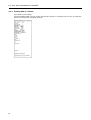
Downloading Data to HyperTerminal
(Ref. section 1.6 for software setup).
1.
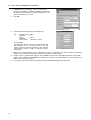
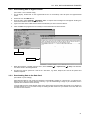
On the laptop, double-click on the HyperTerminal icon on the desktop. This will open the HyperTerminal
Folder.
2.
Double-click on the 'RDS.ht' icon.
3.
From the menu, select 'Transfer'
'Capture Text'. A 'Capture Text' message box will appear showing the
name of the text file to which data will be saved.
4.
Type in the name of the folder and the name of the file that you wish to save the data as.
5.
Click on 'Start'. The programme is now ready to receive the data from the Pro-Series.
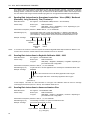
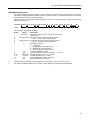
Text Format
CSV Format
7.
When the transfer is complete, from the menu, select 'Transfer'
now been saved to the designated file.
8.
This file may now be opened as a text file in a text editor, e.g. Word, Notepad, etc and can be printed and
edited as required.
3.5.3
'Capture Text'
'Stop'. The data has
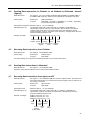
Downloading Data to the Data Card
(Ref. Table1 for port settings).
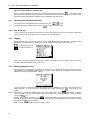
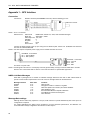
After selecting TEXT or CSV mode, the filename is automatically created as <jobxxxxx.txt> (or jobxxxxx.csv)
where 'xxxxx' is the job number stored in memory. If you are downloading a range of job summaries, then a
separate file is created for each summary.
If any file with the same name already exists on the data module, the instrument will prompt you to whether to
overwrite that file or not. If you want to keep an existing file then make sure you transfer it from the data card
onto the PC and rename it.
21