1
8. DigiLock User Interface (DUI)
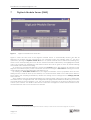
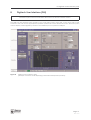
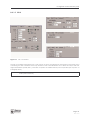
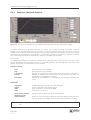
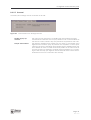
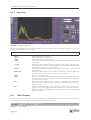
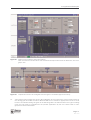
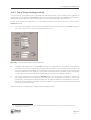
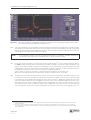
• Description of controls
To get information about a control, move the mouse pointer across the desired control and a brief
description appears.
8.1.2
Storage of the Profile
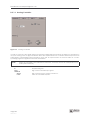
When the DigiLock User Interface (DUI) is closed properly, the currently active profile is saved to the
memory of the DigiLock 110 module.
Due to this it is possible to close the DUI, connect the USB cable to a different computer with the
DigiLock 110 software installed and to start the software there. The status of the DigiLock 110 is not
changed by this and the DUI will show the current values.
8.1.3
DigiLock 110 Software Update
Please follow the steps below to update the DigiLock 110 software:
1.
2.
3.
4.
5.
6.
7.
8.
Close the DigiLock User Interface (DUI)
Switch off the DigiLock 110 module
Disconnect the USB connection to the DigiLock 110 module
Deinstall the old DigiLock 110 software
Install the new DigiLock 110 software
Connect the DigiLock 110 module via USB to the computer
Switch on the DigiLock 110 module
Start the new DigiLock 110 software
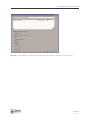
When the new DigiLock 110 software is started for the first time, a default profile is loaded to the
DigiLock 110 module. The former user specific profile of the old software version is saved as a backup
(DigiLock-Profile_<ModuleSN>_SW<oldSWversion>_backup.pro) to the profiles directory (see Paragraph
11.4).
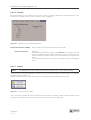
NOTE !
When a profile is loaded which has been created with a former DigiLock 110 software version, some parameters might not be supported any more. Please read the readme file
supplied together with the new software for information. If necessary adapt the old
parameters to the new DigiLock 110 software.
Page 17
Status: 27.5.13