1
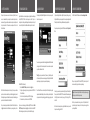
4. SETTING A PASSWORD
The password that you choose must contain at least 8 characters (by default). For security
reasons, it is recommended that you incorporate letters, numbers and symbols to achieve
maximum security. If your passwords do not match or there is any other issue with the password
which you have entered in the Set Password section, an explanation will be visible in the
Password Info section.
5. ENABLING KRMC CLOUD
Kanguru Defender drives can be remotely managed using the Kanguru Remote Management
Console (KRMC). KRMC Cloud is hosted on Kanguru’s server. Note: If your drive is
configured for use with Kanguru Remote Management Console Enterprise then this step will
not be available. If your drive is a Defender Basic model then this step will not be available.
6. LOGGING INTO KDM
After completing the Setup Wizard the KDM application will start. For security reasons, you will
be asked to enter your password.
7. ENCRYPTING FILES AND FOLDERS
A key feature of the Kanguru Defender is Drag & Drop functionality; allowing you to simply
drag files and folders that you want to encrypt onto the drive’s secure partition using the standard
Windows Explorer interface. The Kanguru Defender automatically encrypts these files.
8. REMOVING YOUR DEFENDER
To exit KDM, click on the KDM taskbar icon and select Unmount Kanguru Defender.
To open the secure partition, simply click on the KDM taskbar icon and select Explore Security
Drive.
To continue, enter your password and then click on the Login button. Once KDM has confirmed
your login password, it will mount the secure partition. You can now access the secure partition
as you would a standard removable drive.
Note: The Password Info section updates in real time. It may tell you that your confirmation
password is too short or does not match before you have finished re-typing the entire password.
Please disregard the messages in the Password Info section until you have finished entering your
password in both the Password and Confirm Password fields.
After you have entered your password in both boxes (Password & Confirm Password), click on
the Apply button and then click on the Next button to set your security password to your drive.
To Enable KRMC Cloud functionality:
1. Select the Enable KRMC Cloud option and then click on the Apply button.
2. A dialog box will appear asking if you want to register your device with KRMC Cloud.
Click on the Yes button.
3. Your web browser will open and direct you to the KRMC Cloud login page.
4. Purchase a license for your drive in order to use it with KRMC Cloud.
If you choose not to remotely manage your Defender using KRMC Cloud, select the Disable
KRMC Cloud option and then click on the Apply button. You will not be able to enable KRMC
Cloud functionality again, unless you first reset your drive to the default factory settings.
Warning! If you enter your password incorrectly 7 times in a row (by default), then your data
will be automatically erased. An on screen warning message will be displayed after the 6th failed
attempt, informing you that you only have one password attempt remaining.
Note: Click on the VK icon to access the virtual keyboard. The virtual keyboard is a graphical
representation of a standard keyboard layout. You can click on the keys on the virtual keyboard to
enter your password in order to prevent keylogging software from spying your login password.
When you exit the application, KDM will lock the SECURITY partition and your files will
become inaccessible until you login with the correct password again.
Alternatively, you can access the private partition through My Computer or Windows Explorer.
The secure partition will be labeled SECURITY once it is unlocked. We recommend using either
the Drag & Drop feature or the shortcut keys for copying (Ctrl+C) and pasting (Ctrl+V) to
transfer files.
Note: Files saved on the secure partition of your Kanguru Defender device are only accessible
after you have successfully logged into KDM.
Warning: Do not disconnect the Kanguru Defender without first properly unmounting your
device. Doing so may result in file damage or corruption.
Note: After you have umounted the security partition, use the “Safely Remove Hardware”
option from the system tray to disconnect your drive. Otherwise you risk corrupting the data
on your Kanguru Defender.