1
2-6
Daily Use
Imaging the Plate
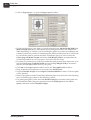
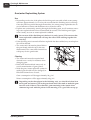
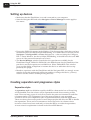
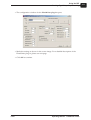
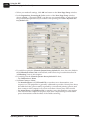
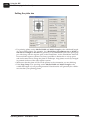
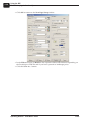
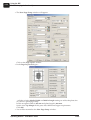
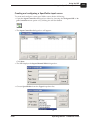
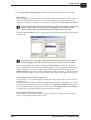
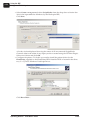
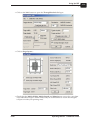
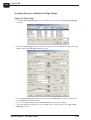
• Click on Page layout... to open the Page Layout window.
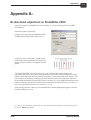
• Check that the size of your plate is correctly entered in the Media Width [MW] and
•
•
•
•
•
•
Media Length [ML] boxes. Most plates will be imaged portrait in the PlateWriter
2000. Depending on whether you are loading the plates in portrait or landscape and
whether you have a portrait or landscape press, different selections have to be made.
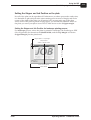
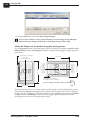
If you load the plate in portrait and have a landscape press, be sure to select the
Center page on Media Length and set the Left Margin [LM] to accommodate the
normal unprintable area on your press. (also known as the Grip).
If you have a portrait press, and have loaded the plate portrait, then make sure to select the Center page on Media Width and set the Top Margin [TM] to accommodate the normal unprintable area on your press.
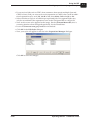
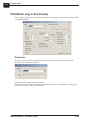
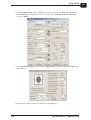
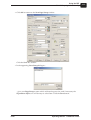
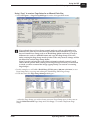
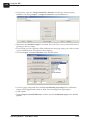
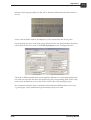
Click OK in the Page Layout window and in the ThroughPut Info window.
Drag all but the first separation of your job to the Held Queue.
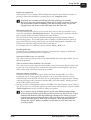
Uncheck Disable Output in the Output Controller/Monitor window. The first plate
will be printed.
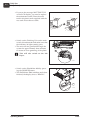
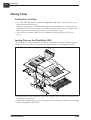
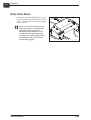
Remove the plate from the PlateWriter 2000 and place it on the front of the finishing
unit, see finishing procedure in the following section.
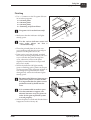
For subsequent plates, make sure that Disable Output is checked, load a plate into
the PlateWriter 2000, drag one separation from the Held Queue to the Active
Queue, and then uncheck Disable Output.
Operating Manual
1036