1
1. Online Help . . . . . . . . . . . . . . . . . . . . . . . . . . . . . . . . . . . . . . . . . . . . . . . . . . . . . . . . . . . . . . . . . . . . . . . . . . . . . . . . . . . . . . . . . . . . . . . .
1.1 Introduction . . . . . . . . . . . . . . . . . . . . . . . . . . . . . . . . . . . . . . . . . . . . . . . . . . . . . . . . . . . . . . . . . . . . . . . . . . . . . . . . . . . . . . . . . . . .
1.1.1 Conventions . . . . . . . . . . . . . . . . . . . . . . . . . . . . . . . . . . . . . . . . . . . . . . . . . . . . . . . . . . . . . . . . . . . . . . . . . . . . . . . . . . . . . .
1.1.2 Getting Started . . . . . . . . . . . . . . . . . . . . . . . . . . . . . . . . . . . . . . . . . . . . . . . . . . . . . . . . . . . . . . . . . . . . . . . . . . . . . . . . . . . .
1.1.2.1 Consumer Website . . . . . . . . . . . . . . . . . . . . . . . . . . . . . . . . . . . . . . . . . . . . . . . . . . . . . . . . . . . . . . . . . . . . . . . . . . . .
1.1.2.2 Quick Start . . . . . . . . . . . . . . . . . . . . . . . . . . . . . . . . . . . . . . . . . . . . . . . . . . . . . . . . . . . . . . . . . . . . . . . . . . . . . . . . . . .
1.1.2.3 User Interface Tips . . . . . . . . . . . . . . . . . . . . . . . . . . . . . . . . . . . . . . . . . . . . . . . . . . . . . . . . . . . . . . . . . . . . . . . . . . . .
1.1.3 Manual Overview . . . . . . . . . . . . . . . . . . . . . . . . . . . . . . . . . . . . . . . . . . . . . . . . . . . . . . . . . . . . . . . . . . . . . . . . . . . . . . . . . . .
1.1.4 What's New . . . . . . . . . . . . . . . . . . . . . . . . . . . . . . . . . . . . . . . . . . . . . . . . . . . . . . . . . . . . . . . . . . . . . . . . . . . . . . . . . . . . . . .
1.2 Admin . . . . . . . . . . . . . . . . . . . . . . . . . . . . . . . . . . . . . . . . . . . . . . . . . . . . . . . . . . . . . . . . . . . . . . . . . . . . . . . . . . . . . . . . . . . . . . . .
1.2.1 My Account . . . . . . . . . . . . . . . . . . . . . . . . . . . . . . . . . . . . . . . . . . . . . . . . . . . . . . . . . . . . . . . . . . . . . . . . . . . . . . . . . . . . . . .
1.2.1.1 Settings . . . . . . . . . . . . . . . . . . . . . . . . . . . . . . . . . . . . . . . . . . . . . . . . . . . . . . . . . . . . . . . . . . . . . . . . . . . . . . . . . . . . .
1.2.1.2 General Info . . . . . . . . . . . . . . . . . . . . . . . . . . . . . . . . . . . . . . . . . . . . . . . . . . . . . . . . . . . . . . . . . . . . . . . . . . . . . . . . . .
1.2.1.3 Alerts . . . . . . . . . . . . . . . . . . . . . . . . . . . . . . . . . . . . . . . . . . . . . . . . . . . . . . . . . . . . . . . . . . . . . . . . . . . . . . . . . . . . . . .
1.2.1.4 MLS Administration . . . . . . . . . . . . . . . . . . . . . . . . . . . . . . . . . . . . . . . . . . . . . . . . . . . . . . . . . . . . . . . . . . . . . . . . . . . .
1.2.1.4.1 Start MLS Application . . . . . . . . . . . . . . . . . . . . . . . . . . . . . . . . . . . . . . . . . . . . . . . . . . . . . . . . . . . . . . . . . . . . .
1.2.1.4.2 Monitor an Application . . . . . . . . . . . . . . . . . . . . . . . . . . . . . . . . . . . . . . . . . . . . . . . . . . . . . . . . . . . . . . . . . . . . .
1.2.1.4.3 Cancel an Application . . . . . . . . . . . . . . . . . . . . . . . . . . . . . . . . . . . . . . . . . . . . . . . . . . . . . . . . . . . . . . . . . . . . .
1.2.1.4.4 Add Office MLS ID . . . . . . . . . . . . . . . . . . . . . . . . . . . . . . . . . . . . . . . . . . . . . . . . . . . . . . . . . . . . . . . . . . . . . . . .
1.2.1.5 Orders . . . . . . . . . . . . . . . . . . . . . . . . . . . . . . . . . . . . . . . . . . . . . . . . . . . . . . . . . . . . . . . . . . . . . . . . . . . . . . . . . . . . . .
1.2.1.6 Billing and Shipping . . . . . . . . . . . . . . . . . . . . . . . . . . . . . . . . . . . . . . . . . . . . . . . . . . . . . . . . . . . . . . . . . . . . . . . . . . . .
1.2.2 Website . . . . . . . . . . . . . . . . . . . . . . . . . . . . . . . . . . . . . . . . . . . . . . . . . . . . . . . . . . . . . . . . . . . . . . . . . . . . . . . . . . . . . . . . . .
1.2.2.1 Titles and Descriptions . . . . . . . . . . . . . . . . . . . . . . . . . . . . . . . . . . . . . . . . . . . . . . . . . . . . . . . . . . . . . . . . . . . . . . . . .
1.2.2.2 Main Text . . . . . . . . . . . . . . . . . . . . . . . . . . . . . . . . . . . . . . . . . . . . . . . . . . . . . . . . . . . . . . . . . . . . . . . . . . . . . . . . . . . .
1.2.2.3 Sell Text . . . . . . . . . . . . . . . . . . . . . . . . . . . . . . . . . . . . . . . . . . . . . . . . . . . . . . . . . . . . . . . . . . . . . . . . . . . . . . . . . . . . .
1.2.2.4 Career Info Text . . . . . . . . . . . . . . . . . . . . . . . . . . . . . . . . . . . . . . . . . . . . . . . . . . . . . . . . . . . . . . . . . . . . . . . . . . . . . . .
1.2.2.5 Site Images . . . . . . . . . . . . . . . . . . . . . . . . . . . . . . . . . . . . . . . . . . . . . . . . . . . . . . . . . . . . . . . . . . . . . . . . . . . . . . . . . .
1.2.2.6 Search Widget . . . . . . . . . . . . . . . . . . . . . . . . . . . . . . . . . . . . . . . . . . . . . . . . . . . . . . . . . . . . . . . . . . . . . . . . . . . . . . . .
1.2.2.7 Communities Served . . . . . . . . . . . . . . . . . . . . . . . . . . . . . . . . . . . . . . . . . . . . . . . . . . . . . . . . . . . . . . . . . . . . . . . . . . .
1.2.2.8 Featured Partners . . . . . . . . . . . . . . . . . . . . . . . . . . . . . . . . . . . . . . . . . . . . . . . . . . . . . . . . . . . . . . . . . . . . . . . . . . . . .
1.2.2.9 Listing Address . . . . . . . . . . . . . . . . . . . . . . . . . . . . . . . . . . . . . . . . . . . . . . . . . . . . . . . . . . . . . . . . . . . . . . . . . . . . . . .
1.2.2.10 Listing Search Areas . . . . . . . . . . . . . . . . . . . . . . . . . . . . . . . . . . . . . . . . . . . . . . . . . . . . . . . . . . . . . . . . . . . . . . . . . .
1.2.2.11 Listing Search Fields . . . . . . . . . . . . . . . . . . . . . . . . . . . . . . . . . . . . . . . . . . . . . . . . . . . . . . . . . . . . . . . . . . . . . . . . . .
1.2.2.12 Consumer Site Theme . . . . . . . . . . . . . . . . . . . . . . . . . . . . . . . . . . . . . . . . . . . . . . . . . . . . . . . . . . . . . . . . . . . . . . . . .
1.2.3 Email . . . . . . . . . . . . . . . . . . . . . . . . . . . . . . . . . . . . . . . . . . . . . . . . . . . . . . . . . . . . . . . . . . . . . . . . . . . . . . . . . . . . . . . . . . . .
1.2.3.1 Listing Alert Campaign . . . . . . . . . . . . . . . . . . . . . . . . . . . . . . . . . . . . . . . . . . . . . . . . . . . . . . . . . . . . . . . . . . . . . . . . . .
1.2.3.2 Message Templates . . . . . . . . . . . . . . . . . . . . . . . . . . . . . . . . . . . . . . . . . . . . . . . . . . . . . . . . . . . . . . . . . . . . . . . . . . .
1.2.3.3 Email-Only Accounts . . . . . . . . . . . . . . . . . . . . . . . . . . . . . . . . . . . . . . . . . . . . . . . . . . . . . . . . . . . . . . . . . . . . . . . . . . .
1.2.3.4 Email Signature . . . . . . . . . . . . . . . . . . . . . . . . . . . . . . . . . . . . . . . . . . . . . . . . . . . . . . . . . . . . . . . . . . . . . . . . . . . . . . .
1.2.3.5 Welcome Email . . . . . . . . . . . . . . . . . . . . . . . . . . . . . . . . . . . . . . . . . . . . . . . . . . . . . . . . . . . . . . . . . . . . . . . . . . . . . . .
1.2.3.6 Seller Market Report . . . . . . . . . . . . . . . . . . . . . . . . . . . . . . . . . . . . . . . . . . . . . . . . . . . . . . . . . . . . . . . . . . . . . . . . . . .
1.2.4 Site Activity . . . . . . . . . . . . . . . . . . . . . . . . . . . . . . . . . . . . . . . . . . . . . . . . . . . . . . . . . . . . . . . . . . . . . . . . . . . . . . . . . . . . . . .
1.2.5 Website Analytics . . . . . . . . . . . . . . . . . . . . . . . . . . . . . . . . . . . . . . . . . . . . . . . . . . . . . . . . . . . . . . . . . . . . . . . . . . . . . . . . . .
1.2.6 Performance Evaluator . . . . . . . . . . . . . . . . . . . . . . . . . . . . . . . . . . . . . . . . . . . . . . . . . . . . . . . . . . . . . . . . . . . . . . . . . . . . . .
1.2.7 Testing . . . . . . . . . . . . . . . . . . . . . . . . . . . . . . . . . . . . . . . . . . . . . . . . . . . . . . . . . . . . . . . . . . . . . . . . . . . . . . . . . . . . . . . . . . .
1.3 Using Market Leader . . . . . . . . . . . . . . . . . . . . . . . . . . . . . . . . . . . . . . . . . . . . . . . . . . . . . . . . . . . . . . . . . . . . . . . . . . . . . . . . . . . . .
1.3.1 Essentials . . . . . . . . . . . . . . . . . . . . . . . . . . . . . . . . . . . . . . . . . . . . . . . . . . . . . . . . . . . . . . . . . . . . . . . . . . . . . . . . . . . . . . . .
1.3.1.1 Best Practices . . . . . . . . . . . . . . . . . . . . . . . . . . . . . . . . . . . . . . . . . . . . . . . . . . . . . . . . . . . . . . . . . . . . . . . . . . . . . . . .
1.3.1.1.1 Contact New Contacts . . . . . . . . . . . . . . . . . . . . . . . . . . . . . . . . . . . . . . . . . . . . . . . . . . . . . . . . . . . . . . . . . . . . .
1.3.1.1.2 Stay Connected . . . . . . . . . . . . . . . . . . . . . . . . . . . . . . . . . . . . . . . . . . . . . . . . . . . . . . . . . . . . . . . . . . . . . . . . . .
1.3.1.1.3 Get Organized . . . . . . . . . . . . . . . . . . . . . . . . . . . . . . . . . . . . . . . . . . . . . . . . . . . . . . . . . . . . . . . . . . . . . . . . . . .
1.3.1.1.4 Advertise Your Site . . . . . . . . . . . . . . . . . . . . . . . . . . . . . . . . . . . . . . . . . . . . . . . . . . . . . . . . . . . . . . . . . . . . . . .
1.3.1.2 Agent Dashboard . . . . . . . . . . . . . . . . . . . . . . . . . . . . . . . . . . . . . . . . . . . . . . . . . . . . . . . . . . . . . . . . . . . . . . . . . . . . . .
1.3.1.3 My Inbox . . . . . . . . . . . . . . . . . . . . . . . . . . . . . . . . . . . . . . . . . . . . . . . . . . . . . . . . . . . . . . . . . . . . . . . . . . . . . . . . . . . .
1.3.1.3.1 Messages . . . . . . . . . . . . . . . . . . . . . . . . . . . . . . . . . . . . . . . . . . . . . . . . . . . . . . . . . . . . . . . . . . . . . . . . . . . . . . .
1.3.1.3.2 Reminders . . . . . . . . . . . . . . . . . . . . . . . . . . . . . . . . . . . . . . . . . . . . . . . . . . . . . . . . . . . . . . . . . . . . . . . . . . . . . .
1.3.1.3.3 Webmail . . . . . . . . . . . . . . . . . . . . . . . . . . . . . . . . . . . . . . . . . . . . . . . . . . . . . . . . . . . . . . . . . . . . . . . . . . . . . . . .
1.3.1.4 Contacts . . . . . . . . . . . . . . . . . . . . . . . . . . . . . . . . . . . . . . . . . . . . . . . . . . . . . . . . . . . . . . . . . . . . . . . . . . . . . . . . . . . . .
1.3.1.4.1 Status . . . . . . . . . . . . . . . . . . . . . . . . . . . . . . . . . . . . . . . . . . . . . . . . . . . . . . . . . . . . . . . . . . . . . . . . . . . . . . . . . .
1.3.1.4.2 Recent Activity . . . . . . . . . . . . . . . . . . . . . . . . . . . . . . . . . . . . . . . . . . . . . . . . . . . . . . . . . . . . . . . . . . . . . . . . . . .
1.3.1.4.3 Initial Contact Wizard (ICW) . . . . . . . . . . . . . . . . . . . . . . . . . . . . . . . . . . . . . . . . . . . . . . . . . . . . . . . . . . . . . . . . .
1.3.1.4.4 Contact . . . . . . . . . . . . . . . . . . . . . . . . . . . . . . . . . . . . . . . . . . . . . . . . . . . . . . . . . . . . . . . . . . . . . . . . . . . . . . . . .
1.3.1.4.5 Contact Summary . . . . . . . . . . . . . . . . . . . . . . . . . . . . . . . . . . . . . . . . . . . . . . . . . . . . . . . . . . . . . . . . . . . . . . . .
1.3.1.4.6 Contact Listings . . . . . . . . . . . . . . . . . . . . . . . . . . . . . . . . . . . . . . . . . . . . . . . . . . . . . . . . . . . . . . . . . . . . . . . . . .
1.3.1.4.7 Contact History . . . . . . . . . . . . . . . . . . . . . . . . . . . . . . . . . . . . . . . . . . . . . . . . . . . . . . . . . . . . . . . . . . . . . . . . . .
1.3.1.4.8 Contact Email . . . . . . . . . . . . . . . . . . . . . . . . . . . . . . . . . . . . . . . . . . . . . . . . . . . . . . . . . . . . . . . . . . . . . . . . . . . .
1.3.1.4.9 First Call - Agents . . . . . . . . . . . . . . . . . . . . . . . . . . . . . . . . . . . . . . . . . . . . . . . . . . . . . . . . . . . . . . . . . . . . . . . .
1.3.1.4.10 Finding and Adding Contacts . . . . . . . . . . . . . . . . . . . . . . . . . . . . . . . . . . . . . . . . . . . . . . . . . . . . . . . . . . . . . . .
1.3.1.4.11 Manage Groups . . . . . . . . . . . . . . . . . . . . . . . . . . . . . . . . . . . . . . . . . . . . . . . . . . . . . . . . . . . . . . . . . . . . . . . . .
1.3.1.4.12 Import Contacts . . . . . . . . . . . . . . . . . . . . . . . . . . . . . . . . . . . . . . . . . . . . . . . . . . . . . . . . . . . . . . . . . . . . . . . . .
1.3.1.4.13 Export Contacts . . . . . . . . . . . . . . . . . . . . . . . . . . . . . . . . . . . . . . . . . . . . . . . . . . . . . . . . . . . . . . . . . . . . . . . . .
1.3.1.4.14 Export Messages . . . . . . . . . . . . . . . . . . . . . . . . . . . . . . . . . . . . . . . . . . . . . . . . . . . . . . . . . . . . . . . . . . . . . . . .
1.3.1.4.15 Unsubscribe Contact . . . . . . . . . . . . . . . . . . . . . . . . . . . . . . . . . . . . . . . . . . . . . . . . . . . . . . . . . . . . . . . . . . . . .
1.3.1.5 Tools for the Seller . . . . . . . . . . . . . . . . . . . . . . . . . . . . . . . . . . . . . . . . . . . . . . . . . . . . . . . . . . . . . . . . . . . . . . . . . . . .
1.3.1.5.1 Market Status Report . . . . . . . . . . . . . . . . . . . . . . . . . . . . . . . . . . . . . . . . . . . . . . . . . . . . . . . . . . . . . . . . . . . . . .
3
5
5
6
7
7
8
8
9
11
11
12
15
16
16
17
17
18
18
19
20
23
24
24
25
25
25
26
27
28
29
29
30
30
31
32
33
33
34
35
35
36
37
37
38
38
38
39
39
39
40
40
41
42
42
43
44
45
50
52
53
54
54
63
66
66
68
68
70
71
72
73
73
74
74
1.3.1.5.2 Send Seller's Market Report . . . . . . . . . . . . . . . . . . . . . . . . . . . . . . . . . . . . . . . . . . . . . . . . . . . . . . . . . . . . . . . .
1.3.1.6 Manage Listings . . . . . . . . . . . . . . . . . . . . . . . . . . . . . . . . . . . . . . . . . . . . . . . . . . . . . . . . . . . . . . . . . . . . . . . . . . . . . . .
1.3.1.6.1 Email a Listing . . . . . . . . . . . . . . . . . . . . . . . . . . . . . . . . . . . . . . . . . . . . . . . . . . . . . . . . . . . . . . . . . . . . . . . . . . .
1.3.1.6.2 Post on Craigslist . . . . . . . . . . . . . . . . . . . . . . . . . . . . . . . . . . . . . . . . . . . . . . . . . . . . . . . . . . . . . . . . . . . . . . . . .
1.3.1.6.3 Single Property Websites . . . . . . . . . . . . . . . . . . . . . . . . . . . . . . . . . . . . . . . . . . . . . . . . . . . . . . . . . . . . . . . . . . .
1.3.1.7 Search MLS . . . . . . . . . . . . . . . . . . . . . . . . . . . . . . . . . . . . . . . . . . . . . . . . . . . . . . . . . . . . . . . . . . . . . . . . . . . . . . . . . .
1.3.1.7.1 Listing Details . . . . . . . . . . . . . . . . . . . . . . . . . . . . . . . . . . . . . . . . . . . . . . . . . . . . . . . . . . . . . . . . . . . . . . . . . . . .
1.3.1.8 Marketing . . . . . . . . . . . . . . . . . . . . . . . . . . . . . . . . . . . . . . . . . . . . . . . . . . . . . . . . . . . . . . . . . . . . . . . . . . . . . . . . . . . .
1.3.1.8.1 Marketing Materials . . . . . . . . . . . . . . . . . . . . . . . . . . . . . . . . . . . . . . . . . . . . . . . . . . . . . . . . . . . . . . . . . . . . . . .
1.3.1.8.2 Campaigns . . . . . . . . . . . . . . . . . . . . . . . . . . . . . . . . . . . . . . . . . . . . . . . . . . . . . . . . . . . . . . . . . . . . . . . . . . . . . .
1.3.1.8.3 File Manager . . . . . . . . . . . . . . . . . . . . . . . . . . . . . . . . . . . . . . . . . . . . . . . . . . . . . . . . . . . . . . . . . . . . . . . . . . . .
1.3.1.8.4 System Requirements - Marketing . . . . . . . . . . . . . . . . . . . . . . . . . . . . . . . . . . . . . . . . . . . . . . . . . . . . . . . . . . . .
1.3.1.9 Cell Phone Access to Market Leader . . . . . . . . . . . . . . . . . . . . . . . . . . . . . . . . . . . . . . . . . . . . . . . . . . . . . . . . . . . . . .
1.3.1.10 Mobile Email . . . . . . . . . . . . . . . . . . . . . . . . . . . . . . . . . . . . . . . . . . . . . . . . . . . . . . . . . . . . . . . . . . . . . . . . . . . . . . . .
1.3.1.10.1 Android . . . . . . . . . . . . . . . . . . . . . . . . . . . . . . . . . . . . . . . . . . . . . . . . . . . . . . . . . . . . . . . . . . . . . . . . . . . . . . . .
1.3.1.10.2 iPhone . . . . . . . . . . . . . . . . . . . . . . . . . . . . . . . . . . . . . . . . . . . . . . . . . . . . . . . . . . . . . . . . . . . . . . . . . . . . . . . .
1.3.1.10.3 Outlook 2007 . . . . . . . . . . . . . . . . . . . . . . . . . . . . . . . . . . . . . . . . . . . . . . . . . . . . . . . . . . . . . . . . . . . . . . . . . . .
1.3.1.11 Give us your feedback . . . . . . . . . . . . . . . . . . . . . . . . . . . . . . . . . . . . . . . . . . . . . . . . . . . . . . . . . . . . . . . . . . . . . . . . .
1.3.1.12 Reporting . . . . . . . . . . . . . . . . . . . . . . . . . . . . . . . . . . . . . . . . . . . . . . . . . . . . . . . . . . . . . . . . . . . . . . . . . . . . . . . . . . .
1.3.2 For Business Suite & Professional . . . . . . . . . . . . . . . . . . . . . . . . . . . . . . . . . . . . . . . . . . . . . . . . . . . . . . . . . . . . . . . . . . . . .
1.3.2.1 Best Practices - Broker . . . . . . . . . . . . . . . . . . . . . . . . . . . . . . . . . . . . . . . . . . . . . . . . . . . . . . . . . . . . . . . . . . . . . . . . .
1.3.2.1.1 Add Agents . . . . . . . . . . . . . . . . . . . . . . . . . . . . . . . . . . . . . . . . . . . . . . . . . . . . . . . . . . . . . . . . . . . . . . . . . . . . .
1.3.2.1.2 Pluralizing Team Emails . . . . . . . . . . . . . . . . . . . . . . . . . . . . . . . . . . . . . . . . . . . . . . . . . . . . . . . . . . . . . . . . . . .
1.3.2.1.3 Craigslist Strategy . . . . . . . . . . . . . . . . . . . . . . . . . . . . . . . . . . . . . . . . . . . . . . . . . . . . . . . . . . . . . . . . . . . . . . . .
1.3.2.1.4 Participate in the Referral Network . . . . . . . . . . . . . . . . . . . . . . . . . . . . . . . . . . . . . . . . . . . . . . . . . . . . . . . . . . .
1.3.2.1.5 Set Agent Expectations . . . . . . . . . . . . . . . . . . . . . . . . . . . . . . . . . . . . . . . . . . . . . . . . . . . . . . . . . . . . . . . . . . . .
1.3.2.1.6 Monitor Agents . . . . . . . . . . . . . . . . . . . . . . . . . . . . . . . . . . . . . . . . . . . . . . . . . . . . . . . . . . . . . . . . . . . . . . . . . . .
1.3.2.1.7 First Call Follow-up . . . . . . . . . . . . . . . . . . . . . . . . . . . . . . . . . . . . . . . . . . . . . . . . . . . . . . . . . . . . . . . . . . . . . . .
1.3.2.2 Broker Dashboard . . . . . . . . . . . . . . . . . . . . . . . . . . . . . . . . . . . . . . . . . . . . . . . . . . . . . . . . . . . . . . . . . . . . . . . . . . . . .
1.3.2.3 Waiting Messages . . . . . . . . . . . . . . . . . . . . . . . . . . . . . . . . . . . . . . . . . . . . . . . . . . . . . . . . . . . . . . . . . . . . . . . . . . . . .
1.3.2.4 Call Center . . . . . . . . . . . . . . . . . . . . . . . . . . . . . . . . . . . . . . . . . . . . . . . . . . . . . . . . . . . . . . . . . . . . . . . . . . . . . . . . . . .
1.3.2.5 Agents . . . . . . . . . . . . . . . . . . . . . . . . . . . . . . . . . . . . . . . . . . . . . . . . . . . . . . . . . . . . . . . . . . . . . . . . . . . . . . . . . . . . . .
1.3.2.5.1 Agent Profile . . . . . . . . . . . . . . . . . . . . . . . . . . . . . . . . . . . . . . . . . . . . . . . . . . . . . . . . . . . . . . . . . . . . . . . . . . . .
1.3.2.5.2 Add an Agent . . . . . . . . . . . . . . . . . . . . . . . . . . . . . . . . . . . . . . . . . . . . . . . . . . . . . . . . . . . . . . . . . . . . . . . . . . . .
1.3.2.5.3 Edit Agent Profile . . . . . . . . . . . . . . . . . . . . . . . . . . . . . . . . . . . . . . . . . . . . . . . . . . . . . . . . . . . . . . . . . . . . . . . . .
1.3.2.5.4 Delete Agent . . . . . . . . . . . . . . . . . . . . . . . . . . . . . . . . . . . . . . . . . . . . . . . . . . . . . . . . . . . . . . . . . . . . . . . . . . . .
1.3.2.5.5 Email Agents . . . . . . . . . . . . . . . . . . . . . . . . . . . . . . . . . . . . . . . . . . . . . . . . . . . . . . . . . . . . . . . . . . . . . . . . . . . .
1.3.2.5.6 Agents View Description . . . . . . . . . . . . . . . . . . . . . . . . . . . . . . . . . . . . . . . . . . . . . . . . . . . . . . . . . . . . . . . . . . .
1.3.2.5.7 Performance Evaluator - Agent . . . . . . . . . . . . . . . . . . . . . . . . . . . . . . . . . . . . . . . . . . . . . . . . . . . . . . . . . . . . . .
1.3.2.5.8 Automatic Performance Notification . . . . . . . . . . . . . . . . . . . . . . . . . . . . . . . . . . . . . . . . . . . . . . . . . . . . . . . . . . .
1.3.2.6 Email Only Accounts . . . . . . . . . . . . . . . . . . . . . . . . . . . . . . . . . . . . . . . . . . . . . . . . . . . . . . . . . . . . . . . . . . . . . . . . . . .
1.3.2.7 Mortgage Lender . . . . . . . . . . . . . . . . . . . . . . . . . . . . . . . . . . . . . . . . . . . . . . . . . . . . . . . . . . . . . . . . . . . . . . . . . . . . . .
1.3.2.8 Referrals . . . . . . . . . . . . . . . . . . . . . . . . . . . . . . . . . . . . . . . . . . . . . . . . . . . . . . . . . . . . . . . . . . . . . . . . . . . . . . . . . . . .
1.3.3 For Lenders . . . . . . . . . . . . . . . . . . . . . . . . . . . . . . . . . . . . . . . . . . . . . . . . . . . . . . . . . . . . . . . . . . . . . . . . . . . . . . . . . . . . . . .
1.3.3.1 Best Practices - Lender . . . . . . . . . . . . . . . . . . . . . . . . . . . . . . . . . . . . . . . . . . . . . . . . . . . . . . . . . . . . . . . . . . . . . . . . .
1.3.3.1.1 Build Relationships . . . . . . . . . . . . . . . . . . . . . . . . . . . . . . . . . . . . . . . . . . . . . . . . . . . . . . . . . . . . . . . . . . . . . . .
1.3.3.1.2 Contact New Contacts ASAP . . . . . . . . . . . . . . . . . . . . . . . . . . . . . . . . . . . . . . . . . . . . . . . . . . . . . . . . . . . . . . . .
1.3.3.1.3 Pre-approval Requests . . . . . . . . . . . . . . . . . . . . . . . . . . . . . . . . . . . . . . . . . . . . . . . . . . . . . . . . . . . . . . . . . . . .
1.3.3.1.4 Share Lender Comments . . . . . . . . . . . . . . . . . . . . . . . . . . . . . . . . . . . . . . . . . . . . . . . . . . . . . . . . . . . . . . . . . . .
1.3.3.1.5 Welcome Email URL . . . . . . . . . . . . . . . . . . . . . . . . . . . . . . . . . . . . . . . . . . . . . . . . . . . . . . . . . . . . . . . . . . . . . .
1.3.3.2 Alerts - Lender . . . . . . . . . . . . . . . . . . . . . . . . . . . . . . . . . . . . . . . . . . . . . . . . . . . . . . . . . . . . . . . . . . . . . . . . . . . . . . . .
1.3.3.3 Contacts - Lender . . . . . . . . . . . . . . . . . . . . . . . . . . . . . . . . . . . . . . . . . . . . . . . . . . . . . . . . . . . . . . . . . . . . . . . . . . . . .
1.3.3.3.1 Contact Status - Lender . . . . . . . . . . . . . . . . . . . . . . . . . . . . . . . . . . . . . . . . . . . . . . . . . . . . . . . . . . . . . . . . . . . .
1.3.3.3.2 Contact Summary - Lender . . . . . . . . . . . . . . . . . . . . . . . . . . . . . . . . . . . . . . . . . . . . . . . . . . . . . . . . . . . . . . . . .
1.3.3.3.3 Contact Listings - Lender . . . . . . . . . . . . . . . . . . . . . . . . . . . . . . . . . . . . . . . . . . . . . . . . . . . . . . . . . . . . . . . . . . .
1.3.3.3.4 Share Comments . . . . . . . . . . . . . . . . . . . . . . . . . . . . . . . . . . . . . . . . . . . . . . . . . . . . . . . . . . . . . . . . . . . . . . . . .
1.3.3.4 Reminders - Lender . . . . . . . . . . . . . . . . . . . . . . . . . . . . . . . . . . . . . . . . . . . . . . . . . . . . . . . . . . . . . . . . . . . . . . . . . . . .
1.3.3.5 Admin - Lender . . . . . . . . . . . . . . . . . . . . . . . . . . . . . . . . . . . . . . . . . . . . . . . . . . . . . . . . . . . . . . . . . . . . . . . . . . . . . . .
1.3.4 Icons . . . . . . . . . . . . . . . . . . . . . . . . . . . . . . . . . . . . . . . . . . . . . . . . . . . . . . . . . . . . . . . . . . . . . . . . . . . . . . . . . . . . . . . . . . . .
1.4 Training and Support . . . . . . . . . . . . . . . . . . . . . . . . . . . . . . . . . . . . . . . . . . . . . . . . . . . . . . . . . . . . . . . . . . . . . . . . . . . . . . . . . . . . .
1.4.1 FAQ . . . . . . . . . . . . . . . . . . . . . . . . . . . . . . . . . . . . . . . . . . . . . . . . . . . . . . . . . . . . . . . . . . . . . . . . . . . . . . . . . . . . . . . . . . . . .
1.4.2 Training . . . . . . . . . . . . . . . . . . . . . . . . . . . . . . . . . . . . . . . . . . . . . . . . . . . . . . . . . . . . . . . . . . . . . . . . . . . . . . . . . . . . . . . . . .
75
77
78
79
81
83
84
85
85
135
141
143
145
145
146
147
148
149
150
150
150
150
150
150
151
151
151
151
151
152
153
153
153
154
155
155
156
156
157
158
158
159
160
161
161
161
161
162
162
162
162
163
163
164
168
168
169
169
170
172
172
173
Online Help
Table of Contents
Introduction
Conventions
Getting Started
Consumer Website
Quick Start
User Interface Tips
Manual Overview
What's New
Admin
My Account
Settings
General Info
Alerts
MLS Administration
Start MLS Application
Monitor an Application
Cancel an Application
Add Office MLS ID
Orders
Billing and Shipping
Website
Titles and Descriptions
Main Text
Sell Text
Career Info Text
Site Images
Search Widget
Communities Served
Featured Partners
Listing Address
Listing Search Areas
Listing Search Fields
Consumer Site Theme
Email
Listing Alert Campaign
Message Templates
Email-Only Accounts
Email Signature
Welcome Email
Seller Market Report
Site Activity
Website Analytics
Performance Evaluator
Testing
Using Market Leader
Essentials
Best Practices
Contact New Contacts
Stay Connected
Get Organized
Advertise Your Site
Agent Dashboard
My Inbox
Messages
Reminders
Webmail
Contacts
Status
Built-in Status Type - Agent
Custom Status Type - Agent
Recent Activity
Initial Contact Wizard (ICW)
Contact
Contact Summary
Summary Fields
Summary Actions
Summary Comments
Summary Emails
Summary Market Insider
Summary Buyer Requests
Contact Listings
Add New Listing Alert
Send Listings
Contact History
Contact Email
Compose Message
Reply to Email Message
First Call - Agents
Finding and Adding Contacts
Manage Groups
Import Contacts
Export Contacts
Export Messages
Unsubscribe Contact
Tools for the Seller
Market Status Report
Send Seller's Market Report
Manage Listings
Email a Listing
Post on Craigslist
Craigslist Guidelines
Single Property Websites
Search MLS
Listing Details
Marketing
Marketing Materials
Marketing Materials Selections
Select a Marketing Piece
Search for Marketing Materials
Sort Marketing Materials and Saved Pieces
Find Saved Pieces
Find Available Sizes
Marketing Materials Editor
Editing Text
Editing Images
Text management tools
Map Editing
Shape Editing
Changing Views
Preview a Marketing Piece
Page Controls
Marketing Materials Actions
Preview a Piece
Edit a Piece
Print a Piece
Order Professional Printing
Print FAQ
Print Pricing
Terms and Conditions
Email a Piece
Add Sender to Safe List
Post to Website or Blog
Post to Social Network
Post to Facebook
Post to Twitter
Add to Campaign
Marketing in Motion
Selecting a Template to Edit
Create or Edit Preview
Marketing In Motion Editor
Edit Action Buttons
Editor Panes
Working with Saved Templates
Campaigns
Build a New Campaign - Basic
Build a New Campaign - Advanced
Build Your Own Campaign
View Transactions and Manage Prepaid Accounts
Edit Existing Campaigns
File Manager
System Requirements - Marketing
Change Browser Settings to allow Pop-Ups
Install Adobe Flash Player
Install Adobe Reader or Adobe Acrobat
Install Microsoft Silverlight
Minimum Screen Resolution
Cell Phone Access to Market Leader
Mobile Email
Android
iPhone
Outlook 2007
Give us your feedback
Reporting
For Business Suite & Professional
Best Practices - Broker
Add Agents
Pluralizing Team Emails
Craigslist Strategy
Participate in the Referral Network
Set Agent Expectations
Monitor Agents
First Call Follow-up
Broker Dashboard
Waiting Messages
Call Center
Agents
Agent Profile
Add an Agent
Edit Agent Profile
Delete Agent
Email Agents
Agents View Description
Performance Evaluator - Agent
Automatic Performance Notification
Email Only Accounts
Mortgage Lender
Referrals
For Lenders
Best Practices - Lender
Build Relationships
Contact New Contacts ASAP
Pre-approval Requests
Share Lender Comments
Welcome Email URL
Alerts - Lender
Contacts - Lender
Contact Status - Lender
Built-in Status Type - Lender
Custom Status Type - Lender
Contact Summary - Lender
Summary Description - Lender
Summary Actions - Lender
Contact Listings - Lender
Share Comments
Reminders - Lender
Admin - Lender
Icons
Training and Support
FAQ
Training
Introduction
Introduction
Welcome to your new tool for success in your real estate business! This Internet-based system brings potential customers (also called "contacts")
to your website and then provides you with tools to organize, target, and market to each customer. Market Leader consists of two parts: the front
end (consumer) website and the back end (CRM) management tool that you work with. The consumer website is what anonymous visitors and
contacts visit to search for homes for sale listed in your MLS. When anonymous visitors sign up to view listings, they become contacts. You log
into the Market Leader CRM to manage and communicate with contacts.
Conventions
Conventions
This topic explains the conventions used throughout this online help system.
Navigation List
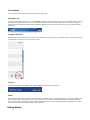
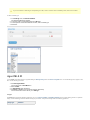
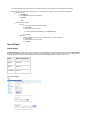
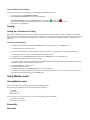
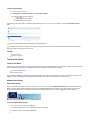
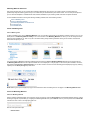
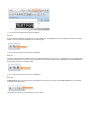
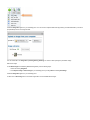
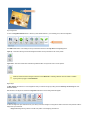
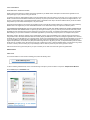
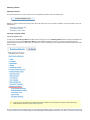
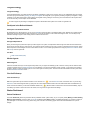
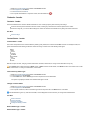
In order to access a specific view of the market leader Admin user interface, most procedures tell you to click in the navigation list (e.g. Inbox).
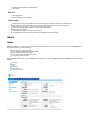
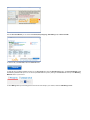
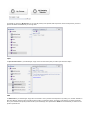
The navigation list refers to the list of items in the horizontal menu bar that enable you to switch between the various views. The following
graphic shows the navigation list for Market Leader Professional. Depending on the product you use and your role, your navigation list might
look different.
Configure Columns
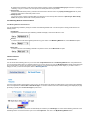
All grids include a column filter which you can use to show and hide columns in each grid. To show and hide columns, click Configure Columns
in a grid. Check columns to show. Un-check columns to hide.
Log Out
To log out of the Market Leader Admin panel, click the Logout link in the banner of the web page.
Panel
The term panel is used to refer to a section of the user interface that contains a specific class of information (e.g. a list of links, a widget, nearby
listings, nearby schools, monthly payments, and so on). A panel usually has a border or a different background color to separate it from the
main content of the page. Panels often contain information ancillary to the main content and arrayed alongside (i.e. sidebar) the main content.
You can also refer to the main content area as the main content panel.
Getting Started
Getting Started
The Getting Started section provides help to new users for the following.
An introduction to the Consumer Website.
A Quick Start summary for a minimal setup.
A collection of User Interface Tips that describe common patterns and features of the Market Leader user interface.
Consumer Website
Consumer Website
Using a computer with an internet connection, you can access the consumer website by entering your domain name, such as
MyDomainName.com, into the address bar of a web browser. The Home page appears as the landing page for your domain. Take a moment to
peruse the Home page.
Optionally, you can access your website on the Admin > My Account > General Info tab of Market Leader. In the General Info section, click
View your website.
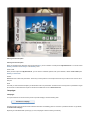
The website uses a layout with the following elements.
A header that includes an agency logo, navigational tabs, and account links. The header content is consistent across all pages on the
site. You can select an agency logo to display in the header.
A body that typically includes multiple columns of content including text and images (e.g. website image and site banner). The body
content depends on the page being viewed. Most pages contain text and your contact information both of which you can modify using
Admin > Website tools.
A footer that includes site navigation links, contact, additional, and legal info. The footer content is consistent across all pages on the site.
The contact and additional info are configurable using Admin > Website tools.
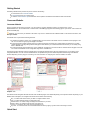
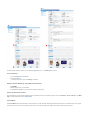
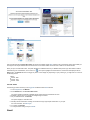
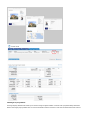
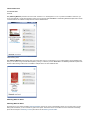
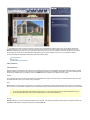
The following graphics illustrate consumer website pages. The highlights indicate areas of the user interface that you can configure. Some
configurable elements, such as contact and additional info, are repeated throughout the website. Repeated elements might have different
locations depending on which page you are viewing. For more information on configuring the consumer website, see Admin.
Navigation Tabs
The header includes navigation tabs that direct the visitor to different pages of the website depending on their specific interest. Depending on your
Market Leader subscription, the navigation tabs include some variation of the following.
Buy - for visitors that want to search your MLS or configured search areas.
Sell - for visitors that want advice on selling their home.
Market Insider - for visitors looking for background information on your area.
Meet or About - for visitors that want to learn more about you.
Contact - an email form for a visitor to send a message to you.
My Tools - for visitors that want to access additional site functions by signing up, also known as becoming a Contact.
Quick Start
Quick Start
Market Leader provides the following PDF files, by product, that describe the minimum requirements to start using the system.
Essentials - Getting Started Guide
Professional - Getting Started Guide
Business Suite - Getting Started Guide
User Interface Tips
User Interface Tips
This article contains tips for using the Online Help wiki and Market Leader interfaces.
How to Print Online Help Content | HTML WYSIWYG Editor
How to Print Online Help Content
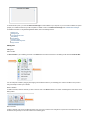
To print a single page
1. Click the print view button
2. Use the browser's Print option
HTML WYSIWYG Editor
Market Leader provides a HTML WYSIWYG editor in the Compose Message and Reply to Email Message forms as well as the Admin Website
text area inputs (e.g. Sell Text input among others). WYSIWYG is an acronym that stands for "What you see is what you get." An HTML
WYSIWYG editor enables you to compose HTML formatted text without having to edit HTML markup—all those nasty looking angle-bracketed
tags. If you know how to use a modern word processor application, the HTML WYSIWYG editor should look and feel familiar to you.
The Market Leader HTML WYSIWYG editor supports the following format options.
Paragraph styles
Font family and size
Bold, italic, and underlined text
Bullet and Number lists
Indent and Outdent
Undo and Redo
Text and Background Color
Hyperlinks
Images
Images you insert must be hosted on a domain separate from your Market Leader domain.
Horizontal rules
Custom characters
Emoticons
Spell check
HTML source editing
Manual Overview
Manual Overview
The Market Leader User Manual provides information to help you customize your website and use the contact management system. The manual
includes the following sections.
Introduction
To orient you to the system and this manual.
Setup
To help you prepare for first use and customize the system to your specific need.
Using Market Leader
To help you get the most out of the system's features.
Training and Support
To assist you with additional learning and problem-solving resources.
This manual covers all features for all of the Market Leader products. Depending on your role and the package you purchased, some features
described or content in this manual might not apply to your situation.
For details regarding problems, technical issues, or other questions not answered in this manual, you can find additional information by visiting the
online Support link or contacting Customer Support as listed in the Market Leader Admin user interface.
To log in to your Market Leader account
1.
2.
3.
4.
5.
Go to your consumer website (i.e. your-market-leader-domain.com).
Scroll to the bottom of the page.
Click Admin Login.
In the Login form, enter your Market Leader credentials.
Click Login.
Download PDF
You can download a PDF version of the entire online help contents from the following link.
Download Manual in PDF format
What's New
What's New
The What's New topic lists features released in Market Leader products dating back to February 2011. The features are in date order, most
recent first.
October 2012
Users can add more than 2 social media links that are automatically included on marketing email, including the following
ActiveRain
Blogger
Google+
Digg
Facebook
Flickr
LinkedIn
MySpace
Pinterest
reddit
Other Blog
Twitter
WordPress
YouTube
The email compose forms (one-off and marketing email) support adding an image into an email body. Using an Image Insert icon, a
user can upload an image to File Manager and select to include it in an email.
Users can select which columns display for grids throughout the system. This helps users with smaller screens to see only the
information they want.
Contact Summary contains a new free-form text field that enables agents to apply a searchable category to a contact.
Advanced Search includes Category and Source fields.
Source field auto-completes on existing Source types. Start typing a source name and the tool suggests a completion.
Recently Active shortcut added back to Contacts menu.
Modified Advanced Search Campaign setting to behave such that "Yes" returns users currently on active campaigns, instead of if they
were ever on a campaign.
Entered/Imported contacts removed from the Referral network.
Prioritize bulk emails over Campaigns. This improves perceived email delivery, as someone sending a one-off email expects immediate
delivery, whereas a campaign email expectation is 24 hours.
Admin > My Account tab placement moved to beginning of section.
General Info, Alerts and MLS Administration moved from Website to My Account tab.
Franchise field added to CRM > General Info for some products.
Listing Alert Campaign – addressed formatting issue where content showed in two columns in Outlook.
Limit maximum number of imported contacts to 15,000--lifetime. Per file import limit changed to 5,000.
Enforce unique logins for Vision users.
Remove auto-login links in emails to CRM contacts.
August 2012
Sellers' Market Report enhancements
June 2012
New contact types
New contact fields for seller data
Advanced search criteria
Market Insider subscription management
Prospect terminology changed to Contact
May 2012
Profile alert when contact provides phone contact information.
Marketing Center
April 2012
My Account (credit card management)
Community Content (custom content)
New contact and profile fields
December 2011
Agent Dashboard Visistat® Widget
Website Analytics (not available on eEdge accounts)
November 2011
New Navigation List
Enhanced MLS Search
Configurable Welcome Email
Configurable School Info
New option for Seller's Market Report
September 2011
Search Widget Choices
August 2011
Consumer Site Theme
July 2011
Consumer website Market Insider tab.
Market Insider section on Contact Summary view.
June 2011
Updated Reminders feature (Agent Dashboard)
HTML email
May 2011
MLS Administration
Additional fields in Contact Summary
February 2011
Search by Map (Consumer site & CRM) - Allow consumers & agents to search for listings using an interactive map
Price search using user-entered values - Allow user to enter price range to better match search to their needs
Clear indication of Listing Type - Foreclosure, Short Sale, Auction, Rental
Enhanced Listing Detail Page - School Info, Nearby Listings, Market Trends
Share Listing on Facebook
Additional homes & links on Home & Community pages
List Usability Enhancements - Back to List maintains sorting/filters, Adjustable list height
Admin
Admin
Admin tools enable you to configure and customize the Market Leader system to work the way you want. This section describes Admin tools in
more detail. Specifically, it covers the following.
How to change your profile information
How to configure and customize a consumer website.
How to manage automated email content.
How to analyze website and agent performance.
How to manage orders and billing.
When logged into Market Leader, you see an Admin link in the navigation list. Clicking the Admin link displays the Admin tools which include the
following.
My Account
Website
Email
Site Activity
Website Analytics
Performance Evaluator
My Account
My Account
My Account tools enable you to maintain the following vital information.
Profile details
Marketing information
Additional Info, Bio, and Awards
Agent MLS ID
Profile Images, Logo, and Bulk Mail Permit
Access My Account Tool
The following procedure assumes you are logged into the market leader Admin interface.
1. In the navigation list, hover the pointer on Admin.
2. Click My Account.
A Settings view opens on the My Account tab.
For more information, refer to the following.
Settings
Orders
Billing and Shipping
Settings
Settings
The Settings tool enables you to maintain profile and marketing settings used by Market Leader in various parts of the system. The initial Settings
view is read-only. When you click Edit, the view changes to a form in which you can edit certain values. Editable values vary depending on your
subscription order type. The tool divides the user interface into the following sections.
Profile Details
Marketing
Additional Information
Social Media
Agent MLS ID
Images
The following procedures assume you are already logged into the market leader Admin interface.
Access Settings
1. In the navigation list, click Admin.
2. Click My Account.
The My Account tool opens on Settings by default.
Maintain Profile, Marketing, and Additional Information
1. Click Edit.
2. Make changes to any of the fields.
3. Click Save or Cancel to save or discard changes, respectively.
Read-only Information Fields
The read-write form might include additional read-only fields that are for information purposes such as In Rotation, Account Access, and Meet
Page. To edit these fields, visit an Agent Profile.
Social Media
The Social Media panel includes fields to configure links to social networks. Marketing Emails use these links in a standard footer. The system
renders the link as a logo for the network type you select. A social networking link requires two settings: network type and URL.
If you do not select a network type corresponding to a URL, when a customer views a marketing email, the link is not visible.
To select network type
1. In the Settings view, click Add Social Media.
The Add Social Media form displays.
2. In the form, paste a social network URL into a URL field.
3. In the drop-down control associated with the URL, select a network type.
4. Click Save.
Agent MLS ID
market leader uses agent MLS ID to populate listings in Manage Listings view and Post on Craigslist forms. To include listings for an agent on the
site, use the following procedure.
1. Click Add Agent MLS ID.
The tool pops open an Add MLS form.
2. Select an MLS.
3. In Agent MLS ID, enter an MLS ID.
4. Click Save or Cancel to save or discard changes, respectively.
The tool closes the form and returns you to Settings.
Images
The Settings tool supports uploading images for use on a Consumer Website, in Marketing Materials, and for a bulk mailing permit. To upload an
image, use the following procedure. Before starting the procedure, verify that the image meets the following guidelines.
Image Type
Guideline
Website Image
File format: jpg
Maximum size: 8MB
Aspect ratio: 100 : 130 (W : H)
Marketing Image
File format: jpg or png
Maximum width: 2800 pixels
Marketing Logo
File format: jpg or png
Maximum width: 2800 pixels
Bulk Mail Permit
File format: jpg or png
Maximum width: 2800 pixels
The system appropriately scales images to the size required by a given context. In general, scaling down does not sacrifice image quality,
whereas scaling up might degrade image quality.
1. In Images, click Edit corresponding to the image you want to upload.
The view changes to a form that you can edit.
2. Click Browse.
The tool opens a standard Open File dialog.
3. In the dialog, navigate to the image you want to upload.
4. Click Open.
5. Click Upload.
6. The tool closes the form and displays the newly uploaded image.
General Info
General Info
On the My Account tab, Market Leader includes a General Info view. The General Info view enables you to change the following settings.
Company name
Address
Phone numbers
Franchise
Notes
MLS IDs
Time zone
To Change General Info
This procedure assumes you are already logged into the Market Leader Adminuser interface.
1. In the navigation list, click Admin.
2. In the General Info view, click the Edit button.
The view changes to an editable form.
3. On the editable form, make your changes.
The editable form provides a link to add an MLS ID for your office. To change agent MLS IDs, use the My Account tool. To add an
office MLS ID use the following procedure.
a. Click the Add Office MLS ID link.
b. On the Add Office MLS ID form, provide appropriate values.
c. Click the Save button.
4. When you are finished making changes to General Info, click the Save button.
See Also
Admin
Website
Conventions
Manual Overview
My Account
Alerts
Alerts
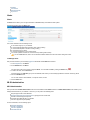
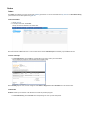
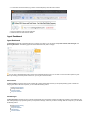
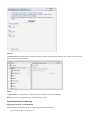
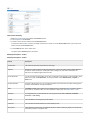
The Alerts view enables you to manage notifications of Contact activity in the Market Leader system.
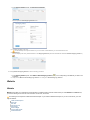
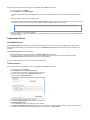
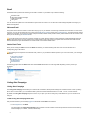
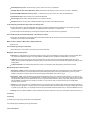
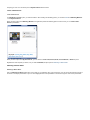
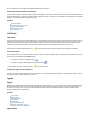
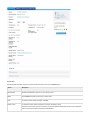
The following graphic shows the Alerts view.
You receive notifications for the following events.
A new contact signs up on your website.
A contact clicks Request More Information when viewing a listing.
A contact clicks Request a Visit when viewing a listing.
A contact sends you an email.
A contact is transferred to you by another agent.
Your lender updates comments on a contact record (if working with a lender).
If you are a First Call user, then a new contact alert indicates whether the call center will be calling this contact.
To Manage Alerts
This procedure assumes you are already logged into the Market Leader Adminuser interface.
1. In the navigation list, click Admin.
2. On the Website tab, click Alerts.
The view shows a list of the currently configured Alerts. You can delete an Alert by clicking the Delete icon (
3. To add a new alert, click the Add button.
).
If the text fields in the Add Alert pop-up form are disabled, that means you have already specified the maximum of three (3) alerts.
4. Fill in the Add Alerts form.
You can enter either an email address, a cell phone number, or both.
5. Click the Add button.
MLS Administration
MLS Administration
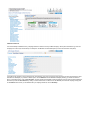
This topic describes the MLS Administration view found in the Market Leader Admin interface. The MLS Administration view enables you to
manage MLS IDX feeds for your website. In this view, you can perform the following tasks.
Request approval for an MLS IDX feed.
Download instructions and required forms to gain approval for an IDX feed.
Monitor an IDX feed approval process.
Associate office MLS IDs with your website.
Cancel an approval request (limited).
For more information, see the following topics.
Start MLS Application
Monitor an Application
Cancel an Application
Add Office MLS ID
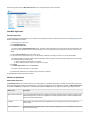
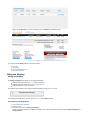
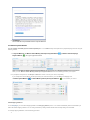
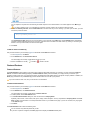
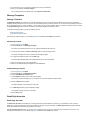
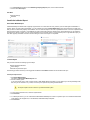
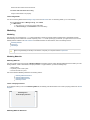
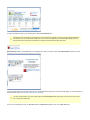
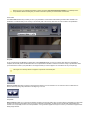
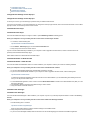
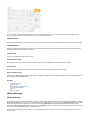
The following graphic shows the MLS Administration view. To enlarge the image, click the thumbnail.
Start MLS Application
Start MLS Application
To request approval for an MLS IDX feed on your website, use the following procedure. This procedure assumes you are already logged into the
Market Leader Admin user interface.
1. In the navigation list, click Admin.
2. Click MLS Administration.
3. Click Start MLS Application.
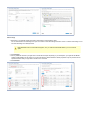
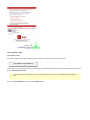
The system displays a Start MLS Application dialog. The dialog includes instructions and a drop-down list of known MLS feeds for your
area. You can view alternate names for a feed by selecting it. You can change selections as many times as you want, before you click
Save
4. From the Select the MLS drop-down list, select a feed.
5. If you found a feed in the previous step, you can skip this step. Otherwise, if the feed you want is not in the list, select Other.
The system expands the dialog to provide a text box field. Before entering a name for a new feed, please verify that you are not looking
for an alternate name of an existing feed.
a. Write in the name of an MLS that is not in the list.
b. Wait for Market Leader to contact you to discuss your request.
6. Click Save.
7. In the MLS Administration view, click Instructions.
The system opens the instructions in a new window.
8. Follow all steps described on the instruction page for the MLS you selected.
To add additional MLS feeds, repeat this procedure.
Monitor an Application
Monitor MLS Application
The MLS Administration view includes a column for monitoring status of an application. Depending on the MLS, your application might require
actions by multiple parties including you, Market Leader , and an MLS IDX feed provider. As an application progresses, the MLS Administration
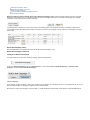
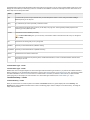
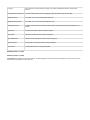
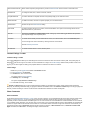
view updates the Status of the application. The following table describes the Status values you might encounter during an approval process.
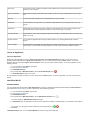
Status Level
Description
Agent: Review Instructions
You must download all required forms, complete and send them to Market Leader according to instructions. This
status level begins when you start a new application for MLS approval and remains in effect until Market Leader
confirms receipt of all required forms.
In Review
Market Leader has confirmed receipt of all required forms and is reviewing them. Forms are reviewed in the
order received.
Agent: Resend forms
Market Leader found unresolved issues or questions about an application form and has asked you to resolve the
issues and resend the form.
Sent to MLS
The forms are correctly completed and Market Leader submitted them to the MLS. MLS boards can take from 1 6 weeks or more to respond.
Agent: Fix MLS issue
Market Leader requested you to resolve issues raised by an MLS board (e.g. membership dues, name change,
etc.)
Approved
MLS has approved an application and an MLS IDX feed is live on your website.
Deactivated
An MLS IDX feed is no longer active on your website, possibly because of a non-compliance issue or by your
request.
Researching
Market Leader is researching your write-in request for an MLS that was not on the list of known feeds for your
area. Market Leader Customer Support will contact you to discuss and agree on next steps.
Acquiring new MLS
Market Leader is in the process of getting MLS approval and building a new MLS feed to add to the list of known
feeds for your area.
Request Canceled
You canceled an application either through the Admin interface or by contacting Market Leader Customer
Support.
IDX not available
An MLS IDX feed is not available. This might be because an MLS is for brokers only, or does not provide an IDX
feed to anyone, or has exceeded a limit they imposed on the total number of IDX feeds available to agents.
Cancel an Application
Cancel an Application
While an MLS IDX application process is in Agent: review instructions status, MLS Administration provides a cancel action. Once an
application status progresses beyond Agent: review instructions, you can no longer cancel it through the Admin interface. To cancel an
application that has moved beyond Agent: review instructions status, you must contact Customer Support. To cancel an application use the
following procedure.
1. Log into the Market Leader Admin user interface.
2. In the navigation list, click Admin.
3. Click MLS Administration.
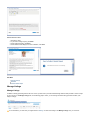
4. For a specific MLS in MLS Administration, click the Cancel MLS Request icon (
5. In Cancel MLS Request, confirm your choice.
).
Once an application has been cancelled, you cannot restart it from the Admin interface. To restart an application, you must contact Customer
Support.
Add Office MLS ID
Add Office MLS ID
You can edit Office MLS ID information in MLS Administration. Recording an office MLS ID enables associated listings in Featured Homes on
your website and in Manage Listings. To add an officd MLS ID, use the following procedure.
1. Log into the Market Leader Admin user interface.
2. In the navigation list, click Admin.
3. Click MLS Administration.
4. For a specific MLS in MLS Administration, click the Edit MLS ID Information icon (
).
The system displays an Edit MLS ID Information dialog box.
5. In Office MLS ID, enter an office MLS ID for which you have permission to display or advertise listings on your website or other websites.
You can enter up to two (2) IDs. To add or delete IDs, click corresponding icons (
6. Click Save.
In MLS Administration view, you can see Office MLS IDs you entered for a given MLS IDX feed.
).
Orders
Orders
The Orders tool enables you to track and re-order marketing print orders. You can access Orders from My Account. The Print Order History
panel contains a list of orders placed using print cart.
To Access Orders
1. Visit My Account.
2. In the My Account tool, click Orders.
The My Account view switches to an Orders view.
Each order includes a View action link. You can click this link to view an Order Receipt from Shutterfly, a print fulfillment service.
To View a Receipt
1. In Print Order History, click a View link corresponding to the order in which you are interested.
The tool displays a pop-up box with a facsimile of the original receipt.
When shutterfly ships an order, the tool changes its order Status to Shipped and adds a Re-Order link to an order line item.
To Re-Order
Re-Order enables you to submit an order identical to one that has previously shipped.
1. In Print Order History, click a Re-Order link corresponding to an order you want to duplicate.
When you click Re-Order, the Orders tool redirects you to a shutterfly order fulfillment view.
For more help with shutterfly fulfillment, refer to the following.
Print FAQ
Print Pricing
Order Professional Printing
Terms and Conditions
Billing and Shipping
Billing and Shipping
The Billing and Shipping tool enables you to manage the following.
Credit card payment method for a market leader subscription
Credit card payment method for a prepaid campaign account
Shipping address for marketing materials
The following video describes how to manage a prepaid marketing account in My Account tool.
Set Up Billing and Shipping
The following procedures assume you are logged into a market leader Admin interface.
Access Billing and Shipping tool
1. In the navigation list, click Admin.
2. Click My Account.
3. In the My Account view, click Billing and Shipping.
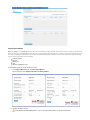
The My Account view switches to the Billing and Shipping view. This view includes two areas for managing Payment Methods and
Shipping Address.
3.
Add a Payment Method
When you accept a market leader quote, the system sets your default subscription payment method to the payment method you provide for the
quote. Use this tool to add additional payment methods. To change a default payment method, if necessary, add another payment method, and
then set it as a default payment method. You can have separate default payment methods for a monthly subscription and a prepaid campaign
account. Payment methods include the following.
American Express
Discover
Mastercard
Visa
Withdraw from Bank Account
To add a payment method, use the following procedure.
1. In the Payment Methods panel, click Add Payment Method.
The tool opens a form for Payment Information and Billing Address.
2. Complete all fields on the form.
The tool attempts to validate Billing Address. If you do not enter a valid address, you cannot submit the form.
2.
3. Click Submit.
The tool adds the newly submitted method to Payment Methods.
Set Default Payment Methods
You can manually set default payment methods separately for a market leader monthly subscription and a prepaid campaign account using the
following method.
1. In Payment Methods, click Mark as default Monthly Subscription Payment Method (
Payment Method (
) or Mark as default Campaign
) for a given payment method.
When you click Mark as default Campaign Payment Method, the tool prompts you to Accept or Decline terms and conditions.
When you click Mark as default Monthly Subscription Payment Method, the tool immediately processes your request.
2. If prompted to accept terms, click Accept or Decline to confirm or cancel your choice, respectively.
If you accept terms and conditions, the tool processes your choice and returns you to the Billing and Shipping view.
A Default Payment Method (
) or Default Monthly Subscription Payment Method (
) icon indicates your choice.
Add Shipping Address
To use Campaigns, you must add a shipping address in the Shipping Address panel. market leader automatically sets the first address you
add as the default shipping address. You can change this later by adding another address and manually setting it as the default.
To manage shipping addresses, use the following procedure.
1.
1. In the Shipping Address panel, click Add Shipping Address.
The tool opens an Add Shipping Address form.
2. Complete all fields in the form.
The tool attempts to verify the address. If you do not enter a valid address, you cannot submit the form.
3. Click Submit.
The tool displays the newly entered address in the Shipping Address panel with the address marked as Default Shipping Address (
).
To manage Default Shipping Address, use the following procedure.
1. In the Shipping Address panel, click a Mark as Default Shipping Address (
) icon corresponding to the address you want to use
as default.
2. Verify that the Mark as Default Shipping Address icon changes to Default Shipping Address.
Website
Website
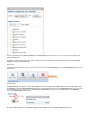
Website tools enable you to manage text and functionality on a Market Leader consumer website. When you select Website in the Admin view,
you see the following list of tools. For more information on each tool, visit the link.
The following list corresponds to a Business Suite subscription. If you ordered a different subscription, or you are not site owner, your view
might be different.
Titles and Descriptions
Main Text
Sell Text
Career Info Text
Site Images
Search Widget
Communities Served
Featured Partners
Listing Address
Listing Search Areas
Listing Search Fields
Consumer Site Theme
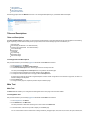
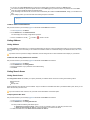
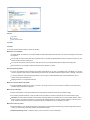
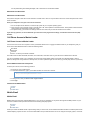
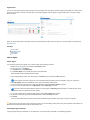
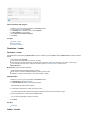
The following graphic shows the Website tools view. Your view might differ depending on your Market Leader subscription.
Titles and Descriptions
Titles and Descriptions
The Titles and Descriptions view enables you to change the text that appears in the browser title bar and the meta description for the following
pages. Depending on which Market Leader product you purchased, some of these settings might not be available to you.
About Us Page
Career Page ( Professional and Business Suite )
Finance Page ( Professional and Business Suite )
Find a Home Page
Home Page
Local Page
My Tools Page
Registration Page
Sell a Home Page
To Change Titles and Descriptions
This procedure assumes you are already logged into the Market Leader Adminuser interface.
1. In the navigation list, click Admin.
2. On the Website tab, click Titles and Descriptions.
3. In the Titles and Descriptions view, select a page name from the drop-down list.
The view presents Page Title and Description form entry fields for the selected page.
4. To change the text that appears in the browser title bar, edit the Title field.
5. To change the meta description text for the page, edit the Description field.
A search engine might use this text as a snippet description in search results. Google does not use this text for page rank, so there is no
benefit in stuffing it with keywords.
6. Click the Save button.
7. To change another page text, repeat the previous steps for a different page.
Main Text
Main Text
The Main Text view enables you to change the text that appears on the home page of the consumer website.
To Change Main Text
This procedure assumes you are already logged into the Market Leader Admin user interface.
1. In the navigation list, click Admin.
2. On the Website tab, click Main Text.
The view presents an HTML editor containing the current contents of the Main Text.
3. In the HTML editor, enter the text you wish to display on the Home page.
You can use the editor tools to format the text including text effects, paragraph styles, fonts, font size, font color, list styles, indents, links,
3.
graphics, and more. You can even switch it to HTML source view and edit the HTML source directly.
4. When you are finished editing the Main Text, click the Save button.
Sell Text
Sell Text
The Sell Text view enables you to change the text that appears on the Sell a Home page of the consumer website.
To Change Sell Text
This procedure assumes you are already logged into the Market Leader Adminuser interface.
1. In the navigation list, click Admin.
2. On the Website tab, click Sell Text.
The view presents an HTML editor containing the current contents of the Sell Text.
3. In the HTML editor, enter the text you wish to display on the Sell page.
You can use the editor tools to format the text including text effects, paragraph styles, fonts, font size, font color, list styles, indents, links,
graphics, and more. You can even switch it to HTML source view and edit the HTML source directly.
4. When you are finished editing the Sell Text, click the Save button.
Career Info Text
Career Info Text
The Career Info view enables you to change the text that appears on the Career page of the consumer website. You can access the Career
page from a link in the footer section of every page. The Home page also contains a sidebar area with links to the Career page.
This feature applies exclusively to Business Suite .
To Change Career Info
This procedure assumes you are already logged into the Market Leader Adminuser interface.
1. In the navigation list, click Admin.
2. On the Website tab, click Career Info.
The view presents an HTML editor containing the current text of the Career page.
3. In the HTML editor, enter the text you wish to display on the Career page.
You can use the editor tools to format the text including text effects, paragraph styles, fonts, font size, font color, list styles, indents, links,
graphics, and more. You can even switch it to HTML source view and edit the HTML source directly.
4. When you are finished editing the Career Info, click the Save button.
Site Images
Site Images
The Site Images view enables you to change the Site Banner and Agency Logo images of the consumer website.
After updating an image, to view the change on the consumer website, you might have to clear your browser cache.
To Change Site Images
This procedure assumes you are already logged into the Market Leader Admin user interface.
1. In the navigation list, click Admin.
2. On the Website tab, click Site Images.
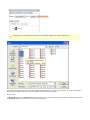
The view presents a form for adding the images. If no images have been uploaded, the form displays a box with a No Existing Logo or
No Existing Banner message and an Add button for each box. If you already uploaded a graphic, the form displays a thumbnail of the
image and an Edit button.
3. In the Review and Edit Your Website Images form, click the Add (or Edit) button corresponding to the image you want to upload.
3.
The system displays a pop-up form where you can either upload your own image file or choose images from a catalog.
4. Depending on whether you want to upload your own or choose from the catalog, use one of the following procedures.
Upload your own
a. Click Browse.
b. In the Open dialog, select your graphic file.
c. Click Open.
…OR…
Choose from the catalog
Logos
a. Use the drop-down list to select an agency.
b. Click Search.
c. Click the logo you want to use.
The system displays the selected logo under Current Logo.
d. Click Save.
Banners
a. Enter a keyword or location term in the search box, to narrow the choices.
b. Click Search.
c. Click the banner image you want.
d. Click Save
Search Widget
Search Widget
The Search Widget view enables you to copy a script block to another website that provides the other website with an MLS Search Widget
connected to your Market Leader domain. When users search on the other website, using the widget, they are driven to your Market Leader
consumer website for results. The Search Widget tool provides the following widget styles from which you can choose.
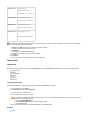
Name
Width x Height (pixels)
Square
250 x 250
Banner
468 x 60
Leaderboard
728 x 90
Copy a Search Widget
This procedure assumes you are already logged into the Market Leader Admin user interface.
1. In the navigation list, click Admin.
2. On the Website tab, click Search Widget.
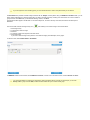
The Search Widget view presents each widget style choice with a sample image and a read-only text box that contains search widget
code.
3. Select the entire contents of a search widget text box.
The selection should look like the following. Do not copy this example, because it does not use your domain name, nor does it include a
valid choice, and it will not work. Only copy search widget code from your Market Leader Admin interface.
<script src="http://yourDomain.com/webcapture/type/choice/" type="text/javascript"></script>
4. Copy the selection to your computer clipboard.
5. Paste the code into an email or text message to send to the maintainer of the other site, or paste it into the source code of the destination
web page yourself.
Communities Served
Communities Served
The Communities Served view enables you to manage a list of the areas that you cover as an agent. On the Home page of the consumer
website, Market Leader displays a list of the areas you serve. The Communities Served list links website visitors to specific information on a
community.
The Communities Served list affects the following.
Every community name you add will display in the Search Widget area drop-down list.
If you are a broker or a team leader and you have chosen to participate in the referral network, then the ZIP codes you add in
Communities Served will dictate both the outgoing and incoming referrals.
If you are a Business Suite user, see your site owner to use this feature.
To Add a Community
This procedure assumes you are already logged into the Market Leader Adminuser interface.
1. In the navigation list, click Admin.
2. On the Website tab, click Communities Served.
The view displays the currently configured list of areas you cover.
3. To add a new community, click the Add Community button.
The tool opens an Add Community form.
4. In the form, enter a community of your choosing.
5. In the Add a Zip/Postal Code text box, enter a code. (Required)
6. Click Add Zip/Postal Code.
You can add additional zip codes to this community as needed.
7. In Review and Edit Descriptive Content text area, let your local expertise shine through with styled copy using the WYSIWYG editor.
8. To configure an information marker on the website map for this community, click Add Center.
8.
You can adjust the map scale and click and drag the marker to place it in the desired location. The marker appears on the Move page
map.
If you want to delete a center, you must delete the community and then create a new one with the same ZIP Codes.
9. To add a Community Info URL, click the Create URLbutton or enter an URL of your own choosing. If you enter your own URL, you must
include the protocol as follows.
http://mycommunityinfourl.com
The Community Info URL adds a link for more information on the community to the Move page. The Create URL button automatically
generates a link to a Wikipedia page for the community. If the button does not create a link when clicked, try zooming in and moving the
marker to a more precise location, and click the button again.
10. Click Save.
To Edit or Delete a Community
This procedure assumes you are already logged into the Market Leader Adminuser interface.
1. In the navigation list, click Admin.
2. On the Website tab, click Communities Served.
The view displays the currently configured list of areas you cover.
3. Click on an Action icon to edit (
) or delete (
) entries in the list.
Featured Partners
Featured Partners
The Featured Partners view enables you to manage a list of business associates with which you network. If you have configured a Featured
Partner, the Market Leader Home page displays a Featured Partner sidebar panel that enables you to help promote your network. If you
provided a company URL when you configured the partner, the sidebar item links website visitors to the parnter company website. In addition, the
Home page provides links to your Partners page, where website visitors can view all of your partners.
If you are a Business Suite user, see your site owner to use this feature.
To Add a Featured Partner
This procedure assumes you are already logged into the Market Leader Adminuser interface.
1. In the navigation list, click Admin.
2. On the Website tab, click Featured Partners.
The view displays the currently configured list of Featured Partners.
3. To add a parnter, click the Add Partner button.
4. In the Add a Featured Partner dialog box, enter the name of the Company Name.
Optionally, enter an URL, contact name, email, phone, image, and/or description. The only required field is Company Name. The Home
Page checkbox controls whether or not this partner will be shown on your website home page. If you do not check this, they only appear
on the Partners page.
5. Click Done.
The Featured Partners list includes the following rules.
You can have as many featured partners as you like.
If you have no partners configured, the Home page does not display the Partners sidebar panel.
If you have not enabled Home Page for any partners, the sidebar panel only displays a link to your Partners page.
The consumer website only shows one partner at a time on the Home page. If you select more than one partner to be on the Home
page, the system automatically rotates the featured partner.
If your brokerage works with a lender, the lender will not automatically be included as a Featured Partner, though you can add them as
well.
When adding a partner, you must use entire URL including the protocol as follows.
http://
To Edit or Delete a Featured Partner
This procedure assumes you are already logged into the Market Leader Adminuser interface.
1. In the navigation list, click Admin.
2. On the Website tab, click Featured Partners.
The view displays the currently configured list of partners.
3. Click on an Action icon to edit (
) or delete (
) entries in the list.
Listing Address
Listing Address
The Listing Address view enables you to configure the default setting for showing or hiding the addresses of listings on the consumer website.
This is a default setting in the sense that you can override it for individual contacts. To override this setting for an individual contact, see Contact
Summary.
If your MLS rules do not permit the display of addresses, then this setting will have no effect. Addresses will not display on your website.
To Show or Hide Listing Addresses for Contacts
This procedure assumes you are already logged into the Market Leader Admin user interface.
1.
2.
3.
4.
In the navigation list, click Admin.
On the Website tab, click Listing Address.
Click the radio button of your preference for the default setting.
Click Save.
Listing Search Areas
Listing Search Areas
The Listing Search Areas view enables you to specify areas that your website visitors can search according to the following criteria.
Neighborhoods
Zips
Nearby Cities
These specifications only affect the consumer website. They do not affect the searchable areas within your Market Leader system, where you can
search all areas that your MLS covers.
If you are a Business Suite customer, ask your broker or site administrator to edit these options.
To Specify Searchable Areas
This procedure assumes you are already logged into the Market Leader Admin user interface.
1. In the navigation list, click Admin.
2. On the Website tab, click Listing Search Areas.
The view provides the following radio button options.
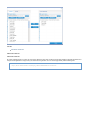
Allow visitors to search all areas---visitors can use your website to search any area that your MLS covers.
Select the areas visitors can search---visitors are limited by your search area criteria.
3. To limit searchable areas, click Select the areas visitors can search.
3.
The view displays a list of the currently searchable areas.
4. To add a searchable area, click the Add Search Area button.
The Add Search Area dialog box presents tabs for Neighborhoods, Zips, and Nearby Cities.
5. Click a tab and check off any areas that you want to be searchable.
You can expand the number of areas you see in these lists with radius options at the top.
6. When you are finished selecting areas, Click the Add button.
The dialog box closes and you are returned to the Choose Your Listing Areas screen.
7. To remove an area that you've added, click the Delete icon (
) next to the Area you want to delete.
If the Delete icon is gray, that area cannot be removed because it is one of the areas where your site is advertised. For example, if you
advertise as a site that provides Seattle listings, you cannot remove Seattle as a searchable area.
See Also
Listing Search Fields
Listing Search Fields
Listing Search Fields
The Listing Search Fields view enables you to specify which search filter controls to include in the Find a Home search tool of your consumer
website. The Listing Search Fields settings do not affect the controls you can use while logged into the Market Leader Admin user interface.
If you are a Business Suite user, work with your broker or site administrator to edit search fields.
To Specify Listing Search Fields
This procedure assumes you are already logged into the Market Leader Adminuser interface.
1.
2.
3.
4.
In the navigation list, click Admin.
On the Website tab, click Listing Search Fields.
Use the checkboxes to specify which fields to show on your website.
Click the Save button.
The Market Leader system might offer search fields that are not supported by your MLS. If you are not familiar with what data your MLS provides
and how they organize listing types, review your changes by trial and error. Apply changes and then review your website. Try using the search
fields to verify that they work as expected.
For example, your MLS might not provide Waterfront information. If you added this search field to your website, it might cause confusion for your
website visitors. Some MLS systems treat rentals as a property type while other MLS systems treat rentals as a listing type. If you are not sure
how your MLS treats rentals, you should try different settings and make sure your website is working properly.
See Also
Listing Search Areas
Consumer Site Theme
Consumer Site Theme
This topic describes the Consumer Site Theme view found in the Market Leader Admin interface. The Consumer Site Theme view enables you
to change the set of styles that determine the look and feel of a consumer website. The theme has no effect on the Admin interface.
When you open Consumer Site Theme, the system displays the available themes for your Market Leader product type. Each theme includes a
thumbnail image, an activate button, and a zoom icon (
). The system highlights the thumbnail of the current theme and displays it with an
Active button. The Activebutton does not trigger any action. It is for display only. Depending on your product type, you might see one or more of
the following themes.
Basic
Classic - Blue
Classic - Red
Classic - Silver
Activate Theme
The following procedure assumes you are logged into the Market Leader Admininterface.
1. In the navigation list, click Website.
2. On the Website tab, click Consumer Site Theme.
The system displays thumbnails of available themes with preview and activate tools for each.
3. Optionally, using a zoom icon, preview an enlarged image of a theme.
4. For your selected theme, click Activate.
The system displays a confirmation box.
5. Carefully read the confirmation message, as the theme change might require further action on your part.
For more information, see Site Images.
6. To confirm, click Activate.
7. To verify the theme change, visit your website.
Email
Email
The Market Leader system sends several types of email to contacts on your behalf. They include the following.
Welcome email
Listing alert campaign message
Initial contact email
Listing alert
You can review and update some of the text that the system sends to contacts. You can also add or edit message templates and change your
default email signature.
Welcome Email
The system sends a welcome email to contacts when they sign up on your website. It contains login information and instructions on how to return
to the site. You can view the full text sent to a contact in the Emails Sent to Contact section of the Contact Summary. The welcome email contains
critical login information. To ensure that it avoids most spam blockers, Market Leader provides carefully crafted default text for the welcome email,
which you can edit using your Admin Email tool.
If a contact email account does not accept this message, the system assumes that the contact provided an invalid email address and does
not allow the contact to sign into your website. If the contact provides a new email account, the system sends a new welcome email and both
welcome emails show up in the Emails Sent to Contact section of the Contact Details section.
Admin Email Tools
When you are viewing the Admin tools with the Email tab selected, you see the following links. Each link in the user interface has a
corresponding page in this section.
The following list corresponds to the Business Suite product. If you purchased a different product or you are not site owner, your view might
be different.
Listing Alert Campaign
Message Templates
Email-Only Accounts
Email Signature
Welcome Email
The following graphic shows the Admin tools view with the Email tab selected. Your view might differ depending on which product you
purchased.
Listing Alert Campaign
Listing Alert Campaign
The Listing Alert Campaign view enables you to edit the text of automatic, followup email messages for contacts that have not set up a listing
alert or have not sent email to you. The Market Leader system sends these automated emails on a 2 week, 1 month, 3 month schedule.
By default, the Listing Alert Campaign requires no action on your part. If you want to change any of the default text, you can use this tool to
change it.
To Edit Listing Alert Campaign Email Text
This procedure assumes you are already logged into the Market Leader Admin user interface.
1. In the navigation list, click Email.
The view displays the Listing Alert Campaign view by default. This view includes a text area input field for each of the three follow-up
email messages (i.e. 2 Weeks, 1 Month, and 3 Months).
2.
1.
2. For each follow-up type, compose the message text to suit your preferences.
3. When you are finished, click Save Changes.
You can always revert to the default text by clicking Revert to default text.
Message Templates
Message Templates
The Message Templates view enables you to edit the template text of various email types that the Market Leader system sends. Message
templates provide pre-written text for you to use in new email messages that you send to contacts. You can use the ones provided by the system
as-is or edit them to meet your needs. In addition, you can create your own custom templates. When you create a new email or reply to an email,
the Compose Message view provides a drop-down list of message templates from which to choose.
To manage message templates, you have the following choices.
Edit Existing Template
Add New Message Template
The following procedures assume you are already logged into the Market Leader Admin user interface.
Edit Existing Template
1. In the navigation list, click Email.
2. Under the Email tab, click Message Templates.
For lenders, click Welcome Email. It is the only message template for the lender role.
3. In the drop down list that says Select a message, select an existing message name.
The Admin tool displays the current contents of the message template.
4. To change the template contents, click the Edit button.
The view displays editable fields for the template name, subject, and message text.
5. Apply your changes to any of the template fields.
6. When you are finished editing the template, click the Save button.
Add New Message Template
1.
2.
3.
4.
In the navigation list, click Email.
Under the Email tab, click Message Templates.
Click the New Message Template button.
In the Template input field, type a name for the template.
This name is only used internally by you to recognize and choose the template in Market Leader.
5. Specify a Subject for the template.
The Subject appears on the subject line of the email.
6. In the Message text area, type the template message.
The template message is the body of the email.
7. Click the Save button.
Email-Only Accounts
Email-Only Accounts
The Email-Only Accounts view enables you to manage forward-only email addresses for people in your organization who do not need a
subdomain (i.e. agent website) and do not need to be listed as an agent with your brokerage. The Email-Only Account associates a Market
Leader email address with an existing email address for a person.
With the Email-Only Accounts view, you can add, edit, or delete accounts. You can also resend the login information for an account. The
following procedures assume you are already logged into the Market Leader Admin user interface.
To Manage Email-Only Accounts
1. In the navigation list, click Email.
2. On the Email tab, click Email-Only Accounts.
The view displays a list of existing accounts Email-Only Accounts and a form for adding additional accounts.
3. To add, edit, or delete an account use one of the following procedures.
Add
Edit
Delete
Resend Welcome Email
To Add Email-Only Accounts
1. If necessary, scroll to display the New Email-Only Accounts form which follows the Current Email-Only Accounts list.
2. For each new account, type a unique Email Prefix, assign a Password, and enter a valid existing forwarding email address, that is not
already part of the Market Leader system.
3. When you are finished, click Add.
You can add up to 9 new accounts at one time.
The system sends the new users their login information. To add more than nine, repeat the previous steps.
To Edit Email-Only Accounts
1. If necessary, scroll to display the Current Email-Only Accounts list.
2. Next to the list title, click the Edit link.
The the Password and Existing Email fields become editable in the list.
3. Modify any of the entries in the list.
4. Click the Save Changes button.
To Delete an Email-Only Account
1. If necessary, scroll to display the Current Email-Only Accounts list.
2. Find the Email Prefix that you want to delete.
3. On the row of the target account, click the Delete icon (
)
To Resend a Welcome Email
1. If necessary, scroll to display the Current Email-Only Accounts list.
2. Find the Email Prefix that you want to resend a welcome email.
3. On the row of the target account, click the Resend Welcome Email icon (
)
Email Signature
Email Signature
The Email Signature view enables you to maintain the signature block for email sent from your Market Leader account. Using signatures helps
avoid problems with spam-blockers and saves time. The Market Leader system adds the signature on all emails sent to contacts. It uses your
contact information for the default signature content.
To Change Email Signature
This procedure assumes you are already logged into the Market Leader Admin user interface.
1. In the navigation list, click Email.
2. On the Email tab, click Email Signature.
The view displays an editable text area that contains the current email signature.
3. Apply changes to the signature text.
4. Click Save.
Webmail does not use this signature. You must configure the Webmail signature separately.
Welcome Email
Welcome Email
The Welcome Email view enables you to customize a text message that goes out in an email to new contacts. The system uses different
messages depending on whether a contact signed up on a consumer website or an agent manually added a contact. The Welcome Email tool
provides separate editor views for each message type.
To Change Welcome Email
This procedure assumes you are already logged into the Market Leader Admin user interface.
1. In the navigation list, click Admin.
2. Click the Email tab.
3. On the Email tab, click Welcome Email.
The view presents HTML editors containing the current contents for each type of Welcome Email.
4. In an HTML editor, enter the text you wish to display in a Welcome Email.
You can use the editor tools to format the text including text effects, paragraph styles, fonts, font size, font color, list styles, indents, links,
graphics, and more. You can even switch it to HTML source view and edit the HTML source directly.
5. Optionally, click Preview Email to view the email in a pop-up.
6. When you are finished editing a Welcome Email, click Save.
Useful Tips
After you save changes to Welcome Email templates, you might want to create a test contact from your consumer site and verify that the
test contact receives a Welcome Email and it is accurate. If you have malformed HTML in your templates, the email send might fail or it
might not render correctly.
Do not copy and paste text from Microsoft Word to Welcome Email templates. Microsoft Word does not adhere to common HTML
standards, so copying and pasting formatted text from Word into a Welcome Email template can cause unexpected results.
Seller Market Report
Seller Market Report
The Seller Market Report view enables you to maintain default text that appears in a Seller Market Report. The tool provides an editor for
composing HTML (rich text) emails. Your text can include up to 5000 characters. Market Leader provides default text out of the box. You can use
the text as-is, or modify it to suit your specific requirements. This text initially populates the content area of a report. When you configure a specific
report, you have an opportunity to modify the content for that specific report.
To Change Seller Market Report Content
This procedure assumes you are already logged into the Market Leader Admin interface.
1. In the navigation list, click Admin.
2. Click the Email tab.
3. On the Email tab, click Seller Market Report.
The view presents an HTML editor with the current Seller Market Report content.
4. Modify the content to meet your requirements.
5. When you are finished, click Save.
Site Activity
Site Activity
The Site Activity view provides you with tools to analyze the visitor and contact traffic on your consumer website. You can see the number of
contacts you have received by source for up to 12 months and detailed source information—such as how many people are coming to your site
because of syndication or personal marketing campaigns for up to 180 days.
The Site Activity view is a reporting tool. The reports use preset queries for which you can vary the time period of the query. It includes the
following reports.
New Contact Count
Shows a bar graph of traffic counts with data grouped by sources Market Leader, Advertising, and Personal Marketing.
Visitor & Contact Sources
Shows details of URLs from where Visitors and Contacts come. It shows Visitors and Contacts referrer URLs grouped by Market
Leader and Personal Marketing. You can expand each group to view more detailed grouping of the data.
Search Links
Shows Visitors and Contacts referrer URLs filtered by domain name. Instead of grouping the results, this report shows the source type
(e.g. SEO or syndication) as a separate column.
The following sections explain the groupings in the New Contact Count graph.
Market Leader
The Market Leader category shows the count of contacts resulting from listing syndication, natural search, and email. It includes the following
sources.
Listing Syndication
Craigslist
Search Widget
Search Engine Optimization (We know the source URL, but these URLs don't fall into other categories.)
Market Leader Campaigns & Emails (listings, listing alerts, welcome email, campaign, etc.)
Referrals (Contacts received from other agents who used the "transfer" link)
Advertising
The Advertising category shows the count of contacts resulting from paid traffic that Market Leader provides. It includes the following sources.
Google
*This is a requirement of being a Certified Google Reseller.
Other Ad Campaigns (All Market Leader advertising except Google)
Personal Marketing
The Personal Marketing category shows the count of contacts resulting from brokerage's personal marketing activities plus a count of contacts
entered or imported by agents. It includes the following sources.
Offline Marketing (We do not have URL from which visitor/contact came to Market Leader. E.g., business card, flyer, or any other source
we can't track.)
Online Marketing (Blogs, links, domain forwarding, etc.) *for source to be reported accurately, the ref tag (?ts=leader) must be used. (e.g.
www.ServingYourTown.com/?ts=leader )
Entered / Imported
Website Analytics
Website Analytics
The Website Analytics view provides a full suite of statistical reporting on a consumer website. For more information on Website Analytics, see
VisiStat Learning Center.
Open Learning Center
To open Learning Center, use the following procedure.
1.
2.
3.
4.
In the navigation list, click Admin.
Select Website Analytics.
On the Website Analytics tab, click Account Options.
In the Account Options pane, click Learning Center.
Learning Center opens in a new window.
Performance Evaluator
Performance Evaluator
The Performance Evaluator view provides benchmark comparisons that show how your use of the Market Leader system compares with that of
known successful agents. Each benchmark provides coaching tips for how to improve.
To Use Performance Evaluator
This procedure assumes you are already logged into the Market Leader Adminuser interface.
1. In the navigation list, click Performance Evaluator.
2. On the Performance Evaluator tab, peruse the benchmark data.
Performance Evaluator includes quick Status indicators to indicate par (
) or sub-par (
).
3. Pick a sub-par benchmark, if any, and resolve to take action on that benchmark within the next, say, 24 hours.
4. Take pride in your achievements.
Testing
Setting Up a Test User for Testing
Many agents set themselves up as a test contact to better understand what the experience is like for a contact who registers on their website.
With a test contact, you can view listings, look at the consumer website from a contact point of view, and send emails to yourself like you send to
contacts. With an understanding of how the website works for a test contact, you are able to provide better assistance to contacts when they
contact you.
To Set Up a Test Contact
1. If you are currently signed into your Market Leader Admin account, you must first sign out of the Admin panel.
In the upper-right corner, click the logout link.
2. Go to the consumer website by entering your Market Leader domain name (e.g. yourdomain.com) in the browser navigation bar.
To create a test contact, you need to register as a user on the consumer website.
3. To register as a user, click Create an Account, or alternatively, click My Tools to access a registration form.
4. Complete the registration process as if you were a contact.
Do not use your Market Leader system email address as the Email address. Use any contact name and any non-Market Leader, valid
email address that you can quickly identify as a test account.
5. On the Find a Home tab, conduct a search.
6. In the search results, click a listing.
7. On the listing detail page, using the Nearby Listing panel, click a nearby listing.
The search and the nearby listing actions give the system some sample information for the Initial Contact Wizard (ICW) and for you to
work with when viewing the test contact from the Admin panel.
Using Market Leader
Using Market Leader
This section describes how to effectively use the Market Leader Admin interface.
The Essentials section applies to users of any product including the following.
Essential
Professional
Business Suite
The For Business Suite & Professional and For Lenders sections apply to users of the following.
Professional - site owner
Business Suite - site owner
Essentials
Essentials
This section describes Market Leader product functionality available to the following users.
Essentials - site owner
Professional - non-owner
Business Suite - non-owner
Best Practices
Best Practices
This section provides pointers to help you get started and succeed in the market place.
The system provides dozens of features, but the most value comes from a handful of simple tasks. You may find that managing your contacts is
not about how much work you put in, but how quickly you attend to these few important tasks. After you learn how to move around the site and
use the basic tools, you will not need to spend a lot of time on your computer. However, you will need to log in several times a day to make sure
that you keep up with new contacts.
Logging into Market Leader
1.
2.
3.
4.
5.
6.
Once your account is provisioned.
Go to your website (e.g. servingmainstreetusa.com).
If necessary scroll down to find Admin Login.
Click Admin Login.
In the Login form, enter your credentials.
Click Login.
You can also log in from an internet ready cell phone. See details at Cell Phone Access to Market Leader
This section includes the following topics.
Contact New Contacts
Stay Connected
Get Organized
Advertise Your Site
See Also
Contact Summary
Recent Activity
Contacts - Lender
Contact New Contacts
Contact New Contacts
Contact your new contacts as soon as possible. It is critical that you respond to your new contacts quickly. Year after year, studies show the faster
you respond to a contact the more likely they will turn into a client.
Contacts with phone numbers
Make a phone call as soon as possible. The best way to contact a new contact is by phone, it is the fastest and most direct means to let the
contact know you are here and ready to assist them. The calls should be friendly, without a sales message. Let them know that you are available
to help them with the website and to provide additional information about the listings they see. Use the Initial Contact Wizard for specific steps to
make the appropriate phone call.
Customers who do not want to personally make phone calls can subscribe to First Call. With First Call, the Market Leader call center calls
new contacts on your behalf. The call center asks the contact questions and passes on their notes as comments in the contact's summary
section.
Unless you are using the Market Leader Professional package, you have to talk to your broker or team leader to use First Call.
Contacts without phone numbers
Send an email message as soon as possible. Use the Initial Contact Wizard to build the appropriate email for contacting a new contact.
Stay Connected
Stay Connected
Stay connected to your contacts. One of the biggest mistakes agents make is taking too long to respond to incoming email messages.
An agent who checks the system every couple of days takes a couple of days or more to respond to messages from potential customers. People
who make the effort to contact you are very good contacts, so it is essential to respond to them promptly.
Contacts often become active after they sign up to view listings, see a home they were interested in, and contact you about it. If they do not get a
quick response, they may seek answers elsewhere or lose interest altogether. If you take a day or two to respond to messages, you jeopardize
your chances of turning your contacts into real customers. The sooner you respond to contact needs, the more likely they are to turn to you for
assistance in the future.
Ways to stay connected
Put your cell phone number on the website so that customers can easily contact you.
Set up Alerts so that you will immediately receive a notification on your cell phone or at an external email address when you get new activity from
your contacts or a new contact.
Check your email regularly by logging into the system a few times a day. The New messages list on the dashboard shows all new email
messages from contacts.
After you answer an email message, click the File Messageicon (
) to mark in the system that you are processing your incoming email. When
you file a message, it is removed from the New messages list. You can still access the filed email from the contact details page. Filing old
messages helps reduce the clutter so you can focus on new messages.
Get Organized
Get Organized
Use contact status to get organized and focus on the best contacts. The system offers a variety of contact status options to allow you to
categorize your contacts so you can identify and focus on your most active contacts. Below are some suggested steps on how to use & update
contact status.
Organize your contacts by doing the following
Make sure to communicate with new contacts quickly. After you contact a new contact, change the status to Retry or Active.
Make sure that all contacts marked Active are responding to your messages or calls, are visiting the site, or are viewing listings. If they
are not, then change the status to Retry or Inactive*.
Review the Recent Activity page (Fig. 1) to see all contacts who have returned to your website in the last 48 hours. Change the status
for each contact in this list to either Active or Retry. Mark as Active any contacts you communicate with directly who appear to be viable
contacts. Set the status of everyone who does not respond to you within two weeks as Retry.
Periodically review your contacts with the status of Retry to see all contacts who have not responded to you recently. Review when each
contact last visited your site. Attempt to reach out via phone or email to those who visited your site in the last two weeks. Try to engage
them about any listings they have viewed or saved. If contacts are not on Listing Alerts, ask if they want to be. If any contact has not
visited your site for two weeks, set the status for that contact as Inactive.
The following graphic shows the link to open the Recent Activity page (click to enlarge).
Advertise Your Site
Advertise Your Website
If you have business cards, stationery, print advertising, or are doing your own Internet advertising, include your website address to receive as
much traffic from contacts as possible.
To see your personal website address (URL)
This procedure assumes you are already logged into the Market Leader Admin panel.
1. In the navigation list, click Admin.
2. On the Website tab, click the View your website link.
3.
3. In the location bar of the browser (e.g. Firefox or Internet Explorer), select the entire contents.
4. Copy the selection to the computer clipboard.
5. Paste the URL into other electronic media.
Agent Dashboard
Agent Dashboard
The Dashboard gathers key information about your contacts in one place so you can quickly identify New contacts, New messages, and
Upcoming Reminders. The following graphic shows the Dashboard view (click to enlarge).
You can click on highlighted text in lists to access more information about the item. You can click on icons in the lists to perform a given
action. By hovering your mouse pointer over the icon, you can get a hint for the action.
New Contacts
The New contacts component shows you all contacts with a status of New. Make sure that you are quickly following up with contacts and
changing their status. With this component, you can initiate the following actions.
View Contact Summary
Change contact Status
Transfer Contact
Compose an Email
New Messages
The New messages component shows you all the messages that have not been filed. Contacts are waiting for answers to some messages, but
other messages might only require filing. After you respond to a message, make sure you file the message. With this component, you can initiate
the following actions.
View Contact Summary
View Messages
Compose an Email
File Message
Transfer Contact
Upcoming Reminders
The Upcoming Reminders component shows you reminders for key tasks that require your attention. With this component, you can initiate the
following actions.
View Contact Summary
Add a new reminder
Edit Reminders
Complete Reminders
Delete Reminders
Performance and Site Activity
The Dashboard view right sidebar includes the following items.
Item
Description
Performance widget
A graph that shows contact activity by advertising source type.
New Contacts total
Enables you to quickly check the number of new contacts you received in the last 30 days.
Recent Contacts Online
widget
Shows a snapshot of the contacts that most recently visited your website. Each name in the list is a link to the
Summary for that contact.
Website stats widget
Provides the following statistics for a consumer website.
Page Views = Rolling 7 day total
Unique Visitors = Rolling 7 day total
Bounce Rate = Lifetime average as %
Return Rate = Lifetime average as %
Website Analyics link
Provides a link to Website Analytics.
My Inbox
My Inbox
The My Inbox view contains tools for managing Messages and Reminders related to contacts. In the My Inbox section of the navigation list, you
can use the Webmail link to access the Webmail interface and manage email from non-contacts.
Email Etiquette
The real-estate industry has been labeled as notorious spammers. In order to reduce the chances of your email getting sent to the junk mail box,
Market Leader provides standardized email templates that are much more likely to get your message to your contacts. Market Leader provides a
WYSIWYG editor for composing and replying-to messages in HTML format. Because some HTML content might trigger spam email filters, Market
Leader recommends that you use this feature wisely. If you need to send an attachment, you must use Webmail. If a contact does not see your
message in their in-box, advise the contact to check their junk mail box.
Messages
Messages
The Messages view lists all of the messages that you receive from contacts. You can select one of two modes for viewing the messages, Not
filed or Last 25 filed. To view all messages from a contact, you can view the Contact Summary.
The following procedures assume you are logged into the Market Leader Admin panel.
To access Messages
In the navigation list, click Messages.
To View a Message
1. On the Messagestab, select one of the following modes from the drop-down list.
Not filed
Last 25 filed
2. If necessary, scroll to locate a Message.
3. Click the subject of the Message, not the Contact name.
To Reply to a Message
In the Actions column of the Message list, click the Email Contacticon (
)
To File a Message
You can remove a message from the New message list on the Dashboard by filing it. If you work in a team environment, filing helps your
manager or team leader know that you handled it.
1. On the Messages tab, select the Not filed mode from the drop-down list.
2. Locate a Message to file.
3. In the Actions column of the Message row, click the File Message icon (
).
Depending on your message volume, the filed message appears in the Last 25 filed list for a time. You can always view a filed message
through the contact summary.
To Transfer a Contact
You can even transfer a contact to another agent or ZIP code from the Messages view.
1. On the Messages tab, select a mode from the drop-down list.
2. Locate a Contact to transfer.
3. In the Actions column of the Contact row, click the Transfer Contact icon (
).
The system displays the Transfer Contact form.
4. In the form, enter either a ZIP code or an agent email address.
For ZIP code, Market Leader assigns the contact to an agent in its system who includes the ZIP code in their Communities Served.
5. Click the Transfer button.
The system returns you to My Inbox.
Reminders
Reminders
To Add a Reminder | To Edit a Reminder
A reminder is a text note with a due date. A reminder can optionally have a contact assigned to it. The Reminders view enables you to view, edit,
mark complete, and delete reminders in a list. Either you or the system can create a reminder. Market Leader reminders include the following
types. You can filter the list by reminder type, date range, and status. The system remembers the filter settings from your last session. You can
also sort the list by Due Date.
User
System
Birthday
Anniversary
System reminders appear automatically, for example when a contact saves a listing, and are displayed for three days or until you mark it
Complete. The system removes incomplete items over three days old from the list. Birthday and anniversary reminders display from 45 days
before due until 90 days past due. The following table lists system events that trigger reminders and a suggested action to take for each reminder.
Event
Suggested Action
A contact provides a phone number when
signing up.
Call if you have not contacted the contact already.
A contact signs up for a Listing Alert.
Review the listing alert to see if you think the search criteria are realistic. If not, email the contact
to explain why the search criteria may not be successful and offer to update the listing alert.
A contact saves a listing.
Contact the contact to see if you can provide additional information about the saved listing.
Another agent transfers a contact to you.
Call or email the contact if you have not already.
Contact birthday or anniversary data is
inserted or updated in the Contact
Summary.
Optionally, send an appropriate message.
You cannot edit or delete System reminders. The Edit (
status (i.e. complete or incomplete).
) and Delete (
) icons are disabled. You can toggle birthday and anniversary
User reminders are ones that you create, and they do not expire. They are visible until you complete or delete them. You can remove a reminder
from the list by clicking the Completeicon (
in the contact summary.
) or delete it by clicking the Delete icon (
) . Any reminders associated with a contact appear
The following procedures assume you are logged into the Market Leader Admin interface.
To Add a Reminder
1. In the navigation list, click Inbox.
2. In the Inbox view, click Reminders.
3. On the Reminders tab, click the Add a Reminder button.
The tool displays an Add a Reminder form.
4. On the form, enter a Due Date. (Required)
A reminder appears on the Dashboard Upcoming Reminders list three days before a due date.
5. Optionally, choose a contact with which to associate the reminder.
The system suggests a name as you type.
6. Optionally, choose one of the following types.
Phone Call
Meeting
Important Date
To-do
Note
7. Enter the Reminder text. (Required)
8. Click Save.
To Edit a Reminder
1. In the navigation list, click Reminders.
2. In the Reminders list, click the Edit icon (
The system opens an Edit Reminder form.
3. Edit any of the fields on the form.
4. Click Save.
) for a User reminder.
Webmail
Webmail
Market Leader provides you with a Webmail interface for managing all non-contact email messages. By contrast, Market Leader system routes all
contact email messages to the Admin interface to enable integration with its many customer relation management features.
You might find email from a contact in Webmail, but only when that contact emails you from an email address you have not yet stored in the
Contact Summary. Note to self: capture that address.
To Open Webmail
1.
1. Log into the Market Leader Admin interface.
2. In the navigation list, click Webmail.
The system opens a new browser window or tab with the Webmail interface.
To Change Name and Address Options
1.
2.
3.
4.
Use the previous procedure to open Webmail.
In the Options pane, click Change Settings.
To display your name on the From line of all messages, enter a name in the Full Name field.
In the Signature text area, enter a signature.
Consider something like the following.
Full Name
Company Name
Office phone: (425)555-1212
Email: [email protected]
Website: http://www.yourdomain.com
5. To save changes, click the Submit button.
To Attach Files to Webmail
1. In the Webmail interface, click Compose.
2. Use the email form to compose the message.
3. At the end of the form, click the Choose File button.
A system File Open dialog box opens.
4. Use the dialog box to find a file.
5. Click the Open button to dismiss the dialog.
The Webmail interface displays the file name in the Attach area. To attach more files, click the Choose File button again.
You are not finished, yet!
6. To attach the file(s), click the Add button.
Ahhh! Now, you are finished attaching files.
{anchor:toCloseWebmail]
To close Webmail
Click the Return to Main Pageicon (
).
Notes and Tips
Webmail limits attachment file size to 8MB.
Normally Market Leader recommends you email contacts using the Market Leader Admin interface. However, to send a message with an
attachment, you must use Webmail because you cannot send attachments from the Admin interface.
To see contact email in Webmail, click on the ShownInCRM folder.
Check Webmail everyday and respond quickly to all emails. When you receive a Webmail from a contact, and it is not in the ShownInCRM
folder, that means the From address is not yet associated with the contact. To fix that, copy and paste the From email address into the Contact
Summary, so that Market Leader can automatically associate future emails from that address with the contact.
Contacts
Contacts
The Contacts view provides a contacts list with multiple filters you can use to refine the list. The list contains an array of information for each
contact. Depending on your Market Leader subscription, the head of the contacts list provides the following filters.
Name
Status
Type
Groups
You can filter contacts by choosing values in any of the drop-down lists. The drop-down lists enable you to select multiple values. The contact list
head displays Contacts (N) to indicate the number of contacts that match the current filter criteria. You can create more refined filters using
Advanced Search. To see more information about a contact, click a contact name. The rest of this topic describes the features of the contact list in
more detail.
Contact Type
If the Market Leader product you use includes a consumer website, when a contact signs up for an account on your domain, they can indicate a
type (i.e. I am a Buyer). Contacts can select from one of the following core types. If the Market Leader product you use does not include a
consumer website, the type field reflects the value provided by the system from which the contact came.
Buyer
Seller
Buyer/Seller
Investor
When you add or edit contacts in the Admin interface of your website, you can assign a type value to a contact. Depending on which Market
Leader product you subscribe to, in addition to the core types, you can select from one or more the following extended types.
Renter
Agent
Recruit
Personal Contact
Vendor
Other
Market Leader does not include extended types in contact analysis, ICW notifications, website activity metrics, or performance
stats.
Recent Activity
Depending on your Market Leader add-ons, you can filter a contacts list to view only recent activity. To filter a Contacts list for recently active
contacts, click Recently Active.
Bulk Actions
The contact list panel provides a bulk action control to perform the following actions on multiple contacts simultaneously.
Add Groups
Remove Groups
Delete
Using basic or advanced search and check boxes, you can filter contacts to a list on which you perform one of the bulk actions.
Delete Multiple Contacts
To delete more than one contact at a time, use the following procedure.
1.
2.
3.
4.
5.
Log into the Market Leader Admin interface.
In the navigation list, click Contacts.
Optionally, filter the contact list using basic or advanced search techniques.
Manually select contact check boxes or click the Check All check box in the bulk action control.
Click Delete.
Market Leader displays a prompt that explains conditions that might override the delete for specific contacts. For example in order to
provide an audit, you cannot delete contacts from a source for which you paid. You also cannot delete contacts that you shared with a
lender.
6. When prompted, click Yes.
Use a similar procedure to manage group membership. Instead of clicking Delete, click Add Groups or Remove Groups.
RSS
To view an RSS feed of New Contacts and Emails, click RSS. The contacts tool displays an RSS feed which includes contact name and a
description of contact activity. You can click a contact name to go to its Contact Summary. If you use a content aggregator, you can subscribe to
an RSS feed of your contacts activity from within the rendered feed.
In some browsers, when you click on RSS, the browser might render raw RSS XML source code. Instead of left-click, right-click
RSS and select Copy Link. Paste the link into your feed aggregator or whatever you use to subscribe to RSS feeds.
To Access Contacts List
1. Log into the Market Leader Admin interface.
2. In the navigation list, click Contacts.
Contact List
The following tables describe the features of the list.
Depending on which Market Leader product you use, some columns might be hidden by default. If you choose to show a column and your
product does not support it, it might contain no data. To see more data, you can upgrade your Market Leader product.
Columns
Label
Description
Contact
Click the name to go to the Contact Summary.
Agent
If your subscription supports it, you can see the agent that is assigned to a contact. Click an agent name to view Agent
Profile.
Average Price
Contains the average price of saved property searches for a given contact on your website.
View
Contains the number of individual property listings a contact viewed on your web site.
Save
Contains the number of saved listings for a contact on your web site.
Looking In
The contact is looking for a home in this city or town.
Phone
Save up to three phone numbers for a contact and be able to quickly distinguish home, cell, and work phones.
Type
Indicates the type of contact, either buyer, seller, or both.
Source
Indicates the channel through which the contact came into the system.
Created
The date a contact signed up on your website or when you added the contact to your account.
Activity
The last time a contact visited your website. If this date is given as a time of day, the visit occurred within the last 24 hours. If
it is a date, then the visit occurred more than 24 hours ago.
Time Frame
The contact time frame to buy a home. When a contact registers on your website, they are asked when they intend to buy.
The choices are Now, 1-3 months, 3-6 months, 6+ months, or Just looking.
Status
Where the contact is in the home buying process. To change the status for a contact, click in the Status drop-down list and
choose a a status type.
Actions
Shortcuts you can click to email a contact or transfer a contact to another agent in the Market Leader system.
Icons
Depending on which Market Leader product you use, some icons and their associated functionality might not apply to you.
Icon
Tool Tip
Description
Transfer Contact
To transfer the contact to another agent, click the icon and follow the on-screen instructions. At this
time contacts can only be transferred to other agents with Market Leader accounts.
Email Contact
To send an email to a contact, click the Email Contact icon and follow the on-screen instructions.
This contact's phone number is
### - ### - ####
Displayed if the contact provided a phone number. Move the mouse over the icon to see the phone
number. The phone number also appears on the Contact Summary.
This contact has requested a
mortgage preapproval.
This contact requested information on mortgage pre-approval when signing up.
This contact was sent to the
Lender.
After requesting mortgage pre-approval, the contact has been linked with a lender.
This contact has # listing
alert(s).
The contact receives listing alerts.
This contact's email is NOT
working.
The contact email address has not passed our email validation process and does not appear to be
a working email address.
This contact is unsubscribed.
The contact has unsubscribed from automatic system email and listing alerts, OR the contact
unsubscribed AND their email is not working.
OR
This contact is Unsubscribed
and Email is NOT working.
This contact is looking to sell a
house.
The contact indicated that they would like to sell a house.
The call center has added
comments for this contact
If you subscribe to First Call ( Business Suite only), this icon appears when you have a new
comment from the call center concerning a contact.
The call center has flagged this
contact for immediate contact
If you subscribe to First Call ( Business Suite only), this icon appears when you have a new call
from the call center and a contact requests that you call them back immediately.
See Also
Status
Manage Groups
Finding and Adding Contacts
Status
Status
In the Market Leader system, a contact has a status value that enables you to manage and view them in groups. A contact has one of the
following status values.
New
Retry
Active
Inactive
Hot
Sold
Trash
The first time you open the Contacts view, the contact list shows New contacts by default. If you change the status type in the view, the system
remembers the last type you viewed the next time you view the contacts list.
You can change the status of a contact as often as you want. Keeping the contact status up to date helps you focus on the contacts who need
your attention and who are most likely to become clients. Good use of status helps you save time and prioritize your tasks.
The following procedures assume that you are logged into the Market Leader Admin interface, and you opened the Contacts view by clicking
Contacts in the navigation list.
To View Contacts of one Status
1. Click the Status list filter.
2. In the Status option list, select a status.
To Change the Status of a Contact
1. If necessary, scroll and use display controls to find a contact.
2. In the row of the chosen contact, click the change contact status drop-down list.
3. In the option list, select a new status type.
Notes
When you change a contact status and the Status list filter is any value other than All, the contact disappears from the list when you
change the status.
With the exception of Trash, changing contact status does not delete, unsubscribe, or change the contact information in any way.
Built-in Status Type - Agent
Built-in Status Type - Agent
The following table shows the status types, for use by agents, that are built into Market Leader . For information on how to define a custom status
type, see Custom Status Type - Agent.
Status
Definition
New
Contacts who just registered and that you have not responded to yet.
Retry
Contacts you are trying to engage but have yet to respond to your emails or phone calls.
Active
Contacts who are engaging with you and your site but may not be ready to buy right now. This list generally includes people who
are contacting you with questions by email as well as long-term contacts who are receiving listing alerts and therefore do not need
to be proactively contacted at present.
Inactive
Contacts who are not responsive or not interested.
Hot
Contacts who are working with you to buy a home
Sold
Customers who have completed the sale or purchase of their home
Trash
Contacts who ask to stop receiving email, unsubscribed themselves, or have no valid phone number or email address. Use this
status very rarely or not at all. A contact marked as Trash will be automatically removed from automatic emails and listing alerts.
Do not put contacts into trash because they stopped coming to the website, provided a fake name, or said they already have an agent. It is a
very common mistake to mark all old contacts as Trash. When an agent does this, contacts that are set up for listing alerts, for example, will have
their alerts deleted. This may cause you to miss out on a transaction when the contact starts actively looking for homes a few weeks or months
later.
Custom Status Type - Agent
Custom Status Type - Agent
Market Leader does not support integration of custom status types with the built-in status types. If you would rather use a custom status type, you
can use a workaround.
Custom Status Workaround
The concept of this workaround is to use a consistent set of terms in Contact Summary Comments, such that you can search for them, and the
search returns all contacts whose comments contain a given term. In preparation for using this workaround, define a set of custom status terms
(e.g. Serious, Just Looking, etc.) and document them (e.g. note-to-self) for future reference. To make the workaround as robust as possible, use
the terms consistently. A copy and paste would be ideal. With this workaround the contact categories are unlimited.
The Performance Evaluator page uses built-in status types. If you use status types differently, the data in the Performance Evaluator view
might not be useful to you.
Market Leader recommends that you use the built-in Status types. For definitions of the built-in types, see Built-in Status Type - Agent.
The following procedures describe steps for using the workaround and assume that you are logged into the Market Leader Admin interface and
have navigated to a Contact Summary view.
To Use Custom Status Type
1. In the Contact Summary, click the Comments bar.
2. In the New Comment field, enter a custom status term as previously defined.
3. Click the Save button.
To Find Contacts of a Custom Status Type
1. In the Contacts view, click Advanced next to the Find Contact button.
The view displays a form for entering multiple search criteria to find a contact.
2. In the Comments/History field, enter a custom status term.
3. Click Find Contact.
3.
The system returns a list of contacts whose comments contain the customer status term. When using the Advanced Find Contact, the
system searches All status types.
See Also
Summary Comments
Agent Dashboard
Recent Activity
Recent Activity
Market Leader provides preset filters in Advanced Search that show recent activity by contacts on your consumer website. Preset searches are
defined as follows. Check these searches daily, and reach out to each of these contacts as soon as possible.
Preset Search
Definition
Recently Active
Last Activity within the previous 48 hours
Quick Call
Last Activity within the previous 48 hours
AND
Status = Inactive or Trash
AND
Has Phone Number = Yes
Quick Email
Last Activity within the previous 48 hours
AND
Has an email address
AND
Status = Inactive or Trash
AND
Has Phone Number = No
Anyone who is coming back to the website is worth your attention. If you are not already working with all of them, try to contact
them. As a general rule, every contact that shows up in these searches should be given status of Retry or Active.
To View Recent Activity
This procedure assumes you are logged into the Market Leader Admin interface.
1. In the navigation list, click Contacts.
2.
2. If necessary to expand the Advanced Search panel, click Advanced Search.
3. In the Preset Search control, click one of the following options.
Recently Active
Quick Call
Quick Email
Market Leader displays a list of contacts matching the preset criteria.
Try to make contact with all of these contacts and then change their status to Retry, Active, or Hot, depending on their
response.
See Also
Status
Contact Email
Initial Contact Wizard (ICW)
Initial Contact Wizard (ICW)
The ICW is a streamlined guide for contacting new contacts. When you receive a new contact, the Contact Summary view displays a notification.
When a contact signs up on your site the system sends a welcome message to the contact with login information so that the contact can return to
the site and view their saved information. It is up to the agent to make first contact after a contact signs up. ICW is a user friendly resource for
helping you make that first contact with your new contact.
Why Use ICW
Successful contact-agent relationships are based on rapid responses to contact needs. When a contact signs up for an account on your system,
they probably have questions. Market Leader recommends that you respond to new contacts within 12 hours to answer those questions. ICW not
only helps you meet contact needs by answering questions but also sends an automatic email, in your name, if you are unable to send it yourself.
What ICW Provides
Step by step instructions about how to make an initial contact phone call
Pre-written emails tailored to the contacts needs
A backup system in case you are not able to contact your new contact within 12 hours
How ICW Works
ICW correlates contact actions on your site and creates a custom message for you to use when making first contact. It gives you a tested and
proven edge that increases the probability that the contact returns to your site. For example, if the contact has not set up listing alerts, the ICW
message encourages them to create a listing alert. The message also includes listing suggestions based on their searches and information on
your site.
How to Use ICW
This procedure assumes that you are logged into the Market Leader Agent Dashboard of the Admin interface. When a new contact signs up on
your site, the Agent Dashboard displays their name in the New contactslist.
1. Click the name of a New contact.
The system displays the Contact Summary view. The view includes a notification that provides an ICW link.
2. Peruse the Summary, Listings, and History tabs to learn about listings the contact viewed, their Timeframe and other responses.
3. After reviewing the Contact Summary, click the Open the ICW link.
4. Click the link to the ICW and follow the on-screen instructions.
4.
If the contact provided a phone number, ICW displays call scripts and suggested next steps. Market Leader recommends you contact
them by phone. Phoning is the fastest and most direct way to make contact.
5. If they do not answer the phone, choose an appropriate followup step.
If they did not provide a phone number, ICW displays a form email. Usually, you do not have to edit the message, but verify its accuracy
and helpfulness based on what you know about the contact from perusing the summary. You can add or remove listings and make minor
text edits to match contact requirements. Based on experience, top performing agents recheck every message and send them as soon
as they can.
6. To send the email, click the Send button.
If you do not use the ICW within 12 hours of the contact Created date and time, Market Leader sends the message automatically.
Market Leader recommends that you contact at least 90% of your contacts within 12 hours. Market Leader calculates your response time
across all your new contacts and reports it in Performance Evaluator.
See Also
Contact Summary
Contact
Contact
When you view a list of contacts (e.g. on the Agent Dashboard) and click a contact name, the system directs you to the named contact view.
The contact view contains valuable information on each contact grouped by the following tabs.
Summary
Listings
History
The Summary tab includes the following information about the contact.
Reminders
Comments
Emails
Group memberships
Market Insider activity
Personal and other information
The Listings tab includes the following.
Listings the contact has viewed
Listings the contact has saved
Listing alerts set up for the contact
The History tab shows a log of system activity for the contact (e.g. when they signed up or were transferred to you).
Contact Summary
Contact Summary
When you click the name of a contact in the Market Leader Admin interface, the system displays a contact Summary view. The Summary view
contains the basic information for a contact. The following gallery contains images of a contact summary.
To Access a Contact Summary
1. Log into the Market Leader Admin interface.
2. In the navigation list, click Contacts.
3. To locate a contact, use the contact list or the Find Contact feature.
To use the list, set the list filter, scroll, and use display controls to find a contact. To use the Find Contact feature, enter a name in the
text box and click the Find Contact button.
4. In the contact list, click a contact name.
Wherever you see a contact name in a list, you can click it to go to the contact Summary.
See Also
Summary Fields
Summary Actions
Summary Comments
Summary Emails
Summary Buyer Requests
Initial Contact Wizard (ICW)
Seller's Market Report
Send Seller's Market Report
Summary Fields
Summary Fields
This topic describes the fields included in a Contact Summary. A contact summary divides the fields into the following categories.
Primary Details
Addresses
Secondary Details
Information and Activity
A contact summary includes a contact name and a subtitle that characterizes the contact activity on your website. A subtitle includes what a
contact is looking for, including location, average price, and number of bedrooms and bathrooms. The rest of this topic describes the fields in a
Contact Summary as they are grouped in the view.
Primary Details
The Primary Details panel includes fields for names, dates, contact information, referral information, contact type, and category. The category
field is a text field in which you can enter any text value. Using Advanced Search in Contacts, you can search for category values. Advanced
search also supports search by Source.
The Email Subscriptions field indicates contact preferences for receiving alerts and system emails. The following table shows email preference
values and their meanings.
Preference Value
Description
Subscribed to Alerts
Alert notifications are enabled for a contact.
Unsubscribed from Alerts
A contact opted out of receiving alert notifications.
Subscribed to System Emails
System emails are enabled for a contact.
Unsubscribed from System Emails
A contact opted out of receiving system emails.
As used in the Email Subscriptions field, the term subscribed only indicates a preference. It does not indicate whether a
contact has any currently configured alerts. For more information, see Add New Listing Alert.
Addresses
The Addresses panel enables you to save multiple addresses for a contact. When you create a new address for a contact, Market Leader
displays an Add Address form. The form marks required fields with an asterisk. In addition to required fields, the form provides the following
optional fields.
Mailing Address
Property Type
Beds
Baths
Square Feet
Overall Condition
Lot Size / Acreage
Basement
Parking Type
Parking Spaces
Year Built
Style of Home
Neighborhood or Development
Number of Fireplaces
Date of Home Listing
Owner Comments
Estimated Value (read-only)
Transaction Status
Planning to Sell
Pool
Resident Status
Relationship with property
Heat Type
Air Conditioning Type
Home Sale Price
Commission Earned
Date of Home Sale
When a contact requests an HouseValues.com estimate, Market Leader adds an address record to the contact with an address title HouseValues
Lead. If an estimate includes information from public records, the public records information appears in an Estimated Value field of the address.
You cannot edit Estimated Value information. Estimated Value might include any of the following data.
Home Value Estimate
# of Bedrooms
# of Bathrooms
Square Footage
Lot Size / Acreage
Type of Property
Year Built
Pool
Overall Condition
Style of House
Heat Type
Air Conditioning Type
Secondary Details
The Secondary Details panel enables you to save information about a significant other to a contact and other family members of a contact.
Information and Activity
The Information and Activity panel contains information provided by a contact or generated by the Market Leader system including the
following.
Source
This indicates how the contact entered the system. For example, the contact might sign up on your website after
following a link from Craigslist or you might use the import process to add the contact to your account.
Timeframe
On a registration form, contacts indicate how soon they are looking to buy: "Now," "1-3 months," "3-6 months,"
"6+months," or "Just looking."
Moving From
This is where the contact is from, not necessarily where the contact is looking for property. This comes from
information provided on a registration form.
Looking In
This is where the contact is looking for property. The system calculates this based on the contact searching
behavior.
Listing Addresses?
This option is only available in some areas, based on your MLS. Depending on the Listing Address configuration
on your website, this contact may or may not be able to see listing addresses. You can override your website
setting for a specific contact by editing the Summary.
Created
This is the date the contact signed up on your website (or the day you added the contact to your account).
Last Action
This is the most recent date and time the contact visited your site.
Has Agent?
New contacts can indicate whether they are already working with a real estate agent, and the response appears
here.
We recommend responding to contacts even if they signal that they are already working with an agent. The
contact may be unhappy with the service their agent is providing and you could have the opportunity to help.
Contact the contact and simply ask about the situation.
Has Mortgage Lender?
If your brokerage or team has a lender as part of the Market Leader account, this indicates whether the contact is
working with your lender or not.
Requested Pre-approval?
If a contact requests a mortgage pre-approval when they sign up, you see it here.
See Also
Summary Actions
Summary Comments
Summary Emails
Summary Market Insider
Summary Actions
Summary Actions
A Summary view enables you to take actions with respect to a contact. The following table provides a description of actions you can perform from
a Contact Summary view. The table lists the actions in order of flow in the view.
Action
Description
Edit
To edit a Contact Summary
1. Click Edit.
2. Make changes to contact summary fields.
3. Click Save.
If a contact signs up with one email address, but emails you from a different address,
Market Leader routes the message to Webmail. Save the new email address in the
Contact Summary. Saving the email address enables the system to associate future
emails from that address with the contact.
See also Finding and Adding Contacts.
Status
Using the drop-down list, select a different status for a contact.
Reminders
Click to view all reminders for a contact or to add a new reminder
Send Email
Click to open a Compose Messageform.
Send Listings
Click this to launch an MLS search, from where you can select and send listings to the contact.
More Actions
Add New Listing Alert
Opens a dialog box to configure a new alertfor a contact.
Transfer
To transfer the contact to another agent
1. Click Transfer.
2. Follow the on-screen instructions.
3. Click the Transfer button.
Contacts can only be transferred to other agents with Market Leader accounts.
Print
To print the contact contact information, click Print
Export V-Card
To export the contact contact information as a V-Card, click Export V-Card
The Export V-Card action saves the v-card file in your browser download folder. Most browsers
have a Downloads menu command that provides a shortcut to downloaded files.
Resend Welcome Email
Resends the email that was sent to a contact when they first registered.
Delete
Click to delete a contact from the system. This action opens a dialog box for you to confirm the
action.
Name
In Primary Details, click a contact name to open a new window with an Internet white page search
on the name.
Stop System Emails
The Stop System Emails action provides a toggle switch to activate or deactivate automatic Market
Leader emails. For more information, see Unsubscribe Contact.
Address Actions
For existing addresses in the Addresses panel, using the respective icons, change address
attributes (
), delete an address (
), or toggle the Mailing Address attribute (
).
Create New Address
Opens an Add Address dialog for a contact.
Show All
Expands the Comments, Emails, All Reminders, and Groups panels. Clicking any of the titles
toggles between an expanded or collapsed display of the respective panel.
Comments
To see all comments that you have written about this contact, or to add comments, click on the
Comments panel.
If your team or brokerage is working with a lender, you and your lender can share comments
by checking the share comments box.
See also Summary Comments
Emails
To see Contact Email
1.
2.
3.
4.
Scroll to view the Emails panel.
Click the Emails panel.
To view the full text of a message, click the message excerpt.
To reply to a message, in the Emails From Contact pane, click the Email Contact icon(
)
See also Summary Emails and Contact Email.
All Reminders
To see all reminders
1. Scroll to view the All Reminders panel.
2. Click in the All Reminders panel.
See also Reminders.
Reminder Actions
In the All Reminders panel of the bottom block in the view, using the respective icons, change
reminder criteria (
), complete a reminder (
), or delete a reminder (
).
Groups
Use this panel to manage which groups a contact belongs to.
Market Insider
Use this panel to view how a contact uses Market Insider tools on your consumer website.
Summary Comments
Summary Comments
The Summary view includes a Comments panel for recording notes on your interaction with a contact. The following graphic shows the
Comments panel with its list of Comments and a New Comment entry form. You can use comments to record anything that happens with a
contact that is not automatically documented in the system. You can enter notes on phone calls or copy and paste emails sent from another email
address. The system automatically captures the date and the time of each comment, so you do not have to enter that information. The more
information you record for a contact, the easier it is for you to maintain the relationship. Contacts sometimes stop using your website for a time
and then come back later. If you record comments, you have a complete record of interaction with the contact, which you can use to refresh your
memory.
Click
To View Comments
1.
2.
3.
4.
5.
6.
Log into the Market Leader Admin interface.
In the navigation list, click Contacts.
Find a contact.
Click the name.
In the contact Summary, scroll to view the Comments panel.
If necessary, click in the Comments panel to expand it.
Notes
If your team or brokerage has a lender on the system, you can share comments with them by checking the Share this comment with Lender
check box.
If you subscribe to First Call, the Market Leader call center notes are in the contact Summary Comments.
You can use Comments to group and search for contacts. For more information, see Custom Status Type - Agent.
See Also
Contact Summary
Status
For Lenders: Share Comments
Summary Emails
Summary Emails
The Summary view includes an Emails panel for viewing messages exchanged between you and a contact. The following graphic shows the
Emails panel with its Emails From Contact and Emails Sent to Contact panes. The system maintains copies of all email correspondence, with
one exception. That exception is automatically generated Listing Alerts, where due to high volume, the system only maintains the previous 60
days of listing alerts sent to a contact.
Email sent to a contact or received from a contact, using the Market Leader system, is automatically stored in Summary Emails. These emails
cannot be deleted.
Email received from or sent to a contact might not be displayed in the Emails panel for the following reasons.
The message was sent from an email address other than one associated with the contact. In this case the system does not recognize
that the message is from a contact and routes it to Webmail. You can edit a contact email address or add a secondary email address, so
in the future the system can associate it with a contact. Contacts can have up to three email addresses associated with an account.
The message was sent to a contact from an email address not associated with the Market Leader system.
Summary Market Insider
Summary Market Insider
The Contact Summary view includes a Market Insider section. The Market Insider section captures information about a contact use of the
Market Insider tools on your consumer website. This section includes the following information.
Last Market Insider ZIP code search by a contact
List of all ZIP codes searched by a contact
Total number of visits to a Market Insider page by a contact
Dates of first and last visits to a Market Insider page by a contact
Market Insider email preference for a contact
You can click the Zip Code to open a Market Insider report for that ZIP code before calling a contact. The report opens in a
new browser tab or window.
Market Insider Emails
The system sends monthly Market Insider emails to a contact under the following conditions.
A contact is not unsubscribed from listing alerts.
A contact has searched at least one ZIP code for a Market Insider report.
The system sends the first email two weeks after a contact registered on the site. Monthly Market Insider emails commence from the two week
anniversary.
The email contains a link that enables a contact to return to the site and be logged in automatically.
Sign Up Contact
The Market Insider panel includes controls to edit a Zip Code and to toggle Market Report Email status for a contact. To change Zip Code or
Market Report Email, use the following procedure.
1.
2.
3.
4.
5.
Log into Market Leader Admin interface.
In the navigation list, click Contacts.
Using the contact search tools, find a contact.
In the contact list, click a contact name.
5. In a contact Summary, click Market Insider.
6. In Market Insider panel, click Edit.
The panel refreshes so that Zip Code and Market Report Email are editable.
7. Edit the values the way you want.
8. Click Save.
Summary Buyer Requests
Summary Buyer Requests
This topic describes the Buyer Requests feature in a Contact Summary view. A contact summary includes a grid showing an overview of property
profiles for which a buyer has requested information through justlisted.com, and property profiles that an agent has manually created on behalf of
a buyer. The grid includes the following columns.
Time
Area
Beds
Baths
Price (Min)
Price (Max)
Actions
On justlisted.com, when a contact answers questions that characterize their ideal home purchase, Market Leader captures those answers as a
Buyer Request and sends the contact a Thank you email with your picture and contact details. If you subscribe to the area, you receive an email
notification, and Market Leader adds the request to an existing contact, or if no matching contact exists, creates a new contact. You can view a
copy of a Thank you email in Summary Emails.
You can manually enter Buyer Requests using a Create New Request button.
To subscribe to an area, contact Customer Support.
Using Buyer Requests
The Buyer Requests grid enables you to add, view, edit, or delete a request. Before you begin any of the following procedures, Log into the
Market Leader Admin interface..
Manage Requests
1. In the navigation list, click Contacts.
2. Using search filters, find a contact.
3. Click the contact name.
Market Leader displays a contact summary.
4. Scroll to view Buyer Requests grid.
Add a Request
1. Click Create New Request.
This opens an Add Buyer Request form.
2. Complete form fields as needed.
2.
At least one Search Area is required.
3. Click Add.
View or Edit a Request
1. For a specific request, click Edit.
2. This opens an Edit Buyer Request form.
3. View and edit fields as needed.
4. Click Add or Cancel to save or discard changes, respectively.
Delete a Request
You cannot delete requests generated by Market Leader.
1. For a specific request, click Delete.
This opens a confirmation dialog.
2. Click Yes.
Contact Listings
Contact Listings
The Contact Listings view shows Current Listing Alerts, Saved Listings, and Viewed Listings for a contact. In addition, it provides action
buttons to Send Listings and to Add New Listing Alert. Listing alerts notify contacts of new MLS listings that match their search criteria. When a
contact sets up a listing alert, the Market Leader system automatically posts a reminder in your account.
Click
To View Contact Listings
1.
2.
3.
4.
Log into the Market Leader Admin interface.
In the navigation list, click Contacts.
In the contacts list, click a contact name.
Click the Listings tab.
If a contact has saved a listing that is no longer on the market, the listing icon is grayed out ( !Icon Graphics^disabledListing.gif! ).
How to Use Listings View:
In the Listings view, you can see listings a contact has saved or viewed (sorted by date). This view enables you to observe, analyze, and
ultimately help a contact. Market Leader recommends contacting the contact and offering to show or provide additional information about the
listings. The Viewed Listings information helps you gauge whether a contact is seriously looking for a home. For example, a contact might be
consistently looking in one area, or always at a specific price range, or always looking at listings with a specific feature. Search consistency can
signify that a contact has real interests and may be a valid customer. Conversely, random searches for million-dollar estates, trailer parks, land,
commercial buildings, etc. might signify a less than serious home buyer.
Times Viewed
In addition to being able to see which listings a contact has viewed, you can see how many times a contact viewed a particular listing. In the
Times Viewed column for Viewed Listings and Saved Listings, click the number to see a list of the dates that the contact viewed that listing.
Peruse a contact Viewed Listings to understand what homes seem to be of interest to the contact, especially before using the Initial Contact
Wizard (ICW) or sending recommended listings.
See Also
Add New Listing Alert
Add New Listing Alert
Add New Listing Alert
A listing alert is an automatic email notifying a contact of new listings that match search criteria that the contact provides. One can configure an
alert to be sent daily, bi-weekly, or weekly. The Contact Listings view provides a button to add a new listing alert for a contact. Listing alerts are
designed to keep your contacts coming back to your website frequently. Market Leader has found that the more contacts you have who receive
listing alerts, the more returning visitors you have to your website. The more returning visitors you have, the more likely you are to get a phone
call when a contact finds his or her ideal home.
The system features encourage a contact to sign up for listing alerts, but Market Leader highly recommends that you review contact summaries to
ensure they opt into listing alerts and that the alerts are reasonable for the area.
Unless you have explicit contact permission, do not set up alerts for a contact. The system might send emails as frequently as every day, and
if the email is not requested, you might be seen as a spammer and lose the opportunity to work with the contact.
The following procedures assume you are logged into the Market Leader Admin interface with the Listings view open.
To Add New Listing Alert
1. On the Listings tab, click the Add New Listing Alert button.
2. On the Add New Listing Alert form, choose the appropriate criteria.
At least one Area is required.
3. Click Add Alert.
To Delete an Alert
1. If necessary, scroll to view the Current Listings Alerts pane.
2. In the Current Listings Alerts pane, click the Delete icon (
) for a given alert.
To Edit a listing alert
1. If necessary, scroll to view the Current Listings Alerts pane.
2. In the Current Listings Alerts pane, click the Edit icon (
) for a given alert.
Due to volume, the system only records the previous 60 days of listing alerts sent to a contact.
Send Listings
Send Listings
The contact Listings view provides the Send Listings button to help send recommended listings to a contact. The system might suggest some
recommended listings, or you can search your MLS to suggest listings.
Recommended listings are listings that match contact viewing behavior but that the contact has not yet viewed. The recommended listings are
based on the following criteria.
The average price of the homes the contact has viewed.
The most common areas the contact has looked in.
The types of properties (e.g. residential, land, etc.) the contact has viewed.
The Initial Contact Wizard (ICW) also uses the recommended listings.
To Send Listings
To send listings, you can use two different paths within the Market Leader Admininterface.
Contact (i.e. Admin > Contacts > Contact > Send Listings).
Search MLS (i.e. Admin > Search MLS > Send Listings).
Both paths use the Search MLS view, but one automatically addresses the email to a contact, while the other requires that you choose to whom
(one or more contacts) the message is sent. The following procedures describe each path in detail. They assume you are logged into the Market
Leader Admin interface.
Choose a Path
Contacts
1. In the navigation list, click Contacts.
2. In the contact list, click a contact name.
The system displays a tabbed view of a contact with the following tabs.
Summary
Listings
History
3. Click the Send Listings button.
The system displays a Recommended Listings for Contact Name view with a Search Options form and map.
Search MLS
1. In the navigation list, Search MLS.
The system displays a MLS Search view with a Search Options form and map.
Search for Recommended Listings
1. In Search Options, specify at least one city, neighborhood, or ZIP in the Areas input field.
2. To filter the search, specify more search criteria.
3. Click the Search button.
The system displays the results as markers on the map and in list form following the map. To expand or collapse the map, you can use
controls at the bottom of the map. To preview control functions, hover over the mouse pointer over the controls.
4. In the search result list, click the Add to Selected Listings icon (
) for each listing you want to recommend.
For each selected listing, the system displays an MLS number above the Search Options. You can perform more searches, continue to
select and add listings, and delete listings until your list is ready to send.
5. When the list is complete, click the Send Selected Listings button.
The system displays the Send Listings email form.
Prepare and Send Email
1.
1. Review the Subject and change if necessary.
2. Depending on which path you chose (i.e. Contact or Search MLS), provide Tovalues.
Contact path
a. Select one or more of the contact email addresses by clicking the corresponding check box(es).
Search MLS path
a. In the To field, enter one or more (comma separated) contact names.
3. Optionally, select a preferred greeting.
4. Optionally, using the Select a message drop-down list, select a different message template.
If you added a custom template that you prefer, you can choose it here. Otherwise, the default message text is probably the most
appropriate of the built-in choices.
5. Optionally, in the text area, manually edit the message text.
6. Click Send.
The system displays a success information message.
7. Click Close.
The system returns you to the previous view.
When you email recommended listings to a contact, the listings are not removed from Recommended Listings list until the contact views the
listings on your website.
See Also
Contact Summary
Search MLS
Email a Listing
Contact History
Contact History
The History view contains a list of events recording contact activity within the Market Leader system. The following graphic shows the History
view (click to enlarge).
Click
Contact Email
Contact Email
Contact email is any email correspondence between you and one of your contacts as compared with email between you and someone who is a
colleague or Webmail. The system saves copies of messages received from or sent to contacts so you can view the entire history of email
between you and a contact in the Contact Summary. You can send a message to or reply to a message from a contact anywhere you see the
Email Contacticon (
).
New Messages from Contacts
When a contact emails you, the message first appears on the Dashboard in the New messages and at the top of the My Inbox Messages view.
The system automatically recognizes when an incoming message is from a contact. When you file the message, the system stores it permanently
in the Contact Summary.
The New messages list shows email messages that require attention. After you attend to these emails, remember to file them.
The following procedures assume you are logged into Market Leader Admin interface.
To File Message
Use one of the following options.
In any message list, click the File Message icon (
) associated with the message.
In the Reply to Email Message form, Click yes on the option to file this message upon sending.
To See All Contact Messages
1. Click a contact name in any list of contacts.
This opens the Contact Summary.
2. If necessary, scroll to view the Emails bar.
3. Click anywhere on the Emails bar to open the Emails view.
The system displays two lists, Emails From Contact and Emails Sent to Contact.
To Send Contact Email
Because timely communication is central to your success, the system provides many locations from which to send email to contacts. To send
contact email, use one of the following methods.
To compose a message to a contact, click the Send Email icon (
) in any contact list.
) on a Contact Summary tab or click the Email Contact icon (
To Reply to Email Message from a contact, click the Email Contact icon (
) in any messages list (e.g. New messages or Emails from
Contact).
To send an email with listings, in the Contact Summary view, click the Send Listings button.
To send automatic emails about new listings to a contact, in the Contact Listings view, click the Add New Listing Alert button.
Any email message that you send to a contact from the site automatically contains your contact information by appending your Email Signature to
the message.
Sending and Replying to Email
On both the Compose Message and Reply to Email Message views, a Select a message dropdown (Fig. 3) contains templates with pre-written
text that you can use. Some messages are provided for you, and you can add messages that you want to save for future use.
Figure 3 Message template dropdown
Clicking the title of a message template will not send the message. It only loads the selected text into the typing area. You can edit the text
before sending the message.
Compose Message
Compose Message
When you click the Send Email icon (
) on Contact Summary tab or click the Email Contact icon (
) in any contact list, the system
renders the Compose Message form. This form includes a HTML WYSIWYG editor to support custom formatting of the messages you send. To
compose and send a message to a contact, use the following procedure.
The following procedure assumes you are logged into the Market Leader Admin interface and have the Compose Message form open.
To Compose and Send a Message
1. In the Subject field, enter the subject of the message.
The form requires a subject.
2.
2. On the To line, check one or more contact email addresses to receive the message.
3. In the salutation drop-down list, choose an appropriate greeting.
4. Optionally, in the message template drop-down list, select a message template.
If you select a template, the system pastes it into the message text area.
5. In the message text area, make any changes required.
Some templates have placeholders for pasting a link. Be sure to replace any placeholders or edit the message appropriately to not
include the intended replacement.
6. After proof reading the form, click the Send button.
The system returns you to the previous view and posts an information alert
telling you, "Your email was successfully sent."
Reply to Email Message
Reply to Email Message
When you click the Email Contact icon (
) in any message list, the system renders the Reply to Email Message form. This form includes a
HTML WYSIWYG editor to support custom formatting of the messages you send. To reply to a contact email, use the following procedure.
The following procedure assumes you are logged into the Market Leader Admin interface and have the Reply to Email Message form open.
To Reply to an Email Message
1. In the Subject field, make any necessary changes.
By default, the system populates the subject field and no changes are required, but you can override the suggested subject.
leave it blank. Subject is required.
2. On the To line, check one or more contact email addresses to receive the message.
3. In the salutation drop-down list, choose an appropriate greeting.
4. Optionally, in the message template drop-down list, select a message template.
Do not
If you select a template, the system pastes it into the message text area.
5. Optionally, click the checkbox to Include original message.
If checked, the system pastes the original text at the end of the text in the text area.
6. In the message text area, make any changes required.
Some templates have placeholders for pasting a link. Be sure to replace any placeholders or edit the message appropriately to not
include the intended replacement.
7. Optionally, click the radio button to say yes to file this message upon sending.
This is usually a good idea. You can always find the message in the Contact Summary.
8. After proof reading the form, click the Send button.
The system returns you to the previous view and posts an information alert
telling you, "Your email was successfully sent." If you
opted to file the message, the system also posts, "Message filed successfully."
First Call - Agents
First Call - Agents
Market Leader provides the First Call service. When you sign up for the service, Market Leader calls all new contacts that provide a phone
number within 20 minutes of the contact logging in. The Market Leader operator asks the contact a series of questions and enters comments for
you about the contact.
In the contact lists, in both the Dashboard and the Contactviews, there are icons below the contact name if the call center has new comments for
you. Contacts with a call center immediate contact icon (
) next to their names have requested an agent follow up with them immediately,
and those with a call center icon (
) should be called, by the agent, as soon as possible for a follow up conversation. Market Leader also
posts a notification of new comments at the top of the Contact Summary.
Market Leader saves all comments by its staff in Summary Comments.
Finding and Adding Contacts
Finding and Adding Contacts
The Contacts view provides tools to find contacts and to manually add contacts. This topic describes steps to search contacts and add contacts to
the system. The following procedures assume you are logged into the Market Leader Admin interface with the Contacts view open.
Market Leader removes manually added contacts from the Referral Network.
For a quick tutorial on how to manually add a contact, watch the following video.
Add a Contact
To Find Contacts
By default, the Contacts view provides a basic contact search form that enables you to find contacts by name, status, type, and groups. The form
includes an Advanced Search option that enables you to search on additional contact fields such as phone, email, comments, and history.
To search, use one of the following options.
To Use Basic Search
1. In the contact search form, enter or select a value for one or more of the following.
Name or partial name in the text input box.
Status
Type
Groups
2. Click Submit.
To Use Advanced Search
1. In the contact search form, click Advanced Search.
The form expands to include additional search criteria inputs.
2. Enter or select values to refine the search.
3. Click Submit.
To clear all search criteria, click Clear.
When you submit search criteria, the system returns a list of contacts with names matching the specified values.
Advanced Search Tips
New fields! Search by Category and Source.
Use the Comments/History field in Advanced Search as a custom status type workaround.
Campaign "Yes" returns users currently on active campaigns, not if they were ever on a campaign.
To Add a Contact
You can manually add contacts to the system to give them access to the listings on the website, to set them up for Listing Alerts, and to track their
activity on the consumer website.
To add a contact, use the following steps.
1. Click Add a Contact.
Market Leader displays a form to enter contact information.
2. Enter the required information.
Market Leader requires a name and at least one of the following.
Email Address
Physical Address
Phone Number
3. Optionally, provide additional form values.
4. Click Save.
Market Leader automatically generates login credentials for the contact to sign into the consumer website and appends it to the welcome
email.
See Also
Logging in
Contacts
Contact Summary
Status
Custom Status Workaround
Consumer Website
Import Contacts
Referrals
Manage Groups
Manage Groups
The Manage Groups view enables you to create labels by which you can filter contacts in the Contacts view. The following graphic shows the
Manage Groups view. To enlarge the image, click the thumbnail.
The following procedures assume you are logged into the Market Leader Admin interface.
To Manage Groups
1. In the navigation list, click Contacts.
2. In the Contacts view, click Manage Groups.
The system displays the Manage Groups form and a list of currently configured groups.
3. In the Create New Groups text box, enter a group name.
4. Click Save.
The system adds the new group name to the list.
To Use Groups
Use groups to filter the contact list.
1. In the Contacts view, click the Groups drop-down list.
2. Click a check box next to one or more group names.
3. Click away from the drop-down list.
The system filters the contact list to show only users that are members of the selected groups.
To Populate Groups
1. In the Contacts view, click the check box next to one or more contact names.
1.
Alternatively, scroll to view the end of the list and click the check box adjacent to the add and remove groups control. This selects all
contacts in the list that belong to you.
2. If necessary, scroll to view the Add Groups + | Remove Groups x control.
3.
4.
5.
6.
To add selected contacts to one or more groups, click Add Groups +.
To remove selected contacts from one or more groups, click Remove Groups x.
In the pop-up list, click a check box for one or more groups.
Depending on the control, click Add or Remove.
Import Contacts
Import Contacts
If you have a list of contacts that you want to add to your Market Leader account, you can import the list in CSV format. You can use the following
procedures to import contact data from a CSV file. For Business Suite or Professional users, please see your broker or team leader to use this
feature.
Market Leader removes imported contacts from the Referral Network.
Import Requirements
Data formatted correctly in a CSV (comma separated values) file, so that data is included in the expected order.
Market Leader requires a first name, last name, and email address for each contact.
The CSV file must include all fields, even if empty, in the order specified on the Contacts Import page. See the following example layout.
You can import a maximum of 15,000 contacts over the lifetime of your account.
You can import a maximum of 5,000 contacts per import.
To import contacts, use the following steps.
1. Log into the Market Leader Admin interface.
2. In the navigation list, click on Contacts.
3. In the action links, click Import/Export.
4. On the Import Contacts tab, select the settings to assign to each imported contact.
To avoid confusion, it might be helpful to clear out your existing New contacts and use the New type for the imported contacts. Each
imported contact receives an email that includes instructions on how to log into and use your website. You can edit the wording of this
email.
5. Using the Import File Type drop-down, specify the format of the file you want to upload.
6. By clicking Browse, select an upload file.
7.
7. Click Import.
Example CSV Import Data Layout
The following lines show an example of the Custom CSV layout and minimum data requirements. For more information on Outlook, Top Producer
8i, and My Red Tools formats, see their respective documentation. Every field for a given import format must contain a value even if it is an empty
value (two quotation marks enclosing zero characters). Each value must be enclosed in quotation marks. The last line shows an example of a
record that includes all data values.
Importing contacts might require some trial and error. The import process might be sensitive to the type of data in each column (e.g.
numerical or alpha). Experiment with a single line file before attempting to upload a file with a gazillion contacts, until you verify that the upload
works with the file format and data formats you want to use. If an import fails, the system notifies you and does not add the contact record. If
necessary, you can easily delete a single contact to conduct more trials. Use the experimental file to verify the format of your gazillion contact file
and adjust data entries accordingly.
Upload files are plain text files which you can edit in a simple text editor such as Notepad (Windows) or TextEdit (Mac). We do not
recommend using fancy word processing applications to edit an upload file, as they might introduce extraneous characters in the file.
The import process is sensitive to the number of values in each line of an import file. Only change data values. Do not change the number of
values in a line. In other words, be very careful not to add or remove field separators (i.e. commas for CSV).
"Rogelio","Francisco","","","","","","","","","","","","","","","","[email protected]","","",""
"Rosario","Francisco","","","","","","","","","","","","","","","","[email protected]","","",""
"FirstName","LastName","(206) 555-1212","206-555-1313","206 555 1414","123 Main","Totem
Lake","WA","98034","125 Main","Totem Lake","WA","98034","127 Main","Totem
Lake","WA","98034","[email protected]","[email protected]","[email protected]","What, me
worry?"
See Also
Referrals
Export Contacts
Export Contacts
When you want to use contact data in another format (e.g. in a spreadsheet), you can use the following procedure to export contact data to a CSV
file.
If you have a large number of contacts, you might want to export each status type separately.
To Export Contacts
1. Log into the Market Leader Admin interface.
2. In the navigation list, click Contacts.
The following graphic shows the Import/Export link in the Contacts view.
3.
4.
5.
6.
7.
In the action links, click Import/Export.
Click the Export Contacts tab.
In the Contact Status drop down list, select the appropriate status type.
Click Export.
When the browser prompts you, depending on what you want to do, either save or open the .CSV file.
Example CSV Export Data Layout
The following is an example of exported CSV data. You can open a CSV file with a text editor or spreadsheet application. The CSV export
includes a row for the data headings.
"First Name","Last Name","Home Phone","Work Phone","Cell Phone","Primary Email Address","Email
Address 2","Email Address 3","Moving From","Looking In","Average
Price","Status","Date","Agent","Primary Email Working","Email Working 2","Email Working 3","Has
Agent","Requested Pre-Approval","Has Mortgage Lender","Has Listing Alerts","Total Properties
Viewed","Timeframe","Source","Address 1","City 1","State 1","Zip 1","Address 2","City 2","State
2","Zip 2","Address 3","City 3","State 3","Zip 3","Address 4","City 4","State 4","Zip 4","Address
5","City 5","State 5","Zip 5","Registered From Agent Site"
"Andy","Test","","","","[email protected]","","","","Monroe","341283.33","Hot","9/10/10 10:14
AM","Ellen
Smith","Yes","No","No","No","No","No","Yes","5","Past","Entered/Imported","","","","","","","","","","","","","","","
WA","","","Hot","8/23/10 1:04 AM","Ellen
Smith","Yes","No","No","No","No","No","No","15","Past","Offline
Marketing","","","","","","","","","","","","","","","","","","","","","No"
Export Messages
Export Messages
When you want to use message data in another format (e.g. in a spreadsheet), you can export messages exchanged between you and your
contacts to a CSV file.
For large contact lists, you might want to export messages for each contact status as a separate file or limit the date range you export. For
Business Suite and Professional users, please see your site owner (broker or team leader) to export messages.
To Export Messages
1. Log into the Market Leader Admin interface.
2. In the navigation list, click on Contacts.
3. In the action links, click Import/Export.
4. Click the Export Messages tab.
The Export Messages text includes a description of the fields and order of the exported data.
5. In the Contact Status drop down list, select a status type.
6. Click the All Time or Choose a date range radio option.
For the Choose a date range option, enter valid dates in the From and To fields.
7. Click Export.
8. If the browser prompts you, depending on your preference, choose to save or open the CSV file.
Unsubscribe Contact
Unsubscribe Contact
A contact can unsubscribe from listing alerts or all system emails on the My Tools page of the consumer website. A contact can also choose to
re-subscribe in that same location.
If a contact unsubscribes from listing alerts, they no longer receive listing alert emails. If a contact unsubscribes from system emails, they no
longer receive the following.
Listing alerts
Listing alert sign-up reminders
Email a Listing messages you might send to a group of contacts
The contact is still able to view listings and send email to you, and you can manually send emails to the contact. If a contact verbally or
electronically requests to not receive system emails, then you must fulfill the request. As an agent you have the ability to stop system emails.
To Stop System Emails
1. Access the contact summary.
2. In Primary Details, Email Subscriptions, click Stop System Emails
The system no longer sends the following.
Listing Alerts
Listing Alert Sign-up reminders
Email a Listing group emails
The following graphic shows how the notification appears at the top of the Contact Summary view after you select the Stop System Emails
option.
This action stops Automatic Emails and deletes any existing listing alerts.
You always have the option to restart system emails. As long as the contact has not unsubscribed via the My Tools section of the website,
they begin receiving emails again from the system.
See Also
Contact Summary
Add New Listing Alert
Tools for the Seller
Tools for the Seller
Contacts looking to buy might also require tools for selling a property they own. When registering on your website, a contact can check a box that
indicates they have a property to sell. The Market Leader system provides the following tools for the seller.
Send Seller's Market Report
Market Status Report
If your team or brokerage is participating in the Referral Network and a potential seller home is not located in your area, the contact may be
referred to another real estate agent in the Market Leader network. If this occurs, you are notified in the Contact Summary.
Market Status Report
Market Status Report
When a contact lists a home with you, they can sign into the consumer website and view a Market Status Report which shows real-time listing
activity. The seller needs the MLS number of the listing to see the Market Status Report. The seller can see a list of contacts who viewed the
listing and various other tools to monitor listing performance. The following graphic shows the consumer Sign In link (click to enlarge).
To Access Market Status Report
1. On consumer website, contact clicks Sign In.
The system redirects them to the last page they viewed on the website.
2. If necessary, contact clicks the Sell a Home tab.
3.
3. In the Property # input text box of the Marketing Campaign Report pane, contact enters the MLS#.
4. Contact clicks View report.
See Also
Manage Listings
Referrals
Send Seller's Market Report
Send Seller Market Report
A Seller Market Report indicates what a property might be worth to a contact and how many contacts you know that might be interested in a
property. When you make a listing presentation, you can generate and include a Seller Market Report. The report helps inform a seller of the
tools you have to market their property via the website. You can create the report as an email or printable document. It can show a potential home
seller the exact number of contacts in your database who have recently been looking for similar homes, and explains that you can market the
home directly to relevant contacts. You can access this feature from a Contacts view or a Contact Summary view. To generate the report, you
enter basic property information and search for other listings to include in the report as comparable.
To Send Report
This procedure includes the following high level steps.
Enter Report Specifications
Select listings.
Review and print/send report.
The following procedure assumes you are logged into the Market LeaderAdmin interface with the Contacts view open.
Enter Report Specifications
1. Click Seller Market Report.
This opens a Send a Seller Market Report form.
2. Choose a delivery option.
If you chose email, verify or enter a contact email. A Seller Market Report email does not count against your monthly marketing email
limit, and you can deliver it to any contact, even if they have opted out of system-generated emails.
The report recipient must be a contact in your Market Leader system.
3. In the property information form, enter the required values.
4. Click Continue.
5. In a subsequent screen, you can customize the default Seller Market Report content for a specific report. You maintain the default text
under Admin in the navigation list, on the Email tab, Seller Market Report template.
6. Click Continue.
Select Listings
1. Depending on your Market Leader subscription, select listings to include with the report.
You can include active and sold listings in a report. You search for and select listings from within a form. You select active listings on one
form and sold listings on a subsequent form.
Essentials Edition does not include MLS integration, so if you subscribe to Essentials Edition, you do not see this
option.
2. Click Continue.
3. Add any additional comments you might want to include with the report. Depending on your subscription, you might see that Market
Leader provides statistics on the number of your site, and network, visitors interested in similar properties. They are provided here as
optional information that you might want to mention in the comments.
4. Click Continue.
Review and Print or Send
1.
2.
3.
4.
Review the report.
If you want to change anything, click Back.
When finished reviewing, click Send.
When Market Leader displays a success notification, click Close.
See Also
Manage Listings
Referrals
Seller's Market Report
Manage Listings
Manage Listings
In addition to finding great listing matches for each contact, you also want to promote individual listings. Market Leader provides a number of ways
for you to do this. In the Manage Listings view, as the following graphic shows, you can manage and review listing promotion activities. (click
image to enlarge)
To use this feature, you must enter your Agent MLS ID in Settings. In order to see listings in the Manage Listings view, you must have
listings associated with your Agent MLS ID.
To Manage Listings
1. Log into the Market Leader Admin interface.
2. In the navigation list, click Manage Listings.
The Manage Listings view includes the following tabs.
All Listings
Shows a list of every property in the MLS database associated with an MLS ID, including a summary of the listing and actions to view
associated emails or to send a listing email.
Email to Contacts
Shows when promotional email was sent to contacts for a particular listing. You can see the number of contacts who received the email,
how many visited the site, and how many requested information on the listing.
Post on Craigslist
Shows all listings and whether or not you posted a listing on Craigslist. If you posted a listing on Craigslist, the system provides data on
that post. This view provides a tool to create a new Craigslist post.
Send at least one email for every new listing. To achieve the broadest impact, be conservative when removing contacts from the email list.
See Also
Send Listings
Email a Listing
Email a Listing
You can email listings under your MLS# to prospeects using one of the following methods.
Email Listings link in the actions column of the All Listings tab.
Email a Listing button under the Email to Contact tab.
The following graphics show the All Listings and Email to Contact tabs.
If there are no listings associated with your MLS#, or you have not entered an MLS# into your profile, the All Listings list contains no listings.
If you have not sent any listings, the Email to Contacts list contains no listings.
The email listings procedures include the following high level steps.
Choose listing.
Choose contact(s).
Edit and send message.
To Email Listings
If you want to see all of your listings, you can use the All Listings tab. If you want to see which listings you have already sent, you can use the
Email to Contacts tab. Both tabs provide a control to email a listing.
Choose listing
1.
2.
3.
4.
Log into the Market Leader Admin interface.
In the navigation list, click Manage Listings.
Optionally, click Email to Contacts to see previously sent listings.
Depending on which tab you are on, use one of the following.
4.
From All Listings,
a. Choose a listing to send.
b. Click the Email Listing action link.
From Email to Contacts,
a. Click the Email a Listing button.
b. Choose the listing you want to send from the list.
c. Click Continue.
Choose contact(s)
1.
2.
3.
4.
Using drop-down lists, select options to filter for contacts.
Click Update.
From the result list, select the contacts to whom you want to send listings.
Click Continue.
The system displays an Add comments about the listing text area. You can add your own comments about the listing.
Your comments replace the MLS comments. In the next steps, you can customize the email message and your contact information.
5. If necessary, type comments in the Add comments about the listing text area to replace the MLS comments.
6. Click Continue.
The system displays a preview of the listing and email.
Edit and send message.
1. Review the message and click Back to make any changes.
2. Click Send.
Emailing Report
When you email a listing to contacts, the system creates a report that tracks each contact that received the message and if they viewed the listing,
requested information, or requested a visit.
To View Report
1.
2.
3.
4.
5.
Log into the Market Leader Admin interface.
In the navigation list, click Manage Listings.
Click Email to Contacts.
In the list, find the listing for which to view a report.
On the row for the chosen listing, click View Report.
The system displays a pop-up Email Listing Report.
6. To return to the previous view, click Close.
The View Report option only appears after an Email a Listing email is sent.
Post on Craigslist
Post on Craigslist
A Craigslist post provides the following potential benefits.
Help promote your listings.
Drive visitors to your website.
Add new contacts.
The Post on Craigslist procedure includes the following high level steps.
Set up Market Leader and Craigslist forms.
Copy and paste values from Market Leader form to Craigslist form.
Complete Craigslist post.
Mark listing as posted in Market Leader.
To post a listing
Set up Market Leader and Craigslist forms.
1.
1.
2.
3.
4.
Log into the Market Leader Admin interface.
In the navigation list, click Manage Listings.
On the Post on Craigslist tab, for a given listing, click New Post.
After perusing the instructions, click Open Craigslist to Post.
The system opens a new window to Craigslist. Craigslist either opens to a choose the area nearest you page or to the create new
posting page.
Do not close the Market Leader system window. You must switch between windows as you post.
5. To log in to your Craigslist account, click log in to your account and enter your credentials.
If you do not have an account, click Apply for Account.
Copy and paste values from Market Leader form to Craigslist form.
1. Using both the Market Leader Post on Craigslist window and the Craigslist create posting window, copy the following values from
Market Leader and paste them into Craigslist.
Price
Post Title
Description
Street
City
State
You can use the same information for Specific Location and City. To improve search experience for users, enter the locations
and price accurately.
2. In Reply to options, always select hide.
Choosing the hide option helps drive the user to your consumer website.
Complete Craigslist post.
1. To preview the ad, click Continue.
2. To accept Craigslist Terms, click Continue.
Craiglist displays a Captcha form to finalize the post.
3. Follow the on-screen instructions and click Continue.
4. To publish, edit, or delete the ad, use the Craigslist confirmation email.
5. Close the Craigslist window.
Mark listing as posted in Market Leader.
1. In the Market Leader Post on Craigslist window, click Mark as Posted in List.
The system sets the timer so you know when to post this listing again.
Suggestions
Keep an eye on your Craigslist account. When logged in to your Craigslist account, check your ads to see which have expired or been
deleted. If you notice your listings being deleted (pink listings), contact Craigslist.
Cultivate the following habits.
Post any listing you have not already posted.
Post listings that you posted over 30 days ago. To view post aging, use the Post on Craigslist view Days Posted column.
Craigslist Guidelines
Craigslist Guidelines
Market Leader recommends that you adhere to the following guidelines. If you do not follow these guidelines, Craigslist might delete your posts
and block you for spamming. Remember the goal of your post on Craigslist is not just to promote the listing, but also to get people to visit your
website and sign up.
Use the content provided.
Do not change the link code that is in the body of the post. Without this code, the post will not drive people to your website. The system
auto-generates parts of the content, such as the title and parts of the body text, to help avoid repetitive, spam-like content that deters
visitors. Experience has shown that the simple posts provided by the system are effective. They do not use complicated HTML, do not
provide full home information, and do not add all pictures. Omitting some details encourages people to visit your website and sign up to
get more information. You might make slight changes occasionally but make sure the content and wording are appropriate. Market
Leader strongly recommends using the structure provided because it has been proven to work.
Do not over-post listings.
If you post the same listings repeatedly, or post too many listings in a row, Craigslist might delete your posts and block you for spamming.
Craigslist automatically deletes posts after a certain number of days. When you fill out the form to post on Craigslist, you are notified,
"Your ad will expire in X days." Plan to re-post your listings in X days to ensure you keep getting traffic from Craiglist, but do not post it
more often than the expiry period. If Craigslist sees that you repeatedly post the same house, they might delete the listing and block you
from making additional posts.
Make sure you post in the right Craigslist area.
The Open Craigslist to Post button takes you to the appropriate Craigslist page. If for some reason this button leads to an incorrect area
or is not working, contact the Customer Support listed on your website. Only post in "Real Estate for Sale" in the proper geographic area.
Fill out the form properly.
Make sure you put the price in the "Price" field, the city in the "City" field, and so on. Craigslist uses the fields to match posts to searches.
People can only find a post if the fields contain correct information.
Do not show (i.e. always hide) your email address.
If you neglect to select the hide radio button, Craigslist visitors can contact you directly instead of signing up as a contact on your
website. Market Leader cannot track the success of Craigslist posts unless contacts visit your website from the post.
Single Property Websites
Single Property Websites
For a quick tutorial on how to use Single Property Websites, watch the following video.
Single Property Websites
The single property websites feature enables you to create a page on your Market Leader domain that you can share through any channel by its
unique URL. The page operates as a standalone website. That is, it includes navigation that changes the view content but keeps the contact on
the same URL in their web browser, and it does not share any navigation with your consumer website. View content includes the following.
Home
Property Information
Agent Information
Add Single Property Website
The Single Property Websites view enables you to view and manage configured websites. It includes a list of properties already added and a
button to add a single property website. Each row in the list of websites includes a check box to mark a site as featured and Actions icons that
enable you to edit (
) and delete (
) a single property website. You can enter a maximum of 100 single property websites. When you
reach the maximum number, Market Leader disables the Add Single Property Website button. When you add a website, you must supply values
for the following fields.
Address
City
State
Zip/Postal Code
Status
Headline Title
Headline Text
Property Type
Price
Listing Type
To add a single property website, use the following procedure.
You cannot use HTML markup in any Single Property Website form fields.
1. Log into the Market Leader Admin inteface.
2. In the navigation list, hover on Manage Listings and click Single Property Websites.
3. In the Single Property Websites view, click Add Single Property Website.
Market Leader displays a Create a New Single Property Website form.
4. Provide values for all required fields.
5. Optionally, provide non-required fields.
6. Click Save.
Market Leader saves the information, populates the Website URL field with a URL you can share to send contacts to the site, and adds
a Property Imagespanel to the form.
7. Optionally, click Add Image.
Market Leader opens a File Upload dialog which you can use to search your file system for images and select images, one at a time (up
to 25). When you complete the File Upload dialog, your browser uploads the image in the background and refreshes the list of Property
Images. The first image you upload is the primary image which is used on the Home page. You can use Move this Photo Down and
Move this Photo Up controls in the Property Images list to re-order the images.
In the Single Property Websites list, a Featured check box enables you to activate and deactivate websites. When a website is deactivated, and
anyone visits its URL, the browser redirects to your consumer website.
To edit a single property website, click an edit icon (
To delete a single property website, click a delete icon (
) corresponding to the website you want to edit.
) corresponding to the website you want to delete.
Search MLS
Search MLS
Market Leader integrates directly with your MLS to provide MLS data access and search within its system. The listings on your system can be
viewed from either the Market Leader Admin interface or from the consumer website where contacts search for, view, and save listings. The
content in the two views is essentially the same with a few exceptions. On the consumer website, the listing address might not display depending
on MLS rules and the Listing Address setting you selected in the Admin interface.
Until you submit the IDX agreement form that Market Leader sent you in email, and Market Leader has marked your account as
IDX approved in its system, MLS Search does not display any listings.
To Search MLS
1. Log into the Market Leader Admin interface.
2. In the navigation list, click Search MLS.
The system displays search options and an interactive map. To zoom, use the magnifying glass icons. To zoom and center, double-click
a point on the map. To pan, use the d-pad icon or click and drag the map.
3. In the Search Options form, enter appropriate values.
4. Click Search.
The search filters the listings displayed on the map and the list.
5. To view listing details, click an icon on the map or a row in the table of search results.
MLS Search displays search results sorted by ascending price.
You can Send Listings from MLS Search.
Save Search
To reuse search criteria, you can save a search.
1. To define a search, use the previous procedure.
2. On the map, click Save Search.
The system displays the Save This Search form. If you have previous saved searches, you can update an existing search.
3. On the Save This Searchform, try one of the following.
To update a previously saved search,
a. Click Update search.
b. Select a search name from the drop-down list.
To save new search criteria,
a. Click Save new search.
b. Type a name for the search in the text box.
4. Click Save.
Using Saved Searches
To reuse search criteria, use the following procedure.
1.
2.
3.
4.
Log into the Market Leader Admin interface.
In the navigation list, click Search MLS.
In Search Options, use the Saved Searches drop-down list to select a saved search.
Click Search.
See Also
Email a Listing
Send Listings
Manage Listings
Listing Details
Listing Details
The Listing Details view provides the following controls.
Previous and Next.
Traverse the search results at the detail level using these controls.
Print
Create a flyer.
School Report
Read local online reviews of the area schools.
Contacts That have Viewed This Listing
Gauge contact interest in the property.
View Listing Details
You can access listing details from the Manage Listings view or the Search MLS view. To view listing details, try one of the following.
On the All Listings table of Manage Listings, click a MLS#.
In a MLS Search,
1. Click a map icon or a row in the search results table.
2. In Viewed Listings, click View Details for the current listing.
Marketing
Marketing
This page links you to descriptions of market leader functionality to create and maintain marketing collateral and to automatically generate
interest-building communications with contacts. Depending on the market leader product type you licensed, you might have one or more of the
following features available in the admin interface. For detailed information on these features, refer to the following sections.
Marketing Materials
Campaigns
File Manager
Before using Marketing functionality for the first time, verify that your computer meets the requirements.
Marketing Materials
Marketing Materials
This page provides a high-level overview of Marketing Materials functionality built into Leader. Marketing Materials functions enable you to find
existing materials, create or edit materials, and deploy materials. In a typical workflow, you take the following steps.
1. Select a piece.
2. Optionally, create or edit a piece.
3. Choose an action for a piece.
This manual describes Marketing Materials in the following sections.
Marketing Materials Selections
Marketing Materials Editor
Marketing Materials Actions
Marketing in Motion
Create a Property Postcard
As one example of what you can do with Marketing Materials, the following video demonstrates how to create a property postcard from an MLS
integration.
MLS Integration Create Property Postcard
Marketing Materials Selections
Marketing Materials Selections
This section describes how you can find and select marketing materials with which to work. The system provides you with thousands of
professionally designed marketing pieces that you can email and/or print and distribute by direct mail to clients. You can send pre-built pieces or
you can customize templates to create Business Cards, Guides, Newsletters, Flyers, Greeting Cards, Postcards and Sports Schedules.
For more detailed information on finding and selecting marketing materials, refer to the following sections.
Select a Marketing Piece
Search for Marketing Materials
Sort Marketing Materials and Saved Pieces
Find Saved Pieces
Find Available Sizes
Select a Marketing Piece
Select a Marketing Piece
To select a marketing piece, click on Marketing Materials. Here, you are able to select what type of marketing material you'd like to use. You can
find all pieces in the Marketing Materials Library in one or more sections of the Marketing Materials tree. Here, you can sort through the entire
catalog of pieces available to you. Click on any link in the tree to starting seeing marketing materials. Clicking on sub-sections of that link will
further refine the pieces you see.
You have the ability to Search for marketing materials based on keywords or Sort the Marketing Materials Tree at any time. Most sections in
the Marketing Materials Tree have more pieces available then can be displayed on a single page. To see all of the pieces available, click on the
Page buttons: Previous,Next or Numbered Pages. You can also choose to see more or fewer marketing pieces displayed per page by selecting
a quantity from the Show per Page Drop down menu.
NOTE: Selecting more pieces displayed per page can sometimes slow down the loading time for new pages in the Marketing Materials Tree.
Search for Marketing Materials
Search for Marketing Materials
Find the marketing material template you're looking for quickly and easily by using the Search Option in the Marketing Materials selector. Instead
of looking through the complete library by navigating the Marketing Materials Tree, just useSearch. Enter any word or phrase into the Search Bar
and either hit enter or click on the magnifying glass icon.
Here are some quick search tips:
1. Default search
1.
By default, search will match on ANY of the words entered. Therefore a search for property marketing flyers will match on "property" or
"marketing" or "flyers." To match on an exact phrase, use double quotes around your phrase.
2. Exact phrase
Words enclosed with double quotes ("") will search for those words in that exact order. So "property marketing flyers"will only return
results if an exact match for that entire phrase is found.
3. Multiple phrases
You may join groups of search words with AND, which will match for each of the phrases entered. So "Spanish flyer" AND "holiday
theme" will only return results if both of those phrases are found.
Sort Marketing Materials and Saved Pieces
Sort Marketing Materials and Saved Pieces
You can find Marketing materials by sorting the contents of the Marketing Material Tree. You have the option of sorting pieces based on the
following criteria.
Alphabetical
Alphabetical is the default sort option. Marketing materials will display in order of their title from A to Z.
Newest
To see the most recently added marketing material in any given section of the Marketing Materials tree, use the Newest sort option.
Most Used
To see the most often used marketing materials in the past two months, use the Most Used sort option.
Find Saved Pieces
Find Saved Pieces
You can find all saved marketing pieces in your account under the My Saved Pieces tab of the Marketing Materials view. In My Saved Pieces,
you can sort through all the pieces you created and saved in your account. Click on any link in the My Saved Pieces to display thumbnail images
of your saved pieces. If you have not saved any pieces in a category, no thumbnail images display for that category. If you want to work in a
category for which you have no saved pieces, switch to Marketing Materials.
If you have a large number of saved pieces in your account, your saved pieces may appear on multiple pages. To see all of the pieces available,
click on the Page buttons: Previous,Next or Numbered Pages. You can also choose to see more or fewer marketing pieces displayed per page
by selecting a quantity from the Show Per Page Drop down menu.
All marketing materials saved in your account can alternatively be reviewed in your File Manager. To access saved marketing piecesclick on the
File Manager button on the left hand side of your account below My Profile. Then click on the My Marketing Materials button.
Find Available Sizes
Find Available Sizes
Postcards
Many Marketing Materials postcards come in two sizes: Jumbo 8.5 x 5.5" and Regular 5.5 x 4.25". If a postcard is available in both sizes, you
can access a Regular or Jumbo Size template by clicking on a size link just under Other Sizes in the Marketing Materials template action window
. Postcards that are not available in multiple sizes do not show additional sizes.
Folded Greeting Cards
Many Marketing Materials folded greeting cards come in two sizes: Large 5 x 7" and Small 4 x 5.5". If a folded greeting card is available in both
sizes, you can access a Large or Small sized template by clicking on a size link just under Other Sizes in the Marketing Materials template action
window. Folded Greeting cards that are not available in multiple sizes do not show additional sizes.
Marketing Materials Editor
Marketing Materials Editor
Since there are so many pieces provided in Marketing Materials, this help only covers a small sample in-depth. Once you learn how to use the
editing tools and features, you can customize any piece in the system. This section focuses on the editor tool used to customize all marketing
pieces with the exception of Marketing in Motion pieces which use the Marketing In Motion Editor.
Overview of the Editor
To create and edit a piece, you must have Microsoft Silverlight 4 or later installed on your computer. If you do not have it installed, the system
prompts you to install it the first time you edit a template. For details on how to install Microsoft Silverlight, see Install Microsoft Silverlight.
For detailed information on using Marketing Materials Editor, refer to the following sections.
Editing Text
Editing Images
Text management tools
Map Editing
Shape Editing
Changing Views
Preview a Marketing Piece
Page Controls
Editing Text
Editing Text
Add a Text Box
To add a Text Box to your marketing piece click on the Add button in the Main Tools section of the editing tool bar and select Add Text Box.
You can modify this Text Box by dragging and dropping it to the desired location on your marketing piece. Use the Text Box's corner points to
change the shape and size of your Text Box.
Delete a Text Box
To delete a Text Box, select the Text Box you wish to remove. Click on the Remove button in the Article / Text Management Tools section of the
editing toolbar.
Move a Text Box
To Move a Text Box, click on the Text Box and position your cursor over it until the cursor changes from a pointer to a 4-directional arrow. Click
the Text Box, drag and drop it to the new location on the marketing piece.
Resize a Text Box
To Resize a Text Box, click on the Text Box and grab one of the four corners. You can change the height, width, or overall size of the Text Box by
dragging and dropping any one of the four corner points.
Rotate a Text Box
To Rotate a Text Box, click on the Text Box and move your cursor over the green circle located on the top of your Text Box. Your cursor will
change shapes from an arrow to a round arrow. You can then click and drag the circle to rotate your Text Box around a central pivot point.
Align Text Boxes
Aligning Text Boxes is a great way to make your edited marketing piece look more professional and polished.
1. To align, first select one or more Text Boxes that you would like to align by holding down the Shift Key with each additional selection.
2. After all aligning boxes are selected the Alignment Tools section of the editing toolbar appears.
3. To select the alignment option that works for you, imagine a rectangular box drawn around the outer perimeter of all the text boxes you
selected.
Align Left aligns all text boxes to the left most position of the imaginary perimeter box.
Align Right aligns all text boxes to the right most position of the imaginary perimeter box.
Align Center aligns all text boxes to the center position along the page's horizontal of the imaginary perimeter box.
Align Top will align all text boxes to the top most position of the imaginary perimeter box.
Align Middle will align all text boxes to the middle vertical position of the imaginary perimeter box.
Align Bottom will align all text boxes to the bottom most position of the imaginary perimeter box.
You can also align text boxes in the same way with other marketing materials elements like Images, Google Maps, and Shapes.
To undo a Text Box alignment, select Undo.
Layer Text Box
To move a Text Box above or below any other editable Element in your marketing piece, select the Text Box. In the Main Tools section of the
editing tool bar you'll be able to select from the Layer Down and Layer Up options.
Layer Up – This button will bring the selected Text Box one layer forward from its current position.
Layer Down – This button will send the selected Text Box one layer down from its current position.
Please be aware that certain background and other locked elements in marketing materials cannot be edited or modified.
Layering tools only apply to editable elements.
Change Font Type
To change or modify a Font Type on your marketing piece highlight the text you wish to change. A list of available fonts for the template you are
working with will appear in the Text Editing Tools section of the editing toolbar.
Please be aware that specialty fonts are not available on all marketing pieces.
Change Font Size
To change or modify a Font Size on your marketing piece highlight the text you wish to change. The current font size will be displayed in the Text
Editing Tools section of the editing toolbar. Select your desired font size from the drop down list.
Change Text Color
Highlight the editable text you wish to modify. Select the new Text Color from the Text Editing Tools section of the editing tool bar.
Highlight Text
You can Highlight Text by selecting the editable text you wish to modify. Select the color you wish to use as your highlight color from the Text
Editing Tools section of the editing tool bar.
Cut Text
To cut text from a Text Box first, highlight the text you wish to Cut. Then click the Cut button in the Text Editing Tools section of the editing
Toolbar. The highlighted text will be removed from the Text Box. You can then Paste this text elsewhere on the marketing piece.
You can also use the keyboard shortcut Ctrl+X to Cut text.
Copy Text
To copy text from a Text Box first, highlight the text you want to Copy. Then click the Copy button in the Text Editing Tools section of the editing
Toolbar. You can then Paste this text elsewhere on the marketing piece.
You can also use the keyboard shortcut Ctrl+C to Copy text.
Paste Text
To paste text into a Text Box first, highlight a section of text and Cut or Copy the text. You can copy or cut sections of text in your marketing piece
or from other applications. Next, move your cursor to the position where you want to Paste the text in a Text Box and click on the Paste button in
the Text Editing Tools section of the editing toolbar.
You can also use the keyboard shortcut Ctrl+V to Paste text.
Spell Check
To Spell Check the text in your marketing piece, first highlight the text you'd like to check. Next, click the Spell Checkbutton in the Text Editing
Tools section of the editing toolbar.
If any spelling errors are found, you will be alerted in a pop-up window.
In the pop-up window, you have the following options.
Select Ignore or Ignore All to dismiss the suggested changes that the Spell Check Dictionary has made for you.
Select the Add button if you wish to add the word to your Spell Check Dictionary.
Select Change or Change All to accept the highlighted suggested word in your marketing piece.
If none of the suggested spelling changes are correct, you can type the correct word into the Spell Check display box or click Suggest for
more options.
Add Superscript
To change text to Superscript, highlight your text and select the Superscript button in the Text Editing Tools section of the editing toolbar.
To remove superscript, highlight the text and click the button again.
Add Subscript
To change text to Subscript, highlight your text and select the Subscript button in the Text Editing Tools section of the editing toolbar.
To remove subscript, highlight the text and click the button again.
Adding Symbols to Your Text
To add a special character or symbol to your marketing piece, start by selecting the Text Box where you will add your symbol. Position your
cursor where you want to insert the symbol. In the Text Editing Tools section of the editing tool bar, click on the Symbol button. Here you will find
a list of commonly used symbols, glyphs and characters.
Add Hyperlink
To add an active hyperlink to your marketing piece for email or online marketing, highlight the entire text you wish to turn into a hyperlink and click
on the Insert Hyperlink button in the Text Editing Tools section of the editing toolbar.
You may also edit the URL of any existing hyperlink using the Insert Hyperlink button. It is not necessary to include http:// or https://.
Remove Hyperlink
To remove an active hyperlink on your marketing piece highlight the linked text and click on the Remove Hyperlink button in the Text Editing
Tools section of the editing toolbar.
Paragraph Alignment
To change the paragraph alignment of editable text in a marketing piece, select the Text Box and highlight the text that you wish to modify. If no
text is highlighted, the paragraph alignment applies to the section of text in which the text cursor appears.
Select one of the Alignment Buttons in the Text Editing Tools section of the editing toolbar.
Align Text Left
Aligns text to the left of the Text Box.
Align Text Right
Aligns text to the right of the Text Box.
Align Text Center
Aligns text to the center of the Text Box.
Align Text Justified
Aligns text to both the left and right margins, adding extra spaces between words where necessary.
Paragraph Spacing
To change the spacing between paragraphs of text in a Text Box, highlight the lines of text you wish to change. Then select the Paragraph
Spacing button in the Text Editing Tools section of the editing toolbar. You can increase or decrease the space by standard amounts (Single
Spacing, 1.5 Spacing, or Double Spacing).
Find and Replace Text
To Find and Replace Text first, click on the Text Box where you want to find your text or phrase. You may also highlight a section of text if
you're only looking for the word or phrase in a limited area. Then select the Find/Replace button in the Text Editing Tools section of the editing
toolbar.
Here you can enter a word or phrase for which you are looking.
Click Find Next to find and highlight the text or phrase in a text box.
Click Replace to find and replace the text or phrase you were searching for with new text you specified.
Click Replace All to find and replace all instances of the text or phrase for which you are looking in a text box that was selected.
Editing Images
Editing Images
Replace an Image
To change a placeholder photo click on the image you want to replace, and then click on the Replace Image button in the Image Editing Tools
section.
A standard Image Box will appear on your marketing piece. You can choose to Upload a New Photo (By Clicking on the Browse Button) or
choose a pre-uploaded photo from the Image Libraries.
Your new Image Box can be edited further Resized, Moved, Rotated, etc. before or after replacing the placeholder image.
Add an Image
To add an Image, Click on Add in the Main Tools section of the editing toolbar and select Add Image.
A standard Image Box appears on your marketing piece. You can choose to Upload a New Photo (By Clicking on the Browse Button) or choose a
pre-uploaded photo from the Image Libraries.
You can further edit a new Image Box by Resizing, Moving, Rotating, etc. before or after replacing the placeholder image.
Add a Stock Image
To add Stock Images from Marketing Materials image library use the following steps.
1. Select an existing Image Box.
2. Click Replace Image or Add an Image to your marketing piece by clicking Add and selecting Add Image.
A standard Image Box appears on your marketing piece.
To select from a Stock Image click on the Stock Images tab to see the available Stock Images.
Marketing Materials stores all available Stock Images in the Image Library folder of File Manager. You can only access these images while
editing a marketing piece.
To update an Image Box with a Stock Image, select an Image from the list of available files. Newsletter header images are considered Stock
Images and are saved in the Header folder.
Delete Image
To delete an image, first select the image you wish to remove. Next, click on the Remove Image button in the Image Editing Tools section of the
editing toolbar.
Upload Image(s)
To Upload an Image, either select an existing editable Image or select the Add Image button in Main Tools section of the editing toolbar. When
the Image Box is selected the Image Editing Tools section of the editing toolbar appears. Click on the Replace Image button. You must select a
file to save images in your account. You can create Sub Folders in File Manager by clicking on the green Add button in the File Manager
section of the Replace Image editing window.
Next, select the Browse button in the Upload an image from your computer section of the Replace Image editing window.
Multiple photos can be uploaded at the same time. Use your Shift or Control keys to select multiple photos.
After selecting the appropriate photo or photos, click the Open button. Depending on your photo or photos file size, it may take a few minutes to
fully import new pictures into your account. Please be patient and allow extra time for larger files.
Move an Image
To Move an Image, click on the Image Box and position your cursor over it until the cursor changes from a pointer to a 4-directional arrow. Click
the Image Box, drag and drop it to the new location on the marketing piece.
Resize an Image
To Resize an Image, click on the Image Box and grab one of the four corner points. You can change the height, width, or overall size of the
Image Box by dragging and dropping any one of the four corner points.
Crop an Image
To Crop an Image, select the Image Box you wish to crop and select the Crop button in the Image Editing Tools section of the editor toolbar.
Drag the Crop Box around with your mouse or use the arrow keys on your keyboard to nudge it. (Holding shift while using the arrow keys will
nudge the crop area by 10 pixels.) You can resize the crop area by grabbing a corner and dragging it.
The Crop Box will always maintain the proper aspect ratio (height and width ratio) of your Image Box.
Once you are happy with your image, click the Crop Image button.
Rotate an Image
To Rotate an Image Box, select the Image Box you wish to rotate and move your cursor over the green circle located on the top of your Image
Box. Your cursor will change shapes from an arrow to a round arrow. You can then click and drag the circle to rotate your Image Box around a
central pivot point.
Layer Images/Text
To move an Image Box/Text Box above or below any other editable element in your marketing piece, select the Image Box.
In the Main Tools section of the editing tool bar you'll be able to select from the Layer Down and Layer Up options.
Layer Up – This button will bring the selected Image Box/Text Box one layer forward from its current position.
Layer Down – This button will send the selected Image Box/Text Box one layer down from its current position.
Please be aware that certain background and other locked Elements in marketing materials cannot be edited or modified.
Layering tools only apply to editable Elements.
Align Images
To Align Images, first select two or more Image Boxes that you would like to align by holding down the Shift Key orControl Key with each
additional selection.
After all boxes to be aligned are selected the Alignment Tools section of the editing toolbar will appear.
To select the alignment option that will work for your needs you'll need to imagine a rectangular box drawn around the outer perimeter of all the
image boxes you've selected.
1. Align Left will align all image boxes to the left most position of the imaginary perimeter box.
1.
2. Align Right will align all image boxes to the right most position of the imaginary perimeter box.
3. Align Center will align all image boxes to the center position of the imaginary perimeter box.
4. Align Top will align all image boxes to the top most position of the imaginary perimeter box.
5. Align Middle will align all image boxes to the middle vertical position of the imaginary perimeter box.
6. Align Bottom will align all image boxes to the bottom most position of the imaginary perimeter box.
Image Boxes can also be aligned in the same way with other marketing materials elements like Text Boxes,Google Maps, and
Shapes.
To undo an Image box alignment, select the Undo Button on the Main Tools Bar.
Mirror Image
Selecting the Mirror Image button changes a photo so that it appears as the reflection of the original image.
To Mirror a photo, select an Image Box. The Mirror Image button will appear in the Image Editing Tools section of the editing toolbar.
To reverse the mirror, hit the Mirror Image button again or click Undo in the Main Tools section of the editing toolbar.
Text management tools
Text management tools
Saving Prewritten Text
To save any text created in the editor for use on other pieces in your account, select the text box you wish to save and click on the Save As
Article button in the Articles / Text Management Tools section of the editing toolbar.
You'll be asked to give your text a file name for future reference. After you've entered a name, click Save. Your text can now be inserted on any
other marketing piece you create in the editor.
Add Saved Text
To add a pre-written article or saved text section to your marketing piece, simply click on the Text Box where you want to add the saved
paragraph or article or Add a Text Box 1 to your marketing piece. Then click on the Load Article button in the Articles / Text Management
Tools section of the editing tool bar.
Find your saved text from the My Articles folder in the list of available articles and click on it. Show an image with the My Articles folder
You can change the article text and resave the modified paragraph(s) into your library for future use by selecting the Save as Article button.
Map Editing
Map Editing
Add a Google Map
To Add a Google Map to your marketing piece first, click on the Add button in the Main Tools section of the editing toolbar. Then select the Add
Google Map button. A new Google Map will be inserted just like an Image Box into your marketing piece.
To customize your new Google Map, update the address in the Address Box in the Map Editing Tools section of the editing toolbar that will
appear when a Google Map is selected and then click Update Address.
Your new Google Map can be edited further (Resized,Moved,Rotated, etc.) before or after Updating the Address.
Delete Google Map
To delete a Google Map, select the Google Map you wish to remove. Click on the Remove Map button in the Map Editing Tools section of the
editing toolbar.
Update Google Map Address
To update the Google Map with your desired location, update the address in the Address Box in the Map Editing Toolssection of the editing
toolbar that will appear when a Google Map is selected.
Enter in an exact address to center the map on a single location. You may also enter in landmarks or other geographical markers to create your
map, and then click Update Address.
Move a Google Map
To Move, select your Google Map and place your cursor over the map until the cursor changes from a pointer to a 4-directional arrow. Click the
map, drag and drop it to the new location on the marketing piece.
Resize a Google Map
To Resize, select your Google Map and grab one of the map's four corner points. You can change the height, width, or overall size of the Google
Map by dragging and dropping any one of the four corner points.
Rotate a Google Map
To Rotate a Google Map, select your Google Map and simply move your cursor over the green circle located on the top of your Google Map.
Your cursor will change shapes from an arrow to a round arrow. You can then click and drag the circle to rotate your Google Map around a
central pivot point.
Change Google Map Type
To change the Map Type, select your Google Map and click on the Map Type button in the Map Editing Tools section of the editing toolbar.
Four map types are available.
Roadmap is the default Map Type setting. This Google Map displays an outline of streets and major geological features. It is easy to read and
great for showing location for directions on your marketing piece.
Satellite displays a Google Map with birds-eye satellite images of your selected location.
Terrain displays a relief map for a 3D representation of an area's terrain. Terrain maps are not available for all areas and are primarily useful in
hilly areas.
The Hybrid map type combines the Roadmap and Satellite Map Types. The Roadmap names and road outlines are overlaid on the Satellite
images.
Change Zoom on Google Map
To increase or decrease the level of Zoom on a Google Map, select the Google Map you wish to modify. In the Map Editing Tools section of
the editing toolbar, grab the Zoom slide bar and move it to the left to Zoom Out. Move the Zoomslide bar to the right to Zoom In. The map will
always be centered on the current Address that was used to create theGoogle Map.
Edit Google Map Label
A Label is automatically added to a Google Map when it is created in a marketing piece. This Label pinpoints the address, landmark or location
that created the map.
To remove the Label, click on the Label Settings button in the Map Editing Tools section of the editing toolbar. Then deselect the Show Label
Box.
To change the color of the Google Map's Label, click on the Label Settings button in the Map Editing Tools section of the editing toolbar. Then
click on the Label Color button. Select from one of the available label colors.
Shape Editing
Shape Editing
Add a Shape
To Add a Shape (Circle, Rectangle or Line) first, click on the Add button in the Main Tools section of the editing toolbar. Then, select either
the Add Rectangle,Add Circle, or Add Line button. A new shape will be added directly to your marketing piece.
You can then customize your Rectangle,Circle, or Line Shape with the Shape Tools.
Delete a Shape
To delete a Shape, select the Shape you wish to remove. Click on the Remove button in the Shape Tools section of the editing toolbar.
Move a Shape
To Move, select the Shape and place your cursor over the Shape until the cursor changes from a pointer to a 4-directional arrow. Click the
Shape, drag and drop it to the new location on the marketing piece.
Resize a Shape
To Resize, select the Shape and grab one of the Shape's four corner points. You can change the height, width, or overall size of the Shape by
dragging and dropping any one of the four corner points.
Rotate a Shape
To Rotate a Shape, select the Shape and simply move your cursor over the green circle located on the top of your Shape.Your cursor will
change shapes from an arrow to a round arrow. You can then click and drag the circle to rotate yourShape around a central pivot point.
Change Shape Background Color
Select the Shape you wish to modify. Click on the Background Color button in the Shape Tools section of the editing toolbar. Then select the
new color that you want your Shape to have.
Change Shape Border Color
Select the Shape you wish to modify. Click on the Border Color button in the Shape Tools section of the editing toolbar. Then select the new
color that you want your Shape to have.
Change Shape Border Thickness
To increase or decrease the size of the border on a Shape, select the Shape you wish to modify. In the Shape Toolssection of the editing
toolbar, grab the Border Thickness slide bar and move it to the left to decrease the size of the border. Move the Border Thickness slide bar to
the right to increase the size of the border. The Shape will remain the same size despite the thickness of the Shape Border.
Change Shape Opacity
Opacity is the measure of how much light is not allowed to travel through an object. You may change the opacity of aShape in your marketing
piece to make the shape appear as though it is more or less transparent.
To increase or decrease the opacity (or transparency) of a Shape, select the Shape you wish to modify. In the Shape Toolssection of the editing
toolbar, grab the Opacity slide bar and move it to the left to decrease the Shape's Opacity. Less opacity will make the shape appear more
transparent, and you will be able to see Images,Text or other Elements in you marketing piece through the Shape.
Grab the Opacity slide bar and move it to the right to increase the Shape's Opacity. More opacity will make the Shapeappear less transparent,
and you will not see Images,Text, or other Elements in your marketing piece through the Shape.
Changing Views
Changing Views
How to Zoom
Sometimes there may be advantages to change the view when working with a marketing piece. You can now change the view's Zoom while
editing.
Click on the Zoom button in the Main Tools section of the editing toolbar. You'll then be able to change your Zoom. You can increase the view of
your marketing piece to 125%, 150% or 200% of its original size to Zoom In. You can decrease the view of you marketing piece to 75% or 50% of
its original size.
To see the piece at its original size, select 100% in the Zoom button.
Preview a Marketing Piece
Preview a Marketing Piece
Preview Print
Ready to see how your edited marketing piece will display when printed? Click on the Preview button in the Main Tools section of the editing
toolbar and select Print Preview. You will be able to view a PDF of your marketing piece with all current edits.
Preview Email
Ready to see how your edited marketing piece will display when emailed? Click on the Preview button in the Main Tools section of the editing
toolbar and select Email Preview. You will be able to view a copy of your marketing piece with all current edits.
Page Controls
Page Controls
Switching pages with the Pages List
Under the Main Toolbar is the Pages list. The page you are currently viewing is highlighted. Click on any of the other pages and that page will be
loaded. If there is more than 1 page, you will see arrows on the right and left of the Pages list. Use these arrows to scroll through the pages.
Adding a Page
If it is possible to add pages to this piece, you will click the Add Page button to the right of the pages list. To add a page, click Add Page. You will
be presented with a window showing thumbnails of the pages you can choose from to add. Select one of these pages and it will be added to the
end of your piece.
Removing a Page
You can remove pages that you have added. If you add a page, you will see an X next to the page name in the pages list. Click this X to remove
the page. Removing a page is permanent; there is no way to undo this action.
Using the Jump to Menu
If you piece has more than 1 page, the Jump menu will show up. The jump to menu allows you to jump directly to the page you want without
having to scroll through the pages list to select it. Some pieces have more than 10 pages, making the Jump To Menu a much quicker way to
switch pages.
Marketing Materials Actions
Marketing Material Actions
In Marketing Materials, pieces display as thumbnail images in a preview area. When you click a thumbnail, Marketing Materials pops open an
action window for the selected piece. Depending on the state of the piece you select, actions can include the following.
Preview a Piece
Edit a Piece
Print a Piece
Order Professional Printing
Email a Piece
Post to Website or Blog
Post to Social Network
Add to Campaign
Preview a Piece
Preview a Piece
Marketing materials preview depends on the piece. Different pieces provide email, print, or both previews.
Email Preview
To see how a marketing piece will look when it is sent to your contacts via email or posted to the web, click the Preview button and then select
the Email Preview option.
A new window will open displaying your selected piece. Close the window after you have reviewed the piece.
Print Preview
To see how a marketing piece will look when it is desktop printed or ordered for professional digital print, click the Preview button and then select
Print Preview.
A downloadable PDF of the marketing piece will be generated in the Print Download Window. When your piece is ready, click Download PDF.
If you have trouble opening the document, make sure you have downloaded the latest version of Adobe Acrobat Reader. For more information on
required software versions, refer to System Requirements - Marketing.
Edit a Piece
Edit a Piece
To Edit a Marketing Material Template, click on the thumbnail image of the piece that you wish to modify. This will bring up the Template
Action Window. Then select the Create/Edit button. This will open up your marketing materials Editor.
For additional instructions on editing a marketing material template, refer to Marketing Materials Editor.
Print a Piece
Print a Piece
To print a marketing piece on your home or office printer, click on the thumbnail image of the piece you wish to print. This will open the Template
Action Window.
If you are required to edit a marketing piece, you must create and save a version of the marketing piece before printing.
Click on the Print button and select Desktop Print.
A downloadable PDF of the marketing piece will be generated in the Print Download Window. When your piece is ready, click on the Download
PDF button.
If you have trouble opening the document, make sure you have downloaded the latest version of Adobe Acrobat Reader.
For more information on required software versions, refer to System Requirements - Marketing.
Once you've opened the PDF you can send the piece to your personal printer by clicking on the Print button in Adobe Reader's main toolbar or
clicking on the File Menu and selecting Print.
Some Marketing Materials such as Pre-built newsletters are two sided so you may want to know how to produce two sided
prints on your system. Unless you have a printer capable of duplex printing, you will probably need to scroll to the first page,
click print, enter the number of copies on the print driver and select "Current Page". Once you have printed the front pages, take
them out of the printer, turn them over and put them back in the paper tray, scroll down to the second page and repeat the
procedure above.
Save PDF of Marketing Material
To save a copy of your marketing material on your personal computer, download and save the Desktop Print PDF.
First, click on the thumbnail image of the piece you wish to save. This will open the Template Action Window.
If you are required to edit the marketing piece and haven't already done so, you must create and save a version of the marketing piece before
printing.
Click on the Print button and select Desktop Print.
A downloadable PDF of the marketing piece will be generated in the Print Download Window. When your piece is ready, click Download PDF.
If you have trouble opening the document, make sure you have downloaded the latest version of Adobe Acrobat Reader.
When you open the PDF you can save the piece anywhere on your personal computer or shared file drive by clicking on the Save button in
Adobe Reader's main toolbar or clicking on the File Menu and select Save As.
Order Professional Printing
Order Professional Printing
To place a print order, click on the thumbnail image of the piece you wish to purchase. This opens the Template Action Window.
If you are required to edit the marketing piece, you must create and save a version of the marketing piece before ordering print.
Click on the Print button and select Order Print this opens the Print Cart Window.
From the Print Cart Window you can choose to Checkout, Keep Shopping, Add a Mailing List, or Review the PDF.
To continue with your Print Order, select the Checkout button.
To work with other marketing materials and return to your Print Order later, select the Keep Shopping button. The Print Cart Window closes
and Marketing Materials view opens. You can access your Print Cart at any time by clicking on the Print Cart link at the top of the Marketing
Materials section of your account.
To add a Mailing List to your marketing piece so that it can be sent directly to your contacts, select the Add Mailing List link.
To review the full-bleed version of your marketing piece, select the Open PDF File link.
Printed colors which run all the way to the edge of a sheet are referred to as bleeds. The printer cuts the marketing material you
have selected very near the black hash marks shown in the corners of the PDF that you have downloaded. Please ensure at
this time of the review process that no desired text or images extend beyond these black hash marks.
Open PDF file generates a downloadable PDF of the marketing piece. When your piece is ready, click Download PDF to download your file.
If you have trouble opening the document, make sure you have downloaded the latest version of Adobe Acrobat Reader. For more information on
required software versions, refer to System Requirements - Marketing.
You must review the PDF of your print marketing piece in the Print Checkout Cart while placing your final order to ensure there
are no errors before submission.
To remove any marketing piece from your Print Cart, select the Remove from cart link or click on the Clear Cart button.
See Also
Print FAQ
Print Pricing
Terms and Conditions
Print FAQ
Print FAQ
For common questions asked of support, refer to the following.
What is the order minimum?
Providing flexible, low minimums is one way that Market Leader sets itself apart from the others. The minimum quantityfor each line item
is 25 pieces.
For bulk mail, the minimum total order amount is $30 per order. First Class and Standard Mail do not have a minimum amount; they only
need to meet the minimum quantity of 25.
You may mix and match to get to the minimum order amount, but may not group different pieces to obtain price break points.
Minimum line items do not apply to leather bound photo books, calendars, or guides.
How will I receive my order?
In the US, we include UPS Ground Shipping for all orders shipped directly to you (note: not available to ship to PO Boxes). You can also
choose to upgrade to UPS 2-DayTM or UPS Next Day Air SaverTM. We use USPS First-ClassTMmail for all Print + Address + Mail orders.
In Canada, “Mail to Me” orders will be shipped directly to you, the agent, via UPS Worldwide Saver. Pieces mailed directly to your
contacts will be sent via Canada Post.
Shipping to Mexico is not supported at this time.
Where can I view the status of my order?
To view the details and status of your order, go to Admin, click on My Account, then click on Orders. The status of your order and any
available shipping information is displayed
When will my order ship?
Orders received before 7 A.M. Pacific Standard Time are shipped the same business day (some restrictions apply).
The operating schedule is Monday - Friday. All orders must be received on or before a business day for turnaround times to apply.
Important: Turnaround times are based on business days excluding holidays. Any problems with your order will delay delivery. Orders
we do not mail on your behalf are shipped to you via UPS to the shipping address on the order (excludes weekends - AK and HI have
longer transit times). Orders we mail on your behalf are shipped via USPS to the list you attached to your order.
When will I receive my order?
Orders submitted by 7 A.M. Pacific Standard Time will generally be shipped the same business day, and will be shipped UPS Ground
unless you choose 2-Day or Next Day Air Saver (some restrictions apply).
UPS Ground Delivery Times: 2-7 business days by 3:00 or 4:30 P.M. to most U.S. addresses.
UPS 2-Day Delivery Times: 2 business days by 3:00 or 4:30 P.M. to most U.S. addresses.
UPS Next Day Air Saver Overnight Delivery Times: Next-business-day delivery by 3:00 or 4:30 P.M. to most U.S. addresses.
Canada: UPS Worldwide Saver Delivery Times: 1-3 business days by 3:00 or 4:30 P.M. to most Canada addresses.
Canada: Direct mail: 2 week turnaround to most Canada addresses.
Service Days: Monday-Friday. Saturday delivery is not an option at this time.
Exceptions: Delivery to many areas of Alaska and Hawaii may not meet the above delivery timelines.
If I am mailing my postcards First Class what is the delivery time?
Orders placed before 7 A.M. Pacific Standard Time will be processed and delivered to the Post Office the next business day. While
delivery times may vary based on destinations, most deliveries will be made within 1-7 business days.
Turnaround times are an estimation of processing time required to fulfill your order and are not guaranteed.
Can I include both US and Canadian addresses in the same print request?
At this time, all the addresses in the shipping file must be either Canadian OR US in order to ship. If there are both US and Canadian
addresses, then the order cannot be fulfilled.
Where are Print + Address + Mail orders actually mailed from?
Phoenix, AZ
Can I schedule my printing for a later date?
At this time there is not an option to pre-order your pieces for a later date.
What paper option should I choose?
65# Cover is a great application for professional looking brochures, flyers and newsletters. Its coating makes color and text really stand
out compared to traditional bond paper. It is easily folded for newsletters and truly exhibits the professionalism in your piece.
100# Cover is our heavy stock paper for all of our postcards and our heavy flyers, and is the heaviest standard paper option in the
market. Its heavy weight and 96 brightness offers the quality our users seek in a final product and adds that extra level of quality to direct
mailing pieces.
14 Point Card Stock is our heaviest paper stock and is used on our business cards, folded greeting cards and door hangers.
What finishing option should I choose?
UV Coating - 2 Sided: Postcard orders placed for addressing and mailing first-class are recommended to have a UV Coating applied to
both sides of the postcard, to provide the highest level of print finishing and protection during the postal delivery process. If you are
looking for your pieces to stand out and survive the trip through the postal system, this is the way to go!
UV Coating - 1 Side: You're interested in having Market Leader Printing produce your postcard and mail it back to you so that you can
affix labels, hand write addresses, print addresses from your desktop and send them on your own? Choose this option so that your labels
and stamps affix properly and your addresses don't smear. You gain the professionalism of having a high quality image finish on the front
with the flexibility of sending them how and when you desire! *You can also UV Coat your flyers and brochures to provide added
protection where you see fit.
Folding: You may notice that on our newsletters and some of our property brochures that this option has been pre-selected. We will put
the right fold in the right place, every time, saving you the hassle of doing it later. Pieces that require scoring prior to folding will be scored
to provide a high quality finish. You can always choose to fold it yourself after it has been delivered to you. Just select "Mail Flat" to do so.
Tabbing: Want your folded newsletter or brochure sealed? We will add a "sticky dot" to your piece at the bottom to keep it closed for you.
Print Pricing
Print Pricing
For details of print order pricing, please refer to the following PDF.
You need flash player installed to preview ppt and pdf files
Terms and Conditions
Terms and Conditions
PRINT SERVICES - ADDITIONAL TERMS
Please note that these terms are in addition to the terms applicable to your Market Leader subscription and all the terms applicable to such
subscription apply to your purchase of any print services.
In providing print services, neither Market Leader nor its print suppliers acts as an agent, partner, joint venturer, or in any other capacity on your
behalf or on behalf of the United States Postal Service ("USPS") or any other parcel carrier. Orders are processed and shipped within 24 – 48
hours on normal business days, however Market Leader makes no guarantees in this respect. All issues related to delivery of mail are matters
solely between you and USPS, Federal Express, or any other carriers.
Unless otherwise specified, the print services are provided as is and no refunds will be issued unless there is a defect in the product caused by
Market Leader or its supplier and you have notified Market Leader of such defect within 30 days of receipt of the defective product.
YOU REPRESENT AND WARRANT THAT YOU HAVE THE LEGAL RIGHT TO USE ANY CREDIT CARD(S) OR OTHER PAYMENT MEANS
USED TO INITIATE ANY TRANSACTION. You agree to pay all charges incurred by you or any users of your account and credit card (or other
applicable payment mechanism) at the prices in effect when such charges are incurred. You will also be responsible for paying any applicable
taxes relating to your purchases. Verification of information applicable to a purchase may be required prior to our acceptance of any order.
Descriptions, images, references, features, content, specifications, products, price and availability of any products or services are subject to
change without notice. We make reasonable efforts to accurately display the attributes of our products, including the applicable colors; however,
the actual color you see will depend on your computer system, and we cannot guarantee that your computer will accurately display such colors. It
is your responsibility to ascertain and obey all applicable local, state, federal and international laws (including minimum age requirements) in
regard to the possession, use and sale of any item purchased through the service. By placing an order, you represent that the products ordered
will be used only in a lawful manner. We reserve the right, with or without prior notice, to limit the available quantity of or discontinue any product
or service; to bar any user from making any or all purchase(s); and/or to refuse to provide any user with any product or service.
Title and risk of loss for any purchases pass to you upon our delivery to our carrier. We reserve the right to ship partial orders.
Email a Piece
Email a Piece
For a 5-minute tutorial on how to email a marketing piece, watch the following video.
Email a Marketing Piece
To send a marketing materials email, click on a thumbnail image of the piece you want to deliver. This opens a Template Action Window.
Click on Email to open a Send Email view.
If you are required to edit a marketing piece, you must create and save a version of the piece before you can email it.
The Send Email view presents a familiar looking email form with To, Subject, and body fields. Using an Add/Remove Contacts button, you can
select contacts individually or by Group(s). Select who you want to send this email to by checking a box to the left of one or more contacts or
groups and then click Add. When you are finished selecting contacts, click Done.
The selected contacts appear in the To field. You can add a subject line, rich text in the body of the email, and Preview the email prior to
distribution.
The rich text editor includes an Image Library icon (
1.
2.
3.
4.
5.
) that enables you to insert an image in an email as follows.
Click Image Library.
In My Pictures, select an image.
Click Use.
If necessary, adjust size, alignment, and other values.
Click Insert Image.
If you want to redo the image insert, place the cursor after the image, press Backspace, and try again.
To send the email, click Schedule Email or Send Email.
To REMOVE contacts from the To field, click Add/Remove Contacts, uncheck a box to the left of a name, and click Remove then Done.
You can toggle between a contact list or Groups list by clicking the tabs at the top of the list. So for example, you can click
Groups, select a group and click Add, and then send the email to all of your contacts in that group.
See Also
Add Sender to Safe List
Add Sender to Safe List
Add Sender to Safe List
On certain marketing emails, a contact can click a link for directions. When they visit the link, the browser displays a page that describes how to
configure email applications to help prevent your emails from being blocked. You can view the page directly with the following URL.
http://docs.marketleader.com/display/chkwv1/Add+Sender+to+Safe+List
Post to Website or Blog
Post to Website or Blog
For a 5-minute tutorial on how to post a marketing piece to a website or social network, watch the following video.
Post to Website or Social Network
To add a button or link to a marketing piece on your website, blog or social networking site, click on the thumbnail image of the piece. This will
open the Template Action Window.
If you are required to edit the marketing piece, you must create and save a version of the marketing piece before posting it
online.
Click on the Post to Website button. This will open the Web Post Tool.
You have the option to choose from three different ways to display the link to your marketing piece.
1. Button
Choose the button style to display a pre-designed graphic button that your website visitors will see and click to view your marketing piece.
You can change the look of the button by clicking on the Button style link.
2. Text Link
Choose the text link style to display a link in your own words. You also have the option of changing the color of the text to white or black.
3. Plain Link
Choose the plain link style if you do not want to generate additional HTML for your website posting. This option is preferable if you are
posting to places like Facebook and Twitter or if you want to build your own HTML code for the posting.
After you have selected your preferred link appearance, click on the Generate Campaign Web Post button.
After the web post code is generated, hit Ctrl-C or right-click on the selected code to copy. You can then paste the code directly to your website or
blog. If you are not familiar with HTML, have your web developer add the code for you.
Post to Social Network
Post to Social Network
Marketing Materials support posting to popular social networks. For specific networks, refer to the following.
Post to Facebook
Post to Twitter
Post to Facebook
Post to Facebook
To post a marketing piece, click on the thumbnail image of the piece. This will open the Template Action Window.
If you are required to edit the marketing piece, you must create and save a version of the marketing piece before posting it
online.
Click on the Post to Website button. This will open the Web Post Tool.
To post a piece on Facebook, you'll need to select the Plain Link option on how you want your link to appear. Click the Generate Campaign
Web Post button. After the web post code is generated, hit Ctrl-C or right-click on the selected code to copy.
Paste this code into a wall post, status update or on your fan page.
For the latest information on posting links in Facebook, please consult the Facebook Help Center on http://www.facebook.com/
Post to Twitter
Post to Twitter
To include a link to a marketing piece in a Twitter post, click on the thumbnail image of the piece. This will open the Template Action Window.
If you are required to edit the marketing piece, you must create and save a version of the marketing piece before posting it
online.
Click on the Post to Website button. This will open the Web Post Tool.
To generate a link for Twitter, you'll need to select the Plain Link option on how you want your link to appear. Click the Generate Campaign Web
Post.
After the web post code is generated, hit Ctrl-C or right-click on the selected code to copy.
After the web post code is generated, hit Ctrl-C or right-click on the selected code to copy. Paste this code into your Tweet.
For the latest information on posting links on Twitter, please consult the Twitter Help Center at http://www.twitter.com/.
Add to Campaign
Add to Campaign
You can add most pieces in Marketing Materials to an Email Campaign, a Direct Mail Campaign or a MultiChannel Campaign.
To add a marketing piece into an automated marketing campaign, click on the thumbnail image of the piece. This opens a template action
window. Click Add to Campaign which opens a Campaign Cart.
To add additional materials to an automated campaign, click Keep Building. To refine and launch an automated marketing campaign, click
Create Campaign. For more information on creating a campaign, refer to Campaigns.
Marketing in Motion
Marketing in Motion
For a quick tutorial on how to create a virtual home tour using Marketing in Motion, watch the following video.
Create a Virtual Home Tour
Marketing in Motion provides tools to create dynamic pieces with slide shows, music, and other visual effects. For more information, refer to the
following topics.
Selecting a Template to Edit
Create or Edit Preview
Marketing In Motion Editor
Selecting a Template to Edit
Selecting a Template to Edit
In order to get to the Marketing In Motion templates from the main page, click on the Marketing Materials button from the left navigation menu
in your account. Then click on the Marketing In Motion From the Marketing Materials list. Now you can select the appropriate link for the
template selection that will most closely match your presentation needs. This will bring you to the Marketing Presentations templates associated
with that category.
At this point if you don't already have Adobe Flash Player in stalled you will be prompted to upload the Adobe Flash Player.
Please follow the directions in the System Requirements.
Once you navigate through the previous steps, you see a selection of marketing pieces to choose from. You can select from Marketing Materials
or from My Saved Pieces. The marketing pieces in Marketing Materials include labels that indicate a theme. When you save a piece you can title
it anything you want. You can find the piece in My Saved Pieces with that name.
Create or Edit Preview
Create or Edit Preview
To Create/Edit or Preview a piece, you must first select it. When working with marketing pieces, you can either select from Marketing Materials
or from My Saved Pieces.
When you select a piece from Marketing Materials, the application provides the following options. From this view, you can Create / Edit or
Preview a presentation.
When you select a piece from My Saved Pieces, you can choose to Create / Edit, Preview, Email, Post to Website, or Delete the piece.
Regardless of which template you select, once you select Create/Edit, the piece opens in Marketing In Motion Editor.
Marketing In Motion Editor
Marketing In Motion Editor
This is the Marketing In Motion editor page. On this page you can edit slides, text, music and pictures. You can use the edit controls at the top of
the screen to modify the presentation or you can click a highlighted area of the presentation to the left to change the content of the presentation.
The Helpful hints frame can be found in the top right hand corner of the Marketing In Motion editor page. This will display helpful hints
regarding the frame you are currently in or working on. There is an EXIT button in this frame. Clicking on this button will exit you out of the
Marketing In Motion editor. Once you click on it you will be reminded to save your work or be allowed to cancel the request to exit. The frame
directly under this one will also provide helpful hints regarding the various options available at this point in your presentation creation.
For more information on Marketing in Motion Editor, refer to the following topics.
Edit Action Buttons
Editor Panes
Working with Saved Templates
Edit Action Buttons
Edit Action Buttons
Use the edit controls located at the top of the screen to add and remove slides in your presentation. These are the Edit Action Buttons. (NOTE:
Edit Action buttons do not function if you are in the process of editing an element in your marketing presentation. If you receive a message that
the function is disabled while you are editing, click on the DONE button at the bottom of your editing box and try again.)
Preview
The "Preview" button launchs a preview of the slide show presentation. This shows you exactly what your e-mail recipient sees when they click
the "Take Virtual Tour" link in your email or view your web post.
Save
Save enables you to save changes as you work. If you are saving your work for the first time, the editor prompts you to name your presentation.
Once you save your presentation, subsequent saves overwrite the previously saved presentation with the new version. Make sure you save often!
If you save your presentation without editing all of the slides in it, you receive a warning that you saved unedited slides and you
should complete editing them with your own materials before you send the presentation out.
Save As
Save As enables you to save an existing presentation under a new title. Your existing presentation still exists under its original title and the new
presentation exists with the changes you made prior to selecting Save As.
Before you save your marketing presentation, preview and check I have previewed the presentation. If you attempt to save
the presentation without checking this, you receive a reminder to preview your work and then check the box.
Current Slide
The current slide indicator tells you where you are in your presentation. It lists a slide number following the total number of slides in the
presentation or it indicates that you are currently on the summary slide. The summary slide does not count as a slide in the presentation.
Navigation
As you navigate through the Marketing In Motion editor, clicking Summary brings you back to a summary slide. When the presentation is
completed, the summary slide is the final slide at the end of a presentation. This slide is meant to be used as a closing to a presentation where
you summarize the content of your presentation. The images and data you use here appear in an email that is sent to your recipient(s).
The images on a summary slide do not appear in a photo box or thumbnail pane.
Previous and Next either take you back to a previous slide or advance you to the next slide. You can continue to click on either button to
advance all the way through the presentation to the beginning or the end.
Composition
Add and Remove enable you to compose a presentation by adding and removing slides. When you add a slide to a presentation, the editor adds
the slide to the end of the presentation. When you remove a slide from a presentation, the editor removes the last slide. Slide additions and
removals occur sequentially from the end of the presentation. It is a good idea to preplan the sequence in which you want slides to appear before
adding images and text.
Music
When you click the music button you can select specific music for a presentation. The frame at the right of the screen brings up a sound file tree
from which to select sound choices. Sounds are filed within categories based on music themes. Once you select the music of your choice, a
pop-up window asks if you want to set the sound. When you click Yes, you can preview the presentation with the sound. You cannot preview the
presentation with the sound unless you set the sound. You may change and re-set the sound as many times as you want before you finally save a
piece.
Editor Panes
Editor Panes
The editor view defines the following panes that enclose display and functionality features.
Template Pane
The Template Pane is the frame that shows the actual marketing presentation template. Once you have selected a slide to edit, wait until it is fully
loaded on the screen. Then move your mouse on top of the portion of the slide that you wish to edit and click on it. This brings up an Image box, a
text box and a description box in the Edit Element Pane to the right or a Text Editor box, depending on which portion of the slide you are editing.
Edit Element Pane
When you highlight and click an element in the template pane the edit element pane changes and give you the tools necessary to edit the
element. If you select a text element in your slide you is presented with a text editor so you can change the text. This portion of text is seen on the
slide show presentation. If you select an image element you are presented with your library of saved images to choose from as well as the
opportunity to upload a new image to your library for use. In templates with a PhotoBox/Thumbnail feature, when you select an image you will
also be presented with a "Caption" and "Description" field. This text will appear under the image in the PhotoBox/Thumbnail section. These fields
will only be seen in the PhotoBox/Thumbnail feature. When you change the photo you will see it appear in the PhotoBox/Thumbnail section and
when you click "Done" you will notice it also added in to your slide in the position you selected. Remember to click on the Done button at the
bottom of the Edit Element Pane each time you make changes to a slide. You must do this in order to activate the Edit Action Buttons at the top of
the screen.
Photo Box/Thumbnail
The Photo Box/Thumbnail feature is only available in some templates. This is a feature that allows a consumer to navigate all the images you add
to your presentation without the animation. You simply click a thumbnail and a large version of the image appears along with a caption and
description. When changing an image in a slide you will see the Photo Box/Thumbnail section appear in the template. Once you select an image
and type a caption and description you will see them appear in the Photo Box/Thumbnail section. When you click the "Done" button the Photo
Box/Thumbnail section will go away and you will see that the image you selected is now in the slide as well. Remember the text you insert into the
"Caption" and "Description" fields will only appear in the Photo Box/Thumbnail section of your presentation and not in the slide. Some slides
require more than one image field to be populated. There is an image in the Photo box/Thumbnail for every image. If you use the same photo in
multiple image fields, that photo will appear in the Photo box/Thumbnail multiple times as well.
Working with Saved Templates
Working with Saved Templates
When you navigate through categories via previously listed steps, you see a selection of saved pieces in My Saved Pieces. You can also access
Marketing Materials from File Manager on the Marketing menu.
Create or Edit
When you select a piece from My Saved Pieces, you can choose to create/edit, preview, email, post to website, or delete. Create or Edit opens
Marketing In Motion Editor.
Preview
Preview launches a slide show presentation. This shows you exactly what an e-mail recipient sees when they click the link in an email or view a
web post.
Email
The email you send matches the template you selected with a link to the presentation. The data from the summary slide of a presentation merges
into the email. The email directs the recipient to a button that enables them to see a Virtual Home Tour.
Campaigns
Campaigns
For a quick tutorial on how to add a custom piece to a pre-built campaign, watch the following video.
Add Piece to Campaign
Campaigns enable you to plan ahead and send emails and/or direct mail marketing pieces to contacts on a predefined schedule. To get started,
click Build a New Campaign.
Depending on what MarketLeader product type you have, Campaigns include the following functionality.
Build a New Campaign - Basic
Build a New Campaign - Advanced
Build Your Own Campaign
View Transactions and Manage Prepaid Accounts
Edit Existing Campaigns
What is the difference between building a Basic and an Advanced Campaign? Building a basic campaign enables you to select a pre-built
campaign and add contacts to it in only two steps. Building an advanced campaign enables you to select a pre-built campaign and completely
customize it or build a campaign from scratch in four steps.
If you already set up campaigns, you see a view as shown in the following graphic. The view gives a summary of campaigns including Name,
Type, Activities, Emails, Direct Mail, Next Send Date, and Contacts you have in each campaign. You can organize your Campaigns by clicking a
column name.
Build a New Campaign - Basic
Error: RuntimeException occurred while performing an XHTML storage transformation (null)
Build a New Campaign - Advanced
Setting up an Advanced Campaign
For a quick tutorial on how to build an advanced campaign, watch the following video.
Build Advanced Campaign
To set up an Advanced Campaign, click on the Advanced button. You are able to Choose a Pre-Built Campaign or a Build Your Own
Campaign. Let's select Choose a Pre-Built Campaign.
Choose a Campaign
In this example, we select Contacting :: Rent vs. Buy. Under the type of campaign, each campaign informs you of the target audience. As you can
see in the below example, this campaign is targeted to First Time Home Buyers.
Next, select the version of the Campaign you'd like to start. (i.e. Email, MultiChannel or Direct Mail). In this example, we selected MultiChannel.
Add/Remove Elements
You have the ability to Edit/Remove any campaign elements to the Rent vs. Buy Pre-Built Campaign. All the pieces scheduled to go out in this
campaign are in the box (as shown below). The first piece "Tax Benefits" is a Direct Mail piece (as noted next to the title of the piece).
If you'd like to edit, preview or remove this piece from the campaign, click on the name of the piece OR click on the arrow to the left of the name.
The below box will display. If you'd like to edit this piece, click on Edit Piece and the EZ Editor will display allowing you to edit and save this
piece. To preview this piece, click on Preview Piece. The first preview that populates is the Email preview. Since this piece is a Direct Mail piece,
we'll want to preview the Print Preview by clicking on Print Preview button. To Remove the Tax Benefits piece from this campaign, simply click
on the Remove button. When you are satisfied with your campaign elements, click on Next Step.
Delivery Options
In this step, you are able to change the following:
Campaign Name
Campaign Type
Order in which the pieces are delivered
Delivery Options (i.e. MultiChannel, Direct only, Email only)
Date in which pieces are scheduled to go out
Delete elements
Edit the Subject line to Email pieces / Activities
When you're satisfied with the delivery options, click Next Step.
Add/Remove Contacts
Follow the same steps for Add/Remove Contacts as Basic Campaign (described in the Basic Campaign above).
To finish, SAVE your Campaign by clicking the Save Campaign button.
Build Your Own Campaign
Build Your Own Campaign
For a quick tutorial on how to build your own campaign, watch the following video.
Build Your Own Campaign
Choose Campaign
To set up a Build Your Own Campaign, click the advanced button. As you will notice, this campaign is completely blank. It's ready for you to
click Next Step and start adding marketing materials and activities to it!
Add/Remove Elements
Add desired marketing pieces by clicking on their name and click Add to Campaign. You are able to add Activities by clicking on the Activities
tab, then click on the type of activity you'd like to schedule and complete required information.
NOTE: Marketing pieces must be prebuilt or created & saved ahead of time; otherwise if you click on the piece, the EZ Editor will open for you to
create/edit & save the piece.
NOTE: To view all of your saved marketing materials, click on Saved Pieces.
In this example, we used Pre-Built Newsletters :: Home Insurance. There's no limit to the number of pieces / activities you can add to a campaign.
When finished adding desired pieces & Activities, click Next Step.
Delivery Options
In this step, you are able to edit the following:
Campaign Name
Campaign Type
Order in which the pieces are delivered
Delivery Options (i.e. MultiChannel, Direct only, Email only)
Date in which pieces are scheduled to go out
Ability to Delete elements
Edit the Subject line to Email pieces / Activities
When you're satisfied with the delivery options, click Next Step.
Step FOUR: Add/Remove Contacts. Follow the same steps for Add/Remove Contacts as Basic Campaign. To finish, SAVE your
Campaign by clicking this should be Save and Activate if there are contacts added.
View Transactions and Manage Prepaid Accounts
View Transactions and Manage Prepaid Accounts
From a Campaigns view, you can access transaction information and manage prepaid accounts. A Campaigns view provides the following
buttons.
To view, print, or email a receipt for any transactions, click View Transactions.
To manage a prepaid account, click Manage Prepaid Account. A prepaid campaign account begins with a $25.00 balance, which the billing
system charges to your primary Payment Method the first time you order a print piece. The billing system deducts from your account each time
you order a print piece. When you deplete a prepaid account balance, the billing system replenishes it by charging another $25.00. This continues
for the life of a campaign. You can create multiple payment methods and update credit card information. You can view the balance of your
account at any time.
For more information on setting a Primary payment method, see Billing and Shipping.
Edit Existing Campaigns
Edit Existing Campaigns
When you click on the name of a campaign in "My Campaigns", you will notice there are different options for you to select from.
Pause
To PAUSE an active Campaign, simply click Pause in the drop down menu. Once Paused, the Campaign will display as Paused. To UNPAUSE,
simply click Unpause from the drop down menu.
Manage Delivery Options
To change delivery options in a campaign, simply click Manage Delivery Options. Here you are able to change the Delivery Format (Whether
you want your contact to receive a marketing piece via direct mail or email), and view the Price (the cost to print and mail this piece per contact
and change the Schedule (This is the number of days after a contact is added that this element is scheduled for delivery or the date the element is
scheduled for delivery). Emails are sent out on the exact day and print pieces are targeted to be delivered as close to the exact day as possible.
You are also able to change the Subject for scheduled Emails and Activities by typing desired text in the space provided. If you'd like to Change
All pieces to Direct Mail OR Change all pieces to Email, click on the corresponding button at the top.
You can change the order in which the pieces go out by typing in the desired number to the left of the title of the piece. When you're done typing
in the number, click Update Delivery Order for it to appear correctly on your screen. You can also change the delivery order by simply clicking
the UP or DOWN arrow until your piece is in its desired location.
When finished making changes, click the Save Delivery Options button.
Add/Remove Contacts
To Add or Remove Contacts from a Campaign, simply click on the Add/Remove Contacts button. This will populate the contact manager and
you can make desired changes.
Rename
To RENAME a Campaign, simply click on the name of the Campaign, select Rename Campaign, type the desired name in the space provided
and click Rename Campaign.
Duplicate
To DUPLICATE a Campaign, simply click on Duplicate Campaign.
NOTE: Don't forget to add contacts to activate campaign.
Delete
To DELETE a Campaign, simply click on the Campaign name and select Delete Campaign. A prompt will appear asking if you are sure you want
to delete this campaign. Click OK.
File Manager
File Manager
File Manager enables you to manage Marketing Materials and Pictures from a file system perspective. With File Manager, you can create folder
hierarchies to organize marketing materials, and you can upload and organize graphic files to include in marketing pieces.
File Manager does not support uploading marketing material. With marketing materials, you can only organize, rename, move,
and delete.
For example, by clicking on "My Pictures" you can open all pictures you've uploaded, add new pictures, rename current pictures, put current
pictures into folders and delete those you no longer need.
Open
To Open Current Pictures in your File Manager, simply click on the name of the photo you'd like to open and select "Open".
Add
To Add Pictures to your File Manager, simply select on the folder in which you'd like to add the photos to by clicking on it, and click "Add File To".
Next, click "Browse", select the image you'd like to add by clicking on it and select "Open". This photo is now added to your Files to upload list.
Once you've selected all the photos you'd like to add to your File Manager, click "Upload Files". NOTE: We recommend that you select 5 or less
photos to upload at once.
Rename
To Rename Pictures in your File Manager, simply select the photo you'd like to rename and click "Rename". Next, type the new file name in the
space provided and click, "Rename File".
Delete
To Delete Pictures in your File Manager, simply select the photo you'd like to rename and click "Delete".
NOTE: "My Documents" and "My Mailing Lists" work similarly to My Pictures.
System Requirements - Marketing
System Requirements - Create Marketing
The Create Marketing functionality requires the following applications and system settings.
Change Browser Settings to allow Pop-Ups
Install Adobe Flash Player
Install Adobe Reader or Adobe Acrobat
Install Microsoft Silverlight
Minimum Screen Resolution
Change Browser Settings to allow Pop-Ups
Change Browser Settings to allow Pop-Ups
To access your account, you must allow pop-up windows from your Market Leader domain.
If you use a pop-up blocker or your Internet Browser is pre-configured to restrict pop-up windows, refer to the browser instructions on how to allow
pop-ups for a site. You should only have to do this one time.
Install Adobe Flash Player
Install Adobe Flash Player
You must have Adobe Flash Player 8 or higher to create or preview Marketing in Motion marketing pieces.
Check your computer to see if you already have the correct version of Flash Player installed.
1. In a browser, visit the following URL.
http://www.adobe.com/software/flash/about/
2. On the Adobe - Flash Player page, look for a Version Information box.
3. Verify that you have the correct or later version.
If you do not have Adobe Flash Player installed on your computer or need to upgrade to the latest version, look for a download link on the
previously mentioned Adobe Flash Player page.
Follow Adobe instructions to download and install Flash Player.
Install Adobe Reader or Adobe Acrobat
Install Adobe Reader / Adobe Acrobat
You must have Adobe Acrobat Reader version 9.0 or later installed on your computer to view the print version of marketing materials.
Check your computer to see if you already have the correct version of Adobe Reader installed.
1. If you have Adobe Reader installed, start the application and skip the next step.
2. If you do not have Adobe Reader installed on your computer or need to upgrade to the latest version, visit the following URL.
http://www.adobe.com/downloads/
To download and install the application, follow the instructions on the Adobe website. If you are downloading and installing for the first
time, you can skip the rest of these steps.
3. In the Adobe Reader application, look for a menu command About Adobe Reader or similar on the Adobe Reader menu (Mac) or on the
Help menu (Windows).
4. The application displays information about itself including a version number.
5. Verify that it meets or exceeds version 9.0.
Install Microsoft Silverlight
Install Microsoft Silverlight
You must have Microsoft Silverlight 4 or later installed on your computer. If you do not you will be prompted to install it to create or edit Marketing
Materials.
Check your computer to see if you already have the correct version of Microsoft Silverlight installed.
1. Visit the following URL in a browser.
http://www.microsoft.com/getsilverlight/
When the page finishes loading, it displays a status message for the installed version.
2. Verify that you have the correct version.
3. If you do not have Silverlight installed, follow the instructions on the Get Silverlight page to download and install the application.
3.
For help downloading and installing Silverlight, refer to instructions on the Microsoft website.
Minimum Screen Resolution
Minimum Screen Resolution
The system is designed to work with a screen resolution of at least 1024 x 768. You may be unable to see some controls and options with a lower
screen resolution.
Check your computer to view your current screen resolution.
1. For how to adjust screen resolution, consult the help system for your computer operating system.
2. Verify that your screen resolution meets or exceeds 1024 x 768. 1024 represents horizontal resolution. 768 represents vertical resolution.
Larger numbers are OK. Smaller numbers are not OK.
3. For optimal viewing, your browser view settings should be set to 100% and your text size should be set to medium.
If you have any questions, or cannot determine if you have the correct programs and settings, call Customer Service toll-free: (866)
614-9372.
Cell Phone Access to Market Leader
Cell Phone Access to Market Leader
You don't have to be in front of a computer to access your Market Leader account. Logging into Market Leader on your smartphone gives you
access to the mobile Dashboard which includes the following entities.
New Email
Reminders
Contacts
Search – Contact by First and/or Last Name
The mobile version renders New Email, Reminders, and Contact lists, where each item in a given list links to a detailed view of the item.
You can access Market Leader on any smartphone, but for the best results, Market Leader recommends using Windows Mobile or iPhone
platforms, although with new generations of smart phones, the choice of platform might not be an issue (e.g. it looks pretty sweet on my Nexus S).
Access Market Leader from smart phone
For smart phone access, use the following procedure.
1. On the phone, open a web browser.
2. In the browser address bar, type in your website and add "/m/" to the end of the URL.
http://www.servingmainstreetusa.com/m/
3. In the login form, enter your Market Leader Login and Pass.
4. Click Login.
Instructions for Mobile Email
Android
iPhone
Outlook 2007
Mobile Email
Mobile Email
Market Leader uses the industry standard IMAP protocol. You can use any application on any device that supports the IMAP protocol. For your
convenience, Market Leader provides instructions for the following third-party systems.
Android
iPhone
Outlook 2007
These topics contain the Market Leader -specific settings that you need to know, but the methods described are based on limited experience with
a limited sampling of system versions. For the most authoritative and up-to-date instructions on how to configure a third-party system, contact the
system provider support.
Android
Android
This step-by-step guide describes how to set up an Android-based phone to automatically receive Webmail. Webmail on your Android device
helps you stay connected to contacts and handle business on-the-go.
Summary
Use IMAP (POP3 is currently not supported).
When set up, this forwards Webmail Inbox emails to an Android phone.
To view emails from contacts, touch the Shown in CRM folder.
If you respond to contacts from a phone, you must login to the Market Leader Admin interface on your desktop to file the messages. For
Business Suite users, filing a message shows a broker you handled the email.
This help topic covers third-party software. Market Leader cannot guarantee its accuracy for your specific device. Each Android device is
different, and each device provider adds their own customization to the basic Android OS and applications. Your best source for device-specific
information is your device provider. When you contact your provider, make sure you have the following Market Leader connection-specific values
handy.
Set Up Android IMAP Account
1. On an Android device, touch the All Apps (
) icon.
2. Swipe the screen to find the Email application.
3. Touch Email.
The goal of the next step is to access email settings or an accounts list.
4. If your device includes a permanent menu key, touch it.
5.
6.
7.
8.
9.
On some devices, a small stack-of-horizontal-lines icon represents the menu key. Depending on your device, the menu options might
include Settings or Accounts. If you do not have a menu key, try to touch, or touch-and-hold, on other Email screen icons.
Depending on your device, touch Settings or Accounts.
Touch Add account.
Email address: Type your Market Leader email address ([email protected])
Password: Type your Market Leader password.
Send email from this account by default:
Check this box if you want this to be your primary email account on the phone.
Uncheck if you do not.
Touch Next.
Choose IMAP as "Type of account"
For Incoming server settings, use the following.
Username: Verify that this contains your full email address ([email protected]).
It might show your prefix only, so you must verify that it contains your full email address.
Password: Leave as is. This defaults to the same as what you previously entered.
IMAP server: mail.yourwebsiteURL.com.
Port: Leave default at 143.
Security type: Leave as None.
IMAP path prefix: Leave blank or optional (default).
10. Touch Next.
The phone attempts to connect for incoming messages.
11. For Outgoing server settings, use the following settings.
SMTP server: smtp.yourwebsiteURL.com.
Port: Change port to 587.
Security type: Leave default as None.
Require sign-in: Leave default (check).
Username: Confirm this is correct.
Password: Confirm this is correct.
Touch Next.
12. Review notification settings and adjust them according to your preferences.
13. Touch Next.
14. Give the account a name (suggestion: Market Leader).
15. Enter your name for display on outgoing messages.
16. Touch Next.
If all goes well, you have successfully set up your Market Leader Webmail to be accessible from your phone. If these instructions do not work for
you, please contact your phone provider for support in setting up email accounts. With the settings specified in this topic, your provider can help
you with specific guidance for your device.
To View Contact Email
1.
2.
3.
4.
On an Android device, touch the All Apps (
) icon.
Swipe the screen to find the Email application.
Touch Email.
Touch the Folder icon near the bottom of the screen.
Depending on your device, you might access folders from a menu. If so, open the Email menu and select Folders.
5. In the Folders list, select INBOX.ShownInCRM.
You do not receive notifications for email received in the INBOX.ShownInCRM folder, but you can respond to messages from a phone, and
the replies are saved in your Market Leader account. To file messages, you must log into Market Leader on a desktop computer.
Troubleshooting
What if I don't see my Market Leader email?
1. From a Home or All Apps screen, touch Email.
2. Touch the account name at the top of the screen.
3. From the drop-down menu, select your Market Leader account name, or Combined to see a single view of all your email accounts.
Depending on your device, you might have to access an Accounts list using a menu key or some other method.
As previously stated, for further assistance troubleshooting your Android device or applications, please contact your device provider.
iPhone
iPhone
This step-by-step guide will show you how to set up your iPhone to automatically receive your Market Leader Webmail emails. This will help you
stay connected to your contacts and handle your business "on-the-go."
Summary:
Use IMAP (POP3 is currently not supported)
To view emails from your contacts, you will need to click the "Shown in CRM" folder
If you respond to your contacts from your iPhone, you will still need to login to Market Leader to "File" your emails from contacts (Business Suite
users: this is how your broker knows you handled the email.)
Instructions:
1. Begin by clicking "Settings" from your home screen.
2. Select "Mail, Contacts, Calendars."
3. Select "Add Account."
4. Select "Other."
5. Select "Add Mail Account".
6. Enter your Name, Address, Password and Description. Click "Save":
Address: This is your Market Leader account email address ([email protected])
Password: This is your Market Leader account password
Description: This will be the label for your Webmail folder on your phone
7. Enter Host Name, User Name and Password for the Incoming and Outgoing Mail Server. Click "Save."
Incoming Mail Server
Host Name: mail.yourwebsiteURL.com
User Name: This is your Market Leader email address ([email protected])
Password: This is your Market Leader account password
Outgoing Mail Server:
Host Name: smtp.yourwebsiteURL.com
User Name: This is your Market Leader email address ([email protected]))
Password: This is your Market Leader account password
8. Click "Yes."
9. Now you can see your Market Leader Webmail inbox. Check emails from contacts by clicking the "My Email" button.
Note: this button will be labeled differently depending on what you entered as the "Description" in Step 6.
10. Click the folder "Shown in CRM" to view your contact email.
11. After successfully testing the account settings, click "Close." Congratulations! You can now start using your iPhone to send email from your
account.
***Remember to login to your Market Leader system to "file" your emails to indicate you have responded to them.
Error Messages:
If you get the following error when you complete your setup, click "Continue."
Wait for about 1 minute. If it works, you will see the image below. Click your button to go to your home page:
From your homepage, click on your email icon.
In your Accounts screen, click the name of your new email account
You can now access your Webmail inbox or Contact email (in the "ShownInCRM" folder).
Outlook 2007
Outlook 2007
This step-by-step guide will show you how to set up your Outlook 2007 to automatically download your Market Leader Webmail emails in your
Outlook inbox. This will help you stay connected to your contacts.
Summary:
Use IMAP (POP3 is currently not supported)
Once set up, this will forward all Webmail inbox emails to your Outlook inbox
To view emails from your contacts, you will need to click the "Shown in CRM" folder
If you respond to your contacts from Outlook, you will still need to login to Market Leader
to "File" your emails from contacts (this is how your broker knows you handled the email.)
What if I don't use Outlook 2007?
For all other Outlook versions and mail clients, your instructions are slightly different from the Outlook 2007 instructions below. The general
process is the same, so we encourage you to go ahead and do it yourself. While doing so, please use the server details below to complete your
webmail forwarding setup.
Username: [email protected] (example: [email protected])
Password: This is the same password that you use to login to Market Leader
Incoming mail server: mail.websiteURL.com
Outgoing mail server: smtp.websiteURL.com
Incoming Port: (default): 143
Outgoing Port: 587
Instructions to set up your Outlook 2007
1. Open the Tools menu in Outlook, and select 'Account Settings.'
2. Under the email tab, select 'New.'
3. In the screen that appears, select the first option, POP3, IMAP, or HTTP and click Next.
4. On the next screen, select the checkbox at the bottom, which will grey out all the text fields. Select Next.
5. On the next screen, select 'Internet Email' and click Next.
6. On the next screen, complete all the fields.
Enter your User Information and Login Information as shown in the sample below. It's important to complete all fields.
Note: Your username is your entire Market Leader email address, and your password is the same as you use to log into your website.
Enter the Server Information. Select IMAP under Account Type.
NOTE: Your server information will vary, depending on what your website address is. For example, if your website URL is searchinantarctica.com
then your incoming mail server is mail.searchinantarctica.com. In the example provided, the website is blackwaterny.com, and you can see the
appropriate mail servers in use for that website.
Incoming Mail Server: mail.yourwebsiteURL.com
Outgoing Mail Server: smtp.yourwebsiteURL.com
7. After you have filled out the entire form, click on 'More Settings.
8. In the More Settings window, first select the 'Outgoing Server' tab. (image 1)
Check the box that says the outgoing server requires authentication.
Select "Log on using", and enter in your login credentials.
9. Click on the 'Advanced' tab, and change the outgoing server port number to 587, and click 'OK.' (image 2)
10. On the next screen, click the 'Test Account Settings...' button, and a small window will appear.
At this time, the system is testing the connection for you. Once it's finished, it should tell you the testing results were successful. If these tests fail,
you did not supply correct information at some point. Go back and check your user name, password, and other items for typos.
11. After successfully testing the account settings, click Close.
The wizard is finished and you can start using Outlook to send email from your account.
Give us your feedback
Give us your feedback
Market Leader subscribes to a third party forum service that provides you with the ability to give us your feedback. You can view other user
suggestions, vote on suggested ideas, and offer your own. To visit this forum, from the Admin interface, hover on Help and click Give us your
feedback.
Reporting
Reporting
The Reporting section covers the Market Leader Admin panel tools that help you analyze the consumer website activity and assess your
performance against industry standards. It includes the following topics.
Site Activity
Website Analytics
Performance Evaluator
For Business Suite & Professional
For Business Suite & Professional
This section describes Market Leader product functionality available to the following users.
Professional site owner
Business Suite site owner
Best Practices - Broker
Best Practices - Broker
This section covers best practices for brokers and team leaders. In this section, we assume you are already familiar with the information in the
Using Market Leader Essentials section. There is a great deal of information there that applies to all users of the system, not just agents, such as
importing and exporting, featured business partner, and configuring listing search fields that is not repeated in this section. In the interest of
brevity, we use the term broker to refer to both brokers and team leaders and the term brokerage to refer to brokerages and teams.
For broker best practices on the Market Leader system, please refer to the following tips.
Add Agents
Pluralizing Team Emails
Craigslist Strategy
Participate in the Referral Network
Set Agent Expectations
Monitor Agents
First Call Follow-up
See Also
Agents View Description
Performance Evaluator - Agent
Add an Agent
Delete Agent
Post on Craigslist
Reporting
Add Agents
Add Agents
As soon as possible after Market Leader activates your account, you need to add agents to the system. When you first get your login and
password information, log into the Market Leader Admin interface
and add agents right away. Some Market Leader advertising goes live the instant your site is up, so you do not want your agents to miss any
valuable contacts. If you do not have any agents set up in the system, incoming contacts will be assigned to you.
Pluralizing Team Emails
Pluralizing Team Emails
When using the Market Leader system as a team, you need to pluralize team emails. For agent partners who work together, enter both agents'
names into the Name field (for example "John & Susie Smith"), and then select the Team check box. For more information, see Add an Agent.
When this check box is selected, the system will change outgoing, system generated, messages to use plural forms of personal pronouns, such
as we instead of I.
Craigslist Strategy
Craigslist Strategy
A good Craigslist strategy can greatly benefit your brokerage. Craigslist is a great source of visitors, and you can substantially add to the number
of contacts you get each month by posting your listings on Craigslist. Encourage all of your agents to post listings regularly to Craigslist, or assign
a member of your office staff the task of posting listings to Craigslist. Posting 5 listings in the morning and 5 in the afternoon will only take about
15 minutes each day, and the impact can be substantial.
In order for agents to post listings to Craigslist, their profile in the Market Leader system must contain an Agent MLS ID.
Participate in the Referral Network
Participate in the Referral Network.
By participating in the referral network, you can receive referrals from other brokers in the Market Leader system. Referrals are contacts that are
working with an agent in the Market Leader network to buy a home but are selling a home outside of that agent's area. You can easily accept
referrals and assign an agent to start working with the contact to sell the home.
Set Agent Expectations
Set Agent Expectations
When you start using the system and anytime you add an agent to the system, set expectations with the agent. Be clear about the tasks that an
agent must do and how often they must do them. At a minimum, agents should log in every day to check for messages and new contacts. Agents
should respond to email messages and new contacts within 12 hours. You can check agent performance using the performance evaluator or see
their activity under the agents tab.
See Also
Initial Contact Wizard (ICW)
Monitor Agents
Monitor Agents
Take a few minutes each day to monitor agent activity. Make sure your agents are following up with contacts in a timely manner. Market Leader
provides a number of ways to monitor the agents in your brokerage. If an agent is not following up with contacts, you can follow up on behalf of
the agent, reassign contacts to another agent, or even lock the agent out of the system. To learn more about the statistics that the system tracks,
see the Performance Evaluator section.
First Call Follow-up
First Call Follow-up
Make sure agents follow up with contacts that have a new comment icon (
), from the First Call center, next to their name. If you are using
Call Center, make sure that agents follow up quickly with all contacts that the Market Leader call center staff indicate want immediate follow-up.
These contacts are marked by a call center immediate callback icon (
). Because these contacts want to be contacted immediately, they are
more likely to purchase or sell a home in the near future, which is good for the agent and the brokerage.
Broker Dashboard
Broker Dashboard
The broker Dashboard gathers key information about yourMarket Leader system activity, so you can quickly identify Waiting Contacts, Waiting
Messages, Agent Activity, and more. When you log into the Market Leader Admin interface, the Dashboard displays an overview of activity for
your brokerage. You can use it as an entry point to many parts of the site. The following graphic shows the broker Dashboard view (click to
enlarge).
You can click on highlighted text in lists to access more information about the item. You can click on icons in the lists to perform a given
action. By hovering your mouse pointer over the icon, you can get a hint for the action.
Waiting Contacts
See all contacts with a status of New. If the list is long, make sure that your agents are quickly following up with contacts and changing the status.
Waiting Messages
See all the messages that have not been filed. Contacts are waiting for answers to some messages, but some just need to be filed. Make sure
your agents are filing messages after they respond.
Agent Activity
See when your agents last logged in to the system
Contacts-Last 30 Days
Quickly view a chart of the number of contacts, grouped by source, who have registered on your website in the last 30 days.
New Contacts
Quickly check a textual display of the total number of new contacts your brokerage has received in the last 30 days.
Recent Contacts Online
See a list of the contacts that have most recently visited your website. For a full list of contacts who have visited your site in the last 48 hours, click
the list heading, Recent Contacts Online.
See Also
Waiting Messages
Agent Profile
Performance Evaluator - Agent
Agents View Description
Status
Recent Activity
Waiting Messages
Waiting Messages
The Waiting Messages view shows all messages, to agents in your brokerage, that have not been filed. To keep this list manageable, encourage
agents to file all messages when they respond, so the list only shows messages that require a response. The Waiting Messages list is functionally
equivalent to viewing all of your agents My Inbox Messages lists with the Not Filed filter selected. The Waiting Messages list has the same
information as the Messages list but replaces the Date column with Waiting column which shows how long a message has been in the queue and
adds a column to show the Agent to whom a message was sent.
To verify whether a message has been replied to, you can view all messages to and from a contact in the Contact Email pane of the Contact
Summary view.
For more information on functionality of the Waiting Messages list, see Messages.
If Agents Are Unable to Respond to Messages
If you know that an agent is temporarily unable to respond to messages, you can respond on the agent's behalf. The From address and signature
on the message belong to the agent, so consider that when drafting a response. If an agent is not be available for an extended time or has left the
brokerage, you can assign a different agent to the contact.
See Also
Broker Dashboard
Performance Evaluator - Agent
Agents View Description
Best Practices - Agent
Agent Dashboard
Call Center
Call Center
First Call is a call center service provided by Market Leader , where Market Leader calls all new contacts, that provide a phone number, within 20
minutes of the contact signing up. The call center asks the contact a series of questions and enters comments for the agent about the contact. If
your brokerage uses First Call, there is a Call Center tab in the Team Tools view. The Call Center view shows the 20 most recent comments
created by call center staff. All comments made by call center staff are saved in the Comments section of the Contact Summary.
Contacts with a First Call immediate callback icon (
) next to their names have requested an agent follow up with them immediately.
Call Center Actions
From the Call Center view, you can send email to a contact or transfer a contact to a different agent. To perform the following actions, make sure
you are logged into the Market Leader Admininterface.
1. To respond to a contact, click Email Contact (
).
2. To assign a contact to a different agent, click Transfer Contact (
Agents should call or email contacts with stars (
).
) as soon as possible.
Changing an Agent First Call Preference
You can choose which agents participate in the First Call rotation. To change an agent First Call preference, you edit the agent profile. For more
information on editing an agent profile, see My Account.
Agents
Agents
Market Leader gives site owners (brokers and team leaders) tools to manage agents. The Agents view presents a summary of information about
all agents on the system. Agent profiles contain all information relevant to an agent. In the agent profile view, you can edit agent information. In
the performance evaluator view, you can see how agent statistics compare with national performance data. The following sections provide
information about these and other features.
See Also
Agent Profile
Add an Agent
Edit Agent Profile
Delete Agent
Email Agents
Agents View Description
Performance Evaluator - Agent
Automatic Performance Notification
Agent Profile
Agent Profile
You can access an agent profile by clicking an agent name in the Agents view. The Agents view lists all agents and enables you to search for an
agent, add a new agent, or send an email to an agent. The following graphics show the Agents and Agent Profile views. To enlarge an image,
click a thumbnail.
When you click an agent name in the Agents view list, the system displays a profile view for the agent. For more information on the profile view,
see My Account.
See Also
Add an Agent
Edit Agent Profile
Delete Agent
Call Center
Add an Agent
Add an Agent
You can add an agent from the Agents view. To add an agent use the following procedure.
1.
2.
3.
4.
Make sure you are logged into the Market Leader Admin interface.
In the navigation list, click Agents.
In the Agents view, click Add an Agent.
In the Add an Agent view, enter the agent data in all required fields.
Required fields include an asterisk next to their label.
5. If the profile represents a team, enter both names in the Name text box and select the Team check box.
For team profiles, the system changes the voice of automatic email messages to plural, for example by using "we" instead of "I."
6. For Existing Email, enter an email address that is not part of the Market Leader system.
7. If you do not want an agent to receive contacts from advertising, clear the Include in Rotation check box.
8. If you do not want an agent featured on the Meet Page, clear the Meet Page check box.
If there are more than 20 agents flagged to appear on the meet page, the Meet Page format changes to a condensed view, where
the customer clicks on an agent name to view a profile.
9. If you want to disable login to a Market Leader account, clear the Account Access check box.
10. If you want to exclude an agent from the First Call rotation, clear the First Call check box.
11. Click Save.
Once you have clicked Save, the system sends a welcome email with login credentials, so the agent can log into the system.
Include a picture for every agent. When contacts see a photo, they are more likely to make contact. Each photo should be a JPEG that is 130
pixels tall and 100 pixels wide and must be less than 8 MBs in size.
Resending Login Credentials
If an agent forgets their login credentials, you can resend them. To resend the login credentials, use the following procedure.
1. In the Agents view, click an agent name.
If you do not see the name, use the Find Agents search box. You can search on either first or last name. When you click a name, the
system opens an agent profile view.
2. In the agent Profile view, click Resend Welcome Email.
3. The system sends the welcome email to the External Email address which is not part of the Market Leader system.
See Also
Edit Agent Profile
Agents View Description
Performance Evaluator - Agent
Referrals
Edit Agent Profile
Edit Agent Profile
You can edit an agent profile for any of the agents that you manage. To edit a profile, use the following procedure. For more information on fields
in the edit profile view, see Add an Agent.
To Change Profile Info
1.
2.
3.
4.
Make sure you are logged into the Market Leader Admin user interface.
In the navigation list, click Agents.
In the agents list, click a name.
In the Profile view, click Edit.
The view changes to an editable form.
5. On the editable form, make changes, as you wish, to any profile information including current photo.
The editable form includes a link to add an agent MLS ID. To change office MLS IDs, use the General Info tool. To add an agent
MLS ID use the following procedure.
a. Click the Add Agent MLS ID link.
b. On the Add Agent MLS ID form, provide appropriate values.
c. Click the Save button.
6. When you are finished making changes to a Profile, click Save.
See Also
Agent Profile
Performance Evaluator - Agent
Add an Agent
Delete Agent
Delete Agent
Delete Agent
In the Agents view, you can delete an agent. To delete an agent use the following procedure.
Delete an Agent
1.
2.
3.
4.
Make sure you are logged into the Market Leader Admin interface.
In the navigation list, click Agents.
In the agents list, find an agent name either by scrolling or searching.
In the row of the agent to be deleted, click Delete.
The system displays a confirmation box in which you choose one of the following options.
Click the Agent option to enter the name of another agent to receive all of the contacts from the deleted agent.
Click the Round Robin option to distribute contacts from the deleted agent among all of the active agents in your office.
5. Click the Yes button to finish.
Transferred Contacts
If a single agent is chosen and they have signed up for alerts, the system sends an alert notifying them of newly transferred leads.
If the Round Robin option is chosen, the system does not send alerts.
The system records transfers in the Contact History to maintain a searchable thread of continuity.
All transferred contacts retain their original status.
See Also
Add an Agent
Edit Agent Profile
Email Agents
Email Agents
The system enables you to send an email to all agents on the system. You can filter email recipients by All, Active, or Inactive agents. To send
email to agents, use the following procedure.
To email agents
1.
2.
3.
4.
Make sure you are logged into the Market Leader Admin interface.
In the navigation list, click Agents.
In the Agents view, click Email agents.
In the Send to option list, select among All, Active, or Inactive options.
The select options only include logical options. For example if you have no inactive agents, Inactive is not an option.
5. Enter a subject line.
6. Enter the text of the email.
7. Click the Send button.
See Also
Email Only Accounts
Agents View Description
Agents View Description
The Agents view provides a quick view of agent performance. The following graphic shows the Agents view. To enlarge the image, click the
thumbnail.
Agents Tab Information
The following table contains descriptions of the fields in the agent list.
Field
Description
Status
The system includes five types of status for agents: active, inactive, deactivated, disabled, and vacation. For an agent to receive
new contacts, his or her status must be active. You, as broker or team leader, set active or inactive status when you decide
whether to put an agent in rotation for new contacts. The system triggers deactivated status whenever an agent fails to login
within 24 hours of receiving a new lead. If this happens the agent does not receive any more leads until they log in again. The
system also triggers the disabled status if an agent is deactivated more than 4 times in a 30 day period. This removes the agent
from lead rotation permanently, unless you (i.e. broker or team leader) manually adds an agent back into the rotation. An agent
sets their status as Available or On Vacation by selecting an option from a select list in the header bar of Market Leader page.
The system sends an agent a notification alert on the 4th deactivation in 30 days. The system sends a broker a notification
alert if an agent account becomes disabled.
Mos.
The number of months that the agent has been on the system.
Last
Activity
The last time the agent was active on the system.
<Current
Month>
Contacts
The total number of contacts the agent received this month.
Total
Contacts
The total number of contacts currently assigned to the agent.
Follow-up
Rating
The percentage of time the agent manually uses the Initial Contact Wizard (ICW) within 12 hours of receiving a lead. For more
information, under the agent's name, click Stats.
Deactives
The number of times that the system deactivated the agent for failure to log in within 24 hours of receiving a new contact.
Min Sales
The minimum number of sales to maintain expectations.
Total
Sales
The total number of sales that an agent has completed.
See Also
Agent Profile
Performance Evaluator - Agent
Add an Agent
Delete Agent
Edit Agent Profile
Performance Evaluator - Agent
Performance Evaluator - Agent
Performance Evaluator helps you compare the performance of an agent to national averages. The system pulls statistics and in many cases
provides a rating. For more information on each statistic, read the descriptions in the Performance Evaluator view. The following graphic shows a
Performance Evaluator view of an agent. To enlarge the image, click the thumbnail.
View Performance Evaluator
To view Performance Evaluator for an agent, use the following procedure.
1. Make sure you are logged into the Market Leader Admin interface.
2. In the navigation list, click Agents.
3. In the row of a specific agent in the list, click Stats.
The system displays Performance Evaluator. Performance Evaluator has several categories containing a description of the evaluation
and criteria.
View Your Performance Evaluator
If you, as team leader or broker, actively help contacts buy and sell homes, you can view your own performance statistics. To view your own
statistics, use the following procedure.
1. Make sure you are logged into the Market Leader Admin interface.
2. In Admin section of the navigation list, click Performance Evaluator.
The system opens Performance Evaluator for the logged in user.
See Also
Agents View Description
Best Practices - Broker
Broker Dashboard
Automatic Performance Notification
Automatic Performance Notification
The Market Leader system automatically tracks agent responsiveness for you. To maximize your success, agents must respond to contacts
immediately, therefore Market Leader monitors individual agent performance and sends an email alert if any agent fails to meet best practice
standards.
Automatic Actions
The system includes the following automatic actions.
The system notifies agents if they have been deactivated 4 times in 30 days. The system deactivates an agent every time they fail to
respond to a new contact within 24 hours.
The system notifies brokers (or team leaders) if an agent account becomes disabled. An account becomes disabled if an agent fails to
respond to a new contact within 24 hours 5 times in 30 days. In this event, the system removes the agent from leads rotation.
Notes
The system sends all email alerts to both the Market Leader and nonMarket Leader email accounts.
Site owner (broker and team leader) accounts are never disabled.
See Also
Performance Evaluator - Agent
Broker Dashboard
Waiting Messages
Email Only Accounts
Email Only Accounts
For office staff who do not perform agent functions, you can create Email-Only accounts. This enables staff to send and receive emails with the
domain branding of your business. When you create an Email-Only account, no Market Leader website or CRM is created, and the user is not
listed as an agent with your brokerage. The Email-Only view shows a brief description followed by a list of current Email-Only accounts and a form
for entering new Email-Only accounts. The following graphic shows the Email-Only accounts view. To enlarge the image, click the thumbnail.
Add, Edit, and Delete Email-Only Accounts
The Email-Only accounts view enables you to add, edit, and delete accounts. You can also resend login credentials (welcome email) to someone
who lost theirs. To perform any of these tasks, use the following procedure.
1. Make sure you are logged into the Market Leader Admin interface.
2. In the navigation list, click Email.
3. In the Email view, click Email-Only Accounts.
The system displays the Email-Only Accounts view.
4. To add an Email-Only account,
a. In the New Email-Only Accounts form, enter an email prefix, password, and an existing email address that is not part of the
Market Leader system, for each new account.
The system must send the welcome email with login credentials to an address outside of the system.
b. Click the Add button.
5. To edit Email-Only accounts,
a. In the Current Email-Only Accounts list, click Edit.
b. Enter new information.
c. Click Save Changes.
6. To delete an Email-Only account,
a. In the Current Email-Only Accounts list, click the Delete icon (
7. To resend login credentials for an Email-Only account,
) for an account.
a. In the Current Email-Only Accounts list, click the Resend welcome email icon (
) for an account.
The system sends a new welcome email to the Existing Email address.
Mortgage Lender
Mortgage Lender
If a mortgage lender is associated with your account, you can track how often the lender logs into the site and the number of contacts agents send
to the lender for pre-approval. The Mortgage Lender view includes lender contact information.
The system notifies you if a lender partner has not logged in within 72 hours. If the lender does not log in regularly, you might want to work with a
different lender.
View Mortgage Lender Information
1. Make sure you are logged into the Market Leader Admin interface.
2. In the navigation list, click Mortgage Lender.
This feature is only available in Business Suite.
See Also
Featured Partners
Referrals
Referrals
The referral network connects you with professional real estate brokerages nationwide. A contact might want to buy a property listed on your
website and also indicate that they want to sell a house. If your brokerage serves the zip code for the sale, Market Leader marks the contact as a
listing opportunity. If your brokerage does not serve the area of the sale, Market Leader automatically refers the contact to another brokerage
within the network that serves the zip code of the sale. The system assigns referrals based on the zip codes you enter in Communities Served of
the Website view.
Incoming Referrals
When a contact registers with another brokerage in the referral network, and wants to sell a home in your area, the contact appears on the
Incoming Referral list. As soon as possible, review the referral terms. If you agree to the terms, assign an agent and accept the contact.
Manage Incoming Referrals
1. Make sure you are logged into the Market Leader Admin interface.
2. In the navigation list, click Referrals.
3. To accept a referral,
a. For a specific referral, click Accept.
b. Review the terms of the referral.
c. If you agree, check I agree to the referral terms above.
d. In the Assign To Agent list, select an agent.
The Assign To Agent list includes all active agents.
e. Click Accept Referral.
Until you accept the terms, the Accept Referral button is inoperable. If you do not agree to the terms, click Cancel.
Outgoing Referrals
When a contact wants to sell a home outside of your area, the system refers the contact to other real estate brokers who serve the area of the
sale. If a broker agrees to referral terms and accepts a referral, they agree to pay a referral commission when the sale closes.
View Outgoing Referrals
1. Make sure you are logged into the Market Leader Admin interface.
2. In the navigation list, click Referrals.
3. Click Outgoing Referrals.
For each outgoing referral, the Outgoing Referrals view displays the following information.
Name
Agent
Property information
Date the contact signed up on the agent's website
Brokerage the contact was referred to
Date the brokerage accepted the referral
See Also
Best Practices - Broker
Edit Agent Profile
For Lenders
For Lenders
This section describes Business Suite functionality available to lenders.
See Also
Contacts - Lender
Contact Status - Lender
Built-in Status Type - Lender
Custom Status Type - Lender
Contacts - Lender
Share Comments
Reminders - Lender
Admin - Lender
Alerts - Lender
Welcome Email
Best Practices - Lender
Best Practices - Lender
This section provides tips and pointers to help you get started with Market Leader and improve your success in the market place. It includes the
following topics.
Pre-approval Requests
Contact New Contacts ASAP
Welcome Email URL
Share Lender Comments
Build Relationships
See Also
Contacts - Lender
Summary Comments
Contact Summary
Build Relationships
Build Relationships
Building a good relationship with the agents on the system is essential for your success. If you have never met some of the agents on the system,
set up a lunch meeting with the active ones and introduce yourself. The agents can send you contacts as well, so with the proper relationship in
place you can double or even triple the contacts you receive. Before sending you contacts, agents need to know you and trust that you will handle
the contact quickly and properly. So with a little face time and the proper use of the system you can leverage the best possible source of contacts
on the web.
Contact New Contacts ASAP
Contact New Contacts ASAP
It is important to contact new contacts as soon as possible after they request a pre-approval. If you do not call or email new contacts within the
first few hours, they are more likely to forget they requested the pre-approval, or they have moved on to request information from another lender.
Set up alerts to be notified when you receive new contacts.
Pre-approval Requests
Pre-approval Requests
For lender accounts in the Market Leader system, every contact has requested a pre-approval. When you contact a contact, inform the contact
how you got their contact information, so they don't think it is a cold call. Make sure they know you are responding to a pre-approval request from
a real estate partner website.
Share Lender Comments
Share Lender Comments
When you record comments of a contact with a contact, share them with the agent. The more information you share with agents, the more
information they will share with you. This helps keep all parties in the loop and makes the process as efficient as possible. For more information,
see Share Comments.
Welcome Email URL
Welcome Email URL
Include your full URL in a welcome email. Every contact receives an automatic welcome email with text that you can customize. If you have a
secure online application, make sure to put the full web address (URL) in the Application Link text box on the My Account page of the Admin
section. The following example shows the correct format for a full URL.
http://www.example.com/link/to/application
Your link might not include a subdomain (www) or a path (/link/to/application) like the example, but the protocol (http://) and domain
(example.com) are required for a full URL, as follows.
http://example.com
Alerts - Lender
Alerts - Lender
When you set up alerts, the system notifies you when a contact requests a pre-approval and when an agent shares a comment with you. Alerts
can help you provide timely service to a contact and ensure you are notified immediately of agent updates.
To Add Alerts
1.
2.
3.
4.
5.
Make sure you are logged into the Market Leader Admin interface.
In the navigation list, click Admin.
In the Website view, click Alerts.
In the Alerts view. click Add.
In the Add Alertpop-up dialog, enter the Alert information.
To sign up for text message alerts, enter a cell phone number, and then select a cell phone carrier.
To sign up for email alerts, enter an email address.
6. Click Add.
A test message, titled Alert Activation, will be sent to your phone or email address when you add the alert.
7. Check to make sure you receive the test alert. There may be a slight delay before your cell phone carrier sends the alert to your phone.
You can have any combination of text or email alerts, up to 3, set up at a given time.
To Stop Alerts
1. Make sure you are logged into the Market Leader Admin interface.
2. In the navigation list, click Admin.
3. In the Website view, click Alerts.
4. For a specific email address or cell phone number, click the Delete icon (
).
Contacts - Lender
Contacts - Lender
The Contact Details section contains valuable information on each contact grouped by tabs: Summary and Listings.
Under the Summary tab is information about the contact, including any reminders and comments specific to the contact.
Under the Listing tab, you can view all the listings the contact has viewed on the website and any listings the contact has saved.
See Also
Contact Listings
Contact Status - Lender
Contact Status - Lender
The contact view provides a list of contacts filtered by status type. By default, the contact list shows New contacts. On subsequent views, the
system remembers the last status type selected. Lenders can assign a contact one of the following status types.
New
Retry
Active
Inactive
Qualified
Unqualified
Hot
Closed
Trash
With the exception of Trash, changing a contact status does not delete, unsubscribe, or change contact information in any way.
The Contacts view includes two types of Status control, a Status control in the list header, and a Status control in each contact row. To filter
the list, use the former. To change a contact status, use the latter.
View Contact by Status Type
1. Make sure you are logged into the Market Leader Admin interface.
2. In the navigation list, click Contacts.
3. In the Contacts view, select a Status type from the drop-down list in the table header.
The system only displays contacts of the selected status type in the list.
Change a Contact Status
1. Make sure you are logged into the Market Leader Admin interface.
2. In the navigation list, click Contacts.
3. For a specific contact row, select a new status type from the drop-down list in the Status column of the table.
If the list filter status type is any value other than All, a contact disappears from the list when you change their individual status.
See Also
Share Comments
Contact Summary
Summary Comments
Finding and Adding Contacts
Built-in Status Type - Lender
Built-in Status Type - Lender
The Market Leader system includes the following built-in status types for use by lenders. You can change a contact status as often as you want.
Keeping the contact status up to date helps you focus on contacts who need attention and who are more likely to become clients. Good use of
status helps save time and prioritize tasks.
Status
Definition
New
All contacts that you have not yet contacted. After you have attempted to contact a contact, change the status to Retry or
Active depending on the response.
Retry
Any contacts that you need to proactively contact and monitor.
Active
These contacts are engaging with you but may not be ready to buy right now. This list generally includes people who are
contacting you with questions by email.
Inactive
Contacts who haven't contacted you recently.
In the Recent Site Activity view, you can see if any of the Inactive contacts come back to the site. If they do, change their
status to Retry.
Hot
Contacts who are working with you for a pre-approval.
Qualified
Contacts you have determined are qualified for lending.
Unqualified
Contacts you have determined are unqualified for lending.
Closed
Customers who have closed on their home.
Trash
Contacts who have asked to stop receiving email, unsubscribed themselves, or have no valid email address. Use this status
very rarely or not at all.
Custom Status Type - Lender
Custom Status Type - Lender
Market Leader does not support integration of custom status types with built-in status types. However, if you prefer to use a different method of
keeping organized, you can create standard comments for a contact in the comments section of a Contact Summary view. To find all the contacts
of a certain classification, use Find Contacts to search for contacts based on comments you entered. In effect, this lets you make unlimited
contact groups of your own design. For more information on a custom status type workaround, see Custom Status Type - Agent.
Contact Summary - Lender
Contact Summary - Lender
When you click the name of a contact anywhere in the Market Leader Admin interface, they system displays the contact Summary. The
Summary view contains detailed information about a contact. The following graphic shows an example of a contact summary. To enlarge the
image, click the thumbnail.
View Contact Summary
1. Make sure you are logged into the Market Leader Admin interface.
2. In the navigation list, click Contacts.
3. To locate a contact, use the contact list or the Find Contact feature.
To use the list, set the list filter, scroll, and use display controls to find a contact. To use the Find Contact feature, enter a name in the
text box and click the Find Contact button.
4. In the Contacts list view, click a contact name.
The system opens a Summary view of the contact.
Summary Description - Lender
Summary Description - Lender
Feature
Description
Contact name
The view shows the contact name at the top of the page.
Snapshot
Based on the searches that this contact has performed on your site, the system creates a simple statement
of what the contact is looking for, including the location, average price, and number of bedrooms and
bathrooms. The statement appears above the tabs.
Current Reminders
You can see a few current reminders, act on them, or easily add a new reminder. To see all reminders, at the
bottom of the page, click All Reminders. To manage reminders, use the Edit Reminder, Complete, or
Delete icons.
Contact information
At the top of the Summary view, you can find the information you need to reach the contact, including phone
numbers, email addresses, and a physical address.
Status
The Status indicates where a contact is in the lending process. To change the status of a contact, click the
down-down list, and select a status. For more information on status types, see Contact Status - Lender.
Timeframe
On a registration form, contacts indicate how soon they expect to buy: Now, 1-3 months, 3-6 months,
6+months, or Just looking.
Created
This is the date the contact signed up on the website.
Last Action
This is the most recent date and time the contact visited your site.
Moving From
This is where the contact is from, not necessarily where the contact is looking for property. This comes from
information provided on a registration form.
Looking In
This is where the contact is looking for property. The system calculates this based on contact search
behavior.
Has Requested Pre-approval?
If a contact selects that they need a mortgage pre-approval when they sign up, this is Yes.
Eligible for Alerts?
If a contact unsubscribes from listing alerts, this is No.
Eligible for System Emails
If a contact unsubscribes from system emails, this is No.
Self-Reported Credit
A contact an provide their own assessment of their credit. They entered this when they registered on the
website.
Agent Name
The name of the agent to whom a contact is assigned.
Agent Email
The email of the agent to whom a contact is assigned.
Agent Office Phone
The office phone of the agent to whom a contact is assigned.
Agent Cell Phone
The cell phone of the agent to whom a contact is assigned.
Agent Status
An agent assessment of a contact buying status
Summary Actions - Lender
Summary Actions - Lender
The Summary view contains numerous calls to action. The following graphic contains active links to explanations for a given call. The actions
table provides an explanation for each action call.
Actions Table
The following table describes actions that a lender can take using active controls in the Summary view.
Action
Description
Email Contact
Click the email address to open the Compose Message form.
Status
Use the Status drop-down list to change a contact status.
Print
To print the contact contact information, click Print.
Export V-Card
To export the contact contact information as a V-Card, click Export V-Card.
The Export V-Card action saves the v-card file in your browser download folder. Most browsers have a Downloads
menu command that provides a shortcut to downloaded files.
Resend Welcome Email
When contacts request a pre-approval, they receive a Welcome Email. Use this control to resend the email.
Edit Reminder
To change the date, time, or text of a reminder, click this.
Complete Reminder
To mark a reminder as complete, click this. This system prompts you to confirm the action.
Delete Reminder
To delete a reminder, click this. The system prompts you to confirm the action.
Add Reminder
Click this to open the Add a Reminder dialog.
Agent Email
To send an email to the agent of a contact, click the email address. This opens a new message window for the
default email client on your machine.
Show All
Expands the Comments and All Reminders panels. Clicking any of these titles toggles between the expanded
and collapsed display of the respective panel.
Comments
To see all comments that you have written about a contact, or to add comments, click on the Comments panel.
You and an agent can share comments by checking the share comments box.
See also Summary Comments.
All Reminders
To see all reminders set for a contact, click this panel.
Contact Listings - Lender
Contact Listings - Lender
The contact Listingsview enables you to track listings that a contact has viewed or saved. The lists are sorted by date. The system grays out
listings (
) that are no longer on the market. For more information on Listings, see Contact Listings. Market Leader provides access to this
page so you can have insight into what type of properties interest a contact and how serious a contact is.
View Listings
1. Make sure you are logged into the Market Leader Admin interface.
2. In the navigation list, click Contacts.
3. In Contacts view, click a contact name.
The system opens a Contact Summary.
4. In Summary view, click Listings.
The system displays Saved and Viewed listings.
5. To see details of a listing, click an MLS#.
Viewed and Saved listings tell you about contact interests and enable you to better help a contact. Internet contacts often hide behind
anonymity, but the listing information helps you gauge their interests and market to them. The Viewed and Saved listings can help you judge how
seriously a contact is looking for a home. Are the searches constrained and consistent or random and illogical?
Share Comments
Share Comments
As mentioned previously in Best Practices - Lender, when you share comments, you increase effectiveness of the team of people working with a
contact. In a Contact Summary, you can view previous comments and add new comments. When you add a new comment, you have an
opportunity to share a comment with an associated agent. You can use comments to record miscellaneous contact information or out-of-channel
(i.e. non-Market Leader) messages. You can enter notes on phone calls or copy and paste emails sent from an email address not associated with
a contact. An agent is able to see a shared comment when he or she reviews contact comments. An agent can also share comments with you.
The following graphic shows a Comments panel with the list of previous comments, a New Comment text box, a Share this comment with
Agent check box, and a Save button. To enlarge the image, click the thumbnail.
Share Comments with an Agent
1.
2.
3.
4.
5.
6.
Make sure you are logged into the Market Leader Admin interface.
In the navigation list, click Contacts.
In Summary view, if necessary, scroll to view Comments.
In New Comment, type a comment.
Check Share this comment with Agent.
Click Save.
See Also
Contacts - Lender
Contact Summary
Summary Comments
Reminders - Lender
Reminders - Lender
The Market Leader system displays a My Reminders view when a lender logs into the Admin interface. My Reminders provides the following
features.
Sort reminder list by Due Date.
Filter reminder list by reminder type, All, User, or System.
Filter reminder list by reminder due date, All past, All future, Last month, Next month, This month, Last 7 days, or Next 7 days.
If you associate a reminder with a contact, the reminder is linked to a Contact Summary via contact name.
Add a Reminder.
My Reminders provides the following benefits.
Keep reminder tasks prioritized by filtering and sorting.
Quick access to a contacts detailed information by clicking a contact name.
Flexibility to manage reminder tasks (i.e. edit, mark complete, or delete).
Add a Reminder
1. Make sure you are logged into the Market Leader Admin interface.
2. In My Reminders, click Add a Reminder.
3. In the Add a Reminder dialog, enter required information.
Required fields are marked with an asterisk.
4. To associate a reminder with a contact, start typing a name.
The system supports auto-completion and suggests names that match the first few characters you type.
5. Click a suggested name, or tab to select a highlighted name.
You can move the highlight by using the arrow keys.
6. Click Save.
See Also
Reminders
Admin - Lender
Admin - Lender
Market Leader provides Admin tools to manage the following information for a lender in the system.
Profile Details
Alerts
Email Signature
Welcome Email
A lender account includes only a small subset of the functionality that an agent account includes. For the most part, you use lender Admin
features the same as described previously for agents and brokers. For more information, see Admin. There, you can find descriptions for these
features with the following exceptions.
Profile Details
When viewing the Settings topic, keep in mind the following differences.
The lender Profile Details view includes a field for Company Name. The lender Company Name appears on the Finance page of the
consumer website as a financing entity associated with the broker, as in "Financing by ABC Lending," where ABC Lending is the
company name.
The lender Profile Details view includes a field for Application Link. This link represents an online portal for a contact to advance the
pre-approval process (e.g. an online application form). The Welcome Email includes this link.
Welcome Email
The Admin Email view provides a Welcome Email feature which enables you to compose a custom message that the system sends
automatically to contacts, when they request a pre-approval. Furthermore, the Welcome Email includes the Application Link that you configure
in Profile Details. Welcome Email is unique to lender accounts. Agent and Broker accounts include multiple customizable email templates. For
more information, see Message Templates.
See Also
Admin
Icons
Icons
Icon
Definition
Primary Location
Listing Photo
Manage Listings
Listing Unavailable
Manage Listings
Export V-card
Contact Summary
Send / sent to Lender
Contact Summary
Transfer Contact
Contact Summary
System Emails Enabled
Contact Summary
System Emails Disabled
Contact Summary
Print
Contact Summary
Recent Activity
Contact View
Contact Unsubscribed
Contact View
Mortgage Preapproval Request
Contact View
Bad Email Address
Contact View
Email Contact
Contact View
Listing Alerts Enabled
Contact View
Contact RSS feed
Contact View
Phone Number Available
Contact View
House For Sale
Contact View
File Message
My Inbox
Complete
Reminders
Incomplete
Reminders
Edit
Reminders
Edit Disabled
Reminders
New Comment
Call Center
New Comment and Immediate Follow-up Request
Call Center
Information
Multiple Views
Delete
Multiple Views
Remove item
Multiple Views
Add item
Multiple Views
School Report
Listing Details
Good Performance
Performance Evaluator
Average Performance
Performance Evaluator
Poor Performance
Performance Evaluator
Training and Support
Training and Support
Market Leader offers the following resources to help get you started with its products.
FAQ
Training
In addition, when you are logged into the Market Leader Admin interface, you can access the Market Leader Support Knowledgebase.
To Access Support Knowledgebase
1. Click Help and Support.
2. Select Get Support.
The system opens a new browser window or tab to the Market Leader Support Home page.
3. On the Support Home page, click Knowledgebase.
You can browser categories and search for articles.
To Access Market Leader Online Help
In case you accessed this page from a browser bookmark or history, the following procedure describes how to access context-sensitive help for
any view in the Market Leader Admin interface. This assumes you are already logged into the Admin interface.
1. Click Help and Support.
2. Select Help for this page.
The system opens a new browser window or tab to the Market Leader online help content related to your current view. If no specific
content is available, the system directs you to the Introduction.
FAQ
FAQ
How to post on Craigslist
How to add communities served
What to do when the company name changes
How to use site Activity
How to edit listing alerts
How to use the ICW
How to send recommended listings
How to 'tell us what you think" with the User Voice link
How to setup Outlook/iPhone/Android/Blackberry
How to add and manage listings
How to add areas to a listing search
How to see email history
How to find the source of your contact
Training
Training
Market Leader provides training resources for the following products.
Business Suite
Training
Quick Start Guide
Professional
Training
Quick Start Guide
Essentials
Training
Quick Start Guide