1
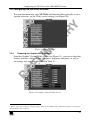
Configuring the VP-724xl via the OSD MENU Screens
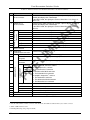
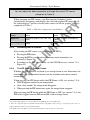
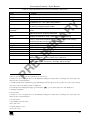
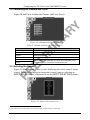
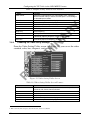
Table 7: Geometry Scale Functions
7.4.2
Function
Set the aspect ratio according to your specific requirements—the native resolution—that
is, depending on the specifications of the Plasma screen or projector:
1
When using a VGA, DVI and/or component video source, you can choose an aspect
2
3
ratio from the following: Full Screen, Native, 4:3 Output , and 16:9 Output .
When using a composite video source and/or an s-Video source and/or component
1
video source, you can choose an aspect ratio from the following: Normal, Wide Screen,
Pan4 & Scan, 4:3 Output2, and 16:9 Output3
IN
AR
Y
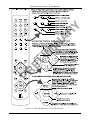
Button
Aspect Ratio
Adjusting the Zoom Ratio and Position
PR
EL
IM
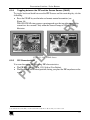
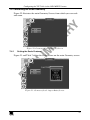
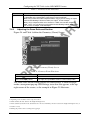
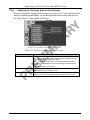
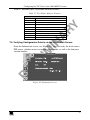
Figure 24 and Table 8 define the Geometry (Zoom) Screen.
Figure 24: Geometry (Zoom) Screen
Table 8: Geometry Zoom Functions
Button
Zoom Ratio
Function
Set between 100% – 400%
Zoom Position Adjustment
Press right, left, up and down arrows to set the Zoom position
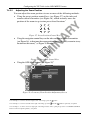
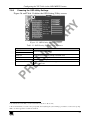
The zoom ratio and the zoom position are illustrated by a small rectangle
inside a transparent pop-up OSD Enlarge status box that appears at the top
right corner of the screen, as the example in Figure 25 illustrates:
1 Depending on the resolution of the component source
2 In this standard, the ratio between the length and height is 4:3
3 In this standard (a Cinema mode standard used for movies and DVDs), the ratio between the length and height is 16:9 (or
sometimes 1:2.35)
4 Panning the picture refers to resizing and cropping it
26
KRAMER: SIMPLE CREATIVE TECHNOLOGY