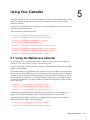
1
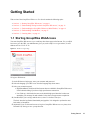
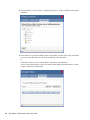
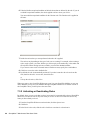
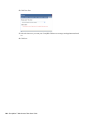
Your GroupWise WebAccess mailbox opens.
1.2 Understanding Timing Out from GroupWise
WebAccess
Specific actions, such as opening or sending an item, generate a call to the Web server. Other
actions, such as scrolling through items in the Item List, composing a message without sending it, or
reading Help topics, do not generate a call to the Web server. If, for a period of time, you leave
GroupWise WebAccess alone or perform actions that do not generate a call, WebAccess logs you
out. Doing so not only provides security for your e-mail but also ensures that the Web server and
GroupWise WebAccess run efficiently.
The timeout period is determined by your GroupWise system administrator. If you try to perform an
action after you have been logged out, you are prompted to log in again.
NOTE: You must authenticate correctly to be returned to your work after a timeout. If you haven’t
logged in correctly, the message you were composing might appear to be lost. Use the keyboard to
return to your saved message window (for example, Alt + Left-arrow key in Windows*).
1.3 Understanding the GroupWise WebAccess
Main Window
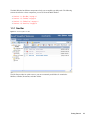
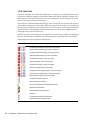
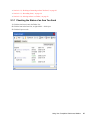
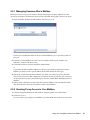
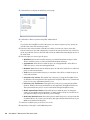
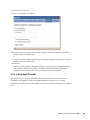
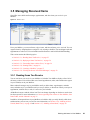
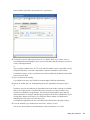
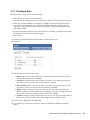
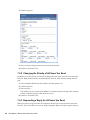
When you open GroupWise WebAccess, you see the Main Window, shown below. This is your main
work area in GroupWise. From the Main Window, you can read your messages, schedule
appointments, view your Calendar, manage contacts, and much more.
Figure 1-2 Main Window
12
GroupWise 7 WebAccess Client User Guide
novdocx (ENU) 10 August 2006
6 Click Login.