1
hypercyclic user guide
Page 21 of 28
Cubase 4.0.3 (Windows, Mac OSX)
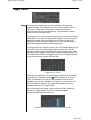
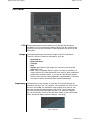
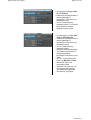
• copy hypercyclic.dll (or
hypercyclic.vst on OSX) into
your vst folder
• open Cubase
• select Empty as project type
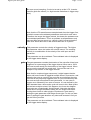
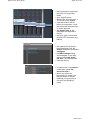
• hit F11 to bring up the VST
Instruments list
• add hypercyclic as first VST
instrument
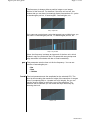
• answer create when asked
to associate a midi track with
this instrument
• add your synth of choice as
second VST instrument (e.g.
Halion)
• answer create when asked
to associate a midi track with
this instrument
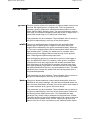
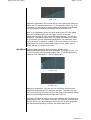
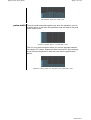
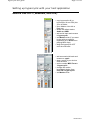
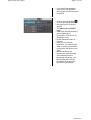
• In Cubase, click on the
second midi track, the one
that is associated with your
synth
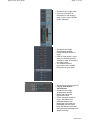
• click on the input symbol
for this track
• change it from All Midi
Inputs to hypercyclic
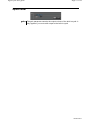
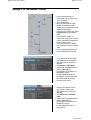
• still on this synth track, click
on the speaker symbol, and
make sure it's orange
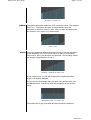
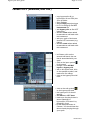
• click on the hypercyclic midi
track
• click on the edit symbol
on the hypercyclic track
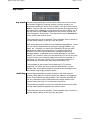
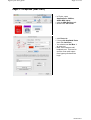
• the hypercyclic UI should
appear
• set midi to to VST host
• make sure the play button is
armed (flashing) in
hypercyclic (if not arm it by
pressing it once)
• hit the transport button in
Cubase. You should hear the
demo chords playing through
your synth
10/08/2013