1
Dialog in a Folder Level Script
Folder level scripts are sometimes used as light weight plug-ins, performing some complex task
that can be done with Acrobat JavaScript. Often you need this task to have some flexibility to it.
Dialogs make this flexibility possible, giving you a way to collect potentially complex
information from the user.
In the following example we’ll build a folder level script for flattening pages in a PDF document.
The script will be activated from a menu item. We’ll use a dialog to get a page range from the
user. The elements for this dialog are already on the User Element List, so building it is going
to be easy.
1.
2.
3.
4.
5.
6.
7.
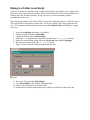
Activate AcroDialogs and create a new dialog.
Change the dialog’s name to FlattenDlg.
Change the dialog’s title to Flatten Pages.
Delete the view element, this action will also delete the static_text element.
Right click on the dialog design and select Paste from User List > PageRange.
Insert the new element above the ok_cancel button.
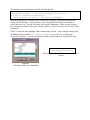
Figure 26 shows what the dialog design should look like.
Figure 26
8. Save it to a file, preferably FlattenDlg.js.
9. Copy FlattenDlg.js to the Acrobat Javascript folder.
10. Open it with your favorite JavaScript Editor.
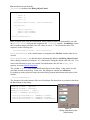
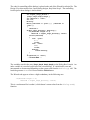
11. At the bottom of the file change the usage example to look like the following code.