1
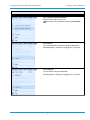
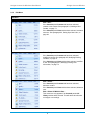
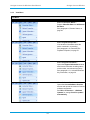
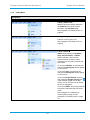
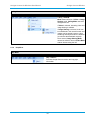
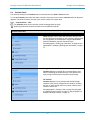
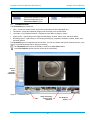
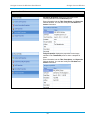
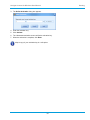
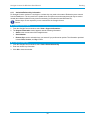
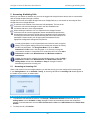
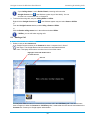
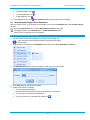
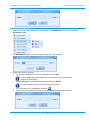
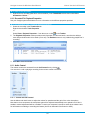
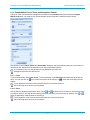
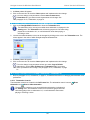
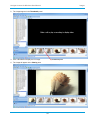
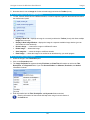
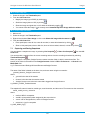
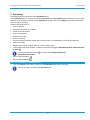
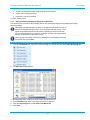
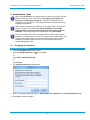
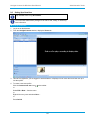
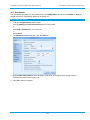
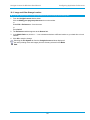
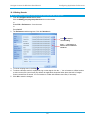
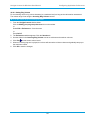
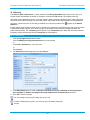
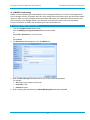
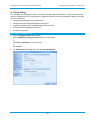
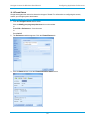
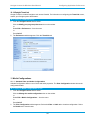
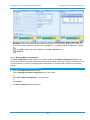
Onsight Connect for Windows User Manual Configuring Application Preferences 10.9 Image and Video Storage Location To set the default location for image snapshots and video recordings saved during calls: 1. From the Onsight Connect window either: Click the Modify your program preferences icon on the toolbar. or Select Edit > Preferences….from the menu. or Press Ctrl+P. 2. The Preferences window appears at the General tab. 3. In the Media Path area, click the ‘…’ icon to browse and select a different location on your hard drive or local network. 4. Click OK to save the change. Selecting the File System tab from the Onsight Connect window displays all the calls (including video and images) from the directory selected in the Media Path. 86