1
Reference: ASVGEO/GeoStore/DataDoors/UserManual
Issue: 3.20
Date: 20131812
Page | 13
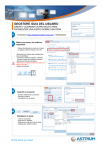
The Search for Scene IDs tool allows the user to search for either Pleiades IDs or
DataDoors footprint UIDs. You may upload a text file containing known scene IDs into
the Scene IDs Search panel that opens, or you can simply type directly into it. Click
OK to search.
Scene
IDs
Edit
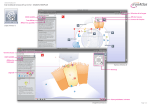
The Edit tool allows you to make changes to the AOI after it has been drawn. The size
or location can be modified, it can be rotated, vertices may be added/removed a by
clicking and dragging one of the AOI vertices.
Clear
The Clear button will clear an existing AOI from the map and remove search results
from the Results panel. This will also clear the contents of your cart
Criteria
The Criteria button will open the Search Criteria panel. These parameters can be set
to constrain the data your search will return and will dictate the results provided in the
Search Results window. They can be manipulated and refined, then saved to your
user profile and used each time you log into the system. For more information, visit the
Content Search Criteria section below.
4.2.1.1 Content Search Criteria: Filtering in DataDoors Web
DataDoors has a set of default criteria used to filter data returned from each search. These criteria are used
in conjunction with the AOI to determine the results provided in the Search Results panel. There are two
types of criteria to filter: attributes and products. The search criteria refine results by defining limits on specific
parameters and associated metadata fields.
A user can specify or improve information here prior to drawing or uploading an AOI and conducting a product
search. Additionally, a user can save these criteria to their user profile to be used each time a search is
conducted.
General
Use the General tab to refine or restrict the data attributes or content being returned based on
acquisition date and metadata such as resolution, Cloud cover, or incidence angle.
Acquisition
Range
The Acquisition Range can be chosen from one of three selections: Single
Range, Seasonal Range, or Disable. Choose one by clicking in the radio button.
Single Range
The dates for a single range are set by indicating the beginning and ending
dates. All dates between will be queried. Type dates into the fields or select
them using the calendar popup. The calendar is activated by clicking the
Calendar button next to either date field. You can navigate the calendar by
clicking on the header, quickly pulling out to month, year, and decade
levels. Just click on the desired time frame to zoom in again.
Seasonal Range
[email protected]
http://www.astrium-geo.com/geostore/