1
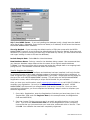
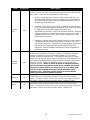
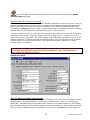
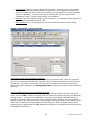
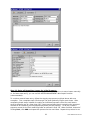
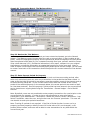
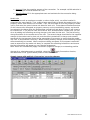
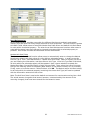
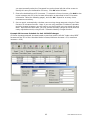
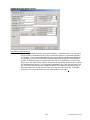
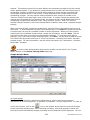
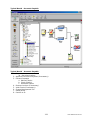
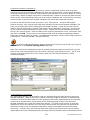
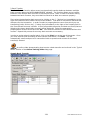
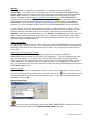
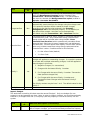
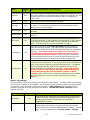
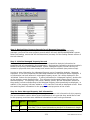
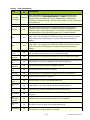
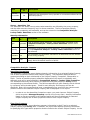
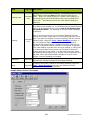
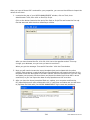
Review the information entered, and click Generate. A new check batch will then be created
containing payment entries for all of the selected vendors/invoices. This batch may then be
edited as needed, after which checks can be printed for the batch and/or the batch can be
posted to the Accounts Payable subledger. For additional information, see steps 3a. Manual
Checks, and 3b. Printing Checks.
2. By Portfolio
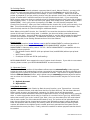
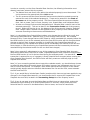
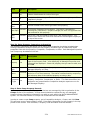
Generating Checks by Portfolio allows users to create a single batch containing checks from
multiple bank accounts. Note: Only MICR Bank Accounts will be included in this batch.
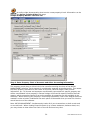
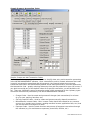
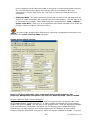
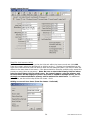
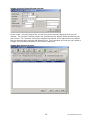
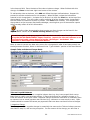
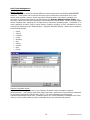
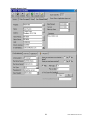
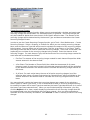
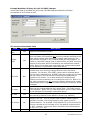
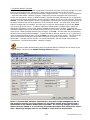
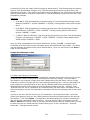
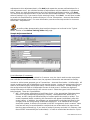
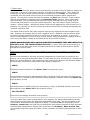
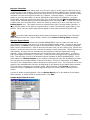
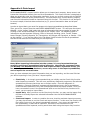
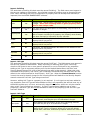
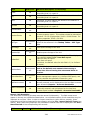
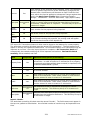
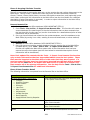
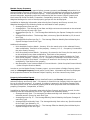
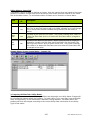
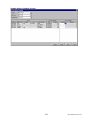
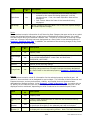
In order to Generate Checks by Portfolio, go to Transactions - Accounts Payable - Generate
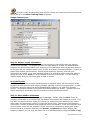
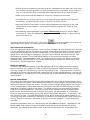
Checks. Click the 'By Portfolio' Tab and select the desired portfolio. Enter a transaction date
and Check date. Then choose to either Generate Checks for all approved invoices, or only those
due by a specific date. In order to generate checks only for invoices of a certain Invoice Type
(e.g. MORTGAGE), select that Invoice Type in the ‘Invoice Type’ field.
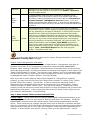
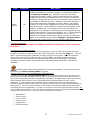
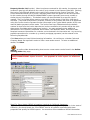
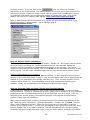
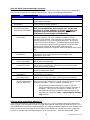
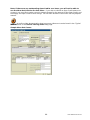
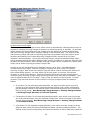
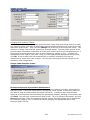
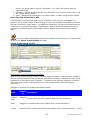
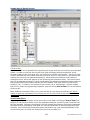
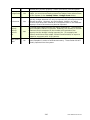
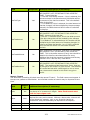
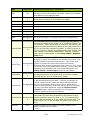
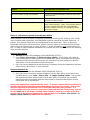
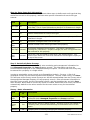
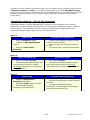
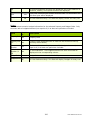
Users may choose between generation options in the Pay Items Box, If Funds or All Invoices. If
Funds, meaning only invoices that meet the selected generation criteria (date, vendor) will print
if funds are available in the linked bank account. Any invoices that would take the bank account
balance below the reserve amount will be retained for future check runs. Or All Invoices, where
all invoices are paid. Users will still be prompted with an option to continue if the reserve
amount will be depleted. Review the information that you have entered, and click Generate. A
new check batch will then be created containing payment entries for all of the qualifying
vendors/invoices, that are linked to properties in the selected portfolio. This batch may then be
edited as needed, after which checks can be printed for the batch and/or the batch can be
posted to the Accounts Payable subledger.
Note: For each bank account, the starting check number for the batch will default to the highest
check number previously entered into the system for that bank account plus one.
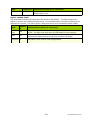
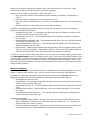
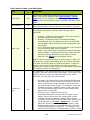
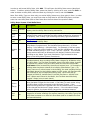
Generate Checks Notes:
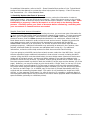
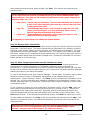
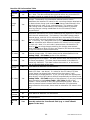
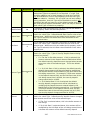
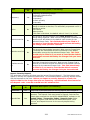
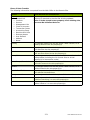
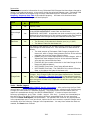
* If the total amount of checks being created would take a bank account below the minimum
balance entered on its Bank Record, or if one or more properties would drop below the
minimum balance entered on the Property - Bank Account tab of their property record, you
will receive a warning message prompting you with this information, asking you if you wish to
continue.
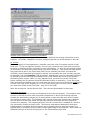
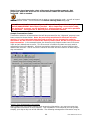
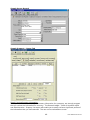
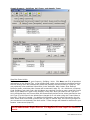
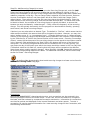
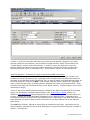
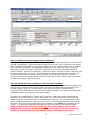
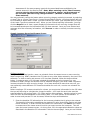
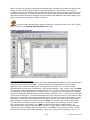
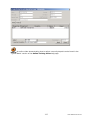
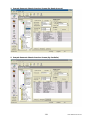
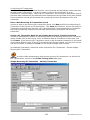
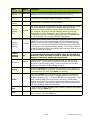
** If a payment entry has been entered and saved (but not posted) for an invoice, the total
amount due (excluding the saved amount) for that invoice will be displayed on the Generate
Checks Preview screen. After clicking on Generate, a payment entry will be created for the
total amount due minus any saved payment amounts for that invoice (in order to prevent
erroneous double-payment of invoices).
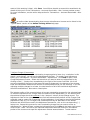
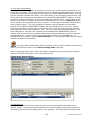
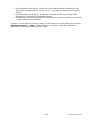
*** If the 'Hold Invoices' box is selected on a vendor record, invoices created for that vendor
must be approved using the Confirm Invoice Payment function before payment for those
invoices can be entered using the Generate Checks function.
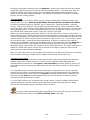
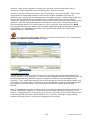
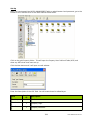
An online video demonstrating how to generate checks (by bank account) can be found
in the ‘Typical Month’ section of the Online Training Video help page.
129
User Manual Version 5.7