1
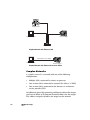
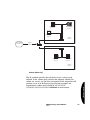
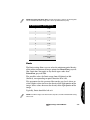
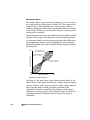
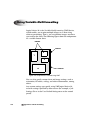
Imaging Device
Horizon Imager
View Workstation
Ethernet Hub
Ethernet Hub
View Workstation
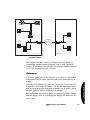
Gateway
Wide Area
Network
Gateway
Ethernet Hub
View Workstation
View Workstation
View Workstation
Local Area Network
Remote Network
Complex Network
For complex networks, there are advanced ways of setting up
networking schemes behind a firewall [such as NAT (Network
Address Translation)]. Consult with your network administrator to
see if your network has such a scheme.
Gateways
A gateway (sometimes also referred to as a router) is a device that
interconnects two or more networks and passes data from one to
another.
Network Settings
Note that each gateway on a network is treated as a host, and so is
assigned its own unique IP address. For the Horizon imager to be
able to accept print jobs from other networks, the IP address for its
network gateway must be defined in the imager.
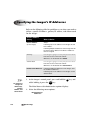
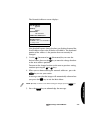
For information about how to define the gateway IP address for the
Horizon imager, refer to “Specifying the Imager’s IP Addresses” on
page 2-10.
Horizon Imager Technical Manual
2-3