1
Workspaces
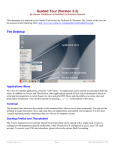
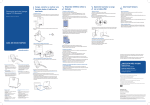
The operating system’s desktop is where you can arrange your application windows. With Xfce, you can arrange
you windows across four (by default) virtual desktops (also known as workspaces). Although you can only
work with one at a time, the applications on all workspaces remain running.
To switch between workspaces, you can click on the thumbnail images. Alternatively, you can scroll the mouse
wheel on an empty portion of the desktop. Even if you do not use the extra workspaces, make sure that you do
not accidentally switch to them as you work.
Focusing with the Mouse
With Windows, you indicate the active window by clicking within it. The window remains active until you
minimize it or select another window. However, with Xfce, the active window is the one that contains the mouse
pointer. If you move your mouse pointer to another window, the new window becomes the active one.
For example, if you want to type a command in a terminal, you must first position your mouse within its
window. If, as you type, your mouse pointer moves outside of the terminal window, the terminal will not
receive your keystrokes.
Simple Commands
Command: pwd
Example: pwd
Description: Displays the current directory (a.k.a. working directory). The same output can be seen a terminal
window’s title bar.
Command: man command
Example: man submit
Description: Displays the user manual for the passed command. The user manual details the type and number
of arguments required by the command, and lists all the available command options. To scroll through the user
manual, press the spacebar. To exit the user manual, simply press the Q-key.
Command: mkdir dirName Example: mkdir eChecks
Description: Creates a subdirectory with the passed name in the current directory. The example creates a
subdirectory called “eChecks”.
Command: cd dirName
Example 1: cd Example 2: cd ..
Example 3: cd mail
Description: Without any argument (Example 1), this command changes the working directory to your home
directory (equivalent to the “My Documents” folder in Windows). With the argument “..” (Example 2), this
command changes the working directory to the parent directory. If you provide the name of a subdirectory as an
argument (Example 3), this command changes the working directory to be that subdirectory (e.g., the
subdirectory called “mail”).
Command: ls dirName
Example 1: ls Example 2: ls mail Example 3: ls *.txt
Description: Lists the contents of the directory specified by the argument. Without any arguments (Example 1),
this command lists the visible contents of the working directory. If the argument is a directory name
(Example 2), this command lists the visible contents of that directory (e.g., the subdirectory called “mail”).
Example 3 lists all files in the current directory that have a “.txt” extension. You can use the “*” wildcard to
search for files that match a pattern. There are many options for this command, such as “-a” to show hidden
files and “-l” to show file and directory details. Enter the command man ls for further details.
Guided Tour (v.2)
Page 2
CSE 1020 M (2010-11 W)