1
functions
POWER
Using the Anynet+(HDMI-CEC) function
TV POWER
POWER
TV POWER
AUTO
SOURCE POWER SPEAKER TV SOURCE
SoundConnect
REPEAT
TV VOL
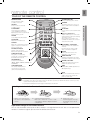
Anynet+ lets you to control other Samsung Devices with your Samsung TV's
remote control.
The Anynet+ function turns on and off each time you press Anynet+.
1.Connect the product to a Samsung TV with an the HDMI cable.
(See page 13)
2.Set the Anynet+ function on your TV and the Soundbar to ON. (See the
TV instruction manual for more information.)
TV CH
AUDIO SYNC
TV MUTE TV INFO TV PRE-CH TV EXIT
POWER
TV POWER
SOUND EFFECT
SMART VOLUME
AUTOVOL
SOURCE POWER SPEAKER TV SOURCE
S/W
LEVELREPEAT
MUTE
TV VOL
3D
D SOUND LIFT
TV
CH
VOL
SoundConnect
S/W
LEVEL
AUDIO SYNC
TONE
TV MUTE TV INFO TV PRE-CH TV EXIT
▪▪ Depending on your TV, certain HDMI output resolutions may not work.
▪▪ Please refer to the user’s manual of your TV and check for the
logo (If your TV has an
function.)
logo, then it supports the Anynet+
Using the TV functions (with Samsung TVs only)
• Press TV SOURCE on the remote control to change the TV's input source.
• Press TV INFO on the remote control to display the TV channel information.
• Press TV CH on the remote control to select the TV channel.
• Press TV VOL on the remote control to increase or decrease the volume
level.
• Use TV PRE-CH button to move to the previous TV channel in TV mode.
• To exit the TV menu, use the TV EXIT button. (It functions the same as the
EXIT button of the TV remote control.)
AH59-02612B
SOUND EFFECT
S/W
LEVEL
VOL
MUTE
SMART VOLUME
S/W
LEVEL
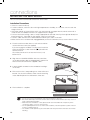
▪▪ When you press the SoundConnect button, the TV's sound is
transmitted through the Soundbar system via a Bluetooth
connection. The Soundbar also controls the sound volume, sound
quality, etc.
▪▪ The remote control can operate TVs made by SAMSUNG only.
SOFTWARE UPGRADE
3D
D SOUND LIFT
VOL
TONE
Samsung may offer upgrades for the Wireless Audio - Soundbar's system
firmware in the future.
If an upgrade isAH59-02612B
offered, you can upgrade the firmware by connecting a
USB drive with the firmware upgrade stored on it to the USB port on your
Soundbar.
Note that if there are multiple upgrade files, you must load them onto the
USB drive singly and use them to upgrade the firmware one at a time.
Please visit Samsung.com or contact the Samsung call center to receive
more information about downloading upgrade files.
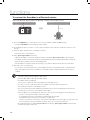
▪▪ Insert a USB drive containing the firmware upgrade into the USB port on the main unit.
▪▪ Do not disconnect the power or remove the USB drive while upgrades are being applied. The main unit will turn
off automatically after completing the firmware upgrade.
When software is upgraded, settings you have made will return to their default (factory) settings.
We recommend you write down your settings so that you can easily reset them after the upgrade.
▪▪ Once upgrading the product software is completed, turn off the product and then press and hold (@) button for a while
to reset the product.
▪▪ If the firmware fails to upgrade, we recommend formatting the USB device in FAT16 and trying again.
▪▪ For upgrading purposes, do not format the USB drive in NTFS format because it is not a supported file system.
▪▪ Depending on the manufacturer, some USB devices may not be supported.
22