1
Operational Instructions
Operational Instructions
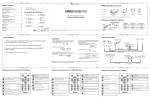
Dock Operation and Controls
POWER OFF
Press and hold the
shut off.
iPhone/iPod Device Playback
With SongPod turned on, press the PLAY/PAUSE button on the docking
station to begin playback.
Volume Controls
To increase or decrease the system volume, press the VOLUME + or - button
on the remote control or VOLUME + or - on the top panel of the docking
station. If the volume is less than the default level when SongPod is put into
standby, it will return to the default volume level upon powering back on. If the
volume is higher than the default level when SongPod is put into standby, it will
remain at that volume level upon powering back on.
SOUND Button (On Remote Control Only)
This button allows you to choose between the two available audio modes,
standard sound and virtual surround sound.
Button
Play/Pause
Press this button on the remote control to begin playback of your iPhone/iPod
device. Press again to pause playback.
(Forward)/Skip
(Back) Button (On Remote Control Only)
Skip
During playback press to skip forward or backward to the next or previous
track.
MENU Button (On Remote Control Only)
Press this button to access the menus on your iPod classic/nano and in the
iPod app on your iPhone/iPod touch. Pressing this button continuously will
navigate you through the different menu features on your iPhone/iPod device.
Up/Down Navigation Button (On Remote Control Only)
After pressing the MENU button to access the iPhone/iPod device Menu, press
the
buttons to move up or down within the Menu display.
ENTER Button (On Remote Control Only)
After highlighting your desired selection in the Menu, press the ENTER button
to choose that selection.
Page 14
button to power off the dock. The blue ambient light will
Note: All of these controls work the same with or without the myDock app installed.
Dock Operation with App
myDock App (iPhone & iPod Touch only)
SongPod is designed to work hand-in-hand with a
feature enhancing app. This app brings many new
features that work seamlessly with the dock, including:
-----
Digital FM radio controls
Clock & alarm
Music equalizer
Local weather
Download & Install
There are 2 ways to download & install the free app:
Option 1
-- Dock your iPhone/iPod touch into the docking station.
-- On your device’s screen you will see a prompt asking if you would like to
download the free app.
-- Press “Yes” on your iPhone/iPod device to be taken directly to the app
download screen in the Apple App Store.
-- Select the app, myDock, and continue to download and install.
Option 2
-- Turn on your iPhone/iPod touch and navigate to the App Store.
-- Tap the “Search” icon at the bottom of your screen and search for
“myDock”.
-- Open the myDock app page and tap the “Free” button in the upper right
side of the screen.
-- Tap “Install” and enter your App Store password to begin download and
installation.
Note: Your iPhone/iPod touch must be connected to the Internet to download the free
app.
Page 15