1
Ocularis Client User Manual
Alerts
Sorting Alerts
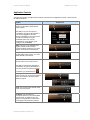
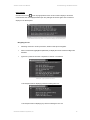
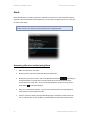
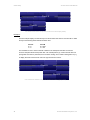
To locate alerts more easily, click the column heading to sort the list by that column.
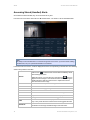
Viewing Alerts
To view video from a handled alert:
1.
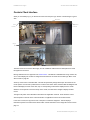
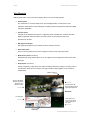
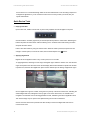
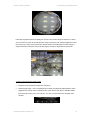
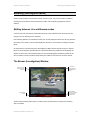
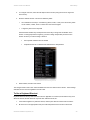
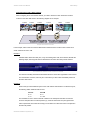
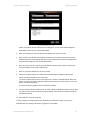
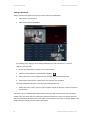
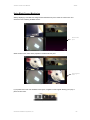
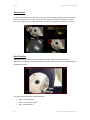
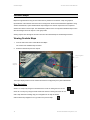
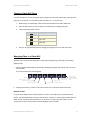
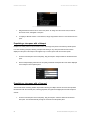
From the ‘Handled Alerts’ screen, click the thumbnail image of the alert you wish to view.
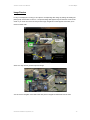
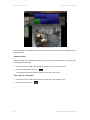
Browse mode is invoked and the upper left pane is populated with the recorded alert video.
2.
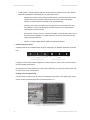
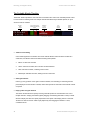
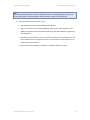
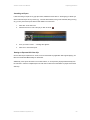
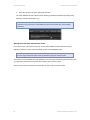
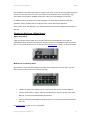
Use the Kinetic Timeline and its navigation controls to rewind or forward the video recorded at the time
of the alert.
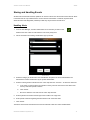
Exporting Alert Video
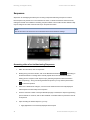
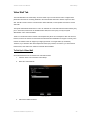
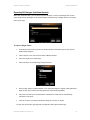
While viewing handled alerts, you may have a need to export the alert video. Just as you can export video to
.AVI format, database format or bookmarks while browsing, you can export video clips from a handled alert.
To export a video clip from alert video
1.
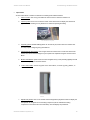
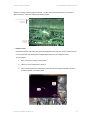
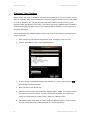
From the ‘Handled Alerts’ screen, click the thumbnail image of the alert you wish to view. You should
already be in ‘Browse’ mode.
2.
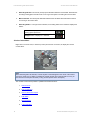
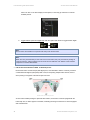
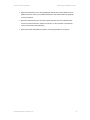
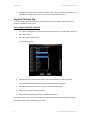
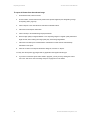
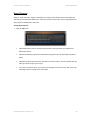
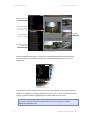
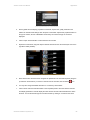
Use the Kinetic Timeline to set the start and end times for the video clip to be exported.
3.
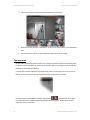
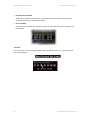
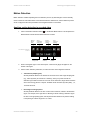
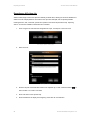
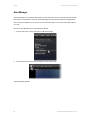
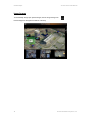
Click ‘Export’ from the main menu bar.
4.
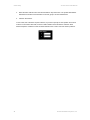
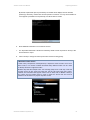
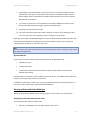
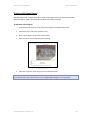
Choose your method of export from the resulting ‘Export Options’ box.
On-Net Surveillance Systems, Inc.
73