1
moving comments around in assembly language code.
One feature of the editor that enhances its capability as an assembly language development system
is the color-coding of labels, instructions, numbers, and comments. For this feature to work, the
file must first be saved with a .asm extension. When an assembly language statement is entered,
labels and instruction operands are automatically shown in the color yellow. Instructions are
always shown in white, numbers appear in light blue and comments are an off white color. This
is very helpful to a new programmer who may not be familiar with the complete instruction set.
If the instruction does not come out in white, the instruction has been entered incorrectly. In
addition to coloring the instruction white, the editor will display a synopsis of the instruction at
the bottom of the page showing the meaning of the instruction, all the addressing modes, and how
the condition code register can be affected by this instruction.
Assembling Code - Once the code has been written, selecting the menu item Assemble under the
RUN menu (RUN à Assemble) will assemble it. If there are no errors in the syntax of the code,
a small blue dot will appear in the far left-hand column of each line of the code containing an
instruction. If blue dots don’t appear, or if they stop in the middle of the program, there is
something wrong. The assembler will stop at the incorrect statement and highlight it.
Some unusual syntax errors are not detected, for example, the statement:
BHI #NEXT
will not be flagged as incorrect. Instead the assembler assumes the immediate symbol (#) should
not be there and makes correct machine code accordingly. Students are warned, however, that if
these errors are found in a submitted program the grader will not be so forgiving!
TUTE’s assembler generates a listing of the code and a table of labels. These can be found under
the Listing tab of the white pages. An S-record file, containing the program’s machine code and
corresponding addresses, is also generated.
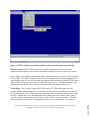
Connecting to the EVBU - Communications between TUTE and the EVBU board take place
over an RS232 serial communication channel. The connection process of selecting Runà
HC11à Buffaloà Connectà Comm1 is shown in Figure 4. The connection is then verified by
clicking the Comm tab in the white pages and pressing the enter key. The EVBU will respond by
sending a message to the Comm screen (usually a prompt, >).
Loading a Program - After assembling a program and opening a link to the EVBU, the next step
is to load the machine code generated by the assembler into the EVBU’s RAM. This is
accomplished by selecting the Runà Load menu options which cause TUTE to send an S-record
file to the EVBU .
Page 7.166.8
Proceedings of the 2002 American Society for Engineering Education Annual Conference & Exposition
Copyright Ó 2002, American Society for Engineering Education