1
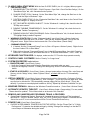
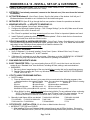
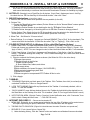
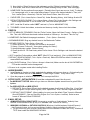
11. CLASSIC SHELL START MENU With the free CLASSIC SHELL (ver 4.1 or higher) Menu program:
a. CUSTOM SETTINGS:
1) ADVANCED BUTTON OPTIONS: (Click All Programs > Classic Shell > Classic Start Menu Settings). On the
“Start Menu Style” tab, click “Advanced button options...”.
2) CHANGE START ICON: If desired, On the “Start Menu Style” tab, change the Start Icon to the
“Shell” and the Style to Windows 7 style.
3) CONTROL PANEL STYLE: On the “Customize Start Menu” tab, scroll down to the Control Panel
entry and change it to “Display as a Link”.
4) SET “SKIP METRO SCREEN ON BOOT”: On the “Windows 8.1 settings” tab, check the box for
"
Skip metro screen"
5) DISABLE TASKBAR TRANSPARENCY: On the “Windows 8.1 settings” tab, check the box for
"
Disable Taskbar Transparency",
6) DISABLE HIGHLIGHT NEW PROGRAMS: On the “General Behavior” tab, Un-check the box for
"
Highlight Newly installed Programs”.
b. WINDOWS UPDATE ICON: Find the "Windows Update" Icon (Control Panel > Windows Update Icon).
Right-Click on the Icon and click “Pin to Start”. Then find the "Windows Update" Icon on the “All
Programs” menu. Right-Click on that Icon and click “Pin to Start Menu (Classic Shell)”.
c. COMMAND PROMPT ICON:
1) If desired, find the “Command Prompt” Icon in (Start > All Programs > Windows Systems). Right-click on
the Icon & select "Pin to Start Menu”.
2) Right-click on the new "Command Prompt" Icon in the All Programs Menu, then click (Properties >
Shortcut tab > "Advanced" button) and check the box for "
Run as Administrator", <OK>, <OK>. en",
12. KEYBOARD FUNCTION KEYS: On laptops, make sure the “Fn” Function keys operate correctly.
13. CONTROL PANEL CUSTOMIZE: Set the “View by” to “Large Icons”.
14. SYSTEM PROPERTIES optimizations:
a. COMPUTER NAME: (Control Panel < System).
Verify the Computer Name and Computer Description are exactly what you want.
Verify the Workgroup is correct: To change the Workgroup, click the "Advanced system settings"
button.
b. STARTUP & RECOVERY: (Control Panel > System > Advanced system settings > Advanced Tab > under Startup and
Recovery, click the "Settings" button). Under "System Failure", un-check the box for "
Restart".
Automatically
15. VIRTUAL MEMORY: (Control Panel > System > Advanced system settings > Advanced tab > Performance "Settings"
button > Advanced tab). Under "Virtual Memory", click <Change>. If you only have one hard drive, make
sure the box is checked for: " Automatically manage paging file size for all drives". (This is the
default). If you have a second physical hard-drive, see my "Speed Up Windows 8 checklist" for tips.
16. WINDOWS FIREWALL: Make sure the Windows Firewall is turned on. (Control Panel > Windows Firewall).
17. AUTOMATIC UPDATES, TURN OFF: (Control Panel > Windows Update > Change settings), For now, select
"Never check for updates". This will be turned on at the end of the Checklist.
18. REMOVE ANY UNNECESSARY PROGRAMS, TRIALS, & FEATURES:
a. (Control Panel > Programs and Features): Remove all unwanted programs including all Trial versions of
MICROSOFT OFFICE, McAfee, Norton, AOL, etc. NOTE: If you are going to migrate to Thunderbird Mail from
Outlook from an old PC, do not remove the Microsoft Office Trial until Thunderbird has been set up .
19. POWER PLAN: (Control Panel > Power Options)
a. CHOOSE A PRELIMINARY POWER PLAN FOR THE INSTALL: Set the "Power Plan" to "
High
Performance". Customize the detailed settings by clicking “Change Plan settings” so that the PC
never Sleeps or Hibernates during the install.
Page 2 of 10